Get Started With Scheduling in Toast Web
Last updated: Sep 30, 2026, 5:20 PM
Set up Scheduling in Toast Web, connect your locations, and assign system roles so managers can build schedules and employees can view them.
- Scheduling in Toast Web Introduction
- Before You Begin
- Set Up Scheduling in Toast Web
- Scheduling System Roles (Permissions)
- Scheduling Groups and Locations
- Connect or Upgrade Toast Web Locations With Sling
- Existing Sling and Toast Customers
- Existing Sling Customers New to Toast
- Related Articles
Scheduling in Toast Web Introduction
Scheduling lets you create shifts, manage time off, and maintain your company's schedule directly from Toast Web. Any actions you take in Scheduling are also reflected in Sling. Companies using Scheduling in Toast Web will receive complimentary access to their own Sling back-end which mirrors their Scheduling experience. Employees can use the MyToast app to manage their scheduling experience; however, there are no Scheduling functions in the Toast Now app.
Scheduling works well with Toast IQ. Once you've finished the Scheduling setup, visit the Scheduling and Toast IQ section of Manage Scheduling in Toast Web (for Employers) to see how Toast IQ can help you create and maintain your schedule. With Scheduling Pro, Toast IQ can even build your entire schedule.
Note: Toast Scheduling, Sling Scheduling, and Sling by Toast all refer to versions of the same product. The Scheduling tab inside Toast Web is one of the surfaces where you can use it; the Sling platform at getsling.com is the other.
Scheduling Basic vs. Scheduling Pro
Scheduling Basic is the basic version automatically included with all single-location Toast POS customer subscriptions. Scheduling Basic includes a variety of features that you compare to Scheduling Pro in Compare Scheduling Basic and Scheduling Pro.
In short, Scheduling Pro includes all features from Scheduling Basic plus five additional features:
- Employee shift swaps (a.k.a. shift trades or exchanges)
- Employee unavailability
- Revenue forecasting
- Auto-assign employees to open shifts
- Auto-scheduling with Toast IQ
- If you're interested in upgrading to Scheduling Pro, head to Toast Shop and search Scheduling Pro for more information and product availability. If you're ready to upgrade a location already using Scheduling Basic, navigate to Team > Scheduling and select the gear icon. At the bottom of the page, select the three dots for a location and choose Upgrade.
Additionally, some Sling features are not yet available in Scheduling Pro in Toast Web (schedule templates, time clock reports, labor cost budgeting, and shift tasks), so you'll need to log in to the Sling platform at getsling.com. You'll use your Toast Web email address and password to log into Sling.
Before You Begin
Applies to: Toast Web and Scheduling Basic or Scheduling Pro
Permissions needed:
- Toast Web permission 8.4 Manage Integrations: If you do not have this Toast Web permission and you navigate to Team > Scheduling in Toast Web, you will receive a pop-up notifying you of the missing permission and you will not be able to continue.
- Toast Web permission 3.X (any level 3 permission): This is required to view and complete the setup workflow.
- Anyone who needs access to manage Scheduling in Toast Web will need a Toast Web account as well. This includes employees who can manage their own schedules in the MyToast app. All Sling and Scheduling customers that have a Toast account have access to both the Sling app and the MyToast app.
Both Toast Web and Sling must be set up with the same email address to sync properly.
What you'll accomplish: View, build, edit, and publish your team's schedule from Toast Web instead of opening the Sling platform separately.
Set Up Scheduling in Toast Web
These steps will guide you through the initial setup of Scheduling in Toast Web. If your company already uses Sling, check out Existing Sling and Toast Customers.
- A user with the correct Toast Web permissions can navigate to Team > Scheduling in Toast Web.
- A very small group of users will have finished the setup at this point. Those users include those who have already integrated Sling with Toast Web and have also verified their email in Toast Web or Toast Payroll. Skip to step 7 below.
- If you have the correct permissions, a welcome screen appears. The screen depends on how many Toast Web locations you have:
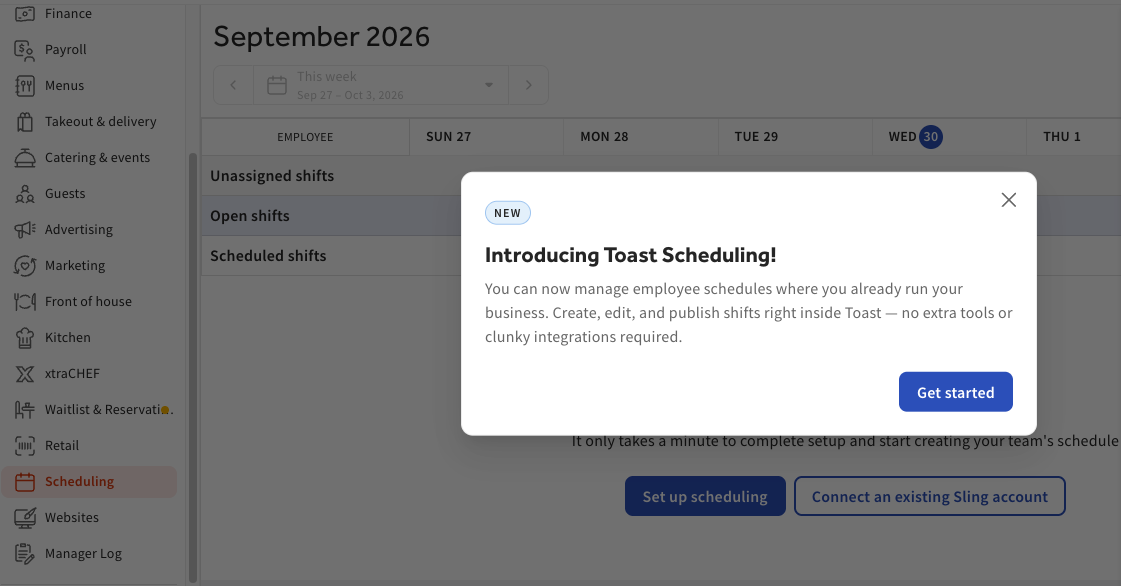
- One location: The Introducing Toast Scheduling! pop-up appears. Select Get started.
- Multiple locations: The Employee scheduling made easy screen appears. Select Get started.
- Another very small group of users will finish the setup at this point. Those users will have already verified their email address, but have not integrated Sling with their location yet. Skip to step 7 below.
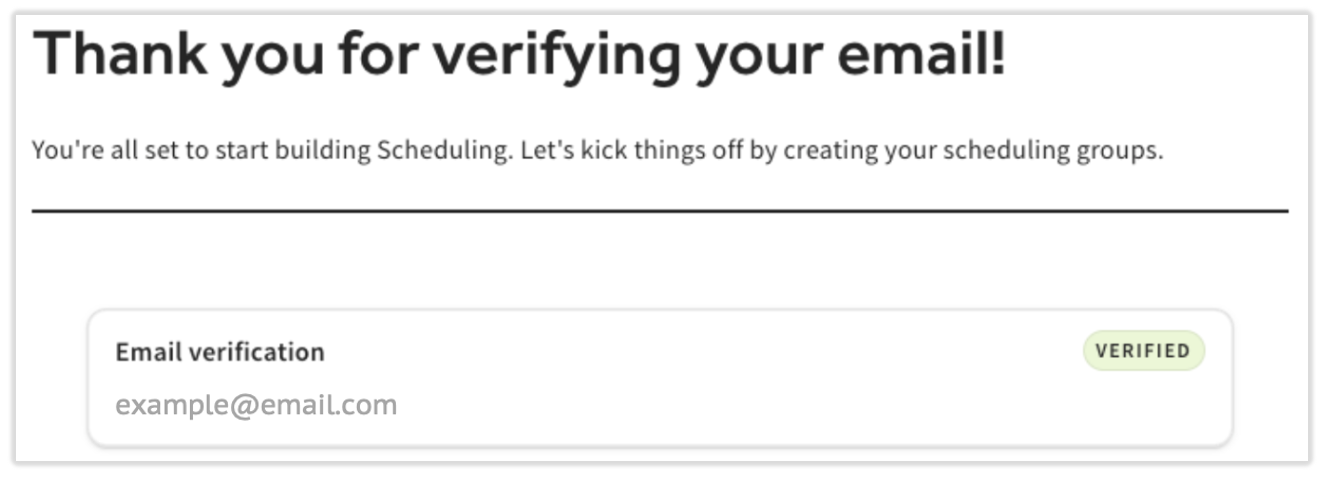
- The wizard will guide you to verify your email address. Select Send email and navigate to your email inbox.
- If your email address is incorrect, you can update your email on file. See Log in to Toast: Update Your Account.
- Look for the email titled Verify your email address from noreply@toasttab.com. Select the Verify Email button in the email and return to your Toast Web browser window.
- Select Start scheduling at the bottom of the page to return to the Full schedule view in Scheduling.
- At this point, there are a couple different paths. Does your company already have a Sling account?
- If you do already have a Sling account:
- Have you already integrated it into Toast?
- If you did already integrate, you will see the Full schedule view filled out with your current scheduling information that was synced over from Sling.
- If you did not already integrate, select the locations you'd like to select the locations you'd like to connect to Scheduling. Read Sling by Toast: Multi-Location Account vs. Separate Sling Accounts to help decide if you want a single account for multiple locations or separate accounts per location. Once your Sling database is set up, return to Toast Web and navigate to Team > Scheduling. If the page suggests to come back in a few moments, this behind-the-scenes work will be complete within 15 minutes.
- Have you already integrated it into Toast?
- If you do not yet have a Sling account:
- Do you have just one or multiple locations in Toast? (In this context, "location" refers to the different Toast Web accounts you have)
- If you have a single Toast Web location, Toast will sync your information from Sling. This may take up to 15 minutes depending on the amount of information that needs to sync. You'll see a message that indicates Toast is working on it; feel free to navigate away from the page if you need to since it will work in the background.
- If you have multiple Toast Web locations, select the locations you'd like to select the locations you'd like to connect to Scheduling. Read Sling by Toast: Multi-Location Account vs. Separate Sling Accounts to help decide if you want a single account for multiple locations or separate accounts per location. Once your Sling database is set up, return to Toast Web and navigate to Team > Scheduling. If the page suggests to come back in a few moments, this behind-the-scenes work will be complete within 15 minutes.
- Do you have just one or multiple locations in Toast? (In this context, "location" refers to the different Toast Web accounts you have)
- If you do already have a Sling account:
- Once these steps are complete, you'll see the Full schedule view with any existing schedules in Sling synced over to Scheduling in Toast Web. Your next step might be to invite your employees to create an account so they can see and manage their schedules in the MyToast app (and the Sling app, but the MyToast app has much more functionality for employees of Toast restaurants).
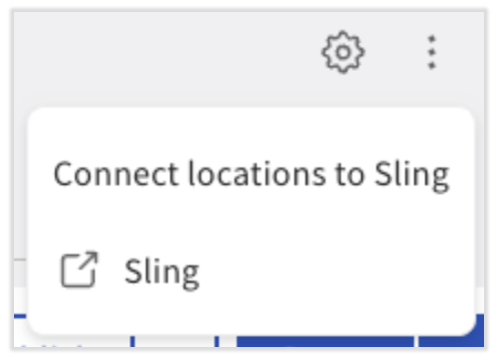
- 15 minutes after you've completed the above steps, you can log into the Sling back-end. From the Full schedule view, in the upper-right corner, navigate to the three dot menu > Sling. Your Toast Web login credentials (email and password) will also be used for Sling.
- We recommend continuing with the steps in Set Up Your Employees for Scheduling below.
Set Up Your Employees for Scheduling
Employees can use Manage Scheduling in the MyToast App (for Employees) as a guide for all the Scheduling features available to them. Note: There is no desktop version of access for Scheduling. The MyToast app is the only way for employees to see their schedule, so if an employee at your company doesn’t have an email address and a mobile device for the MyToast app, they won't have access to their schedule directly.
Employer Steps
- Note: Many of these steps may already be complete.
- If your employee already has the MyToast app, they do not need to be invited or set up their account; they will be able to see their schedule as soon as you post it.
- If an employee was hired via Toast Payroll, they will already have an account (and may also have the MyToast app too).
- To save time, it might be best to confirm which employees already have the MyToast app or have an account and then invite the remaining employees. Employees who only have an active account can begin on step 4 of the Employee steps below.
- In Toast Web, navigate to Team > Employees.
- Select an employee's hyperlinked last name.
- Invite employees to create a Toast account by selecting Invite to create account.
- Confirm the user’s email address and phone number or make changes if necessary. A phone number is optional.
- Select Save and invite.
- Repeat as necessary for each applicable employee.
Employee Steps
- These steps are also outlined in Manage Scheduling in the MyToast App (for Employees) along with the ways an employee can interact with their schedule..
- You will have received an email invitation with a subject line of Activate your Toast account. In this email, select the Set up your account link to begin.
- On this page, set your password and type it again to confirm it.
- Now that you have a Toast account with a valid email and password, download the MyToast app on your mobile device. Use the QR code below to open the Apple App Store or the Google Play Store and download the app.
- When you open the app, select Log in.
- Enter your email address and password.
- You will be sent another email as a second verification. The subject line is Verify your email address. Select Verify email here and the app will immediately update to show you now have access.

Scheduling System Roles (Permissions)
Permissions for Scheduling/Sling are known as system roles. Scheduling system roles are different than Toast Web permissions. The system roles in Toast Web mirror the system roles in the Sling platform and vice-versa. Once a system role is set on a individual's profile, it applies to every location in that Toast Web back-end.
To complete the onboarding setup for Scheduling and create a new location, a user must have Toast Web permission 8.4 Manage Integrations and a 3.X Manager permission. The user who completes this onboarding setup (in Sling or Toast Web) will automatically be assigned the Admin Scheduling system role.
There are three system roles (permission levels) for Scheduling in Toast Web:
- Admin: The highest level of access. These users can create shifts, publish schedules, manage company settings, and set a system role for all other users. They have access to the entire Scheduling feature across all locations. Admins can also edit other Admin profiles. Admins must have permission 8.4 Manage Integrations to take action in Scheduling.
- Manager: These users can also create shifts and approve shift swaps and time off, but only for the locations they're assigned to in their own profiles. However, they can edit profiles to assign employees to their location. Managers cannot edit other users' system roles. Managers must have permission 8.4 Manage Integrations to take action in Scheduling.
- Employee: The default system role. These users can view available shifts plus their own schedule (and other employee schedules if your company settings allow this) in the MyToast app. They do not have access to Scheduling in Toast Web.
- Even if a user with the Employee system role has permission 8.4 Manage Integrations, they will be unable to view the Scheduling page in the Team menu of Toast Web. The Scheduling system role overrides the Toast Web permission in this case.
- Every user on the Employees page in Toast Web (Team > Employees) will have a system role assigned to them once Scheduling setup is complete. System role updates made in Scheduling or the Sling back-end will sync to the other system within 15 minutes.
If you're already a Sling user, your company will already have an Admin and other Scheduling system roles assigned in Sling; these will sync to Toast Web after Scheduling onboarding. System roles and location assignments will determine what the user can see and do. If you're not already a Sling user, once onboarding is complete, everyone without a system role will automatically inherit the Employee system role. Once an Admin system role is set, they can assign or update any other user's Scheduling system roles.
Assign or Update a User's Scheduling System Role
In this specific case, you don't need the Toast Web permission 8.2 Manage Permissions to update a user's Scheduling system role, but you must have the Admin system role yourself.
- This can only be done after the Scheduling setup workflow is complete.
- In Toast Web, navigate to Team > Employees.
- Select the edit pencil for an employee to reach the Jobs & Pay tab directly.
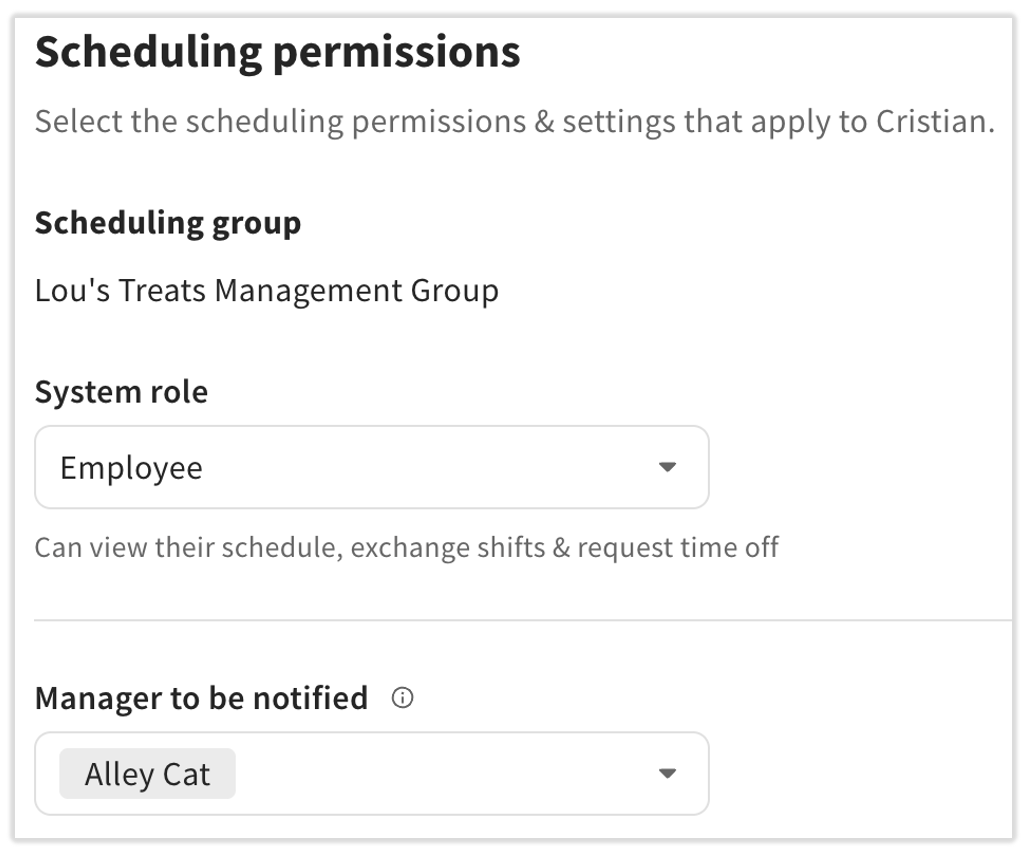
- Select Scheduling permissions on the left side of the page. If you do not see Scheduling permissions, this employee may have been recently added and Scheduling in Toast Web needs 15 minutes to sync to Sling, so come back after that time.
- Edit the System role field.
- If a user's system role is set to Employee, you might also set the Manager to be notified field to the individual that should receive emailed Scheduling notifications from this user. If a user's system role is set to Manager, you will only see Admins in the Manager to be notified field. If you're on a profile with the Admin role, you will not be able to select a user for this field. Review Manager to Be Notified Field see more.
- If a user's system role is set to Employee, you might also set the Manager to be notified field to the individual that should receive emailed Scheduling notifications from this user. If a user's system role is set to Manager, you will only see Admins in the Manager to be notified field. If you're on a profile with the Admin role, you will not be able to select a user for this field. Review Manager to Be Notified Field see more.
- Select Save when complete.
- Any users upgraded from Employee to Manager or Admin in this way will not need to go through the onboarding process, but they will be asked to verify their email when they first navigate to Team > Scheduling in Toast Web. They should find the email titled Verify your email address and select Verify Email to continue using Scheduling. If they don't verify their email this way, they will be asked to do it manually the first time they navigate to Team > Scheduling in Toast Web.
Note: This can also be done in the Sling back-end by navigating to Employees > select the employee > Work > System role. See Sling by Toast: System Roles for more details.
Back to top
Manager to Be Notified Field
The Manager to be notified field controls which user gets an email notification when the employee:
- Picks up an open shift
- Confirms a shift swap
- Requests time off
- Updates their unavailability
- Makes changes to their schedule
The Manager to be notified can be any user with the Manager or Admin system role; it does not rely on jobs assigned in Toast Web. Managers to be notified are not available for Admin profiles and only Admins are available for selection on Manager profiles. Note: If a name is not selected here, email notifications will be sent to all location managers in this scheduling group, so you may wish to set this field after onboarding setup or while inviting your employees to create an account.
Scheduling Groups and Locations
Sling and Scheduling in Toast Web use the terms scheduling group and location, but these may be different than the way you use these terms.
- Location: A group of users who get scheduled together. This can align to a physical business location (Chicago, Boston, etc.) or a group of individuals (salaried employees might use their own location).
- When a user first completes the onboarding wizard for Scheduling in Toast Web, they automatically create a scheduling group. If you have multiple Toast Web locations, you choose which locations to connect. You can connect all of them to one scheduling group, or connect a location to its own scheduling group so its schedule and employees stay separate from your other locations.
- Locations can be created in Sling (not in Toast Web) at the Admin's discretion. This would be a location that does not have a Toast Web counterpart.
- If a location was created in Sling, you can archive it In Sling, navigate to Locations, find the location you want to archive, and select the three dots > Archive Location.
- If a location was created in Toast Web, it cannot be deleted since it was created prior to the sync with Sling. However, you can use the filters on the Full schedule view of Scheduling to remove it from your view.
- Scheduling group: Also known as an org in Sling, a scheduling group contains one or more locations, similar to how the term restaurant group is used in Toast Web or how company code is used in Toast Payroll. A user might have access to more than one scheduling group if they are present at more than one location.
- Admins can create scheduling groups in Sling (not in Toast Web).
- If you'd like to move a location to a different scheduling group, contact Toast Customer Care.
- In Sling, a user can select which scheduling group they're viewing in the upper-right corner of the back-end. The one in blue is the one they're currently viewing.
- If an individual does not have Toast Web access to all locations within a scheduling group, they will receive view-only access to the schedule for that location. They will not receive Manager to be notified emails nor will they be able to change the system role for employees of that location.
If you need to edit the locations within one or more scheduling groups (i.e. you want to move a location from one scheduling group to another), contact Customer Care. If you'd like to remove a scheduling group entirely, contact Toast Customer Care.
Connect or Upgrade Toast Web Locations With Sling
You can view which Toast Web locations are connected to Scheduling from your Scheduling settings. Navigate to Team > Scheduling > gear icon > My Locations > Manage my scheduling locations. You'll see each Toast Web location, the scheduling group it belongs to, and whether it's signed up for Scheduling Basic or Scheduling Pro.
- Any locations here with a status of Connected are syncing data between Toast Web and Sling (don't forget, using Scheduling creates a complimentary Sling back-end account that you can choose to use anytime).
- Select the three dots to the right of this location to either Upgrade or Disconnect this location.
- Upgrade will bring you to Toast Shop where you can advance your subscription to Scheduling Pro.
- Disconnect will remove the Scheduling features from this location in Toast. If you disconnect all locations, you will need to onboard to Scheduling again.
- Select the three dots to the right of this location to either Upgrade or Disconnect this location.
- If a location has a status of Disconnected and you'd like to begin using Scheduling at that location, select the three dots next to it and choose Connect.
For step-by-step instructions on connecting new locations, see the Connect an Existing Sling Account section of Create and Sync Your Sling by Toast Account. If you still need to create your Sling account, see the Connect a New Sling Account section of the same article.
Existing Sling and Toast Customers
Existing Sling and Toast customers can use the scheduling features in either platform. To quickly navigate from Scheduling in Toast Web to the Sling platform, select the three dots in the upper-right corner and choose Sling. When you use the Sling platform for a location connected to Toast, a banner at the top of the schedule links to Scheduling in Toast Web. Select the link in the banner to switch back to Scheduling.
For employees to manage their schedules via the new Toast Web Scheduling experience, employers should create Toast Web accounts for each employee so they can access the MyToast app. Among several other employee features, the MyToast app is the employee's portal into viewing their schedule, requesting time off, making shift swaps, and more.
Existing Sling Customers New to Toast
Existing Sling customers who are new to Toast can continue to use the Sling platform and Sling app, but can also migrate over to using Scheduling and the MyToast app if they like. Both platforms will function identically and will sync data between the two within 15 minutes of the action taken. In this case, Scheduling onboarding in Toast Web only requires a user to have Toast Web permission 8.4 Manage Integrations; they should also have the Admin system role in Sling.
You might even choose to integrate Sling with your Toast Web back-end, but disregard using the Scheduling features in Toast Web. Doing so will allow your employees to clock in and out on a Toast POS and this information will sync to Sling.
If you do choose to migrate to Scheduling, we highly recommend creating accounts for your employees in Toast Web so they can manage their schedules in the MyToast app. This consists of beginning a Toast Web account for them, employees accepting the invite, and downloading and logging in to the MyToast app. Your employees can access their schedules via Sling, the Sling app, and, if you integrated Sling and Scheduling, the MyToast app.
Related Articles
- Compare Scheduling Basic and Scheduling Pro
- Manage Scheduling in Toast Web (for Employers)
- Manage Scheduling in the MyToast App (for Employees)
- Get Help With Scheduling in Toast Web