Get Started With the MyToast App
Last updated: Aug 10, 2026, 11:07 AM
The MyToast app is a hub for employees of Toast restaurants. It can be used for several different purposes. Get started with installing the app and logging in here.
| Learn about all the features and how to use the MyToast app by viewing the articles in the Additional Resources section. |
- MyToast App Intro Video
- Get the MyToast App
- Log Into the MyToast App for the First Time
- Log Into the MyToast App
- Troubleshoot MyToast Login Issues
- Manager Invites
- Additional Resources
MyToast App Intro Video
At this time, the MyToast app is only available to U.S. customers, but this may change in the future. All Toast customers and their employees have access to MyToast; Toast Payroll or other Toast products and subscriptions are not required.
Get the MyToast App
The MyToast app can be used on both iPhone and Android devices which meet the operating system (OS) requirements: Apple devices must have iOS 16.0 or later installed and Android devices must have Android 11 or later installed. Select the links to learn how to check your smartphone's OS version.
- Use the QR code above to be taken to the MyToast app in either OS.
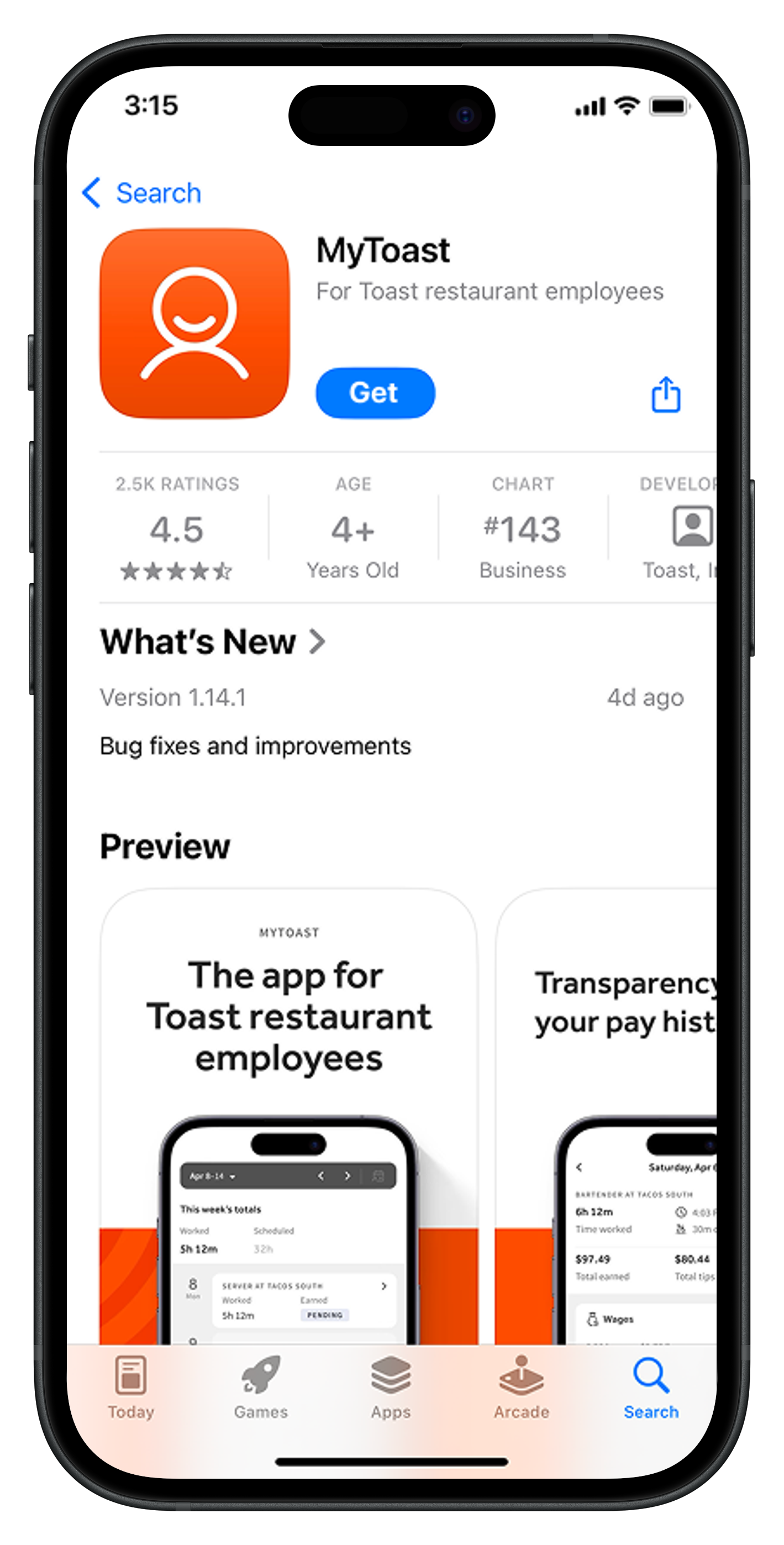
- If you'd rather not use the QR code, open the App Store on an iPhone or iPad OR open the Google Play Store on an Android device. Then search for "MyToast" with no space between the words.
- Download the MyToast app (not the Toast Local app or the Toast Now app).
Log Into the MyToast App for the First Time
Once the app has been installed, there are three paths you could take:
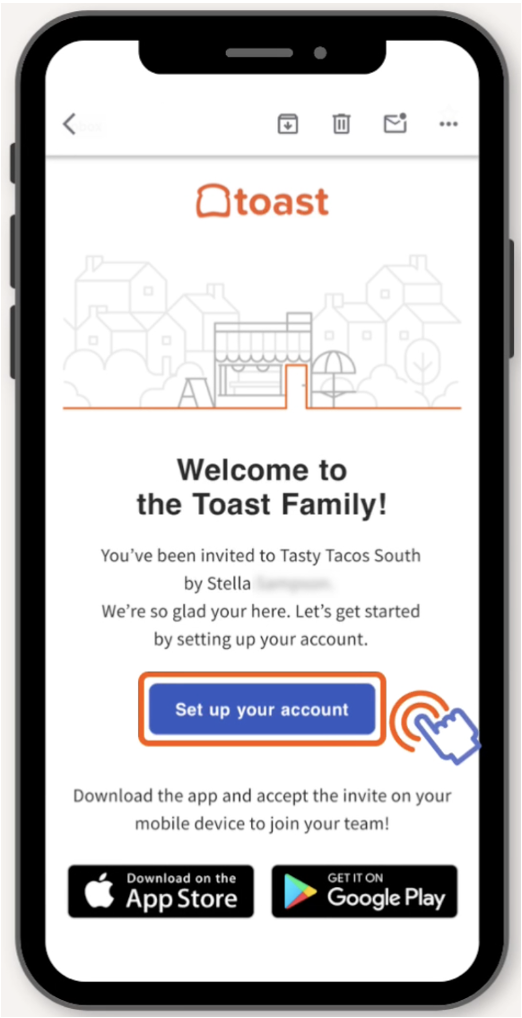
- If your employer sent you an email invite to join your team in the MyToast app, follow the Received an Invite steps.
- If you have not received an invite, follow the No Invite steps.
- If you already have a Toast account, follow the steps in Log Into the MyToast App.
Received an Invite
- Open the email with the invite from your employer. Select the link to Set up your account.
- This will open the My account page where you can set your password.
- Once you have an account with a password, open the MyToast app and select Log in.
- Enter your email address and select Continue.
- Now enter your password and select Continue.
- If you'd like, you can select Continue on the Log In Faster on This Device screen. This will give the app access to use your fingerprint or face recognition to log you in. If you do not wish to use a fingerprint or face recognition to log in, select Not on this device.
- You can now begin using the app. Check out how each tab works by reading articles linked in the Additional Resources section below.
No Invite
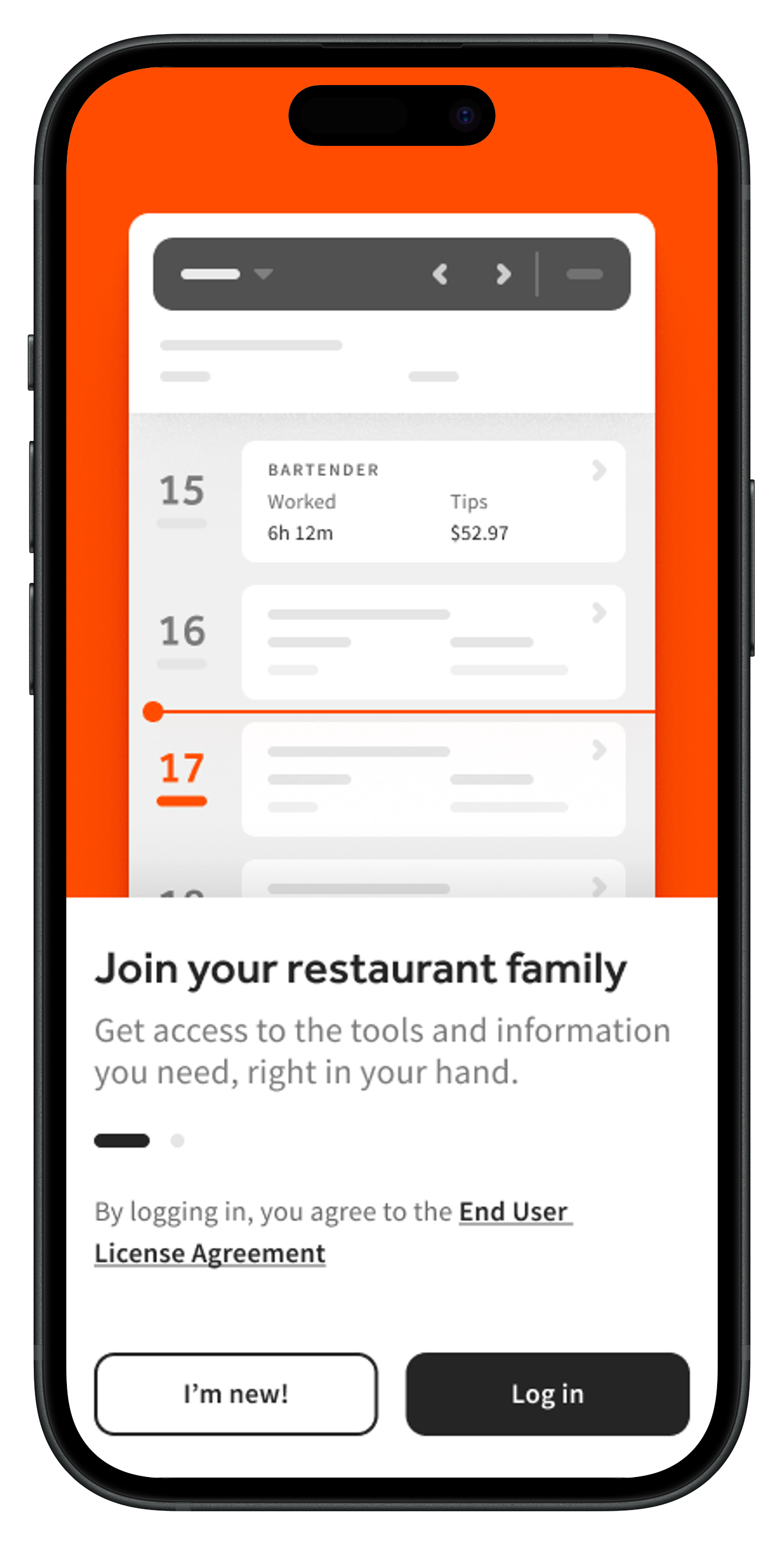
- Open the MyToast app on your device.
- Select I'm new!.
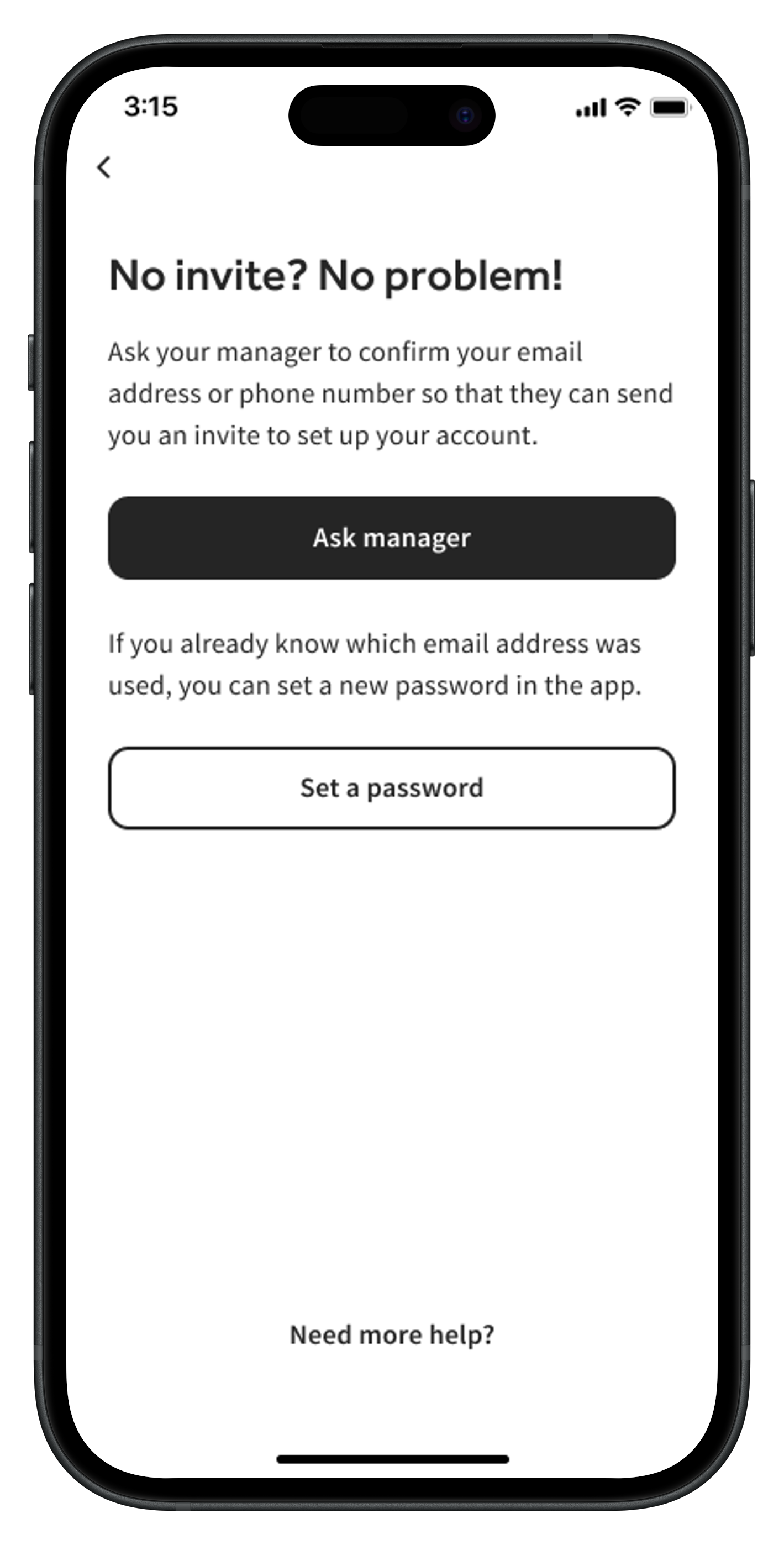
- There are three different paths here:
- If you already have an email address associated with your Toast Web profile, select Set your password to complete your account setup and allow you to log in successfully.
- If your Toast Web profile does not yet have an email address or password yet, select Ask manager to send them a message on how to get you started on the MyToast app.
- If you select Need more help?, you can find more instructions on setting your email or password within the app or even ask your manager for help there too.
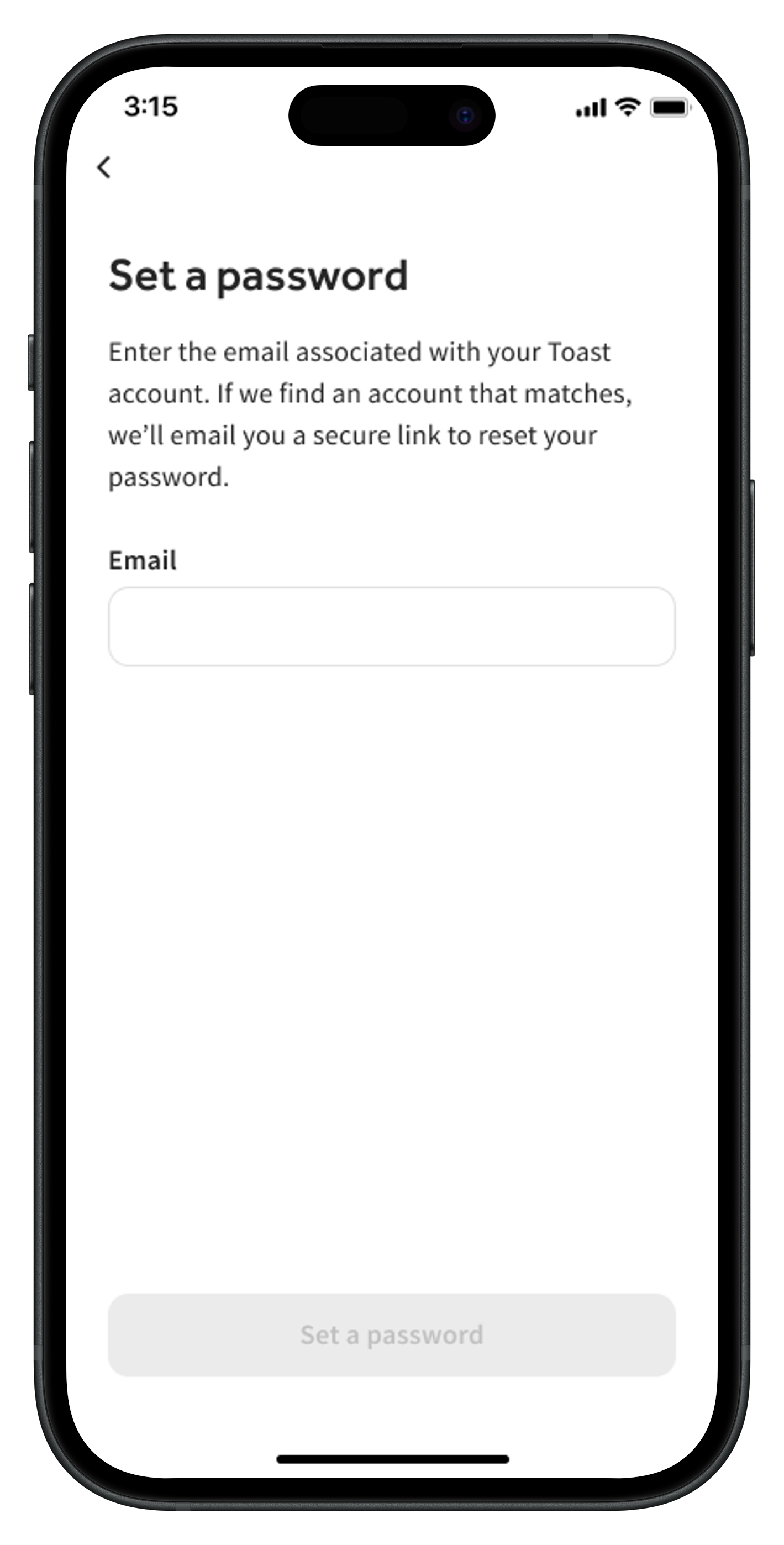
- Once you have an email address associated with your Toast Web account, select Set a password. First enter the email address associated with your Toast Web account. Then set your password and you'll be sent an email.
- If you do not receive an email and you've double-checked your Junk/Spam filters, you will need help from a manager to verify/update your email address. You can send your manager instructions on how to do this by tapping the Ask manager button on the previous screen. If you are a manager, tap Need more help? at the bottom of the screen and then tap I'm a manager.
- If you do not receive an email and you've double-checked your Junk/Spam filters, you will need help from a manager to verify/update your email address. You can send your manager instructions on how to do this by tapping the Ask manager button on the previous screen. If you are a manager, tap Need more help? at the bottom of the screen and then tap I'm a manager.
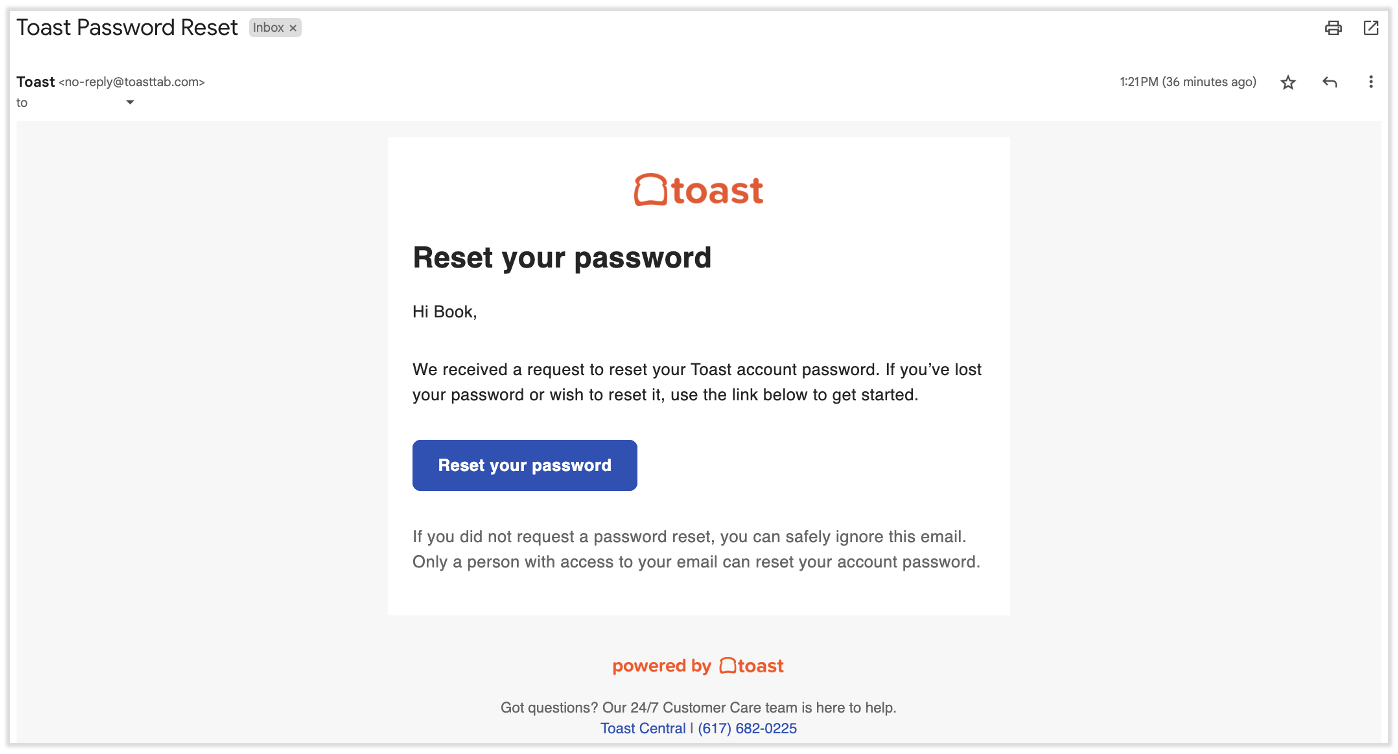
- Check your email inbox and locate an email with the subject line Toast Password Reset. Use the Reset your password link in the email to set your MyToast app password.
- Set your password. It must be at least seven characters in length and contain at least one letter and one number. Spaces are not allowed. Select Update password to save it.
- Now return to the MyToast app on your mobile device to log in.
- You can now begin using the app. Check out how each tab works by reading articles linked in the Additional Resources section below.
Log Into the MyToast App
- Open the MyToast app and select Log in.
- Enter your email address and select Continue.
- The page may reload and suggest that you can use face recognition or your fingerprint to log in. If you'd like to do so, select Continue. Otherwise, select Use password.
- If you select Continue, use the login method of your choice.
- If you select Use password, enter your password and select Continue.
- If you have an enterprise account and you'll use SSO login, select Or log in with SSO and enter your organizations name to continue. See Get Started With Single Sign On Login With Toast if you have questions.
- The app will reload and you'll land on the Home tab. Check out how each tab works by reading articles linked in the Additional Resources section below.
Troubleshoot MyToast Login Issues
Forgot Email Address
A manager or admin at your company can pull up your employee profile in Toast Web to find your email address on-file. They can read Locate Email Addresses for MyToast Login to learn the steps of this process.
Forgot Password
If you've forgotten your password to log into the MyToast app, you'll begin by selecting Log in, then entering your email address. After selecting Continue, select Reset password on the next screen. You'll receive a reset email; follow the steps in the email, close the app, and try logging in again from a fresh start.
If selecting Reset password returns an error, ask your manager to resend the invite link. Once you select the Log in link in the invite, you can reset your password.
Other Login Issues
There are other, less common issues or errors you might run into while trying to log in to the MyToast app. The best resource for this is Log in to Toast: Troubleshoot Login. If you've read through this article and you still can't log in, contact your manager who can contact Toast on your behalf.
Manager Invites
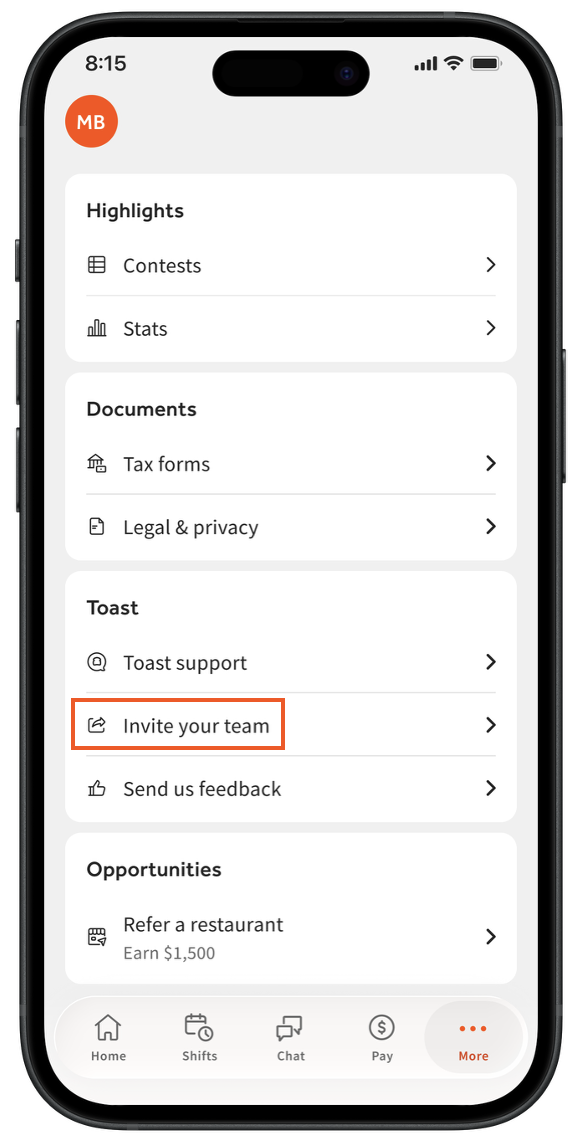
- Users with manager permissions in Toast Web can easily invite users to join the MyToast app. Navigate to More > Invite your team.
- From here, select how you’d like to send this invite. Different devices and operating systems have different options, but you can typically send a message directly to your contacts via email, SMS text message, or a link through other platforms. Toast cannot invite users to the app on your behalf.
- The invite contains a link to download the MyToast app from both the Apple App Store and the Google Play Store. Once the employee downloads the app, they can follow the steps in the No Invite section of this article to begin using the app. If the employee already has a Toast account (email address and password), they can follow the steps in the Log Into the MyToast App section of this article.