The MyToast App: More
Last updated: Aug 7, 2026, 2:46 PM
There are additional MyToast features in the More tab. Read this article to discover how they work.
- More Tab
- Initials Bubble
- Schedule Options
- Highlights Options
- Documents Options
- Toast Options
- Opportunities
- Additional Resources
More Tab
The last tab in the MyToast app is the More tab. Every user has access to this tab. However, some of the features here are limited to restaurants that use specific Toast products. For instance, if your company does not use Toast Scheduling, you will not see the Schedule section. If your company doesn't use Toast Payroll, you won't see the Tax forms option. Check with your employer if you aren't sure why you're not seeing a specific feature.
Initials Bubble
Select the bubble with your initials in the upper-left corner of the More tab. There are three options here:
Contact info: This displays your name and email address. If you want to change your email address, you'll need to log into Toast Web. Select the avatar icon next to your name in the upper-right corner, select Profile, then update the email address in the Login and security section before selecting Save. Read Log in to Toast: Update Your Account for the full instructions.
Change payment method: If your company uses Toast Payroll, select this option to update the way you're paid. You can choose between paper check, direct deposit, and Toast Pay Card (when available). If you choose direct deposit, you'll be lead through a series of steps with Plaid. This process is described in more detail in Toast Payroll: Set a Payment Method.
Settings: A few different configuration options live here:
- Enable or disable push notifications from the Home tab. These involve your Scheduling notifications, such as shift reminders or approved shift offers.
- Enable or disable shift alarms. When enabled, you'll be able to choose how long you'd like to be reminded before your next shift.
- Set the day your week starts on. This controls the first day you see on top of the Shifts tab.
- Enable or disable push notifications from the Chat tab when you have new chat activity.
Log out: This will take you back to the first screen of the MyToast log in. See Get Started With the MyToast App for login directions.
Schedule Options
Request Time Off
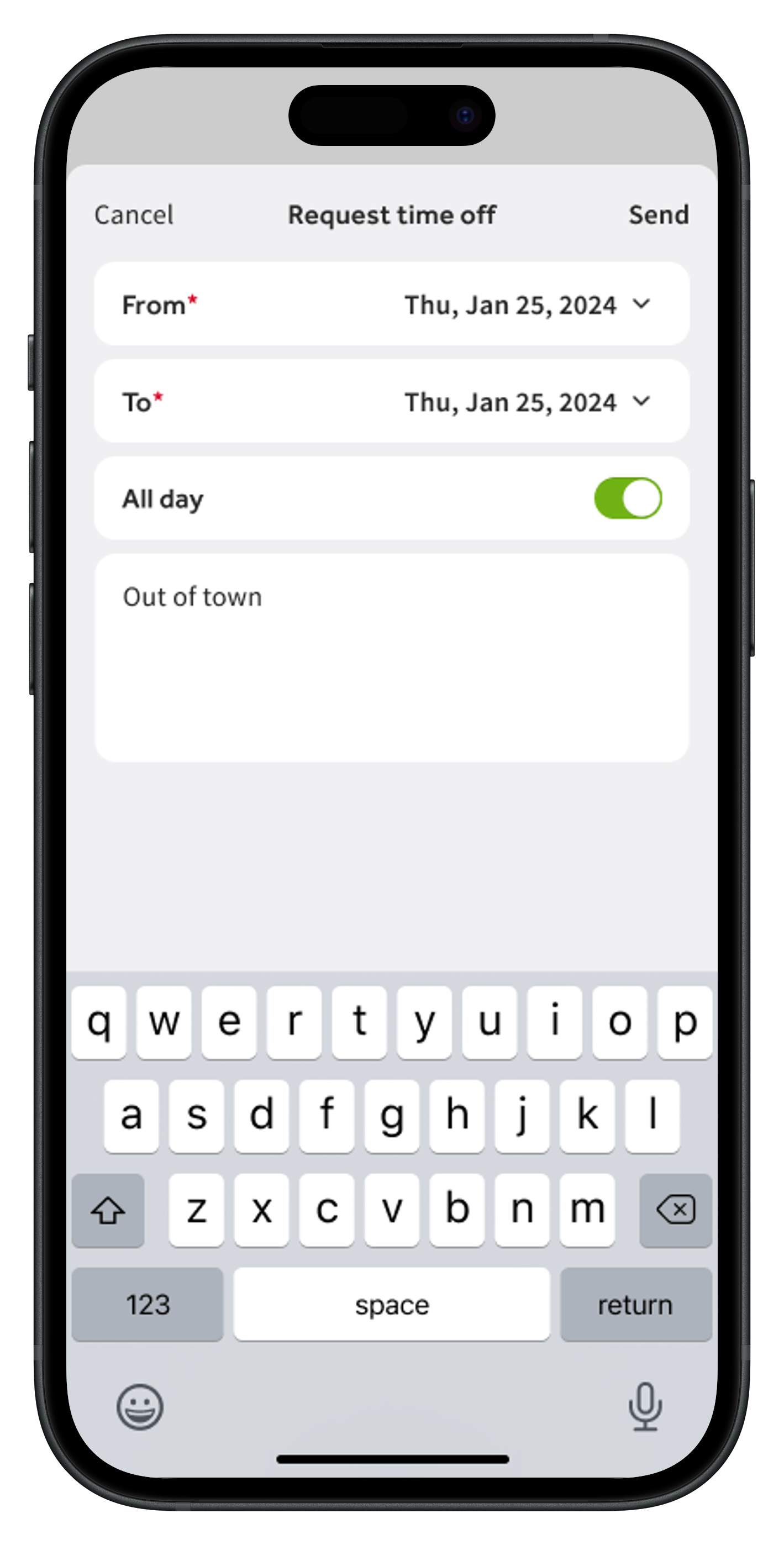
If your company uses the Toast Scheduling feature, you can ask your employer for unpaid time off directly from the MyToast app. When you make a request, it is typically not applied to your schedule until your management team has approved it. Once approved, you'll see a Time Off tile on the Shifts tab. Learn much more about employee options with Toast Scheduling in Manage Scheduling in the MyToast App (for Employees).
Unavailable Hours
If your company uses the Toast Scheduling feature and has the Pro subscription, you can set up parts of days or full days that you would like to be left off the schedule. This request can be repeated week over week to help your employer recognize when you aren't able to work. Learn much more about employee options with Toast Scheduling in Manage Scheduling in the MyToast App (for Employees).
Highlights Options
Contests
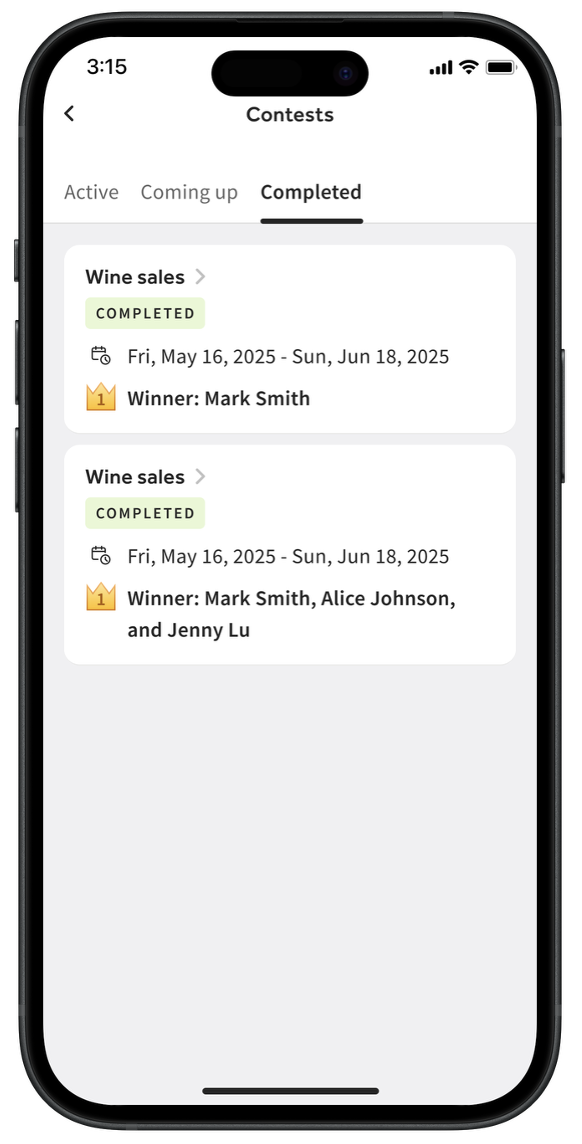
This section contains stats for all the contests that your company has run, past, present, and future. For each past or present contest, you can view your rank among your coworkers along with the final tally of the metric that the contest was measuring. Navigate between the Active, Coming up, and Completed tabs and then tap into the contest to view its details.
Stats
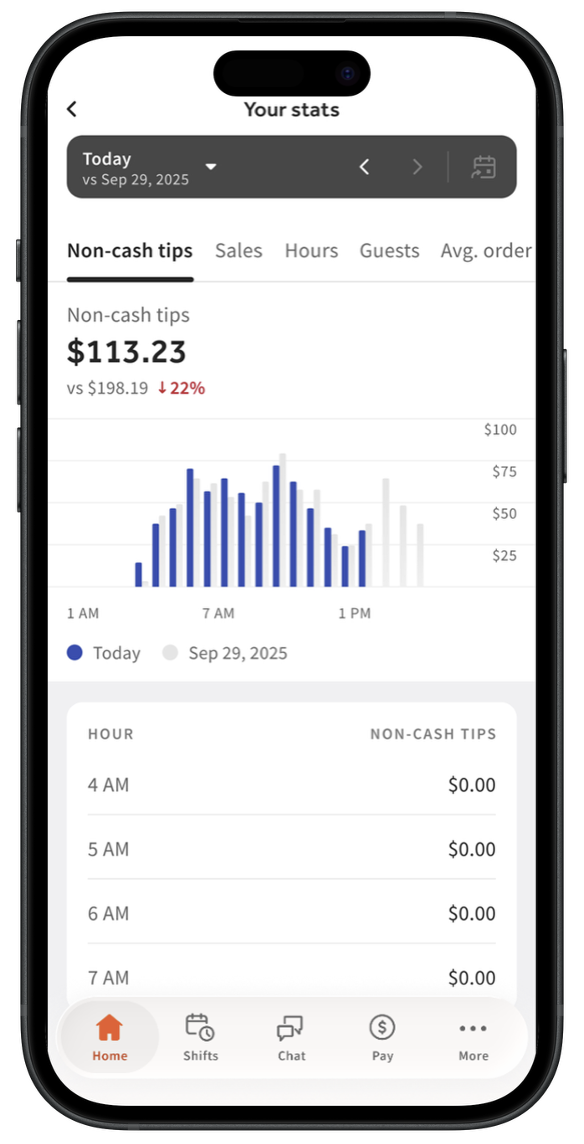
Stats is an area useful to front-of-house employees who take orders from guests, such as servers, bartenders, and even cashiers. By selecting the different tabs under the dark gray bar, you can view stats on non-cash tips, sales, hours, guest count, and average order value.
At the top, select the dark gray bar to select your date(s). If you tap the down arrow in this bar, you'll open a pop-up where you can select between Daily and Weekly views at the top and enable or disable Comparison at the bottom.
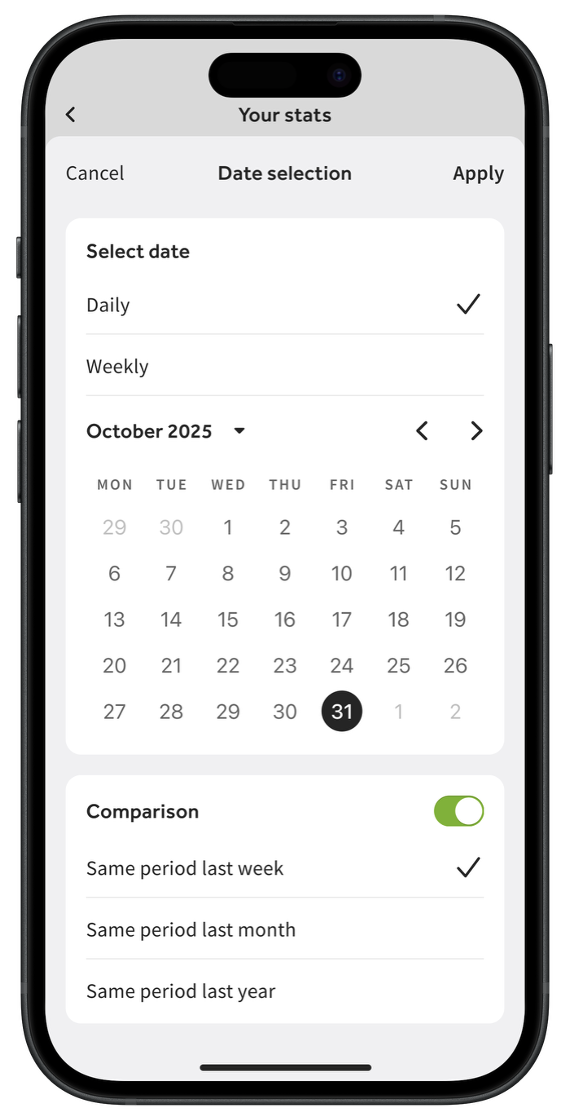
When you have your date and, optionally, the comparison set, select Apply. On the graph, you'll see the current stats in blue and the comparison stats in light gray. Scroll down and see the day-by-day breakdown (if you have a weekly view selected) or the hour-by-hour breakdown (if you have a daily view selected).
Documents Options
Tax Forms
Note: If your restaurant uses Toast Payroll, we will file tax returns for eligible employees. Employees of restaurants that do not use Toast Payroll will not see anything on this screen. Once these year-end forms are available, you'll get a push notification from the app and employees can retrieve their form from Toast Payroll or via the MyToast app. Learn much more about Toast Payroll and Form W-2s by reading Toast Payroll: Manage the Form W-2 Experience.
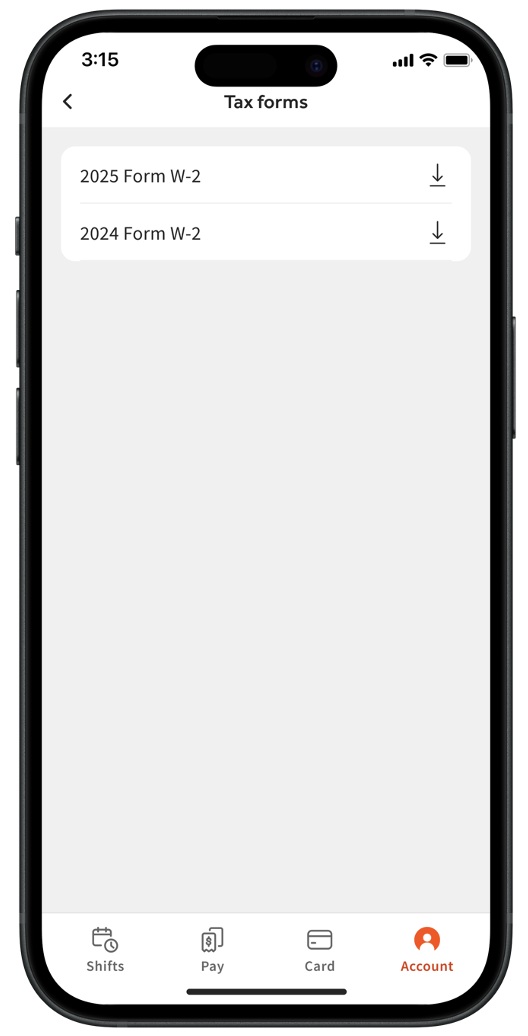
By selecting Tax forms, you'll be able to locate your available Form W-2(s). Select an item here to open and download a form. If you don't see a form you were expecting, keep an eye out for annual emails to employees which confirm when Form W-2s will be available from Toast Payroll. Additionally, if you opted-into a paper Form W-2 in Toast Payroll, you will not see electronic Form W-2s here.
Legal & Privacy
This option contains the End User License Agreement, the Toast Privacy Statement, and the Toast Acceptable Use Policy.
Toast Options
Toast Support
You can directly contact Toast representatives if you need help using the MyToast app. Select Toast support and then select Chat with us to begin chatting with our team. Note: Toast cannot help you with questions about your wage or tip amounts, such as if you were expecting to see more tips or a different hourly pay rate. We are also unable to assist with questions about why your Form W-2 has certain numbers on it. These are questions that are best directed to your management team or a tax professional.
Invite Your Team
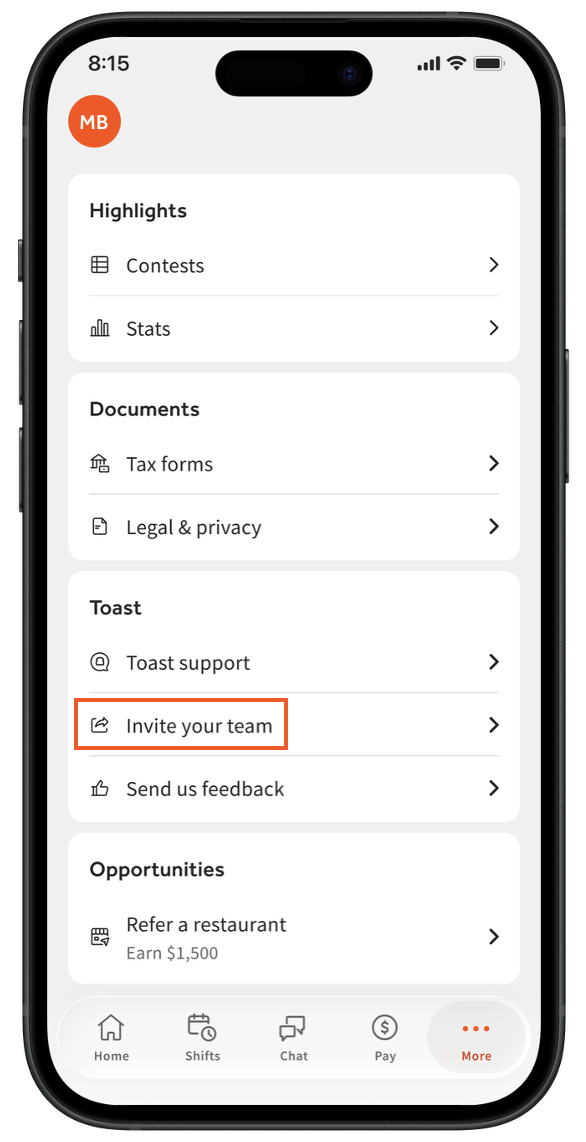
- Users with manager permissions in Toast Web can easily invite users to join the MyToast app. Navigate to More > Invite your team.
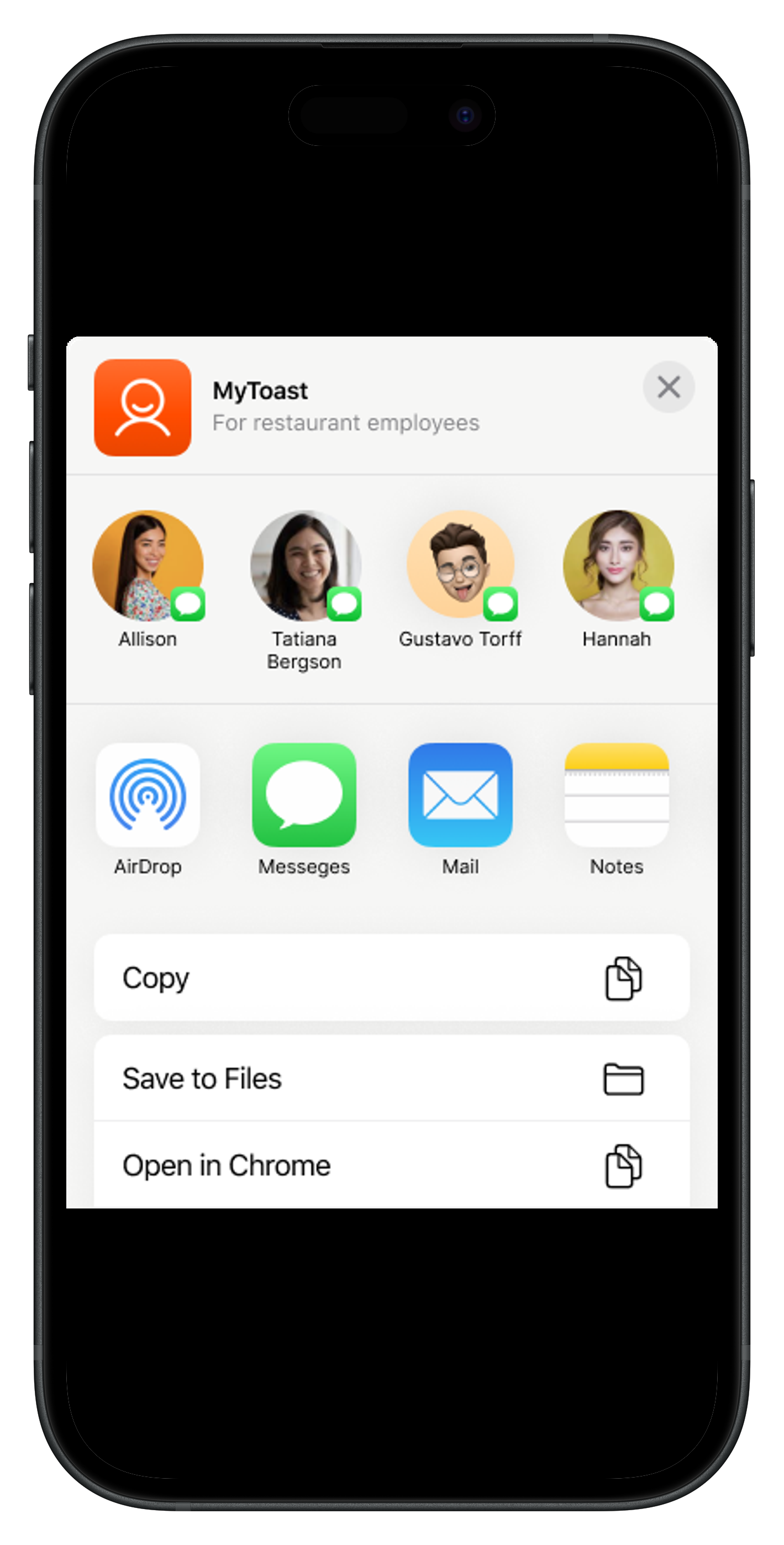
- From here, you can select how you’d like to send this invite. Different device operating systems have different options, but you can typically send a message directly to your contacts via email, SMS text message, or a link through other platforms. Toast cannot invite users to the app on your behalf.
Send Us Feedback
We want to hear from you! At the bottom of the tab, employees and managers can select Send us feedback to tell Toast what you like and don't like about the MyToast app. Unfortunately, we can't incorporate every piece of feedback we receive, but we do take every piece into consideration and strive for the best app possible. Thank you for sharing your thoughts with us.
Opportunities
If you know of a business that could benefit from using Toast or if you know a company that is considering a switch of POS systems, select this option to refer them to us. If a referral eventually joins Toast, you could be eligible for a cash incentive or other reward. Terms and conditions apply. See here for details.
Additional Resources
This content is for informational purposes and is not intended for legal, tax, HR, or any professional advice. Please contact an attorney or other professional for advice.