The MyToast App: Home
Last updated: Oct 16, 2026, 2:23 PM
The Home tab will be the first thing employees see in the MyToast app. Check out the features it offers here.
| To download the MyToast app and log in, read Get Started With the MyToast App. Learn about the other tabs in the MyToast app by viewing the articles in the Additional Resources section. |
Home Tab Overview
In short, the Home tab shows you everything you need to know or do before working your next shift, all in one place. For instance, what does your next shift look like? How many hours have you worked this week? This is a dynamic tab, so it will change day to day, even after your shift. If you have any unread notifications, they will be marked with a red dot in the upper-right corner. Tap a notification to open it and potentially take an action, such as picking up a shift.
Before Your Shift
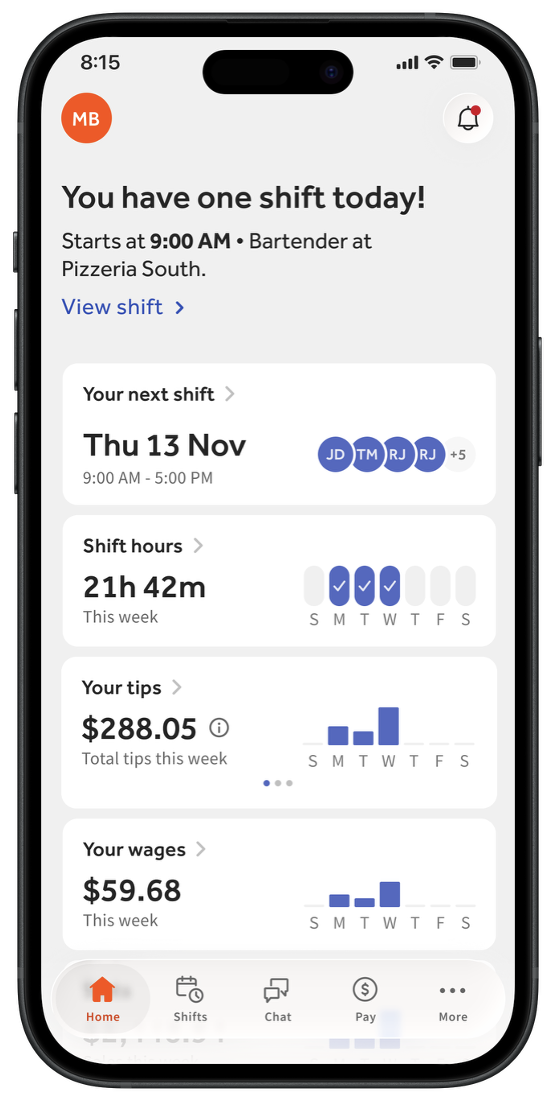
In the image below, the employee has a shift today. The top of the screen offers their clock-in time, their job, and location. Select View shift to review more details in the Shifts tab.
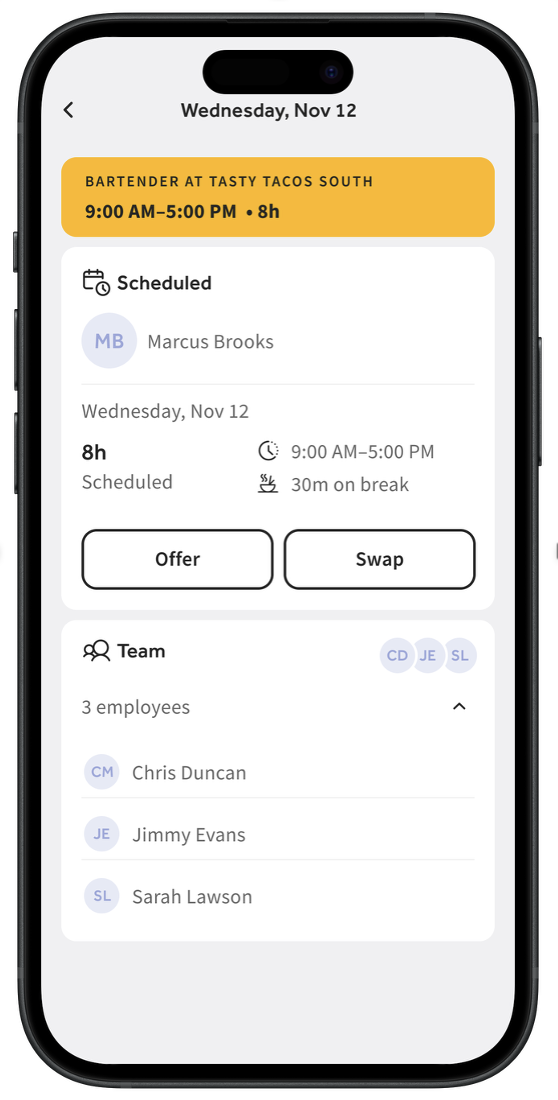
After selecting View shift, you can view more information, like the coworkers on the same shift as you or if you have a scheduled break during this shift. You can also select Offer or Swap. Visit The MyToast App: Shifts for more information on shift details and offering shifts.
After Your Shift
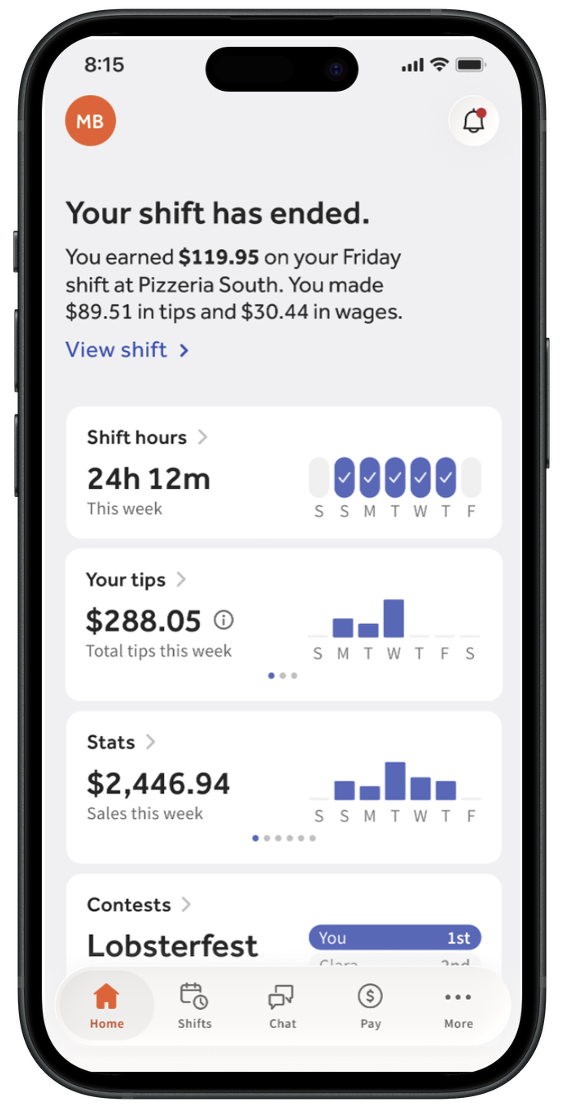
Once you've clocked out of your shift, check the Home tab to quickly view your tip and wage amounts. Select View shift to be brought to your completed shift's details. You'll also find more information on your shift details screen depending on what Toast products your restaurant uses.
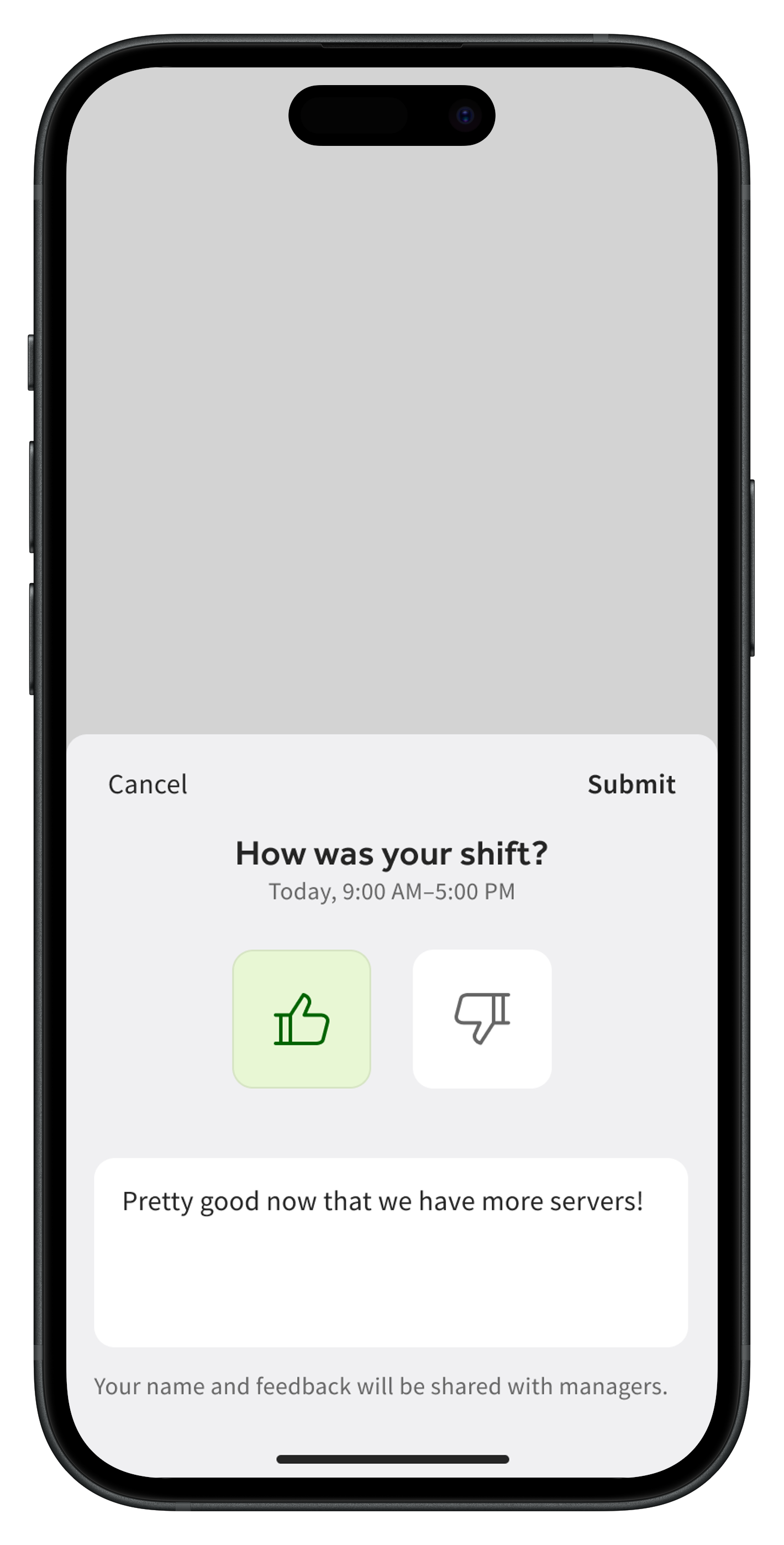
There's a new tile on the Home tab for restaurants who use Scheduling. Starting five minutes after you clock out, you'll be able to select the How was your shift? tile to open a thumbs up/thumbs down survey about the most recent shift you finished (within the last 24 hours). After selecting a thumbs up or thumbs down, you can optionally add a comment before submitting. Every employee on MyToast will be able to see the total thumbs up/thumbs down votes for the entire workweek, but any comment responses are sent to your management team and are not anonymous. Managers will require the 3.12 Shift Review permission to see these responses.
Additional Resources
- Get Started With the MyToast App (new users begin here)
- The MyToast App: Shifts
- The MyToast App: Chat
- The MyToast App: Pay
- The MyToast App: More
This content is for informational purposes and is not intended as legal, tax, HR, or any other professional advice. Please contact an attorney or other professional for advice.