The MyToast App: Shifts
Last updated: Jul 6, 2026, 3:58 PM
See how the Shifts tab in the MyToast app shows past shifts, tips, wages, upcoming schedule, shift swaps, and sentiment surveys.
- TL;DR About the Shifts Tab
- Who Can Use the Shifts Tab
- What You'll See Based on Your Toast Products
- Time Entry Edit Badges
- Employee Shift Sentiment Survey
- Frequently Asked Questions
- Related Articles
TL;DR About the Shifts Tab
The Shifts tab is the part of the MyToast app where employees check their schedule and shift details on their phone. From this tab, employees can:
- View time worked and breaks for previous shifts
- See total declared tips and gratuities from previous shifts
- Confirm hourly wages (if the restaurant uses Toast Payroll)
- See a Tips Receipt with the math behind pooled tips (if the restaurant uses Toast Tips Manager)
- View an upcoming schedule, swap shifts, and pick up open shifts (if the restaurant uses Sling by Toast Scheduling)
- Submit a thumbs-up or thumbs-down rating after each shift
Use the date selector at the top to move between weeks. Select the > caret icon on a completed shift to open more details. Each tile represents one day; two tiles appear within the same day if the employee works shifts at more than one location.
Who Can Use the Shifts Tab
Every employee with a MyToast account sees the Shifts tab. The content inside the tab changes based on the Toast products the restaurant uses.
- All employees: Shifts, Account, and Chat tabs appear.
- Restaurants with Toast Tips Manager: Shifts, Account, Chat, and (if applicable) Pay.
- Restaurants with Toast Payroll: All five tabs — Shifts, Today, Pay, Account, and Chat.
- Restaurants with Sling by Toast Scheduling: All five tabs — Today, Shifts, Chat, Pay, and Account.
Note: Employees can check with a manager if they are unsure which Toast products their restaurant uses. Managers can invite employees to the MyToast app from the Account tab. See The MyToast App: Account.
What You'll See Based on Your Toast Products
All Employees of Toast Restaurants
All MyToast users can open the Shifts tab and see:
- Time worked for previous shifts
- Breaks taken during previous shifts
- Total declared tips and gratuities declared upon clock-out for previous shifts
To move between weeks, use the date selector at the top in gray. To see more about a completed shift, select the > caret icon on that shift. Each tile represents a single day. If an employee works shifts at more than one location, two tiles appear within the same day.
Note: The declared tip total does not reflect any tip policies the restaurant manages outside of Toast.
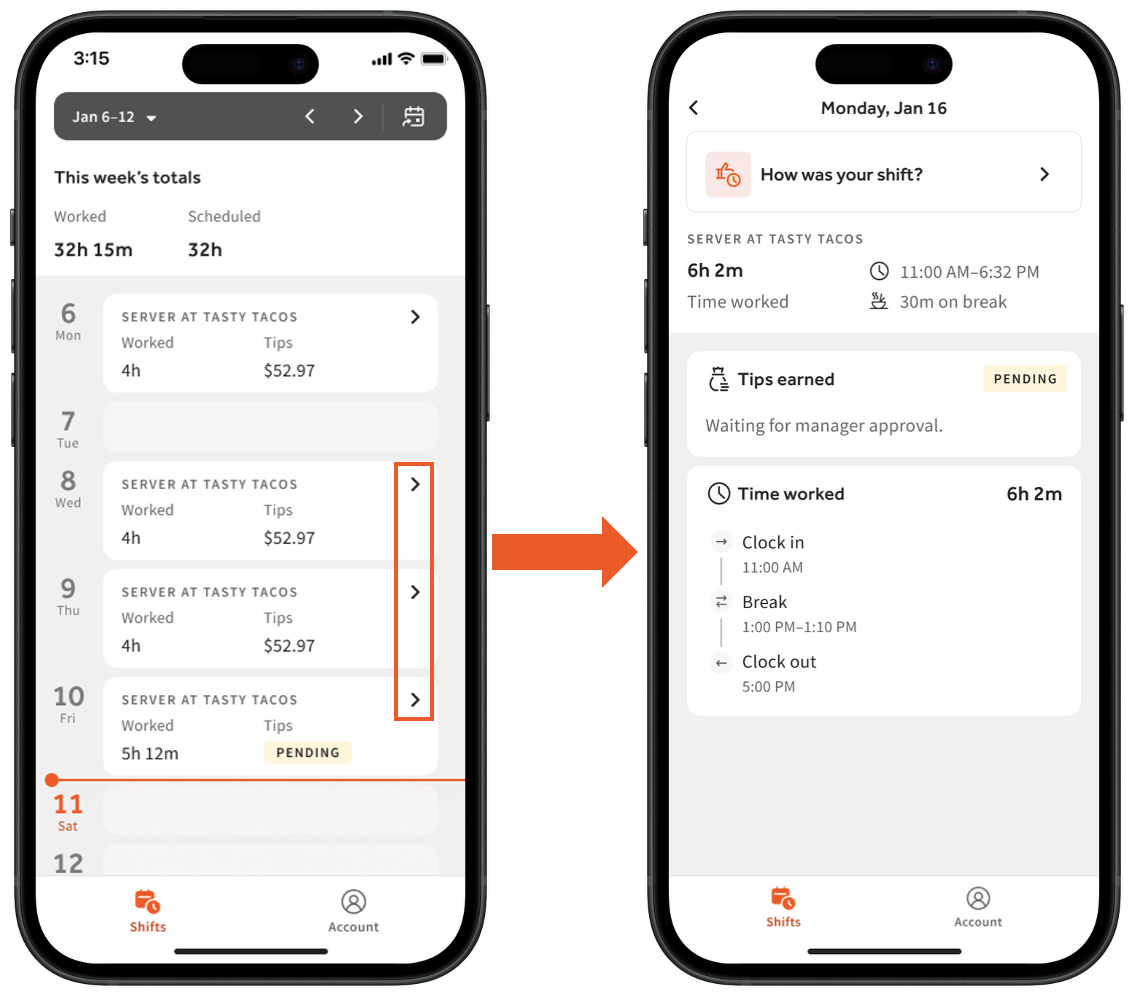
For illustration purposes
When an employee taps into a tile for a previous shift, they may see an optional survey. Starting five minutes after clock-out, select How was your shift? to open a short thumbs-up/thumbs-down survey about the most recent shift finished within the last 24 hours. After selecting thumbs up or thumbs down, the employee can add an optional comment before submitting. Comment responses are sent to the management team and are not anonymous. Managers need permission 3.12 Shift Review to view these responses by selecting the tile in the Shifts tab. See the Permissions Reference Guide for permission details.
Restaurants With Toast Tips Manager
If the restaurant uses Toast Tips Manager, employees see everything above plus a tip pool breakdown. Since Tips Manager involves tip pooling or a tipping-out policy, more information appears in the completed shift details. If an employee is involved in more than one tip pool during a shift, a breakdown appears for each tip pool.
From the Shifts tab, select the > caret icon on a completed shift. Earned tips display differently here than in the basic view. For example, if Happy hour tips and Dinner tips policies both applied to a shift, each tile has its own > caret icon to select.
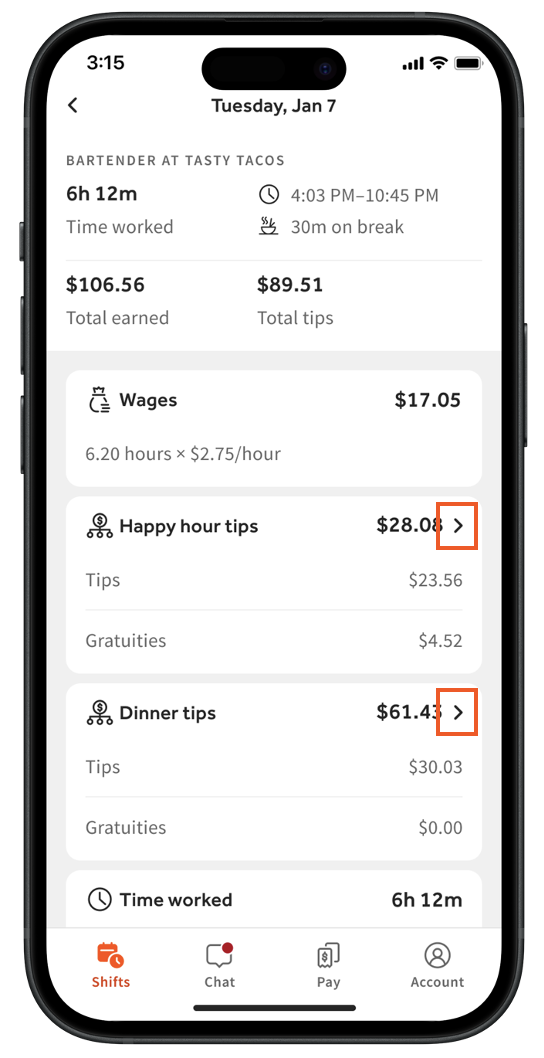
For illustration purposes
Selecting a > caret icon opens a personal Tips Receipt. A Tips Receipt is a breakdown of each tip pool the employee was involved in, with the math behind the tip amounts.
- If the restaurant does not use Toast Payroll, the employee sees $0 until tips for that date are approved.
- If the restaurant does use Toast Payroll, a Manager Review status appears until tips have been approved and sent to Toast Payroll by management.
- Once the tip pools are approved and sent to Toast Payroll by management, select another > caret icon to see the breakdown of Tips contributed to pool and Tips received from pool. This explains why the final pooled tip amount was higher or lower than expected.
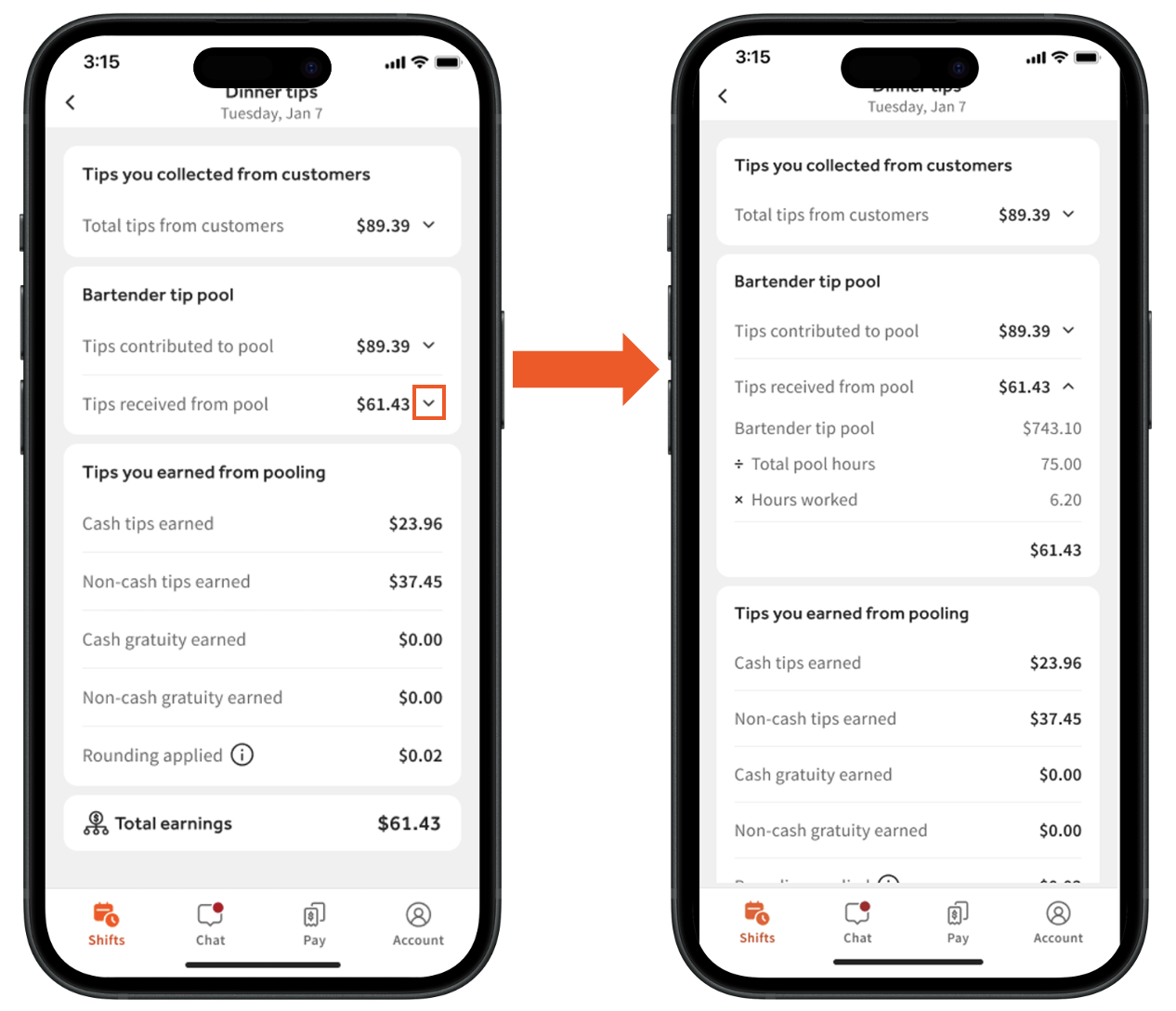
For illustration purposes
Restaurants With Toast Payroll
If the restaurant uses Toast Payroll, the Shifts tab also shows hourly wage information. The top tile of a shift's details multiplies total hours worked by the wage rate (or overtime rate, if applicable). Employees at restaurants on Toast Payroll see all five tabs: Shifts, Chat, Pay, Account, and Today.
Note: Toast Tips Manager is not present for the example employee in the source screenshots. If the restaurant uses Tips Manager, see the Tips Receipt features in the section above.
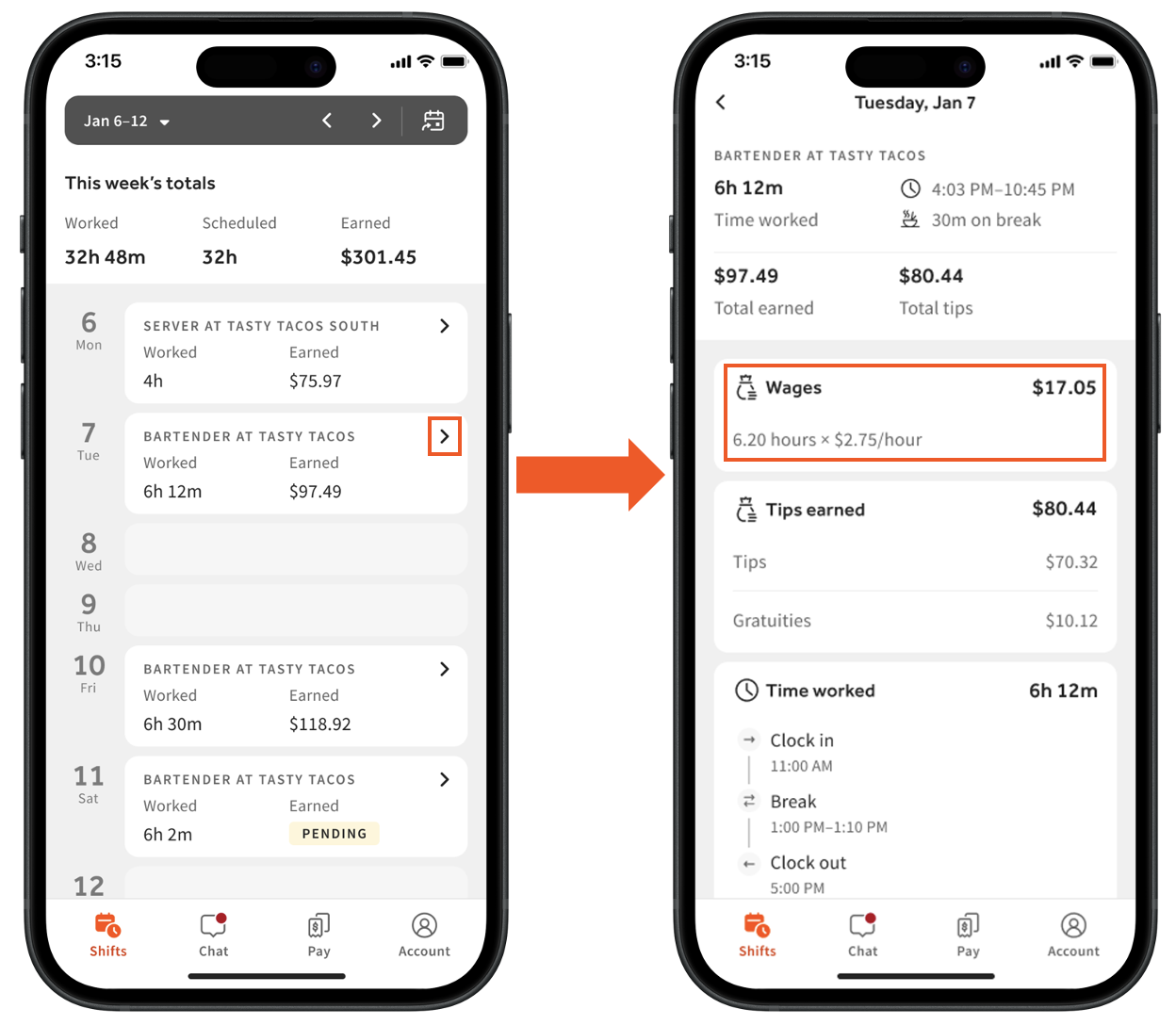
For illustration purposes
Restaurants With Scheduling
This version of the Shifts tab unlocks features that only appear with the Scheduling module. With Scheduling Basics, employees can see an upcoming schedule, drop and pick up shifts, pick up open shifts, request time off, get personalized reminders for shifts, and view teammates working alongside them in each future shift (if your company enables this). With Scheduling Pro, employees can also set unavailability and swap shifts with another employee. See Manage Scheduling in the MyToast App (for Employees) for details.
Note: Time off and unavailability does not live in the Shifts tab. Navigate to Account and select Request time off or Unavailable hours.
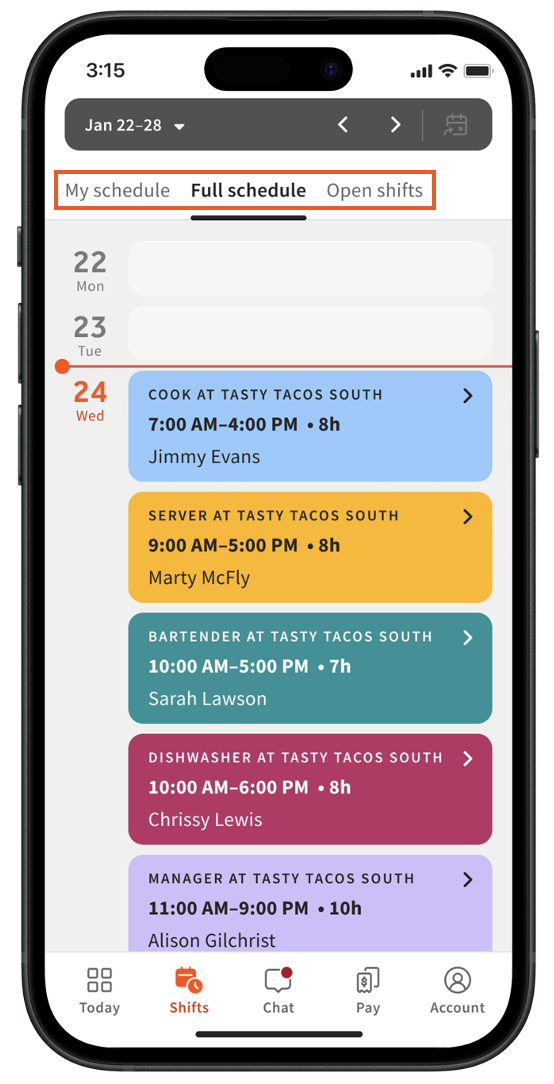
MyToast users at restaurants using Scheduling see all five tabs: Today, Shifts, Chat, Pay, and Account. There are up to three pages at the top of the Shifts tab: My schedule, Full schedule, and Open shifts, depending on the restaurant's configuration.
My Schedule
On My schedule, employees see past worked shifts (described above) plus future shifts. Shifts are color-coded by job. Select a future shift to view its details or "drop" the shift. In Toast, dropping a shift to anyone who is assigned to the same job is known as reopening the shift. If you select a specific employee or set of employees to pick up your shift, this is known as a shift offer.
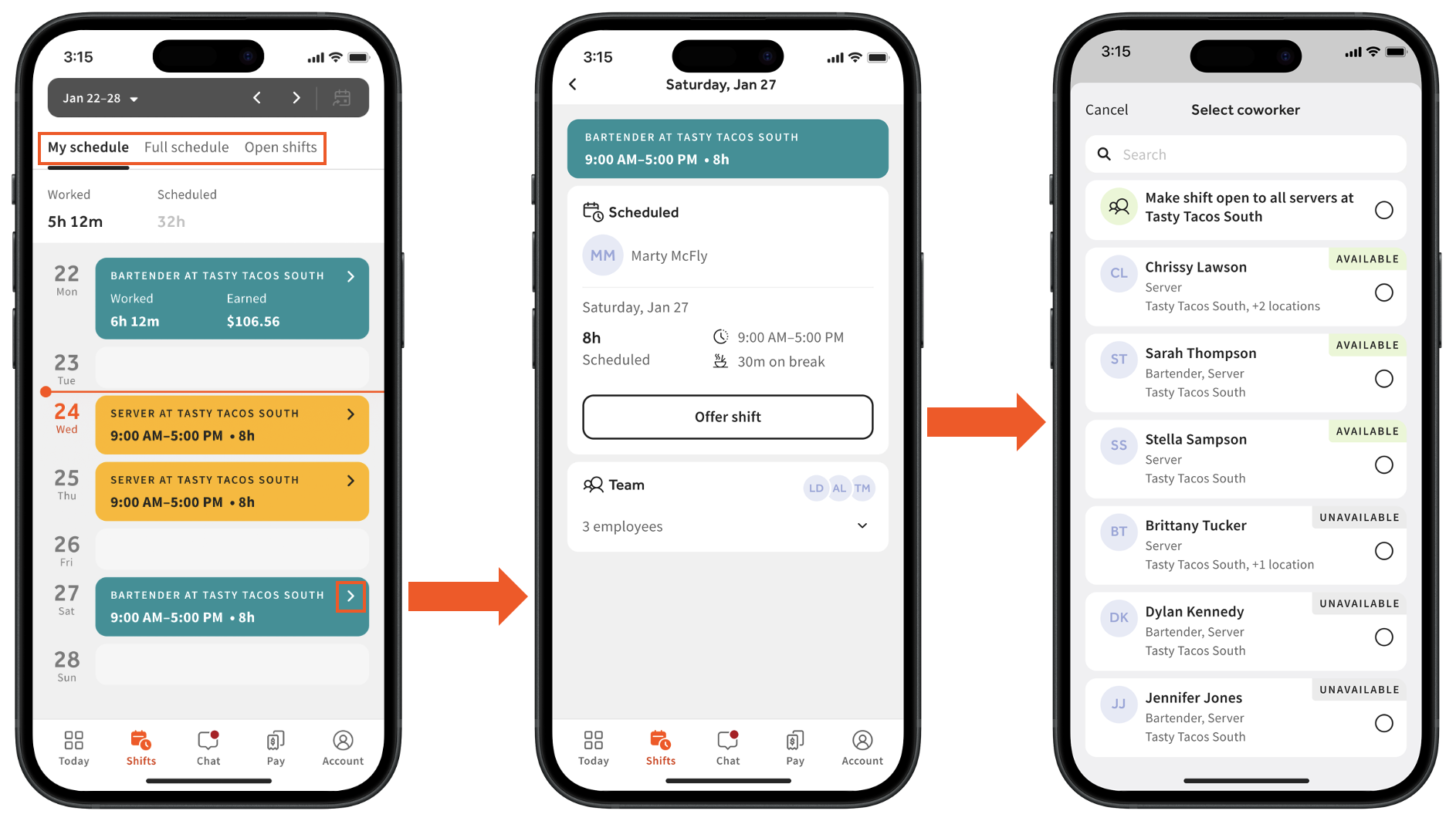
On a future shift's details, employees can:
- Select Team to see which employees will be working the shift with them.
- Select Offer shift to see if another employee will pick up the shift. Reopen the shift to all employees with that job by selecting the top tile, or select a single employee or set of employees to offer the shift to.
Once a shift is reopened or offered, two things must happen before the employee is no longer responsible for the shift:
- The shift must get picked up by another employee.
- The manager must approve the request (if applicable).
Until both happen, the employee can select Cancel offer to remove the request. Once approved, the employee is notified via the Today tab and a push notification. See Manage Scheduling in the MyToast App (for Employees) for details.
Full Schedule
Note: This tab may not be available to employees if the feature is not enabled.
Select Full schedule to see who is scheduled on a given day (depending on the restaurant's settings). Each tile lists the employee's name, assigned job, and scheduled hours.
Open Shifts
Swipe over to Open shifts to pick up any shifts released by other employees or open shifts the management team has posted — but only for the job(s) the employee is assigned to. Open shifts are listed by day and color-coded by job. Select the > caret icon on any open shift, then select Pick up shift. Depending on the restaurant's configuration, manager approval may be required before the employee owns the shift. If the manager has not yet approved, select Undo to cancel the pick up.
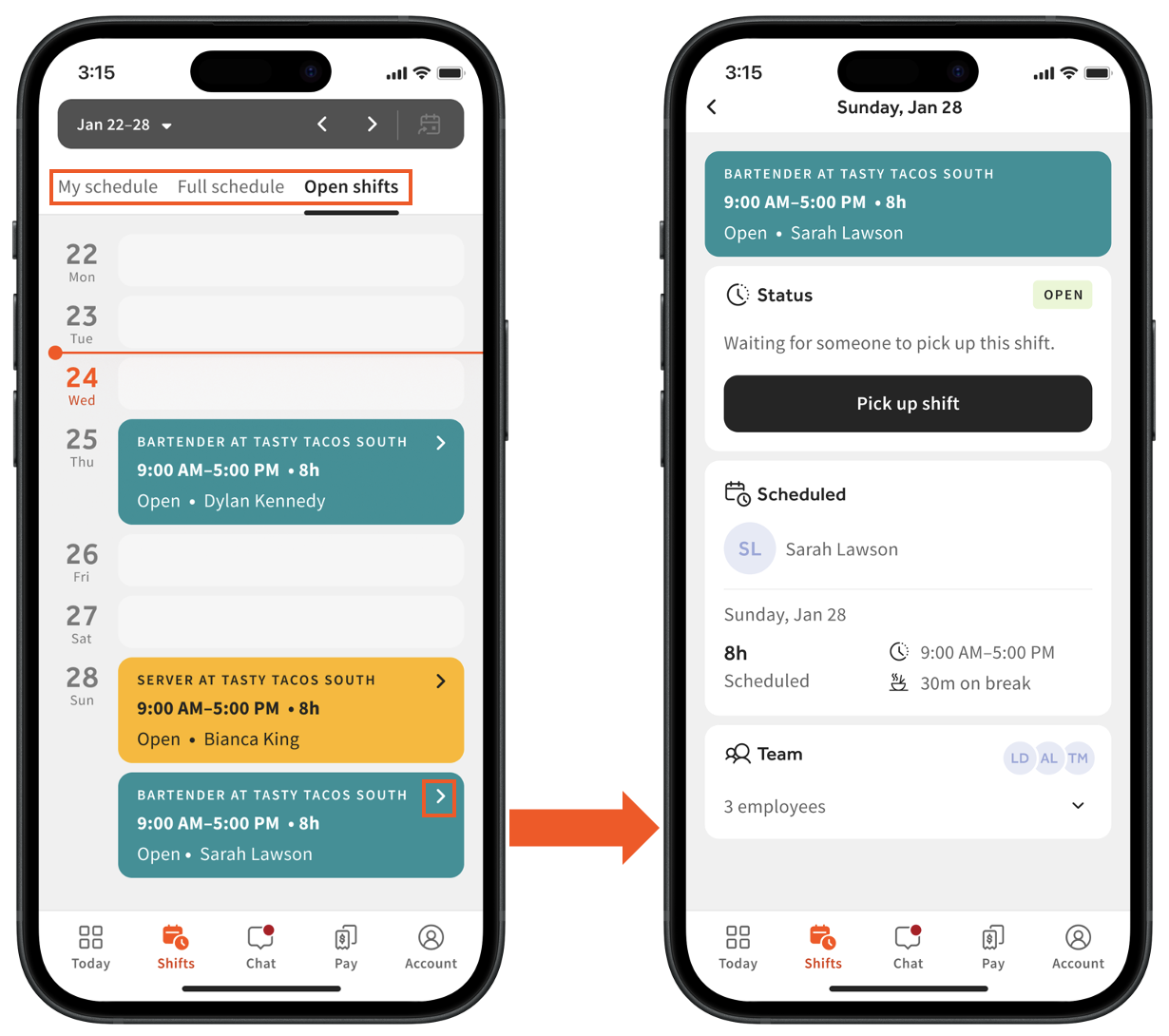
Expected outcome: Once a shift is picked up and (if required) approved by the manager, the shift appears on the My schedule page and the employee receives a confirmation notification.
Time Entry Edit Badges
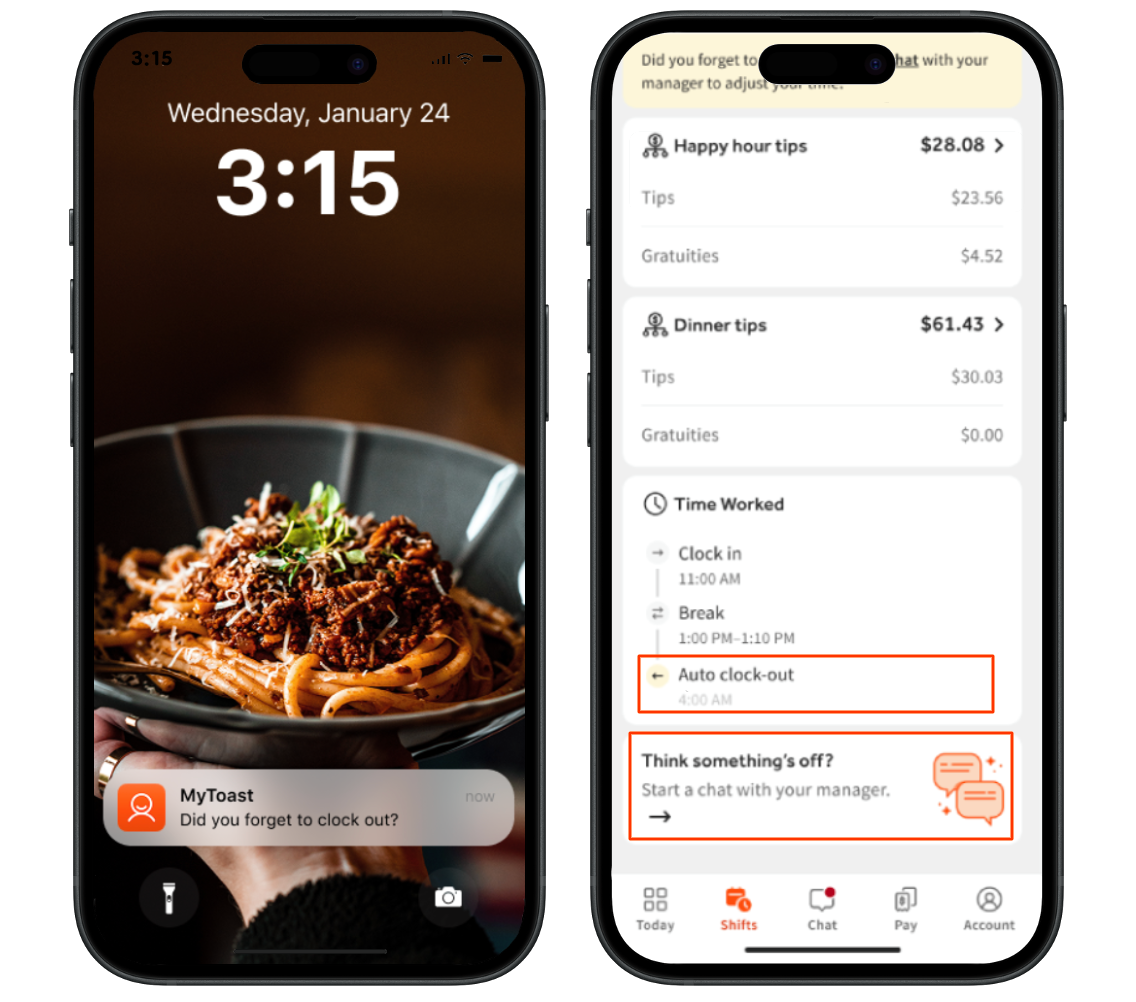
To build trust and visibility into pay, the MyToast app shows Time Entry Shift Badges. These labels appear whenever a time entry is modified — for example, when a manager adjusts an employee's hours or the system automatically clocks an employee out. The badges serve as a record of the shift's history and a shortcut to chat with the leadership team.
When a time entry is flagged, the employee sees a badge with a short explanation:
- Auto-Clock Out — appears if the employee was automatically clocked out by the system or a manager (common if a shift exceeds its scheduled length).
- Manager Edited — indicates a manager manually updated the start time, end time, or break duration.
For illustration purposes
If an employee notices a badge and needs more information, select Start a chat with your manager on the time entry to open a conversation in team chat. Direct access from the badge lets the employee clarify hours without waiting for the next shift.
Employee Shift Sentiment Survey
The Employee Shift Sentiment Survey in the MyToast app makes it easy for employees to share feedback right after a shift. This helps managers stay in tune with employee morale day to day.
After each shift, employees receive a push notification prompting them to complete the Shift Sentiment Survey. With a few taps, employees can:
- Select thumbs up or thumbs down
- Add a short comment for context
- Include optional tags for more detail
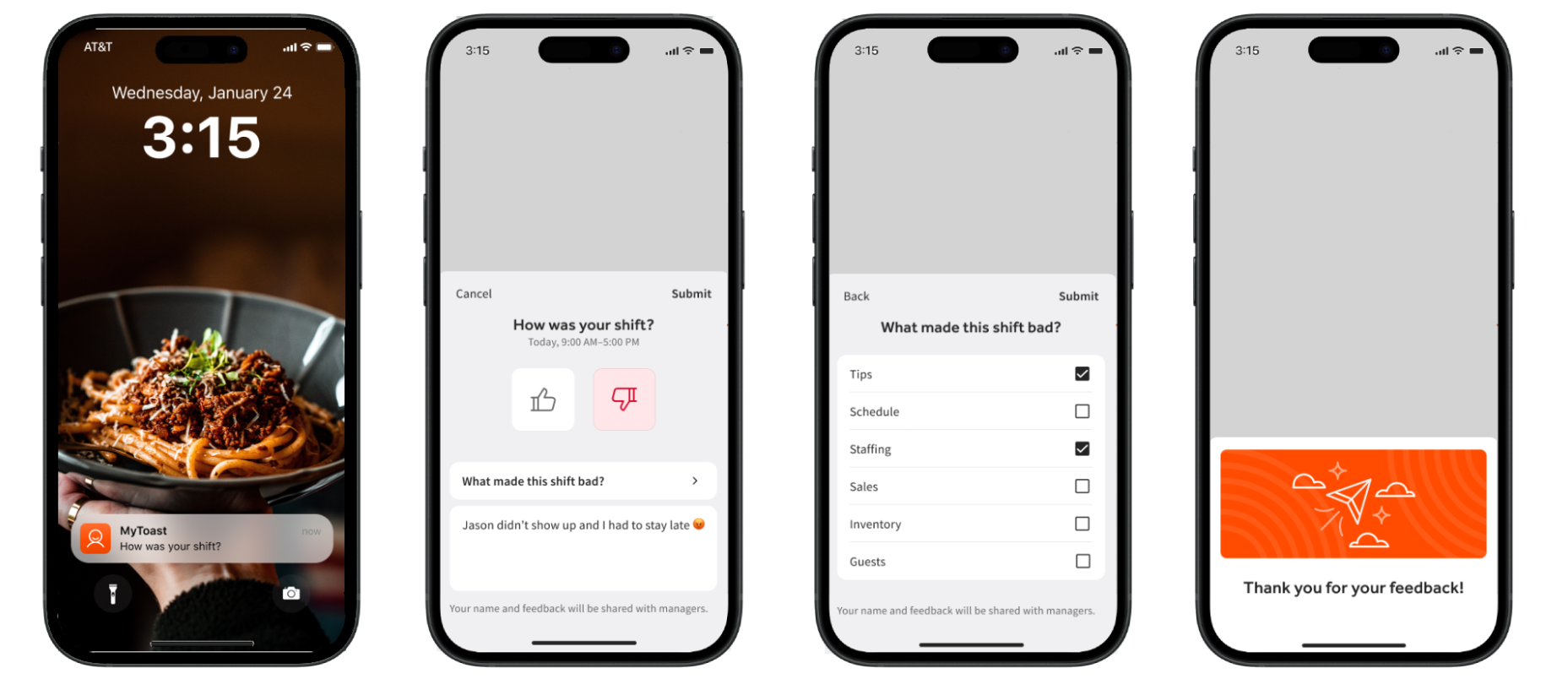
Note: Comment responses are sent to the management team and are not anonymous. Managers need permission 3.12 Shift Review to view responses.
Frequently Asked Questions
Why do my tips on the MyToast app differ from the Sales/Labor Summary report?
Tips on the MyToast app should match the sales/labor summary report because both pull from Toast Web reports and Toast Tips Manager. The numbers can differ if the restaurant uses tip withholding to pass along card processing fees to employees. Tip withholding affects the tips total rather than the gratuity total, which can make the figures look different.
How do I view my schedule on the MyToast app?
To view a schedule on the MyToast app, the restaurant must use Scheduling (or Sling by Toast). Oopen the MyToast app, select the Shifts tab, and view the My schedule tab. Without Scheduling (or Sling by Toast), the Shifts tab only shows previous worked shifts — upcoming schedules are not available.
Also asked as:
-
- Where do I go to see my shifts?
- How do I see my schedule?
- Do I have any shifts?
Why can't my employees see their schedule on the MyToast app?
If employees cannot see an upcoming schedule on the MyToast app, the most common causes are:
-
- The restaurant does not use Scheduling (or Sling by Toast) — only restaurants on Scheduling (or Sling by Toast) can publish an upcoming schedule to MyToast.
- The schedule has not been published yet in Scheduling (or Sling by Toast). See Manage Scheduling in Toast Web (for Employers).
- The employee's account is not yet associated with the restaurant's location in Scheduling (or Sling by Toast).
Also asked as:
-
- My staff cannot view their full schedule in the MyToast app
- Why doesn't open shifts come up in the toast app when an employee makes them available?
How do I see my shifts from another restaurant if I work at more than one location?
In the Shifts tab, two tiles appear within the same day when an employee works shifts at more than one location. Use the date selector at the top to move between weeks and view shifts across all locations the employee is assigned to.
Can employees use the MyToast app to swap or trade shifts?
Yes, employees can reopen or offer shifts using the MyToast app. Shift swaps (trading one shift for another) are also available if the restaurant uses Scheduling Pro. To perform any of these actions, navigate to the Shifts tab, select a future shift, and select Offer shift or Swap shift. When applicable, management will need to approve the shift offer or swap. To see step-by-step instructions and learn about the differences between reopened shifts, shift offers, and shift swaps, check out Manage Scheduling in the MyToast App (for Employees).
Also asked as:
-
- How do I trade shifts?
- Switch shifts
- How to allow a shift lead to approve other employees switching shifts?
Is the shift sentiment survey anonymous?
The Shift Sentiment Survey is not anonymous. Thumbs up and thumbs down responses, along with any comments, are sent to the management team with the employee's name attached. Managers need permission 3.12 Shift Review to view responses.
Can I submit other feedback about the MyToast app?
Yes. In the Account tab, select Send App Feedback to share thoughts about the MyToast app directly with Toast. The Shift Sentiment Survey covers shift-specific feedback for the management team; the Send App Feedback option shares feedback about the app itself with Toast.
Related Articles
- The MyToast App: Account — new users begin here
- The MyToast App: Today
- The MyToast App: Pay
- The MyToast App: Chat
- Manage Scheduling in the MyToast App (for Employees)
This content is for informational purposes and is not intended as legal, tax, HR, or any other professional advice. Please contact an attorney or other professional for advice.