The MyToast App: Chat
Last updated: Oct 2, 2026, 2:10 PM
The Team Chat feature allows employees and managers to communicate with each other via the MyToast app.
| To download the MyToast app and log in, read Get Started With the MyToast App. Learn about the other tabs in the MyToast app by viewing the articles in the Additional Resources section. |
Team Chat Overview
MyToast's Team Chat feature lets restaurant staff connect via private or group messages using their Toast login. It includes helpful tools like file sharing, push notifications, read receipts, and searchable chat history.
Any users who also have access to the Sling app should be aware that Chat in MyToast and the Sling Messages function are not related and messages cannot be sent between the two apps. At this time, Toast does not have plans to merge the apps, enable cross-app functions, or depreciate the Sling app.
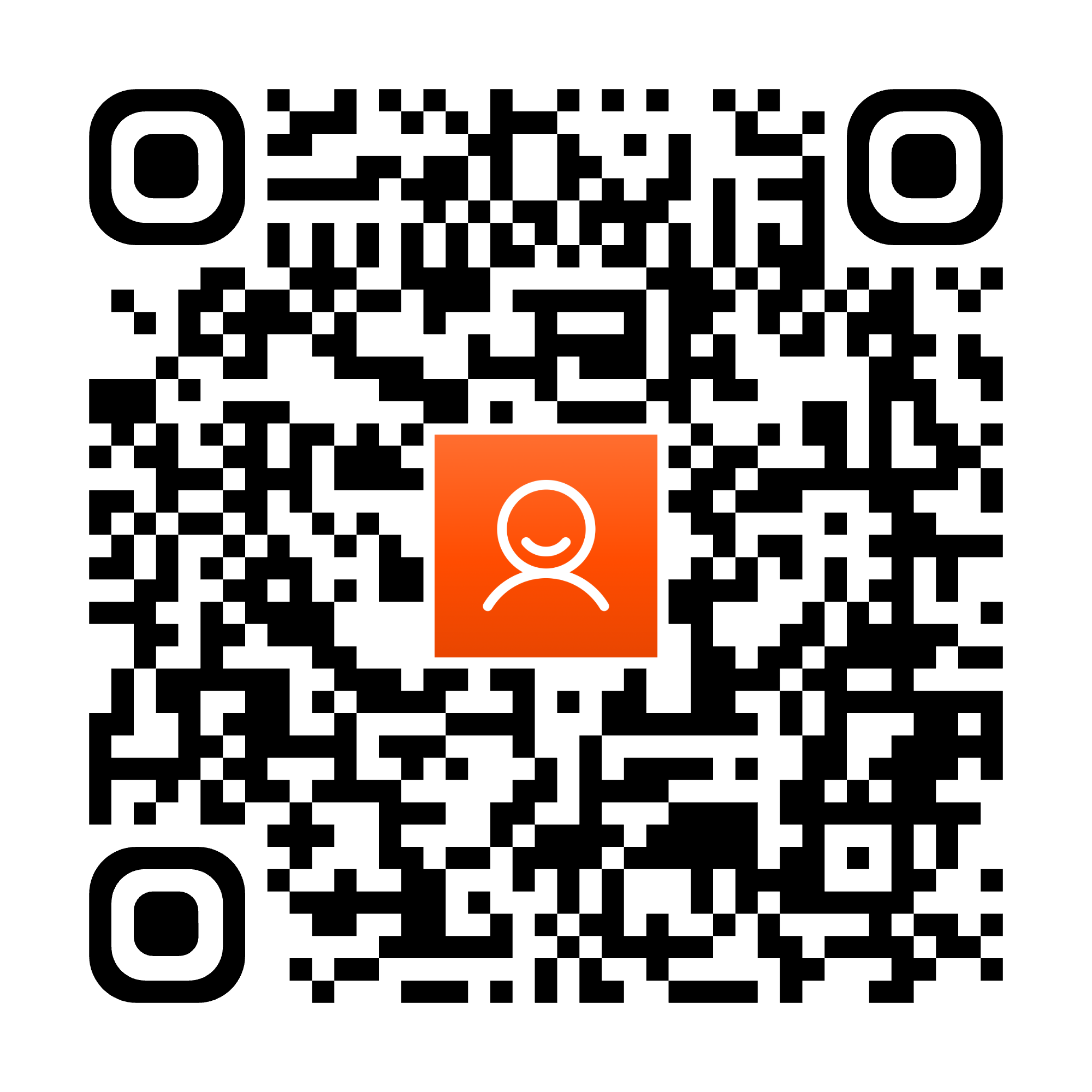
Employees can download the MyToast app by scanning this QR code from their mobile device and following the instructions in Get Started With the MyToast App. Alternatively, managers can invite employees to the app by following the instructions in the Manager Invites section of Get Started With the MyToast App.
First-Time Chat Users
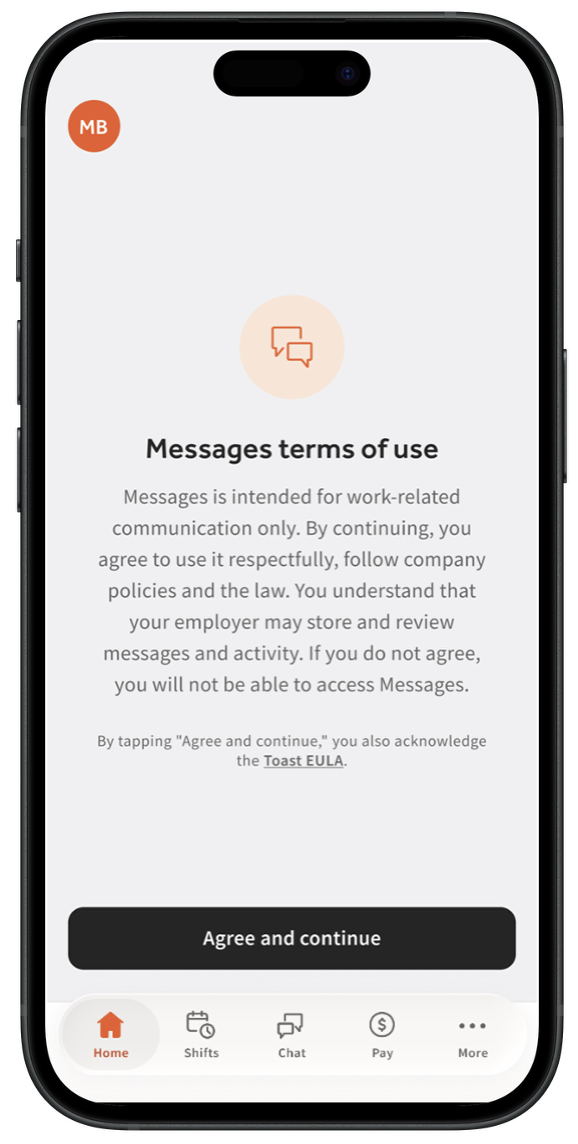
The first time you open Chat in MyToast, you are asked to review and accept the Chat terms of use and opt-in before you can send or receive messages. If you do not opt in, Chat features remain unavailable to you. Messages sent in Chat are subject to automated and administrative moderation to keep conversations appropriate and professional. Content that violates the terms of use may be blocked or removed and repeated violations may result in loss of Chat access. Select Agree and continue to use the Chat function.
Team Chat Permissions and Chat Admins
By default, all employees who log in to MyToast will have access to Chat as well as the ability to create group and private chats.
Chat admins (typically managers or restaurant owners/operators) will use permission 3.30 Team Chat Advanced Controls for the following functions:
- Assign other chat admins to this permission
- In Toast Web, set the options under Team > Settings > Messages settings. This allows for disabling or enabling the team chat function for the restaurant location and disabling or enabling employees from creating new chat groups. However, admins are still allowed to create new chat groups, even if this setting is disabled.
- Add or remove members from a chat (as long as the admin is a member of the applicable chat).
- Rename a chat (as long as the admin is a member of the applicable chat).
- Restrict who can post in a chat (as long as the admin is a member of the applicable chat). This can create one-way message channels for a specific topic, such as announcements or daily specials.
- Delete any chats or messages within chats (as long as the admin is a member of the applicable chat). Deleted chats cannot be restored.
- Note: Chat admins oversee the entire Chat platform while chat owners only oversee the chat they own. Employees can be chat owners, but are not commonly chat admins.
Chat admins also have the ability to remove the chat feature entirely. Doing this will eliminate the Chat tab for all employees who are part of a restaurant location. Keep in mind this is done on a per-location basis. In Toast Web, navigate to Team > Settings > Messages settings.
Use the Team Chat
Start a Chat
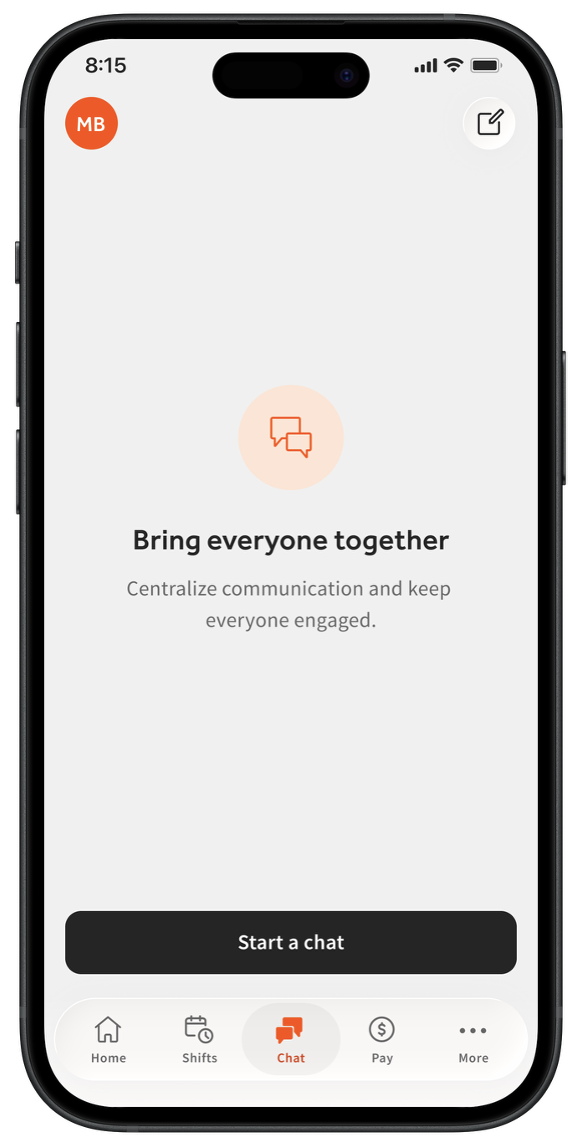
- Tap the Chat icon at the bottom of the screen.
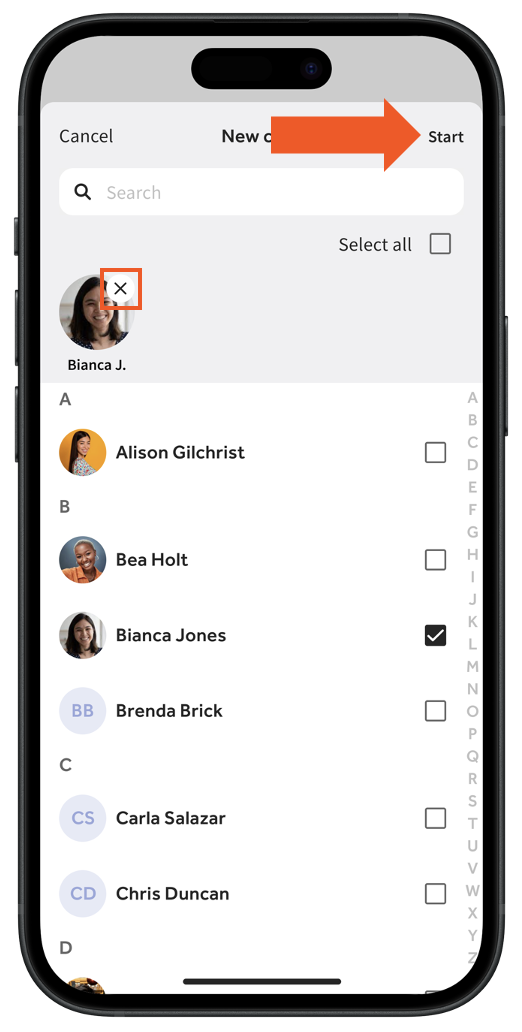
- If this is your first chat, select Start a Chat. If you have existing chats listed, select the pencil icon in the upper-right corner for a new chat.
- Chats can only be created with employees at the same restaurant location(s) you belong to. If you work at more than one restaurant location, you can include employees from each of those locations. Choose your recipients next:
- For a group chat, select multiple users. You can also choose Select all at the top, but this should most likely be used sparingly.
- Chat now allows you to create group chats by searching for employees' Job roles or Location, making it easy to instantly group specific teams.
- For a private or direct message, select a single user.
- Select the X next to an employee's profile picture if they were added to the chat list by mistake.
- For a group chat, select multiple users. You can also choose Select all at the top, but this should most likely be used sparingly.
- Tap Start in the upper-right corner.
- You are now the owner of this chat. Visit the Chat Owners section of this article for more information.
App User Presence
To help you communicate more effectively, Team Chat displays each employee's status. This helps you identify who is active in the app and who may need an extra nudge to get set up so they don't miss your messages.
| Status | What does it mean? | Screenshot |
| Active | User has logged into the MyToast app within the last 30 days. | |
| Inactive | User has a Toast account but has not opened the MyToast app in 30+ days. | 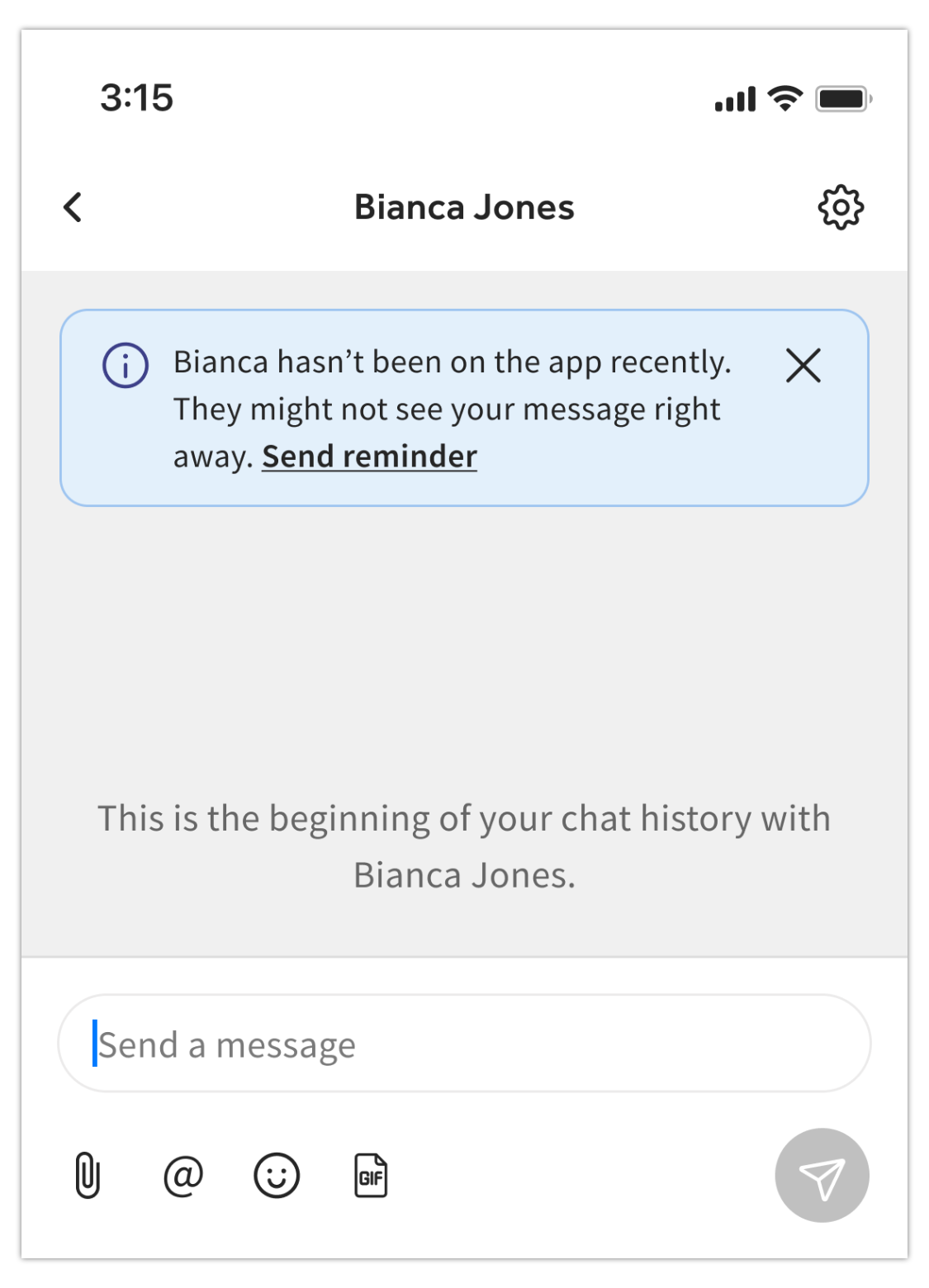 |
| Not Using MyToast | User has a Toast account but has never logged into the MyToast app. | 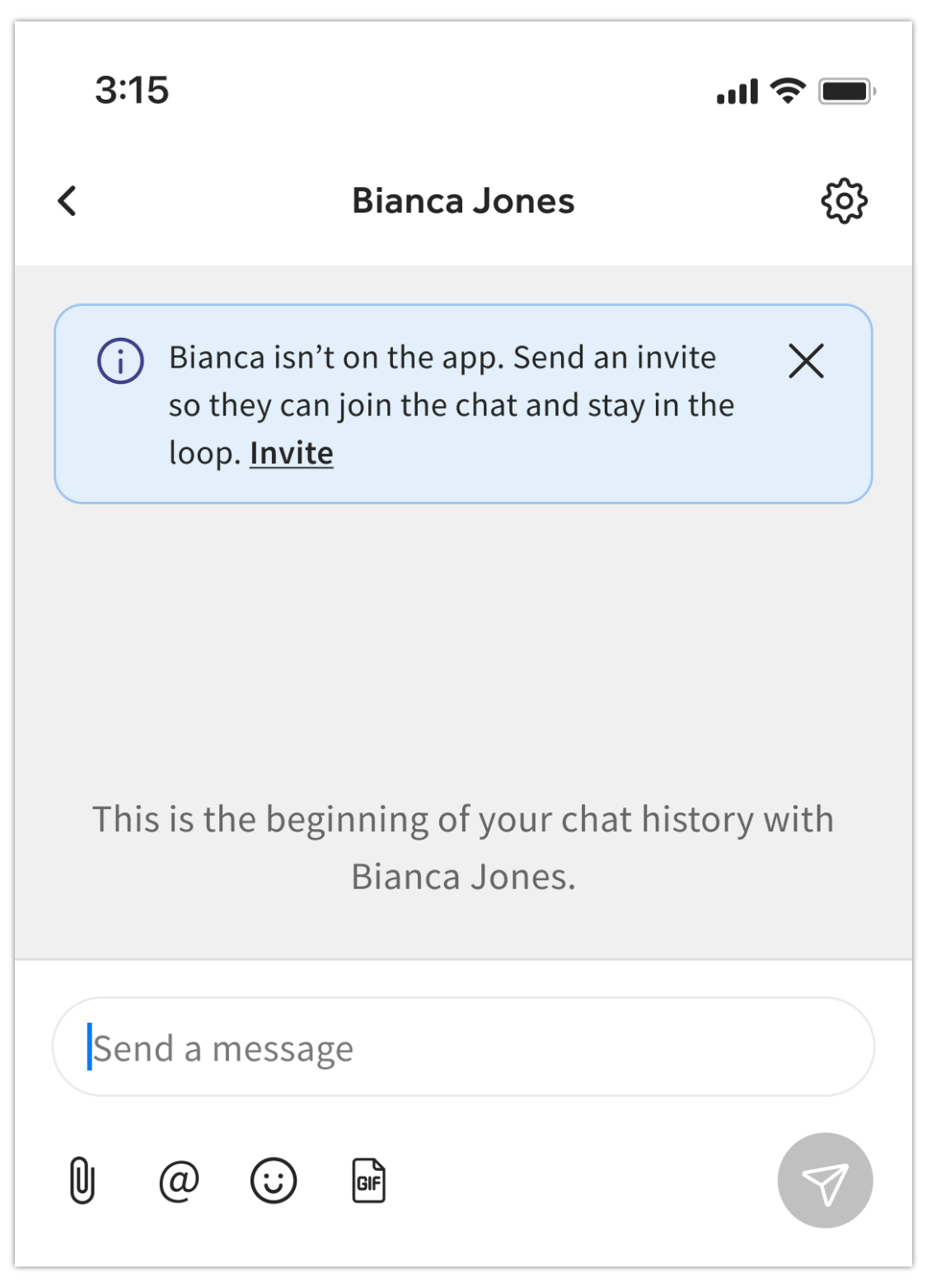 |
| No Toast Account | User does not have a valid Toast login or account created yet. | 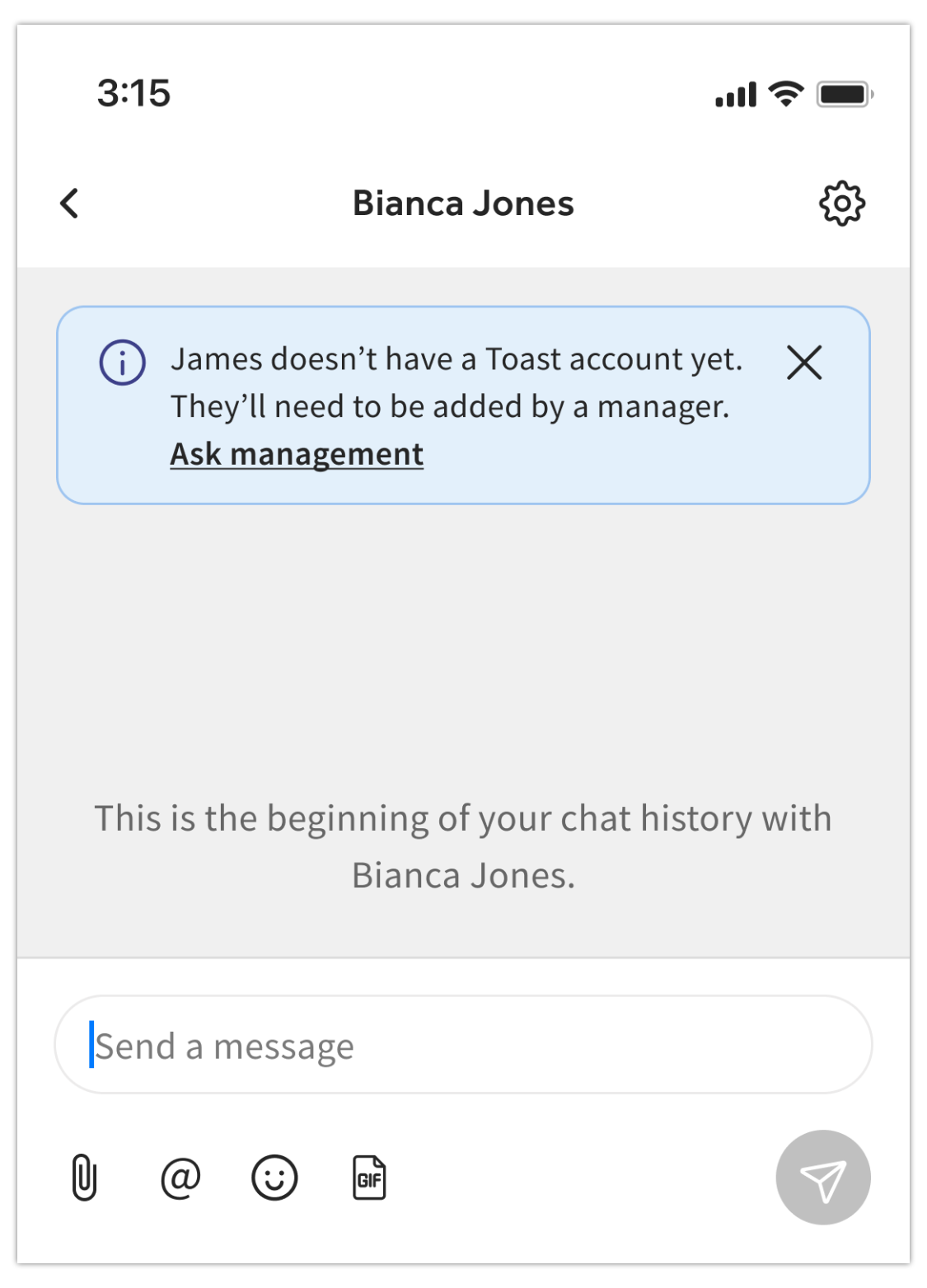 |
Team Chat Settings and Messaging Essentials
When a chat is open, select the gear icon in the upper-right corner to open this chat's settings.
- Employees will see the option to mute or leave the chat.
- Muting a chat means push notifications will not be sent to your mobile device for this specific chat.
- If you'd like to disable all push notifications from the Chat tab, navigate to More, select the initials bubble in the upper-left corner, and then select Settings. Locate the Notify via push notifications setting in the Chat tile and disable it.
- In addition to push notifications, MyToast App sends email alerts to employees when they have a message waiting. If an employee does not yet have a MyToast account, this email notification is sent to the Operator with permissions to add employees so they can facilitate the setup process.
- Employees can leave group chats, but not direct or private chats (chats with one other person).
- Chat owners will see additional settings, including the options to add or remove members, rename the chat, or delete the chat. Deleting a chat is permanent and the contents cannot be restored.
- Chat admins will have all the same settings as chat owners do (even if they're not the chat owner), but only if they're a member of the chat. Chat admins cannot manage or interact with chats they are not a member of.
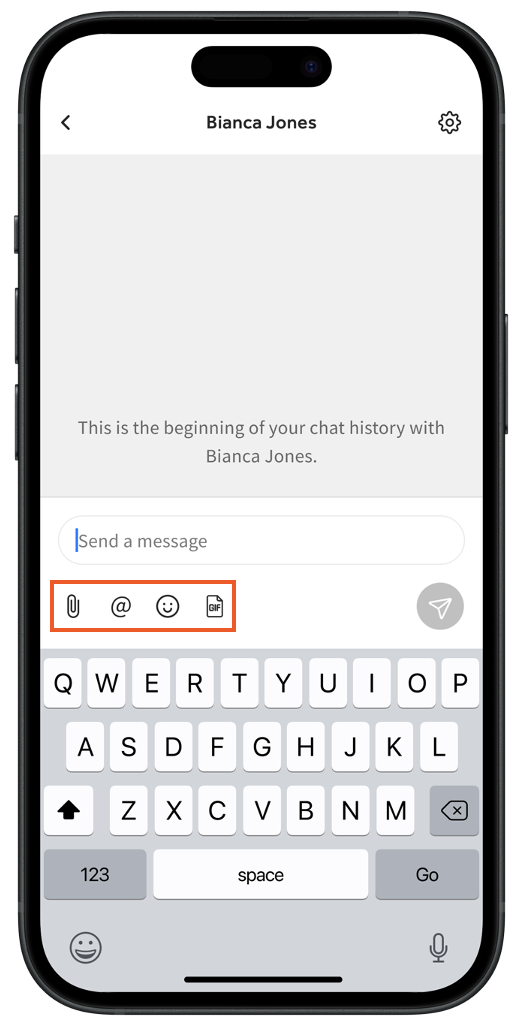
Additional message options appear after selecting the Send a message field:
- Add attachment, such as an image or pdf (paperclip icon)
- Add an emoji or gif (happy face and GIF icons). There are pre-set emojis, but you can search for a gif you like. Select Shuffle to browse to the next gif.
In Team Chat, gray check marks mean your message has been sent, while blue check marks confirm it's been read. The typing indicator shows any user who is currently typing. If more than two people are typing, it will instead display "Several people are typing..."
If you tap and hold (long-press) on a message that was sent to you, you can:
- Reply to that message directly. This will send a message that includes the original message and your response.
- Add an emoji to that message. Users can see who reacted with an emoji in an upcoming MyToast release.
- Mark the message as unread (so you can re-check it at a later time).
If you tap and hold (long press) on a message you've sent, you can perform the reply and emoji functions above, plus you can:
- Edit or delete the message. Edited messages will be labeled and deleted messages will be replaced with "Message deleted".
- View the "read by" status to see which other group chat members have seen your message.
Chat Owners
| Chat admins (usually managers) oversee the entire Chat platform while chat owners (can be managers or employees, depending on your settings) only oversee the chat they own (chats they started). |
A chat owner is the individual who started a group chat. Along with any chat admins who might be part of the group chat, chat owners have extra abilities to change the chat name, add new members, remove existing ones, delete the chat entirely, and restrict who can post within a team chat. Users they restrict are also unable to reply to existing messages or edit and delete their content. A chat owner cannot leave the chat.
A chat owner can open the chat to access these settings:
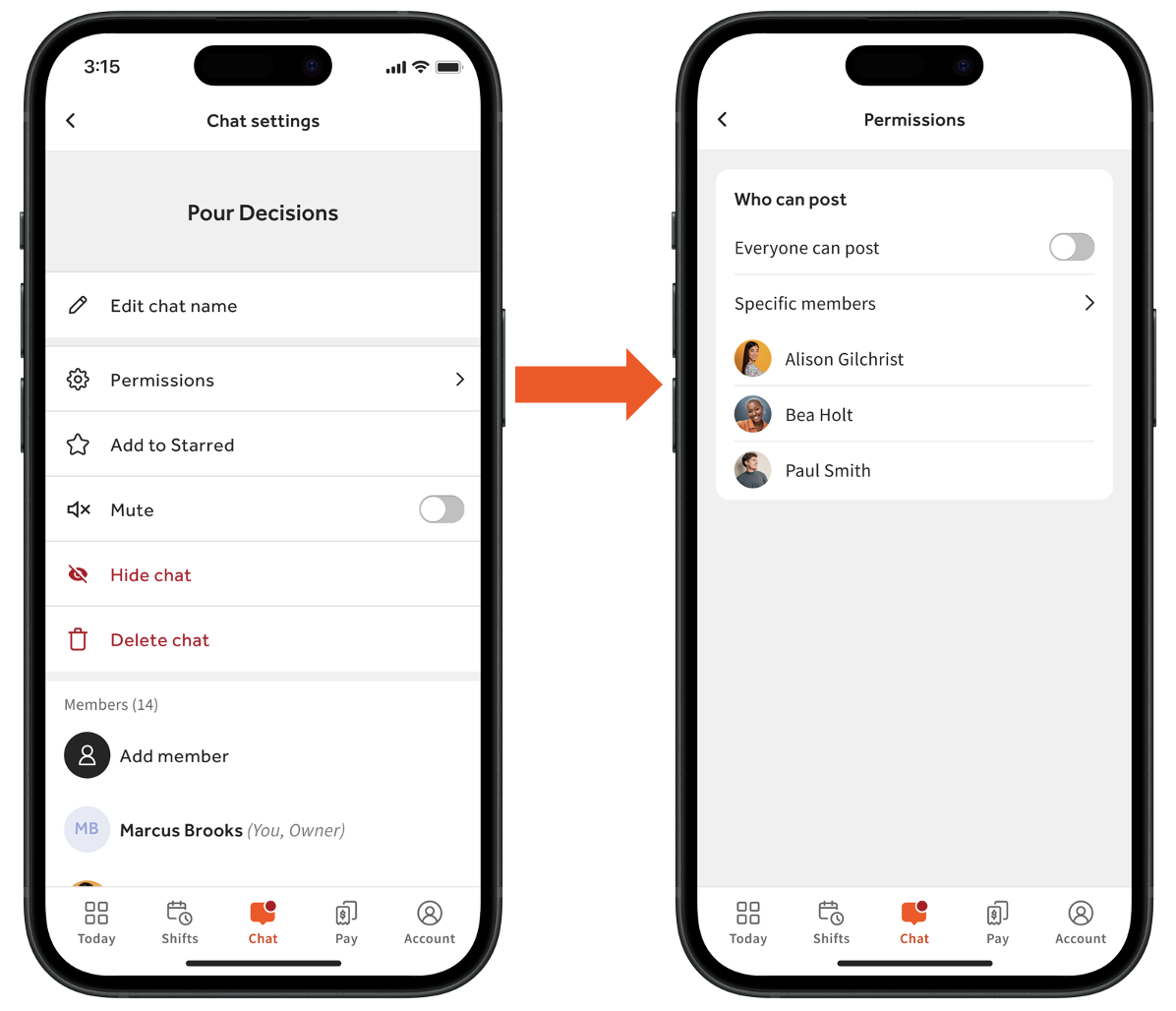
- To change the chat name, select the gear icon > Edit chat name.
- To add members, select the gear icon > Add member. Added members can see the entire conversation history.
- To remove a member, select the gear icon and tap the red - icon next to their name in the Members section.
- To restrict a user from posting, select the gear icon > Permissions. Toggle off Everyone can post and edit the Specific members tab. This can create one-way message channels for a specific topic, such as announcements or daily specials.
- To delete a chat, select the gear icon > Delete chat.
Terminated Employees' Access to Chat
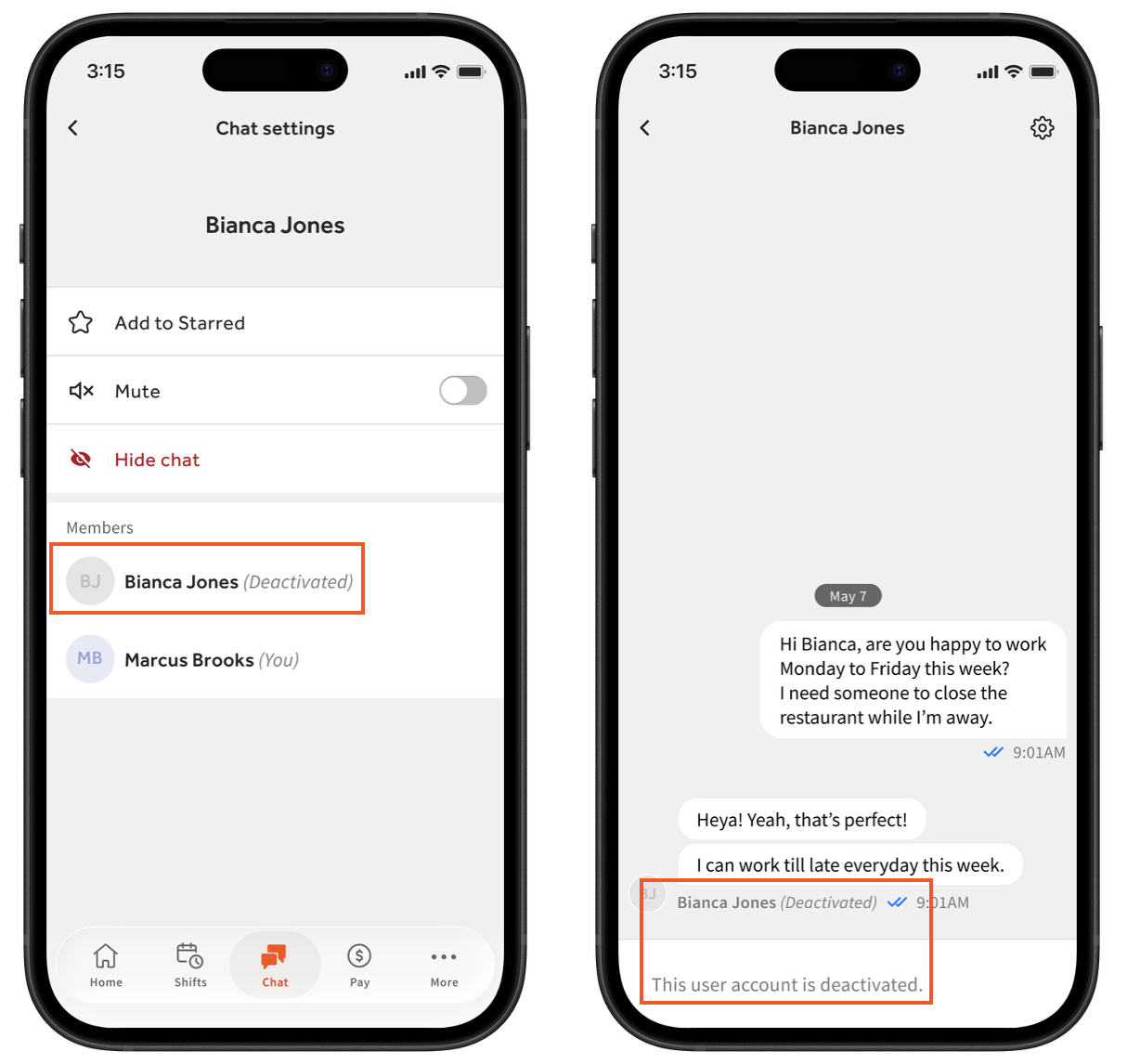
Once an employee is archived in Toast Web (or Toast Payroll, if your restaurant uses it), the Chat tab of the MyToast app will become unavailable (terminated employees will only have access to the More tab). Terminated employees cannot view or send any messages. Furthermore, other employees and managers will be unable to send direct messages to the terminated employee, which will be denoted by the Deactivated label beside their name as seen in the images below.
MyToast Chat FAQ
How can I invite employees to the MyToast app?
Employees with a verified email address in Toast have access to download and log into the app with their email and password in Toast. Otherwise a manager in the MyToast app can navigate to More > Invite your team.
From Toast Web, managers can invite employees by navigating to Team > Employees. Select the employee's last name hyperlink and select Invite to create account to send an email invitation. While going the Toast Web route, keep in mind that until an invite is accepted, an employee cannot clock-in or access a POS device. This does not happen when an employee is invited via the MyToast app, as described directly above.
Who can delete messages?
A message sender can delete their own messages. Chat admins who are a part of the chat group can also delete messages from other members.
Why am I getting an error message when I try to add an attachment?
MyToast allows for all standard attachment file types, so some less common files may not be usable. The file size limit is 100 MBs.
Can I send messages between the Sling app and the MyToast app?
No, these are two separate apps and they do not have any cross-over or integration. Chat in MyToast was developed to leverage Toast's ecosystem for future improvements. At this time, Toast does not have plans to merge the apps, enable cross-app functions, or remove the Sling app.
What can I do if the MyToast app is having general problems?
Verify that you're using the most recent version of the app. Check for any updates in the Apple App Store or the Google Play Store. If something's still not right, try navigating to your mobile device's settings, locating the MyToast app, and clearing the cache and/or reinstalling the app.
Additional Resources
- Get Started With the MyToast App (new users begin here)
- The MyToast App: Home
- The MyToast App: Shifts
- The MyToast App: Pay
- The MyToast App: More
This content is for informational purposes and is not intended as legal, tax, HR, or any other professional advice. Please contact an attorney or other professional for advice.