Get Started With Single Sign-On Login With Toast
Last updated: Oct 1, 2026, 5:23 PM
| Single Sign-On access is limited to select users at this time. |
- Single Sign-On With Toast
- Log In With Single Sign-On
- Single Sign-On Errors
- Frequently Asked Questions
- Can someone without login credentials for their organization still use SSO?
- What should I do if an individual's login credentials return as incorrect?
- What happens if someone creates credentials for Toast first and then wants to sign in with SSO?
- Will removing someone's credentials/log in from my organization remove their user profile from Toast or vice versa?
- Is SSO enabled on my Toast devices?
Single Sign-On With Toast
Single sign-on (SSO) is a process that allows users from large organizations to log into multiple applications with one set of account credentials. At this time, SSO is in limited release with select users. Most users will not use SSO, and will log in using their Toast Web account credentials (see Log in to a Toast Product or Device).
For organizations using SSO with Toast, the first users of a new account will receive an email inviting them to sign in once their Toast Web dashboard is created. If you don't receive an email to log in to Toast, please contact your Onboarding Consultant.
SSO is available for Toast Web login and for supported Toast mobile apps (Toast Now, Toast Tables, and MyToast). If your organization uses SSO, you can sign in to these mobile apps with your organization credentials instead of a separate Toast email and password.
Log In With Single Sign-On
To log in using SSO, follow these steps:
- Navigate to Toast Web or to the appropriate app's login screen.
- In the MyToast app, you'll need to select Log in and then enter your email address before you can see the next screen.
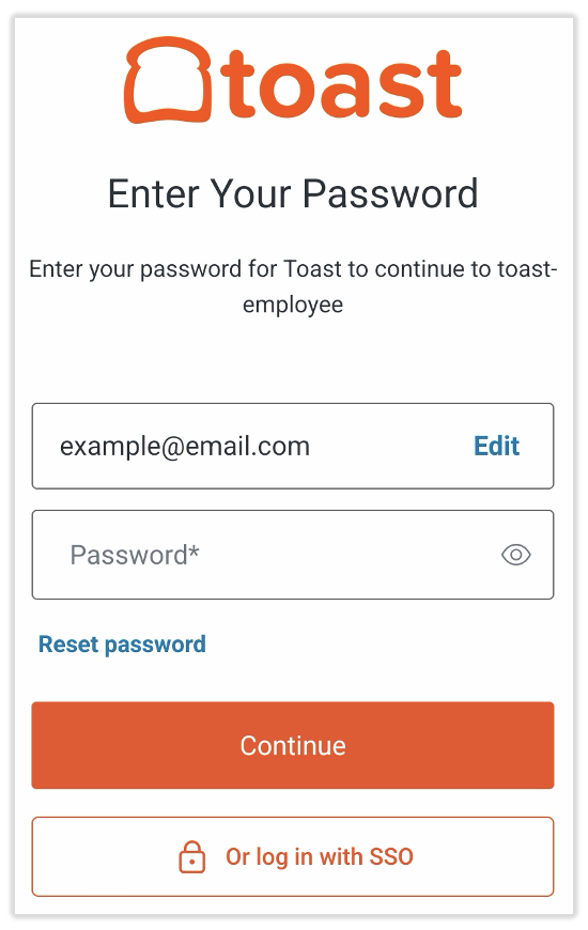
- Select Or log in with SSO. Note: The images here may slightly differ from your experience, depending on what product you're logging into. The entry point (toast-employee, web-toastweb, etc.) may change and you may not need to enter your email address first, as shown below.
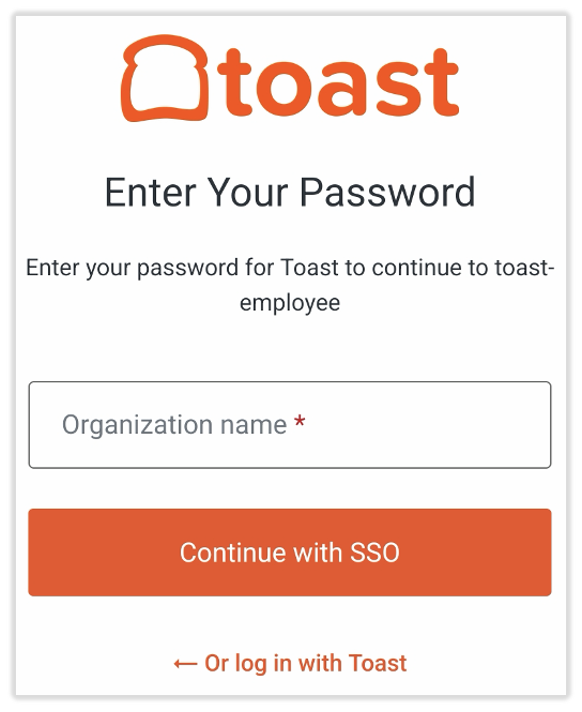
- You will then see the Organization selector:
- Type in the organization you are from and select Continue with SSO. You'll be brought to your own organization's login page. If you successfully sign in on their organization's page, you'll be directed back to the Toast landing page and can begin working with Toast!
Single Sign-On Errors
Organization Not Recognized by Toast
If you type in an organization that is not recognized by Toast, you'll see an error message that states, "No organizations found under this name."
If you selected the Log in with SSO option by accident, select Cancel or Back to login at the bottom of the page to go back to the regular Toast Web login portal.
User Invited to SSO Using a Different Email
With SSO, when you invite staff to Toast, you must use the email associated with their Employee ID (EID). If a different email is used, the invited staff member will receive an error message while trying to log in that says, "Login error. An error occurred trying to login; please try again."
You can resolve this error by either:
- Archiving the invited employee and re-inviting them using the correct email attached to your group's login requirements (EID).
- Contact your Corporate team to update the preferred email to match what the staff member would like to have in Toast.
Frequently Asked Questions for SSO
Can someone without login credentials for their organization still use SSO?
No, users will need login credentials for their organization to log in via SSO.
What should I do if an individual's login credentials return as incorrect?
Contact your organization's headquarters/corporate support team. Toast has no control over login credentials belonging to other companies.
What happens if someone creates credentials for Toast first and then wants to sign in with SSO?
If you use the SSO login path, you will only have access to restaurants to which SSO user has been granted access. When you are invited to a restaurant belonging to a customer with SSO (invite sent from Toast during the onboarding of your location), they will be brought through SSO as part of the invitation/activation process.
Will removing someone's credentials/log in from my organization remove their user profile from Toast or vice versa?
No, they’re two separate groups of users for the SSO setup. Removing a login from the organization does not automatically remove the user from Toast, the organization will need to remove from both places as needed.
- If users have access to multiple locations within Toast Web that need to be removed for any reason:
- In Toast Web, navigate to Team > Employees and select the edit pencil of the specific employee.
- Scroll down to the Permissions & Access tile and select the View restaurant/ group permissions drop-down menu.
- Remove any restaurant group or location access this person has by deselecting all the checkboxes on both tabs. Select Remove selected and save.
- This ensures they no longer have access to anything in Toast Web.
- Select the Profile tab. Scroll down to Accessible restaurants and remove any restaurant group or location access this person has by deselecting all the checkboxes on both tabs. Select Remove selected and save.
- This will ensure they no longer have access to login to any locations POS with their PIN, or Toast Web accounts moving forward.
- Still in Toast Web, navigate back to Team > Employees and select the box with a down arrow to archive the employee.
Is SSO enabled on my Toast devices?
At this time, SSO is only enabled for Toast Web login. Stay tuned for future updates.