Sling by Toast: Set Up Schedule Enforcement
Last updated: Jan 28, 2026, 3:14 PM
- Set Up Schedule Enforcement
- Create a Time Frame for Clock In/Out Times
- Schedule Enforcement FAQ
- What happens if an employee tries to clock in too early or clock in when they are not scheduled?
- What happens if an employee tries to clock in too late, clock out too early, or clock out too late?
- Why would some shifts in Toast's Schedule page not sync from Sling with a job attached?
- Why aren't all my shifts in Sling syncing over to Toast's Schedule page?
Set Up Schedule Enforcement With Scheduling Pro
Once Sling and Toast are fully integrated, log into Toast Web to enable a setting that forces employees to clock in and out within a certain time frame surrounding their shift. To view more settings for time entries in Toast Web and the time clock in Sling, check out Sling by Toast: Configure Time Clock and Time Entries.
Note: Schedule enforcement is only available with Scheduling Pro.
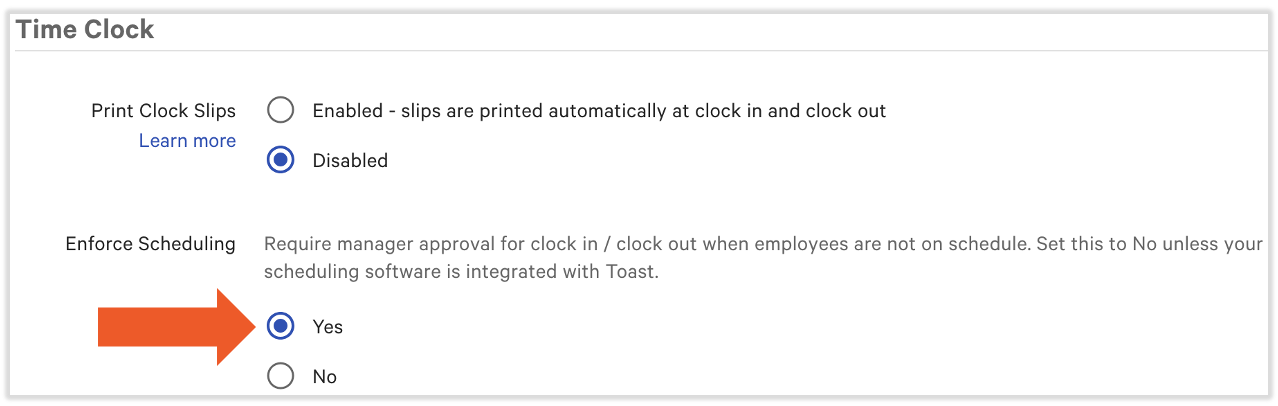
- In Toast Web , navigate to Front of house > Order screen setup > UI options.
- Scroll down to the section named Time clock and locate the Enforce Scheduling setting.
- Set this as Yes. Then Save and Publish.
- Next, continue with the following section to set time frames.
Create a Time Frame for Clock In/Out Times for Sling by Toast
After the above setting has been enabled, you may customize the amount of time that employees may clock in or out before their shift's start and end times.
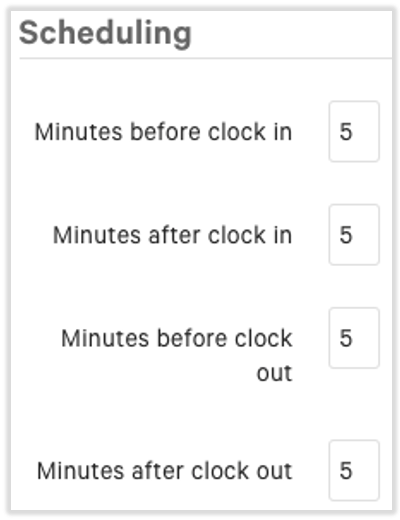
- In Toast Web, navigate to the Employees section using the navigation on the left side of your screen and select Employee management > Schedule enforcement.
- There are four fields here that allow you to set the window of time for both clocking in and out. Customize these fields as you see fit. Note: The limit on this timer is 90 minutes; attempting to input a longer time will cause system errors.
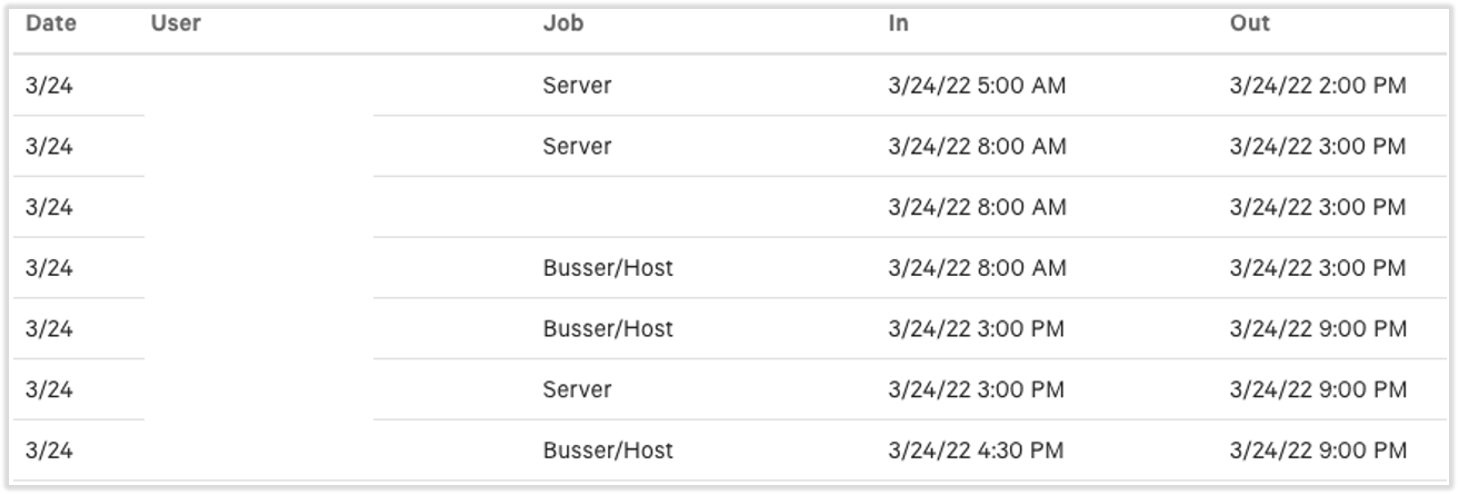
- If a schedule has already been set up in Sling by Toast, you will also see the current schedule of employees at the bottom of this page
- Don't forget to save and publish any changes.
Back to top
Schedule Enforcement FAQ
What happens if an employee tries to clock in too early or clock in when they are not scheduled?
A screen will appear asking for a manager's passcode to approve this action. This will report as an unscheduled timesheet in Sling, but it does allow the employee to bypass the enforcement with proper approval.
What happens if an employee tries to clock in too late, clock out too early, or clock out too late?
Just like above, the employee will need to be approved. A manager's passcode is required again, but in this case, the time entry will remain linked to the scheduled shift in Sling rather than report as unscheduled.
Why would some shifts in Toast's Schedule page not sync from Sling with a job attached?
This boils down to making sure employees are assigned the same jobs in both Toast and Sling. Shifts without a job attached indicate that the employee's profile in Toast does not contain the job they were assigned for this shift. Check out the Update Employee Jobs in Toast Web section of Add and Manage Employees in Toast Web to see how to assign jobs to employees in Toast.
Why aren't all my shifts in Sling syncing over to Toast's Schedule page?
This can occur when a specific job exists in Sling, but not in Toast. It is best practice to add jobs in Toast and allow them to sync over to Sling rather than adding jobs (positions) in Sling first. Learn how to add jobs in Toast by reading Create and Edit Job Roles for Toast POS.