Create and Edit Jobs (Roles) for Toast POS
Last updated: Oct 20, 2026, 11:08 AM
- Before you begin
- Create a new job
- Set up a cashier or bartender job
- Set up a server or non-cashier job
- Set up a manager (salaried) job
- Exclude a job from labor reporting
- Update a job's wages
- Update a job's permissions
- Remove a job
- Export active jobs
- FAQ
- Why is my wage override being ignored?
- Why can't I create or edit a job?
- Do jobs sync from Toast Web to Toast Payroll?
- Can I assign two or more jobs to one employee?
- Can I copy jobs to other locations?
- Can I restrict an employee's permissions to the job they are clocked into?
- Can I accidentally delete a job that employees are using?
- Why doesn't the "Last Updated" column reflect my changes?
- Related articles
Before you begin
To create or edit jobs in Toast Web, you need:
- Products: Toast Web (jobs are managed in Toast Web, not on the POS device)
- Permissions: 8.2 User Permissions permission. You also need every permission you intend to assign to a job — you cannot grant a permission you do not have yourself.
- Browser: Google Chrome is the recommended browser for Toast Web.
If you encounter a permission error when trying to create or edit a job, see Get Help With User Permissions for Toast POS.
If your restaurant uses multi-location management, see Managing User Jobs and Permissions with Multi-Location Management for group-level job configuration.
Create a new job
Jobs let you quickly add employees with the same permissions based on their role — whether it is a server, driver, cook, cashier, or a custom role in your restaurant. You can also set their pay basis (salary or hourly) when creating the job.
- In Toast Web, navigate to Team > Settings > Jobs.
- Select + Add Job, then choose one of these options:
- Create New Job: Configure permissions, pay basis, and other settings for the role. The following steps will reference this route.
- Quick Add Jobs: Add the job name only. You can assign permissions later. This is not commonly recommended.
- On the first page:
- In the Job details section, set the Job title. If you have more than one location, you can pick which locations the job should be created in under Where does this job apply?. Job codes are not commonly used.
- In the POS options section, you can toggle two settings:
- Allow cash drawer lockdown: This toggle should be enabled for any cashier-type jobs. The cash drawer lockdown feature allows a cash drawer to be assigned to one person and does not allow users without permission to use that cash drawer.
- Available for delivery driving: When this toggle is enabled, a person working this job can be assigned to and dispatched on delivery orders in the POS.
- In the Pay section, choose whether this is an hourly or salaried job, set the default pay for this job (and the start date, if applicable), confirm if the labor info should appear in your reporting or not, and importantly, toggle the Tipped employee setting if the job is required to declare tips during a shift review.
- Select Continue to move to the Permissions page. Assign the permissions this role needs. For a full list of available permissions, see Permissions Reference Guide. You can also reference the sections below that call out specific permissions for certain job types.
- Note: The X.0 permissions are no longer required in most configurations and will be removed in a future update. You can ignore these.
- Select Create Job.
Expected outcome: The new job appears in your Jobs table. If you use Toast Payroll, this job syncs to Toast Payroll almost immediately. Use Toast Payroll: Assign Employees to Multiple Jobs or Locations to assign this job to your staff in payroll.
Note: When you create a job that includes sensitive permissions (for example, finance access), Toast Web may ask you to enter a one-time, six-digit verification code sent to your verified phone number. If you have not verified your phone number, you will be asked to do so at this time. To learn more, see the "Security Features for Your Account" section in Update Your Toast Web User Account. You will only be prompted once within a login session.
Set up a cashier or bartender job
Cashiers and bartenders need specific configurations to work with cash drawers. These settings ensure drawers are secured to the correct employees.
- In Toast Web, navigate to Team > Settings > Jobs.
- Select + Add Job > Create New Job.
- Enter the role information and enable the Allow cash drawer lockdown toggle before selecting Continue.
- On the Permissions page, select Select All to the right of POS Access to add all basic POS permissions.
- Additionally, enable the toggle for either 3.17 Cash Drawers (Blind) or 3.18 Cash Drawers (Full).
- Blind cash management does not show the employee the expected amount in the cash drawer during cash reconciliation.
- Full cash management shows the expected amount during cash reconciliation.
- There may be other permissions you'd like to assign. Once you're ready, select Create Job.

Expected outcome: The cashier or bartender job now appears in your Jobs table with POS access and cash drawer permissions enabled.
Set up a server or non-cashier job
For employees who do not need cash drawer access, such as servers and runners, set up a job with basic POS permissions only.
- In Toast Web, navigate to Team > Settings > Jobs.
- Select + Add Job > Create New Job.
- Enter the role information and select Continue. Enable the Tipped employee setting if the job is required to declare tips during a shift review.
- On the Permissions page, select Select All to the right of POS Access to add all basic POS permissions. However, these may not be necessary for non-server jobs, so use your discretion.
- There may be other permissions you'd like to assign. Once you're ready, select Create Job.

Expected outcome: The server or non-cashier job now appears in your Jobs table with POS access enabled and no cash drawer permissions.
Set up a manager (salaried) job
For salaried employees who do not need to clock in, configure manager permissions and a salary pay basis.
Important: Any employee set up with a non-tipped, salary-only job will not have the option to clock in or out. If you have a shift manager who should clock in and out, do not set them up as salaried unless their job role is also flagged as tipped.
- In Toast Web, navigate to Team > Settings > Jobs.
- Select + Add Job > Create New Job.
- On the first page, enter the role information. Select Salaried for the Pay basis setting. You may also wish to select Exclude from reports so that salaries do not appear on labor since they are considered fixed costs. Select Continue when you're ready
- On the Permissions page, select Select All to the right of POS Access to add all basic POS permissions and select Select All next to Manager to grant all manager permissions to this job. In the end, make sure the job has the appropriate permissions.
- Select Create Job.
Expected outcome: The manager job now appears in your Jobs table with salary pay basis and manager permissions enabled.
Exclude a job from labor reporting
When creating jobs, the Reporting setting (Include in reports or Exclude from reports) controls whether that job's labor hours and cost appear in your labor reports. Excluding certain jobs helps you correct your reporting on revenue per employee hour and labor cost as a percentage of net sales.
Consider excluding jobs that are:
- Salaried (in many cases, they are considered fixed costs)
- Marked hourly, but considered fixed costs, such as hourly managers
- General logins, such as AM/PM Bar, Takeout, or Cashier — these are logins that employees might use at the same time as their own job, but should not count as separate hourly labor costs
- In Toast Web, navigate to Team > Settings > Jobs.
- Select the job you want to exclude.
- Change the Reporting setting to Exclude from reports.
- Select Save.
Expected outcome: This job's hours and pay no longer appear in your labor summary reports. For more information on labor reports, see Labor Reports Overview.
Update a job's wages
You can update the default wage (also called pay rate) for an entire job at once. This updates the wage for all employees assigned to that job, unless they have an individual wage override.
- In Toast Web, navigate to Team > Settings > Jobs.
- Select the job you want to edit.
- Update the Default Pay field to the new wage on the job details page.
- Once you enter a new rate, you can retroactively apply the wage change using the Default pay start date field. Retroactive wage changes can be applied up to 35 days in the past.
- Select Save.
Expected outcome: The new default wage applies to all employees in this job who do not have an individual wage override. Employees with a wage override keep their override amount.
If your wage override is being ignored
If you see the message "Changes saved successfully, but wage override updates were ignored," this typically means the wage change conflicts with another setting. Common causes include:
- The employee has an individual wage override set at the employee level that takes priority over the job-level default pay.
- The job is synced with Toast Payroll, and the rate is managed in payroll.
To resolve this, check the employee's individual profile to see if a wage override is set there. If you use Toast Payroll, see Toast Payroll: Default Rates With Jobs for how job-level and payroll-level rates interact.
Update a job's permissions
- In Toast Web, navigate to Team > Settings > Jobs.
- Select the job you want to edit.
- Select the Permissions tab.
- Enable or disable the toggle(s) for the desired permissions to update the access associated with this job. For a full list of permissions, see Permissions Reference Guide.
- Select Save.
Expected outcome: The updated permissions apply to all employees assigned to this job, unless they have individual permission overrides. To learn more about individual overrides, see Assign User Access Permissions.
Note: The Last Updated column in the Jobs table only updates when a user changes a job's title. It does not update when changes are made to a job's wage or permissions.
Remove a job
Removing an active job does not affect previous reporting. Historical entries are preserved in your Toast reports.
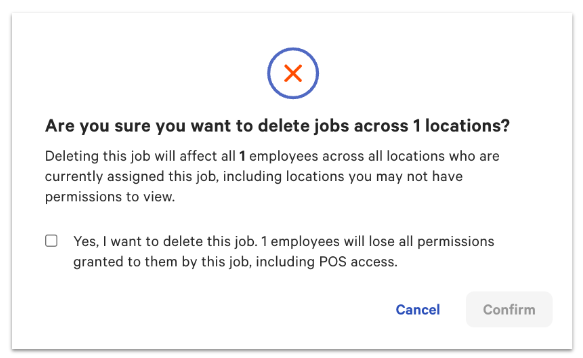
Important: Deleting a job affects all employees across all locations who are currently assigned that job. Those employees lose all permissions granted by the job, including POS access.
- In Toast Web, navigate to Team > Settings > Jobs.
- Select the trash can icon in the rightmost column of the Jobs table for the job you want to remove.
- A confirmation pop-up appears showing the scope of this action. Read the details, select the confirmation checkbox, and select Confirm.
- Before you save, you can undo the removal by selecting Undo Remove in the Jobs table. Once you save, you can only reinstate this job by using + Add Job.
- Select Save.
Expected outcome: The job is removed from the Jobs table. Employees previously assigned to this job no longer have its permissions.
Export active jobs
You can export a list of active jobs to manage labor or to send to a payroll or labor integration partner.
- In Toast Web, navigate to Team > Settings > Jobs.
- Select the export icon (down arrow) at the top of the Jobs table.

Expected outcome: A .csv file downloads automatically. It includes the job title, external code, hourly or salary designation, wage value, tipped status, cashier status, driver status, and more.
FAQ
Why is my wage override being ignored?
This message appears when a wage change conflicts with another setting. The most common cause is that the employee has an individual wage override on their employee profile that takes priority over the job-level default. Check the employee's Jobs & pay tab on their profile to see if a wage override exists (you may need to enable the Show Wages toggle to see it). If you use Toast Payroll, the rate may also be managed in payroll.
Why can't I create or edit a job?
To create or edit jobs, you need the 8.2 User Permissions permission, plus every permission you intend to assign to the job. If you are missing even one permission that the job includes, Toast blocks the change. Ask a restaurant admin or owner to verify your permissions. For more help, see Get Help With User Permissions for Toast POS.
Do jobs sync from Toast Web to Toast Payroll?
Yes, jobs created in Toast Web sync to Toast Payroll right away. If a job appears in Toast Web but not in payroll, or vice versa, see Toast Payroll: Assign or Change Employee Jobs or Locations and Toast Payroll: Sync Information With Toast Web for troubleshooting sync issues.
Can I assign two or more jobs to one employee?
Yes. You can assign multiple jobs to a single employee. Each job can have its own pay rate and permissions. The employee receives the combined permissions of all assigned jobs. To assign an additional job, open the employee's profile in Toast Web, navigate to Jobs & pay, and select the additional job. For more details, see Assign User Access Permissions.
Can I copy jobs to other locations?
If your restaurant uses multi-location management, jobs can be managed at the group level and applied across locations. See Managing User Jobs and Permissions with Multi-Location Management. For single-location setups, jobs must be created individually at each location.
Can I restrict an employee's permissions to the job they are clocked into?
By default, an employee receives the combined permissions of all assigned jobs, regardless of which job they are clocked into. To learn about restricting permissions to the clocked-in job, see Limit POS Permissions to the Clocked-in Job.
Can I accidentally delete a job that employees are using?
Yes — Toast shows a confirmation warning before you delete a job, telling you how many locations and employees are affected. If you confirm the deletion, all employees assigned to that job lose the permissions it granted, including POS access. You cannot undo a saved deletion; you would need to recreate the job using + Add Job.
Why doesn't the "Last Updated" column reflect my changes?
The Last Updated column in the Jobs table only updates when a job's title is changed. It does not reflect changes to wages or permissions.
Related articles
- Assign User Access Permissions
- Get Help With User Permissions for Toast POS
- Permissions Reference Guide
- Toast Payroll: Assign or Change Employee Jobs or Locations
- Managing User Jobs and Permissions with Multi-Location Management