Toast Payroll: Assign or Change Employee Jobs or Locations
Last updated: Oct 9, 2026, 11:13 AM
Employees can work in multiple roles within one restaurant or in multiple locations. See how to manage jobs and secondary positions in Toast Payroll.
- Before You Begin
- Overview Steps
- Quick Fix
- Toast Payroll Jobs and Positions Overview
- When to Add a Secondary Position vs Another Job
- Add a Job to an Employee's Profile
- Change an Employee's Job
- Remove a Job From an Employee's Profile
- Add a Secondary Position
- Remove a Secondary Position
- Update Pay Rates for a Secondary Position vs a Job
- Troubleshooting
- Frequently Asked Questions
- Related Articles
Before You Begin
Applies to: Toast Payroll
Permissions needed:
- HR+ security role
What you'll accomplish: Add, change, or remove a job, secondary position, or pay group on an employee's Toast Payroll profile so they can clock in at the right role and location, and be paid from the correct pay group.
| Note: All secondary positions and jobs must be added in Toast Payroll where they will instantly sync to Toast Web. For more information on Toast Web and Toast Payroll syncing, see Toast Payroll: Sync Information With Toast Web. |
Overview Steps
- Decide whether the employee needs a new job, a new secondary position, or both. Use the Quick Fix table below.
- In Toast Payroll, navigate to the employee's profile and select + Add job or Add+ on the position page, depending on which path applies.
- Learn how the new Toast Payroll navigation works by visiting Navigate Toast Payroll Within Toast Web.
- Set the required fields, including the Reason code when editing a position, and select Save or Submit.
- For pay rate changes, route to the right tool: Pay Change tool for the primary job, the Jobs tab for secondary jobs.
- Changes sync to Toast Web immediately.
- If your change won't save or you see an error, see the Troubleshooting section.
Quick Fix
Use this table to route to the right procedure based on what the employee needs.
| What You Need | Where to Go |
| Employee picks up a new role at the same location (same pay group) | Add a Job to an Employee's Profile |
| Employee transfers to another location in the same pay group | Add a Job to an Employee's Profile |
| Employee works at a location paid out of a different pay group | Add a Secondary Position |
| Employee works at multiple locations across different pay groups, with multiple jobs at each | Add a Secondary Position, then Add a Job under each |
| Employee permanently moved to a new location; you want to swap their primary and secondary | Toast Payroll: Change a Secondary Position to a Primary Position |
| Employee is moving between FEINs / company codes | Toast Payroll: Inter-Company Transfers |
| You see "More Than One Position Per Pay Group" error | Error: More Than One Position Per Pay Group |
| You need to change an employee's pay rate | Update Pay Rates for a Secondary Position vs a Job |
Toast Payroll Jobs and Positions Overview
These four terms come up throughout the rest of this article. Use the definitions below to match the right path.
- Job: In Toast Payroll, jobs (roles) are how the restaurant classifies an employee's work. For example, Host, Bartender, BOH, Dishwasher. These jobs control an employee's ability to clock in and out of specific jobs on a Toast device. They also specify which rate the employee is paid for each job they work.
- Position: A set of attributes such as whether an employee is part-time or overtime-eligible, or which time away from work tier or benefits tier they belong to. For a full breakdown of position fields and reason codes, see Toast Payroll: Update Positions.
- Secondary Position: The same as a position, but used when an employee is working in more than one pay group. The secondary position contains the employee attributes for the position worked in the secondary pay group.
- Pay Group: Portions of your organization grouped together for payroll payment processing, or groups of employees that share a common pay date, frequency, or method. Most often used when two or more FEINs are processing payments. For the full concept guide, see Toast Payroll: Review Pay Groups.
When to Add a Secondary Position vs Another Job
A secondary position controls which pay group(s) an employee will be paid out of. Only add a secondary position if your account has multiple pay groups and the employee will be paid out of more than one pay group. You have one pay group for each payroll your company runs (for example, management weekly, staff bi-weekly). When staff members work at a new location, they may need both a new secondary position and a new job added to their profile.
| Important: When transferring employees between locations, pay rates and job permissions do not transfer automatically. They must be created and adjusted manually. Attempting to keep all hours in a single pay group for an employee working across locations with different tax jurisdictions may cause tax discrepancies and Form W-2 inaccuracies. For work tax Location details, see Toast Payroll: View and Update Work Tax Locations. |
Use these three scenarios to decide.
Scenario 1: Employee Has Multiple Jobs or Works at Multiple Locations in the Same Pay Group
If the jobs or locations are paid out of the same pay group, add a job in Toast Payroll and assign the employee to the job. Do not add a secondary position. Adding a secondary position when the pay group is the same will trigger the "More Than One Position Per Pay Group" error — see the troubleshooting section below.
Scenario 2: Employee Works at Locations Paid Out of Different Pay Groups
If the locations are paid out of different pay groups, add a secondary position. The secondary position is what allows the employee to be paid out of the additional pay group.
Scenario 3: Employee Works at Multiple Locations With Multiple Jobs Across Different Pay Groups
If the locations are paid out of different pay groups and the employee has different jobs at those locations, add a secondary position for each pay group you intend to pay out of, then add the relevant jobs under those positions. The secondary position allows the employee to be paid out of the pay group while the job tracks their time.
When employees work across multiple locations:
- Each location may have different tax jurisdictions and reporting requirements.
- Use separate pay groups for accurate tax calculation and Form W-2 reporting.
- Avoid manually moving hours between pay groups, as this may cause tax compliance issues.
Add a Job to an Employee's Profile
When an employee has multiple roles within the restaurant, add a job for each role under the pay group they will be paid out from (see Scenario 1).
| Note: If you are looking to add a brand-new job to your Toast ecosystem (not just to one employee), the job itself must first be created in Toast Web. See Create and Edit Jobs (Roles) for Toast POS. The new job will sync to Toast Payroll almost immediately. |
For example, an employee who can clock in as either a cashier or training manager at the Chicago location, earning $16 per hour as a cashier and $22 per hour as a training manager, would have two jobs on their Toast Payroll profile. The job specifies which rate the employee earns for which role.
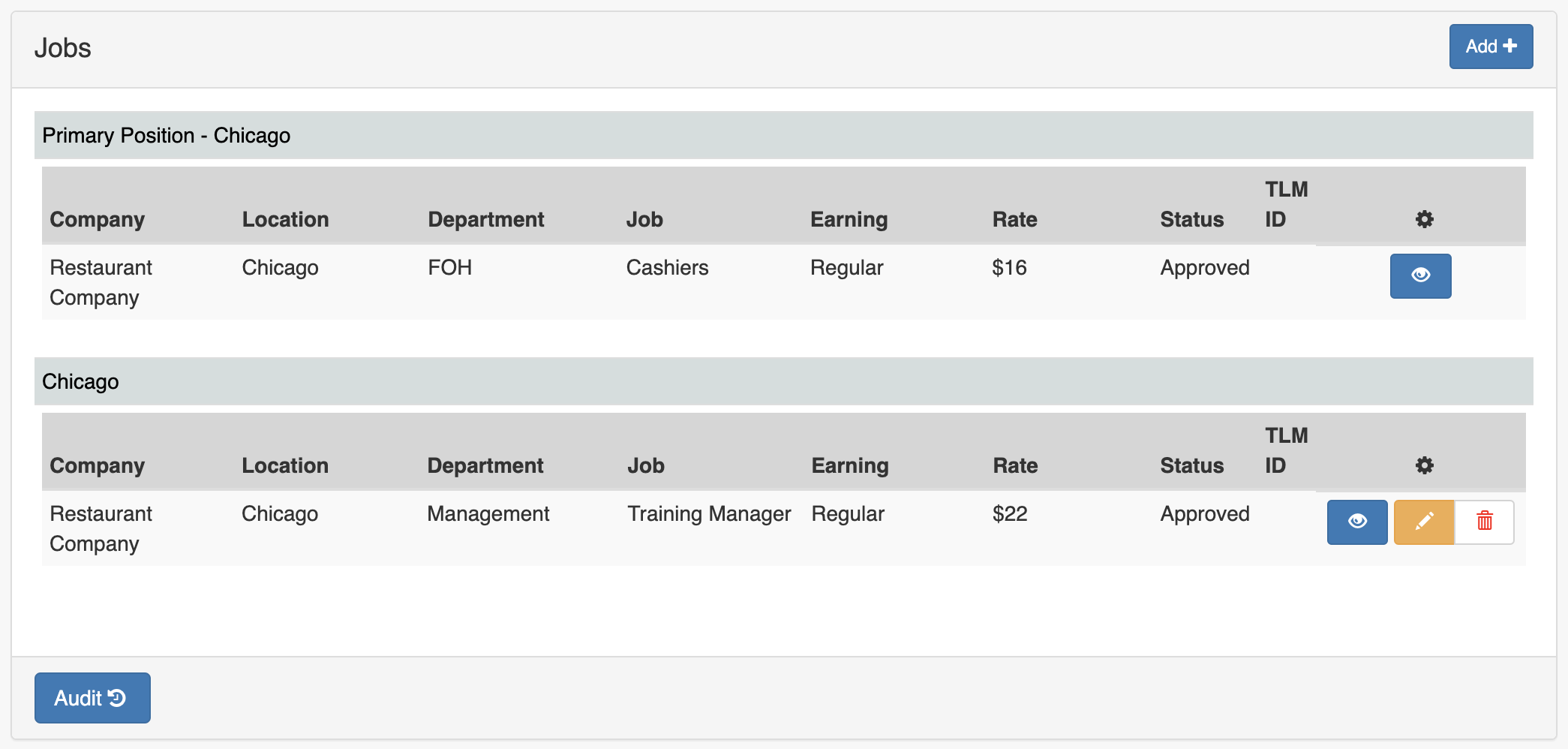
To add a job:
- In Toast Payroll, navigate to the employee's profile, scroll down, and select + Add job.
- Learn how the new Toast Payroll navigation works by visiting Navigate Toast Payroll Within Toast Web.
- Learn how the new Toast Payroll navigation works by visiting Navigate Toast Payroll Within Toast Web.
- Complete the required fields and select Save.
- The Export ID field is not typically used.
- If you don't see the job you would like to add, the job must first be created in Toast Web. See Create and Edit Jobs (Roles) for Toast POS.
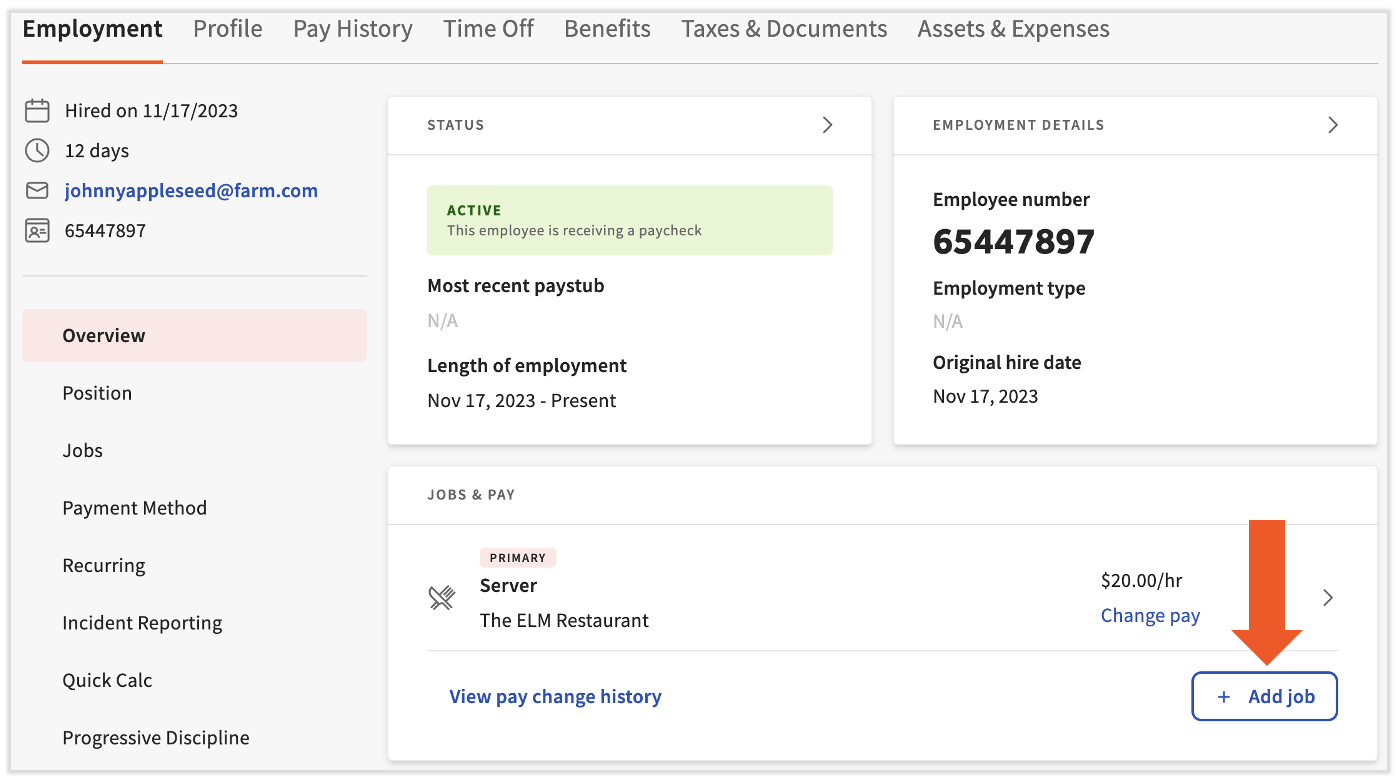
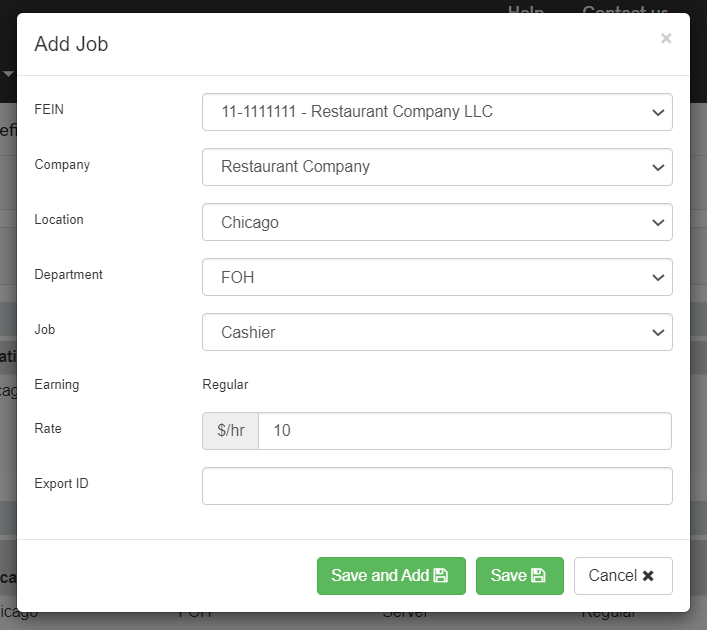
Expected outcome: The new job appears on the employee's profile in Toast Payroll and syncs to the employee's Toast Web profile within 30 minutes. The employee can now clock in under this job on a Toast device.
Change an Employee's Job
- In Toast Payroll, navigate to the employee's profile and select the > caret icon to the right of the job you'd like to update.
- Learn how the new Toast Payroll navigation works by visiting Navigate Toast Payroll Within Toast Web.
- Learn how the new Toast Payroll navigation works by visiting Navigate Toast Payroll Within Toast Web.
- Select the edit pencil for the position containing that job. If the employee has more than one position, identify the right one by comparing the Level 3 - Job field.
- Add a Reason at the top. Position Update works well here. Different Reason codes unlock different fields on the position — using the wrong one may prevent required fields (like pay rate) from becoming editable. For a full breakdown of what each Reason code unlocks, see Toast Payroll: Update Positions before selecting a Reason here.
- Update the Job field in the middle of the page and select Submit towards the bottom.
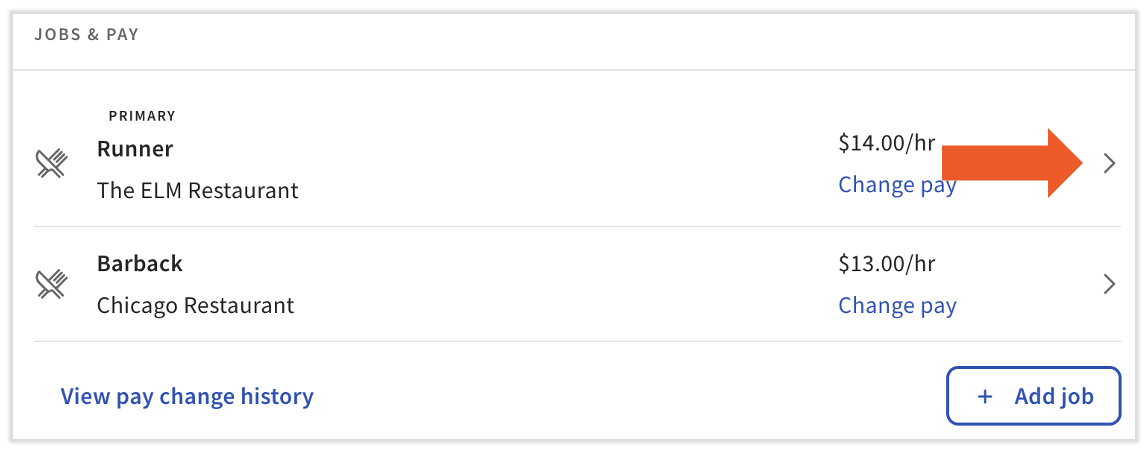
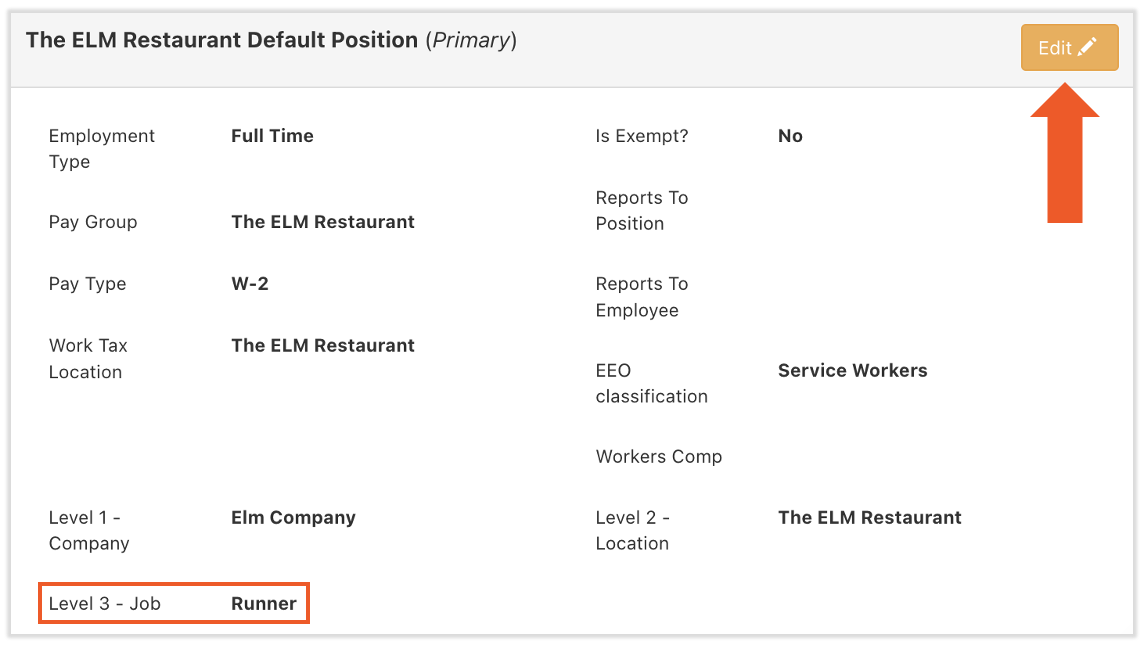
Expected outcome: The job on the employee's profile is updated. If the employee's pay should also change, see Toast Payroll: Make a Pay Change.
Remove a Job From an Employee's Profile
- In Toast Payroll, navigate to the employee's profile and select the Jobs tab from the Employment page.
- Learn how the new Toast Payroll navigation works by visiting Navigate Toast Payroll Within Toast Web.
- Select the trashcan icon for the job you'd like to remove from this employee, then select Delete in the pop-up. If the job you would like to remove is the one tied to the primary position (the first job listed), you must edit the position first:
- Navigate to the Position tab on the left.
- Select Edit on the following page.
- Add a Reason at the top. Position Update works well here. Different Reason codes unlock different fields on the position — using the wrong one may prevent required fields (like pay rate) from becoming editable. For a full breakdown of what each Reason code unlocks, see Toast Payroll: Update Positions before selecting a Reason here.
- Update the Job field in the middle of the page and select Submit towards the bottom. If the employee's pay should change as well, see Toast Payroll: Make a Pay Change.
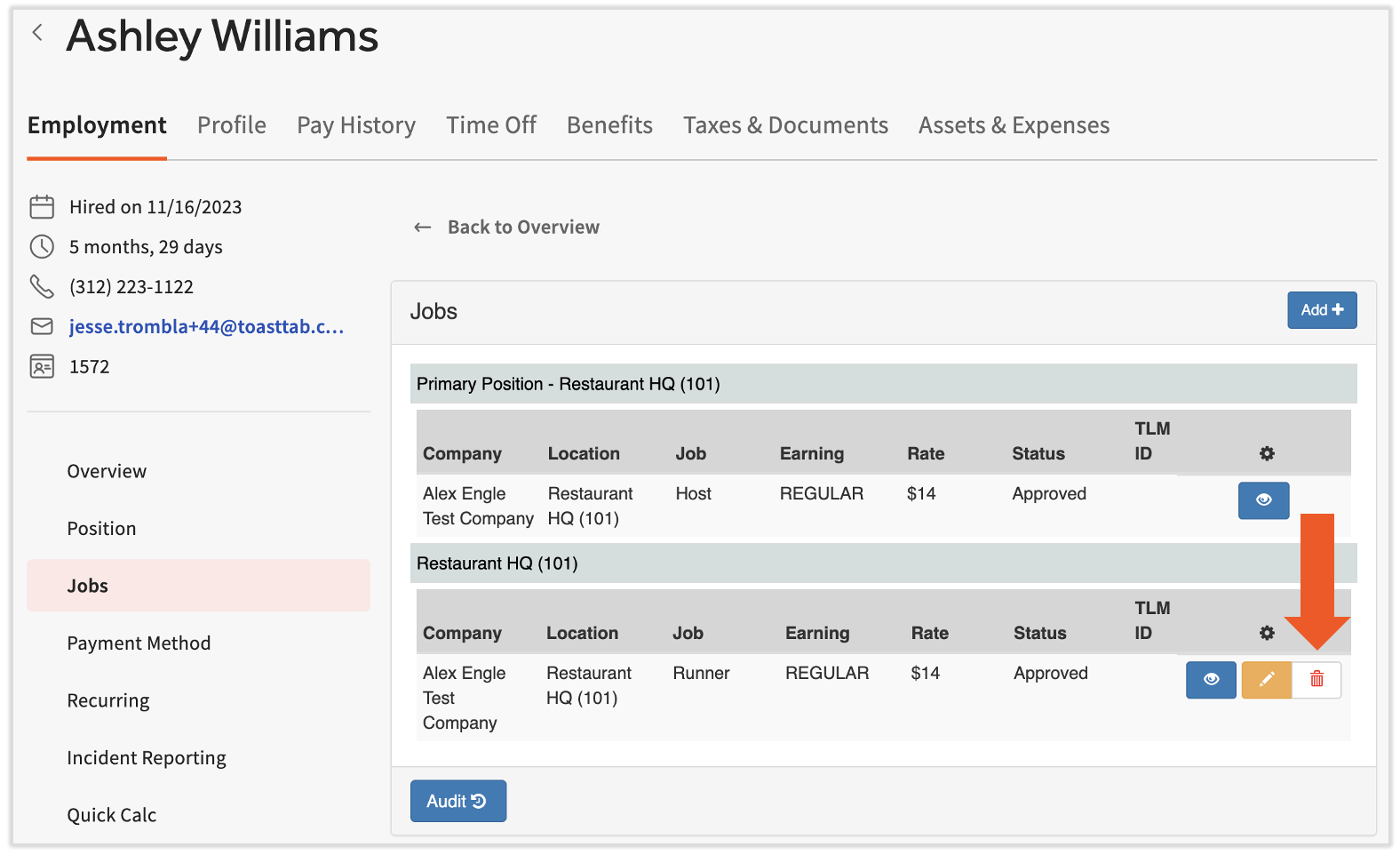
Expected outcome: The job is removed from the employee's Toast Payroll profile and the change syncs to Toast Web immediately.
Add a Secondary Position
| Note: Only add a secondary position if your account has multiple pay groups and the employee will be paid out of more than one pay group. If the new location or role uses the same pay group, add a job instead. |
If an employee works at a location or in a role that is paid out of a separate pay group, a secondary position must be added. The secondary position gives the employee the ability to be paid out of this new pay group (see Scenario 2). This typically happens when the employee is part of two different FEINs under the same company code.
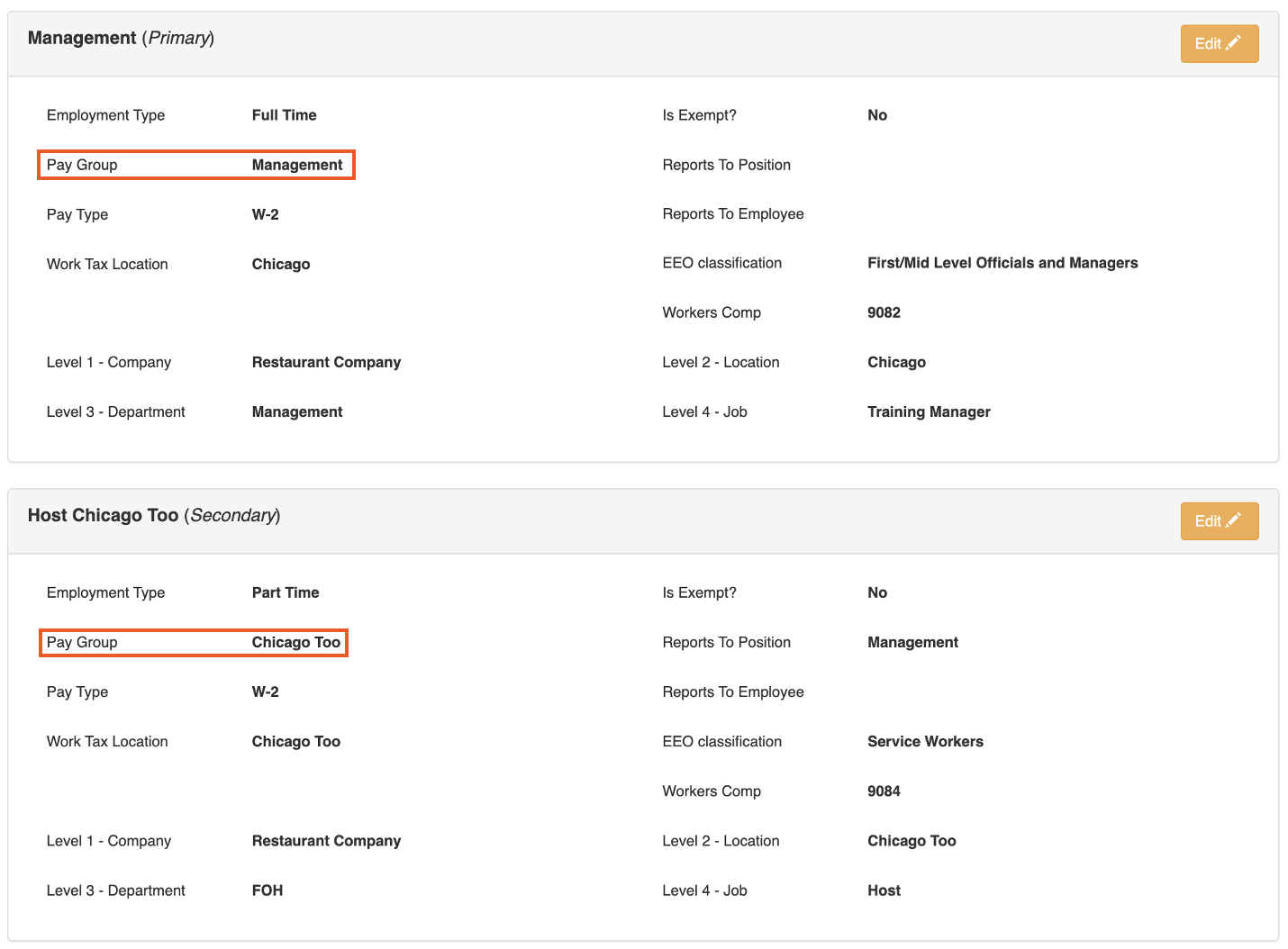
To add a secondary position:
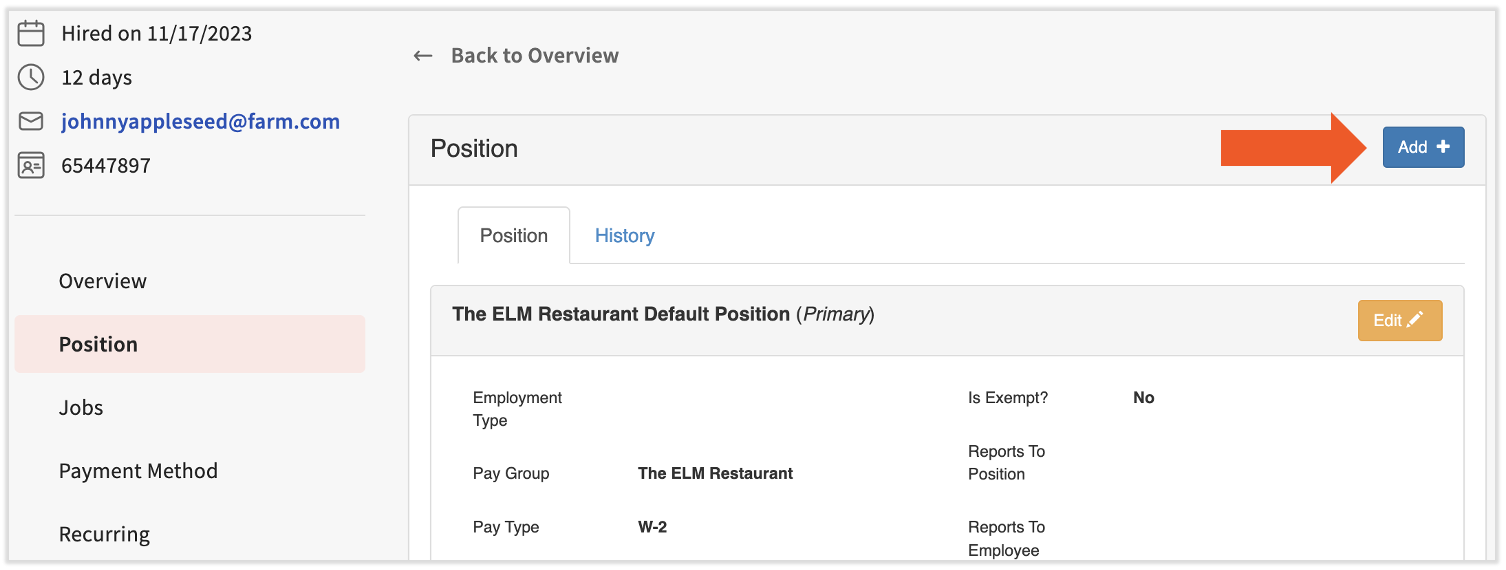
- In Toast Payroll, navigate to the employee's profile and select the > caret icon to the right of their primary job.
- Learn how the new Toast Payroll navigation works by visiting Navigate Toast Payroll Within Toast Web.
- Learn how the new Toast Payroll navigation works by visiting Navigate Toast Payroll Within Toast Web.
- Select Add+ on the following page.
Note: If you do not see the Add+ button, see I Don't See the Option to Add or My Change Won't Save below.
- Complete the required fields and select Save. For a guide on completing each field, see Toast Payroll: Update Positions.
- Note that secondary position information is not displayed on the Jobs page; only the employee's primary position information is. The Jobs page is what communicates to Toast Web, whereas the Position Detail page details allow Toast Payroll to match the job(s) to the proper pay group (Toast Payroll uses the FEIN of the jobs to match to the FEIN listed on the Position Detail page).
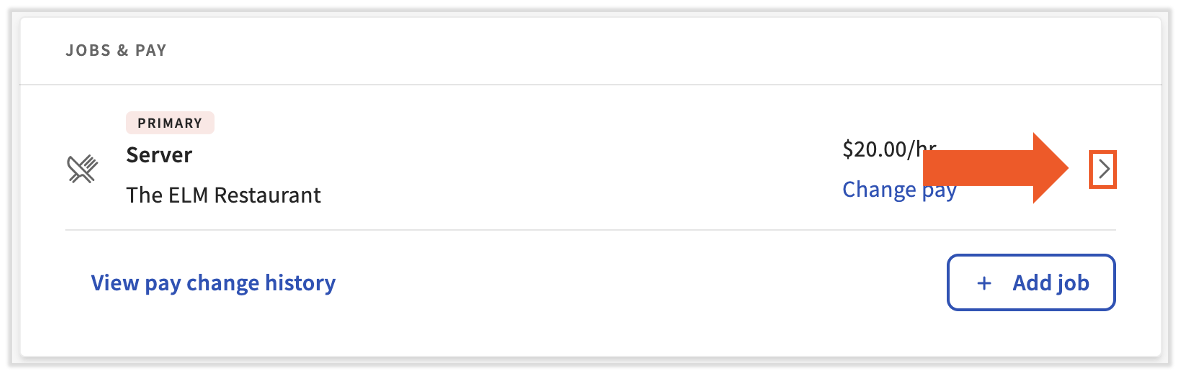
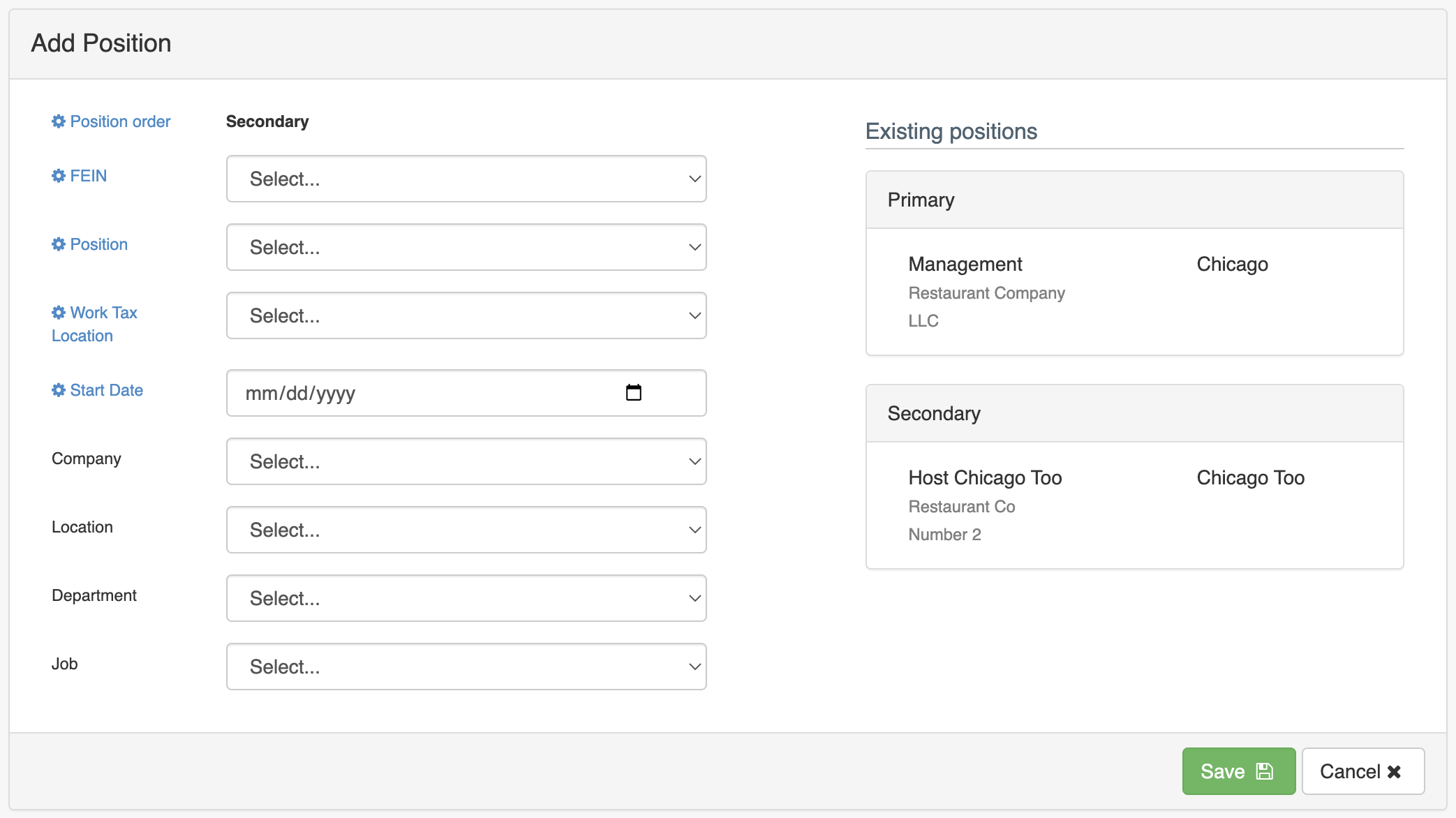
Expected outcome: The secondary position appears on the employee's profile under the existing primary position. The employee can now be paid out of the additional pay group.
Add a Secondary Position With Additional Jobs (Multi-FEIN, Multi-Job)
If the employee works under multiple FEINs with different jobs (see Scenario 3), you will need multiple positions and multiple jobs:
- Begin by adding a secondary position for the alternate FEIN/pay group.
- If the employee also needs the ability to clock in or out at a new location, add a new job for each role the employee works at under this new location. In Toast Payroll, navigate to the employee's profile > Jobs tab > Add+. Add a separate job for each role.
- Learn how the new Toast Payroll navigation works by visiting Navigate Toast Payroll Within Toast Web.
Expected outcome: The employee has the correct secondary position(s) for each pay group and a job for each role they work at under each pay group.
Remove a Secondary Position
If an employee has more than one position but will not be working out of a secondary location or pay group any longer, you can deactivate their secondary position. Primary positions cannot be deactivated. To swap which position is primary first, see Toast Payroll: Change a Secondary Position to a Primary Position.
- In Toast Payroll, navigate to the employee's profile and select the > caret icon to the right of their primary job.
- Learn how the new Toast Payroll navigation works by visiting Navigate Toast Payroll Within Toast Web.
- Select the Edit button for the appropriate position (cannot be the primary position).
- Enter a Reason. Position Update may work best in this situation.
- Immediately under the Reason drop-down menu, select the checkbox labeled Deactivate Position.
- Select Submit at the bottom of the page.

Expected outcome: The secondary position is deactivated on the employee's profile. The employee can no longer be paid out of that pay group.
Update Pay Rates for a Secondary Position vs a Job
Pay rates route to two different places depending on which job's rate you are updating.
- Primary job (the first job on an employee's profile): Pay rates for a primary job must be changed using the Pay Change tool. See Toast Payroll: Make a Pay Change.
- Secondary jobs: Pay rates for all secondary jobs can be changed directly on the Jobs tab. Edit the relevant job and update the new rate.
For updating multiple employee rates at once or for bulk secondary rate updates, see Toast Payroll: Make a Pay Change.
Troubleshooting
I Don't See the Option to Add or My Change Won't Save
If the Add+ button is missing on the Position page, or the + Add job button is missing on the employee's profile, the most common causes are:
- Your user role in Toast Payroll does not have permission to add or edit positions. Contact your company's Toast Payroll administrator.
- The setting that allows for multiple positions to be assigned has not been switched on. Contact Customer Care for assistance.
If none of the above apply, chat with Customer Care via the blue chat dot in the lower-right corner of the page.
Error: More Than One Position Per Pay Group
If you see the error "There Cannot Be More Than One Position Per Pay Group" when adding a secondary position, it means the position you are trying to add is tied to a pay group that the employee already has a position under. Each employee can only have one position per pay group.
To fix the error:
- If the second role shares the same pay group as the existing position, do not add a secondary position. Add a job under the existing position instead.
- If the second role is paid out of a different pay group, confirm the pay group selected in the Add Position pop up is different from the pay group on the existing position.
For more on this error, see Get Help with Payroll Error: More Than One Position Per Group.
System Won't Let Me Change the Pay Group or FEIN
If you cannot change an employee's pay group or primary FEIN on the Position Detail page, common causes include:
- Changing the pay group directly is not supported in Toast Payroll. To change an employee's pay group, you must update the position (the pay group is driven by the position). See Toast Payroll: Review Pay Group.
- The employee is moving between FEINs. Use the Inter-Company Transfer reason code rather than Position Update because this will open up the FEIN field to edit. See Toast Payroll: Inter-Company Transfers.
Frequently Asked Questions
How Do I Change an Employee's Secondary Position to Their Primary Position?
To change an employee's secondary position to their primary position, you deactivate the existing secondary, and edit the primary to match the deactivated one, and re-add the original primary as a new secondary. The full procedure is documented in Toast Payroll: Change a Secondary Position to a Primary Position.
Also asked as:
- How do you change a secondary job to primary job?
- How to change a secondary position to a primary position?
- How do I switch an employee's primary position with their secondary position?
How Do I Move an Employee Permanently From One Location to Another?
To permanently move an employee between locations:
- If the locations share the same pay group, add a job at the new location and remove the job at the old location.
- If the locations are in different pay groups, swap which position is primary using Toast Payroll: Change a Secondary Position to a Primary Position, then remove the now-secondary position for the location they no longer work at.
- If the locations are under different FEINs, use Toast Payroll: Inter-Company Transfers.
Also asked as:
- How do you transfer an employee from her primary store to her secondary store?
- I need to terminate someone from one location which is their primary position and make secondary position their primary?
Can an Employee Be in More Than One Pay Group?
Yes, an employee can be paid out of more than one pay group, but it requires a secondary position for the additional pay group. The primary position drives one pay group; each secondary position adds another. See Add a Secondary Position above.
What's the Difference Between a Job, a Position, and a Pay Group?
A job is a role the employee can clock in and out of on a Toast device (Cashier, Bartender, etc.) and has a pay rate. A position is a set of employee attributes (part-time/full-time, overtime eligibility, TAFW tier, benefits tier). A pay group is a group of employees that share a pay date, frequency, and method, and is tied to the position. See the Overview above, Toast Payroll: Review Pay Groups and Toast Payroll: Update Positions for the full concept guides.
Also asked as:
- Do I enter a position or a job first in Payroll?
- Should I choose secondary 1 on the position page when it is a secondary position or leave it as primary?
Do I Need to Add a Secondary Position When My Employee Just Works at Multiple Locations?
Not necessarily. If all the locations the employee works at are paid out of the same pay group, you only need to add a job — no secondary position. A secondary position is only needed when the employee is paid out of different pay groups. See Scenario 1 and Scenario 2 above. Adding a secondary position in the same pay group will trigger the More Than One Position Per Pay Group error.
How Do I Add a Secondary Hourly Rate for an Existing Employee?
To add a secondary hourly rate, add a job for the secondary role at the rate the employee earns for that role. Each job has its own rate. See Update Pay Rates for a Secondary Position vs a Job above for which tool to use when changing the rate later.
Related Articles
- Toast Payroll: Review Pay Groups
- Toast Payroll: Update Positions
- Toast Payroll: Make a Pay Change
- Toast Payroll: Change a Secondary Position to a Primary Position
- Toast Payroll: Inter-Company Transfers
- Get Help with Payroll Error: More Than One Position Per Group
- Toast Payroll: Sync Information With Toast Web
This content is for informational purposes and is not intended as legal, tax, HR, or any other professional advice. Please contact an attorney or other professional for advice.