Reuse or Copy Menu Groups, Items, and Modifiers
Last updated: Sep 30, 2026, 2:41 PM
- Before You Begin
- Decide: Reuse, Copy, or Deep Copy?
- Reuse an Existing Item
- Reuse an Existing Modifier Group
- Reuse an Existing Modifier
- Copy an Item, Menu Group, or Modifier
- Deep Copy an Item, Menu Group, or Modifier
- Copy a Menu Group for Happy Hour or Special Pricing
- Avoid the Nested Modifier Endless Loop
- Frequently Asked Questions
- Related Articles
Before You Begin
Applies to: Toast Web (Menu manager and Bulk management)
Permissions needed:
- 4.5 Edit Full Menu permission to edit menu groups, items, and modifiers
- 6.4 Publishing permission to publish saved changes
What you'll accomplish: You will reuse, copy, or deep copy a menu group, item, modifier group, or modifier — keeping reporting clean and avoiding duplicate entries you do not need.
Decide: Reuse, Copy, or Deep Copy?
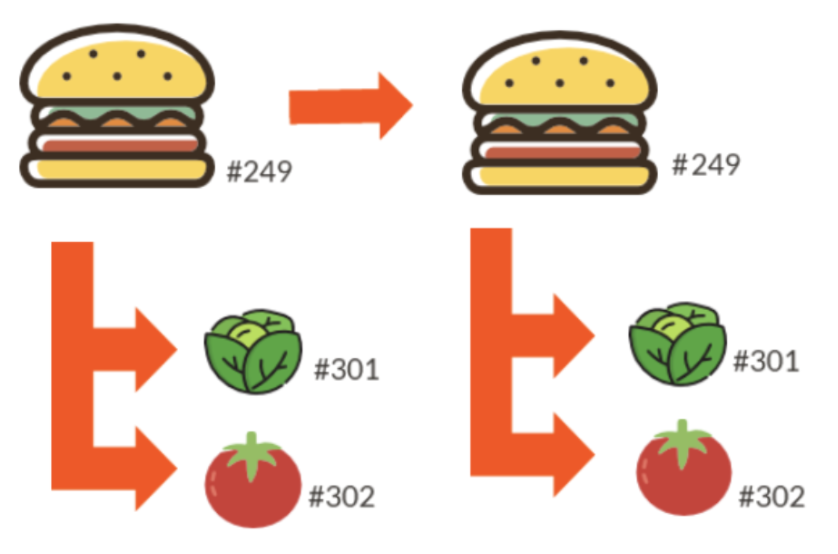
Every menu component (menu, group, item, modifier group, modifier) has a unique item number that Toast uses to track it. Choosing the right action depends on whether you want changes to one component to affect every place it appears.
Use this table to choose:
| What you want to do | Use this action | What happens to the item number |
| Use the same item, modifier group, or modifier in more than one place, and have updates apply everywhere | Reuse (Add existing) | Item number stays the same — one source of truth |
| Create a version of a group, item, or modifier that should look the same but be priced or named differently from the original (and you do not need separate inventory) | Copy (shallow copy) | Parent gets a new item number; child components (such as modifier groups attached to the copied item) keep their original numbers |
| Create a completely independent version with separate inventory, separate modifiers, or a different name — where changes to the new version must not affect the original | Deep Copy | The parent and every child component get new item numbers — fully independent |
| Build something with different names, different inventory amounts, or different pricing from anything else on your menu | Create new (do not copy) | Brand-new item number; no link to existing components |
Note: Customers often call any of these actions "duplicating" a menu, item, or modifier. In Toast Web, the buttons are labeled Add existing (for reuse) and Copy Existing (for copy and deep copy).
Reuse an Existing Item
Reuse an item when the exact same item should appear in more than one menu or menu group and you want changes (name, price, modifiers) to apply everywhere it is used. For example, a Side Salad that appears on both your Lunch and Dinner menus.
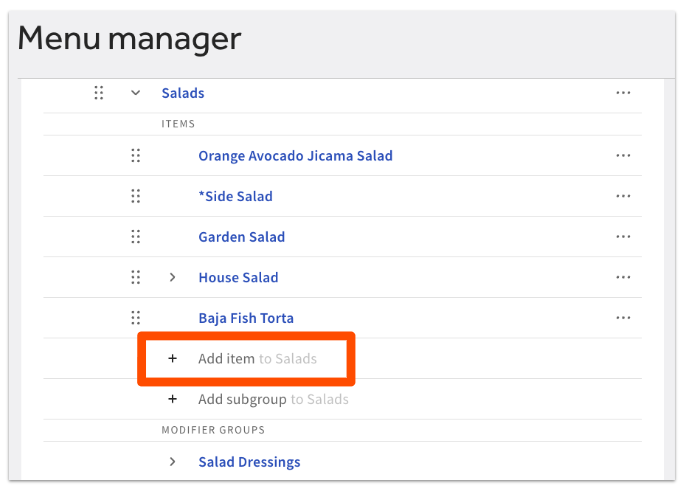
- In Toast Web, navigate to Menus > Menu management > Menu manager.
- Use the arrow icons to expand your menus until you find the menu group where you want to reuse the item.
- Scroll to the bottom of the Items list inside that menu group, and select + Add item.
- In the field that appears, search for the existing item by name. Toast displays matching items as you type.
- Select the existing item from the search results.
- Select Save, then select Publish all changes.
Expected outcome: The item appears in the new menu group with the same item number as the original. Any future change to the item (price, name, attached modifier groups) updates everywhere it is used.
Reuse an Existing Modifier Group
Reuse a modifier group when the same modifier group (for example, "Dressing Choice") should appear on multiple items or in multiple menu groups, and changes should apply everywhere.
- In Toast Web, navigate to Menus > Menu management > Menu manager.
- Use the arrow icons to expand your menus until you find the menu group, subgroup, or item where you want to reuse the modifier group. Select the name of that entity.
- In the settings panel on the right, scroll down to the Modifier groups section.
- Select the drop-down arrow next to the + Add modifier group button, then select Add existing modifier group.
- Search for the modifier group you want, then select Add modifier groups.
- Select Save, then select Publish all changes.
Expected outcome: The modifier group appears on the item or menu group with its original item number. Updates made to the modifier group anywhere will update every place it is used.
Reuse an Existing Modifier
Reuse a modifier (a single option inside a modifier group, such as "Ranch") when you want the same modifier to live in more than one modifier group with changes propagating everywhere.
- In Toast Web, navigate to Menus > Menu management > Menu manager.
- Expand your menus until you find the modifier group where you want to reuse a modifier. Select the modifier group name.
- On the modifier group details page, scroll down to the Modifiers section.
- Select the drop-down arrow next to the + Add button, then select Add existing.
- Search for the modifier you want, then select Add modifiers.
- Select Save, then select Publish all changes.
Expected outcome: The modifier appears inside the modifier group with its original item number. Changes to the modifier propagate to every modifier group that uses it.
Important: Add existing for whole menu groups is no longer supported. Reusing menu groups across menus created incorrect references and reporting errors. See Create and Manage Menus, Menu Groups, and Subgroups for the current guidance on menu groups.
Copy an Item, Menu Group, or Modifier
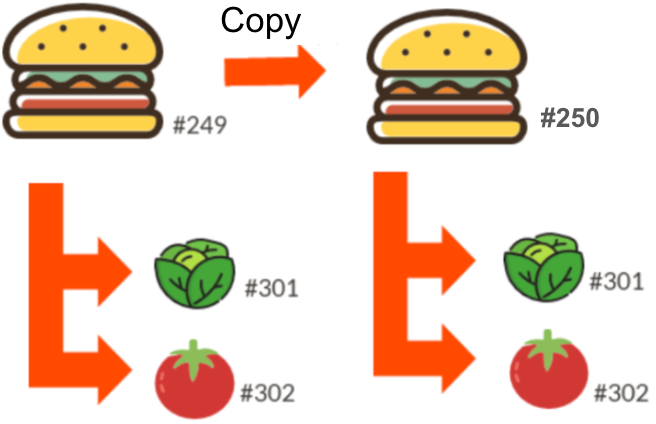
A copy (sometimes called a shallow copy) creates a new version of the parent component (item, menu group, or modifier group) with a new item number — while keeping the child components linked to the original.
For example, if you copy a Burger to another menu group, the new Burger has a new item number, but the Burger Toppings modifier group attached to it still has its original number. Changes to the Burger Toppings will apply to both burgers.
To make a copy:
- In Toast Web, navigate to Menus > Menu management > Menu manager.
- Select the name of the menu group where you want the copied item or group to land.
- In the settings panel on the right, select More settings at the top right of the panel.
- Scroll down to the Items list.
- Select the drop-down arrow next to the + Add button, then select Copy Existing.
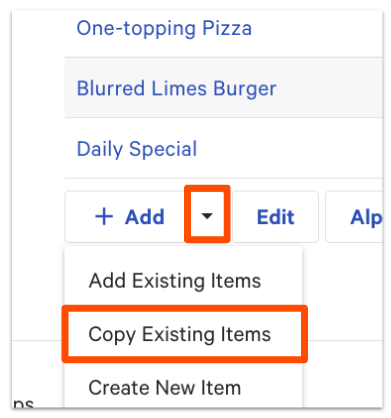
- In the Copy Existing Items pop-up, search for and select the item, group, or modifier you want to copy. You can select more than one at a time.
- Leave the Make Deep Copy checkbox unchecked to make a shallow copy.
- Select Add, then select Save, then select Publish all changes.
Expected outcome: The copied item, group, or modifier appears with the word (Copy) after its name. The parent has a new item number; attached modifier groups retain their original numbers.
Note: Copying or deep-copying a menu group assigns new item numbers to the affected components. If you use a third-party inventory or reporting integration (such as Optimum Control) that maps by item number, copying a menu group may break that mapping and split your sales/PMIX reporting across old and new item numbers. Check with your integration provider before copying if this applies to you.
Deep Copy an Item, Menu Group, or Modifier
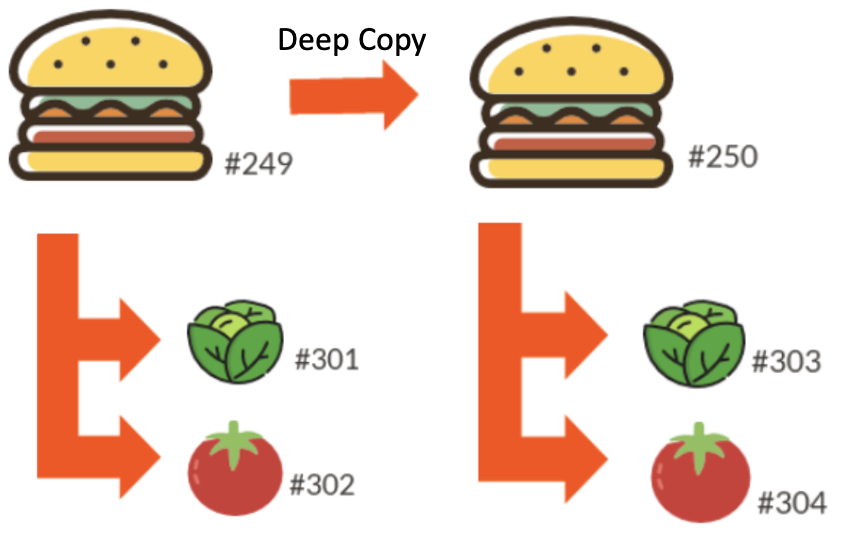
A deep copy creates a completely independent version of the component you select and every child component attached to it. The parent and every child get new item numbers, so changes to the new version do not affect the original — and vice versa.
Use a deep copy when you need full independence between the copy and the original. For example, a Dinner menu that uses the same item names as the Lunch menu but with different inventory portions.
To make a deep copy:
- In Toast Web, navigate to Menus > Menu management > Menu manager.
- Select the name of the menu group where you want the deep-copied item or group to land.
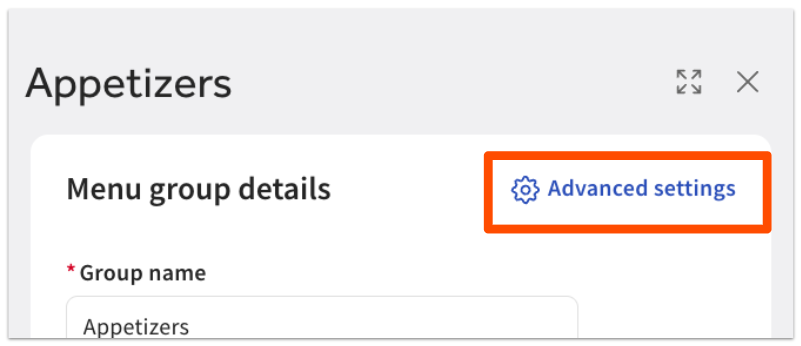
- In the settings panel on the right, select Advanced settings at the top of the panel.
- Scroll down to the Items list.
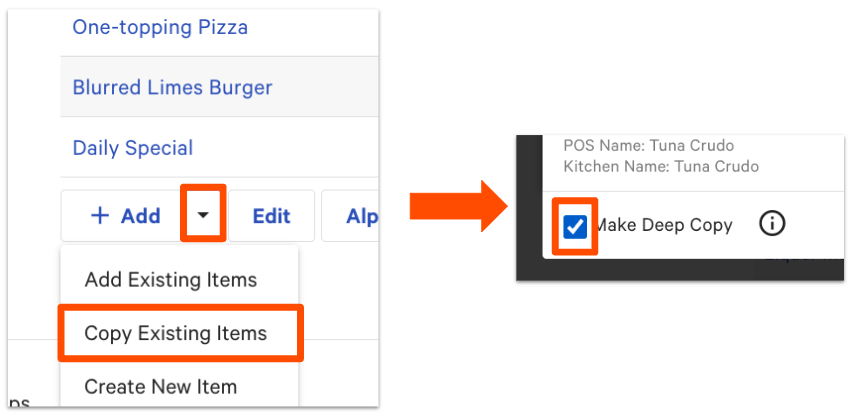
- Select the drop-down arrow next to the + Add button, then select Copy Existing.
- In the Copy Existing Items pop-up, search for and select the item, group, or modifier you want to deep copy. You can select more than one at a time.
- Select the Make Deep Copy checkbox.
- Select Add, then select Save, then select Publish all changes.
Expected outcome: The deep-copied item, group, or modifier appears with (Deep Copy) after its name. Every child component (attached modifier groups, modifiers) also has a new item number. The copy is fully independent from the original.
Note:
- Deep copies create duplicates of every attached component in your items database. Use them only when you truly need full independence. If you only need different pricing, use a regular copy with menu-specific pricing instead (see Copy a Menu Group for Happy Hour or Special Pricing below).
- Copying or deep-copying a menu group assigns new item numbers to the affected components. If you use a third-party inventory or reporting integration (such as Optimum Control) that maps by item number, copying a menu group may break that mapping and split your sales/PMIX reporting across old and new item numbers. Check with your integration provider before copying if this applies to you.
Copy a Menu Group for Happy Hour or Special Pricing
If you want a version of a menu group with different prices — for example, a Happy Hour menu or a third-party ordering menu — Toast recommends a regular copy combined with menu-specific pricing. Do not use a deep copy for this scenario, because a deep copy creates duplicate items in your items database and breaks consolidated reporting.
The full workflow — copying the menu group, switching items to menu-specific pricing, applying the new prices in bulk, and scheduling the menu's availability — is documented in Configure a Menu-Specific Pricing Strategy.
Note: If you use a pricing method other than the base price in your original menu, you will not be able to convert to menu-specific pricing. Plan your pricing strategy before you copy.
Avoid the Nested Modifier Endless Loop
When you build nested modifiers (a modifier group attached to a modifier option), it is possible to accidentally create an endless loop that will keep prompting guests or staff to make a selection — with no stopping point.
This happens when an existing modifier group is used for a nested modifier option, and the nested modifier itself is one of the choices in that same modifier group.
Example: An item has a modifier group called Side Choice with one option for Side Salad. Side Salad has a nested, required modifier group called Dressing Choice with all dressing options, including Extra Dressing. Extra Dressing is nested with the original Dressing Choice modifier group. Every time someone chooses Extra Dressing, they can keep selecting Extra Dressing with no stopping point.
How to avoid it: Make a regular copy (not a deep copy) of the modifier group you plan to nest. The copy gets its own item number, so it can be used as a nested modifier without creating a loop back to itself.
For the full workflow on building nested modifiers, see Build Nested Modifiers (Add Modifiers to a Modifier).
Frequently Asked Questions
How do I tell if an item or group is a deep copy?
Also asked as:
- How can I identify a deep copy?
- How do I verify if I've made a deep copy?
- Will it always say (Deep Copy) after the item?
You can tell an item or group is a deep copy by its name. After you save your changes, Toast appends (Deep Copy) to the end of the new entity's name. A shallow copy is appended with (Copy). You can also search your menu data in the items database — searching by name will show every group, item, or modifier with similar names so you can identify copies side-by-side.
What is the difference between a shallow copy and a deep copy?
Also asked as:
- What is the difference between a shallow and a deep copy?
A shallow copy (Toast calls it just Copy) creates a new item number for the parent component you copied, but leaves the child components — for example, the modifier groups attached to a copied item — linked to the originals. Changes to the children apply to both copies. A deep copy creates new item numbers for the parent and every child, so the copy is fully independent.
Can I duplicate a menu from one location to another?
Also asked as:
- Is there a way to duplicate a menu from another location?
- Can we duplicate menu from one restaurant to another restaurant?
- Is it possible to deep copy a menu from another location to the other?
If your restaurants are part of a Toast Multilocation Management (MLM) group, you can share menus across locations using versions or by copying a shared menu (target is assigned to location group) and changing the Target and Owner fields. See Manage Menus Across Locations Using Multilocation Management for the full workflow. If your restaurants are not part of MLM, contact Customer Care — copying menus across separate Toast accounts requires Customer Care assistance.
If I deep copy a menu group, does it deep copy the items inside it?
Also asked as:
- If I deep copy a menu group with menu groups within it, does it deep copy the individual items?
Yes. A deep copy of a menu group also deep copies every child component inside it (items, modifier groups, modifiers, and nested subgroups). Every one of those child components gets a new item number, so the entire copy is fully independent from the original.
Can I copy a modifier group and delete just one of the modifiers from the copy?
Also asked as:
- I want to copy a modifier group to duplicate most modifications but delete just one of them
Yes, as long as the shallow copy method is used on the modifier group, you can remove modifiers without impacting the original modifier group. If pricing needs to be different on the new copy of the modifier group, consider using the deep copy method to ensure pricing on the original modifier group is not impacted.
Why are my prices wrong after a deep copy?
Also asked as:
- Why deep copy products showing Menu Specific Price?
- Can you tell me why when I make a deep copy of an item, the original copy changes to zero for the price?
Deep copies create entirely new items with new pricing records. If the deep-copied item is showing the wrong price, a price of zero, or is unexpectedly using menu-specific pricing, the pricing strategy on the deep-copied parent may not have transferred from the original. Verify the Pricing Strategy setting and base price on the deep-copied item's details page. If the price still does not match expectations, contact Customer Care — pricing inheritance issues on deep copies can require account-level review.
I can't find the menu, item, or modifier I want to copy. Where is it?
If the item, group, or modifier you want to copy is not appearing in the Copy Existing Items pop-up search, it may be archived. Check the items database to confirm whether it is archived and restore it if needed. See Use the Items Database to View and Manage Menus.
Related Articles
- Build Nested Modifiers (Add Modifiers to a Modifier)
- Configure a Menu-Specific Pricing Strategy
- Use the Items Database to View and Manage Menus
- Manage Menus Across Locations Using Multilocation Management
- Create and Manage Menus, Menu Groups, and Subgroups