Use the Items Database to View and Manage Menus
Last updated: Sep 17, 2026, 1:43 PM
- Items Database Overview
- Archive Menus, Groups, Items, and Modifiers
- Restore Menus, Groups, Items, and Modifiers
- View Multiple Locations at Once
- Version Menus, Groups, Items, and Modifiers
- View Usage of Items, Modifier Groups, and Modifiers
Items Database Overview
New to Toast and building your first menu? The items database is a bulk-management and review tool for a menu that already exists — it's where you archive, restore, version, and export menu data, not where you create it. To build a menu from scratch, navigate to Menus > Menu management in Toast Web and follow the steps in Reuse or Copy Menu Groups, Items, and Modifiers.
The items database lets you view all of your menu data and archive, restore, or version menus as needed. To access it, navigate to Menus > Bulk management > Items database in Toast Web. Use the Show/hide columns button to add or remove data fields from the table — for example, include Description and Price if you plan to print or share a full list of your menu items. Select the download icon (down arrow) in the top right corner of the page to export the database as a spreadsheet, whether you're pulling your menu data into a spreadsheet for your own use or printing/sharing a menu list. Note: The exported spreadsheet includes item data but not embedded item photos. Review item images directly in Toast Web on each item's detail page.
Note: To use this tool, you'll need to have the 4.5 Edit Full Menu permission enabled on your Toast account. To learn more about permissions available, see the Permissions Reference Guide.
The information in this article will also be relevant if you're using Toast Retail. Learn more in this Support Center article: Get Started With Toast Retail.
Archive Menus, Groups, Items, and Modifiers
Archiving parts of your menu in the items database is easy! Navigate to Menus > Bulk management > Items database in Toast Web and follow the steps below:
- Using the tabs at the top of the page and the search bar, locate the menu, group, item, modifier, or modifier options you wish to archive.
- Select the checkbox(es) next to the parts of your menu you wish to archive.
- Then, select Archive to archive all selected entities at once.
Restore Menus, Groups, Items, and Modifiers
Through Toast Web, it's possible to restore a removed/archived menu, group, item, or modifier from the previous saved state.
In this example, let's say that the entire "Drinks" menu has been removed.
- In Toast Web, navigate to the Menus > Bulk management > Items database.
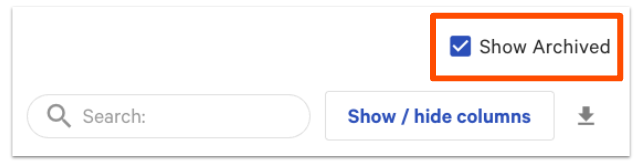
- On the Menus tab, you'll see available menus listed below. By selecting the checkbox next to Show Archived at the top of the page, it will expand the listings to include archived menus. Archived menus are designated by red "archived" text next to the name of the menu.
If you're unable to see the "Show Archived" option as shown above, try clearing your browser’s cache and cookies. Then, launch Toast Web in Incognito mode. If you're still experiencing issues, please reach out to Customer Care.
- Use the search bar to quickly find the archived menu you are looking for.
- Select the checkbox next to the menu you wish to unarchive and select Restore. This will unarchive the menu you've selected. To restore multiple menus at once, select all desired checkboxes and then choose Restore.
- If you wish to restore an entire menu group, complete steps 1 to 4 as indicated above, then proceed to:
- Navigate to Menu management > Bulk management > Advanced properties > select Show Archived Menus / Groups.
- Select the menu group that you wish to restore, then select Unarchive.
- Select the Publish button.
- If you wish to restore an entire menu group, complete steps 1 to 4 as indicated above, then proceed to:
Note: This workflow is identical for restoring archived menu groups, items, modifier groups, and modifier options. To add these items and groups to your menu once again, use the Add existing tool. See Add or Copy Menu Items and Modifiers for more information.
View Menu Data for Multiple Locations at Once
If your restaurant has more than one location, you can choose to view multiple locations at once using the Edit button.
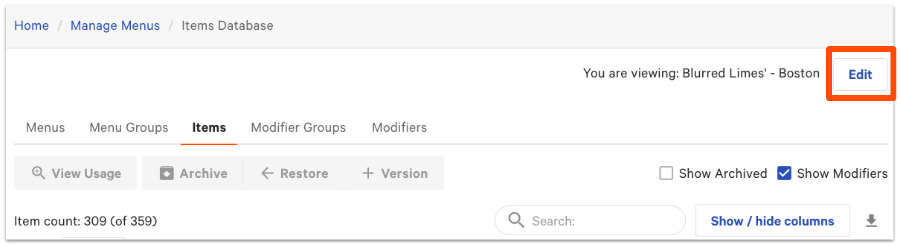
After selecting Edit, you'll be prompted to choose which restaurants or groups you wish to see. When finished, select Update. The page with refresh with data from all restaurants selected.
Back to top
Version Menus, Groups, Items, and Modifiers
Need to version parts of your menu for your new location? Use the items database to select multiple entities to version at once.
Note: Versioning is only available to restaurants that are part of a multilocation management (MLM) group. Learn more about multilocation management in this Support Center article, Get Started With Multilocation Management.
- From the items database within the Menus section in Toast Web, select the corresponding tab for the portion of your menu you wish to version (for example: Items).
- Locate parts of your menu you wish to version using the search tool or by scrolling down the page.
- Once you've located the entities you wish to version, select the checkboxes next to their name.
- Then, select + Version at the top of the page.
- Use the drop-down menus to select a Target for your item versions. Based on your selection, Toast will automatically assign a corresponding Owner. Simply select the Owner drop-down to override this selection if necessary.
- When finished, select Submit.
Note: This workflow is identical for versioning menus, menu groups, modifier groups, and modifier options.
View Usage of Items, Modifier Groups, and Modifiers
From the items database, you're able to see where a single item or multiple items are used within your menu. This is not only helpful for locating items, but also for differentiating between duplicated items.
To view the usage of a single item, simply select the magnifying glass icon to the left of the item name.
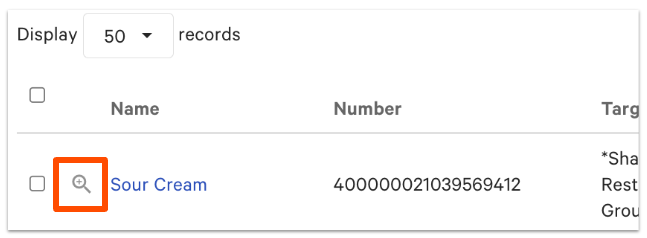
A pop-up will appear showing you the part of the menu that the selected item/modifier group/modifier option is applied to.
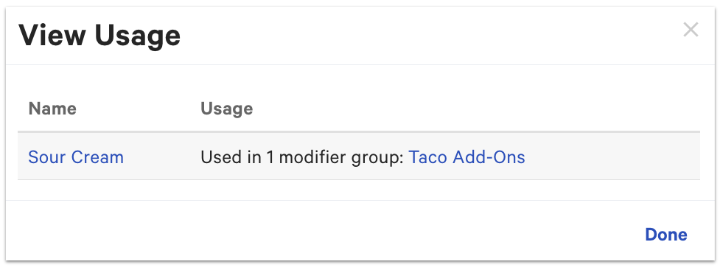
To view the usage of multiple parts of your menu at once, select the checkboxes next to the parts you wish to view and then select View Usage at the top of the page.
View Change History for Items
The items database does not include an item-level change history — it shows the current state of your menu, not who edited an item or when it was edited. Until an audit view is available, the closest self-service option is to export your database on a regular schedule using the download icon (down arrow) in the top right corner of the items database and keep dated copies, so two exports can be compared to see what changed between them.