Take Card Payments (Canada, Ireland, and the U.K.)
Last updated: Apr 8, 2026, 10:10 AM
Take Card Payments on the POS
The payment process begins on the POS from a live check by selecting the Pay button to initiate the payment workflow.
Note: Apple Pay and Samsung Pay are available for restaurants located in Canada, Ireland, and the U.K.
Follow these steps to take a payment on your POS:
- Select an open check that needs payment in the POS app on a terminal or handheld device.
- Select Pay.
- Select Card to initiate a card payment.
- From here, the POS will show a screen that reads Credit card payment at the top and lists the subtotal, tax, and balance due, with an option to Cancel payment at the bottom.
- Next, the payment process will continue on the external card readers while the POS screen will show the information listed in the previous step.
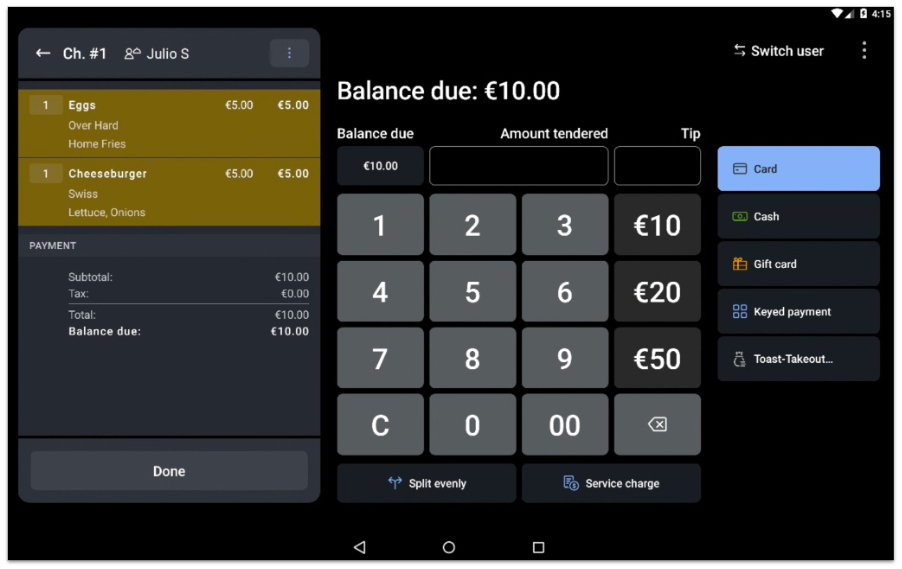
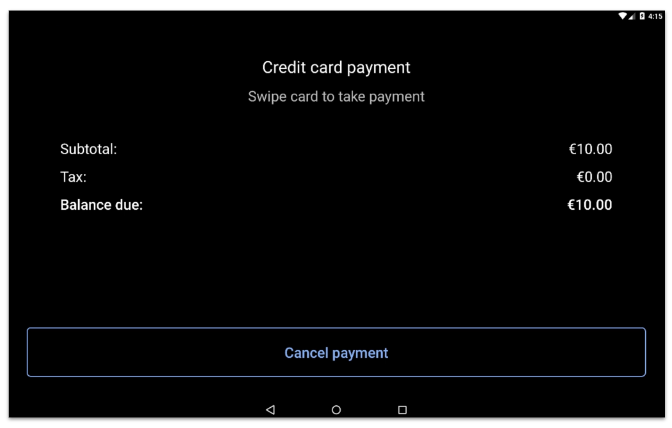
Note: Payment will continue on the external card reader for Flex + v400/p400 and S1 handhelds. Continue with the steps below.
Now, follow these steps to finish the payment on the card reader screen:
- Select the tip option on the card reader screen.
- Swipe, dip, or tap cards on the external card reader.
- The payment will be processed on the card reader and indicate a complete payment on the card reader display.
- At this point, the workflow switches back to the Toast POS app, where the user can select a receipt option.
Now, the check will go into the closed state. Checks can be found in the closed section of the Payment Terminal immediately after payment is completed on the card reader because the payment is finalized instantly.
Note: Once a payment has been authorized for an amount, it cannot be adjusted upwards for a higher amount (e.g., adjusting a tip amount onto the transaction).
Server-Initiated Tip Entry
Note: This functionality is available for restaurants located in Canada, Ireland, and the U.K.
If a guest asks you to add a tip to their bill, you can do so on your Toast device before taking a card payment.
- Select an open check that needs payment in the POS app on a terminal or handheld device.
- Select Pay on the POS.
- Enter the desired amount in the tip field on the POS.
- Select the Credit option on the POS.
The payment will be processed on the card reader, and the guest will be asked to confirm the tip amount before completing the payment.
Round Up Payment
Alternatively, if your guest requests that you round up their total payment to add a tip, you can use the Amount Tendered field on your Toast device to enter the amount that they wish to pay (for example, if the Balance Due is €8.50 and the guest asks you to round up to €10.00). When you select Credit, a pop-up on your Toast device will ask you to confirm that the extra amount should be added as a tip, and the payment process for the guest as described above.
Keyed-in Credit Payments
- From the POS, select Pay on an open check.
- Select Keyed payment from the payment options on the right side of the screen.
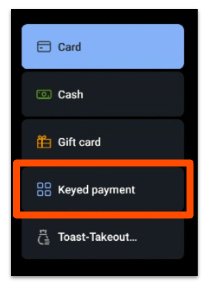
Keying in will be done on the external card reader.
Note: It is recommended to use the Text to Pay option rather than noting down card numbers.
Deposit Reporting
The following finance reports are available in Toast Web for users with the required permissions:
- Deposit Totals Overview - View your totals for settled batches of credit card deposits
- Settled Deposits Daily Breakdown - View your settled batches of credit card deposits by location
Learn more about these reports in this Support Center article: Payments Reports Overview.