Toast Payroll: Get Started With Time Away from Work (TAFW)
Last updated: Jan 29, 2026, 4:02 PM
Time Away from Work (TAFW) is a tool within Toast Payroll that allows employees and managers to track, earn, and use paid time off, vacation, and more.
Time Away from Work Basics
Time away from work (TAFW) is a paid absence from work provided by your company. TAFW allows for different types of time away, known as buckets, which may include vacation, personal, sick, PTO, and bereavement. TAFW settings and balances are based on company policy and requests for TAFW typically require manager approval.
Toast Payroll Pro users have access to this feature. If you'd like to upgrade to Toast Payroll Pro, contact us via the blue dot in the lower-right corner of any Toast Payroll page.
TAFW as a Manager
Add or Edit TAFW Tiers/Policies
In order to edit an existing TAFW tier/policy or to create a new one, contact us via the blue dot in the lower-right corner of any Toast Payroll page. Our representatives will work with you to update your information.
Manage TAFW Requests from the Payroll Dashboard
| If a TAFW workflow is not set up via Settings > Workflow, all TAFW requests will be automatically approved. |
When an employee that reports to you submits a TAFW request, you might receive an email that notifies you to the request (depending on company settings). For security reasons, the email will not give you the specific details, but will let you know to log in and review the request.
When you receive an email, log into Toast Payroll and look for the request in the Notifications list on the dashboard. If emails are not set up for TAFW notifications, you may view your requests by logging in and viewing the Notifications list on the dashboard.
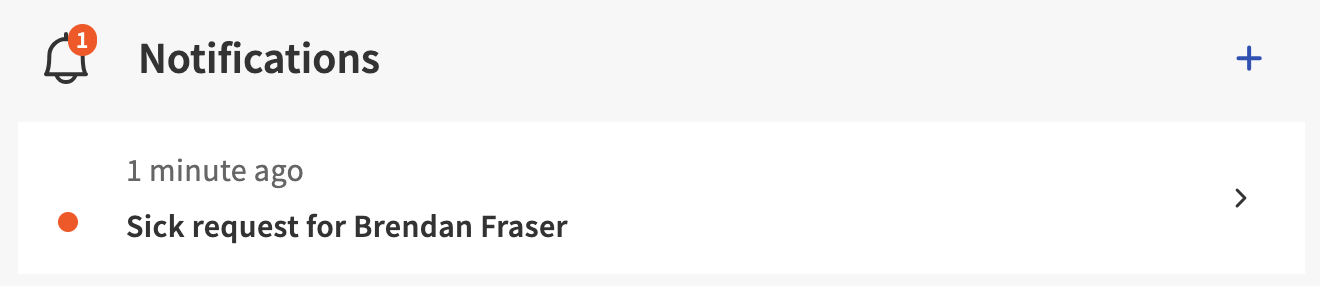
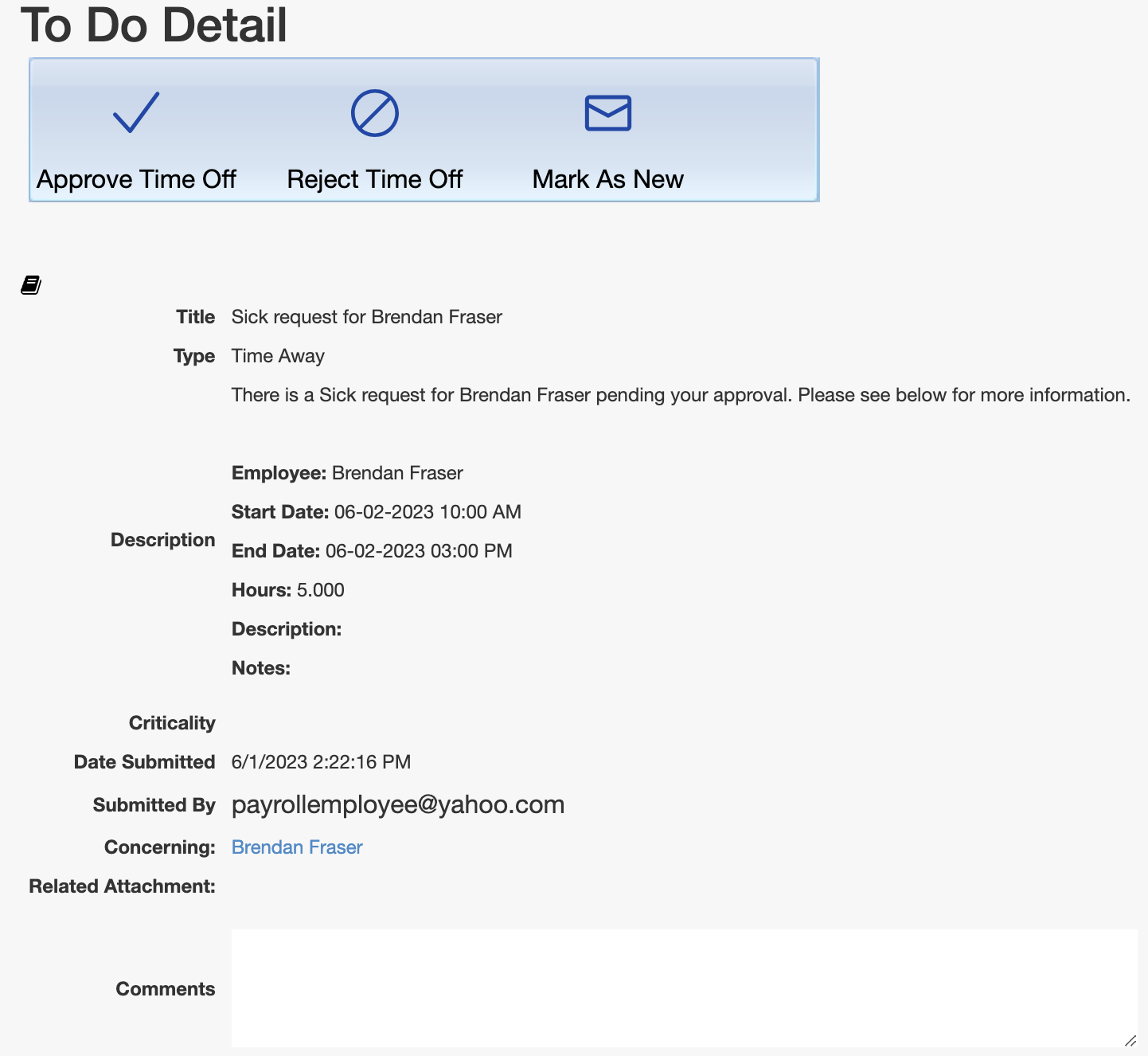
Here, you will see any requests that are waiting for approval. To access the details of the request, select it. You may either Approve or Reject this request, or select Mark As New to keep the notification on your dashboard and review it later. Approved requests will appear on an employee's timesheet similar to the way time entries do. The TAFW type will be stated on the timesheet. Make sure to approve any applicable requests prior to approving timesheets and starting/submitting payroll.
Manage TAFW Requests from the TAFW Dashboard
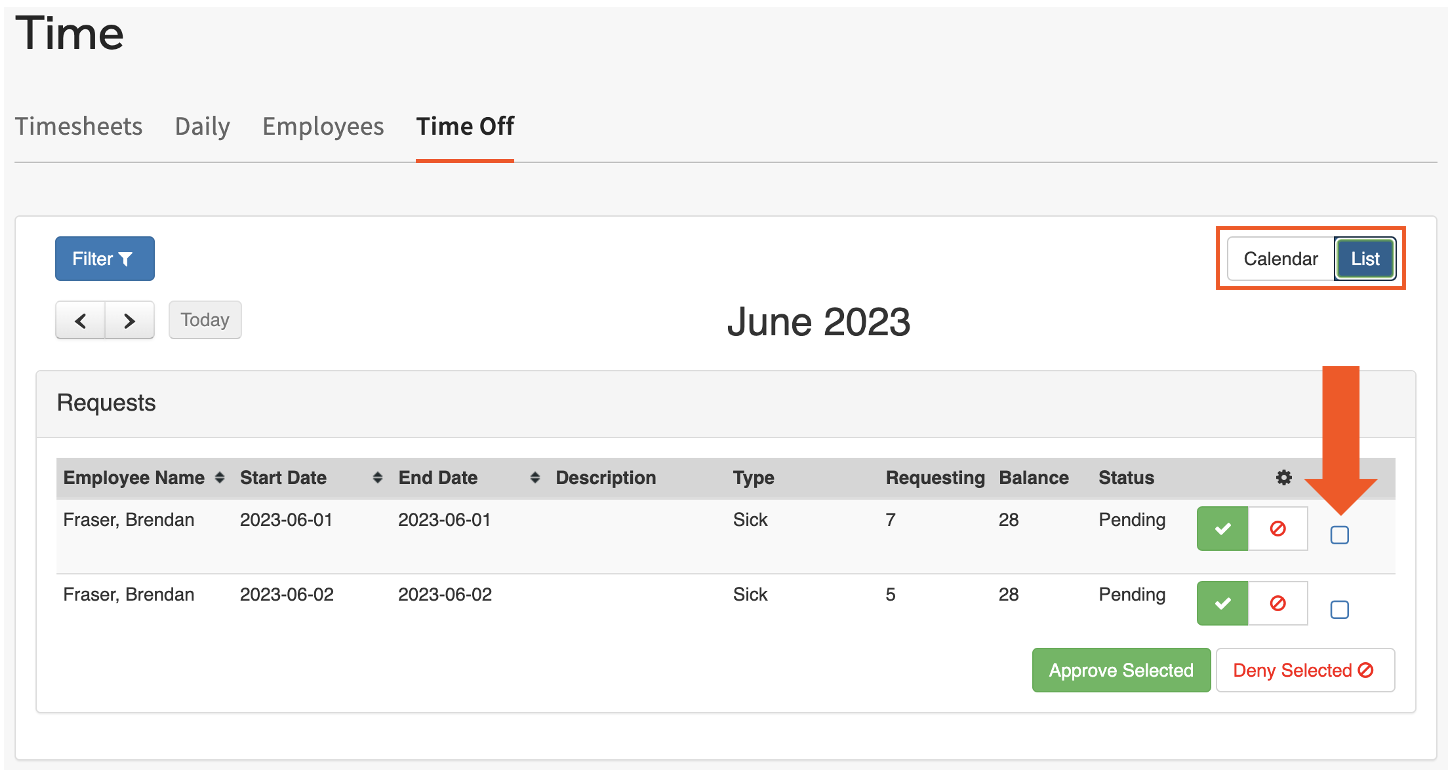
Another way to manage TAFW requests from your employees is through the TAFW Dashboard. Navigate to Time > Time Off.
You may view the requests in two different modes by selecting Calendar or List from the top-right corner. Within the List view, you can approve or deny multiple requests at a time by selecting the checkboxes on the right and pressing either Approve Selected or Deny Selected. Approved requests will appear on an employee's timesheet similar to the way time entries do. The TAFW type will be stated on the timesheet. Make sure to approve any applicable requests prior to approving timesheets and starting/submitting payroll.
Requests in orange are still pending approval. Requests in green have already been approved. Select the Filter button in the top-left corner and narrow your view by Status, Location, or Direct Reports.
View Employee TAFW
To view an employee's TAFW balance and history, use the Team page or the Search employees bar to locate this employee. From their profile, select the Time Off tab.
View and manage the following from the employee's TAFW dashboard:
- The current available balances for the TAFW categories.
- A calendar that displays requested time off.
- The Requests tab offers all pending TAFW requests.
- The Accrual History tab displays how much TAFW was earned per pay period.
- The Current Plan Details tab (read more just below).
Read TAFW Balances
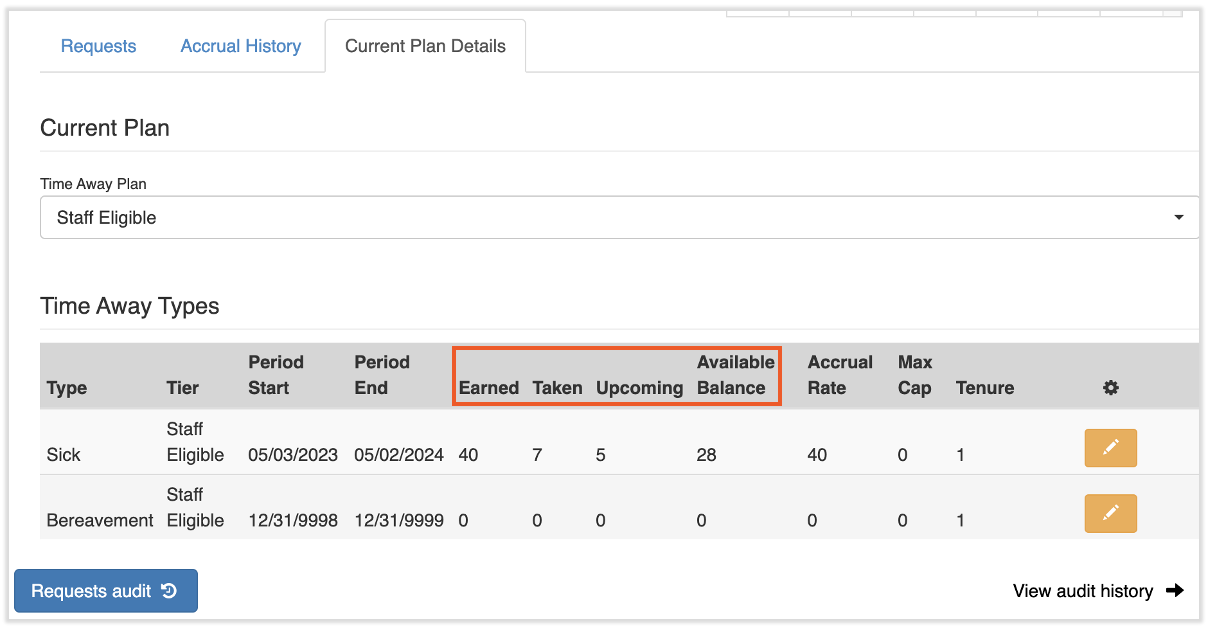
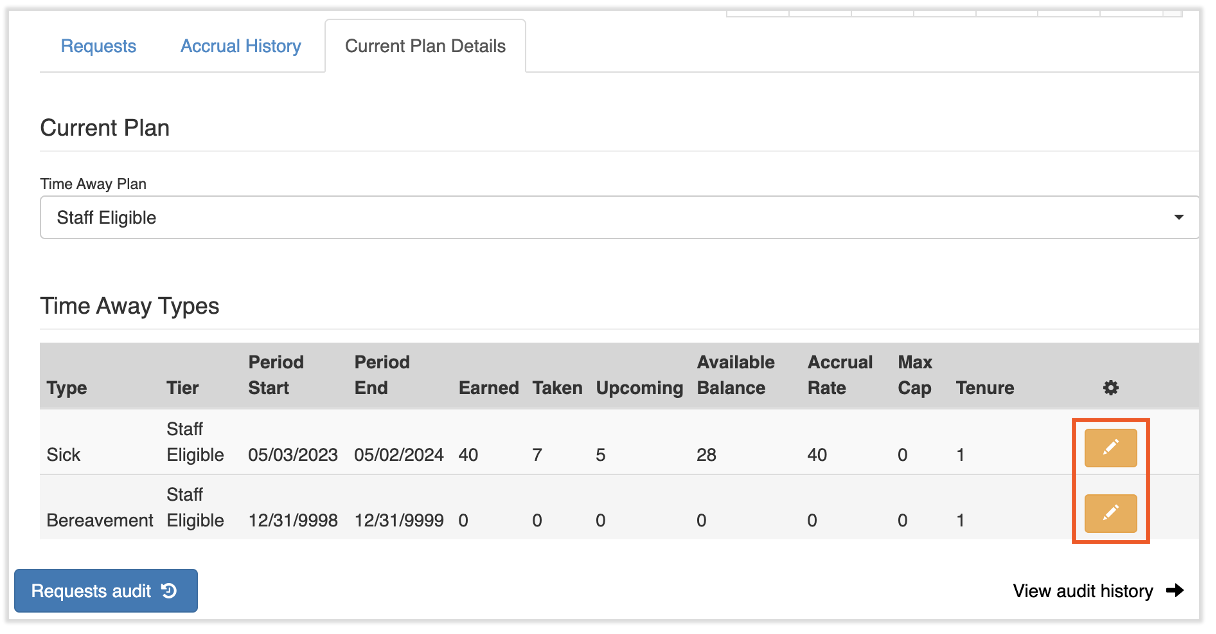
Under the Current Plan Details tab towards the end of the page, you will see several balances show for each type of TAFW. Each balance is shown in hours, not days.
- Earned: the amount of TAFW the employee has been given or accrued.
- Taken: the amount of TAFW an employee has taken off.
- Upcoming: the amount of TAFW that has been requested off, but has not yet been approved and/or taken. The time will remain in Upcoming status until it is taken or the request is denied.
- Available Balance: the amount of TAFW available to request off that is not Upcoming or Taken. Depending on company policy, this could display as a negative balance.
Update TAFW Balances
In certain cases, you may wish to manually update the balance of a TAFW type. This can happen when balances are imported, extra TAFW is gifted to an employee, or the module was not used for TAFW that has already occurred.
- Navigate to the employee's profile and select the Time Off tab.
- Scroll down to the Current Plan Details tab.
- Choose the Edit pencil for the appropriate bucket of TAFW.
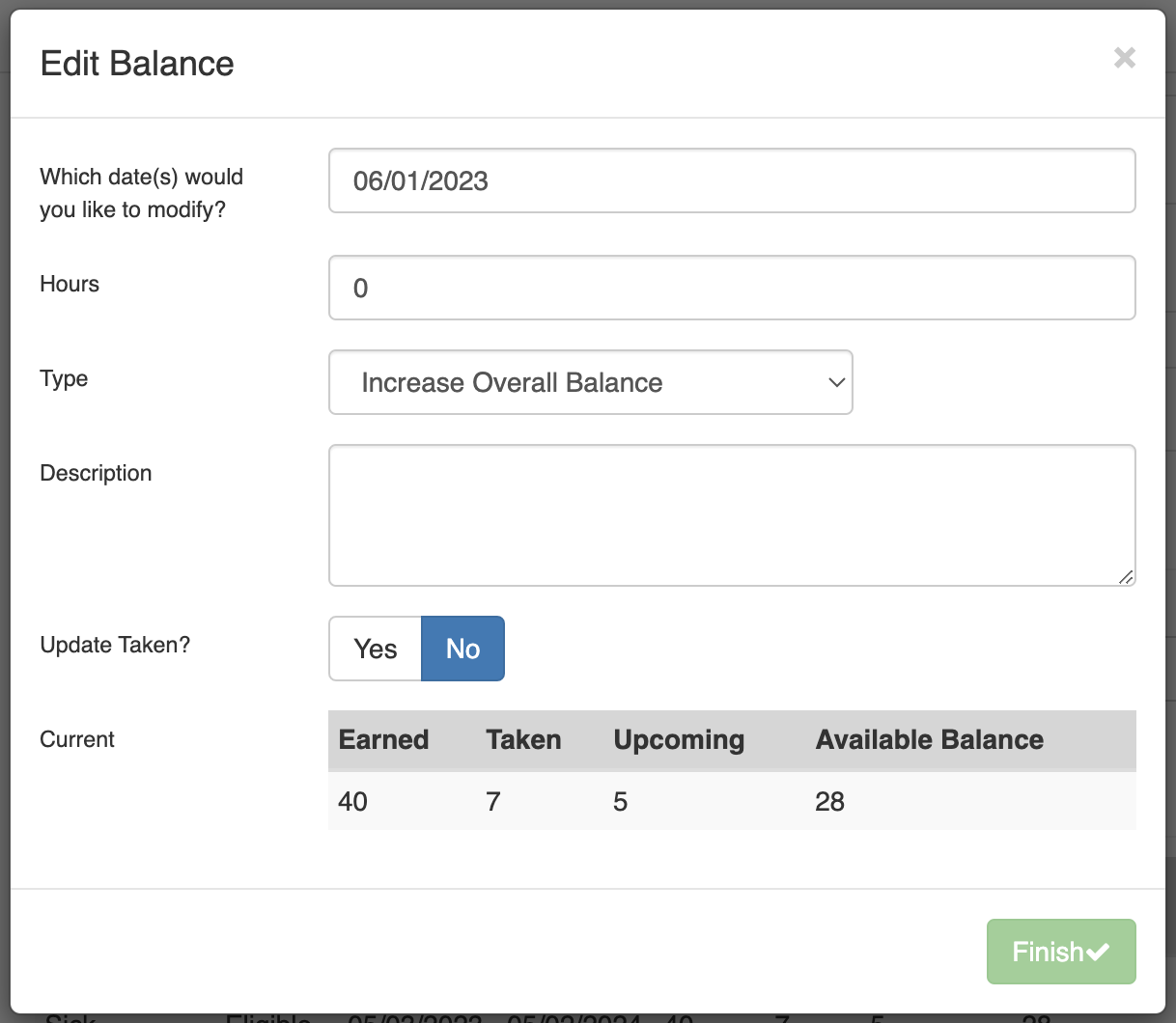
- Enter the following details:
- Select the date you'd like to modify. This can be set as any day, but for tracking purposes, the current date is usually chosen.
- Enter the number of hours and whether you'd like to increase or decrease the overall balance of that TAFW bucket.
- Leave a description if you like, but this is optional.
- Update Taken: When this is set as Yes, Toast Payroll will deduct the hours from both the Earned and the Taken columns. Set this to Yes when an employee used TAFW hours, but those hours have not been reflected in Toast Payroll. Note: Toast does not recommend setting this as No when you are increasing the overall balance.
- Select Finish to apply these changes.
TAFW Reports
To find reports useful to TAFW Management, navigate to Reports > Standard. Search for each report below.
- TAFW Accrual History Report: This report provides full accrual and manual deduction information for all employees. You'll find this report helpful when referring to historical balance amounts since it can be filtered by date range. Heads up: this can be a very data-intensive report and it begins running when the title is selected in the report library, so try to only select it once.
- TAFW Balances Report (By Date Range): This is the most commonly used report and will provide a detailed overview of all current TAFW balances across the entire company. Use the Date Range report to only see details within that timeframe. The Balances report also includes historical balance information. You can even filter out employees who have no balance information.
- TAFW Requests and Manual Changes Report: Open this report for full details on requested time off as well as any manual changes, including the user who made the change.
Back to top
TAFW as an Employee
View Your TAFW
If you'd like to request time off or view your current balance of time off, log into Toast Payroll and navigate to My Profile > Time Off. View and manage the following from the TAFW dashboard:
- The current available balances for your TAFW categories.
- A calendar that displays your requested time off.
- The Requests tab offers all pending TAFW requests.
- The Accrual History tab displays how much TAFW was earned per pay period.
- The Current Plan Details tab (read more just below).
Read TAFW Balances
Under the Current Plan Details tab, you will see several balances show for each type of TAFW. Each balance is shown in hours, not days.
- Earned: the amount of TAFW you have been given or accrued.
- Taken: the amount of TAFW you have taken off.
- Upcoming: the amount of TAFW that has been requested off, but has not yet been approved and/or taken. The time will remain in Upcoming status until it is taken or the request is denied.
- Available Balance: the amount of TAFW available to request off that is not Upcoming or Taken. Depending on your company's policy, this could display as a negative balance.
Request TAFW
- Navigate to My Profile > Time Off.
- Select the Request button in the top-right corner of the page.
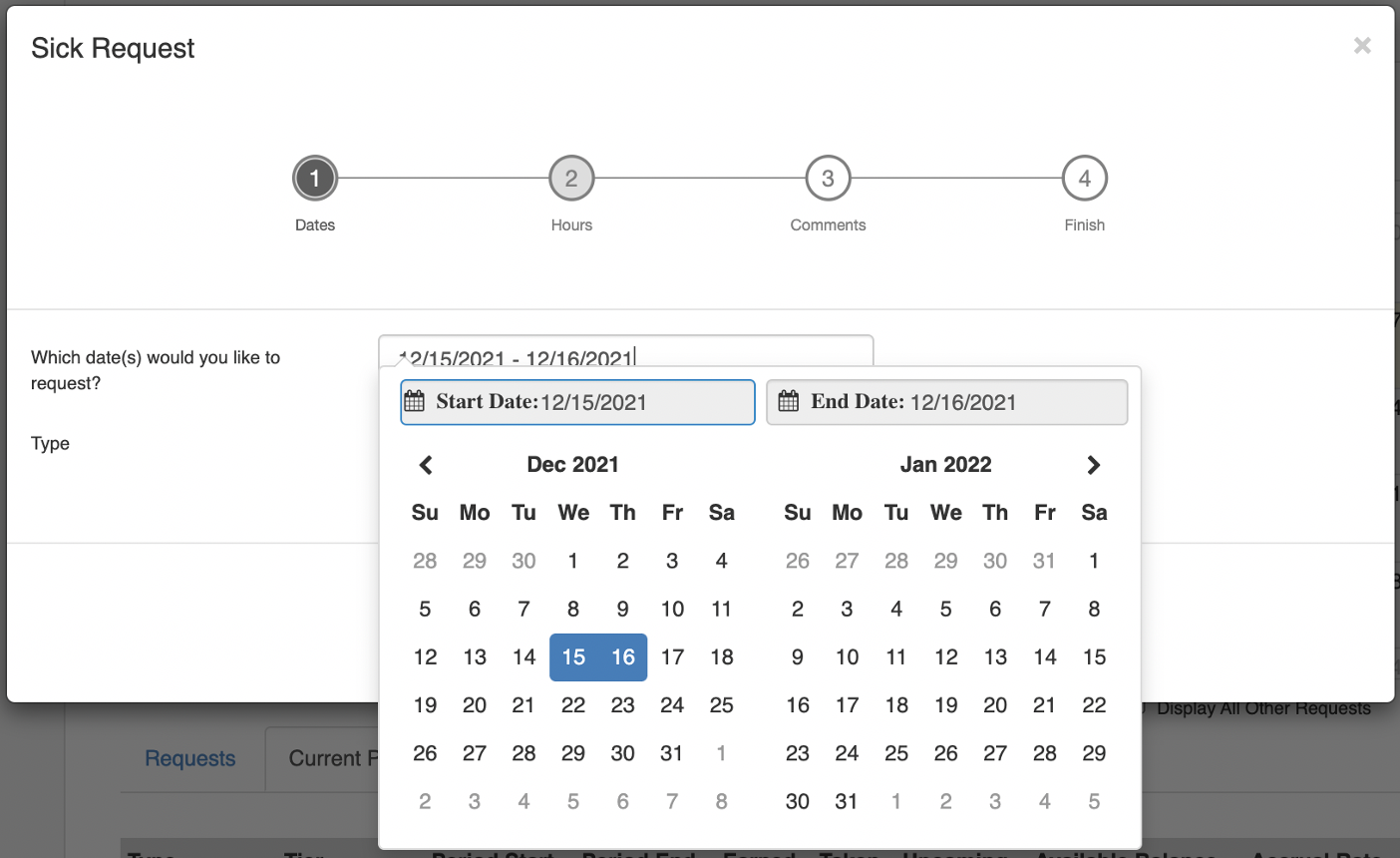
- Select the date(s) of your request and the type of TAFW you would like to use. Then select Next.
- When you want to take off only one day, select that day in the calendar twice.
- When you want to take off more than one consecutive day, select the first day off your TAFW and then the last day.
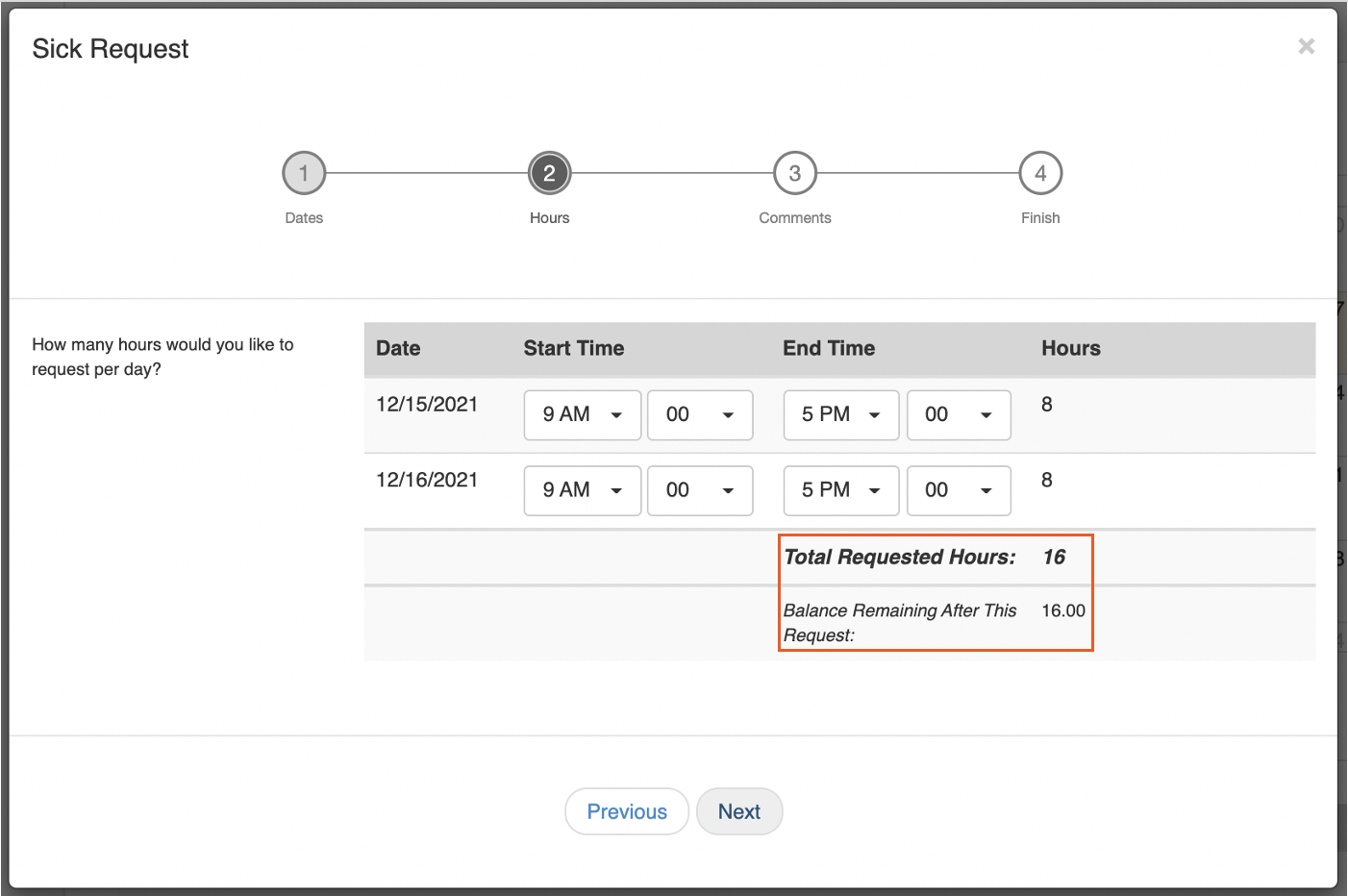
- Enter the hours of each day(s) that you would like to be absent. View the total requested hours and the balance remaining after your request at the bottom of this step. Then select Next.
- Enter any notes or comments that you would like to include with the request. The approving manager will see these notes. Select Next.
- Review your request and select Submit.
After submitting your request, it will route to the appropriate person for approval. The hours will sit in Pending status until being approved. Once the request is approved, the hours will appear in the Approved status.
Update a TAFW Request
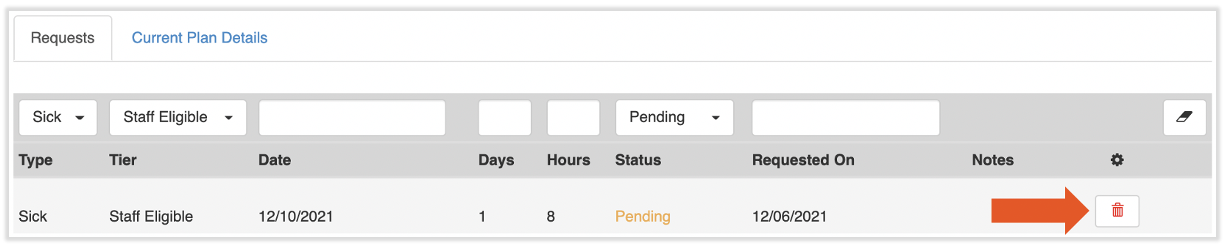
Whether a request has been approved or not, it will need to be removed in order to update it. TAFW already taken cannot be updated.
- Navigate to My Profile > Time Off.
- Scroll down to the Requests tab and locate the request you want to update.
- Select the trash can icon to remove the request.
- Follow the steps above to submit a new request, if necessary.
Notifications When TAFW is Approved or Denied
When your TAFW request is approved or denied, you will receive an email notification with the results. You might also see a notification on the payroll dashboard (the screen you see after logging in). Open the email or select the dashboard notification to view the results and view a note from the approving manager, if they left one.
This content is for informational purposes and is not intended as legal, tax, HR, or any other professional advice. Please contact an attorney or other professional for advice.