Log in to a Toast Product or Device
Last updated: Oct 16, 2026, 2:56 PM
Use this guide to log in to Toast Web, Toast Payroll, the Toast POS app, xtraCHEF, Sling, and the MyToast, Toast Now, and Toast Tables apps.
- Before you begin
- Quick reference: which login do I use?
- Log in to Toast Web
- Log in to Toast Now, Toast Tables, or MyToast
- Log in to the Toast POS app on a terminal
- Use your POS access code to clock in and take orders
- Log in to Toast Payroll
- Log in to xtraCHEF by Toast
- Log in to Sling by Toast
- Frequently asked questions
- Related articles
Before you begin
Before you can log in to a Toast product, you need:
- A Toast account that has been created and activated. If your manager invited you to create one, you must accept the email invitation before your password or POS access code will work. See Log in to Toast: Create an Account.
- An active internet connection.
- A supported browser. Toast recommends Google Chrome on a desktop or laptop. Mobile browser login works but may behave differently — for the Toast Tables, Toast Now, and MyToast experiences on a phone, use the dedicated mobile app.
Note: Toast will never contact you to ask for passwords, one-time passcodes, or other sensitive information. If you suspect a scam, contact Customer Care via chat in Toast Now (iOS or Android), the Support Center, or Toast Web. You can also call:
- (617) 682-0225 in the U.S. (7:00 a.m. to 12:00 a.m. ET)
- +1 343-451-6295 in Canada
- +353 1 913 1083 in Ireland
- +44 204 571 3302 in the U.K.
Quick reference: which login do I use?
Use this table to find the right URL and credentials for the product you're trying to access.
| Product | URL or location | Credentials | Notes |
|---|---|---|---|
| Toast Web | Toast account email and password | Universal credential — also works for Toast Now, Toast Tables, MyToast, and most xtraCHEF accounts. | |
| Toast Payroll | Toast account email and password | If you belong to more than one Toast Payroll database with a separate Toast Payroll login, you'll also enter a company code. | |
| Toast POS app (terminal, KDS, handheld) | The login screen on the device itself | Toast account email and password | One user logs the device in; individuals then enter their POS access code to clock in. |
| MyToast, Toast Now, Toast Tables | The mobile app | Toast account email and password | App-only experiences |
| xtraCHEF by Toast (web) | Toast account email and password (linked accounts) | Use the URL or open Toast Web and select xtraCHEF from the left navigation. | |
| xtraCHEF (mobile app) | The xtraCHEF app on iOS or Android | Toast account email and password | Multi-tenant users will pick a tenant after logging in. |
| Sling by Toast | Toast account email and password | Use the URL or open Toast Web and navigate to Team > Scheduling > Launch Sling. |
Log in to Toast Web
You'll use your Toast account email address and password to log in to Toast Web (your restaurant's back-end).
- Navigate to toasttab.com/login.
- Enter your email address and select Continue.
- Enter your password and select Continue. You may need to select the I'm not a robot checkbox for a reCAPTCHA challenge.
- If you have multi-factor authentication (MFA, also called two-factor authentication or 2FA) enabled, complete the verification with a six-digit code from a text message or your authenticator app. To set up or change MFA, see Set Up Multi-Factor Authentication.
Expected outcome: Toast Web opens to your dashboard. If you have access to multiple restaurants or locations, you'll see a location selector first.
If you receive an error or the login page reloads itself, see Log in to Toast: Troubleshoot Login. If you have two accounts, we strongly recommend you only use a single account login and you can read Consolidate Toast Web Login Credentials for more info.
Log in to Toast Now, Toast Tables, or MyToast
You'll use your Toast account email address and password (the same credentials as Toast Web) to log in to the Toast Now, Toast Tables, or MyToast apps. What you can see in each app depends on your permissions and the products your restaurant uses.
To download the right app and learn what it does, see:
Expected outcome: The app opens to its home screen. If you can't sign in, the cause is almost always one of these: the account hasn't been activated, the password was changed in Toast Web (and the app cached the old one), or the app needs an update from the App Store or Google Play.
Log in to the Toast POS app on a terminal
The Toast POS app login is a device-level action — one user signs the app in for the whole device. Once the device is logged in, individual employees clock in and take orders by entering their POS access code (sometimes called a PIN or passcode), not by logging the app in again.
You only need to log in to the Toast POS app after the app has been completely closed (force-stopped) or the device has been restarted, shut down, or factory reset. In normal day-to-day operation, this is rare.
- On the POS device, enter your Toast account email address.
- Enter your password.
- The app opens to the POS access code (PIN) screen and is ready for individual employees to clock in.
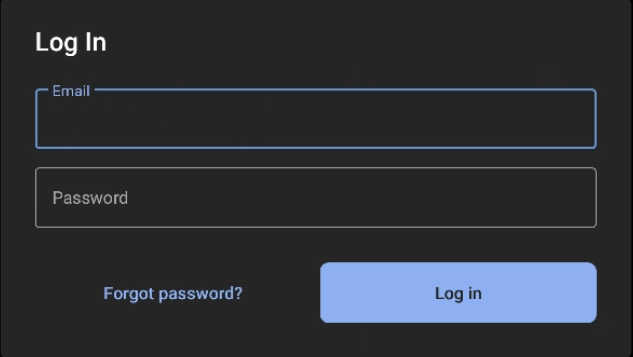
Expected outcome: The device displays the POS access code (PIN) screen. The next employee can now enter their POS access code to clock in.
If you don't have Toast Web access yourself, you'll need someone at the restaurant who does (typically a manager) to enter their email and password before you can use your POS access code.
Use your POS access code to clock in and take orders
After the device has been logged in, every employee enters their own 6–8 digit POS access code (also called a passcode or PIN) to clock in and take orders or payments.
The POS access code determines what features the user can access — for example, a server who enters their POS access code does not see manager functions, even if a manager logged the device in originally.
Hourly employees see the clock-in screen first; salaried employees go straight into the Toast POS app.
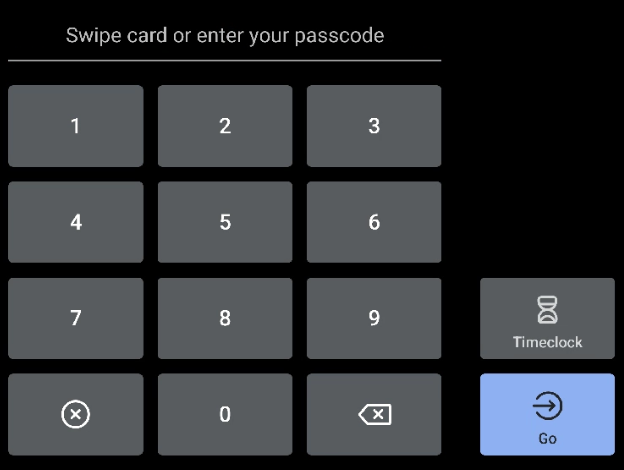
Expected outcome: After you enter your POS access code, hourly employees see the clock-in screen and salaried employees go directly into the POS.
If your POS access code isn't working, see the FAQ below or Log in to Toast: Troubleshoot Login.
Log in to Toast Payroll
One Toast account email and password works for both Toast Web and Toast Payroll. Once you set a password for Toast Payroll, you'll use the same credentials for both.
Note: If you're having trouble logging in, first confirm you're using your unified Toast account credentials -- a separate Payroll-specific password is no longer needed for most users after the unified-login rollout. If you still can't log in, see Log in to Toast: Troubleshoot Login for further steps.
- Navigate to payroll.toasttab.com/sign-in.
- Enter your email address and select Next.
- Enter your password and select Continue.
- If you have a separate Toast Payroll login and you belong to more than one Toast Payroll database, enter your company code. This is rare.
Expected outcome: Toast Payroll opens to your home screen.
First login to Toast Payroll
If you're a new hire, you'll receive a welcome email from Toast Payroll, sent from noreply@toasttab.com. The email may land in spam or junk, so search there if you can't find it. Direct managers and HR+ users can resend an invite email if needed.
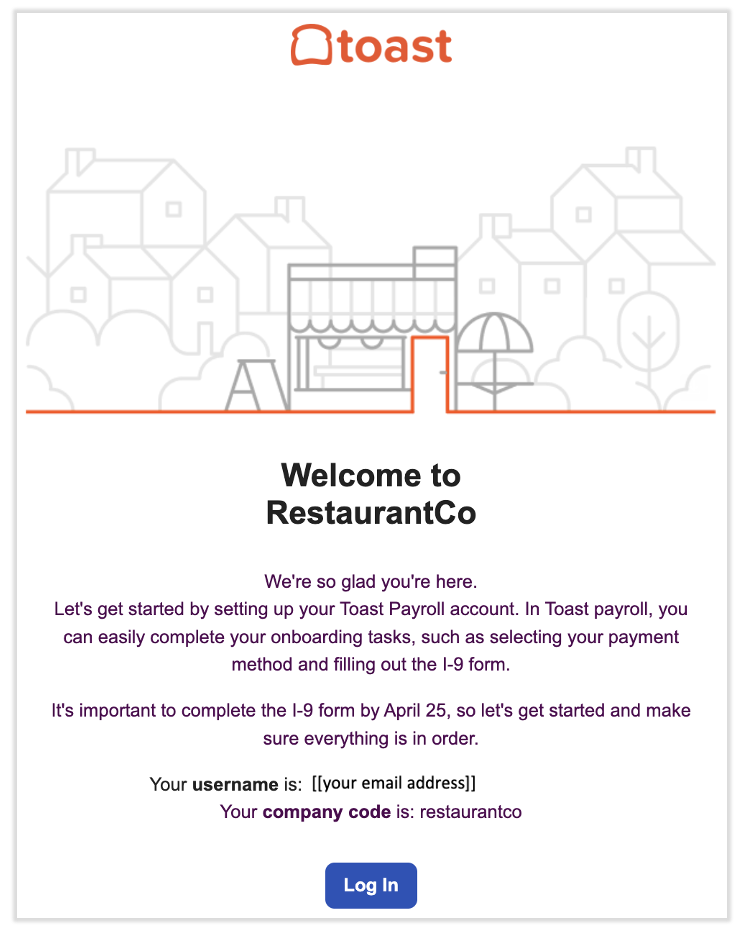
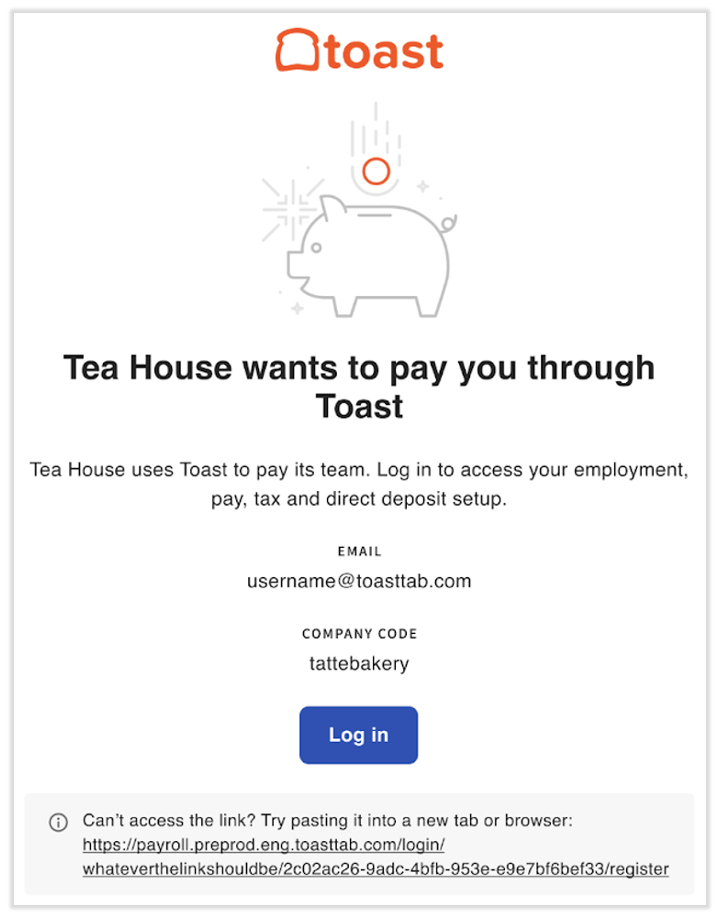
- In the welcome email, select Log in to navigate to the Toast Payroll login page.
- Enter a unique password and confirm it. Passwords must be at least eight characters long and must contain at least one letter, one number, and one special character.
- Select Register to complete registration. Save the password somewhere secure.
- The login page refreshes. Enter your email address and the new password to access the site.
- Continue with employee onboarding, where you can enter your Social Security number (SSN), fill out your Form W-4, and set up direct deposit. Toast needs this information to pay you electronically and to produce your year-end Form W-2.
- Learn how the new Toast Payroll navigation works by visiting Navigate Toast Payroll Within Toast Web.
Expected outcome: You're logged in to Toast Payroll and your onboarding tasks are visible.
If the login page does not refresh after you set your password, navigate to payroll.toasttab.com directly to log in and finish onboarding.
Log in to xtraCHEF by Toast
If you created your xtraCHEF account with the same email address as your Toast Web account, the two are linked and you can use a single set of credentials. The simplest way to access xtraCHEF is from inside Toast Web:
- Log in to Toast Web (see the steps above).
- Select xtraCHEF from the left-hand navigation.
Expected outcome: xtraCHEF opens in the same browser tab.
To log in to xtraCHEF directly:
- Navigate to app.sa.toasttab.com.
- Enter your email address and select Continue.
- Enter your password and select Continue.
Expected outcome: xtraCHEF opens to your home screen.
Log in to the xtraCHEF app
- Download the xtraCHEF app from the Google Play Store on Android or the Apple App Store on iOS.
- Open the app and enter your email address. Select Log in.
- Enter your password and select Log in again.
- If you have more than one xtraCHEF tenant (account) tied to your email, choose the tenant you want to view. Selecting a tenant signs you in.
Expected outcome: The xtraCHEF app opens to the dashboard for the tenant you selected.
Log in to Sling by Toast
You can access your linked Sling accounts directly from Toast Web.
- Log in to Toast Web (steps above).
- Navigate to Team > Scheduling.
- In the upper-right corner, select the three dots > Sling from the left-hand navigation.
Expected outcome: Sling opens in a new tab and you're signed in.
Frequently asked questions
I forgot my password. What do I do?
On the login page, enter your email address, select Continue, and then select Forgot password? Toast emails you a reset link. If the email doesn't arrive within a few minutes, check spam or junk. If selecting Forgot password? returns an error, your account may need to be re-invited — ask your manager to resend the invite. Full troubleshooting is in Log in to Toast: Troubleshoot Login.
I'm locked out after too many failed attempts. How do I get back in?
If you fail to log in five times within one hour, your account is locked for one hour. There is no override — wait the hour, then try again with the correct credentials or use Forgot password? to reset. You'll see the message "Your account has been blocked after multiple consecutive login attempts" and may receive an email about it.
My POS access code (PIN) isn't working. Why?
Ask your manager to verify the code on your employee profile in Toast Web — only managers with the 4.9 Employee Info permission can change a POS access code; you cannot change your own. Detailed steps are in Log in to Toast: Troubleshoot Login.
I lost the phone I use for MFA. How do I log in?
If you can still log in to Toast Web from a device you've already authenticated, select the avatar icon in the upper-right corner, select Profile, and reset MFA from the Login and security section. If you cannot log in at all, contact Customer Care. See Set Up Multi-Factor Authentication for details.
I can log in but I can't see my data or my locations. What's wrong?
That's a permissions issue, not a login issue — login succeeded but your account doesn't have access to the data you're looking for. Ask your manager to check the Permissions & Access tile on your employee profile in Toast Web (Team > Employees). For full troubleshooting, see Log in to Toast: Troubleshoot Login.
Can I use a personal phone to log in to Toast Web or Toast Payroll?
Yes — mobile browser login works for Toast Web, Toast Payroll, and xtraCHEF. However, for the best experience, Toast recommends Google Chrome on a desktop or laptop. For phone-native experiences, use the MyToast, Toast Now, or Toast Tables apps instead.
Related articles
- Log in to Toast: Create an Account
- Log in to Toast: Update Your Account
- Log in to Toast: Troubleshoot Login
- Set Up Multi-Factor Authentication
- Unified Login Experience for Toast Web and Toast Payroll
- Get Started With Single Sign-On Login With Toast
- Get Started With Toast Account & Login Management