Get Started With the Toast Now App
Last updated: Oct 2, 2026, 3:12 PM
- Toast Now Overview
- Access the Toast Now app
- Toast Now app for multi-location restaurants
- Account settings on the Toast Now app
- How it works
- Date selection and comparison
- Homepage overview: sales and labor
- Add a Net Sales home screen widget
- Operational data cards
- Product Mix (PMIX) and Item Sales
- Stock and 86'd items
- Manager log (also called the logbook)
- Online ordering and third-party delivery controls
- Finance tab
- Toast Now chat support
- Required permissions for Toast Now
- Known limitations
- Related articles
Toast Now Overview
Toast Now is a mobile app that lets managers and owners run their business from a phone, with real-time reporting and operational controls.
What you can do with Toast Now:
- View sales and labor reporting with quick day-over-day comparisons.
- View and edit employee shifts and read or post in the manager log (also called the logbook).
- Throttle online ordering, snooze takeout or delivery, and mark items in or out of stock.
- See a Product Mix (PMIX) breakdown of items sold.
- Open a Toast Now chat support session with Customer Care.
What you need to use Toast Now:
- A Toast Web account. The same email and password you use to sign in to Toast Web sign you in to the Toast Now app.
- A supported iOS or Android device. See Toast Now App Version & Operating System Requirements for current device requirements.
- The Toast Web permissions for the data and controls you want to use. Permissions on the Toast Now app mirror your Toast Web permissions — see Required permissions for Toast Now below.
Who can use Toast Now: any user with a Toast Web account and the appropriate Toast Web permissions. To grant a manager, GM, or other employee access, see Grant Toast Web Access to Existing Employees.
Access the Toast Now app
To access Toast Now, download the app on iOS or Android:
For supported operating system versions and device requirements, see Toast Now App Version & Operating System Requirements.
When you open the app, select Log in at the bottom of the screen and sign in using the email address and password that you use to sign in to Toast Web. When you select Log in, the app may briefly open your phone's default web browser to complete sign-in, then automatically return you to the Toast Now app. This is expected — you don't need to do anything else. Your phone may offer to save your password or set up Face ID for faster return visits.
To grant a manager, GM, or other employee access to Toast Now: set them up with a Toast Web account and assign the appropriate permissions in Toast Web. They will then sign in to Toast Now with those Toast Web credentials. For step-by-step instructions, see Grant Toast Web Access to Existing Employees.
Note: A user's permissions for Toast Now mirror their access permissions in Toast Web. For a breakdown of the specific permissions required for different parts of the Toast Now experience, see Required permissions for Toast Now below.
Toast Now app for multi-location restaurants
If you have access to multiple restaurant locations on Toast Web, you can access all of them on Toast Now. The first time you log in, the app shows the multi-location view with high-level data for every location you have access to. Select a specific location to open that location's homepage overview.
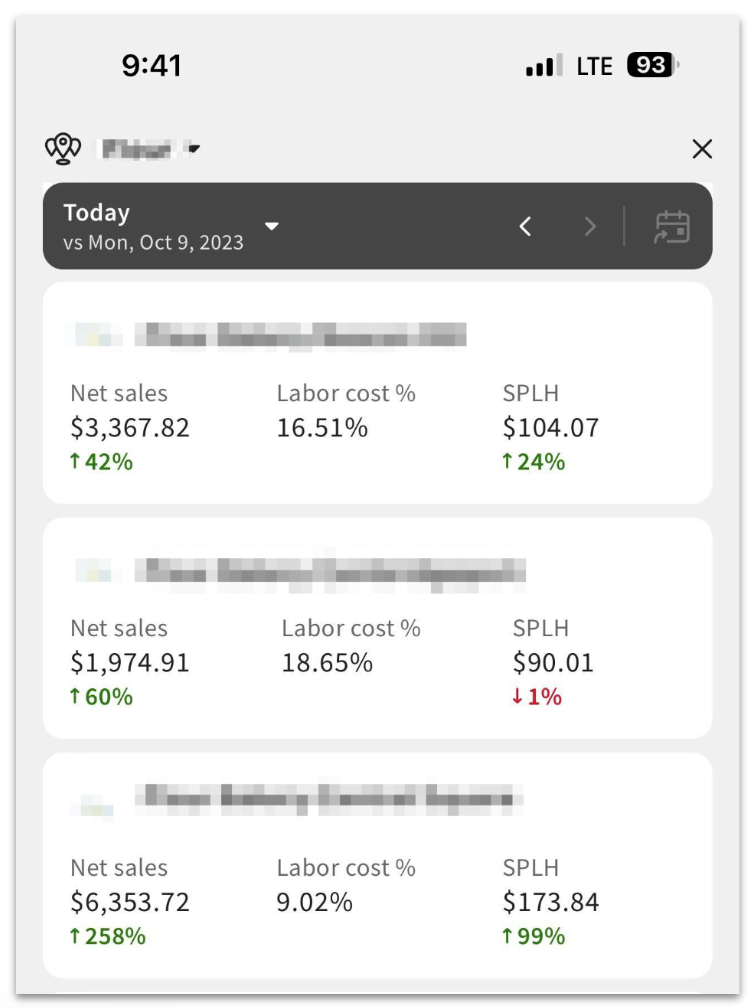
The next time you log in, the app opens to the homepage overview of the last location you viewed. To return to the multi-location view and switch to a different location, select the restaurant name at the top of the screen.
You can only switch to locations you have permissions for. If a location you expect is missing, an administrator needs to grant you the required permissions for that location in Toast Web.
Account settings on the Toast Now app
To open your account page, select Account on the bottom right corner of the screen. From the account page you can:
- Send feedback to improve the app experience.
- Invite your team to download the app.
- Review legal and privacy agreements.
- Share your screen with a Customer Care agent.
- Log out of the app.
Push notifications are coming soon! To enable these when they become available, select Notifications on the account page.
How it works
Date selection and comparison
The date selection bar appears at the top of every screen. All data shown in the app reflects the date on this bar. By default, the bar is set to Today.
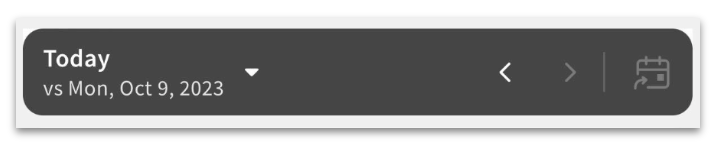
Three ways to change the date:
- Select the left or right arrow on the date selection bar to move one day at a time.
- Select the down arrow on the left side to open a calendar view and pick any date directly.
- Select the calendar icon on the right side to return to today.
Data is shown to the nearest whole hour in the restaurant location's time zone.
Note: Toast Now displays one date at a time. You can't select a custom range like current week, last week, or last month. For custom-range reporting, use Toast Web.
Below the calendar, the Comparison toggle is On by default. Choose what date your data is compared against:
- The same day last week
- The same day last year
- The same day two years ago
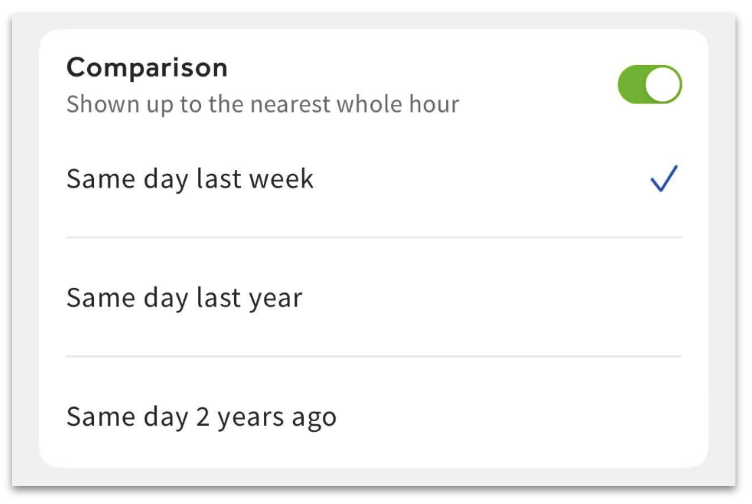
If you disable the Comparison toggle, the app shows data for the selected date only — no prior-period comparison.
Homepage overview: sales and labor
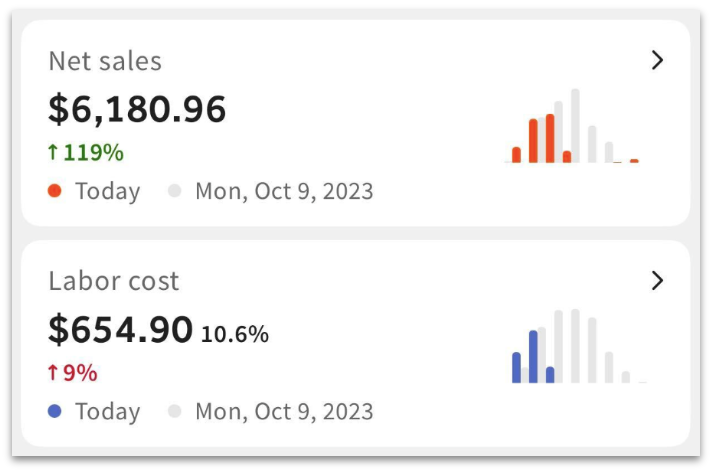
The homepage overview is the main page of Toast Now. At the top, two bar graphs show sales and labor data for the selected date.
Note: Permissions inherit from Toast Web. You need the 4.1 Sales Report permission to view sales data, and the 4.3 Labor Report permission to view labor data.
When the Comparison toggle is on, prior-period data appears as gray bars and you cannot view current-day data on the comparison overlay. A green or red arrow shows the percentage change between the selected date and the comparison period. To refresh data on any screen, pull down on the screen.
Selecting the Net sales card opens a detailed view with filters:
- Hourly
- Weekly
- Dayparts (also called service periods)
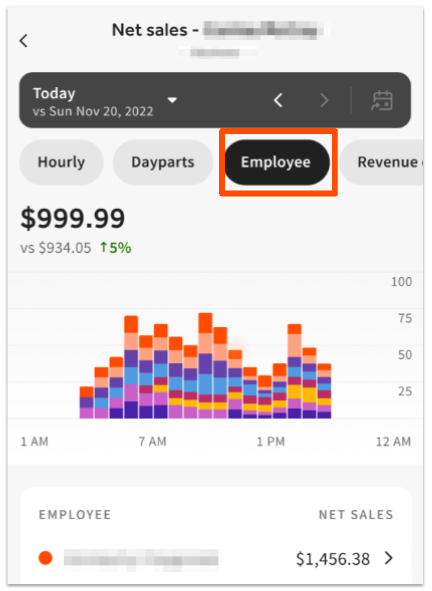
- Employees
- Revenue centers
- Sales categories
- Dining options
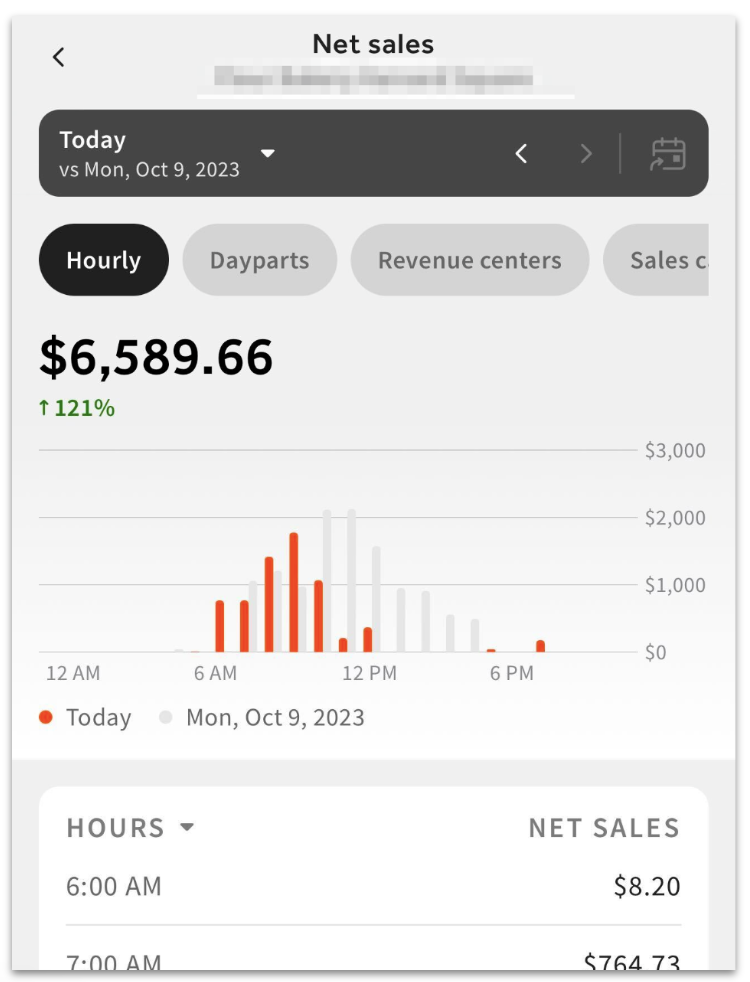
The Employees filter on the net sales card lists net sales by employee in descending order, including any employee who recorded sales during the selected date. Select an individual employee to see that employee's net sales by hour.
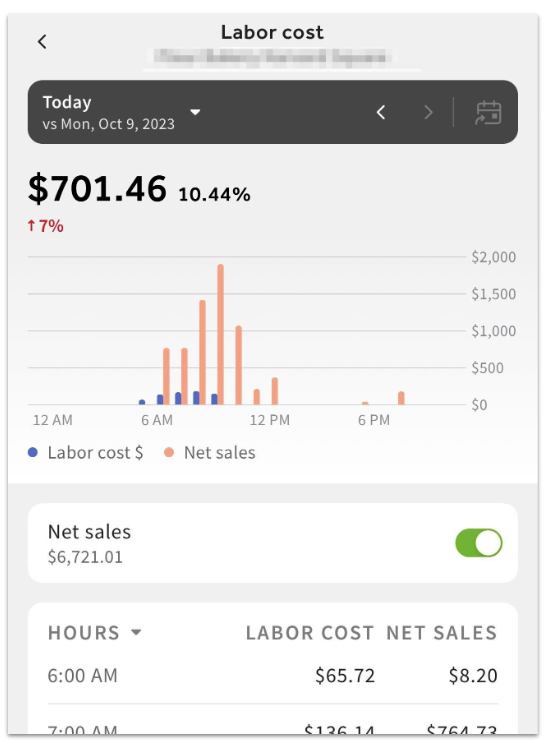
Selecting the Labor cost card shows labor cost per hour for the selected date. The labor cost detail view includes a Net sales toggle that lets you compare hour-by-hour labor and sales side by side, in the chart or in the table view.
Add a Net Sales home screen widget
A Net Sales widget is now available for your device's home screen, letting you view current-day net sales at a glance without opening the Toast Now app. The widget updates automatically with real-time net sales data.
To add the widget:
- On iOS: long-press the home screen, select Edit > Add Widget, find Toast Now, and select the Net Sales widget.
- On Android: long-press the home screen, select Widgets, find Toast Now, and add the Net Sales widget.
Operational data cards
Below the sales and labor charts, the homepage shows additional data and control cards. Cards with an arrow in the top right corner open a detailed view when selected. The table below describes every card.
| Card | What it shows |
|---|---|
| Team | Total number of employees clocked in. Detail view: filter by all employees, clocked-in, clocked-out, or auto-clocked-out. Select an employee to view timecard details and edit shift information if needed. |
| SPLH (sales per labor hour) | Total revenue earned divided by labor hours worked by non-salaried employees. |
| Guests | Number of guests for the selected date. Detail view: guests per hour. |
| Avg/Guest | Average spend per guest. |
| Orders | Number of orders for the selected date. Detail view: orders per hour. |
| Avg/Order | Average spend per order. |
| Item Sales | Quantity and net sales for top-selling items. Detail view: see Product Mix (PMIX) and Item Sales below. |
| Stock | Search and select any menu item; toggle in-stock status; update stock quantity. Also shows 86'd items. |
| Refunds | Refunds organized by server by default; switch between server and approver. |
| Voids | Voids for the selected date, broken down by void reason, server, approver, and item. Detail view: group by discount name, server, or approver; see quantity of discounts and total discounted amount; matches much of the Order report in Toast Web. |
| Discounts | Number of servers associated with each discount. |
| Labor Cost | Labor costs by individual employees and job titles. |
| Checks | Total open checks. Find and view check information including order item details, guest, and payment. Filter by date or check status. |
Product Mix (PMIX) and Item Sales
Product Mix (PMIX) shows how individual menu items sold for a given day. To open it from the homepage:
- Select the Item Sales card.
- Select Top Sellers.
The Product Mix screen lists every item sold on the selected date. You can sort by:
- Quantity sold
- Net sales
To see modifiers for a specific item, select the item in the Product Mix screen. The modifier list shows each modifier's quantity and net sales.
For a deeper dive into how Toast calculates and displays Product Mix data, see Product Mix (PMIX) Report Overview.
Stock and 86'd items
To mark an item out of stock (also called 86'ing) or to restock an item from your phone:
- Select the Stock card on the homepage.
- Search for the menu item.
- Toggle its in-stock status.
- Update the stock quantity if needed.
The Stock detail view also lists items currently 86'd so you can mark them back in stock.
Manager log (also called the logbook)
The manager log — sometimes referred to as the logbook, manager notes, or pre-shift notes — is an internal message board for managers to post notes about guests, shifts, maintenance, and operations. It appears below the data cards on the homepage overview, and entries are also included in the Daily Performance Summary email.
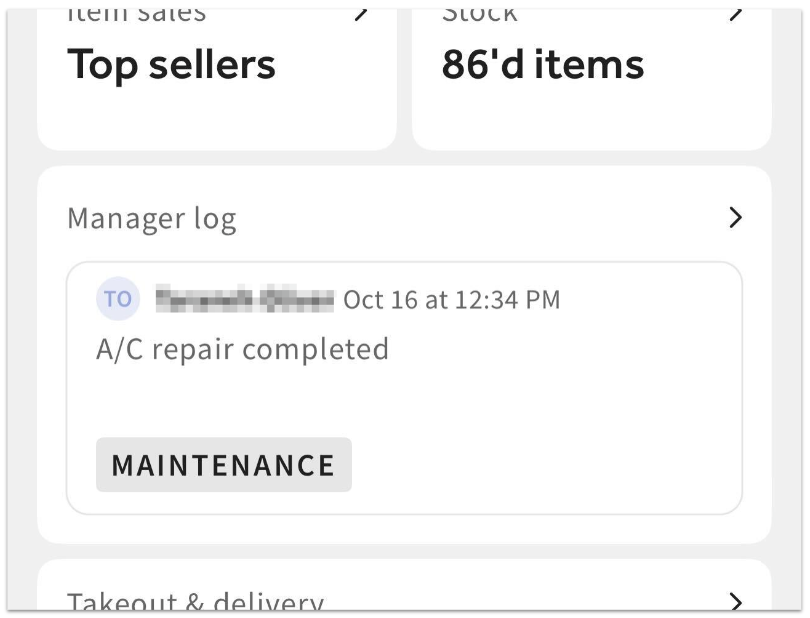
Any user with the 3.26 Log Book permission can read and post messages in the manager log, in either Toast Now or Toast Web.
To work with the manager log on Toast Now:
- Swipe left or right to read all entries for the selected date.
- Select the Manager log card to open the full log.
- Select + Add entry at the bottom to create a new note.
- Select an existing note to add a reply.
- You can edit or delete entries you created. You cannot delete entries created by other users.
For more on the manager log, including its use in Toast Web, see Manager Log Overview. For more on the Daily Performance Summary email, see Create Email Lists and Configure Employee Notifications.
Online ordering and third-party delivery controls
If your restaurant uses Toast Online Ordering or one of the third-party direct integrations, the Takeout & delivery card appears below the manager log on the homepage. Depending on the features at your restaurant, you'll see icons for Toast ordering (Toast Online Ordering, Toast Local, Order with Google) and third-party integrations (DoorDash, Grubhub, Uber Eats).
Selecting the Takeout & delivery card opens a detail view with toggles for each order source. Toggle any source to Off to pause orders temporarily.
The Toast ordering section has a Status drop-down used to control Toast ordering availability. The options match Toast Web:
- On
- Snooze for 20 min
- Snooze for 40 min
- Off until tomorrow
- Off
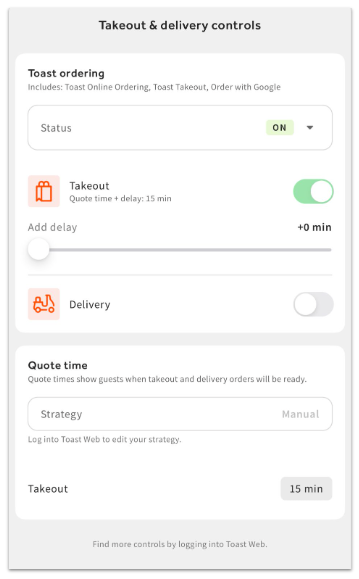
When Takeout or Delivery is toggled On, the estimated quote time appears with a slider that adds a delay if needed. If the Status is set to Off, the Takeout and Delivery toggles are unavailable.
A Quote time section at the bottom shows your current quote time strategy (manual, kitchen capacity, or order price). Select the time value (for example, 15 min) for a channel toggled On to adjust its quoted time.
To change your quote time strategy or access controls not available in the app, sign in to Toast Web on a browser.
Finance tab
For those enrolled in Toast Checking, you'll see a Finance tab available next to your Overview tab to help inform you about the financial health of your Toast accounts and deposit activity.
Specifically, this page will show you the following:
- Accounts
- Sum of balances from the Toast Checking accounts you use, including the standard Toast Checking account and any jars (see Jars FAQ)
- Your APY and total rewards earned, with the APY disclaimer
- Transfer money between accounts
- Account activity
- Instant Deposit
- View the amount available for Instant Deposit and select Deposit now to send funds. This amount also appears on the Net sales card.
- Card
- Manage your Toast Checking Debit Mastercard: manage your PIN, replace your card, report it lost or stolen, freeze it (a frozen card banner appears while it's frozen), or cancel it.
- Find ATMs and cash deposit locations
- Use the ATM locator and cash-in location finder to find nearby Allpoint ATMs and places to add cash.
- Apple Wallet
- Add your Toast Checking Debit Mastercard to Apple Wallet from the app.
- Payouts
- View recent payouts
Toast Now chat support
To start a Customer Care chat from inside the app, select the Support icon at the bottom of the screen. From the same icon, you can open a new chat or review previous chat conversations.
Note: Chat sessions remain open for up to 48 hours of inactivity. After 48 hours without activity, the chat closes automatically.
Required permissions for Toast Now
The cards and data you see in Toast Now depend on the permissions assigned to your Toast Web profile. For example, if you only have the 5.2 Inventory & Quantity permission, your homepage shows only the Stock card. To request more access, select the Looking for more? link at the bottom of your Toast Now homepage to text or email your manager.
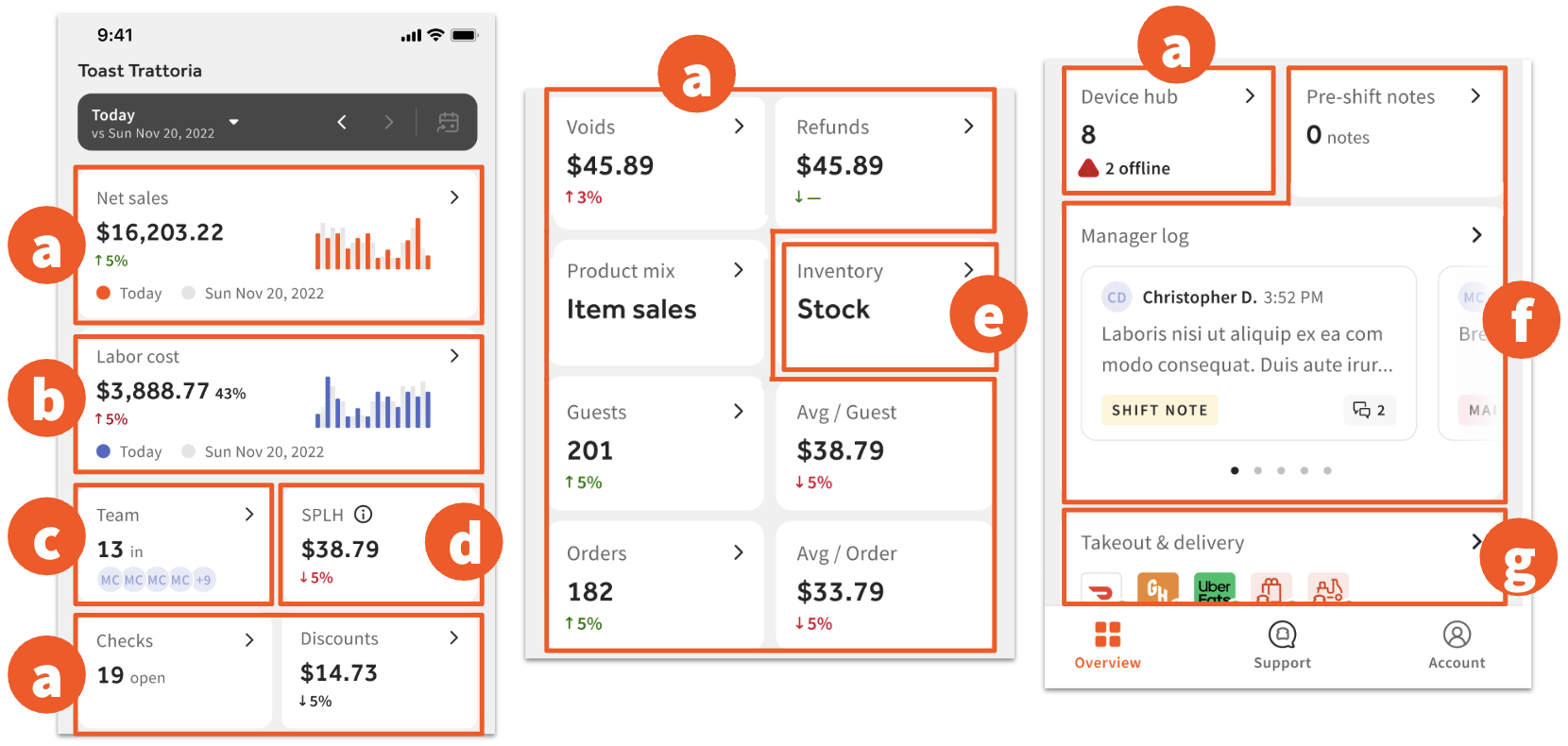
Required permissions by feature:
| Feature | Required Toast Web permissions |
|---|---|
| Net sales, Checks, Discounts, Voids, Refunds, Product Mix, Upsells, Guests, Avg/Guest, Orders, Avg/Order, Device hub | 4.1 Sales Reports |
| Labor cost | 4.3 Labor Reports |
| Team (edit employee shift, view employee profile) | 4.3 Labor Reports, plus one of: 3.14 Edit Time Entries, 4.9 Employee Info, or 4.10 Employee Jobs & Wages |
| SPLH | 4.1 Sales Reports, 4.3 Labor Reports, and 4.10 Employee Jobs & Wages |
| Inventory (Stock, 86 items, restock) | One of: 4.5 Edit Full Menu or 5.2 Inventory & Quantity |
| Pre-shift notes, Manager log | 3.26 Log Book |
| Takeout & delivery settings | 6.6 Restaurant Operations Setup |
To learn more about Toast Web permissions, see Permissions Reference Guide. If a user has the listed permissions but still cannot access a feature, see Why aren't my permissions working correctly?.
Known limitations
- One date at a time. You can view only one calendar day in the app — no custom range, no week or month rollups. Use Toast Web for custom-range reporting.
- No combined multi-location totals. The multi-location view shows net sales, labor percentage, and SPLH for each location separately. There is no combined view of all locations together.
- No cash drop or deposit visibility. Cash drop totals are not available in Toast Now. View this information in the Sales Summary report on Toast Web.
- No table status view. Toast Now does not show which tables are open or occupied at your restaurant.
- Toast Retail features are iOS only. Inventory, cycle counts, the Item Catalog, and Smart Scan for Toast Retail are available only in the Toast Now app for iOS. On Android, log in to Toast Web in a mobile browser, such as Chrome, and select Retail. For details, see Can I access Toast Retail on the Toast Now app?
- PMIX accuracy. If PMIX numbers in the app don't match what you expect, the cause is usually related to how items are recorded at the POS or how modifiers are mapped. For more on PMIX, see Product Mix (PMIX) Report Overview.
- Push notifications.
- Country availability for chat support.
- POS Broadcast option.
For troubleshooting questions, see Get Help With the Toast Now App.
Related articles
- Get Help With the Toast Now App
- Toast Now App Version & Operating System Requirements
- Grant Toast Web Access to Existing Employees
- Permissions Reference Guide
- Manager Log Overview
- Product Mix (PMIX) Report Overview
- Why aren't my permissions working correctly?
- Create Email Lists and Configure Employee Notifications