Toast Payroll: Get Started With Employee To Do's
Last updated: Apr 8, 2026, 10:03 AM
| Employee To Dos are different than Payroll To Dos (these help payroll administrators set reminders for upcoming payrolls). |
- Employee To Do Basics
- Create an Employee To Do
- Give Employees Access to These Documents
- Employee To Do Reporting
Employee To Do Basics
Employee to do's are used to send surveys, messages, and/or documents to an individual employee or group of employees for acknowledgment. To do notifications will appear on the dashboard when an employee first logs into Toast Payroll. Once a to do is sent, it cannot be removed/undone.
Common examples for employee to do's include:
- Surveying new employees on uniform size
- Employee handbook updates that need employee sign-off
- New policy for FOH staff to review
- Communication with your employees
- Documents need to be acknowledged or completed by specific employees
- A notice of pay rate communication (New York state)
Create an Employee To Do
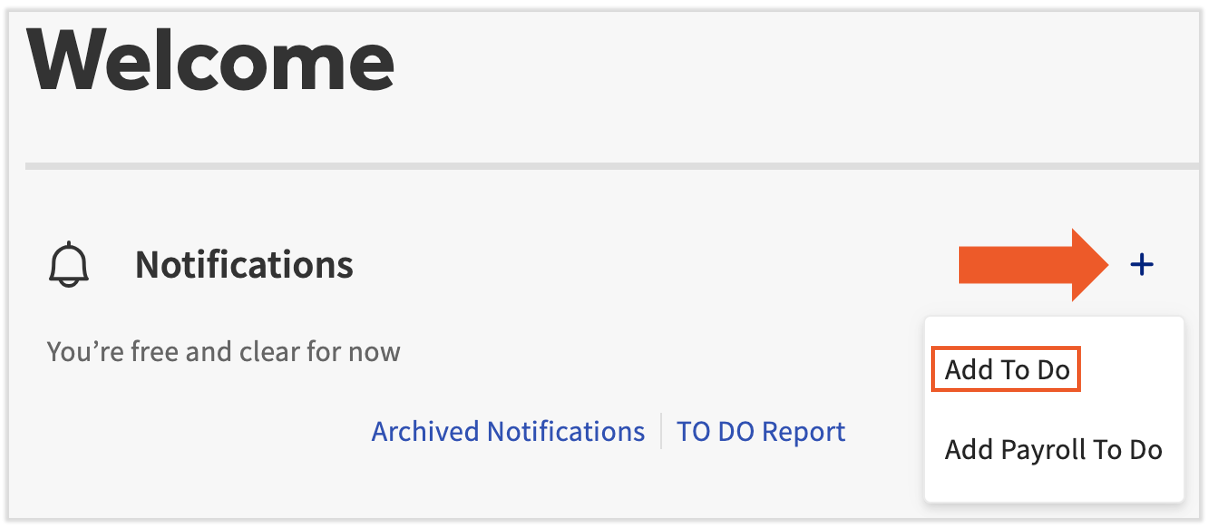
- To create an employee to do, select the + sign from the dashboard and choose Add To Do from the drop-down.
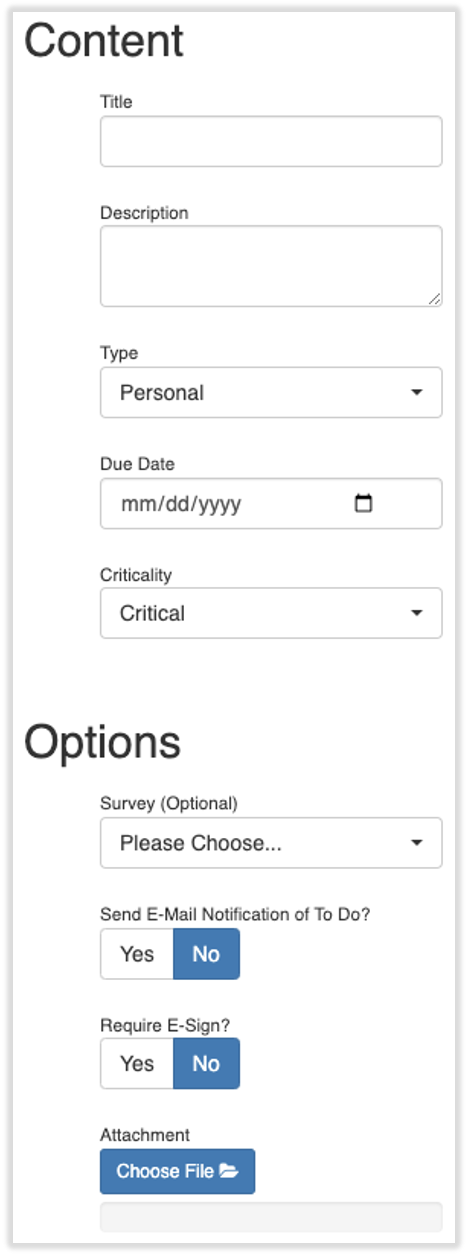
- Next, complete the following applicable fields:
- Add a title and description. Employees will see both these fields.
- Indicate the type of to do, due date, and criticality.
- If this to do is a survey, choose your survey from the drop-down menu. You'll need to create a survey before it will appear here.
- You may choose to send an email notification for employees who do not log into the system often and may need a prompt to know an action item is waiting for them.
- Select whether or not you would like to require employees to e-sign the document confirming they have reviewed it. Learn more about e-signatures and to so's here.
- Attach an applicable document, if necessary.
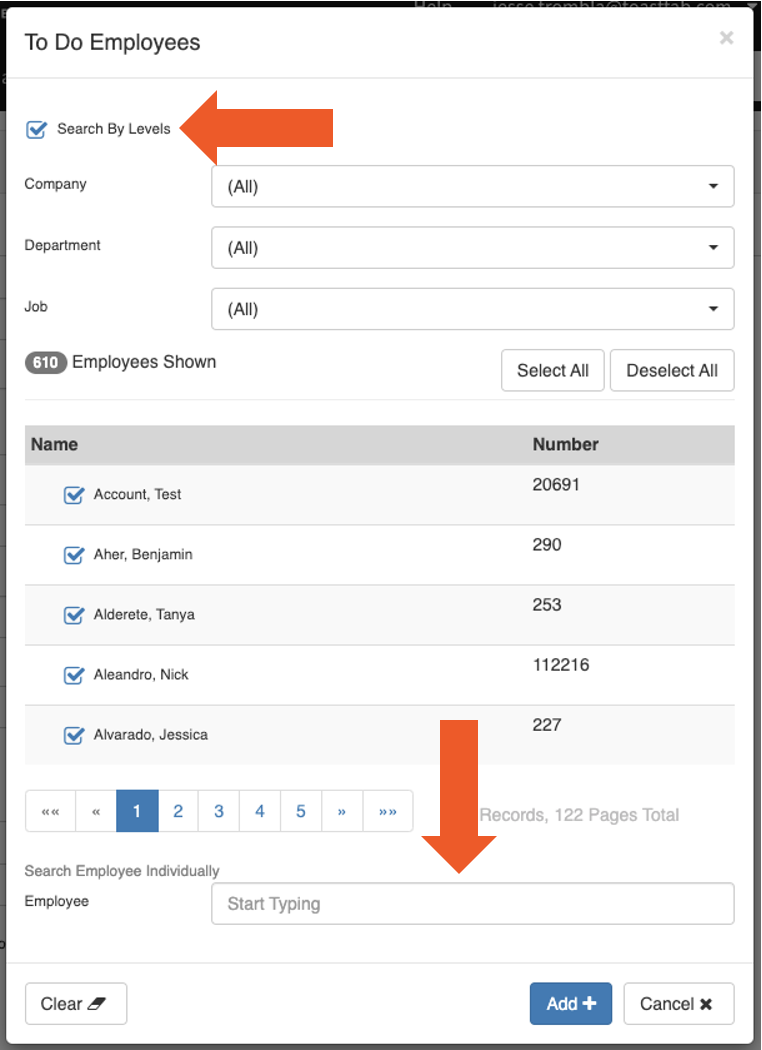
- The next step is to assign it to employees. Choose the Select button under Employees.
- You can assign a to do to all employees, a specific group of employees, or an individual employee. Select Search by Levels to expand your view and make it easier to locate specific groups of employees. Press Add+ when you're finished.
- You can assign a to do to all employees, a specific group of employees, or an individual employee. Select Search by Levels to expand your view and make it easier to locate specific groups of employees. Press Add+ when you're finished.
- Lastly, select Save from the bottom of the page and the to do notification will be sent out to the employee(s) you selected.
- Once a notification has been acknowledged or deleted from an employee's dashboard, it cannot be retrieved. However, it can be resent.
Give Employees Access to These Documents
You may require an e-signature on the document, but once the employee reads and signs the to do, only the signature will automatically be uploaded into their Document Library (My Profile > Taxes & Documents). The document itself will not be uploaded to their profile.
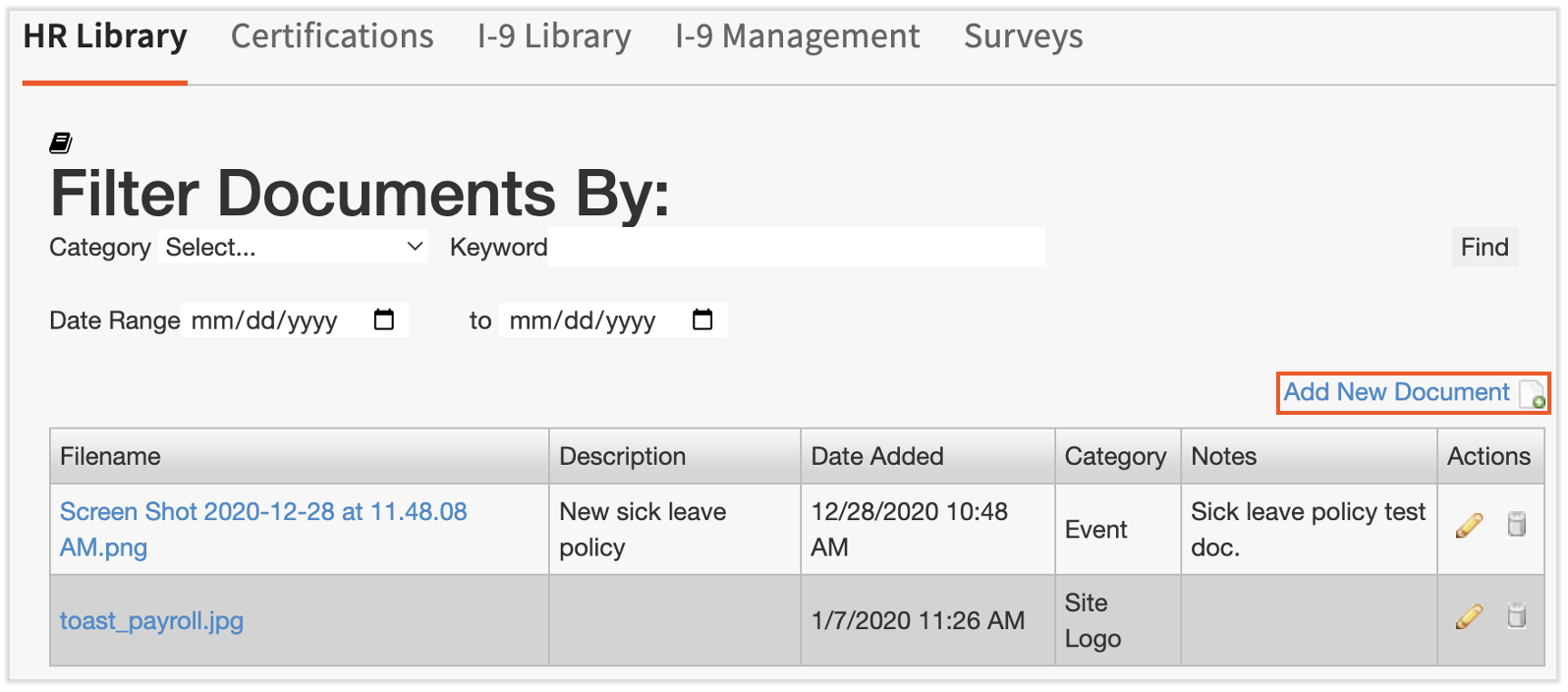
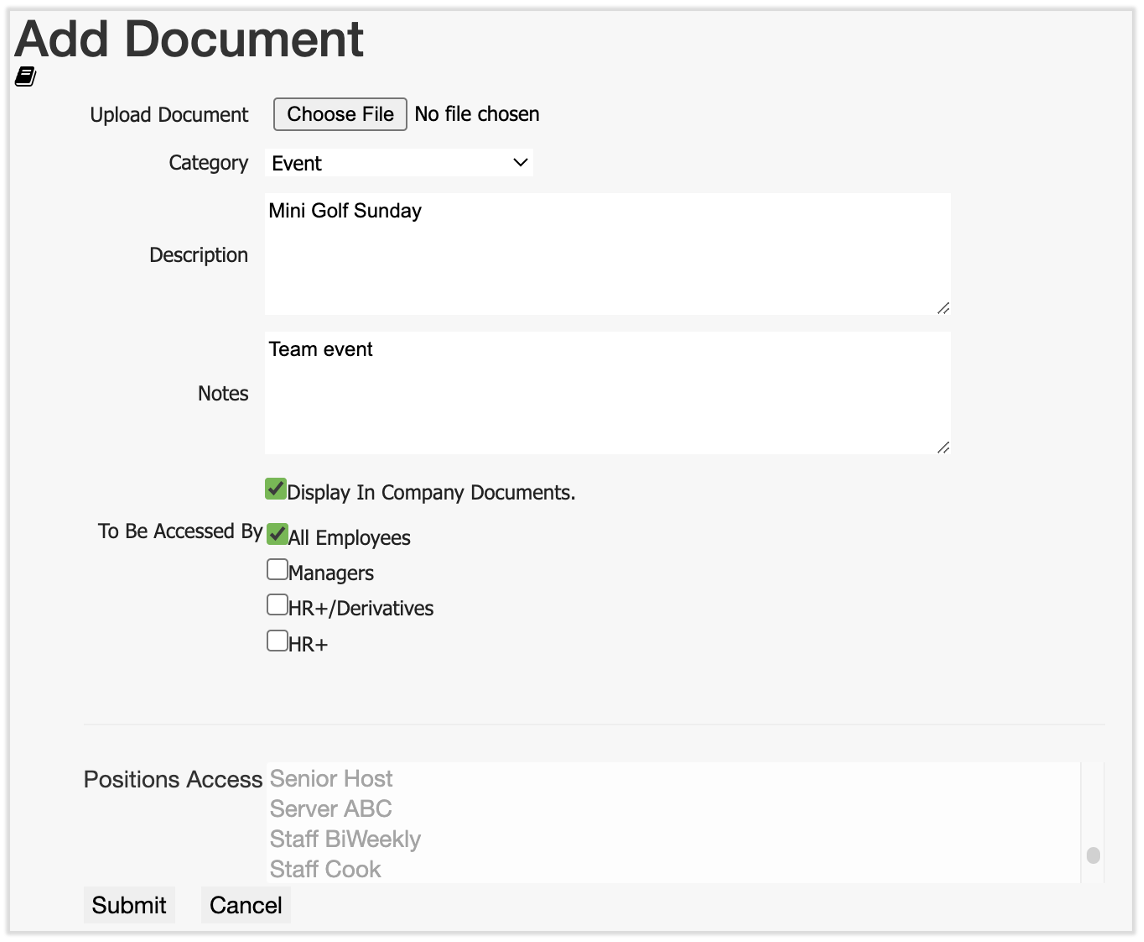
- To add the document to the employee's Company Documents page in their profile, navigate to Documents in the left-hand navigation bar.
- Select Add New Document.
- Begin by uploading your file at the top of the page.
- Choose a category and add an optional description and/or notes, although these fields are useful for distinguishing different company documents.
- In this case, be sure to check Display in Company Documents.
- Then choose the security role OR the position(s) this document should be accessible to. Either check one or more of the boxes in the To Be Accessed By option OR uncheck all boxes and select the appropriate position(s) for this document. Holding Ctrl/command as you click allows you to select more than one position. Press Submit when you're finished.
- Employees can always find this document under My profile > Taxes & Documents > Company Documents.
Employee To Do Reporting
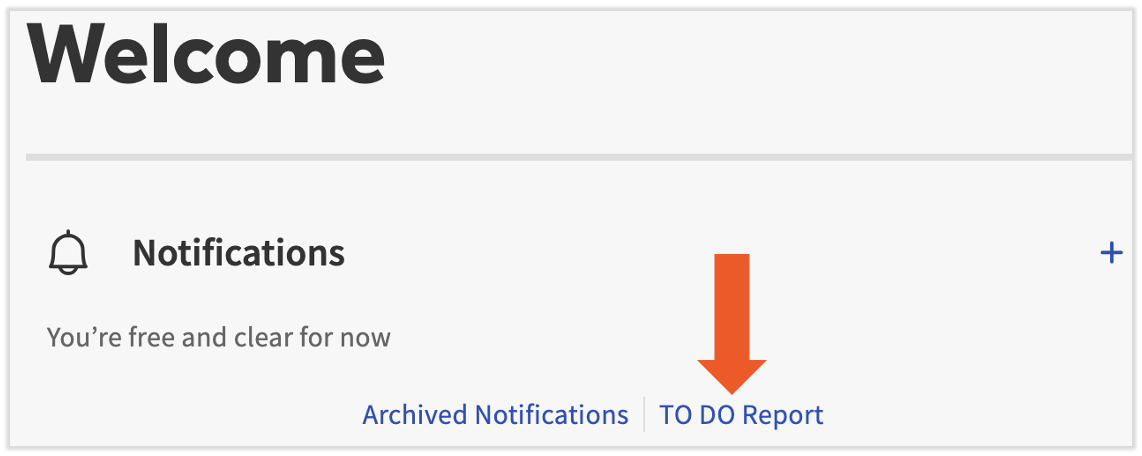
To review completion of to do's, select the To Do Report from the Toast Payroll dashboard.
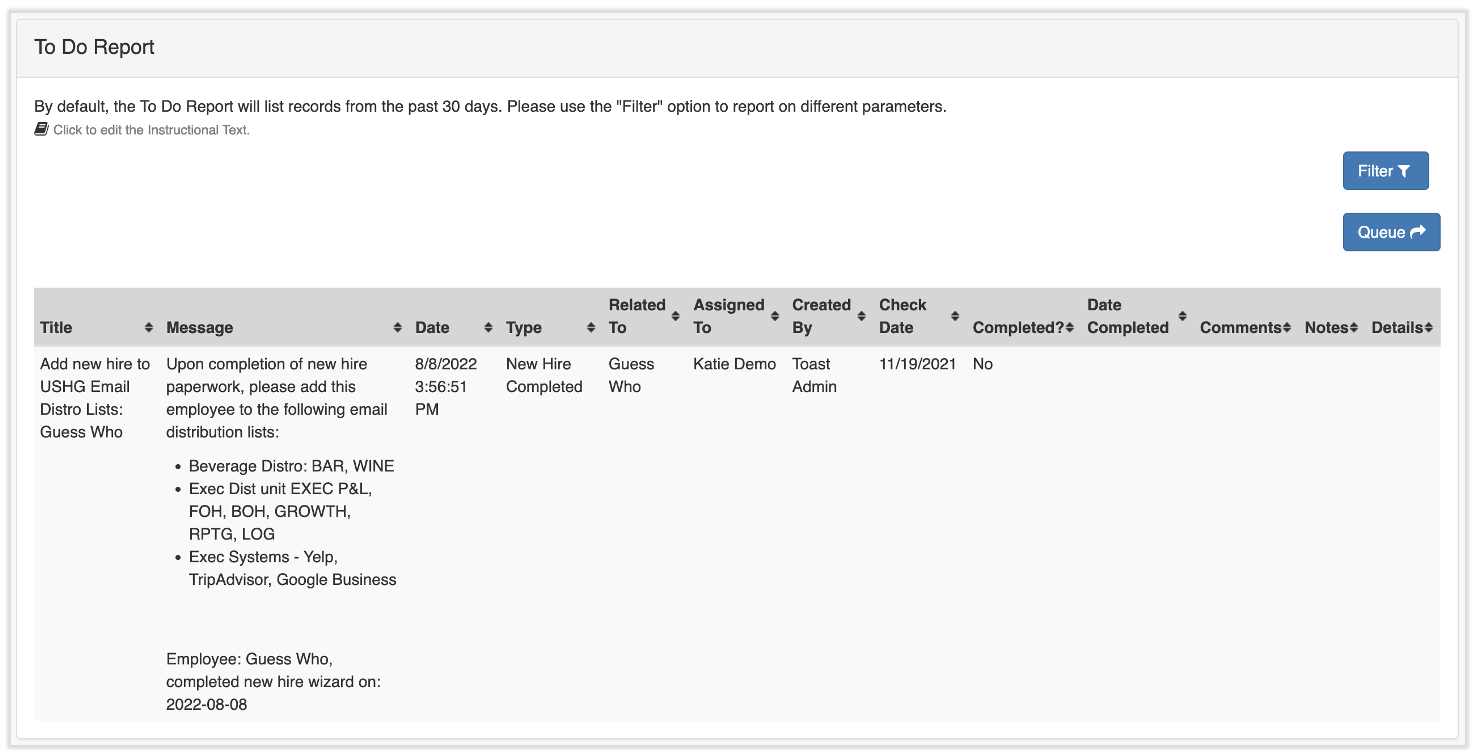
This page automatically filters to the past 30 days. Use the Filter button to change dates/look for specific to do's. Use the Queue button to export the data to a .CSV file.
This content is for informational purposes and is not intended as legal, tax, HR, or any other professional advice. Please contact an attorney or other professional for advice.