Toast Payroll: Assign an Employee to a TAFW Tier
Last updated: Apr 8, 2026, 10:16 AM
If you use the Time Away From Work (TAFW) module with Toast Payroll, learn how to assign or change a TAFW tier an employee is associated with.
- TAFW Tiers
- Add a TAFW Tier During New Hiring
- Update a TAFW Tier for a Current Employee
- Additional Resources
TAFW Tiers
Time Away From Work (TAFW) is paid time off provided by a company for vacation, personal or sick time, holidays, or bereavement. TAFW is set up based on company policy and will be automatically approved unless a workflow is put in place to review requests. In Toast Payroll, it is also set up in tiers and in buckets, which are certain groupings of hours that may be taken by a staff member.
TAFW tiers represent different outlines of the TAFW available to a staff member. For instance, you may have a
TAFW tier for employees which only includes a sick time bucket, but a different tier for management which includes a sick time bucket and a PTO/vacation bucket. Once tiers are set up, they can be defaulted to specific positions or easily assigned to individual employees; this way, you can avoid going through each TAFW setting for each staff member.
TAFW tiers affect what buckets are present, the accrual rate of TAFW, and the Taken, Available, and Current balances of each bucket. To set up a new TAFW tier, contact us via the blue chat dot in the lower-right corner of any Toast Payroll page.
Add a TAFW Tier During New Hiring
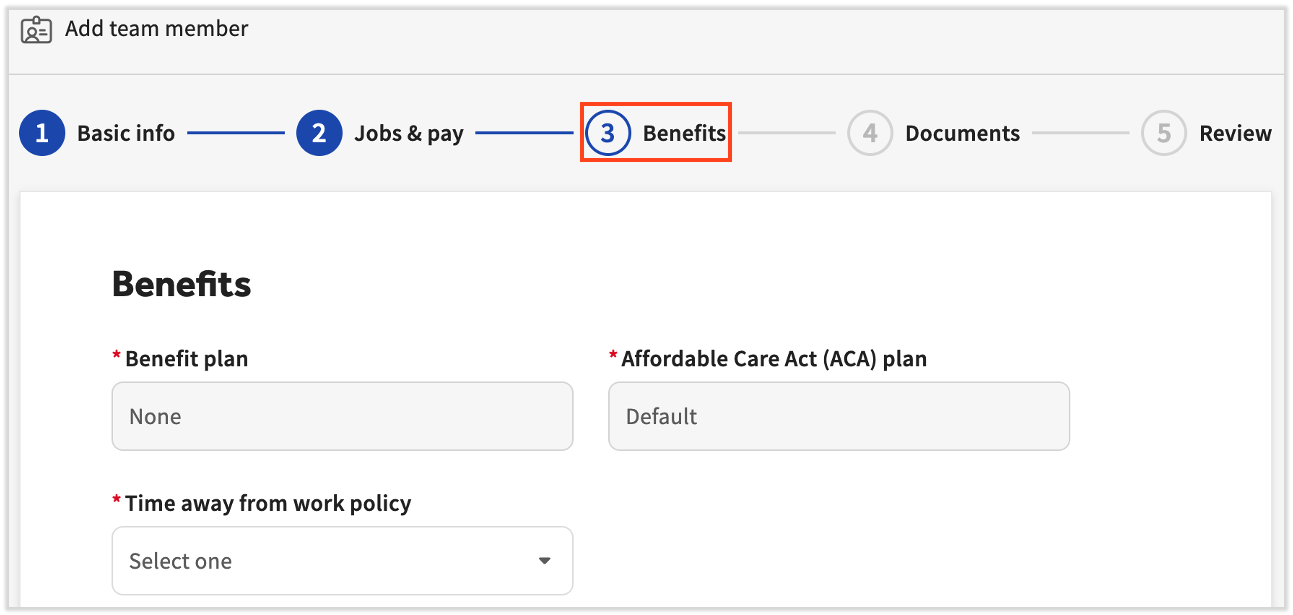
The TAFW step is the third step of the employer's new hire responsibilities (only present if you purchased Toast Payroll Pro). The step is called Benefits and it contains the option to select a TAFW tier or select Not Applicable.
Update a TAFW Tier for a Current Employee
To update a TAFW tier for a current employee, follow the steps below:
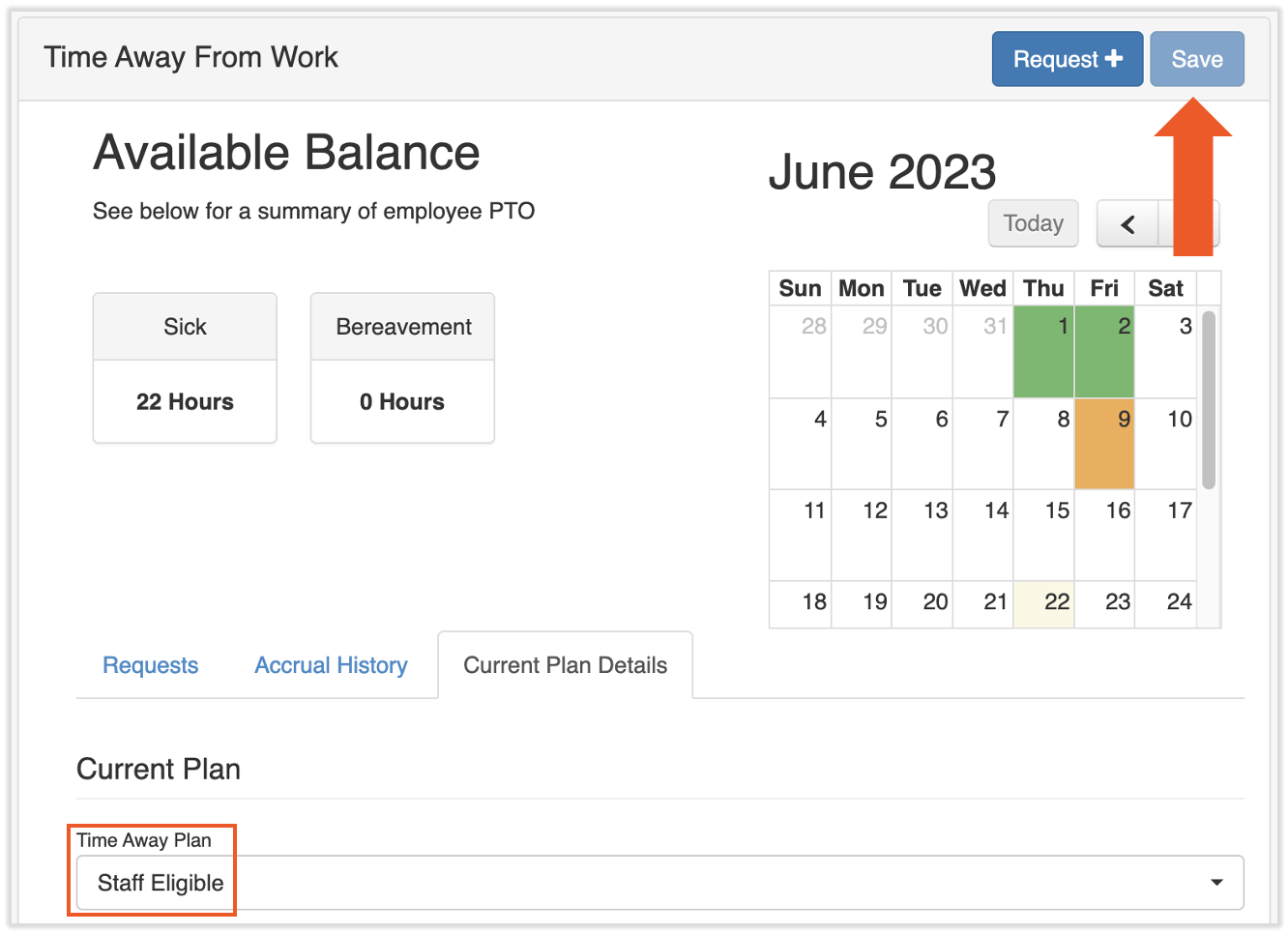
- Begin by navigating to an employee's profile and selecting Time Off.
- You can see the employee's current TAFW buckets and balances at the top of this page.
- Below the Current Plan Details tab, locate a drop-down menu named Time Away Plan. Change the Time Away Plan to a new selection, or change it to None to remove TAFW from this individual.
- Select Save at the top of this page. The button will be grayed out if nothing was changed here.
- This update will take place immediately. All prior balances will be removed and a new tab will be created to maintain historical balances from any previous TAFW tier the employee was assigned to.
Additional Resources
- Toast Payroll: Time Away From Work User Guides
- Toast Payroll: Understand Your Time Away From Work Balances
- Toast Payroll: Making Manual Adjustments to Time Away From Work
- Toast Payroll: Assigning a Default TAFW Tier to a Position
This content is for informational purposes and is not intended as legal, tax, HR, or any other professional advice. Please contact an attorney or other professional for advice.