Toast Payroll: Get Started With Time Away from Work (TAFW)
Last updated: Oct 8, 2026, 4:46 PM
Manage TAFW tiers, approve requests, update balances, run reports, and submit time-off requests in Toast Payroll.
TAFW Overview
Time Away from Work (TAFW) is Toast Payroll's paid time off (PTO), vacation, and sick leave management system. It lets you track and manage employee time off — including accrual balances, request approvals, and balance adjustments — directly in Toast Payroll.
Tiers are the policies (also called plans) that offer time away, for example, State-Mandated Sick, Hourly PTO, and Salary PTO. Each TAFW Tier (also called Time Away Plan) has its own set of bucket types offered. Only one TAFW Tier can be assigned to an employee.
Bucket Types are the categories of time away your company offers — for example, PTO, vacation, sick time, bereavement, jury duty, parental leave, etc. Each bucket tracks balances separately.
Rules define how a bucket accrues. Each bucket type has its own set of rules. The rules of a bucket include, but are not limited to the accrual type (per hour worked, per pay period, front-loaded, etc.), the accrual rate, maximum cap balance limits on accrued hours, and carryover rules.
Before You Begin
Applies to: Toast Payroll (Toast Payroll Pro required for TAFW)
Permissions needed:
- HR+ or Manager role to manage TAFW as a manager
- Employee access to view balances and submit requests
What you'll accomplish: By the end of this guide, managers will be able to manage TAFW requests, view and update employee balances, and run TAFW reports. Employees will be able to view their balances and submit, update, or cancel time off requests.
For Managers
Set Up or Modify TAFW Tiers and Policies
You can assign an employee to a new TAFW Tier on your own, but creating a new TAFW tier, adding a bucket, or changing an accrual rate requires Customer Care. These changes are not self-service in Toast Payroll.
When to contact Customer Care for TAFW tier setup:
- Setting up TAFW for the first time
- Adding a new TAFW bucket (PTO, vacation, sick time, or other)
- Creating or modifying the rules of a tier (accrual type, accrual rate, max caps, carryover rules, etc.)
- Changing which employees are assigned to a tier (if bulk changes are needed)
Before you contact Customer Care, have the following ready:
- Your company code
- The name of each TAFW Tier and bucket you want to set up or change (for example, Sick bucket of the Hourly Staff Tier)
- The accrual type for each bucket: hourly (per hour worked), per pay period, anniversary (lump sum on anniversary date), or front-loaded (lump sum at start of period)
- The accrual rate or lump sum amount for each bucket (for example, 0.0385 hours per hour worked, or 40 hours per year)
- Whether there is a maximum cap on total accrued hours
- Carryover rules at year-end (for example, carry over up to 40 hours, or no carryover)
- Any specific employees who are impacted
State and local compliance: If your restaurant is in a state or city with mandatory paid sick leave laws, your TAFW configuration may need to follow specific accrual rules. See Toast Payroll: TAFW Default Paid Sick Leave Configurations for default configurations by jurisdiction.
Assigning tiers to employees: After Customer Care sets up your TAFW Tiers, you can assign individual employees to a TAFW Tier yourself. See Toast Payroll: Assign an Employee to a TAFW Tier for steps.
To assign a default tier to a position so new hires are automatically enrolled, see Toast Payroll: Assign a Default TAFW Tier to a Position.
Manage TAFW Requests
You can approve or reject TAFW requests from the main Toast Payroll dashboard (via notifications) or from the TAFW Dashboard.
| Note: If a TAFW approval workflow has not been configured in Settings > Workflow, all TAFW requests are automatically approved. Contact Customer Care to set up an approval workflow if your restaurant requires manager sign-off before TAFW is approved.
If you do not see Settings on the left side of the screen, select Payroll from the Toast Web navigation rail on the left to make the Toast Payroll navigation rail appear. |
Manage TAFW Requests From the Dashboard
- Log in to Toast Payroll.
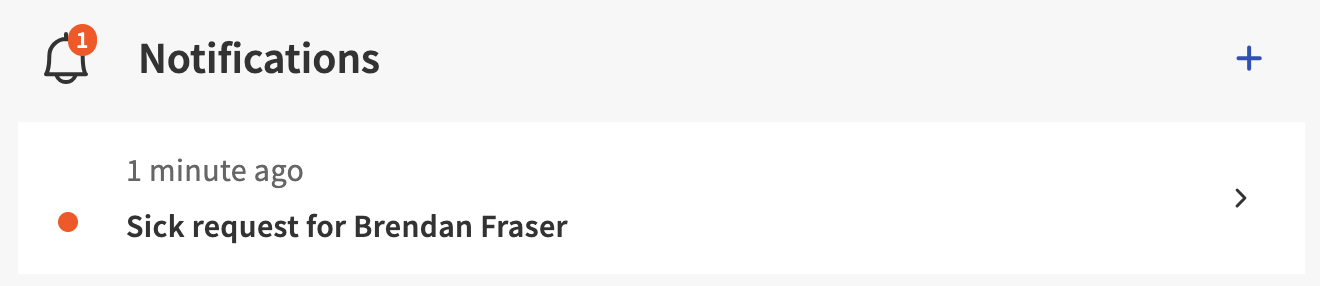
- On the main dashboard, locate the Notifications list. Pending TAFW requests appear as notifications in this list.
- Select the TAFW notification you want to act on. Choose Approve, Reject, or Mark As New from the options that appear.
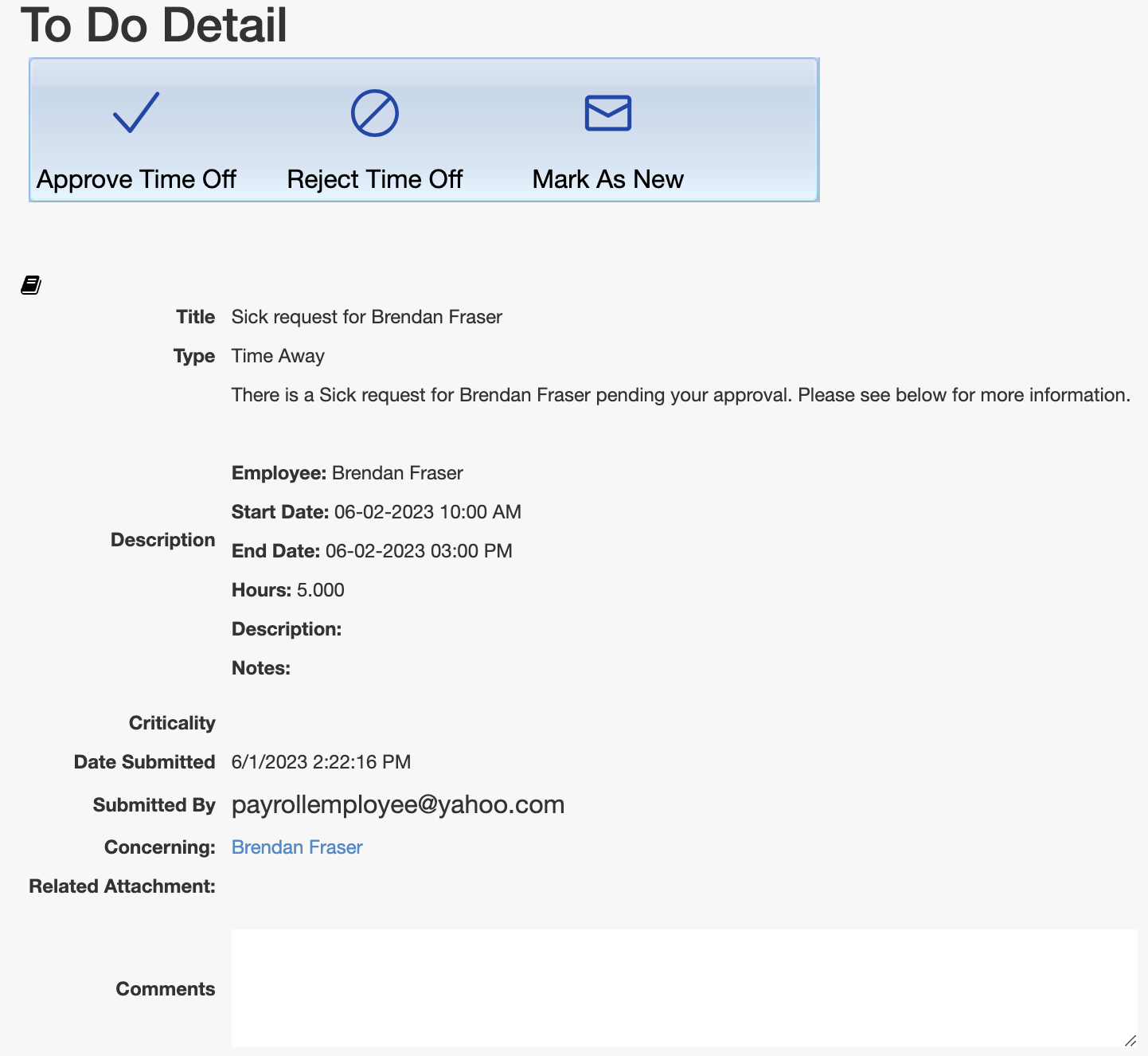
Expected outcome: The request status updates and the employee receives a notification of the decision.
Important: Approve or reject TAFW requests before running payroll. Approved TAFW hours are included in payroll processing. Unapproved requests are not paid out.
Manage TAFW Requests From the TAFW Dashboard
- Navigate to Time > Time Off in Toast Payroll. If you do not see Time on the left side of the screen, select Payroll from the Toast Web navigation rail on the left to make the Toast Payroll navigation rail appear.
- Use the Calendar view to see requests by date, or select List to see all requests in a list.
- To narrow the view, select the Filter button in the top-left corner. Filter by employee, bucket, date range, or status.
- Select a request to open it. Choose Approve or Reject.
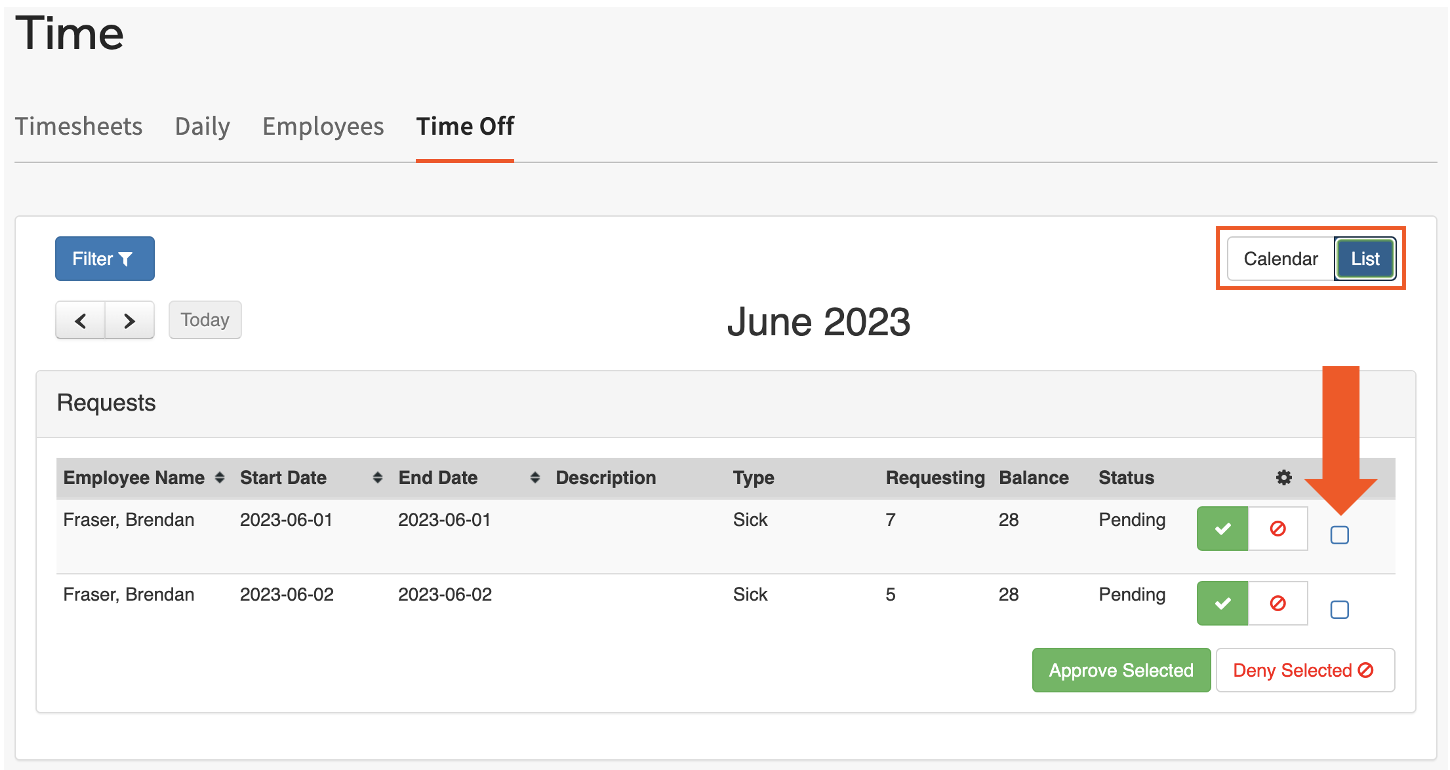
Expected outcome: The request status updates. Requests shown in orange are pending; requests shown in green are approved.
Important: Approve or reject TAFW requests before running payroll. Approved TAFW hours are included in payroll processing. Unapproved requests are not paid out.
View Employee TAFW
To review a specific employee's TAFW balances, assignments, or request history:
- Navigate to the Team page in Toast Payroll, or use the Search function to find the employee.
- When you select Team in Toast Payroll, you should see a URL that begins with payroll.toasttab.com. Visit Navigate Toast Payroll Within Toast Web to learn how the new Toast Payroll navigation works.
- Select the employee's name to open their profile.
- Select the Time Off tab.
The Time Off tab includes:
- A calendar that displays requested time off.
- Current Plan Details — the employee's current TAFW tier assignment and currently available balances for TAFW buckets
- Accrual History — a log of previous accruals
- Requests — all submitted TAFW requests and their approval status
Understand TAFW Balance Columns
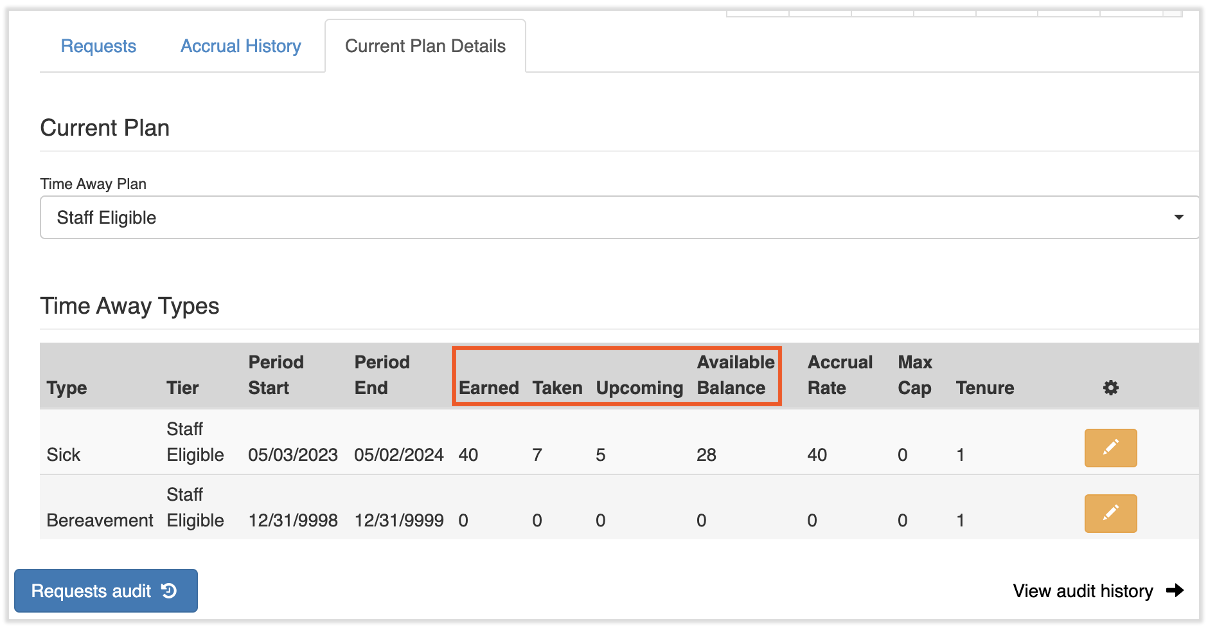
TAFW balances are shown in four columns in Toast Payroll. The following table defines each column:
| Column | What it means |
|---|---|
| Earned | Total hours accrued to date (including any manual adjustments added). Does not subtract taken hours. |
| Taken | Total approved TAFW hours that have been paid out in a payroll run. |
| Upcoming | Approved hours for requests that have not yet been paid (future-dated requests). |
| Available | The hours available for the employee to request. Calculated as: Earned − Taken − Upcoming = Available. This is the balance employees typically refer to as "how much time I have." |
For a detailed explanation of accrual calculation logic, carry-over behavior, and balance correction scenarios, see Toast Payroll: Understand Time Away From Work Balances.
Update TAFW Balances Manually
Use manual balance updates to correct discrepancies, apply a one-time bonus, or adjust balances after a leave of absence.
- Navigate to the Team page in Toast Payroll and select the employee whose balance you want to update.
- When you select Team in Toast Payroll, you should see a URL that begins with payroll.toasttab.com. Visit Navigate Toast Payroll Within Toast Web to learn how the new Toast Payroll navigation works.
- Select the Time Off tab.
- Select the yellow edit pencil on the bucket you want to adjust (for example, PTO, Vacation, or Sick Time).
- In the Edit Balance pop-up, enter the following fields:
- Select the date you'd like to modify. This can be set as any day, but for tracking purposes, the current date is usually chosen.
- Enter the number of hours and whether you'd like to increase or decrease the overall balance of that TAFW bucket.
- Enter a description for the adjustment (optional)
- Update Taken: When this is set as Yes, Toast Payroll will deduct the hours from both the Earned and the Taken columns. Set this to Yes when an employee used TAFW hours, but those hours have not been reflected in Toast Payroll. Note: Toast does not recommend setting this as No when you are increasing the overall balance.
- Select Finish
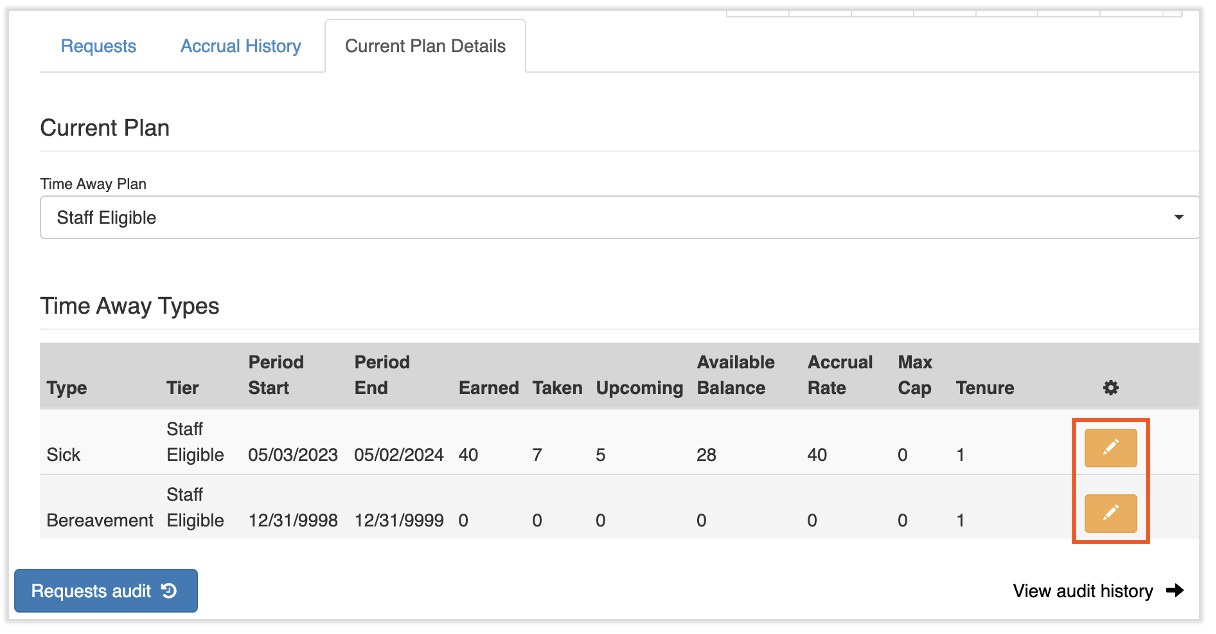
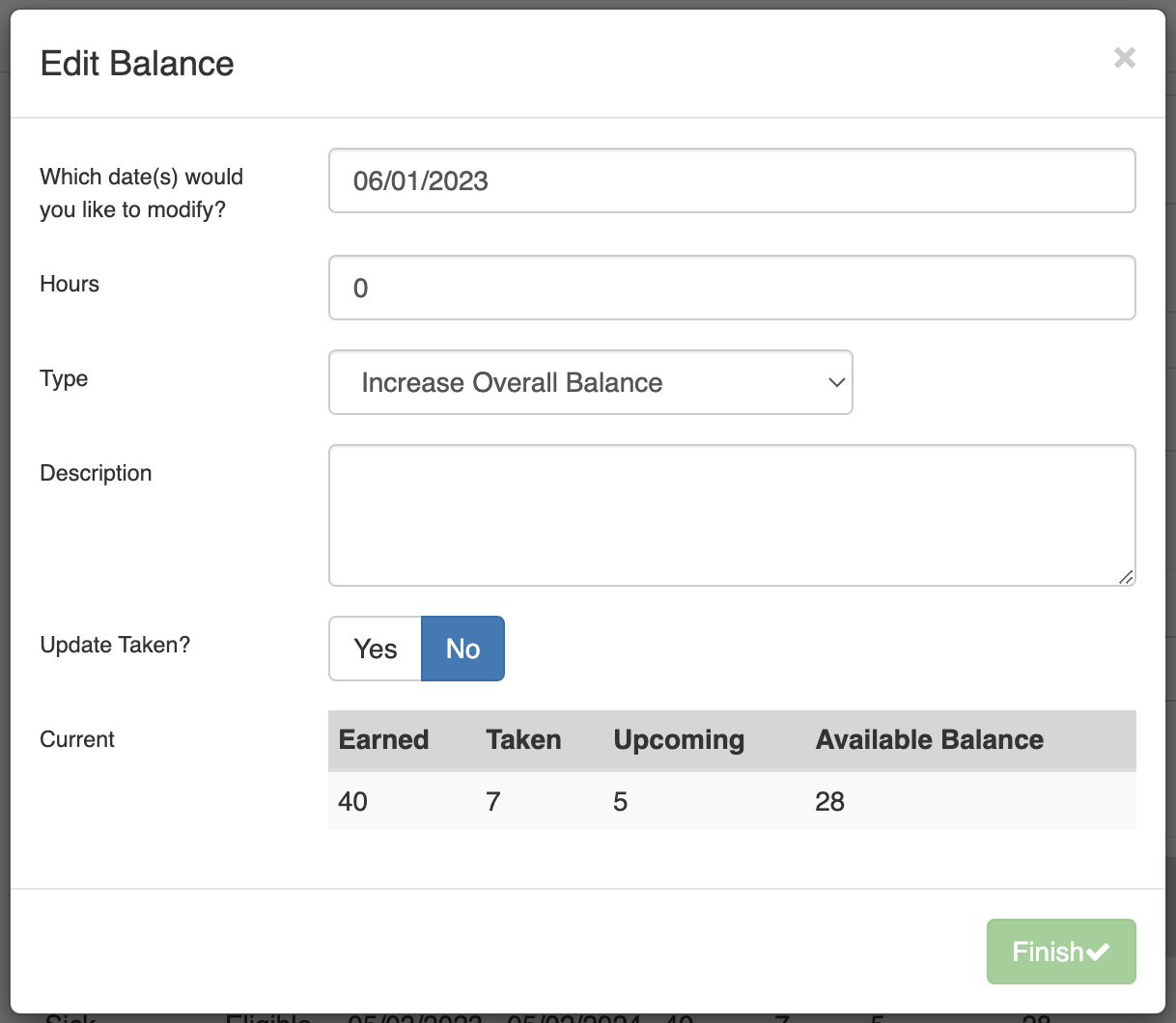
The balance updates immediately. Refresh your page to reflect the updated balance.
Expected outcome: The employee's Available balance reflects the adjustment. The change appears in their Balance History with the reason you entered.
For detailed scenarios — including correcting an accrual, removing hours, or adjusting for a leave of absence — see Toast Payroll: Make Adjustments to Time Away From Work (TAFW).
TAFW Reports
Toast Payroll includes three standard TAFW reports. To access them, navigate to Reports > Standard and filter for TAFW reports. When you select Reports in Toast Payroll, you should see a URL that begins with payroll.toasttab.com. Visit Navigate Toast Payroll Within Toast Web to learn how the new Toast Payroll navigation works.
The following reports are available:
| Report | What it shows |
|---|---|
| TAFW Accrual History Report | A detailed log of every accrual event for each employee — hours earned per pay period, manual adjustments, and running balance. Use this to audit the calculation of balances. |
| TAFW Balances Report | A snapshot of current Earned, Taken, Upcoming, and Available balances for all employees. Use this to review balances before payroll or during year-end processing. |
| TAFW Requests and Manual Changes Report | A list of all submitted TAFW requests with status (pending, approved, rejected) and date range. Use this to track approval workflows and identify unapproved requests before payroll. |
Important: The Accrual History Report can be data-intensive for restaurants with large teams or long accrual histories. Narrow the date range or filter by employee to improve load time.
For Employees
View Your TAFW Balances
- Log in to Toast Payroll. If you need help logging in, see Log in to a Toast Product or Device.
- Navigate to My Profile > Time Off.
- If you do not see My Profile on the left side of the screen, select Payroll from the navigation rail on the left to make the Toast Payroll navigation rail appear.
Your TAFW dashboard shows:
- Your current Available balance for each bucket (PTO, vacation, sick time, or other)
- Upcoming approved time off that has not yet been paid
- Taken hours paid in previous payroll runs
- Earned hours accrued to date
- Your Accrual History — a log of how your balance has changed over time
- Requests — all submitted TAFW requests and their approval status
For an explanation of what each balance column means, see Understand TAFW Balance Columns above.
For a detailed explanation of how accrual is calculated, see Toast Payroll: Understand Time Away From Work Balances.
Request Time Off
- Note: If you are calling in sick or you have another reason you cannot work for a day you're already scheduled, it's important to speak to your manager about this. Make them aware of your situation, ask about the company's policy on sick days, and ask how you should go about missing your scheduled hours. Adding a sick day to this module may not be enough to complete this request per your company's policy.
- Log in to Toast Payroll. If you need help logging in, see Log in to a Toast Product or Device.
- Navigate to My Profile > Time Off.
- If you do not see My Profile on the left side of the screen, select Payroll from the navigation rail on the left to make the Toast Payroll navigation rail appear.
- Select Request+ in the top right corner
- Select the date(s) of your request and the type of TAFW you would like to use. Then select Next.
- When you want to take off only one day, select that day in the calendar twice.
- When you want to take off more than one consecutive day, select the first day off your TAFW and then the last day.
- Enter the hours of each day(s) that you would like to request off. View the total requested hours and the balance remaining after your request at the bottom of this step. Then select Next.
- Enter any notes or comments that you would like to include with the request. The approving manager will see these notes. Select Next.
- Select Finish.
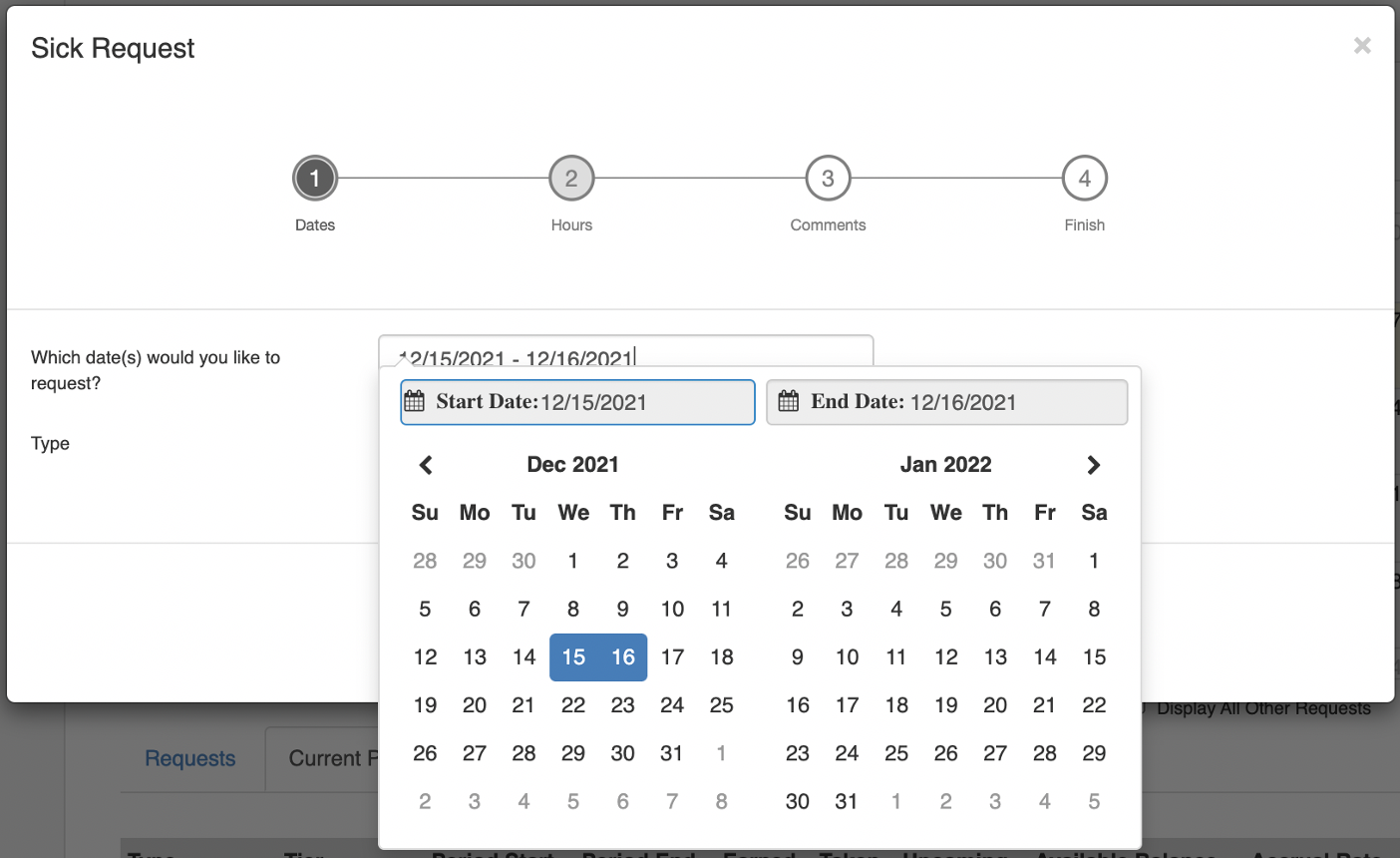
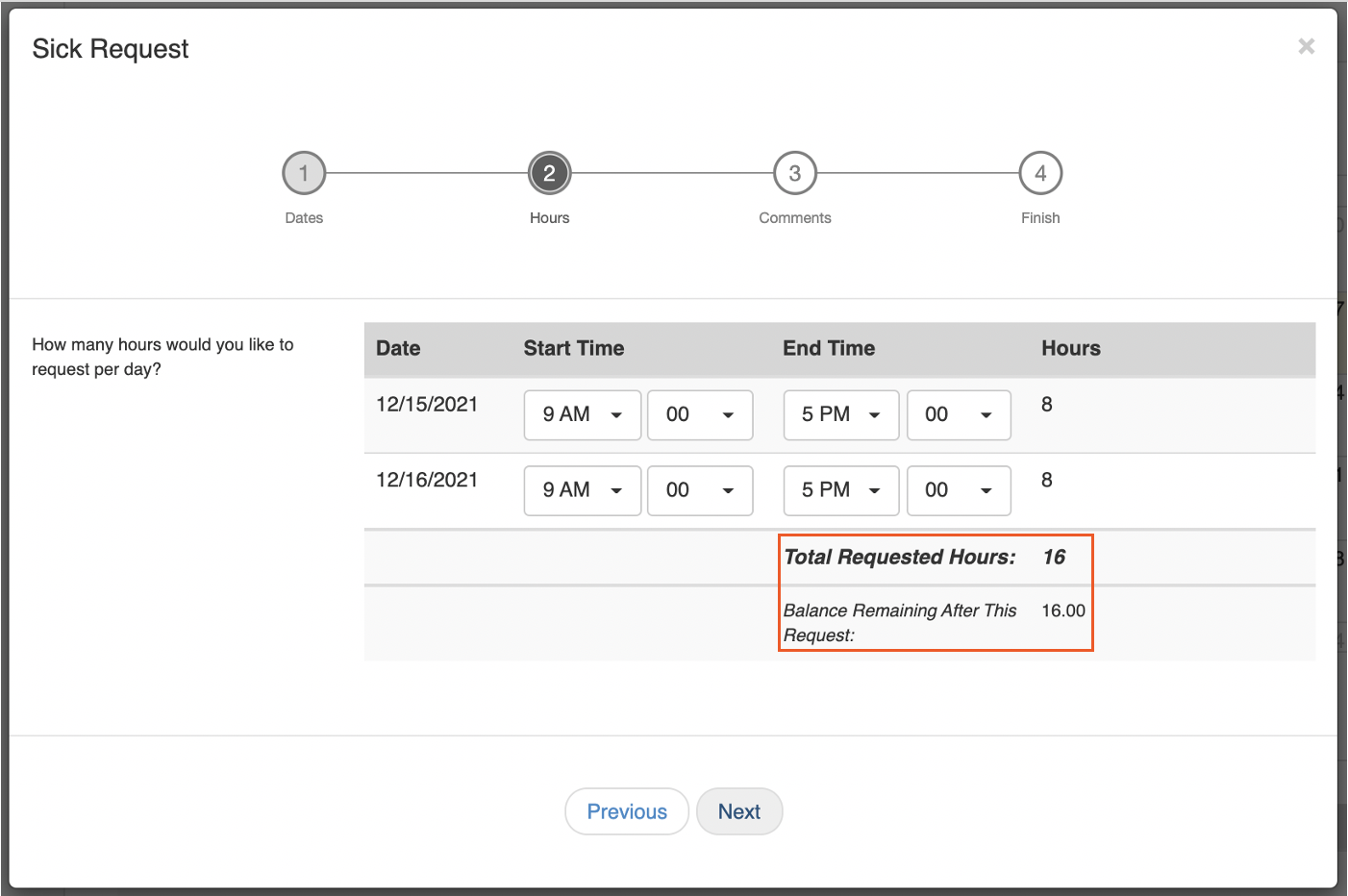
Expected outcome: Your request is submitted and your manager receives a notification. The hours appear as Upcoming in your balance until approved and paid. If your employer has not set up an approval workflow, the request is automatically approved.
Update or Cancel a TAFW Request
To change a submitted request, delete it and resubmit with the correct information.
- In Toast Payroll, navigate to My Profile > Time Off.
- If you do not see My Profile on the left side of the screen, select Payroll from the navigation rail on the left to make the Toast Payroll navigation rail appear.\
- Select the Requests tab.
- Locate the request you want to cancel. Select the trash can icon next to it.
- Note: You can only delete requests that have not yet been paid in a payroll run. In other words, you can only delete requests if the requested date is in the future. If the time off was already processed in payroll, you will not see the trash can icon, so contact your manager to make a manual balance adjustment.
- Note: You can only delete requests that have not yet been paid in a payroll run. In other words, you can only delete requests if the requested date is in the future. If the time off was already processed in payroll, you will not see the trash can icon, so contact your manager to make a manual balance adjustment.
- Confirm the deletion.
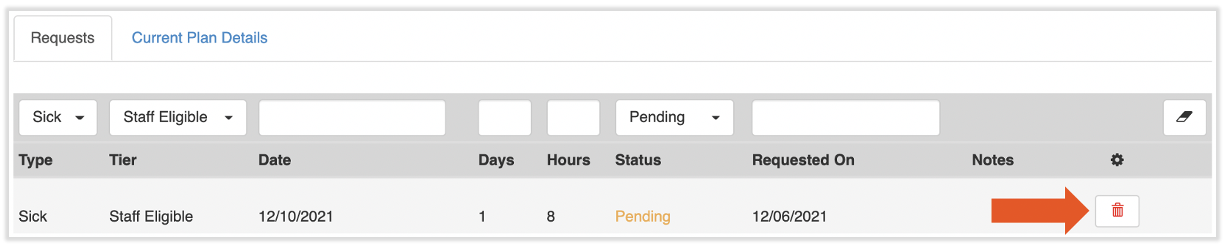
Expected outcome: The request is removed, and the hours are no longer shown as Upcoming in your balance. To submit a corrected request, follow the steps in Request Time Off above.
TAFW Request Notifications
When your manager approves or rejects your TAFW request, you receive:
- An email notification sent to the email address on your Toast Payroll profile
- A dashboard notification visible when you log in to Toast Payroll
If you do not receive a notification after submitting a request, check that your email address is correct in your Toast Payroll profile, and confirm with your manager that an approval workflow is configured.
Related Articles
- Toast Payroll: Get Help With Time Away From Work (TAFW)
- Toast Payroll: Make Adjustments to Time Away From Work (TAFW)
- Toast Payroll: Understand Time Away From Work Balances
- Toast Payroll: Assign an Employee to a TAFW Tier
- Toast Payroll: TAFW Default Paid Sick Leave Configurations
This content is for informational purposes and is not intended as legal, tax, HR, or any other professional advice. Please contact an attorney or other professional for advice.