Toast Payroll: Get Started With Payroll To Dos
Last updated: Apr 8, 2026, 10:02 AM
Payroll to do’s are reminders for earnings and deductions that need to be added to a payroll. Learn how to create, acknowledge, and manage Payroll to do's.
| Payroll to do's are different than Employee to do's, which notify employees of an uploaded document that needs their attention. |
Create a Payroll To Do
Payroll to do’s are used as reminders for earnings and deductions that need to be added to a specific payroll, making them a great tool for busy payroll administrators. Here are some examples of when payroll to do's may come in handy:
- You need to pay a one-time bonus to an employee on a future payroll
- You forgot to record an earning an employee received (within the same quarter)
- You would like to deduct $25 from an employee for a miscellaneous deduction (perhaps a uniform or meal) in which the employee owes the company on a future payroll
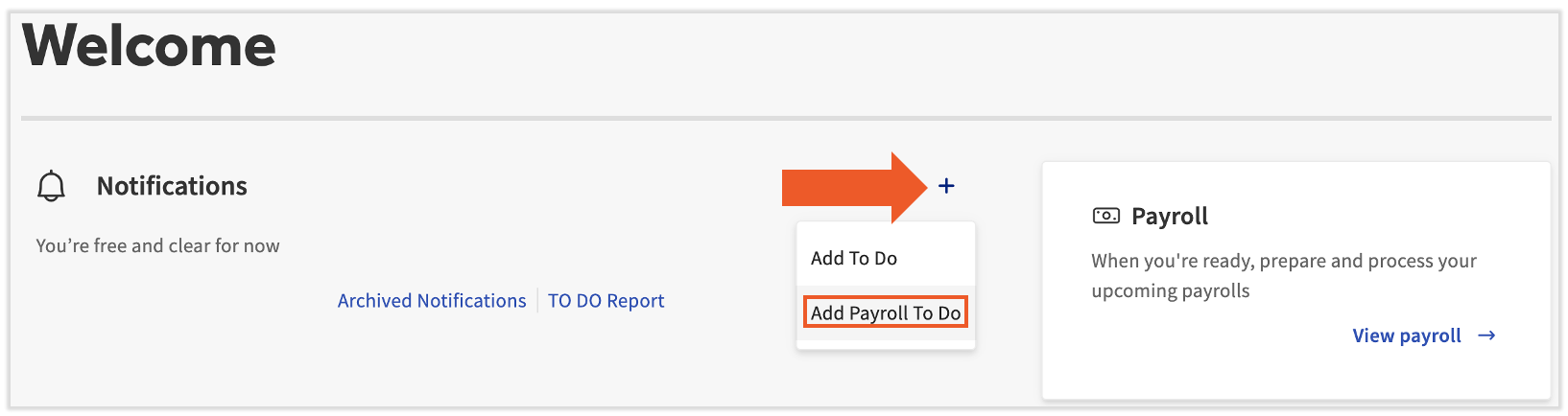
- To create a payroll to do, select the + sign on the main dashboard and select Add Payroll To Do.
- You will be prompted to fill out the following:
- FEIN: The FEIN will attach the payroll to do to whatever FEIN the pay group is assigned. Based on what FEIN is assigned, the list of employees that work within that FEIN will populate.
- Related To: Select an employee.
- Position: This field can be skipped.
- Payperiod: Choose the payroll that the payroll to do should be added to.
- After adding the payperiod, two more fields will appear:
- Title: Add a title that will appear on to do when payroll is processed.
- Message: Include a message that, for example, could include details related to the to do.
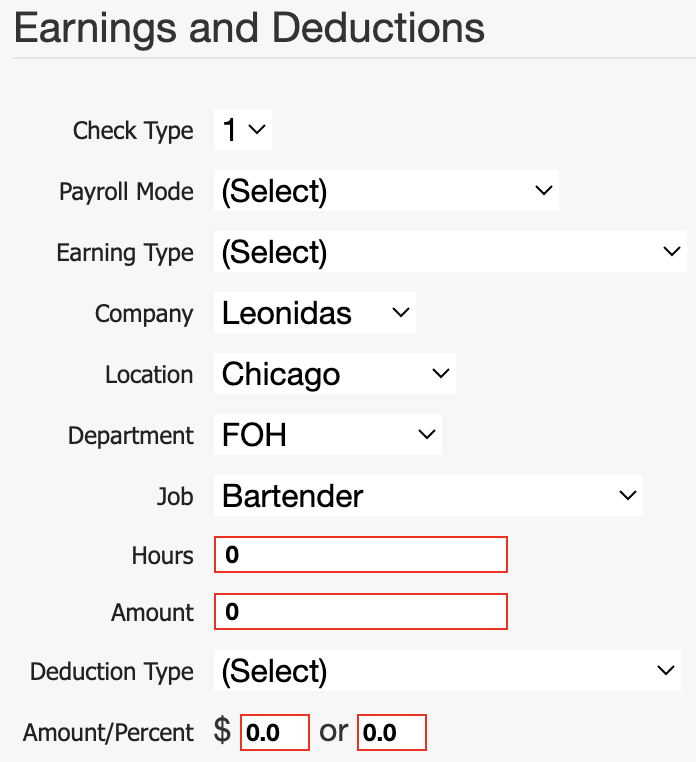
- Now fill out the rest of the fields:
- Check Type: The check number in which the earning or deduction will be added onto on the Employee Earnings step once approved.
- Payroll Mode: Check frequency in which the to do gets added to.
- Earning Type: To add an earning as the payroll to do, select an earning code from the drop-down.
- Hours (For earnings only): If adding earnings, enter the amount of hours OR enter a dollar amount on the next line.
- Amount (For earnings only): If the earning is a flat amount, enter that amount here.
- Deduction Type: To add a deduction to the to do, select a deduction code from the drop-down.
- Amount/Percent (For deductions only): Add either a flat amount or a percentage.
- Note: Either an Earning Type and its Hours/Amount should be filled out or a Deduction Type and its Amount/Percent should be filled out. An earning and a deduction cannot be added simultaneously.
- Select Submit to finalize.
Acknowledge Payroll To Dos
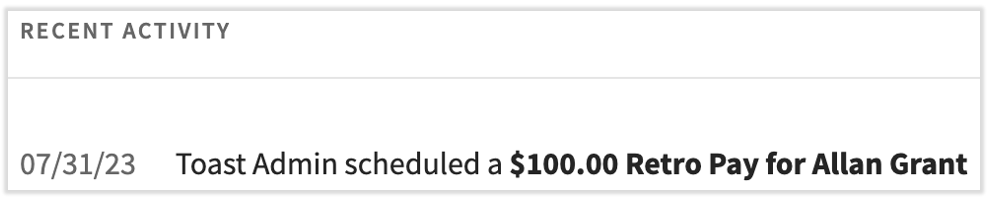
Once you have submitted a payroll to do, it will appear on the Preview Payroll step of a payroll in the Recent Activity tile.
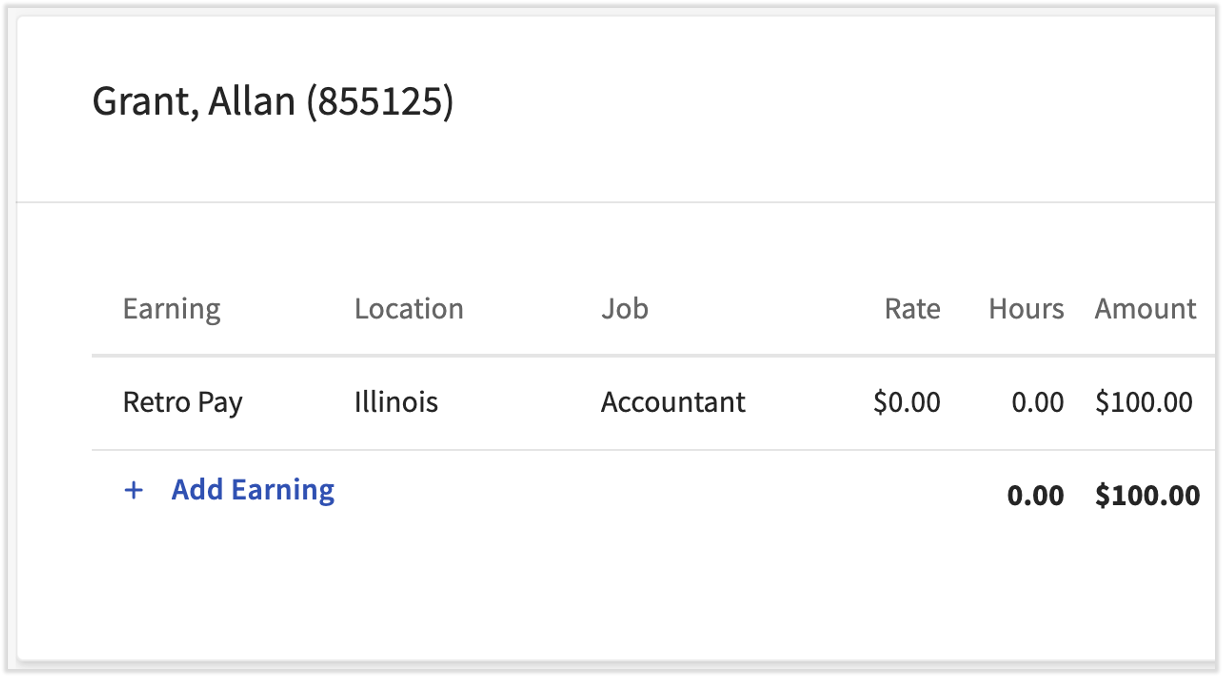
The payroll to do is also added to the Employee Earnings step, so you don't have to worry about re-adding it later.
Manage Payroll To Dos
- Select Payroll from the left-hand navigation menu.
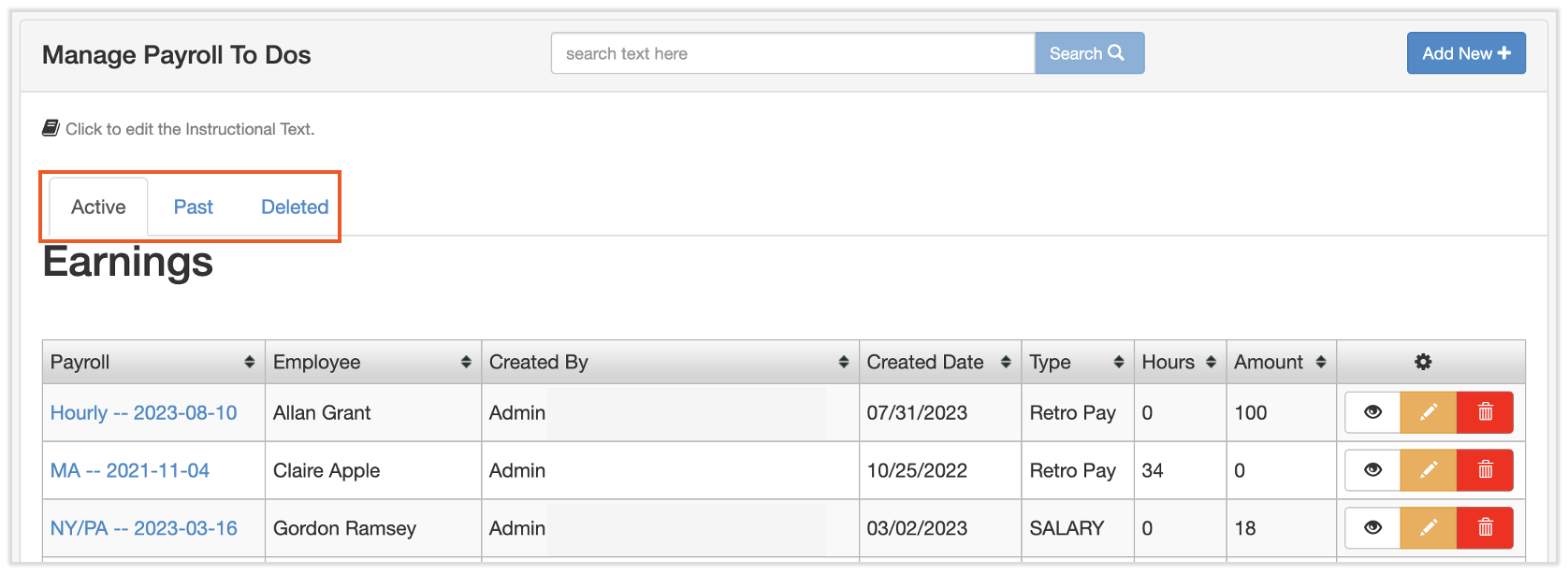
- Select Scheduled payroll adjustments from the Quick Actions menu on the right.
- Here, you can edit or delete payroll to do's using the yellow edit pencil and the red trashcan icon, respectively. Use the search bar and tabs at the top to filter through your payroll to-dos.
This content is for informational purposes and is not intended as legal, tax, HR, or any other professional advice. Please contact an attorney or other professional for advice.