Toast Payroll: Employee Earnings Step
Last updated: Oct 15, 2026, 12:01 PM
Make one-time earning, deduction, payment, and employee changes on the Employee Earnings step during a Toast Payroll run.
- Before You Begin
- Understanding the Employee Earnings Step
- Access the Employee Earnings Step
- Add an Earning or Deduction
- Edit an Earning or Deduction
- Add an Employee to Payroll
- Delete an Employee from Payroll
- Pay via Check (Paper Check)
- Use Custom Payroll Imports
- Frequently Asked Questions
- Related Articles
Before You Begin
Applies to: Toast Payroll
Permissions needed: HR+ security role
What you'll accomplish: You will review employee pay figures and make any one-time adjustments (earnings, deductions, payment method, employee additions or removals) before submitting payroll. Changes made at this step apply to the current payroll only and do not carry forward to future payrolls or to the employee's profile.
Before reaching this step: Approve all employee timesheets and tips before selecting Preview to start the payroll run. See Toast Payroll: Prepare to Run Payroll for the full pre-payroll checklist.
Understanding the Employee Earnings Step
The Employee Earnings step is the second step in the payroll run process, following the Preview Payroll step and preceding the Review and Submit step.
Note: Not looking for the Employee Earnings step? If you need to add, edit, or change how an earning or deduction appears on every future payroll — not just this one — you are looking for recurring earnings and deductions. See Toast Payroll: Add or Edit Earnings & Deductions. If you need to create a new earning code type (for example, adding a "Travel Pay" or "Severance" code that does not yet exist), contact Customer Care — earning code creation requires agent action.
This video covers the different actions you can take on the Employee Earnings step, including making one-time earning and deduction additions or edits. Skip to 1:24 to begin learning about one-time changes.
One-Time vs. Recurring Changes
Changes made on the Employee Earnings step only affect the current payroll. They do not carry over to the employee's record going forward.
Examples of one-time changes you can make at this step:
- Adding or editing an earning or deduction for a specific employee or multiple employees, such as adding missed hours from a previous payroll
- Adding a one-time bonus
- Adding or removing an employee from this payroll
- Deducting wages for meals or uniforms
- Adding tips as income
- Switching a specific employee from direct deposit to a paper (live) check
- Adjusting hours for training sessions
- Applying hours for company events or meetings
Note: If you need to make a change that should appear on every future payroll — for example, a recurring health insurance deduction or a salary adjustment — make that change in the employee's profile before selecting Preview to open the payroll. Changes to employee profiles after selecting Preview do not carry into the current payroll run. See Toast Payroll: Add or Edit Earnings & Deductions for recurring earnings and deductions.
Detailed vs. Condensed View
The Employee Earnings step offers two display views. Select the view that works best for your payroll size.
- Detailed: The default view. Displays all employees and their individual earnings and deductions at once. Useful for reviewing the full payroll, but may load and navigate slower for larger payrolls.
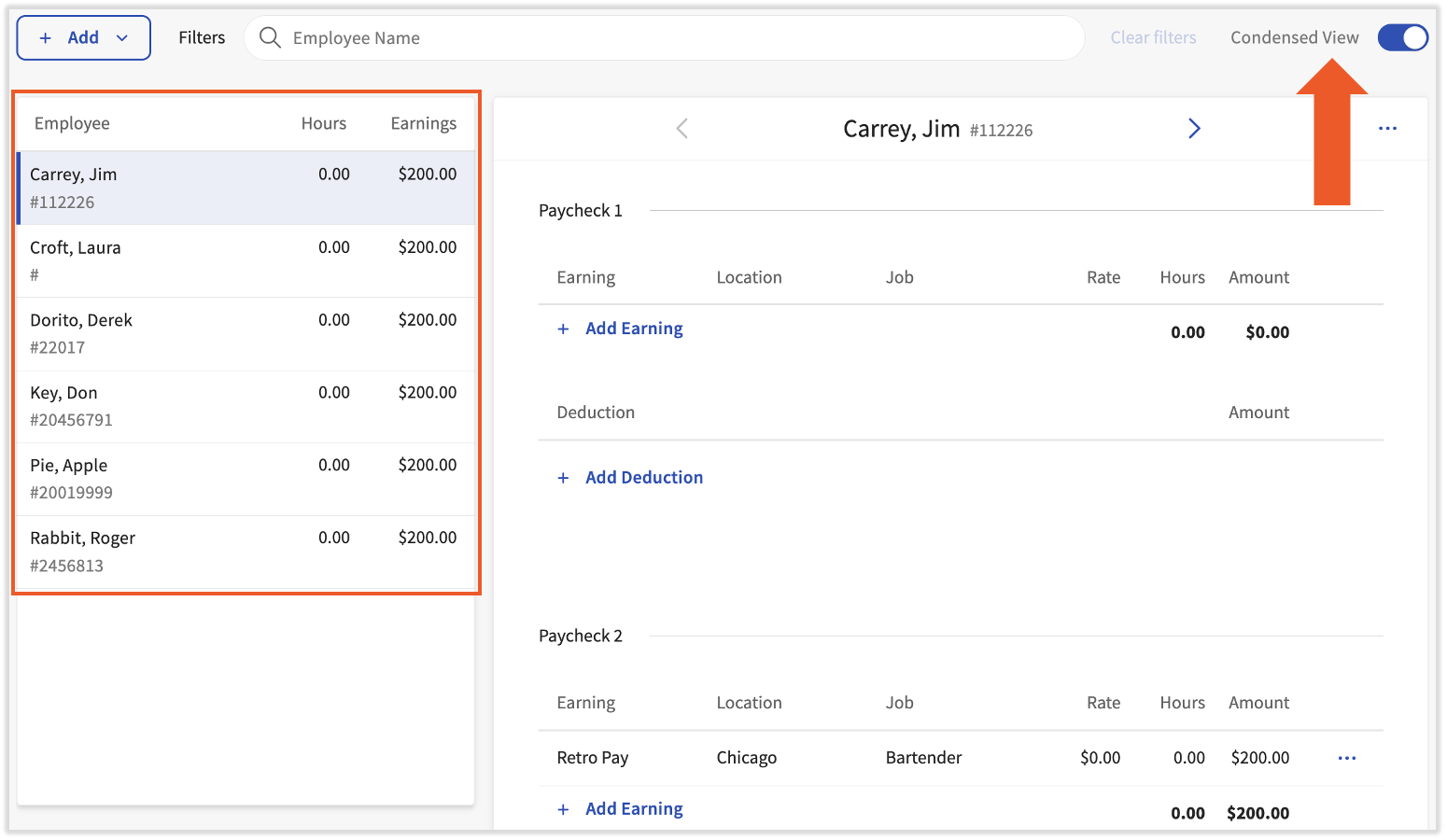
- Condensed: Displays Employee, Hours, and Total Earnings in a compact layout. Select any employee to expand their row and view details or make one-time adjustments for that employee only.
Access the Employee Earnings Step
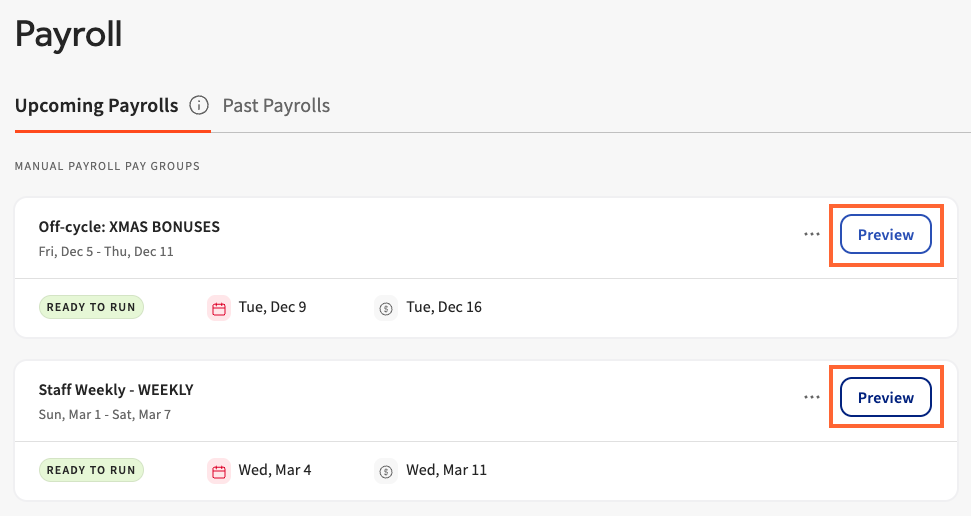
- In Toast Payroll, navigate to Payroll and select Preview. If you are about to run a payroll, make sure you have approved timesheets and tips first (if applicable). Toast Payroll: Prepare to Run Payroll can guide you through the steps to take before selecting Preview.
- When the Toast Web and Toast Payroll navigation menus are both visible, select Payroll from the Toast Payroll navigation sub-menu. If you don't see the Toast Payroll sub-menu, selecting Payroll from the Toast Web navigation menu will expand it.
- Review the Preview Payroll step. When you are ready, select Start payroll to advance to the Employee Earnings step.
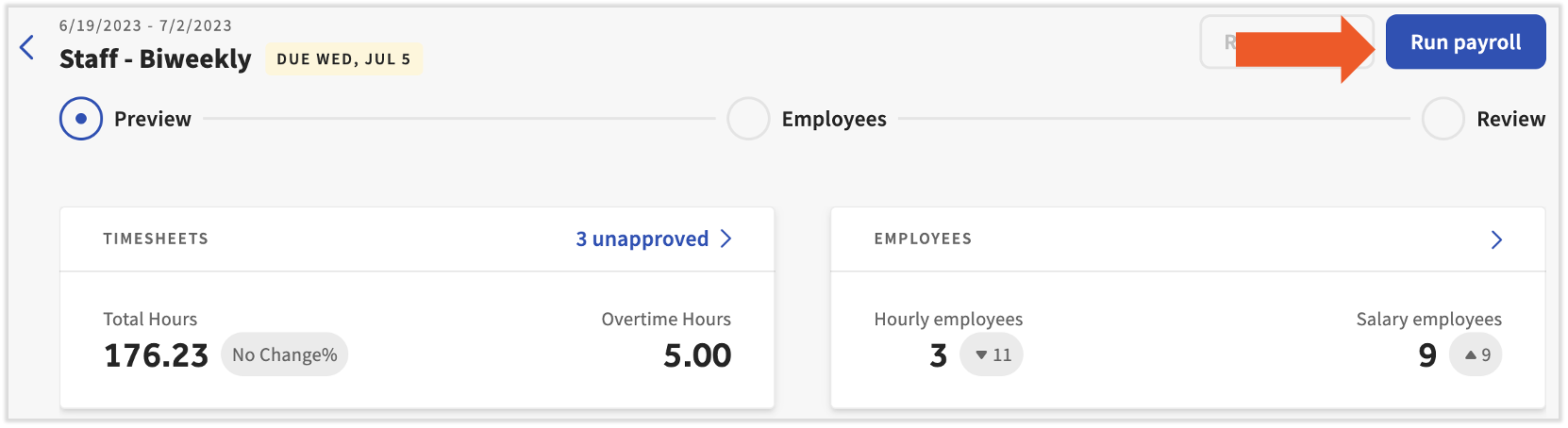
Expected outcome: The Employee Earnings step opens and displays all employees in the pay group for this payroll run, along with their earnings and deductions.
Add an Earning or Deduction
Use this procedure to add a one-time earning (such as a bonus or missed hours) or a one-time deduction (such as a meal or uniform deduction) to a specific employee's paycheck for the current payroll.
Note: If you are adding or editing a deduction to compensate for an overpayment, it is usually better to use a void and re-record instead. See Toast Payroll: Request a Void to learn more.
- On the Employee Earnings step, locate the employee.
- Select the + Add earning or + Add deduction button for that employee. Both the Detailed and Condensed views display these buttons — in the Condensed view, expand the employee's row first.
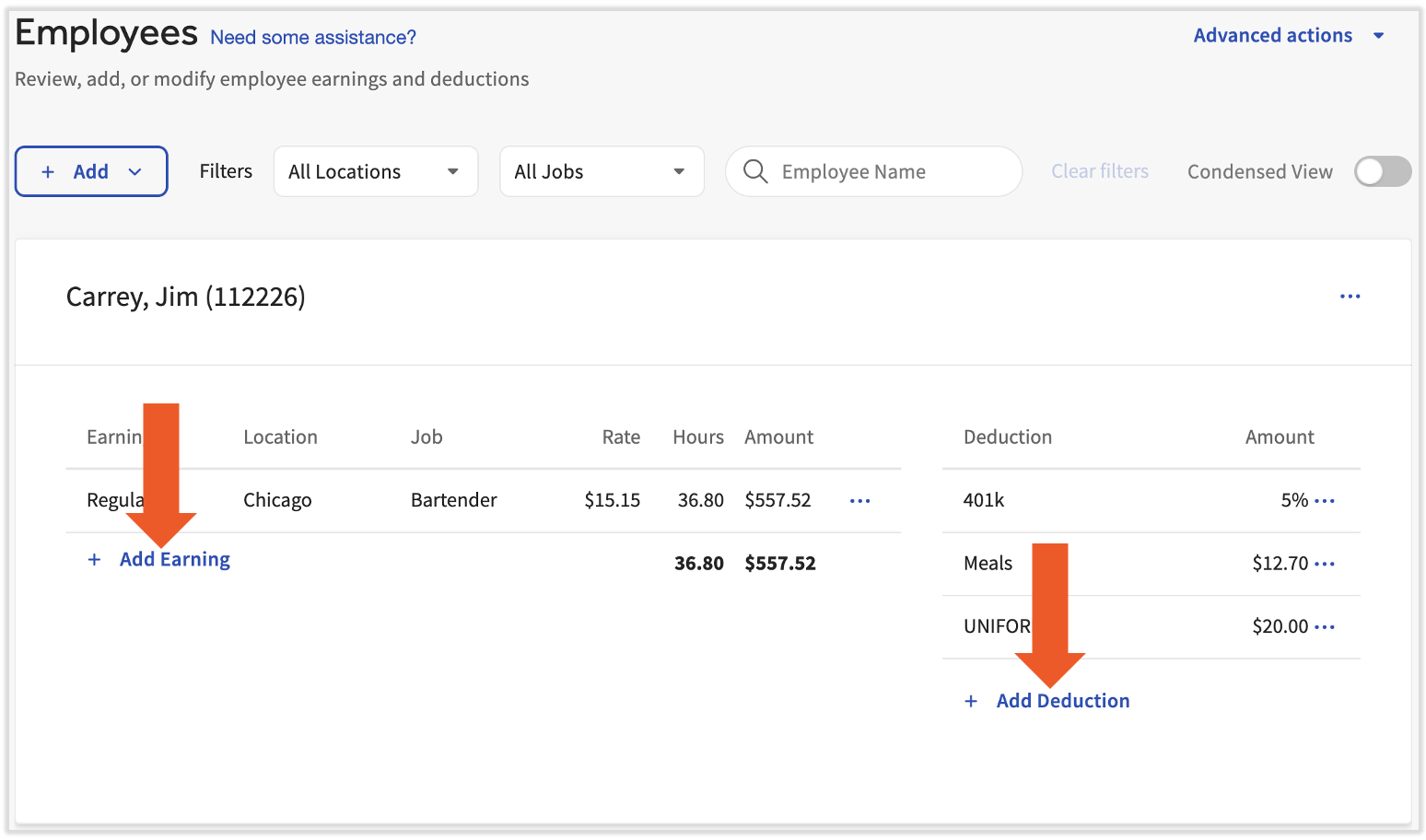
Detailed view
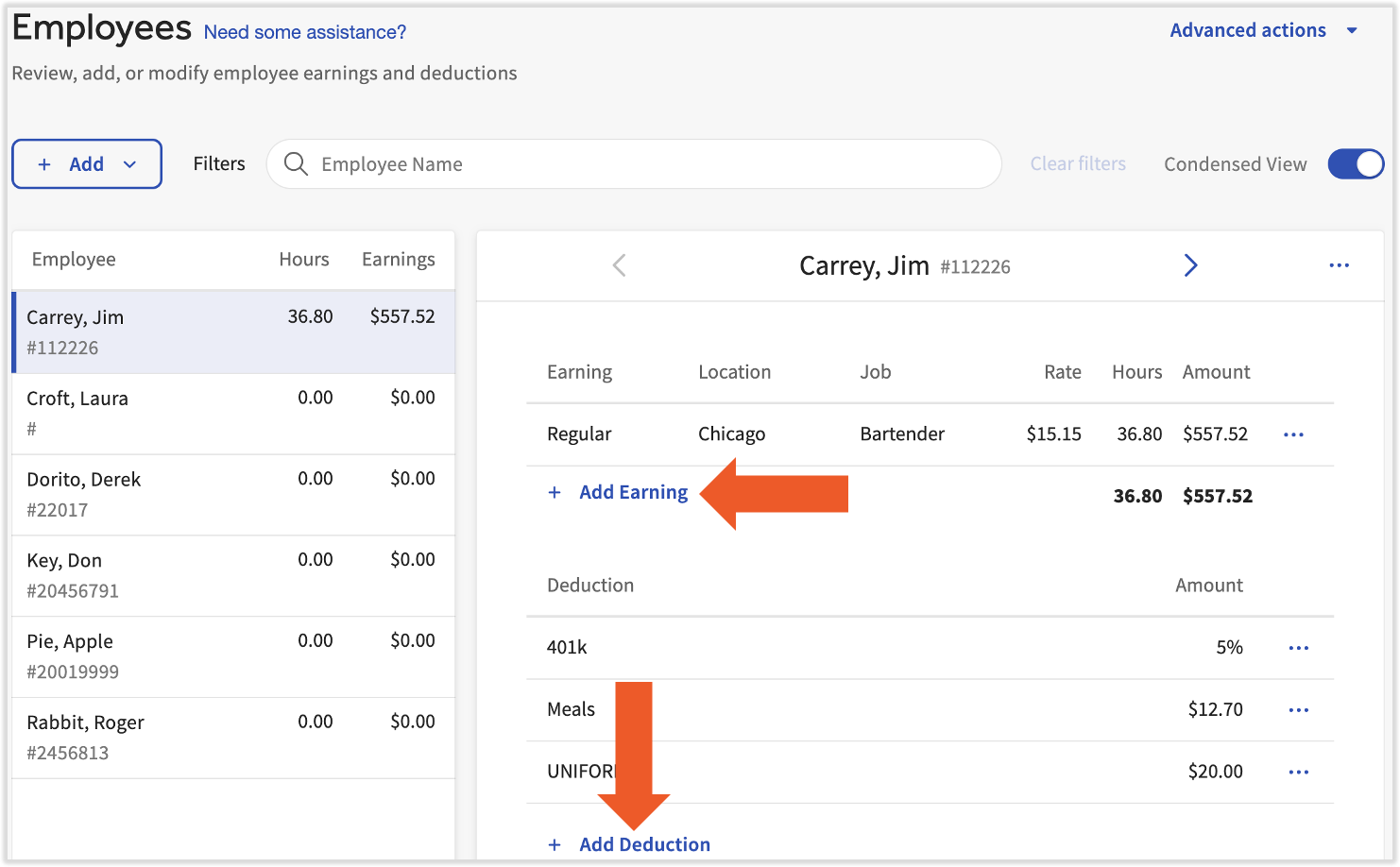
Condensed view
- For an earning:
- Fill in the Earning Code and Hours/Amount fields.
- Select an earning code from the drop-down list. To add a bonus, select the Bonus earning code from the list.
- If the earning code you need does not appear in the list, a new earning code must be created. Fill out the New Earning Code Request form and contact Customer Care via the blue chat button in Toast Payroll to request a new earning code.
- Note: Toast Payroll is currently unavailable in Quebec. A French version of this form will be made available when the product launches in your region.
- Select Advanced Options to adjust the location or rate for this earning, if needed.
- Select Add earning to save.
- For a deduction:
- Choose the Deduction Type.
- Select whether it is a percentage or flat amount, and enter the amount or percentage of gross pay.
- Select the Add deduction button to finish.
- If you need a new deduction code, fill out the New Deduction Code Request form and contact Customer Care via the blue chat button in Toast Payroll.
- Note: Toast Payroll is currently unavailable in Quebec. A French version of this form will be made available when the product launches in your region.
Expected outcome: The new earning or deduction now appears in the Employee Earnings step for that employee. It applies to the current payroll only and will not appear on future payrolls or in the employee record.
Edit an Earning or Deduction
Use this procedure to change, adjust, or update an earning or deduction that already appears on the current payroll.
Note: If you are editing a deduction to compensate for an overpayment, consider using a void and re-record instead. See Toast Payroll: Request a Void to learn more.
- On the Employee Earnings step, locate the employee with the earning or deduction to change. In the Condensed view, expand the employee's row first.
- Select the three dots (overflow menu) to the right of the earning or deduction. Select Edit earning or Edit deduction.
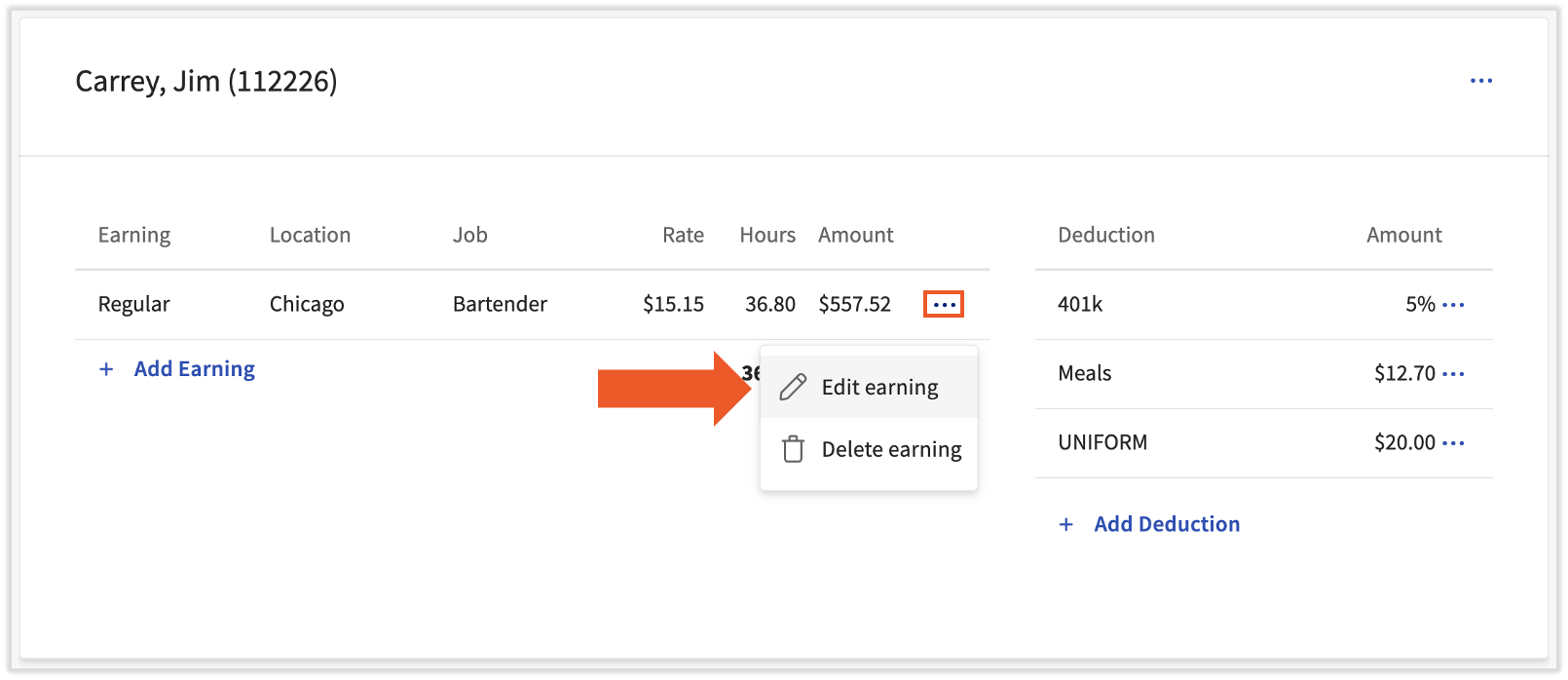
Detailed view
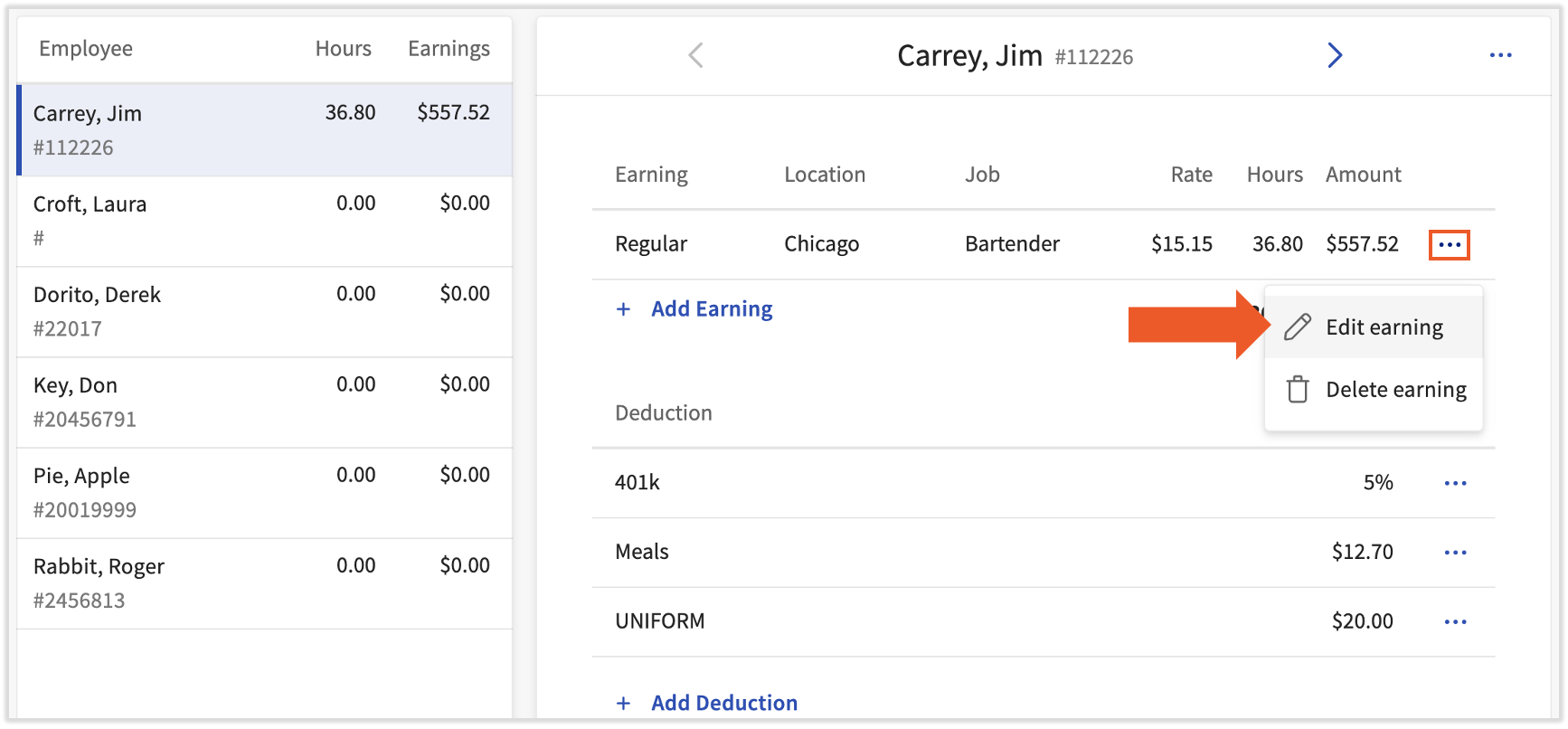
Condensed view
- Update the Hours/Amount field as needed. Select Advanced Options to adjust the location or rate, if needed.
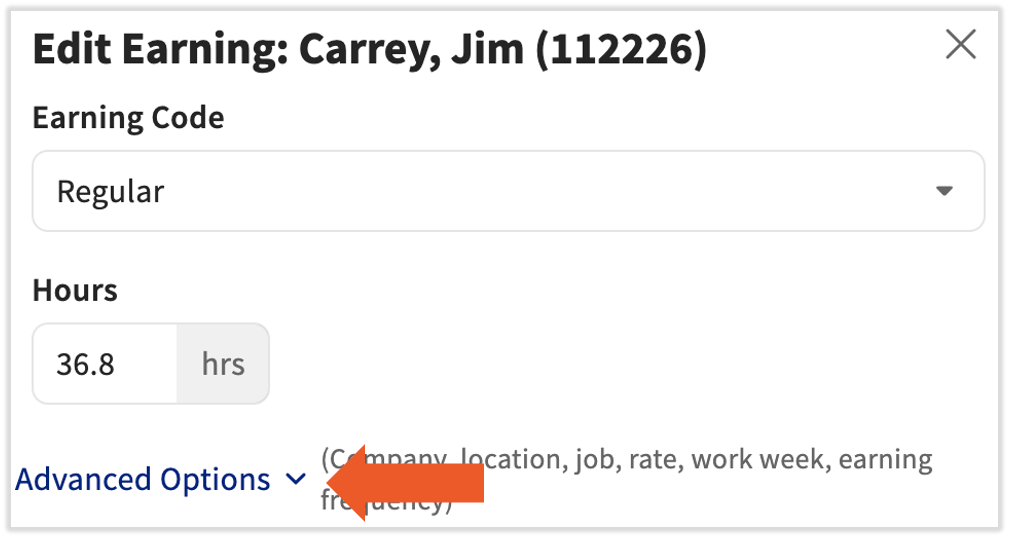
- Select Change earning/deduction to save.
Expected outcome: The updated amount or rate appears immediately in the employee's row. The change applies to the current payroll only.
Note: Need to go back and make changes after advancing to the Review and Submit step? Select Previous in the upper-right corner of the Review and Submit step to return to the Employee Earnings step and make adjustments.
Add an Employee to Payroll
Use this procedure if an employee is missing from the payroll list and needs to be included in the current payroll run.
Note: Why an employee might be missing: Employees only appear on a payroll if they are active during that pay period and they belong to the pay group for that payroll run. If the employee is in a different pay group, they will not appear. See Toast Payroll: Review Pay Groups to learn more.
- On the Employee Earnings step, select the + Add button.
- Select Add employee.
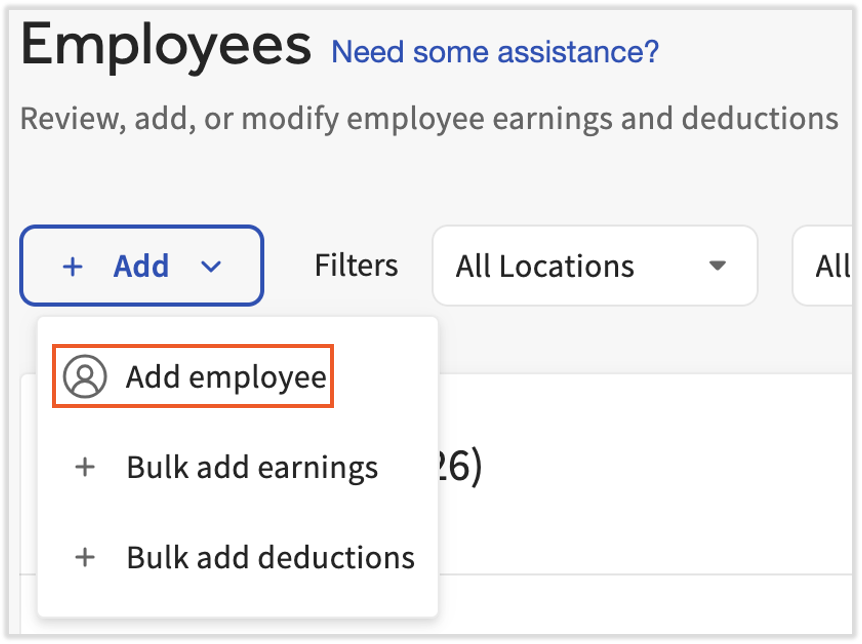
- Search for and select the employee.
Expected outcome: The employee appears at the top of the payroll list. Employees are otherwise listed in alphabetical order by last name. The addition applies to the current payroll only and does not affect the employee's profile or future payrolls.
Note: Employees can only be added to a payroll if they are a member of the pay group this payroll belongs to.
Delete an Employee from Payroll
Use this procedure to remove an employee from the current payroll run. This does not affect the employee's profile or their inclusion in future payrolls.
- On the Employee Earnings step, locate the employee's row.
- Select the three dots (overflow menu) on the right side of the employee's row.
- Select Delete employee.
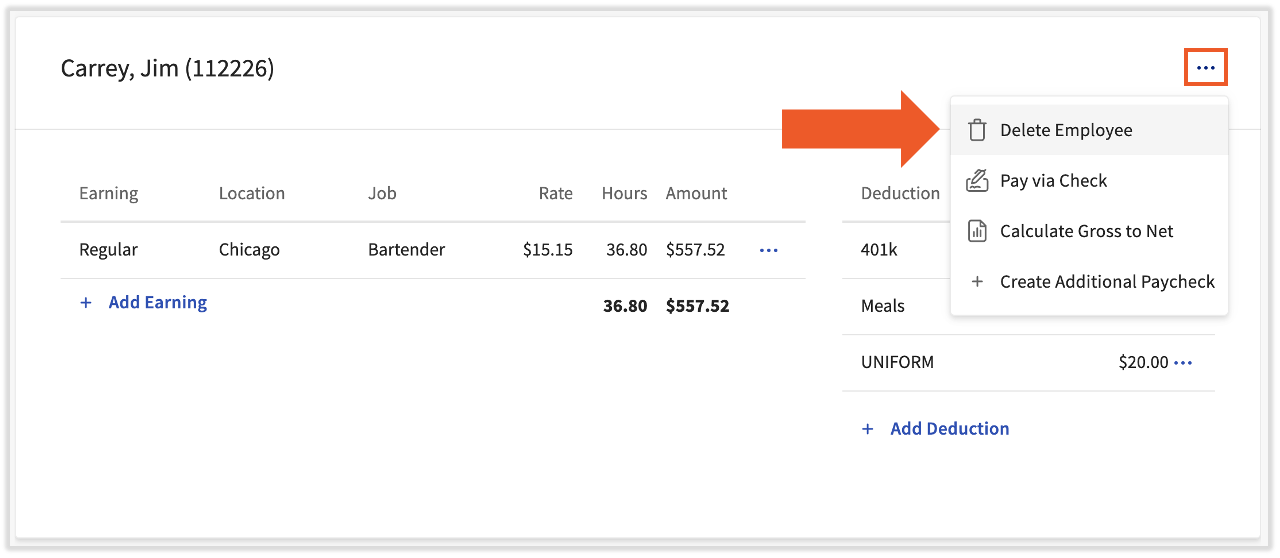
Expected outcome: The employee is removed from the current payroll. They will still appear on future payrolls as normal. This action does not change their profile or employment status.
Pay via Check (Paper Check)
Use this procedure to switch the payment method for a specific employee from direct deposit to a paper (live) check for the current payroll. This is a one-time change and does not update the default payment method for future payrolls.
Switch one employee to a paper check
- On the Employee Earnings step, locate the employee's row.
- Select the three dots (overflow menu) from the row containing the employee's name.
- Select Pay via Check.
- Read the terms, select Yes, and select Submit.
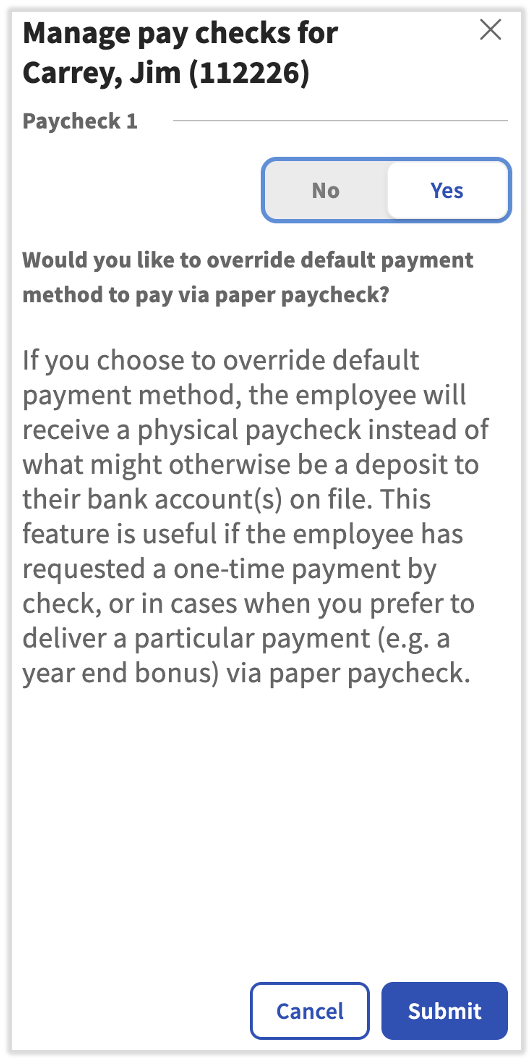
Expected outcome: The employee is set to receive a paper check for the current payroll. Their default payment method for future payrolls is unchanged.
Switch all employees to paper checks
Use this option to issue paper checks to all employees on the current payroll. This is most commonly used for bonus off-cycle payrolls.
- On the Employee Earnings step, select the Advanced actions menu.
- Select Pay all via check.
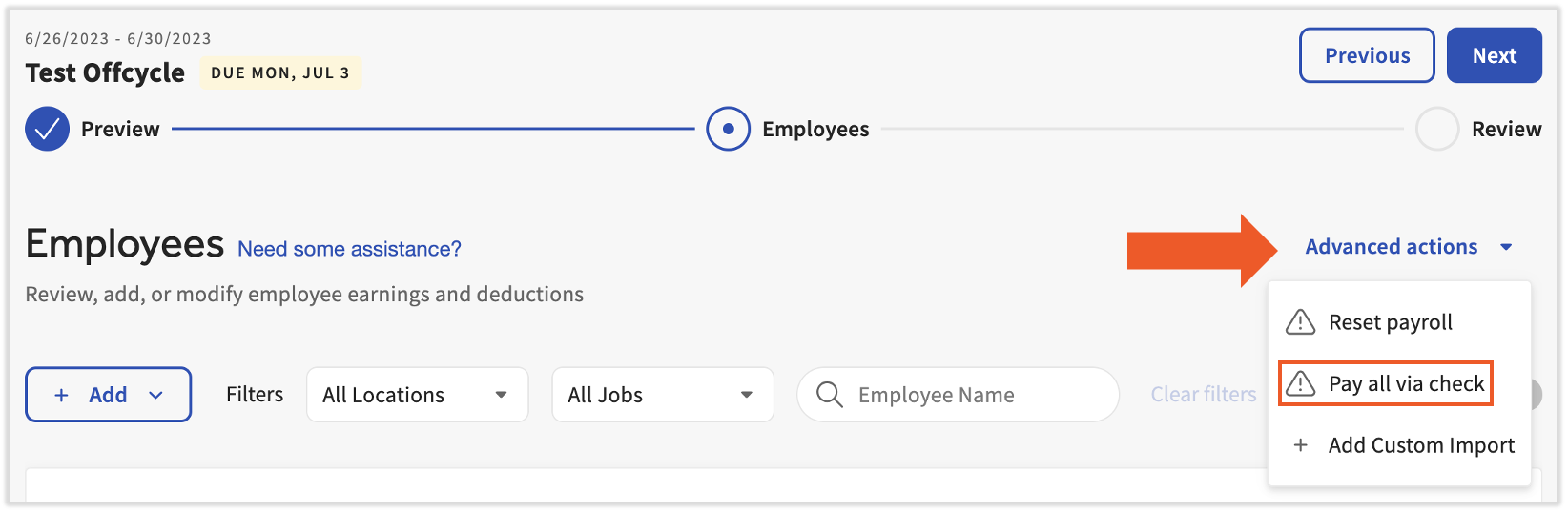
Expected outcome: All employees on the current payroll are set to receive paper checks. This applies to the current payroll only.
Use Custom Payroll Imports
If your restaurant uses a spreadsheet to import tips, time entries, or other earnings and deductions data, you can access the custom payroll import feature from the Employee Earnings step.
Important: Toast Payroll requires an import template created by the Customer Care team before custom imports can be used. If you do not yet have a template, contact Customer Care via the chat button in Toast Payroll before proceeding.
- On the Employee Earnings step, select the Advanced actions menu.
- Select + Add Custom Import.
- Follow the on-screen steps to upload your spreadsheet.
For full guidance on setting up and using custom payroll imports, see Toast Payroll: Configure Custom Payroll Imports.
Expected outcome: Your imported data appears in the Employee Earnings step. Review the imported figures before advancing to the Review and Submit step.
Frequently Asked Questions
Which earning code do I use for a bonus?
To add a one-time bonus, select + Add earning for the employee on the Employee Earnings step. In the Earning Code field, select the Bonus earning code from the dropdown list.
If a Bonus earning code does not appear in the drop-down, it may not be set up for your company. Fill out the New Earning Code Request form and contact Customer Care to request a new earning code. Creating earning code types requires agent action and cannot be done from the Employee Earnings step. Note: Toast Payroll is currently unavailable in Quebec. A French version of this form will be made available when the product launches in your region.
Also asked as:
-
- How do I add a bonus to an employee's paycheck?
- Where is the bonus option when I add an earning?
Why isn't an employee showing up on my payroll?
Employees appear on a payroll only if they belong to the pay group for that payroll run. If the employee is in a different pay group, they will not appear in this payroll. See Toast Payroll: Review Pay Groups.
If the employee is in the correct pay group but still missing, you can add them manually using the + Add button on the Employee Earnings step. See Add an Employee to Payroll above.
If the employee was added to Toast Web but not Toast Payroll, they will not have a payroll profile and cannot be paid. See Toast Payroll: Prepare to Run Payroll for steps to add an employee to Toast Payroll.
Also asked as:
-
- I approved timesheets but the employee isn't in payroll
- Employee not appearing in employee earnings
What is the difference between a one-time and a recurring change?
A one-time change is made on the Employee Earnings step during a payroll run. It only affects the current payroll. It does not update the employee's profile or appear on future payrolls.
A recurring change is made on the employee's profile before a payroll run begins (before selecting Preview). It appears on every payroll run automatically until you change or remove it. Examples include salary, regular hourly pay, and ongoing benefit deductions.
To make recurring changes, navigate to the employee's profile in Toast Payroll and select the Recurring tab. See Toast Payroll: Add or Edit Earnings & Deductions for full instructions. Learn how the new Toast Payroll navigation works by visiting Navigate Toast Payroll Within Toast Web.
Also asked as:
-
- Will this change affect future payrolls?
- How do I make a permanent change to an employee's pay?
How do I correct an overpayment from a previous payroll?
To correct an overpayment from a previous payroll, use a void and re-record process rather than a deduction on the current payroll. See Toast Payroll: Request a Void to begin that process.
If you need help, contact Customer Care. Overpayment corrections often require agent assistance to process correctly.
Also asked as:
-
- What's the best method to reverse a server's earnings that was overpaid?
- An employee was overpaid — what do I do?
Related Articles
- Toast Payroll: Add or Edit Earnings & Deductions
- Toast Payroll: Prepare to Run Payroll
- Toast Payroll: Preview Payroll Step
- Toast Payroll: Review and Submit Step
This content is for informational purposes and is not intended as legal, tax, HR, or any other professional advice. Please contact an attorney or other professional for advice.