Toast Payroll: Review Pay Groups
Last updated: Oct 9, 2026, 3:36 PM
Learn what pay groups are, how to find an employee's pay group, and how to change or create pay groups in Toast Payroll.
- About Pay Groups
- How Pay Groups Work
- Find an Employee's Pay Group
- Pay Group Examples
- Change an Employee's Pay Group
- Create a New Pay Group
- Frequently Asked Questions
- Related Articles
About Pay Groups
A pay group is a portion of your organization grouped together for payroll processing, or a group of employees who share a common pay date, frequency, or payment method. Pay groups are most often used when two or more FEINs are processing payments. They let you sort employees so they can be paid at different pay frequencies and out of different company accounts when needed.
An employee can be part of more than one pay group. When that happens, each pay group the employee is paid from must be tied to a separate position on their profile.
How Pay Groups Work
A pay group is based on the position an employee is assigned to. The pay group shown on an employee's profile is dynamic and comes from the position on the Position Detail page. Because the pay group follows the position, you change an employee's pay group by changing their position, not by editing the pay group field on its own.
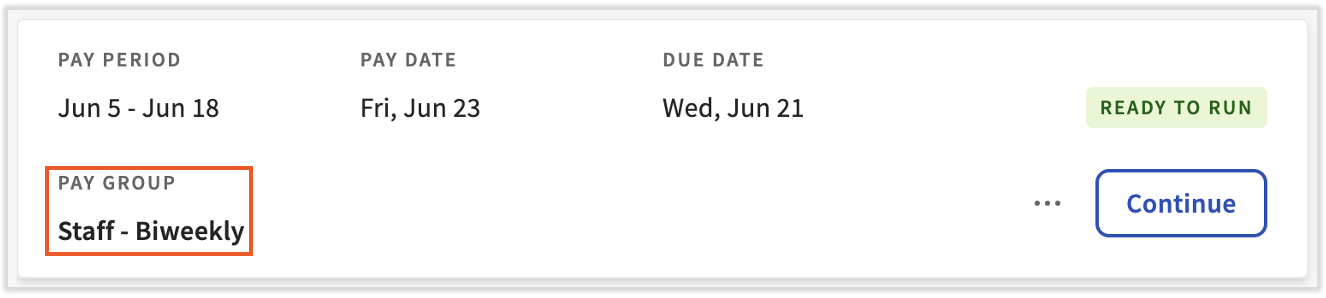
Pay groups also appear underneath each payroll on the Pay Cycle Dashboard. Only employees with positions assigned to that pay group appear on, or can be added to, that payroll.
If an employee is paid out of two pay groups, they must have two positions. A secondary position should only exist if it is tied to a secondary pay group. If a second role can be paid out of the same pay group, create a job instead of a position. For details on jobs versus positions, see Toast Payroll: Assign or Change Employee Jobs or Locations.
Find an Employee's Pay Group
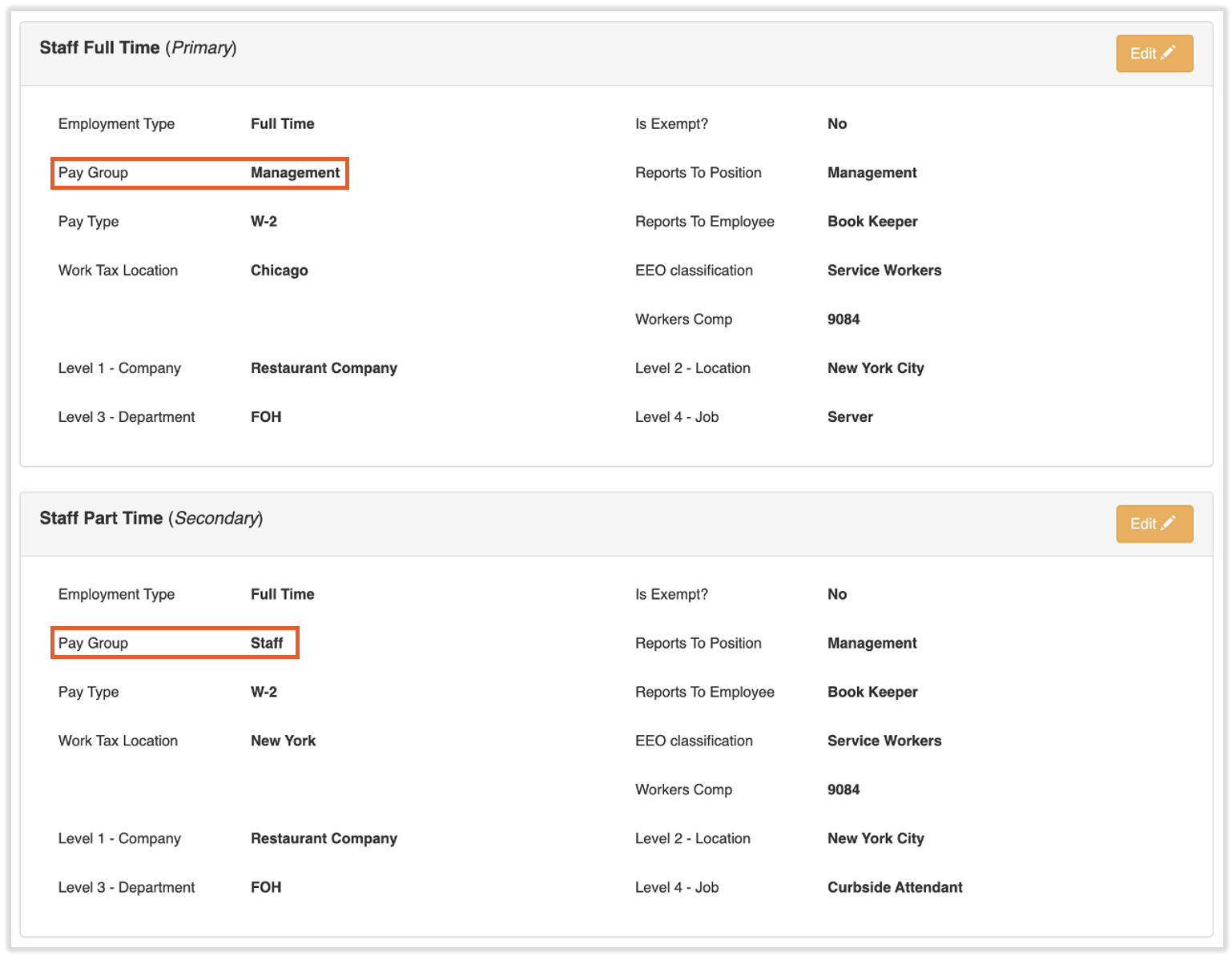
To find which pay group an employee is assigned to, navigate to their profile and select the > caret icon to the right of their primary job. Each position listed shows its assigned pay group. (Learn how the new Toast Payroll navigation works by visiting Navigate Toast Payroll Within Toast Web.)
If an employee has more than one position, each position should be tied to a different pay group. To confirm where an employee's hours will be paid, match the pay groups on their profile with the pay groups listed under each payroll on the Pay Cycle Dashboard.
Pay Group Examples
Pay groups are commonly organized in the following ways:
- Check frequency: Pay groups are often labeled by check frequency if more than one frequency exists within an FEIN. Check frequencies include weekly, biweekly, semi-monthly, and monthly. For more detail, see Toast Payroll: Review Check Frequency.
- Location: If you have multiple locations, you may give a location its own pay group and name your pay groups after your locations, for example Chicago and Boston.
- Hourly versus salary: Employers may put hourly employees and salary employees on two separate payrolls and name these the Hourly and Salary pay groups. These may instead be classified by whether the employees are exempt or non-exempt. See Toast Payroll: Exempt vs Nonexempt Employees.
- Executive versus regular employees: To keep executive pay information private from some payroll administrators, you may create a separate pay group for those employees so that an executive can run and submit that payroll.
Change an Employee's Pay Group
A pay group is based on the position an employee is assigned to, so to change the pay group you must also change the position. A position is a set of professional attributes specific to an employee.
- In Toast Payroll, navigate to the employee's profile and select the > caret icon to the right of their primary job.
- Learn how the new Toast Payroll navigation works by visiting Navigate Toast Payroll Within Toast Web.
- Select Edit on the position you want to update.
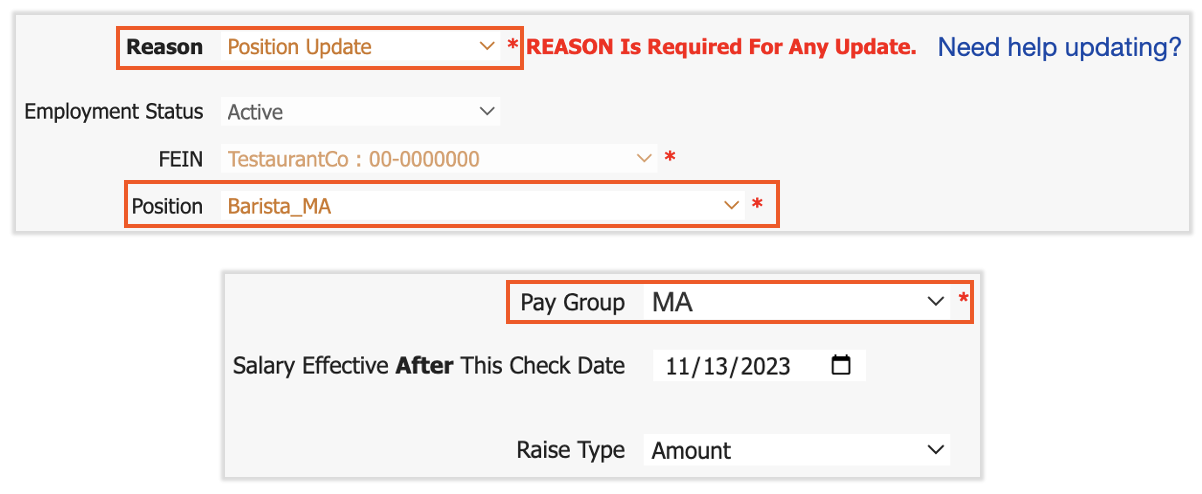
- Select the reason named Position Update at the top of the page and confirm the details in the pop-up.
- Change the Position field near the top and the Pay Group field under the Pay section at the bottom.
- Select Submit to save these changes.
Expected outcome: The employee's profile now shows the new pay group, and their hours flow to the payroll tied to that pay group on the Pay Cycle Dashboard.
Note: Both the position and the pay group must be changed, not just the pay group. The position must align with the pay group it is associated with, or errors may arise.
If the Pay Group field is grayed out or your change will not save, the employee usually has more than one position tied to the same pay group, which is not allowed. For how to resolve this, see Get Help with Payroll Error: More Than One Position Per Group. For full instructions on changing a pay group through the position, see Toast Payroll: Change an Employee's Pay Group.
Create a New Pay Group
To set up a new pay group, Toast Payroll needs the following three items:
- Bank routing and account numbers
- A blank check
- A completed New FEIN / Pay Group Request Form
- Note: Toast Payroll is currently unavailable in Quebec. A French version of this form will be made available when the product launches in your region.
These can be set up with a Toast Onboarding Consultant during the onboarding process. Once you are live with Toast Payroll, gather the three items and send them to Toast Payroll through the blue chat dot in the lower-right corner of any Toast Payroll page.
Note: After a new pay group is active, you add an existing employee to it by building a second position for that pay group. New hires are placed into a pay group through the employee onboarding process.
Frequently Asked Questions
Can an employee be in more than one pay group?
An employee can be in more than one pay group. Each pay group the employee is paid from must be tied to a separate position on their profile, so an employee paid out of two pay groups must have two positions. A secondary position should only be present if it is tied to a secondary pay group.
Also asked as:
-
- Can I have an employee in more than one pay group?
- How do I pay one employee from two pay groups?
How do I add an employee to a new pay group?
To add an employee to a new pay group, the employee needs a position tied to that pay group. If the employee is a new hire, this is done through the employee onboarding process. If they already have a position, add a second position built out for the new pay group. For step-by-step instructions, see Toast Payroll: Assign or Change Employee Jobs or Locations.
Also asked as:
-
- How do I assign an employee to a second pay group?
- How do I add a pay group to a new job?
Why don't my employee's approved time entries show up on payroll?
Approved time entries may not show up on payroll because the employee has more than one position and those time entries and earnings are tied to a different pay group, so they appear on another payroll. Double-check the pay group for each of the employee's positions by navigating to their profile and selecting the > caret icon to the right of their primary job. Then match the pay groups on the profile with the pay groups listed under each payroll on the Pay Cycle Dashboard. (Learn how the new Toast Payroll navigation works by visiting Navigate Toast Payroll Within Toast Web.)
Also asked as:
-
- I approved my employee's time but they aren't on payroll
- My employee's hours are on the wrong pay group
Do I need a new position for each new job my employee works?
You do not need a new position for each new job if the second job can be paid out of the same pay group. In that case, create a job instead of a position. Add a separate position only when the new job is paid out of a different pay group. See Toast Payroll: Assign or Change Employee Jobs or Locations.
Also asked as:
-
- Should I add a job or a position?
- When do I need a secondary position?
Can I rename my pay group?
Pay group names can only be updated by Toast, and only under the right circumstances. For example, if a pay group name should change, Toast Payroll also needs to know whether an FEIN change or a change in ownership has taken place so those changes can be accommodated as well. To discuss your situation, contact Toast through the blue chat dot in the lower-right corner of any Toast Payroll page.
Also asked as:
-
- How do I change a pay group name?
- Can I rename a pay group?
Can I merge two pay groups into one?
Merging two pay groups is not a self-service change, because pay group structure is tied to your FEINs and company accounts. To discuss combining or renaming pay groups, contact Toast Customer Care through the blue chat button in the lower-right corner of any Toast Payroll page.
Also asked as:
-
- Can I combine two pay groups?
- How do I delete a pay group?
Related Articles
- Toast Payroll: Change an Employee's Pay Group
- Toast Payroll: Assign or Change Employee Jobs or Locations
- Get Help with Payroll Error: More Than One Position Per Group
- Toast Payroll: Multiple Locations With One Pay Group
- Toast Payroll: What is Check Frequency
This content is for informational purposes and is not intended as legal, tax, HR, or any other professional advice. Please contact an attorney or other professional for advice.