Toast Payroll: Run Your Payroll
Last updated: Jun 23, 2026, 11:44 AM
- Before You Begin
- Open and Preview the Payroll
- Make One-Time Changes on the Employee Earnings Step
- Calculate the Payroll
- Review and Submit the Payroll
- Confirm the Payroll Submitted
- When to Submit So Employees Are Paid on Time
- Frequently Asked Questions
- Related Articles
Before You Begin
Applies to: Toast Payroll (running and submitting payroll); Toast Web (for verifying time entries before payroll)
Permissions needed:
- HR+ user with access to the pay group — required to run, calculate, and submit payroll
- Manager — can review and approve timesheets
What you'll accomplish: You will take a single payroll from the Pay Cycle Dashboard through preview, calculation, and review, submit it, and confirm it posted successfully so your employees are paid on time.
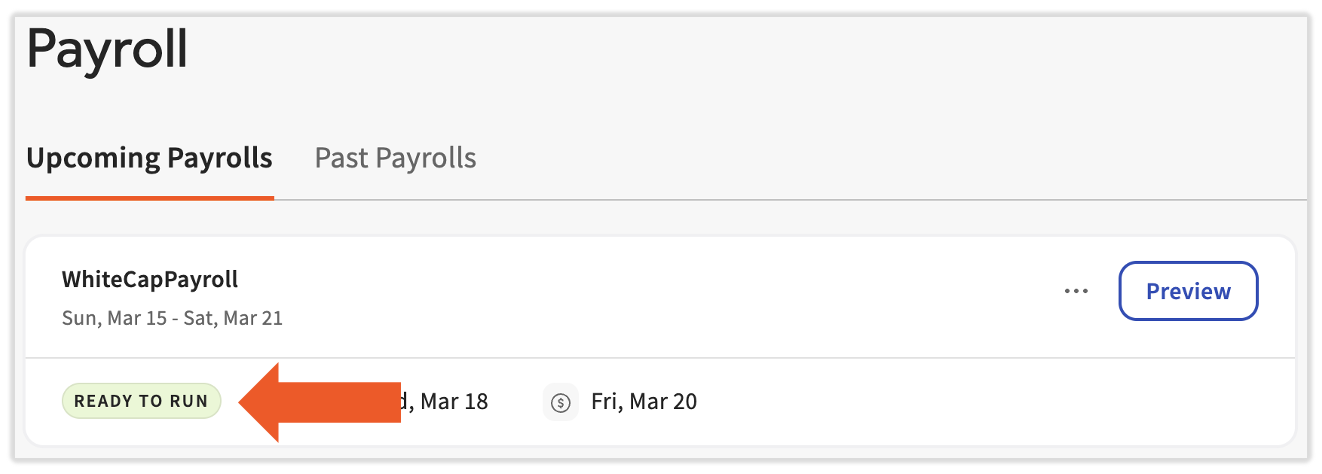
Before you start, your payroll should show the Ready to Run badge on the Pay Cycle Dashboard. The badge appears once tips and time entries are approved and employee profiles are up to date. If you are not there yet, complete the steps in Toast Payroll: Prepare to Run Payroll first.
Note: If you are not yet using your Toast POS devices and handhelds, you must submit payroll four days before your check date. Once you are live on Toast POS, this deadline becomes more flexible, but before going live it must be enforced for security reasons.
Open and Preview the Payroll
For a short walkthrough of reviewing and completing a payroll run, watch the overview video. For an in-depth look with troubleshooting steps toward the end, watch the longer Toast Classroom video.
For a quick walkthrough of the steps you should take to review and complete a payroll run, watch this shorter video.
If you'd like a more in-depth look at the steps for a successful payroll run, check out this longer video complete with troubleshooting steps towards the end.
Once your payroll shows Ready to Run, open it from the Pay Cycle Dashboard to begin.
- In Toast Payroll, select Payroll from the left navigation rail, or select View payroll from the tile on the main dashboard. Either path opens the Pay Cycle Dashboard.
- Find the pay group you want to run and check its badge. Until the badge says Ready to Run, complete the remaining items from Toast Payroll: Prepare to Run Payroll.
- Select Preview to start a new payroll, or select Continue to resume a payroll you already started.
On the Preview Payroll step, the Action Items card lists what to address before processing — employee, tips, and timesheet items, along with any missing information. You may see the number of unapproved tips or timesheets so you know if you are not quite ready.
You can move past these warnings, but if you do, unapproved hours will not be paid on this payroll. To include them, go back, approve the timesheets, and select Next on the Preview Payroll step again. For more on this step, see Toast Payroll: Preview Payroll Step.
Note: The Tips tile only appears if your company has a tips integration with Toast Web. The Insights card only appears if there are manual checks or bonuses tied to the pay cycle.
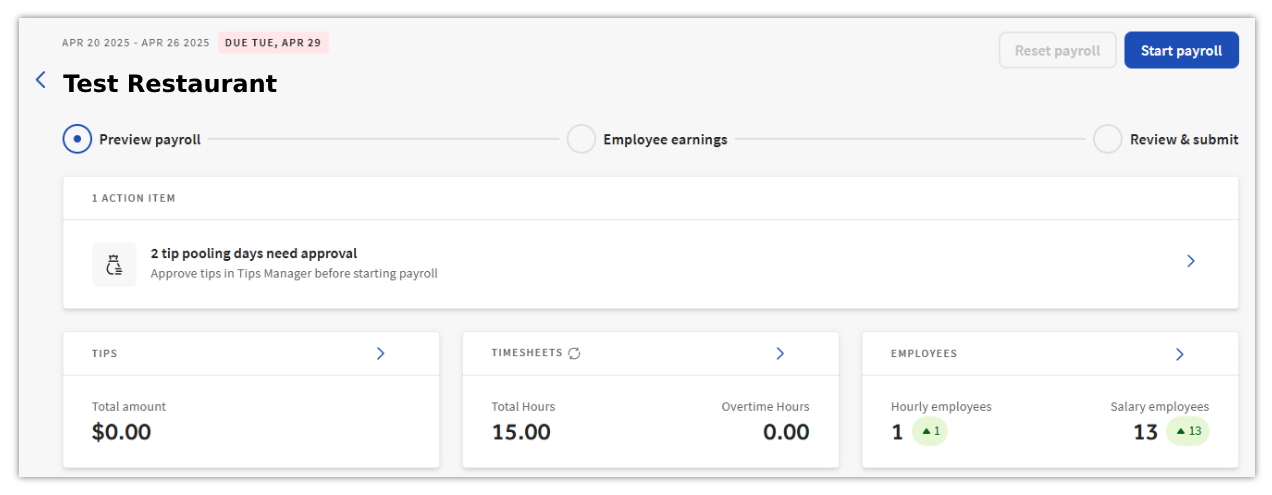
Expected outcome: The Preview Payroll step opens with your action items listed, and you can see whether anything is still blocking the run.
Make One-Time Changes on the Employee Earnings Step
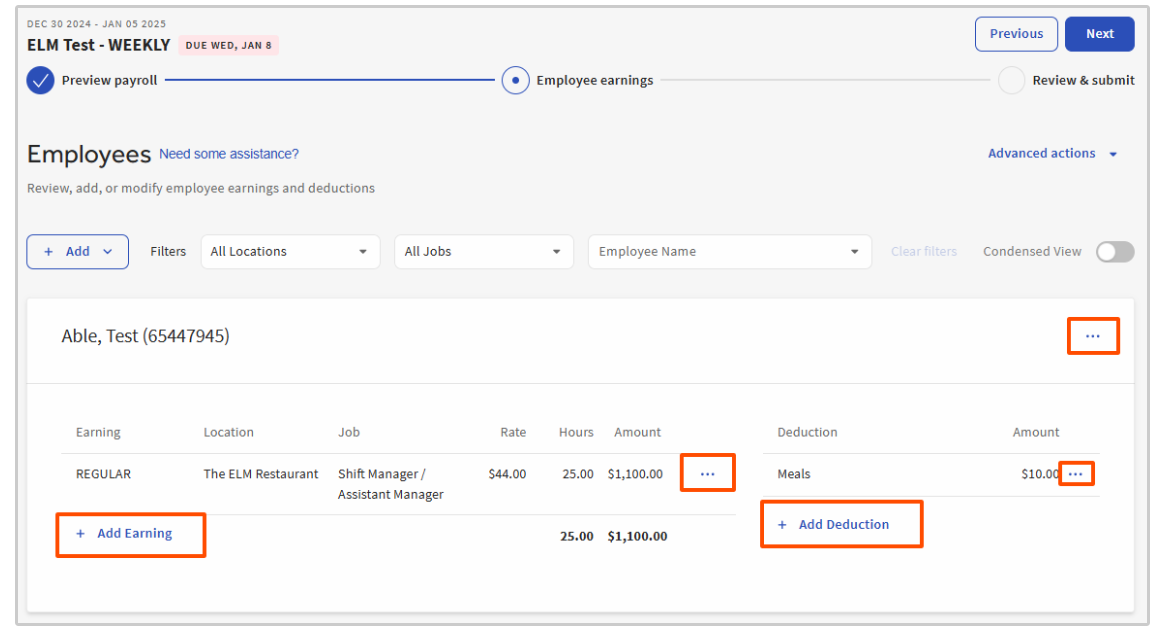
Select Start Payroll to advance to the Employee Earnings step. This is where you make changes that apply to this payroll only — they do not carry over to the employee's record going forward.
Common one-time changes include:
- Adding or editing one-time earnings and deductions. See Toast Payroll: Add or Edit Earnings & Deductions.
- Adding an employee who is missing because they were recently hired, or removing a recently terminated employee. See Toast Payroll: Add an Employee to the Employee Earnings Step.
- Issuing a one-time live (paper) check instead of direct deposit for this run. See Toast Payroll: Create One-Time Live (Paper) Checks.
Use the Hours graph to compare this period to the last one. This helps you spot an employee who did not clock in or a timesheet missing from this payroll.
Note: If an employee is missing from this step, the most common causes are a position start date after the pay period, an Unpaid employee tag, or a pay group mismatch. See Toast Payroll: Get Help With Your Payroll to find and fix the cause.
Expected outcome: All one-time earnings, deductions, and employee changes for this payroll are entered before you calculate.
Calculate the Payroll
Once every change has been made, select the blue Next button to calculate the payroll.
You will see a Calculating Payroll message while Toast Payroll processes the run. This page can take up to five minutes to load, but it usually finishes in less than 30 seconds.
Note: If the page does not finish calculating, confirm there are no unresolved action items on the Preview Payroll step (such as an unmapped employee or a day that cannot be approved), resolve them, and select Next again.
Expected outcome: Calculation finishes and you advance to the Review and Submit step.
Review and Submit the Payroll
Once payroll is calculated, the Review and Submit step gives you the information to confirm the payroll is accurate before you submit. Use the payroll reports in the bottom-left corner and the Highlights and Exceptions card to check your work. If any Highlights and Exceptions items appear as a link, select the link to review the employees in that category. See Toast Payroll: Review Payroll Reports.
Before submitting, confirm:
- The number of employees on the payroll matches your expectations.
- The number of hours matches your expectations.
- The total payroll expenses match your expectations.
- All tips are present, if applicable.
- Anyone receiving tip makeup is expected. See Toast Payroll: Get Help With Tip Makeup.
- Any one-off adjustments you needed have been entered and reviewed.
If something is off, select Previous to return to the Employee Earnings step and make edits.
When everything is correct, select Submit payroll, then select Submit Payroll on the confirmation pop-up to finalize.
Note: If this is your very first payroll, or if you recently changed the company bank account on file, you will see a one-time message asking you to authorize Toast Payroll to perform ACH transactions with your bank account. Select the checkbox and select Submit payroll to continue. This message will not appear again unless the company bank account changes.
Note: Submitting payroll is final. Once a payroll is submitted, Toast cannot reopen, edit, or cancel it — even before it is swept. If you find an error afterward, see the correction options in Toast Payroll: Get Help With Your Payroll.
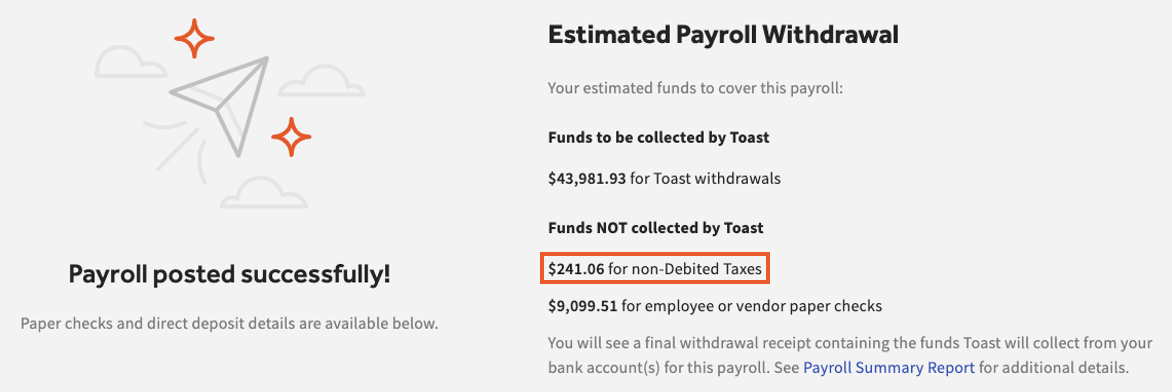
Expected outcome: You see a Payroll posted successfully! message confirming the payroll was submitted.
Confirm the Payroll Submitted
After you submit, a Payroll posted successfully! message appears. You also get access to the payroll reports, an estimated payroll withdrawal receipt, and a payroll audit showing when the payroll was opened, reset, and posted.
If you left that page and want to confirm the payroll went through:
- In Toast Payroll, select Payroll from the homepage to open the Pay Cycle Dashboard.
- Select the Past Payrolls tab.
- If the payroll appears here, it was submitted successfully. Select View to see the withdrawal receipt, Highlights and Exceptions, and reports.
- If the payroll is not on the Past Payrolls tab, check the Upcoming Payrolls tab. Payrolls there have not yet been submitted.
All HR+ users with access to the pay group also receive an email confirming the date and time of submission and an estimated Toast Payroll withdrawal amount. For more ways to confirm, see Toast Payroll: Verify Payroll Was Submitted.
Note: If you ran the numbers but did not select Submit payroll, and the payroll no longer appears on your dashboard, the run was not submitted. Only one payroll per pay group appears at a time and an unsubmitted payroll whose check date has passed is cleared to make room for the next one. See Toast Payroll: Payroll Processing and Paystub FAQ for how to bring it back.
Expected outcome: You confirm the payroll on the Past Payrolls tab with a withdrawal receipt and reports available.
When to Submit So Employees Are Paid on Time
Submit timing controls when your employees are paid, so build in a buffer rather than submitting on the check date.
- Toast recommends submitting payroll no later than three business days before the check date. This gives shipping delays, weekends, and federal holidays less chance to affect pay.
- After a non-federal-holiday business day, Toast Payroll pulls the ACH files from all submitted payrolls and sends them to the bank. This is known as the payroll being swept and happens around 5:20 p.m. ET (4:20 p.m. CT).
- Once the files are sent, the Toast Payroll Withdrawal Receipt replaces the Estimated Payroll Withdrawal Receipt on the Review and Submit step with finalized details. You can also find withdrawal receipts later under Payroll > Past Payrolls > View.
For each scenario — submitted on time, late, on a weekend, or on a holiday — and the exact resulting pay date, see Toast Payroll: Get Help With When Employees Are Paid.
Note: Submitting a payroll earlier than needed can cause Toast Payroll to attempt to collect funds before your account is ready, which can lead to a failed debit. Submit within the recommended window rather than far ahead of the check date.
Frequently Asked Questions
How do I run payroll in Toast Payroll?
To run payroll in Toast Payroll, open the Pay Cycle Dashboard, select Preview for the pay group you want to run, then move through the Preview Payroll, Employee Earnings, and Review and Submit steps before selecting Submit payroll. Your payroll should show the Ready to Run badge before you begin; if it does not, complete Toast Payroll: Prepare to Run Payroll first.
Also asked as:
- How do I do payroll?
- How do I start a payroll?
- How do I process payroll?
How do I know my payroll was submitted?
You know your payroll was submitted when you see the Payroll posted successfully! message and the payroll appears on the Past Payrolls tab of the Pay Cycle Dashboard. All HR+ users with pay group access also receive a confirmation email with the submission date, time, and estimated withdrawal amount.
Also asked as:
- Did my payroll go through?
- I submitted payroll but it is not showing — did it submit?
- How do I confirm payroll was submitted?
Why does my payroll say it is calculating for a long time?
Your payroll is calculating while Toast Payroll processes the run, which usually takes less than 30 seconds but can take up to five minutes. If it does not finish, return to the Preview Payroll step, resolve any open action items such as an unmapped employee or an unapproved day, and select Next again.
Also asked as:
- It is not letting me calculate payroll.
- Payroll is stuck calculating.
Can I edit or cancel a payroll after I submit it?
No, you cannot edit or cancel a payroll after you submit it — Toast cannot reopen, edit, or cancel a submitted payroll, even before it is swept. To correct an error, account for it on the next payroll in the same quarter, run an off-cycle payroll, request a void, or use an ACH reversal for a wrong-account direct deposit. See the correction options in Toast Payroll: Get Help With Your Payroll.
Also asked as:
- How do I cancel a payroll?
- Can I reopen a submitted payroll?
- I need to stop a payroll I just submitted.
My payroll disappeared before I submitted it. How do I get it back?
If your payroll disappeared before you submitted it, the run was most likely never submitted and was cleared because only one payroll per pay group can appear at a time. To restore it, select the blue chat button in the lower-right corner of any Toast Payroll page and include your company code, the pay group name, the check date of the missing payroll, and the new check date you want. The new check date must be at least two business days in the future. For full details, see Toast Payroll: Payroll Processing and Paystub FAQ.
Also asked as:
- I forgot to hit submit and my payroll disappeared.
- Bring back my payroll from last week.
- Where did my payroll go?
What is the deadline to submit payroll?
The deadline to submit payroll is no later than three business days before your check date for the most reliable on-time pay. After each non-federal-holiday business day, submitted payrolls are swept to the bank around 5:20 p.m. ET (4:20 p.m. CT). For the exact pay date for your situation, see Toast Payroll: Get Help With When Employees Are Paid.
Also asked as:
- What is the latest I can submit payroll?
- What is the cutoff time to submit payroll?
- When do I need to submit payroll by?
What does the ACH authorization pop-up mean when I submit?
The ACH authorization pop-up means Toast Payroll needs your permission to perform ACH credits and debits with your company bank account. You see it when submitting your very first payroll or after the company bank account on file changes. Select the checkbox and select Submit payroll to continue; the message will not appear again unless the bank account changes.
Also asked as:
- Why am I being asked to authorize ACH?
- What is the bank authorization checkbox when submitting payroll?
Related Articles
- Toast Payroll: Prepare to Run Payroll
- Toast Payroll: Preview Payroll Step
- Toast Payroll: Employee Earnings Step
- Toast Payroll: Review and Submit Step
- Toast Payroll: Get Help With Your Payroll
- Toast Payroll: Verify Payroll Was Submitted
- Toast Payroll: Payroll Processing and Paystub FAQ
This content is for informational purposes and is not intended as legal, tax, HR, or any other professional advice. Please contact an attorney or other professional for advice.