Toast Payroll: Manage and Integrate Tips
Last updated: Jul 7, 2026, 2:40 PM
- Tips in Toast Payroll Overview
- Tips vs. service charges vs. mandatory gratuity
- Tip settings in Toast Web
- Tip earning codes in Toast Payroll
- Tips on timesheets and paystubs
- Bring tips from POS to Payroll
- Tip reporting in Toast Web and Toast Payroll
- Known limitations
- Frequently asked questions
- Related articles
Tips in Toast Payroll Overview
Tips that customers send through the Toast POS flow into Toast Payroll based on how shift review is configured in Toast Web. Each tip is recorded under a tip earning code: Tips Paid means the employee already received the money (usually in cash at end of shift) and the line is on payroll for tax reporting only; Tips Owed means the money is paid out through the paycheck. There are three ways to move tips from POS to Payroll: Toast Tips Manager (for pooled tipouts), direct sync (each employee's own tips, no pooling), and manual entry. Tip behavior is controlled by your Toast Web shift-review settings — not by Toast Payroll itself.
Tips vs. service charges vs. mandatory gratuity
Tips, service charges, and mandatory gratuity look similar on a check but are taxed and reported differently. Use this table to identify which one applies before you change a setting or troubleshoot a paystub.
| Type | Who decides the amount | Treated as | Common names in Toast |
|---|---|---|---|
| Tip | The customer | Employee income (tipped wages) | Cash tip (declared cash tip), non-cash tip, CC tip |
| Service charge | The business (line item on the check) | Income to the employer (federal law; state law may differ) unless paid out to an employee | Service charge, delivery fee, large-party fee |
| Mandatory gratuity | The business, paid to the employee | Non-tipped wages (not a tip) | Auto-gratuity, mandatory gratuity, large-party gratuity |
Note: Per the IRS, tips are the property of the employee unless the employee is participating in a valid tip pool. See the IRS guide on tip recordkeeping and reporting. Mandatory gratuity is not a tip even though customers often use the words interchangeably. For full distinctions, see What is the Difference between Service Charges and Tips and Get Started With Service Charges and Mandatory Gratuity.
Tip settings in Toast Web
Tip behavior in Toast Payroll is determined upstream by Toast Web. The most common settings are whether the tip percentage is calculated before or after tax, the suggested tip amounts shown to guests, tip withholding, and whether tips are paid out daily/nightly in cash or via payroll.
To control whether tips are paid in cash or on payroll, in Toast Web navigate to Employees > Shift review > Advanced shift review setup. Three settings here drive tip payout behavior:
- Payout options > Non-cash tips
- Payout options > Gratuities (service charges)
- Declare cash tips > Declare cash tips
The first two control payout timing:
- If Non-cash tips and Gratuities (service charges) are set to Pay out through payroll, employees receive these tips on their paycheck or direct deposit on the payroll check date. Amounts appear under a Tips Owed earning code.
- If either is set to Pay out from the cash drawer, employees are paid those amounts daily or nightly outside payroll. Amounts still appear on payroll, but under a Tips Paid earning code — for tax reporting only.
The Declare cash tips setting controls whether employees must declare their cash tips during shift review. If Tipped employees do not declare cash tips is enabled, cash tips do not appear on payroll. If Tipped employees must declare cash tips is enabled, declared cash tips appear on payroll under either a Tips Paid or Tips Owed earning code, depending on the payout setting above.
Tip earning codes in Toast Payroll
Every tip in Toast Payroll is associated with an earning code. The two most common are Tips Paid and Tips Owed. Custom earning codes are also possible — restaurants can request them by emailing the form linked in Toast Payroll: What are Earning Codes. Check with your HR team to confirm which codes your restaurant uses.
| Earning code | Meaning | Paid through payroll? | Common alternate names |
|---|---|---|---|
| Tips Paid | Tips already paid to the employee outside of payroll (typically cash at end of shift). Present on payroll for wage reporting and taxation only. | No (unpaid earning — reporting only) | Tips Paid — Cash, Tips Paid — Credit Card, Tips Paid CC, CC Tips Paid |
| Tips Owed | Tips not yet paid to the employee; paid out via payroll on the check date. | Yes | Tips Owed — Cash, Tips Owed — Credit Card, Tips Owed CC, CC Tips Owed |
If you want to remove either earning code from payroll runs, the underlying question is how you want tips paid out. Tips Paid reflects tips employees have already received based on your settings, so to remove it you must change your shift-review configuration (and your tip pooling policy if you use Toast Tips Manager) to pay out those tips via payroll instead. To remove Tips Owed, configure shift review to pay all tips outside of Toast Payroll.
Note: Toast Payroll cannot use the same earning code for different types of tips when using the Tips Manager module.
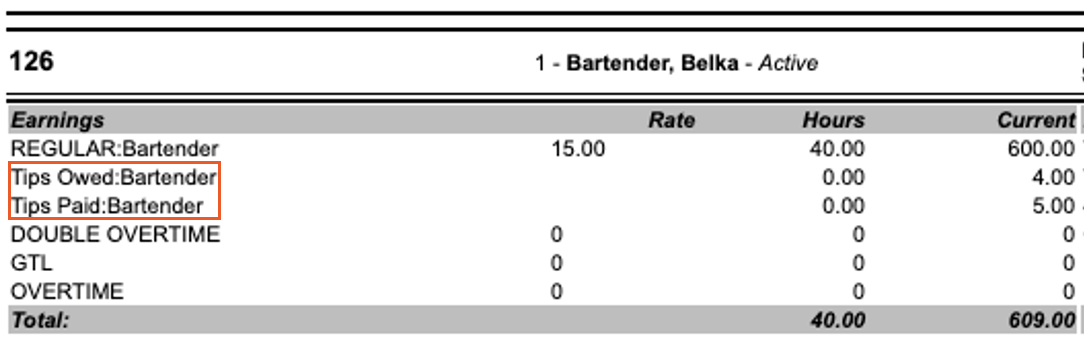
Tips on timesheets and paystubs
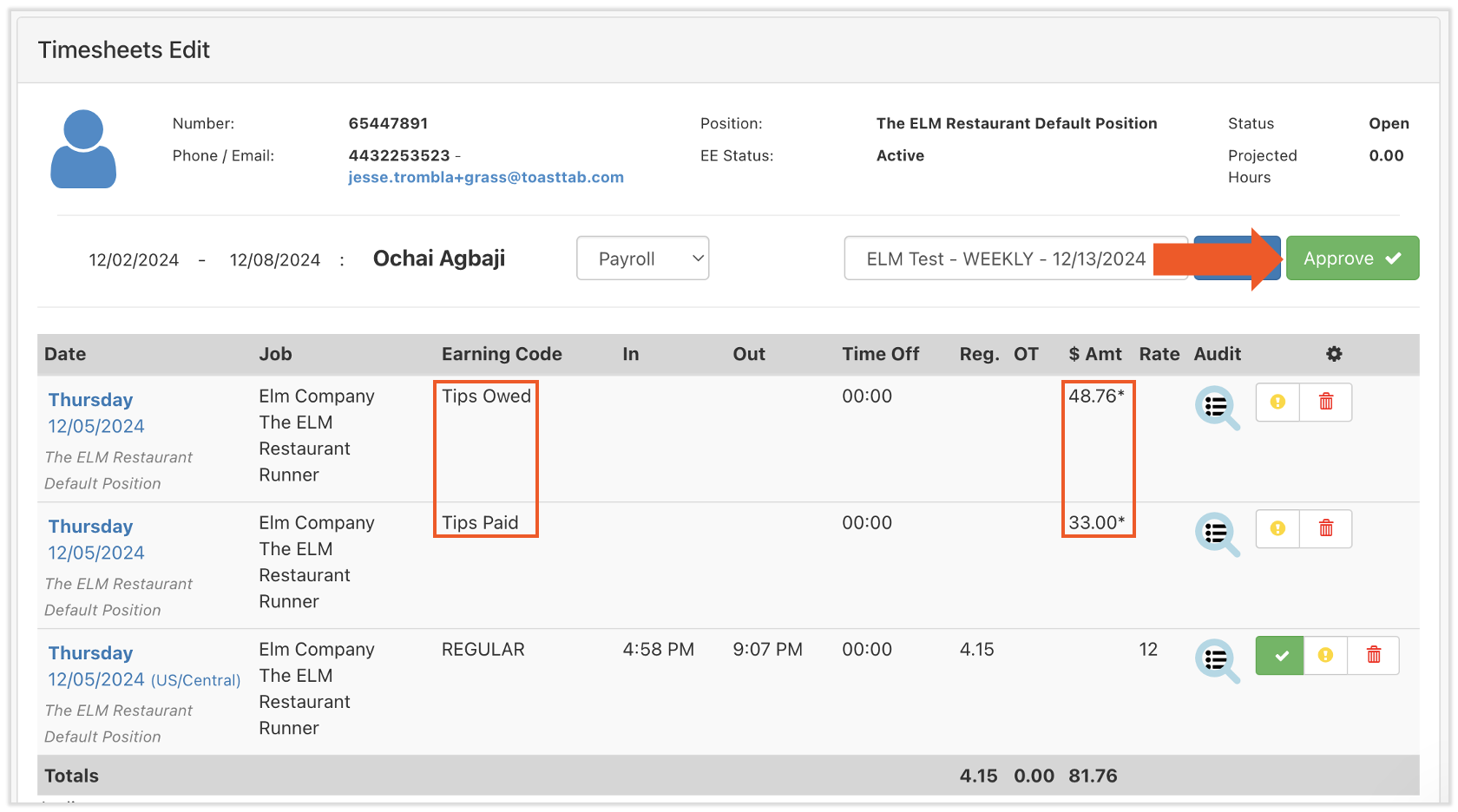
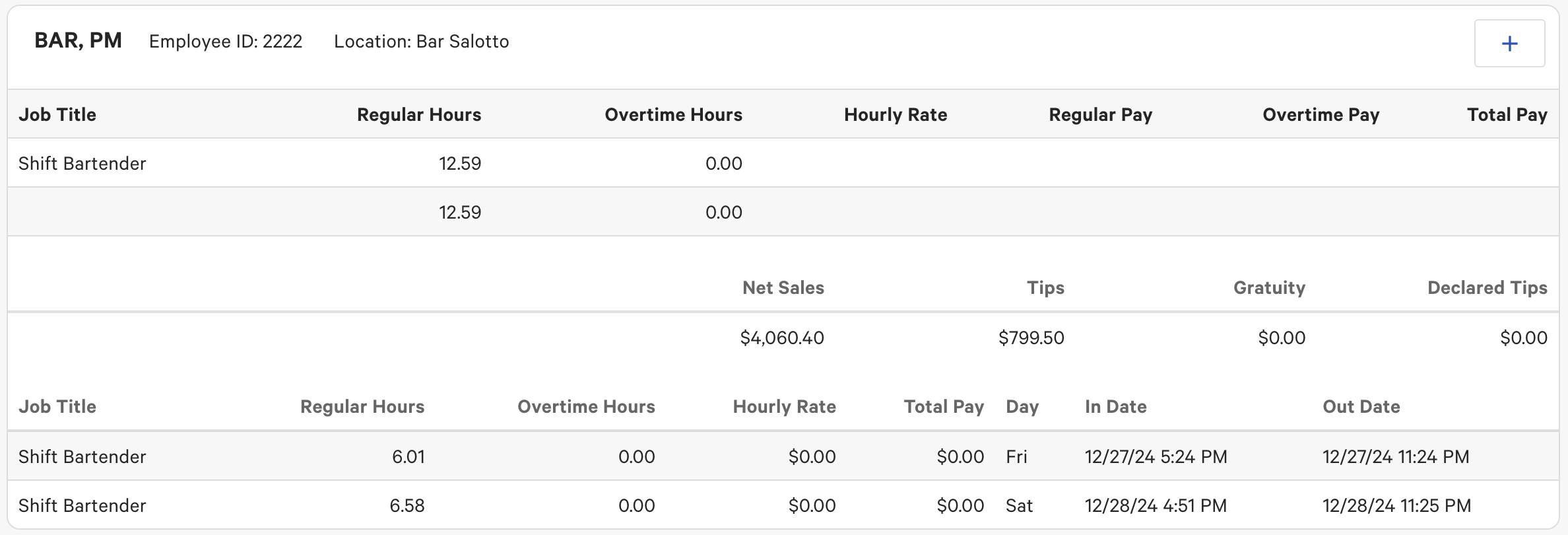
When you use Toast Tips Manager or direct sync, the first place tips appear in Toast Payroll is on an employee's timesheet. Tips are broken down by shift and by the specified earning code.
Bring tips from POS to Payroll
There are three methods to move tips from Toast Web into Toast Payroll. Choose based on whether you pool tips and how much automation you want.
| Method | Best for | Automation |
|---|---|---|
| Toast Tips Manager | Pooled or shared tipouts with defined rules | Fully automatic gather, pool, and distribute; tips can be retracted from payroll for adjustments |
| Direct sync | No tip pooling — each employee keeps their own tips | Tips sync from Toast Web to Toast Payroll automatically once the employee clocks out; approved when the timesheet is approved |
| Manual entry | Small staff or one-off adjustments | None — users enter tip amounts directly into payroll |
Toast Tips Manager
If your business uses pooled tipouts, Toast Tips Manager automatically gathers, pools, and distributes tips per the rules you set, and can retract tips from Toast Payroll if a correction is needed.
Direct sync
Often used when there are no tip pooling policies. Each employee's own tips (declared cash, non-cash, or both) sync from Toast Web to Toast Payroll after they clock out. Tips do not need to be approved separately in Toast Web — only in Toast Payroll, when the full timesheet is approved. If automatically approved timesheets is enabled, direct-sync tips are approved when you select Start Payroll on the Preview Payroll step.
Manual entry
No automation, but full control. Useful for small staff or one-off corrections. Time-consuming for large staff. See Adding or Editing Earnings and Deductions for the steps.
Tip reporting in Toast Web and Toast Payroll
Use this table to find the right report for the question you are trying to answer.
| Question | Where to look | How to get there |
|---|---|---|
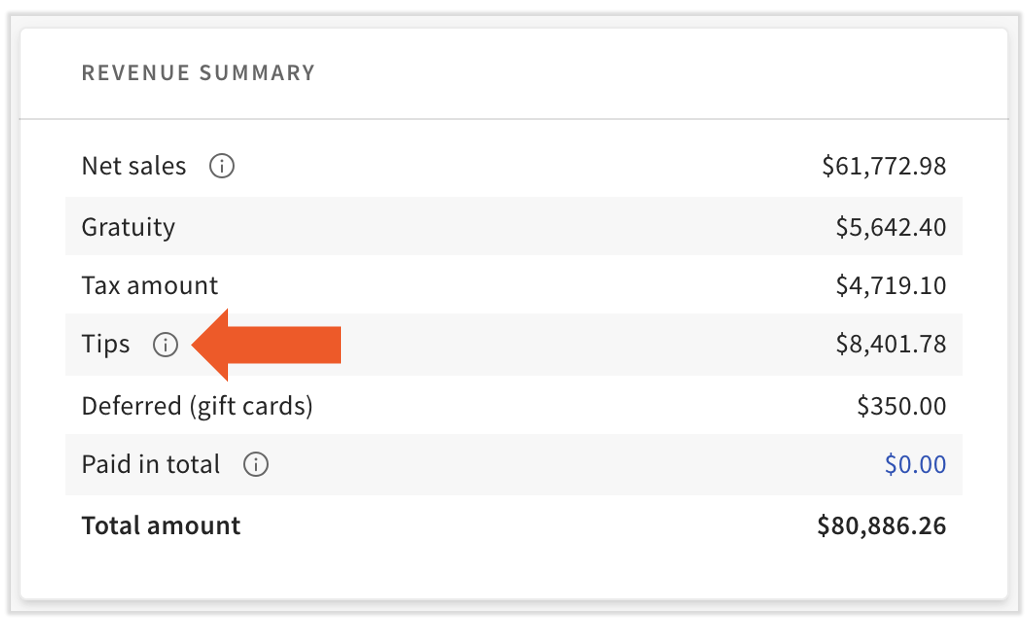
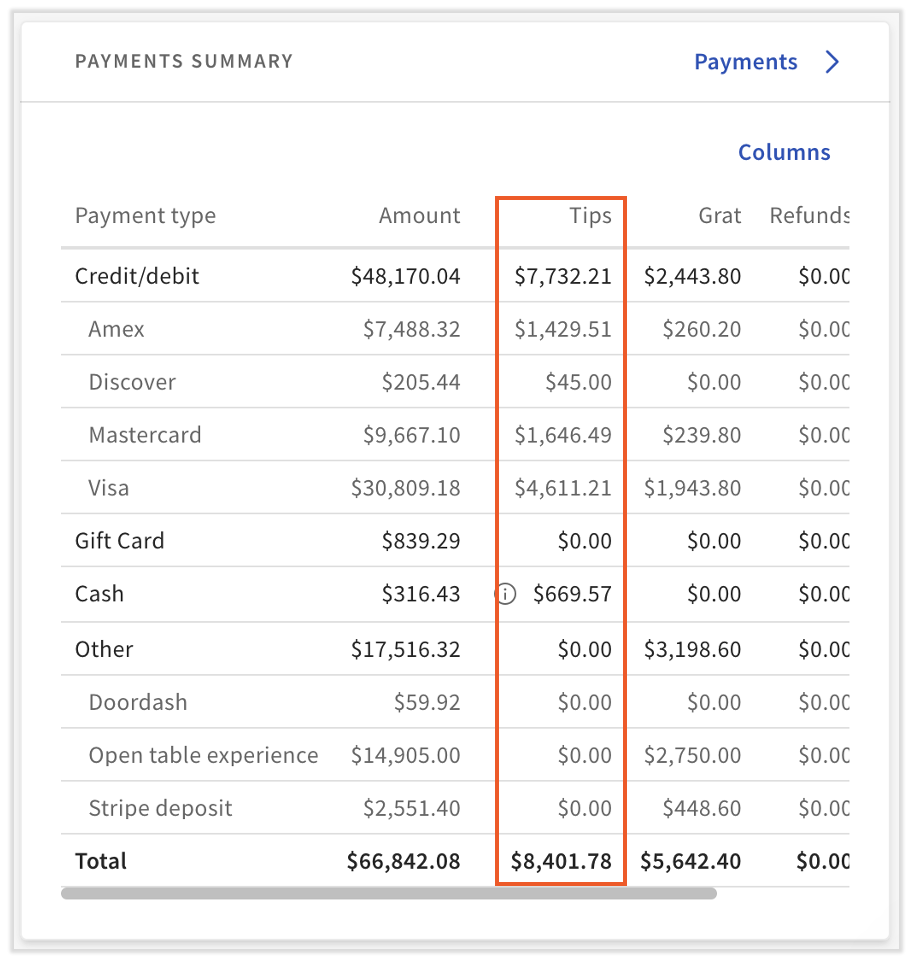
| Total tips by day or by payment source | Sales summary (Toast Web) | From the Toast Web dashboard, in Quick Actions, select Sales summary, then set the date range. |
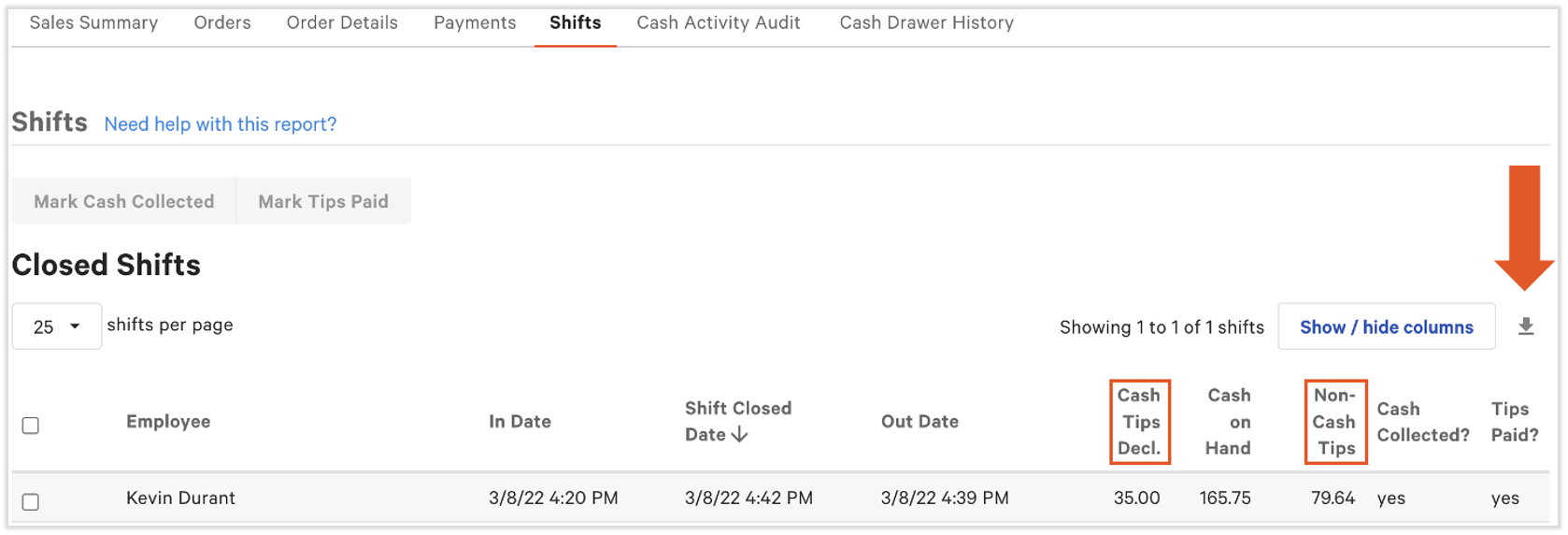
| Cash and non-cash tips per employee shift | Shifts report (Toast Web) | Navigate to Reports > Labor > Shifts. The Closed Shifts section lists each employee with cash tips, non-cash tips, and other shift review data. Select the download icon to export. |
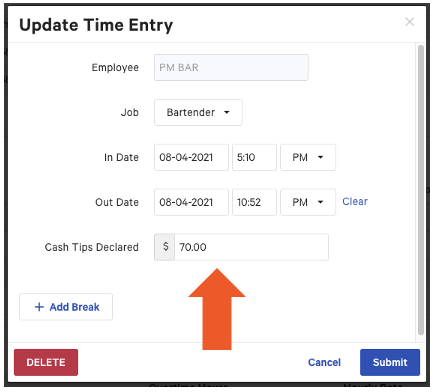
| View or update declared (cash) tips for an employee | Labor summary (Toast Web) | From the Toast Web homepage, in Quick Actions, select Labor summary. Scroll to Employee Summary and select a shift from the bottom of an employee's card to edit the Cash Tips Declared field. |
| Tip pooling totals and distribution | Tip management report (Toast Web) | Navigate to Reports > Labor > Tip management. Used together with Toast Tips Manager. |
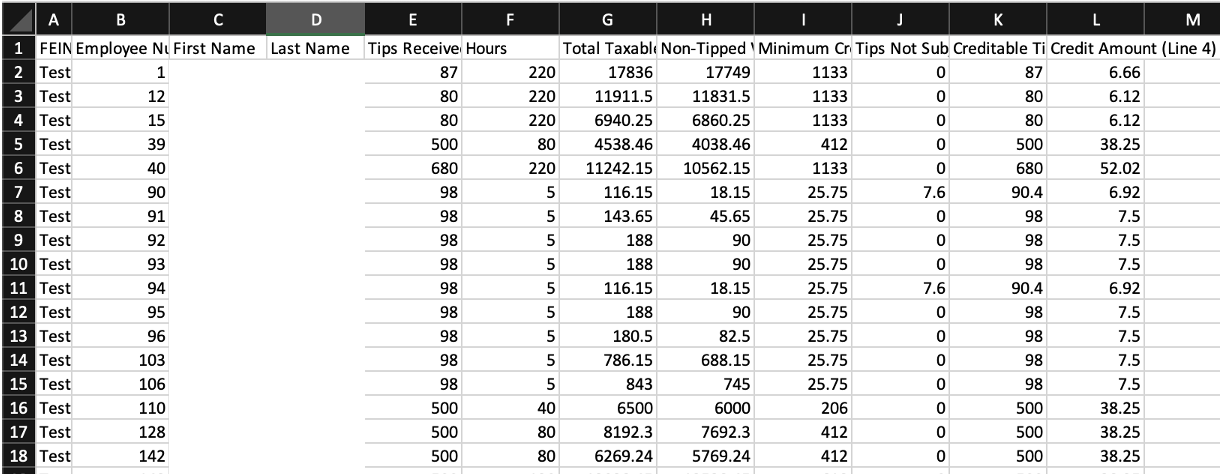
| Tipped wages and FICA tip credit (post-payroll) | Report Library (Toast Payroll) | In Toast Payroll, open the Report Library. The Standard Report Library includes the FICA Tip Credit Report; you can also build custom reports with custom fields and filters. |
Known limitations
- Undeclared cash tips cannot be tracked. The system relies on employee cash tip declarations during shift review for full accuracy.
- Non-cash tips can only be adjusted on the same business day. Once a payment has been batched or captured overnight, the tip can no longer be adjusted on the POS.
- Toast Tips Manager cannot reuse one earning code across different tip types. Each tip type needs its own earning code when Tips Manager is in use.
- Toast cannot advise on tip pooling policy. All Toast Payroll customers have access to the HR Toolkit through Mineral. See Toast Payroll: Expert-Led Training Sessions and the HR Toolkit FAQs, or refer to the U.S. Department of Labor and your state wage-and-hour agency.
Frequently asked questions
What is the difference between Tips Owed and Tips Paid?
Tips Owed is money the employee has not yet received — it is paid through the paycheck. Tips Paid is money the employee has already received outside of payroll (typically cash at end of shift); it appears on payroll only for tax reporting and is not added to the net total.
Is gratuity included in a server's tips on payroll?
Gratuity or mandatory gratuity is a service charge paid to an employee — not a tip. On payroll it is reported as non-tipped wages, not under a Tips Paid or Tips Owed earning code. The exact handling depends on whether your service charge is configured to assign to the check owner. To check that setting, in Toast Web navigate to Finance > Related > Settings > Service charges & fees, select the service charge by name, and review the Assign to check owner option. See Get Started With Service Charges and Mandatory Gratuity for full configuration steps.

How do I switch from paying tips in cash to paying them through payroll?
In Toast Web, navigate to Employees > Shift review > Advanced shift review setup. Under Payout options, change Non-cash tips (and/or Gratuities (service charges)) from Pay out from the cash drawer to Pay out through payroll. After the change, the affected tips appear on payroll under a Tips Owed earning code instead of a Tips Paid code. For step-by-step screenshots, see Change Shift Review Tip Out Settings.
Why does a tipped employee's timesheet show $0 in the tip column?
Common causes include: the employee's job is not configured as a tipped job; tips did not sync from Toast Web (direct sync issue); declared cash tips were not entered during shift review; or the Tips Manager pooling rules excluded the employee. For a full troubleshooting walkthrough, see Toast Payroll: Tips Not Syncing from Toast Web.
Can employees take cash tips home and declare them?
Yes. In Toast Web, set Payout options > Non-cash tips to Pay out from the cash drawer (so the cash leaves with the employee at end of shift) and set Declare cash tips to Tipped employees must declare cash tips. Declared cash tips will appear on payroll under a Tips Paid earning code — for tax reporting only, since the employee already received the money.
Can I reallocate a tip from one employee to another?
If the check is from the same business day and has not yet been batched, edit the tip on the POS. If the check has been batched, options depend on the method you use to bring tips to payroll: in Toast Tips Manager, retract and re-pool the tip; in direct sync, edit the declared amount in Labor summary on the affected shifts.
How do I determine the right tip policy for my restaurant?
Toast cannot advise on appropriate tip pooling for your restaurant. All Toast Payroll customers have access to the HR Toolkit with Toast's partner Mineral. See Toast Payroll: Expert-Led Training Sessions for an on-demand Toast Classroom on the HR Toolkit, and the HR Toolkit FAQs. You can also consult the U.S. Department of Labor and your state wage-and-hour enforcement agency.
How do I troubleshoot tips that look wrong?
Tips can come from several places in Toast and use different sync methods, so the right troubleshooting article depends on your setup:
- Setting Up and Troubleshooting Tip Options for Online Ordering
- Get Help With Tip Discrepancies in Reporting (Toast Web)
- Tips Receipt and Tip Policy Preview (Tips Manager method)
- Toast Tips Manager FAQ
- Toast Payroll: Tips Not Syncing from Toast Web (direct sync method)
Related articles
- Get Started With Service Charges and Mandatory Gratuity
- How to Create a Service Charge
- Get Started With Toast Tips Manager: How to Pool and Share Tips
- Change Shift Review Tip Out Settings
- Toast Payroll: What are Earning Codes
- Toast Payroll: Managing Timesheets
- Toast Payroll: Enhanced Payroll Preview
- Toast Payroll: Add or Edit Earnings & Deductions
- Toast Payroll: Report Library
- Get Help With Tip Discrepancies in Reporting
- Toast Payroll: Tips Not Syncing from Toast Web
- Calculate Tip Before or After Taxes
- Receipts: Display Suggested Tip Amounts
- Tip Withholding
This content is for informational purposes and is not intended as legal, tax, HR, or any other professional advice. Please contact an attorney or other professional for advice.