Toast Tips Manager Reporting
Last updated: Oct 16, 2026, 12:37 PM
| Toast Tips Manager is an add-on feature currently available for U.S. customers only. It is not currently available in Australia, Canada, Ireland, or the UK. |
- Before you begin
- Locate tip breakdowns
- Tip Management report — Landing Page (date range overview)
- Tip Management report — By Day (per-employee for one date)
- Tip Management report — Employee Receipt (calculation math)
- Approve and send tips to payroll
- How Tip Management compares to Sales Summary
- Frequently asked questions
- Before you contact Customer Care
- Related articles
Before you begin
Note: Toast Tips Manager is a paid subscription exclusively available in the US and is not available for customers in Australia, Canada, Ireland, or the UK.
The Tip Management report lives in Toast Web at Reports > Labor > Tip management.
To view any level of tip management data, your user role must include permission 4.1 Sales Reports in Toast Web. See Access Permissions Reference for how permissions are assigned.
You also need:
- An active Toast Tips Manager subscription.
- A configured Tip pooling policy for this location.
- Sales and time-entry data on the dates you want to report. The report cannot show tip pools for a day that has no clock-ins or no sales.
If you use Toast Payroll, you also need to have completed the Toast Tips Manager With Toast Payroll integration mapping. Until that is done, the Send to payroll button does not appear.
If anything in your tip pool looks off, confirm two inputs first:
- Time entries. Open Time Entries and check that every employee clocked in and out on the right job for the right date and time. Tip pool eligibility flows from the clock-in.
- Tip pooling policy. Open the Tip pooling policy page. The Tip Management report updates as soon as you save a change there, but only for days that have not yet been approved or sent to payroll.
Locate tip breakdowns
| What you want to find | Use this view | How to get there |
|---|---|---|
| Total tips and gratuity for a date range, with status of each day | Landing page | Reports > Labor > Tip management (this is the landing page) |
| All employees' tips for a single date, before and after pooling | By Day | From the landing page, select anywhere on a date's row (not the checkbox) |
| The calculation math behind one employee's tips on one date | Employee Receipt | On the landing page, select the date and then select the employee's name |
| Tips for one specific employee | Landing page > select the specific date report with the Daily breakdown filter | On the landing page, select the date and then select the employee's name |
| The "daily breakdown" or "daily view" of tips | By Day (this is the daily breakdown) | From the landing page, select a date's row |
| Pre-pooled vs post-pooled totals | Landing page downloaded report | On the landing page, select anywhere in the date's row or download the tip management report by selecting the arrow symbol pointing downwards in the top right corner |
Tip Management report — Landing Page (date range overview)
From the tip management landing page, view the Tip Management report when you want totals for a date range — for example, "How much did this restaurant pay out in tips last pay period?" or "Which days are still in progress and which have been sent to payroll?"
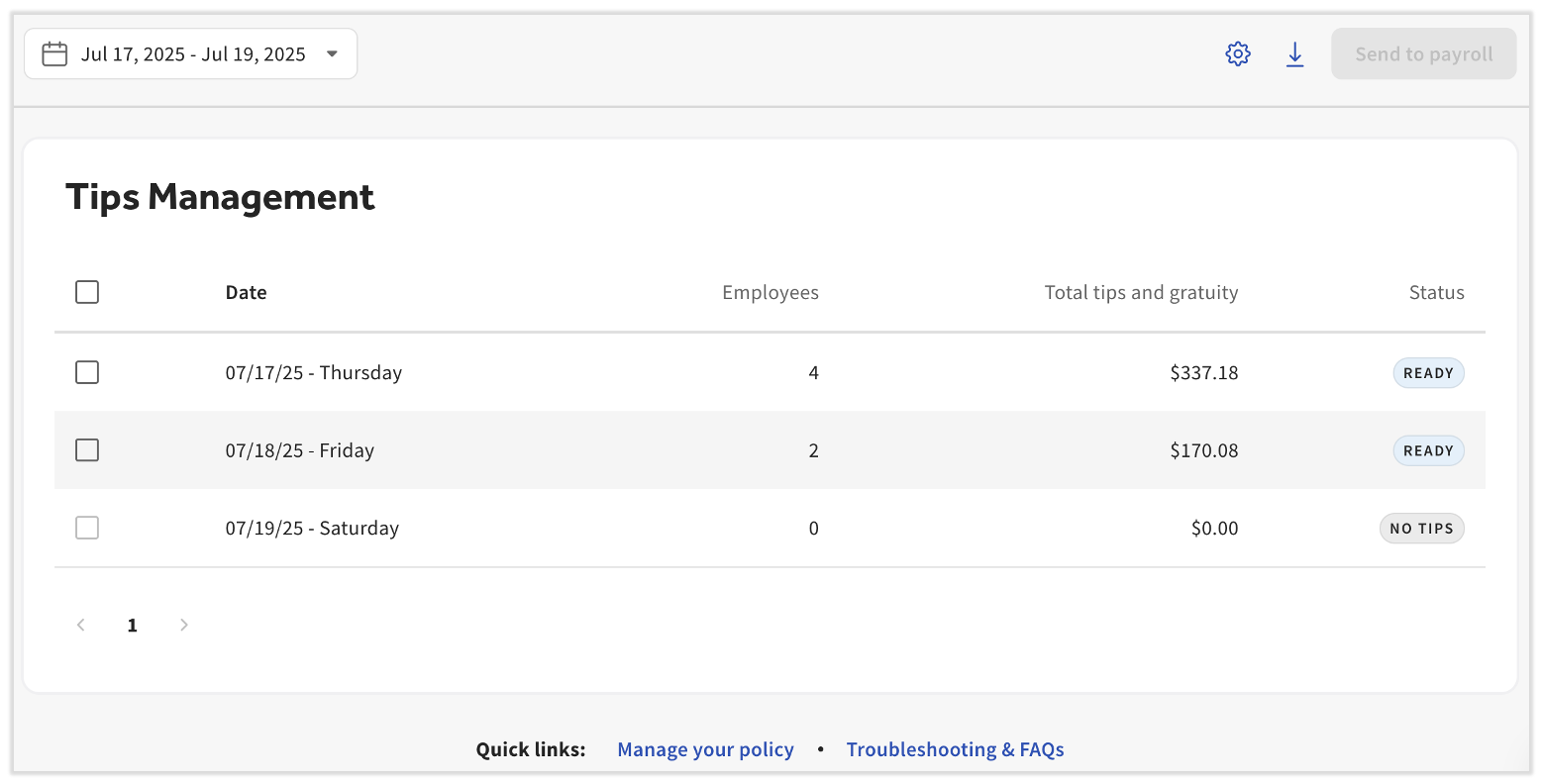
View totals by date range
- In Toast Web, navigate to Reports > Labor > Tip management. The landing page view opens by default.
- Select a single date or a date range using the calendar drop-down menu in the upper-left corner. The maximum range is one month.
- Review the columns. The default columns are:
- Date — Business date for the row. Toast calculates the business day based on payment-capture timing (the default cutoff is 4:00 a.m. to 4:00 a.m., even though the report header may read 12:00 a.m. to 12:00 a.m.). Late-night businesses see a shift's tips on the day the shift began.
- Employees — The number of employees included in that day's tip pool, even when the tip pooling interval is set to Service Period.
- Total tips and gratuity — The total dollar amount of tips and gratuity processed for the date.
- Status — The current state of the tips for that day. See Approve and send tips to payroll for what each status means and how to move between them.
Expected outcome: A row for each date in your selected range, with totals and a status. Days with no clock-ins or no sales do not appear.
Tip Management limitations
- You cannot select a future date. Toast blocks future dates to prevent approving tips that are still being collected.
- You will see no rows if the Tip pooling policy is not configured for this location, or if the date range has no clock-in or sales data.
- The report shows only the location selected in the primary navigation. Each location's Tip Management report is based on that location's own tip pooling configuration.
Download the Tip Management report
- Select either the date range or the individual checkboxes for the dates you want to include.
- Select the download icon in the upper-right corner. The downloaded report includes pre-pooled tip amounts and tips broken out into source categories (cash tips, non-cash credit card tips, and so on). The downloaded report also includes a column named Applied Tip Adjustment which captures any manual entries made to the Additional tips (non-cash) earned field on an Employee's tip calculation page.
- To customize what the export contains, select the gear icon next to the download icon to open the filter sidebar. You can select Reset at any time to restore defaults or Apply to use the filters. Filters persist until you clear your browser cache or switch browsers. Available filters:
- Name format — Switch between the default and Last name, First name to match other Toast reports.
- Organize tips by — Employee + Job title breaks an employee's tips out by job; Employee combines all of an employee's tips into one total.
- Date breakdown — Sum of dates selected combines all selected dates into one row; Daily breakdown keeps one row per day. Use Daily breakdown when you need per-employee daily figures, such as for an alternate payroll system.
- Column selection — Select which columns to include. Useful for uploading into a non-Toast payroll system or for an employee who wants their own Employee Receipt download.
Expected outcome: A .csv file downloads to your browser containing the rows you selected, formatted with the filters applied.
Tip Management report — By Day (per-employee for one date)
Use the By Day view when you want all employees' tips for a single date, including before-pooling and after-pooling figures. This is also the right view for "show me tips per employee on [date]" or "the daily breakdown."
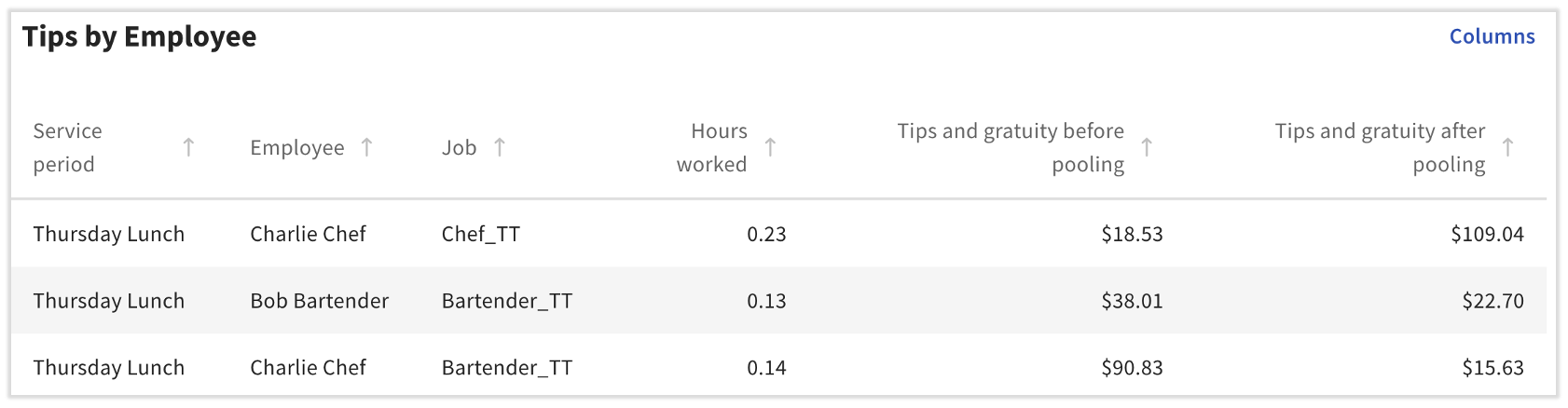
View tips for one date
- From the Top Level view, select anywhere on the date's row except the checkbox. The By Day view opens for that date.
- Review the high-level overview at the top:
- Date — The business date. The By Day view supports only one day at a time.
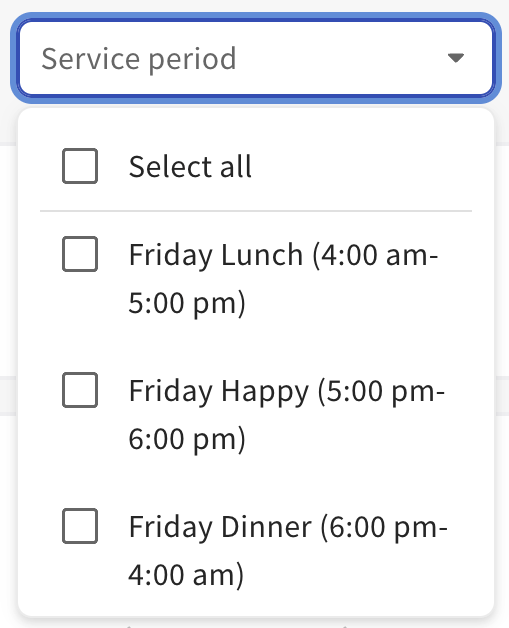
- Service periods (shifts) — A drop-down menu. If your tip pooling interval is Full workday or Order, this menu reflects the entire day and cannot be changed. If your interval is Service Period, select the service period(s) you want to view. To change the menu options, update hours/services at Reports > Settings > Hours/services.
- Organize tips by Employee/Job — A toggle that re-keys the page. With the Service Period interval, the toggle shows the service periods you have selected.
- Tips and gratuity in pool — Total dollars distributed in the selected interval.
- Employees in pool — Count of employees included in the interval.
- Scroll to the Tips by Employee section. Each row is one employee with these default columns:
- Service period (only if you use the Service Period interval) — The shift the tips are associated with.
- Job — The job the employee clocked into.
- Hours worked — Hours worked by the employee on this date.
- Tips and gratuity before pooling — Tips and gratuity collected directly through checks assigned to the employee.
- Tips and gratuity after pooling — Tips and gratuity earned by the employee once the tip policy rules are applied.
- Select Columns in the upper-right of the Tips by Employee tile to add columns. You can break out specific tip and gratuity columns and add tip-withholding amounts.
Expected outcome: A list of every employee in the tip pool for the selected date, with hours and before/after pooling totals.
Note: The tip pooling report extends the start of the first service period and the end of the last service period to the business day cutoff time. This catches tips on orders that fall outside configured service hours.
Note: Employees can see their own tip reports if they have permission 4.1 Sales Reports enabled. You can restrict which reports they see using Shift Review Report Configurations. See Customize Shift Review Settings.
Download the By Day report
- With the By Day view open, select the download icon in the upper-right corner. This produces a report of the data on screen.
- To customize what the export contains, select the gear icon next to the download icon. You can select Reset to restore defaults or Apply to use the filters. Available filters:
- Name format — Switch between the default and Last name, First name.
- Organize tips by — Employee + Job title or Employee.
- Breakdown (visible only with the Service Period interval) — Full day combines service periods; By service keeps service periods separate.
Expected outcome: A .csv file downloads with the per-employee detail for the selected date.
Tip Management report — Employee Receipt (calculation math)
Use the Employee Receipt when you need to validate why a specific employee earned a specific dollar amount on a specific date. The receipt shows the math: which pools the employee was part of, what was contributed, and what was received.
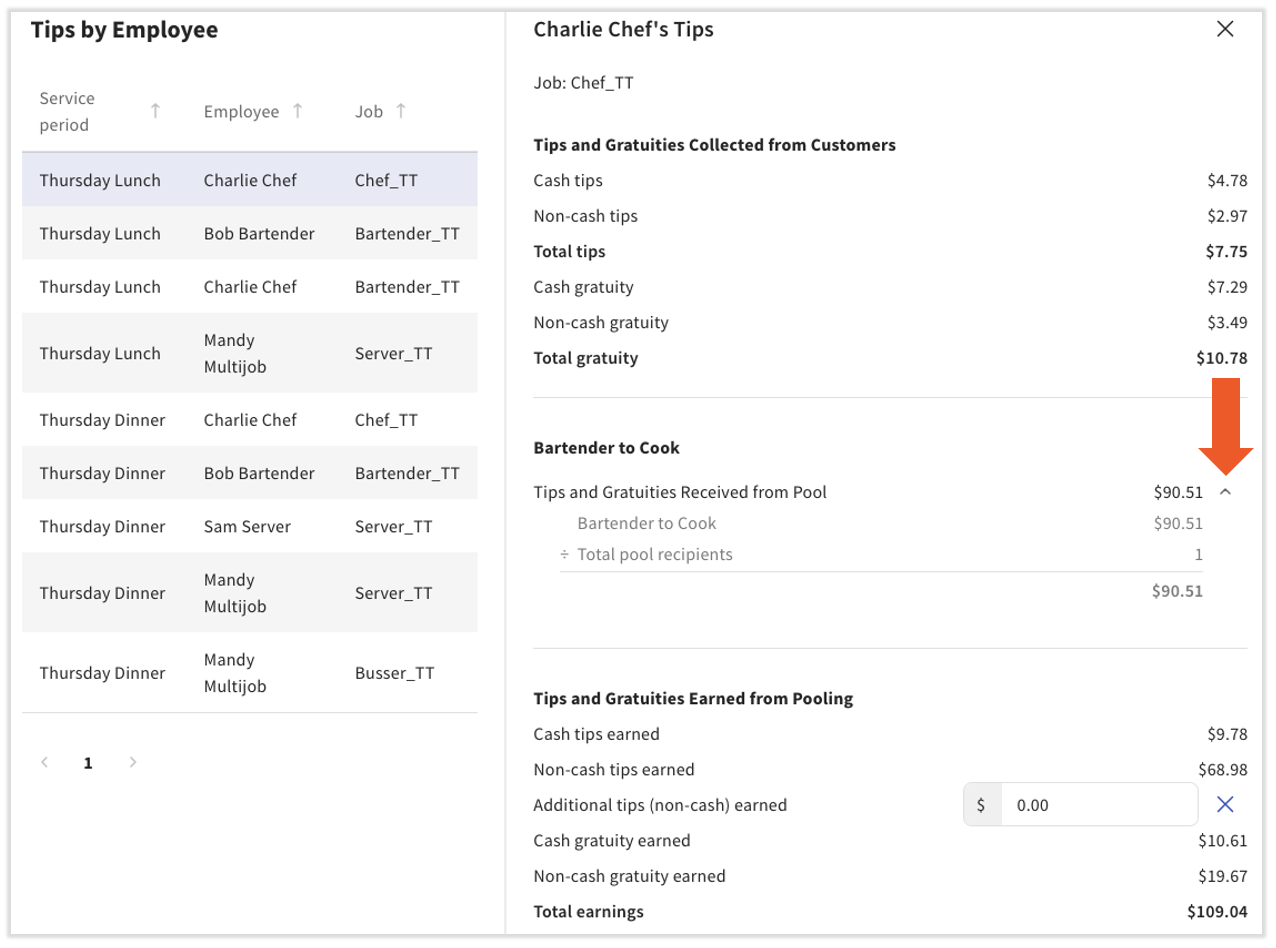
View one employee's tip math
- In Toast Web, navigate to Reports > Labor > Tip management.
- Select a date's row on the landing page view to open the By Day view.
- In the By Day view, select an individual employee. The Employee Receipt opens.
- Select the v caret icon next to a pool to expand it. For each pool the employee is in, Toast shows the mathematical breakdown of what is being contributed and what is being received.
- Select Close in the bottom-right corner to return to the By Day view.
Expected outcome: A receipt-style breakdown of every pool the employee is part of, with a final tip total that matches the Tips and gratuity after pooling column on the By Day view.
Download an Employee Receipt
To download Employee Receipt-level information, return to the landing page view, select a single date, then select the download icon. The Employee Receipt details are part of that download.
Approve and send tips to payroll
The status column on the Top Level view tracks where each day's tip pool is in the workflow. Tips move through these states:
- In Progress — Usually appears for the current date. Employees have not yet clocked out, or business hours are not complete. Calculations are not final.
- Ready — Calculations are complete and ready for review.
- Approved — You have approved the tips. Policy or shift edits will not change the tip pool unless you unapprove the day first. (Toast Tips Manager only.)
- Sent to Payroll — The pool has been sent to Toast Payroll and is locked. Policy or shift edits will not change the tip pool unless you unsend the day first. (Toast Payroll customers only.)
The button in the upper-right corner of the landing page view changes based on what's selected and what product modules you have:
- Validate settings — Appears if you have not yet sent tips to Toast Payroll or approved tips for the first time. (This button was previously named Complete setup.) See Toast Tips Manager With Toast Payroll.
- Approve tips — Appears once setup is validated. To approve multiple days at once, select multiple checkboxes before selecting the button.
- Send to payroll — Appears for Toast Payroll customers when at least one selected day is in Ready status.
Approve tips for one or more days
- On the landing page view, select the checkbox(es) for the day(s) you want to approve. Days must be in Ready status.
- Select Approve tips in the upper-right corner.
Expected outcome: The status updates to Approved for each selected day. The button changes to Unapprove tips when an approved day is selected.
Send approved tips to payroll (Toast Payroll customers)
- In the Top Level view, select the checkbox(es) for the day(s) you want to send. Days must be in Ready status.
- Select Send to payroll in the upper-right corner.
Expected outcome: The status updates to Sent to Payroll. The button becomes Unsend from payroll when a Sent-to-Payroll day is selected.
Unapprove or unsend tips
If you need to fix a time entry, change the tip pooling policy, or correct a mistake on an already-approved day, you must reverse the status first. Note: Tips can only be unsent if the timesheets in Toast Payroll are open/unapproved and payroll has not been started. If tips needs to be unsent and timesheets were approved, all employee's timesheets in the pool for that date must be reopened.
- On the landing page view, select the checkbox(es) for the affected day(s).
- Select Unapprove tips (Toast Tips Manager) or Unsend from payroll (Toast Payroll). The status returns to Ready.
- Make your time entry or tip pooling policy changes.
- Reapprove or resend the day.
How Tip Management compares to Sales Summary
The Sales Summary at Reports > Sales > Sales summary provides another window into tips, but the numbers are not directly comparable to the Tip Management report. The most common reconciliation question is "Why don't my Tips Manager totals match my Sales Summary?" — see the Frequently asked questions.
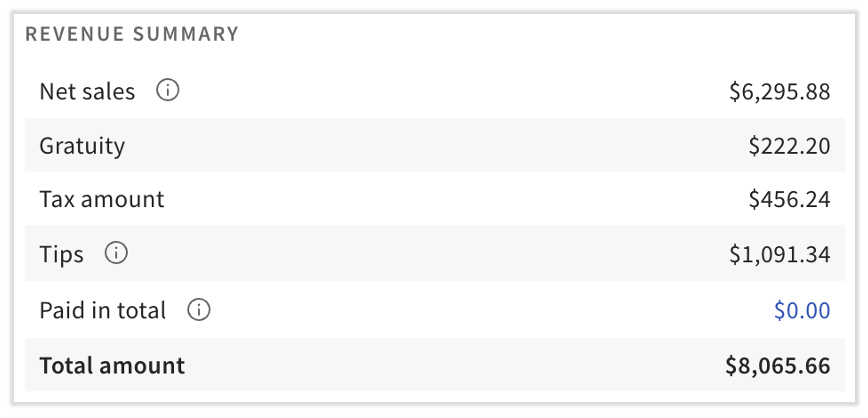
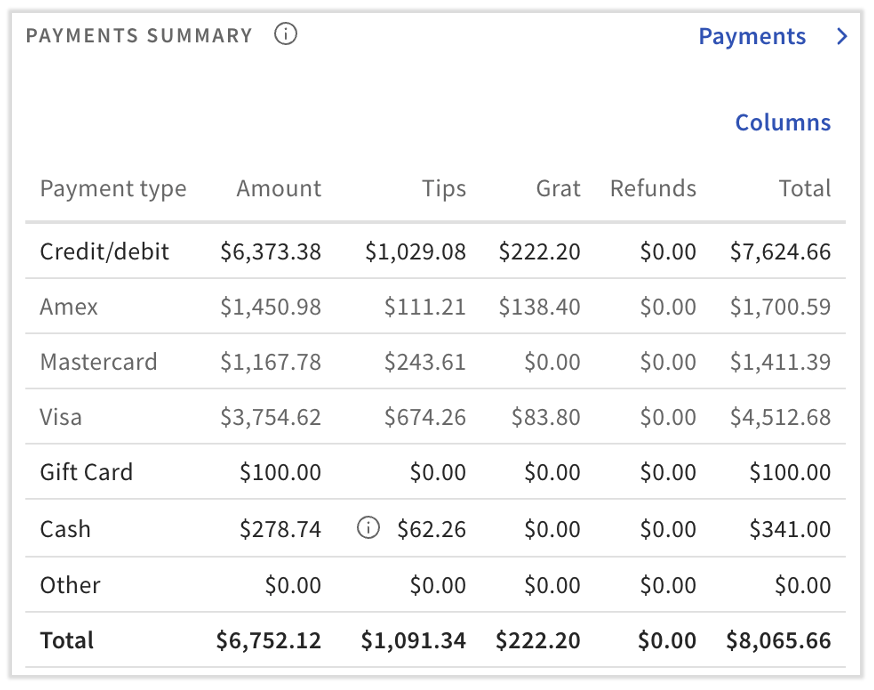
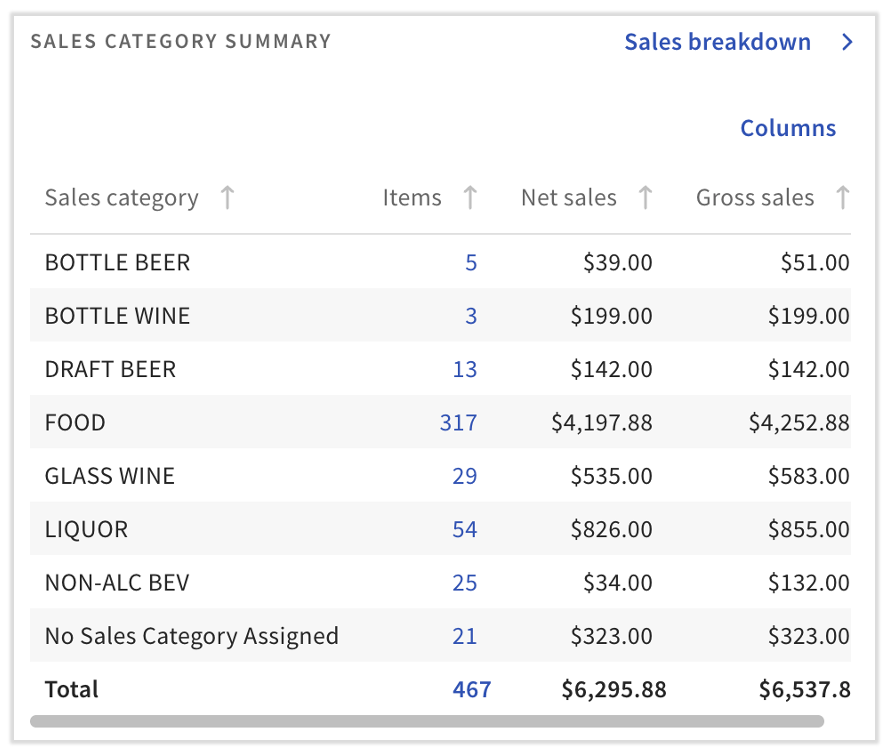
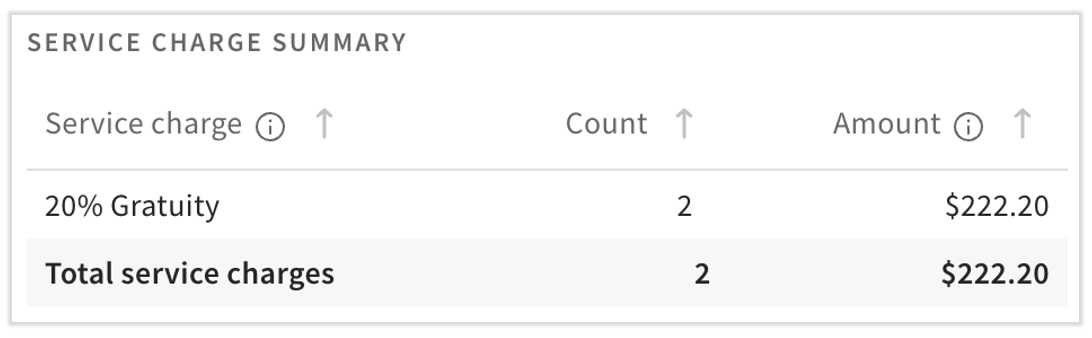
The Sales Summary tables most relevant to Tips Manager:
- Revenue Summary table. The Tips line is a pre-pooled amount. The Tip Management report shows post-pooled amounts (and pre-pooled amounts on the sales summary landing page download).
- Payment Summary table. Does not include real-time payments from future orders, current open orders, customer invoicing, catering online orders, or third-party online orders. Sales or tips from non-profile sources (such as customer invoicing without a server profile) are also excluded.
- Sales Category Summary table. Useful for tip policies that contribute based on sales category percentages. If you see No Sales Category Assigned, select the Items hyperlink to find the items that need a category.
- Service Charge Summary table. Shows mandatory gratuity and employer-kept service charges. See Mandatory Gratuity and Service Charges in Toast POS and Payroll.
Frequently asked questions
Why is the pooled tips area empty for a date?
The most common causes are:
- The Tip pooling policy is not configured for this location.
- There are no clock-ins on the date, or no sales captured on the date.
- The wrong location is selected in the primary navigation. Each location's Tip Management report is based on that location's own configuration.
- No employees in the tip pool worked the qualifying jobs or hours defined by the tip pooling policy.
Why don't my Tips Manager totals match my Sales Summary?
The Sales Summary's Tips line in the Revenue Summary table is a pre-pooled amount. The Tip Management report's totals are post-pooled. For a true comparison, download the Tip Management report — it includes both pre-pooled and post-pooled figures. The pre-pooled amount on the Tip Management report should match the tips/gratuity total on the Sales Summary. If the pre-pooled totals still differ, see Get Help With Tip Discrepancies in Reporting.
Additionally, tips on future orders will show on the paid date on the Sales Summary, but in Tips Manager, they will show on the scheduled sales date. If you have future orders, this could be a reason why tip totals don't match between the Sales Summary and Toast Tips Manager.
Can I adjust an employee's tips after the day is approved?
Yes, as long as the timesheets in Toast Payroll have not been approved. Follow these steps:
- From the tips management landing page view, select the affected day's checkbox.
- Select Unapprove tips (Toast Tips Manager) or Unsend from payroll (Toast Payroll). The day returns to Ready status.
- Edit the relevant time entry or tip pooling policy. The Tip Management report updates as soon as you save.
- Reapprove or resend the day.
Why doesn't the Tip Management report update in real time?
The Tip Management report does not calculate tips in real time. The report is designed for reviewing and finalizing tip pools after the business day is complete. When a check is first closed with a tip, the tip usually appears in the report shortly after. If the check changes afterward, such as a tip amount edited during shift review or a new server assigned to the check, the report can take 30–60 minutes to show the updated Tips and gratuity before pooling amount.
To keep tip pool calculations accurate:
-
- Make sure every employee clocks out at the end of their shift. Tips Manager needs a clock-out to use an employee's tips, and open shifts can affect calculations.
- Review and finalize tip pools after the business day is complete. Tips Manager calculates through the close of business, so amounts can change with each shift review completed during the day.
- Approve a day only when you're ready to lock it. Until a day is approved or sent to payroll, the report recalculates when time entries, jobs, servers, or tips change, even after the day is over. Once a day is approved or sent to payroll, its calculations are locked.
If the report regularly takes longer than one day to update, or a change still doesn't appear well after the 30–60 minute window and every employee has clocked out, contact Toast Customer Care. A screenshot of the report helps Customer Care review the issue faster.
Can I limit which employees can see tips reports?
Yes, by combining two settings:
- Permission 4.1 Sales Reports in Toast Web controls whether an employee sees tips reports at all.
- Shift Review Report Configurations lets you select which specific reports employees with that permission can view. See Customize Shift Review Settings.
Why isn't a specific job (busser, owner, training employee) showing tips?
Tip pool eligibility is set on the Tip pooling policy page, not on the Tip Management report. Confirm:
- The job is listed as a contributor or recipient in the tip pooling policy.
- The employee clocked into the right job for the date in question.
- The employee was on the clock during the qualifying tip pool interval (Full workday, Order, or Service Period).
If the job is configured correctly and the employee still does not appear, return to the Tip pooling policy page to review the contributor and recipient lists.
How do I find tips for one specific employee over a custom date range?
- On the landing page view, select the date range or checkboxes for the dates you need.
- Select the gear icon to open filters.
- Set Date breakdown to Daily breakdown and Organize tips by to Employee (or Employee + Job title if the employee works multiple jobs).
- Select Apply, then select the download icon to export the .csv.
- Filter the .csv to the employee in question.
For tips spanning the most recent workweek, see Review Employee Tips From Last Week.
Where do I see the math behind a single employee's tip amount?
Open the Employee Receipt. From the landing page view, select a date's row. From the By Day view, select the employee's name. Expand each pool with the v caret icon to see the contribution and receipt math.
Before you contact Customer Care
Most tip-reporting questions can be answered using the steps above. If you still need to contact Customer Care, gather the following first to speed up resolution:
- The date or date range in question.
- The location name and the location selected in the primary navigation when you ran the report.
- The specific dollar figures you expected vs the figures shown in the report.
- Screenshots of the landing page view and, if relevant, the By Day view and the Employee Receipt for the affected employee.
- A screenshot of the Sales Summary's Revenue Summary if your question is about a Tips Manager vs Sales Summary mismatch.
- The employee name and job title if the question is about a single employee.
- Whether the day's status is In Progress, Ready, Approved, or Sent to Payroll.
- Steps you have already tried, including whether you have unapproved and reapproved the day.
- If the report isn't updating: what you changed (for example, a tip edited during shift review) and when you made the change.
If your question is specifically about tips not syncing to Toast Payroll, see Toast Payroll: Tips Not Syncing From Toast Web before contacting Customer Care.
Related articles
- Plan Your Tip Pooling Policy
- Get Started With Toast Tips Manager
- Toast Tips Manager With Toast Payroll
- Toast Tips Manager and Online Ordering
- Get Help With Toast Tips Manager
- Customize Shift Review Settings
- Mandatory Gratuity and Service Charges in Toast POS and Payroll
- Setup Restaurant Hours and Services
- Access Permissions Reference
- Tips Manager On-Demand classroom video
- Register For a Live Classroom
The federal government outlines tip pooling regulations in the Fair Labor Standards Act (FLSA). State and local governments may have their own regulations. Before setting up tip pools or shares for your restaurant in Toast Web, consult an HR professional and consider federal, state, and local laws when defining your restaurant's tip policy and distribution rules.
This content is for informational purposes and is not intended as legal, tax, HR, or any other professional advice. Please contact an attorney or other professional for advice.