Get Started With Service Charges and Mandatory Gratuity
Last updated: Oct 8, 2026, 11:58 AM
Learn what service charges and mandatory gratuity are in Toast, how they differ from tips, where to configure them, and where they appear on the POS, in reporting, and in Toast Payroll.
- TLDR — Service Charges, Mandatory Gratuity, and Tips
- Tips, Service Charges, and Mandatory Gratuity at a Glance
- What These Charges Are
- Which Cluster Does This Apply To?
- Before You Configure
- Configure an Employer-Kept Service Charge
- Configure Mandatory Gratuity (Auto-Gratuity)
- Auto-Apply a Service Charge or Gratuity to a Service Area
- Service Charges and Mandatory Gratuity on Toast POS
- Service Charges in Toast Web Reporting
- Mandatory Gratuity in Toast Tips Manager
- Mandatory Gratuity in Toast Payroll
- What Stops This From Working
- Frequently Asked Questions
- Related Articles
TLDR — Service Charges, Mandatory Gratuity, and Tips
A service charge is an additional fee added to a guest's check. The single most important setting on a service charge is Assign to check owner (Gratuity?) in Toast Web.
If Assign to check owner (Gratuity?) is set to Yes, the charge becomes a mandatory gratuity (also called auto-gratuity or auto-grat). It is paid to the employee who owns the check as non-tip income.
If Assign to check owner (Gratuity?) is set to No, the charge becomes an employer-kept service charge. It is part of net sales for the business.
Mandatory gratuity is not a tip. A tip is decided by the customer. A mandatory gratuity is decided by the restaurant and paid to the employee.
You set up both types in the same place in Toast Web: Finance > Related > Settings > Service charges.
Tips, Service Charges, and Mandatory Gratuity at a Glance
Tips, service charges, and mandatory gratuity look similar on a check but are taxed and reported differently. Use this table to identify which one applies before you change a setting or troubleshoot a paystub.
| Type | Who decides the amount | Treated as | Common names in Toast |
|---|---|---|---|
| Tip | The customer | Employee income (tipped wages) | Cash tip (declared cash tip), non-cash tip, CC tip |
| Service charge | The business (line item on the check) | Income to the employer (federal law; state law may differ) unless paid out to an employee | Service charge, delivery fee, large-party fee |
| Mandatory gratuity | The business, paid to the employee | Non-tipped wages (not a tip) | Auto-gratuity, mandatory gratuity, large-party gratuity |
Note: Per the IRS, tips are the property of the employee unless the employee is participating in a valid tip pool. Mandatory gratuity is not a tip even though customers and staff often use the words interchangeably.
What These Charges Are
A service charge is an additional fee that is collected on top of the cost of the goods. Restaurant owners may choose to add a service charge to a check for various reasons, including:
- Large dining party fee (mandatory gratuity)
- Special menu upsell fee
- Banquet event fee
- Cutlery fee
- Hotel room service charge
- Bottle service charge
- Mandated service charge for healthcare
In Toast, there are two distinct types of service charge:
- Employer-kept service charge. A service charge kept by the restaurant. It is not considered income for an employee and is part of net sales for the employer. For compliance guidance on applying a service charge across all forms of payment, see Service Charges Overview.
- Mandatory gratuity. A service charge or part of a service charge that is given to employees. In Toast, this is called a mandatory gratuity. It is different from a tip and is considered non-tip income for the employee. The most common example is automatic mandatory gratuity (auto-gratuity).
The IRS uses four factors to determine whether a payment qualifies as a tip. In many cases, all four must apply:
- The payment must be made free from compulsion.
- The customer must have the unrestricted right to determine the amount.
- The payment should not be the subject of negotiations or dictated by employer policy.
- Generally, the customer has the right to determine who receives the payment.
Note: Some jurisdictions require that businesses that impose a service charge clearly disclose how much, if any, an employee who provides services will receive from the service charge. Some jurisdictions require that if nothing is disclosed, or the disclosure is unclear, the entire service charge must be paid to the employee who provides services to the customer. Verify the requirements in the jurisdictions in which you operate.
Before You Configure
Applies to: Toast Web, Toast POS, Toast Tips Manager (if used), Toast Payroll (if used)
Permissions needed:
- Service charge configuration: 1.10 Add / Update Service Charges to apply the service charges to orders and 6.3 Payments Setup to configure service charges in Toast Web. If you cannot access the service charge area, your role may not include the required permission. Contact a teammate with admin access to have them grant the permission.
What you'll accomplish: Understand what each charge type does, configure one or both correctly, and find each charge in reporting and payroll.
Configure an Employer-Kept Service Charge
An employer-kept service charge stays with the restaurant. For full field-by-field configuration details, see the canonical How-To: Customize Service Charges and Mandatory Gratuity.
The critical setting:
- Assign to check owner (Gratuity?) must be set to No for the funds to go to the employer.
High-level steps:
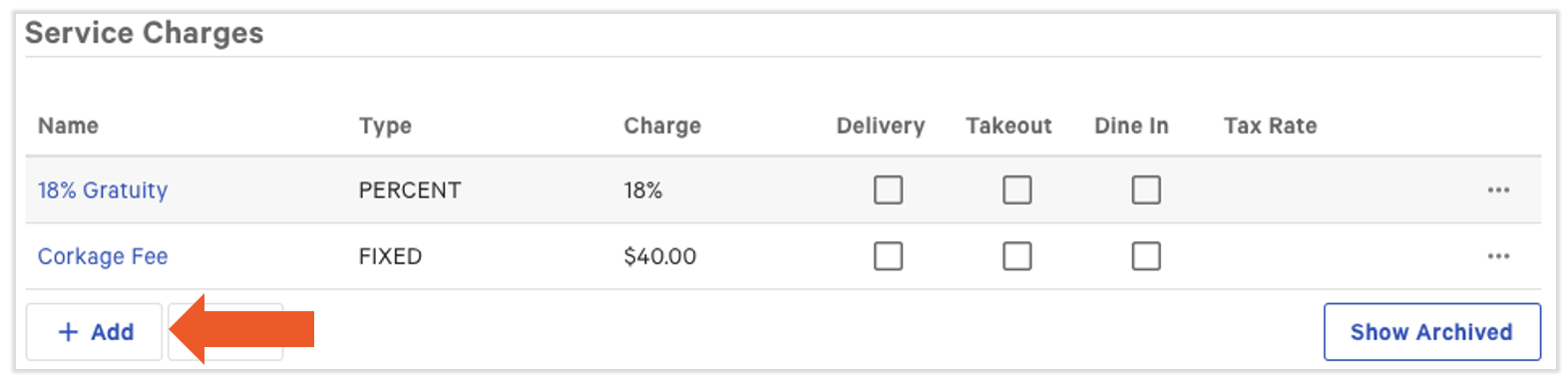
- Log in to Toast Web and navigate to Finance > Related > Settings > Service charges & fees.
- Select + Add to create a new service charge.
- Configure the service charge fields per Customize Service Charges and Mandatory Gratuity, with Assign to check owner (Gratuity?) set to No.
- Save and publish your changes.
Expected outcome: The new service charge appears in the service charge list and can be added to checks on the POS. When applied, it shows as a line item on the bottom of guest checks, separate from taxes and totals, and is reported as business income, not as an employee earning.

Configure Mandatory Gratuity (Auto-Gratuity)
A mandatory gratuity (also called auto-gratuity, auto-grat, or included gratuity) is a service charge designated to the employee(s) providing a guest with products or services. It is non-tip income for the employee.
The critical setting:
- Assign to check owner (Gratuity?) must be set to Yes for the funds to go to the employee.
High-level steps:
- Log in to Toast Web and navigate to Finance > Related > Settings > Service charges & fees.
- Select + Add to create a new service charge.
- Configure the service charge fields per Customize Service Charges and Mandatory Gratuity, with Assign to check owner (Gratuity?) set to Yes.
- Save and publish your changes.
Note: When a service charge is assigned to the check owner (Gratuity? = Yes), the digital receipt tip prompt will always show 3%, 5%, and 7% as the tip options.
Expected outcome: The mandatory gratuity appears in the service charge list. When applied to a check, it does not appear on its own line — it appears within a Fees and Charges section near the subtotal at the bottom of the check. The amount is distributed to the check owner and will flow into Toast Tips Manager (if configured) and into Toast Payroll under the mapped earning code.

Note: Customers in Australia, Canada, Ireland, and the UK will see a Tax Settings menu (with No tax, Tax inclusive, and Tax exclusive options) instead of a Yes/No Taxed? toggle. This enhanced tax handling is in limited release and is planned for US customers in the future.
Note: The default setting for tip calculation is to calculate tip before tax is added to a check. To change this, see Calculate Tip Before or After Taxes.
Auto-Apply a Service Charge or Gratuity to a Service Area
To automatically apply a service charge or mandatory gratuity to specific service areas (for example, the dining room for large parties), follow the canonical How-To: Set Up and Apply Auto-Gratuity.
High-level steps:
- In Toast Web, navigate to Front of house > Service areas & tables > Service Areas.
- Select the desired service area, or select + Add Service Area to create a new one.
- Locate the Auto-Applied Gratuity section and select Yes for the Auto-apply Gratuity? setting.
- Select Select Service Charge and choose one of your existing service charges to apply to tables in this service area. You can also configure the minimum number of guests required at the table for the auto-gratuity to be added to the check (Minimum Party Size).
- Save and publish your changes.
Expected outcome: The selected service charge automatically applies to checks opened in this service area once the table meets the Minimum Party Size threshold.
Important: If a service charge is auto-applied in a service area and is also configured with Apply After Amount Threshold set to $0.01 or more, the service charge will apply in multiple ways. If auto-gratuity is applying when you do not expect it to, see Service Charge or Gratuity is Being Added to Every Check.
Service Charges and Mandatory Gratuity on Toast POS
To add a service charge or mandatory gratuity to a check on the POS:
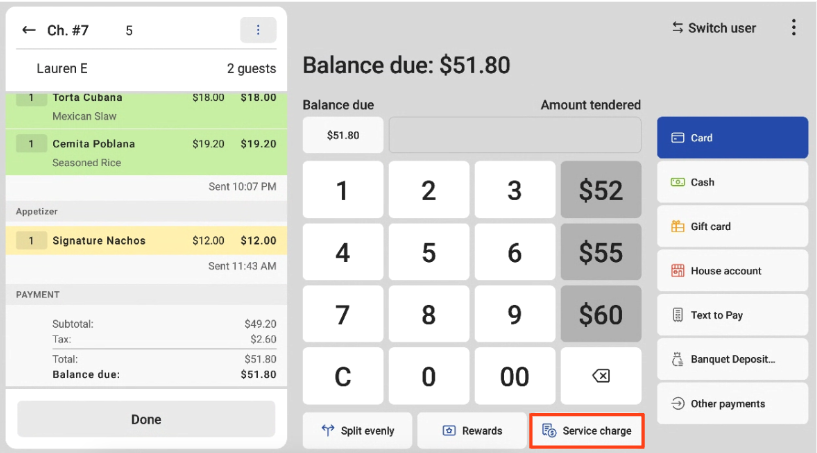
- From the payment screen, select Service charge.
- Select the checkbox next to the charge you want to apply.
- Select Done.
On a Toast Go® handheld, the Service charge option may be found in the overflow menu (three dots) of the check.
How it appears on the check:
- Employer-kept service charge appears as a line item on the bottom of guests' checks, separate from the taxes and total section.
- Mandatory gratuity does not appear on its own line — it appears within a Fees and Charges section near the subtotal at the bottom of the check.
Service Charges in Toast Web Reporting
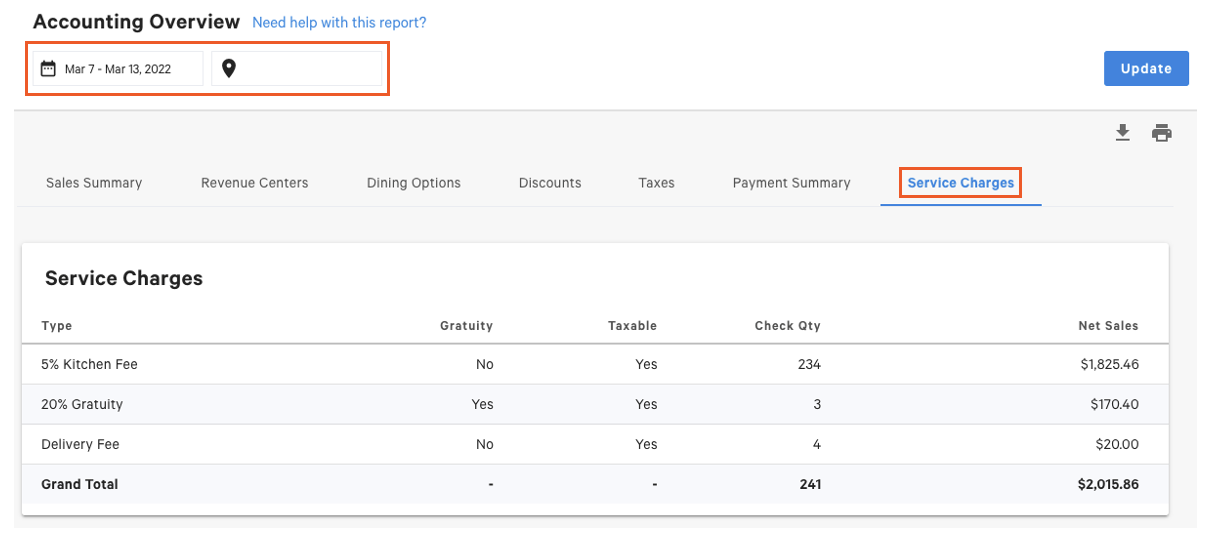
Locate employer-kept service charge reporting in Toast Web by navigating to Reports > Accounts > Accounting Overview. After entering a date range and selecting the location (if applicable), select Submit, then choose the Service Charge tab on the page.
Expected outcome: The Service Charge tab shows employer-kept service charge totals for the date range. Mandatory gratuity is reported separately — see the next two sections.
For the gratuity total customers often ask about in the Sales Summary report, the gratuity line is the total amount of mandatory gratuity (a type of service charge) added to guest checks and collected during the selected date range. Employer-kept service charges appear under "Service Charges" in the same report, not under "Gratuity".
Mandatory Gratuity in Toast Tips Manager
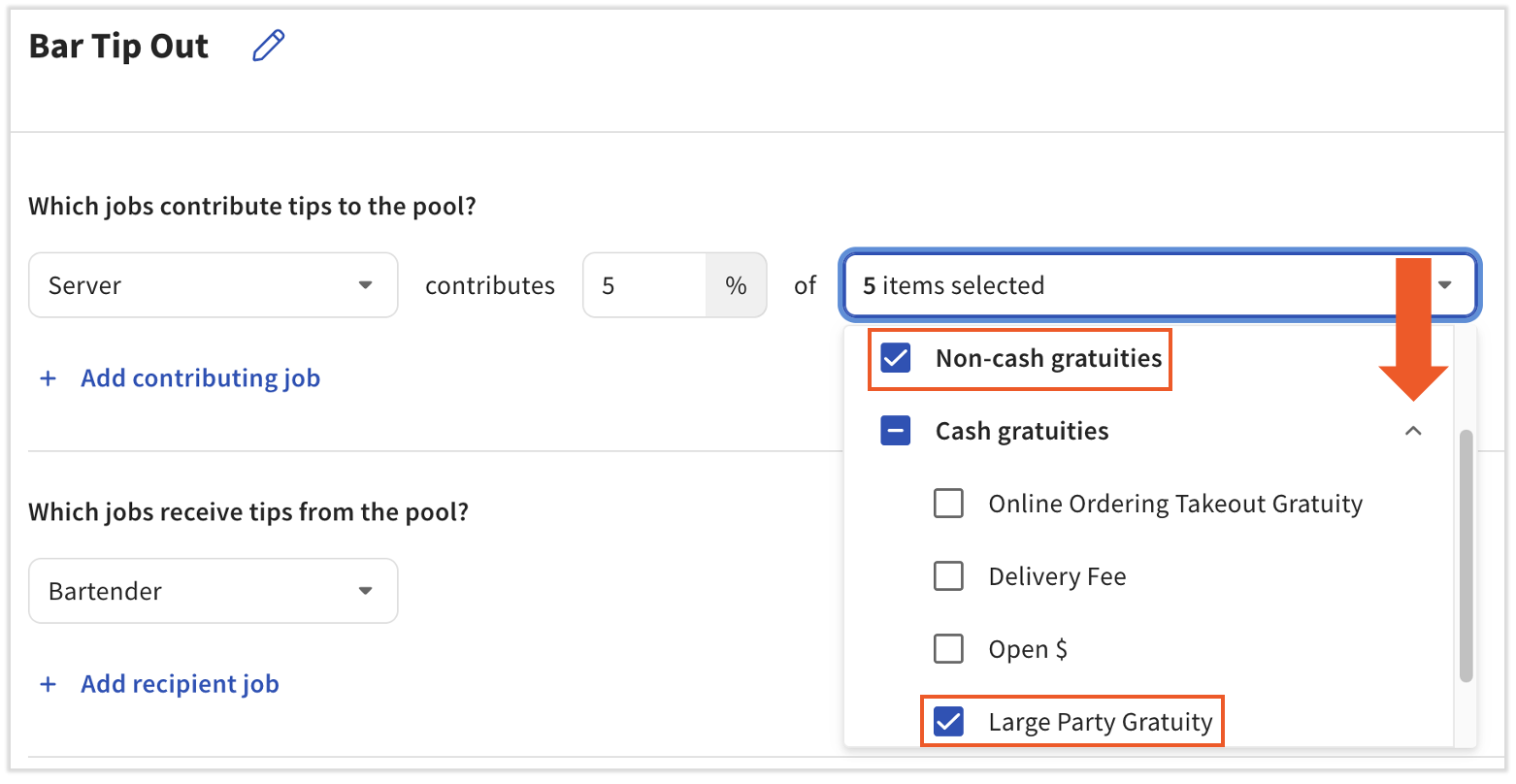
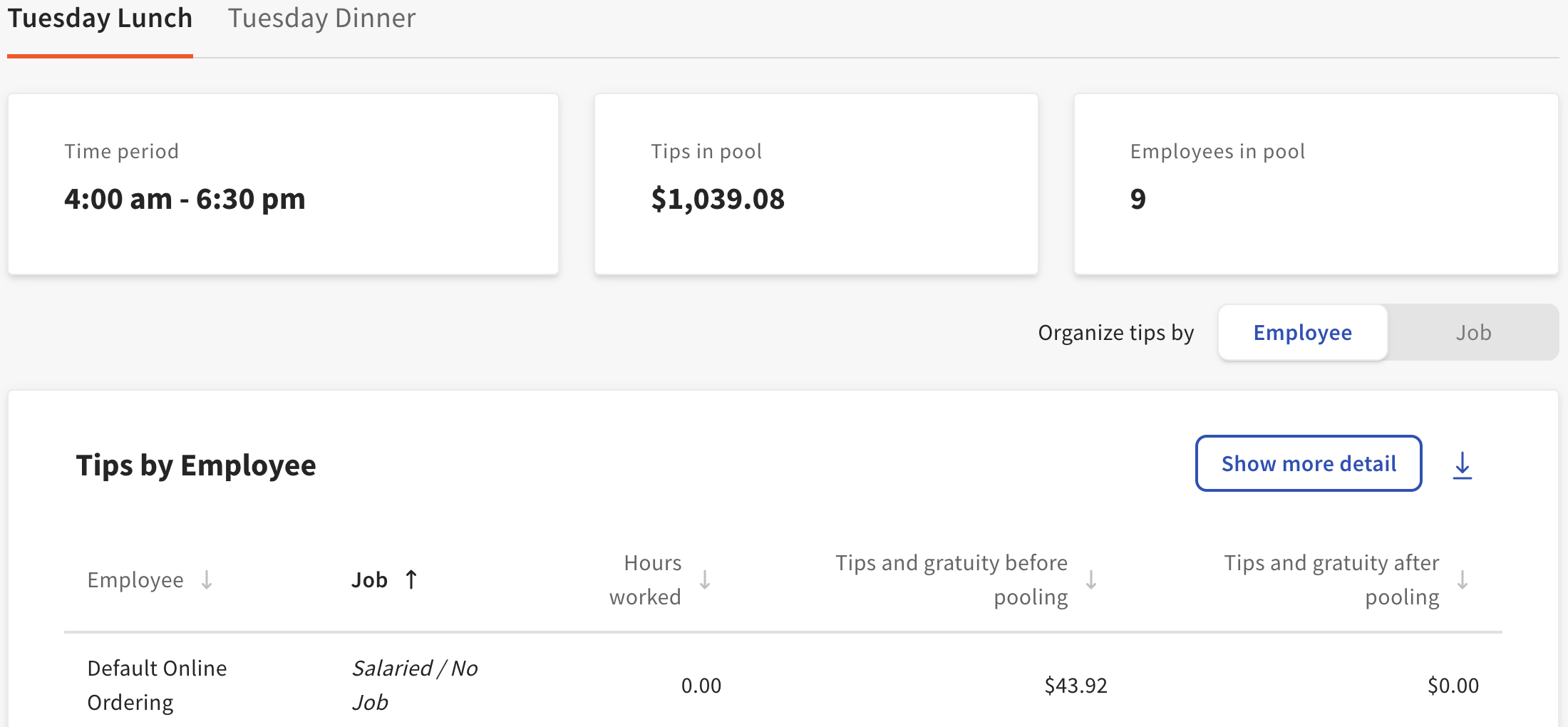
To configure mandatory gratuities for Get Started With Toast Tips Manager, select them from the Source drop-down menu of your tip pooling policy. You can select specific gratuities by expanding Cash gratuities or Non-cash gratuities in the drop-down menu, or select them all at once with the adjacent checkbox.
Expected outcome: The selected gratuities are included in the tip pool source and will be pooled and distributed per the rules in your tip pooling policy.
Important: Gratuities that affect online ordering or in-house delivery drivers need to be configured with special consideration. See Get Started With Toast Tips Manager for the full pooling configuration walkthrough.
Mandatory Gratuity in Toast Payroll
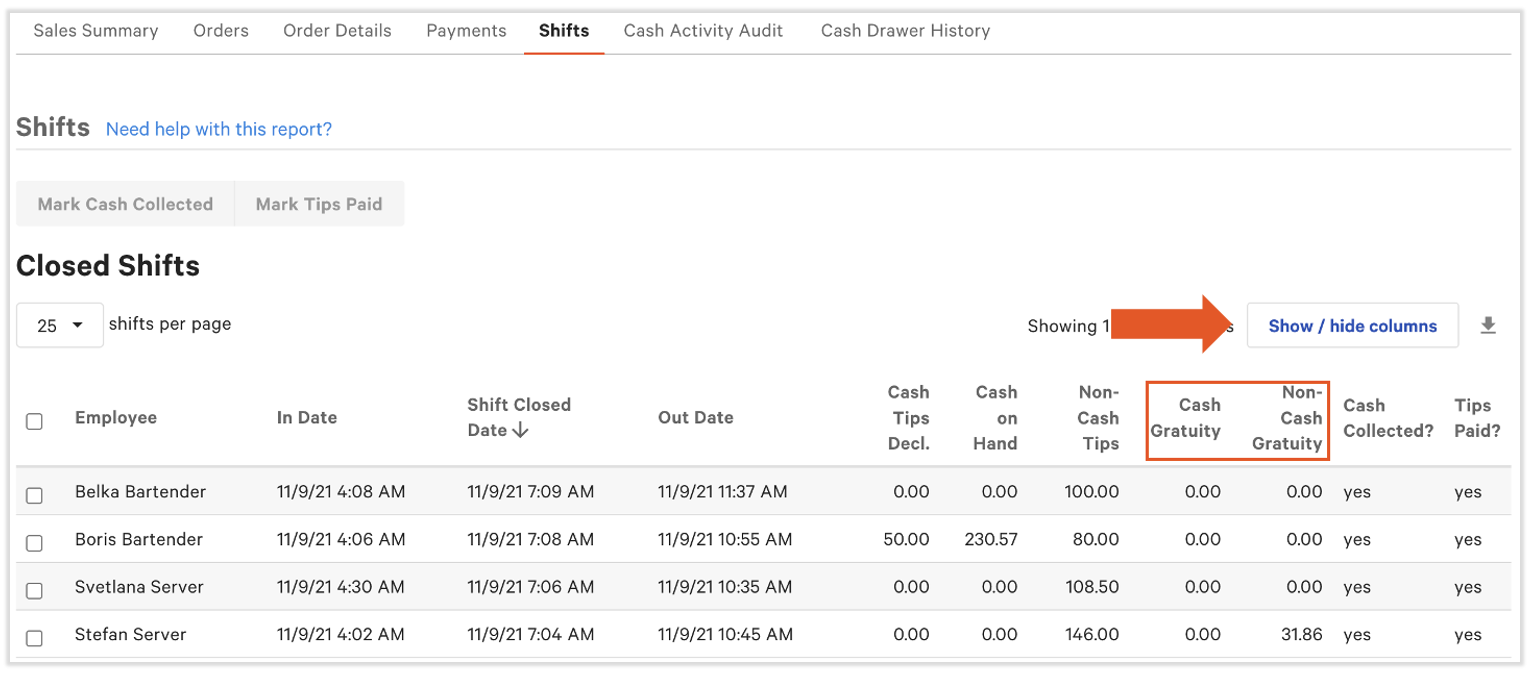
Mandatory gratuity reporting can be found in Toast Web by navigating to Toast Web > Reports > Labor > Shifts. Set the date range and select Update. Select the Show/Hide Columns button and check Cash Gratuity and Non-Cash Gratuity. These display immediately and let you view mandatory gratuity totals per employee per shift.
If you use Toast Tips Manager, you can also view mandatory gratuity reporting in the Tip Management report. Navigate to Toast Web > Reports > Labor > Tip management. For more, see Get Started With Toast Tips Manager.
Move Mandatory Gratuity From Toast Web to Toast Payroll
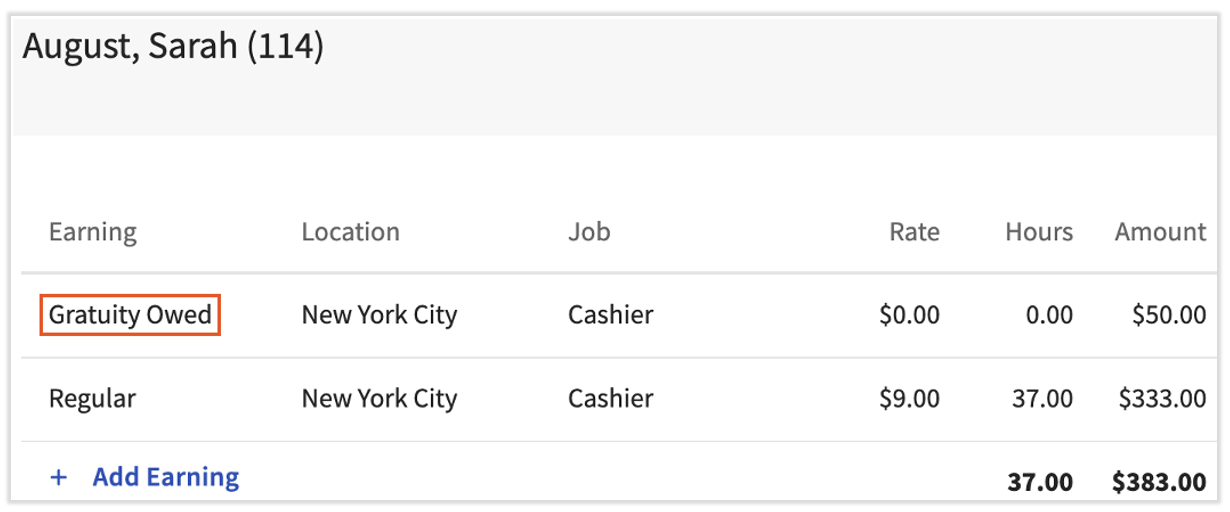
Anytime mandatory gratuity shows up in Toast Payroll, it appears next to an associated earning code. There are two ways to bring mandatory gratuity from Toast Web to Toast Payroll:
- Tips Manager method. Mandatory gratuity is automatically added into the Payroll system and appears on timesheets, the appropriate payrolls, reporting, and pay stubs.
- Manual method. Mandatory gratuity is added directly to the Employee Earnings step of payroll. This does not also add it to timesheets. See Toast Payroll: Manage and Integrate Tips for the full comparison.
When the Tips Manager method is used, mandatory gratuity earning codes need to be set up and mapped before Toast can sync mandatory gratuity from Toast Web to Toast Payroll. For directions on mapping earning codes, see Toast Payroll: Tips Manager With Toast Payroll.
To create new earning codes, select the chat button in Toast Payroll and submit the Earning Code Request Form to a Customer Care agent. Note: Toast Payroll is currently unavailable in Quebec. A French version of this form will be made available when the product launches in your region.
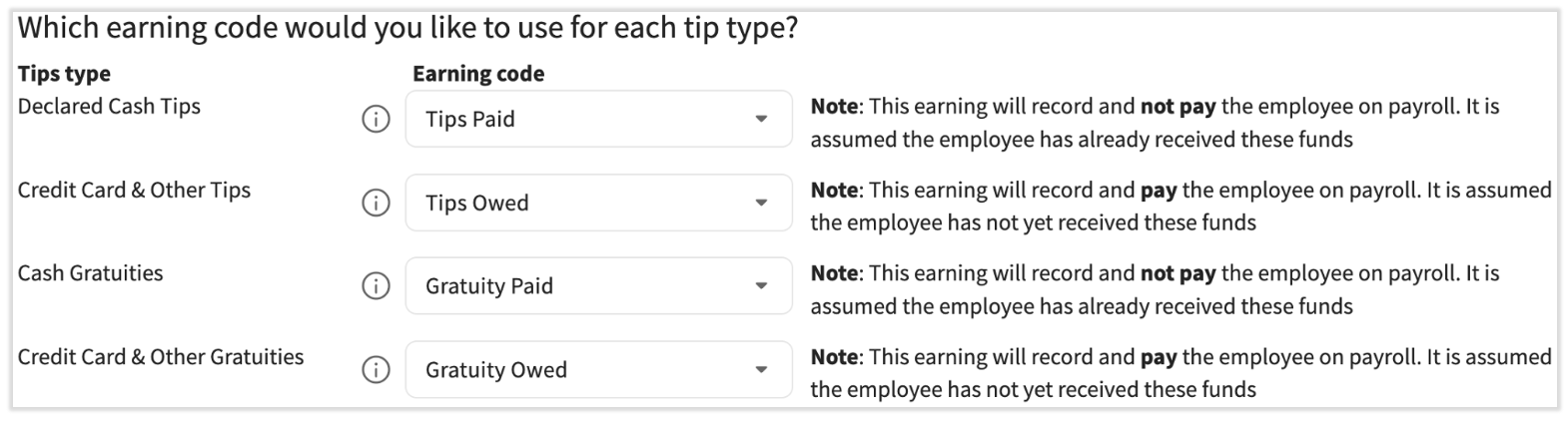
Note: Mandatory gratuity is paid to an individual on payroll, whereas an employer-kept service charge is business income only. Employer-kept service charges do not appear in Toast Payroll.
What Stops This From Working
If a service charge or auto-gratuity is applying when you do not expect it to, or not applying when you do expect it to, see the troubleshooting companion: Service Charge or Gratuity is Being Added to Every Check. The three configurations to check are:
- The service area's Auto-apply Gratuity? setting.
- The service charge's Apply After Amount Threshold value.
- The service charge's Delivery?, Takeout?, and Dine-in? dining-option toggles.
If mandatory gratuity is not appearing on payroll for an employee, the most common causes are:
- The employee's job is not configured as a tipped job (for Tips Manager).
- The shift did not close, so gratuity could not sync.
- The Tips Manager pooling rules excluded the employee.
- Assign to check owner (Gratuity?) is set to No on the service charge (it then becomes employer-kept and does not appear on payroll).
For full payroll-side troubleshooting, see Toast Payroll: Manage and Integrate Tips.
Frequently Asked Questions
Do the Gratuity and Fees Go to the Server?
Also asked as:
-
- "do tips and fees go to the server"
- "does gratuity go to the employee"
- "who keeps the service charge"
Mandatory gratuity goes to the server (or other employee who owns the check) after the restaurant collects it. Fees can go either way: an employer-kept service charge stays with the restaurant; a mandatory gratuity is distributed to the employee. The decisive setting is Assign to check owner (Gratuity?) on the service charge in Toast Web > Finance > Related > Settings > Service charges & fees. Yes means it goes to the employee. No means it stays with the restaurant.
What Does the Gratuity Section Mean in the Revenue Summary Report?
Also asked as:
-
- "what is the gratuity line in sales summary"
- "what counts as gratuity in reporting"
In the Revenue Summary and Sales Summary reports, the Gratuity line is the total amount of mandatory gratuity (a type of service charge) added to guest checks and collected during the selected date range. It does not include voluntary customer tips and does not include employer-kept service charges. Employer-kept service charges appear under the Service Charges line of the same report.
If I Use a Large Party Service Charge, Does It Get Added to the Server's Gratuity?
Also asked as:
-
- "does large party service charge count as gratuity for the server"
- "how do I set up large party auto-gratuity"
It depends on how the large-party service charge is set up. If Assign to check owner (Gratuity?) is set to Yes, the charge is mandatory gratuity and is paid out to the server who owns the check (it is non-tip income for the employee). If it is set to No, the charge stays with the restaurant. To check, in Toast Web > Finance > Related > Settings > Service charges & fees, select the large-party service charge by name and review the Assign to check owner (Gratuity?) value.
How Do I Turn Off Auto-Gratuity?
Also asked as:
-
- "I need help with turning off auto gratuity"
- "how do I disable auto-grat"
- "stop auto-applying gratuity"
To stop auto-gratuity from applying, in Toast Web navigate to Front of house > Tables & sections > Service areas. In the Auto-apply Gratuity column, if a service area says Yes when it should not, select the service area name, then under Auto-Applied Gratuity change Auto-apply Gratuity? to No. Save and publish your changes. If auto-gratuity continues to apply after that change, also check the service charge's Apply After Amount Threshold and Delivery?/Takeout?/Dine-in? toggles — see Service Charge or Gratuity is Being Added to Every Check.
Why Is Auto-Gratuity Counting as a Cash Payment Instead of a Tip?
Also asked as:
-
- "auto gratuity paid in cash but it's counting it as cash payment"
- "why is mandatory gratuity in my cash totals"
When auto-gratuity (a service charge) is paid in cash, Toast counts it as a cash gratuity, not a cash tip. It shows up in cash totals because it is cash that came in, but it is reported as a non-tip earning (mandatory gratuity), not as a customer tip. This is expected behavior. The decisive setting is still Assign to check owner (Gratuity?) — if it is Yes, the cash gratuity flows to the employee through Toast Tips Manager and Toast Payroll under the mapped earning code.
Related Articles
- Customize Service Charges and Mandatory Gratuity
- Toast Payroll: Manage and Integrate Tips
- Set Up and Apply Auto-Gratuity
- Service Charges Overview
- Service Charge or Gratuity is Being Added to Every Check
This content is for informational purposes and is not intended as legal, tax, HR, or any other professional advice. Please contact an attorney or other professional for advice.