Get Help With Tip Discrepancies in Reporting
Last updated: Jul 22, 2026, 11:35 AM
Identify why two Toast reports show different tip totals and apply the correct fix, or gather the right information before contacting Customer Care.
- Before You Begin
- Overview Steps
- Quick Fix
- If a Shift Review Is Open or Was Left Open
- If an Employee Was Auto-Clocked Out
- If Tips Were Adjusted After the Shift Review Closed
- If Tip Withholding Doesn't Match What You Expected
- If Tips for a Future Order Are Missing From the Sales Summary
- If You're Comparing Toast Tips Manager Totals to Other Reports
- If Tips Don't Sync From Toast Web to Toast Payroll
- Frequently Asked Questions
- Before You Contact Customer Care
- Related Articles
Before You Begin
Applies to: Toast Web, Toast Payroll, Toast Tips Manager (when used), Tip Pooling Policy (when used)
Permissions needed:
- 4.1 Sales Reports — to open Sales summary, Tip management, and Orders reports
- 4.3 Labor Reports — to open the Shifts and Time entry management reports
What you'll accomplish: Identify why two Toast reports show different tip totals and apply the correct fix, or gather the right information before contacting Customer Care.
Overview Steps
When tip totals don't match between two reports, work through these high-level steps:
- Confirm both reports use the same date range, location, and business-day cutoff time.
- Identify which two reports you are comparing (for example, Payroll Export vs. Labor summary, or Toast Tips Manager vs. Sales summary). The right fix depends on the pair.
- Use the Quick Fix table below to match your issue to the most common cause.
- If the cause is an open shift review, an auto clock-out, or a tip adjustment made after a shift closed, follow the matching section in the decision tree below.
- If the comparison involves Toast Tips Manager or Toast Payroll, jump to the matching section to see which canonical article owns the explanation.
Quick Fix
Use this table to match your symptom to the most common cause and the quickest fix.
| Symptom | Most common cause | Quick fix | Self-service? |
| Payroll Export tip totals don't match the Labor summary or Sales summary | A shift review was left open, or an employee never clocked in to complete one | Close the open shift review and re-run the Payroll Export. See If a Shift Review Is Open or Was Left Open. | Yes |
| Tips on the Payroll Export are lower than what the employee took home | Tips were added or adjusted after the shift review closed | Reopen the shift review for the same business week. See If Tips Were Adjusted After the Shift Review Closed. | Yes |
| The Payroll Export shows zero tips for an employee who worked a tipped shift | The employee was auto-clocked out and no shift review was ever completed | Edit the Time out field in Time entry management and complete the shift review. See If an Employee Was Auto-Clocked Out. | Yes |
| Tip withholding amount looks wrong on a report | Tip withholding percentage is set higher or lower than expected, or it applies to both credit and debit card payments | Verify the percentage in Employees > Payroll management > Tip withholding. See If Tip Withholding Doesn't Match What You Expected. | Yes |
| Tip withholding doesn't show on the Close Out Day or end-of-day report | Shift reviews for that day are not yet closed | Close all shift reviews for the business day. Tip withholding only appears once shifts are closed. | Yes |
| Tips for a scheduled order are missing from the Sales summary | The order is scheduled for a future business day | Tips appear in the shift review for the day the order was placed, and in the Sales summary's Tips field on the day the order is completed. See If Tips for a Future Order Are Missing From the Sales Summary. | Yes |
| Toast Tips Manager totals don't match the Sales summary | Sales summary shows pre-pooled tips; Tips Manager shows post-pooled | See If You're Comparing Toast Tips Manager Totals to Other Reports. | Delegated |
| Tips don't sync from Toast Web to Toast Payroll | Earning code mapping or employee profile mapping issue | See If Tips Don't Sync From Toast Web to Toast Payroll. | Delegated |
| Auto-gratuity from a large party isn't on the shift review | Mandatory gratuity is a service charge, not a tip — it does not appear under tip earning codes | Confirm whether your service charge is configured to Assign to check owner. See Frequently Asked Questions. | Delegated |
| You have a specific dollar discrepancy you can't reconcile | Report timing, voided transactions, or account-level configuration | Gather the items listed in Before You Contact Customer Care. | No |
If a Shift Review Is Open or Was Left Open
If a shift review is left open, or if an employee never clocks in to complete one, any tips collected during that period will not appear in the Payroll Export.
Confirm whether a shift was left open
- Navigate to Toast Web > Reports > Labor > Shifts, and set the date range to a single day and select the location.
- Select Update.
- Look for the Open Shifts section. If an employee appears there, their shift review is incomplete.
Expected outcome: You see a list of any open shifts for that business day.
Note: The date range at the top of this page must be set to a single day; otherwise, open shifts will not display.
Close the open shift review
For step-by-step instructions to close an open shift review, see the Make Corrections to a Shift Review Left Open section of Get Help With Cash Drawer and Shift Review.
Require shift reviews going forward
To ensure employees are required to complete a shift review:
- In Toast Web, navigate to Employees > Shift review > Advanced shift review setup.
- Under Shift review > Require shift review, select Required.
- Select Save > then Publish.
Expected outcome: Future shifts cannot be left open without a shift review.
If an Employee Was Auto-Clocked Out
When an employee is auto-clocked out by Toast and the shift review is not completed afterward, any tips for that shift may be missing from the Payroll Export.
Check for auto-clock outs
- In Toast Web, navigate to Reports > Labor > Time entry management.
- Adjust the date range and location(s) as needed.
- If the auto-clock out toggle shows a number next to it, enable the toggle to view the affected employees.
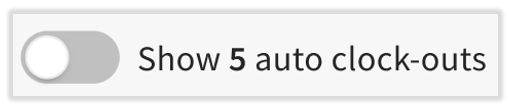
Expected outcome: You see employees who were auto-clocked out by Toast for the selected date range.
Correct the entry
- Edit the Time out field directly on the Time entry management page to reflect the correct clock-out time.
- If the employee was auto-clocked out within the same business week, follow the instructions in the Make Corrections to a Shift Review Left Open section of Get Help With Cash Drawer and Shift Review.
Expected outcome: The employee's tips and hours appear correctly on the Payroll Export after the next sync.
To learn more about editing time clock entries, see Edit Employee Time Clock Entries.
If Tips Were Adjusted After the Shift Review Closed
Tip adjustments made after a shift review is closed do not flow back into the closed shift review. The Payroll Export reflects what was in the shift review when it closed — not later adjustments.
Find tip adjustments made after the close
- In Toast Web, navigate to Reports > Sales > Orders.
- Use the filters to narrow to a specific day, shift, and employee.
- Each order shows its final tip details. Compare these against the closed shift review to find any adjustments that happened after the review.
Expected outcome: You see the orders where tip totals changed after the shift review closed.
Reopen the shift review (if within the same business week)
If the adjustments were caught before the end of the business week, you can reopen the shift review to sync the changes. See Reopen an Employee's Shift From Previous Days.
If a tip is missing for one specific employee — not the whole report — see Why are tips missing from my employee's shift review?.
If Tip Withholding Doesn't Match What You Expected
Tip withholding is a percentage your restaurant reclaims from employees' card tips and gratuities to cover the cost of card processing fees. A misconfigured percentage — or expectations about what the feature does — is one of the most common causes of a tip discrepancy.
Verify your tip withholding percentage
- In Toast Web, navigate to Employees > Payroll management > Tip withholding.
- Confirm that Enable house tip withholding is selected if you intend to use the feature.
- Confirm the value in the Tip Withholding Percentage field.
Expected outcome: The percentage shown matches what you expect to see deducted on shift reviews and reports.
What tip withholding applies to
- Tip withholding applies to both credit and debit card payments — both card types have processing fees.
- Tip withholding applies to credit card gratuity (mandatory or auto-gratuity paid by card), in addition to credit card tips.
- Tip withholding should not apply to other forms of payment.
- Tip withholding only takes effect on a shift after the shift review is closed. If a shift review is open, the withholding amount has not yet been applied.
Where tip withholding shows up
- Shift review — once the shift is closed, the original tip amount and the tip withholding amount both appear; the Pay tips cash entry equals the original tip minus withholding.
- Close Out Day and Z-Report printout — withholding appears in the Server Tipouts section once all shift reviews for the day are closed.
- Sales Summary — withholding appears as a subset of the total tips and gratuities earned.
- Shifts report — to see withholding per employee per shift, navigate to Reports > Sales > Sales summary, select the Shifts tab, select Show/hide columns, and check Tips Withheld.
For full configuration steps, screenshots, and the Toast Payroll behavior, see Optimize Tip Withholding.
If Tips for a Future Order Are Missing From the Sales Summary
Tips attributed to future orders behave differently from same-day tips. They appear in two different places at two different times.
How future-order tips show up
- The tip appears in the shift review of the day the order was placed.
- The payment appears in the Payment summary on the Sales summary report and in the credit/debit tips section.
- The tip does not appear in the Tips field at the top of the Sales summary report until the day the order is completed.
What to check
- In Toast Web, navigate to Reports > Sales > Sales summary.
- Set the date range to the day the order was placed.
- Locate the Payments summary and look for the tip in the credit/debit tips section, not the top-line Tips field.
- To see the tip in the top-line Tips field, set the date range to the day the order was completed.
Expected outcome: You see the tip in the credit/debit tips section on the order date and in the top-line Tips field on the completion date.
For more information, see Future Orders/Invoices Reporting.
If You're Comparing Toast Tips Manager Totals to Other Reports
Toast Tips Manager is Toast's tip pooling and distribution module. The totals it shows are not directly comparable to the Sales summary or the Payroll Export — they measure different things.
Why the numbers differ
- The Sales summary shows the pre-pooled total — the raw tips and gratuity collected before distribution rules are applied.
- The Toast Tips Manager report shows the post-pooled total — what each employee actually earns after the tip pooling policy is applied.
To compare correctly
- In Toast Web, navigate to Reports > Labor > Tip management.
- Select the date range, then select the download icon to download the Tip Management report.
- The downloaded report includes both pre-pooled and post-pooled figures, plus an Applied Tip Adjustment column that captures any manual entries made on the Additional tips (non-cash) earned field on an employee's tip calculation page.
- Compare the pre-pooled total in the download to the Tips line in the Sales summary's Revenue Summary table.
Expected outcome: Pre-pooled totals match between the Tip Management download and the Sales summary's Revenue Summary table. Post-pooled totals match between the Tip Management report and what employees were paid.
If the pre-pooled totals still differ, return to the Quick Fix table — the underlying cause is one of the shift-review or tip-adjustment scenarios above, not a Tips Manager issue.
For the full comparison, every column definition, and the answer to "Why don't my Tips Manager totals match my Sales summary?", see Toast Tips Manager Reporting.
If Tips Don't Sync From Toast Web to Toast Payroll
If tips appear correctly in Toast Web but are missing or wrong in Toast Payroll, the issue is usually a sync or mapping problem rather than a reporting problem in Toast Web.
Common causes
- The employee's job is not configured as a tipped job in Toast Web.
- Declared cash tips were not entered during shift review.
- The Toast Tips Manager pooling rules excluded the employee.
- The employee's Toast Web profile is not mapped to their Toast Payroll profile.
What to check first
- In Toast Web, confirm the job has the Tipped employee setting enabled in Employees > Employee management > Jobs.
- In Toast Payroll, confirm the employee's profile is correctly mapped to their Toast Web profile. See Tips Manager With Toast Payroll.
For the full diagnostic walkthrough — including earning code mapping, direct sync issues, and Toast Tips Manager pool exclusions — see Toast Payroll: Tips Not Syncing From Toast Web and Toast Payroll: Manage and Integrate Tips.
Frequently Asked Questions
Why isn't my auto-gratuity for a large party showing up on the shift review?
Auto-gratuity for a large party is a service charge — not a tip. Service charges only appear on the shift review under tip earning codes when the service charge is configured to Assign to check owner. To verify:
-
- In Toast Web, navigate to Payments > Checks & receipt setup > Service charges.
- Select the service charge by name.
- Review the Assign to check owner option.
For full configuration steps, see Toast Payroll: Manage and Integrate Tips and Get Started With Service Charges and Mandatory Gratuity.
Also asked as:
-
- I have automatic gratuity added to parties of 8 or above but my shift review doesn't reflect the tips from large parties. How do I fix this?
Is tip withholding taken out of gratuity?
Yes. Tip withholding applies to credit card gratuity in addition to credit card tips. It does not apply to cash payments. For full detail on what tip withholding covers, see Optimize Tip Withholding.
Also asked as:
-
- Does tip withholding apply to mandatory gratuity?
- Is tip withholding to cover credit card processing taken out of gratuity?
Where is tip withholding in Toast Web?
Tip withholding is configured in Toast Web > Employees > Payroll management > Tip withholding. You'll see the Enable house tip withholding option and the Tip Withholding Percentage field once enabled.
Why do my tips on the Payroll Export not match the tips on the Sales summary or Labor summary?
The Payroll Export is a static report — it captures data at the moment the export was generated, based on closed and completed shift reviews. The Labor summary and Sales summary are real-time reports based on closed check information. If a check is edited or a payment is completed outside of a shift review after the Payroll Export was generated, the change appears on the real-time reports but not on the static Payroll Export. Use the Quick Fix table to find the specific cause.
Why don't my Toast Tips Manager totals match my Sales summary?
The Sales summary's Tips line in the Revenue Summary table is a pre-pooled amount. The Tip Management report's totals are post-pooled — after distribution rules are applied. Download the Tip Management report; it includes both pre-pooled and post-pooled figures so you can compare directly. See Toast Tips Manager Reporting.
Why are tips missing from one specific employee's shift review?
If a tip is missing for one employee — not for the whole report — the most common cause is a tip that was added or adjusted after the shift review closed. Use the Order Details > View Update History path on each suspected order to confirm. For the step-by-step, see Why are tips missing from my employee's shift review?.
Before You Contact Customer Care
If your discrepancy involves a specific dollar amount that doesn't reconcile after working through the sections above, gather the following information to speed up resolution. Most tip discrepancies that escalate involve account-level investigation that requires this context.
- The exact date or date range, and the location selected when you ran each report.
- The specific dollar figures you expected vs. the figures shown in each report.
- Screenshots of both reports you are comparing — for example, the Payroll Export and the Sales summary, or the Tips Manager report and the Sales summary.
- The employee name and job title if the question is about a single employee. (Use the employee record in Toast Web — do not include personally identifying information in your message.)
- Whether the relevant shift reviews are open, closed, or reopened.
- Whether you have already tried any of the steps in the Quick Fix table.
Note: Customer Care cannot recompute tips for you, but with this information they can investigate timing issues, voided transactions, or account-level settings that may be the root cause.
Related Articles
- Toast Payroll: Manage and Integrate Tips
- Toast Tips Manager Reporting
- Tips Manager With Toast Payroll
- Optimize Tip Withholding
- Get Help With Cash Drawer and Shift Review