Get Help With Toast Tips Manager
Last updated: Oct 16, 2026, 3:47 PM
| Toast cannot advise on creating a tip pooling policy. Consider registering for the Toast Tips Manager live classroom session or refer to the U.S. Department of Labor and your state wage-and-hour agency. Additionally, all Toast Payroll customers have access to the HR Toolkit through Mineral. |
Tips Manager Troubleshooting
The federal government outlines tip pooling regulations in the Fair Labor Standards Act (FLSA). State and local governments may have their own regulations too. Prior to setting up tip pools and/or shares for your restaurant within Toast Web, you should consult an HR professional and consider federal, state, and local laws when defining your restaurant's tip policy and distribution rules.
When troubleshooting Toast Tips Manager, there are some general steps to take first:
- Ensure all employee profiles are correctly mapped between Toast Web and Toast Payroll, if applicable.
- Make sure your tip pooling policy includes all jobs (roles) that clock in, including ghost employees for scenarios like events, catering, banquets, online ordering, and more.
- If you're not seeing the information you expect to see, you may need an admin to check your permissions. Viewing Tips Manager reports requires users to have permission 4.1 Sales Reports in Toast Web. Users who wish to create, modify, or update a tip policy will need Toast Web permission 6.6 Restaurant Operations Setup.
By Day Troubleshooting
Do you suspect Tips Manager is missing some tips? Follow these steps to compare the tips and gratuities that Toast recorded for you versus the tips and gratuities that Tips Manager pooled.
- In Toast Web, navigate to Reports > Labor > Tip management.
- Select the date range you're looking through to see the By Day view. In order to troubleshoot, there must be sales and time entry data present here.
- At the top of that report, locate the Tips and gratuity in pools tile and copy that number down. You may do this for more than one day.
- If you use the Service Period tip pooling interval, make sure you have all service periods/shifts selected from the Service period drop-down menu.
- Now navigate to Reports > Sales > Sales Summary. Using the date picker, load the Sales Summary with the same date(s) you collected info from on the Tips Management report.
- Compare the number you wrote down in step 3 above with the sum of the Tips and Gratuities lines in the Revenue Summary tile.
- If the two numbers match, all available tips and gratuities from that day are included in the pre-pooling data of the report.
- If the two numbers do not match, the Tips Manager does not have access to all the tips Toast recorded. The mismatch could be from an external factor/input source:
- Have any shifts been left open? Navigate to Reports > Labor > Shifts. Set the appropriate date range and select Update. If an open shift is found, your next steps will be to close the shift. This will update the tip amounts available in the Tip Management report and typically resolve your discrepancy.
- Are hourly job titles properly assigned? Tips may not appear correctly without proper job title assignments.
- Did each employee clock into the right job? If an employee clocked into a job that isn't a part of your policy, they can accidentally "withhold" some tips intended to be pooled.
- Is there a refund/sales adjustment? If a refund occurs from an order on a different day, the Sales Summary will show the refund the day it was processed and Tips Manager will adjust the tips for the day the order was fulfilled.
- Is tip withholding enabled? The Sales Summary shows the tip withholding amount in a different table lower on the page. The Tips Manager total will exclude the withheld amount because that is not available for pooling.
- Do you use invoicing? Is an order missing a sales input/server?
- Do you have all generic employees and communal drawers accounted for? Verify you have rules for online ordering and catering, if applicable. Note: You must have a default server selected for Catering or your tips will not be properly routed to Tips Manager. To learn more, see Set Up Toast Tips Manager for Catering and Events.
- Have you possibly left some tips or gratuities out of your Tip Pooling Policy?
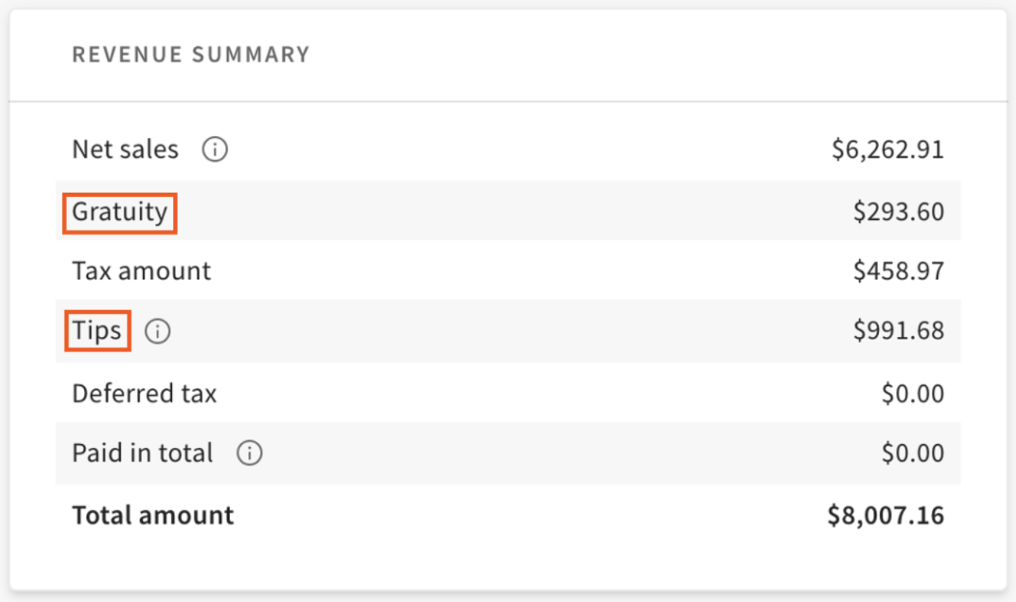
Tip distribution using Tips Manager will only appear in the Tip Management report and will not show up in the Sales Summary or Labor Summary under the Tips sections; however, the total tips collected by source will show up in the Sales Summary. There could be a small discrepancy (cents) between the Tip Management report and the figures in the Sales Summary as the system will round to the nearest cent so that employees are never short-changed.
Employee Receipt Calculation Examples
There are three levels to the Tip Management report. Navigate to Reports > Labor performance > Tip management to see the Top Level view. Select a day to open the By Day view. Then select an employee to display the Employee Receipt view.
These are a few examples of Tips Manager calculations to help troubleshoot your policy or an employee's tips on a given day:
One Recipient Job
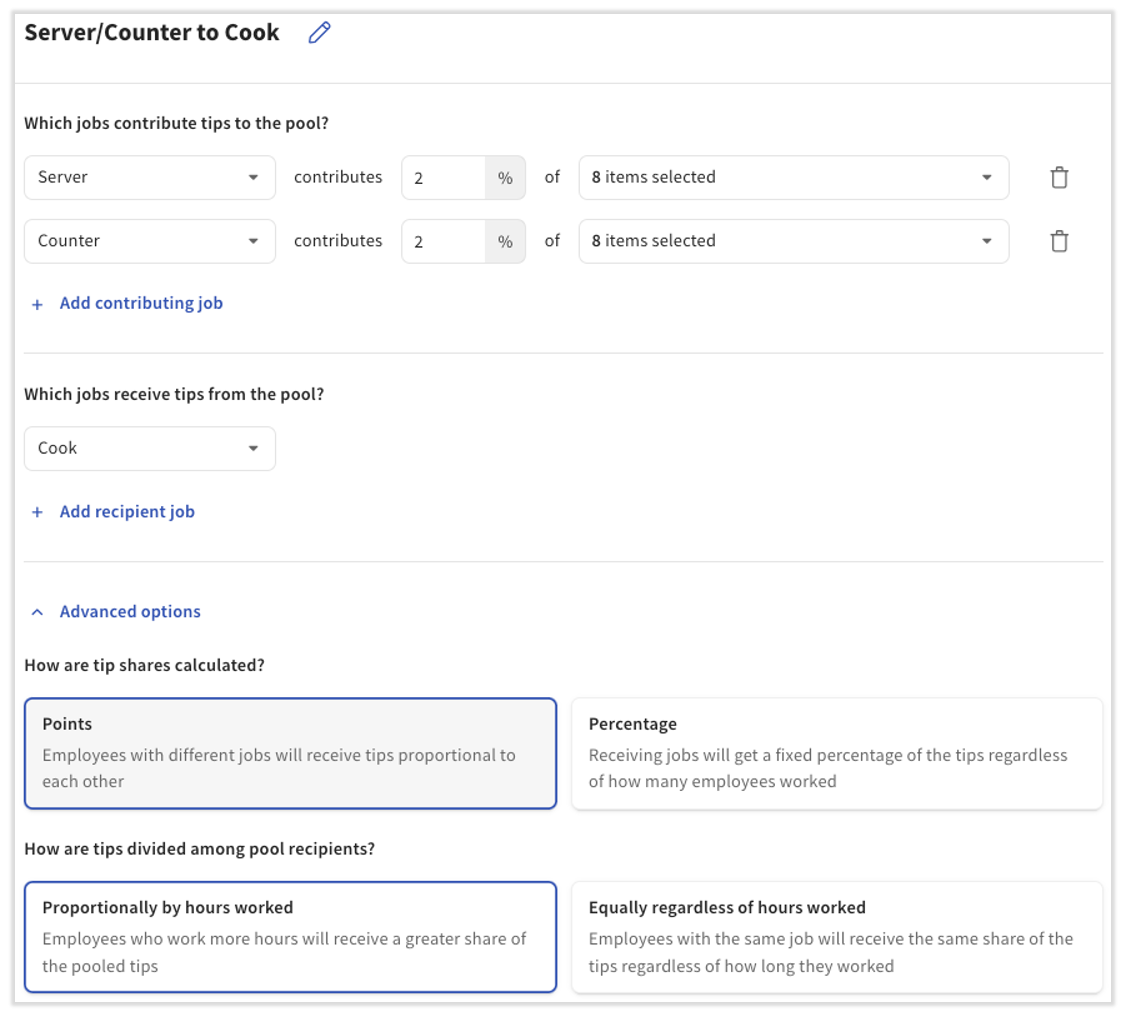
Let's say an employee has clocked into the Cook job on a given day, so they are a recipient in the above tips pool called Server/Counter to Cook.
- This policy is based proportionally by hours worked and is weighted neither by points nor percentages since there's only one recipient job.
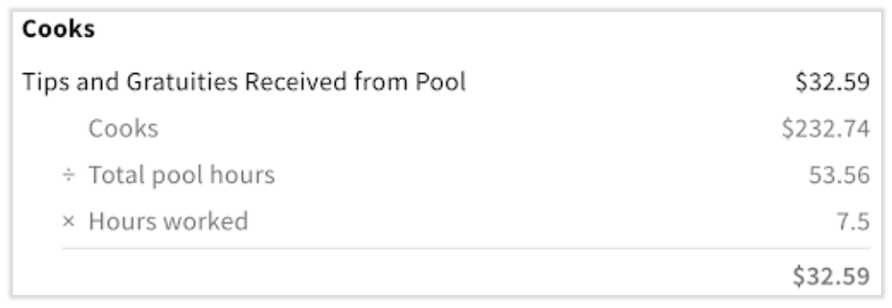
- Shown below, the total amount contributed to the Cooks pool is $232.74 and there is a collective total of 53.56 hours worked between all the recipients within our Server/Counter to Cook pool.
- Our employee worked 7.5 hours on this day.
- In this example, Toast will take the amount put into the Server/Counter to Cook pool ($232.74) and divide it by the total hours worked by the employees clocked into the Cook recipient job (53.56). This gives us a tips-per-hour number of about $4.35 for this pool. Toast will multiply this number by the employee's personal hours worked (7.5) to find the amount received from this tip pool ($32.59).
More Than One Recipient Job
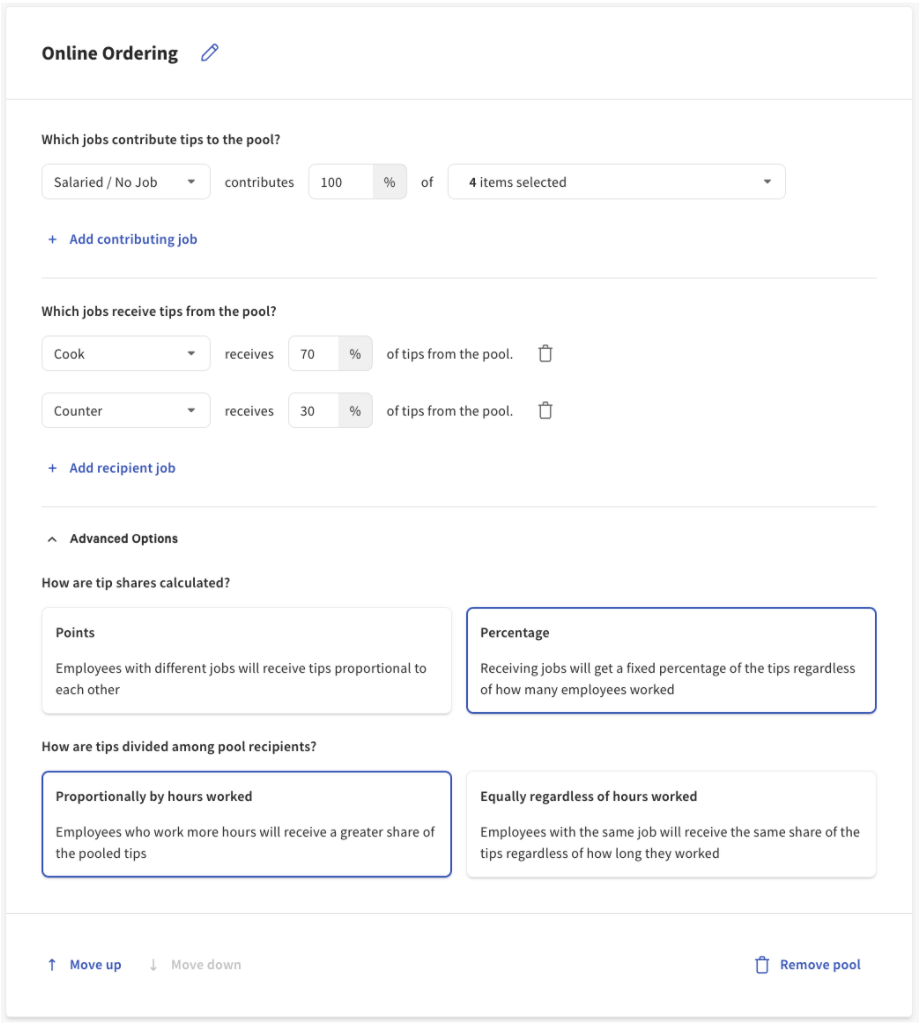
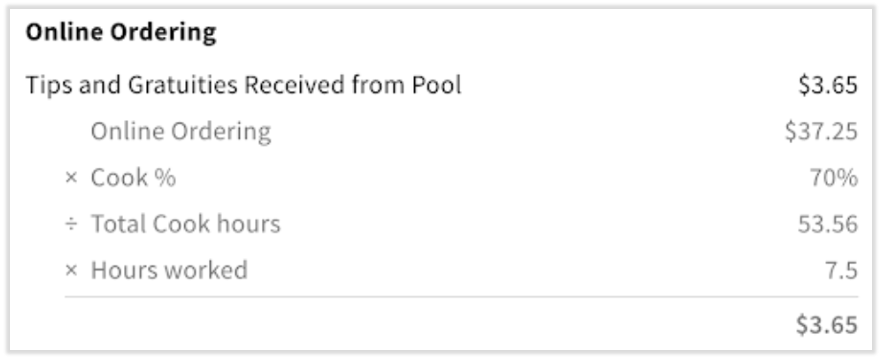
An employee clocked into the Cook job on a given day, so they are a recipient in the above tip pool called Online Ordering.
- This policy is weighted by percentages and is based proportionally on hours worked.
- The Cook job is assigned 70% of the pool.
- Shown below, the total amount contributed to the pool is $37.25 and there is a collective total of 53.36 hours worked between all recipients within the pool.
- Our employee worked 7.5 hours on this day.
- In this example, Toast will take the total amount put into the Online Ordering pool ($37.25) and multiply it by the Cook job allocation (70% or 0.7). This immediately splits the Cook tips portion (~$26.08) from the Counter tips portion (~$11.17).
- Next, we divide the Cook tips (~$26.08) by the total hours worked by all employees clocked in under the Cook recipient job (53.56). This will give us a tips-per-hour number of about $0.49 for this pool. Toast will multiply this number by the employee's personal hours worked (7.5) to find the amount received from this tip pool ($3.65).
With Points
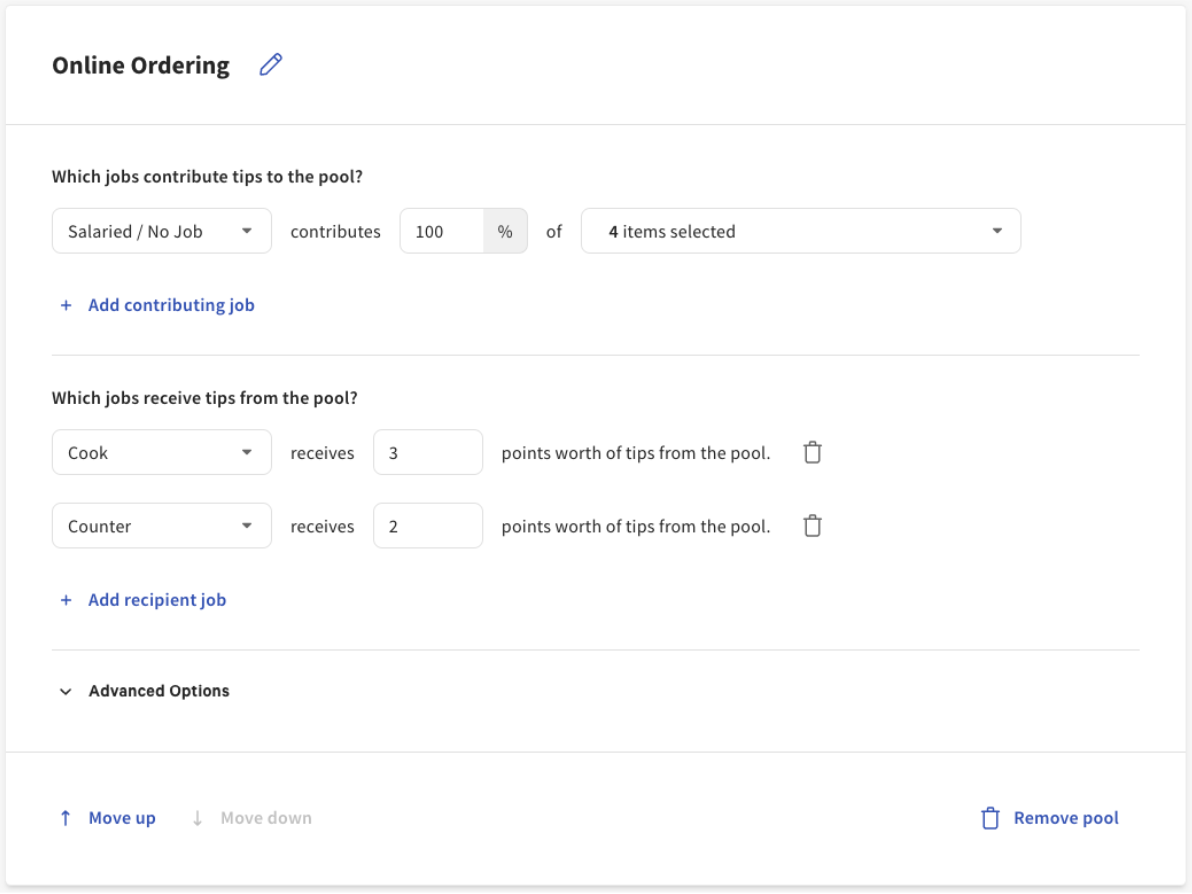
An employee clocked into the Cook job on a given day, so they are a recipient in the above tip pool called Online Ordering.
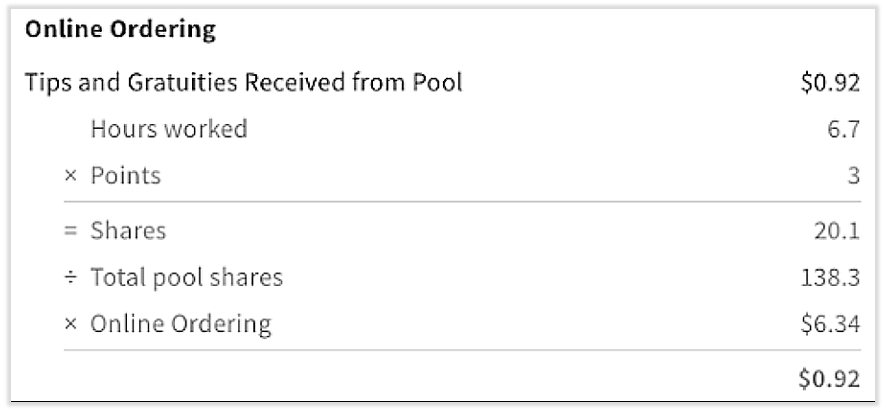
- This policy is based proportionally by hours worked (not shown) and is weighted by points.
- Shown below, the total amount contributed to the pool is $6.34. Cooks are assigned 3 points of the total pool, as seen above.
- Our employee worked 6.7 hours on this day.
- The total pool shares for all recipient jobs is 138.3.
- First, we calculate our employee's shares by multiplying the hours the employee has personally worked (6.7) by their points (3) to come up with 20.1 shares.
- Next, we divide our employee's personal shares (20.1) by the total pool shares (138.3) to give us their percentage of the pool (~14.5% or 0.145). Lastly, we multiply this by the amount in the pool ($6.34) to find the amount received from this tip pool ($0.92).
Contributor Calculation
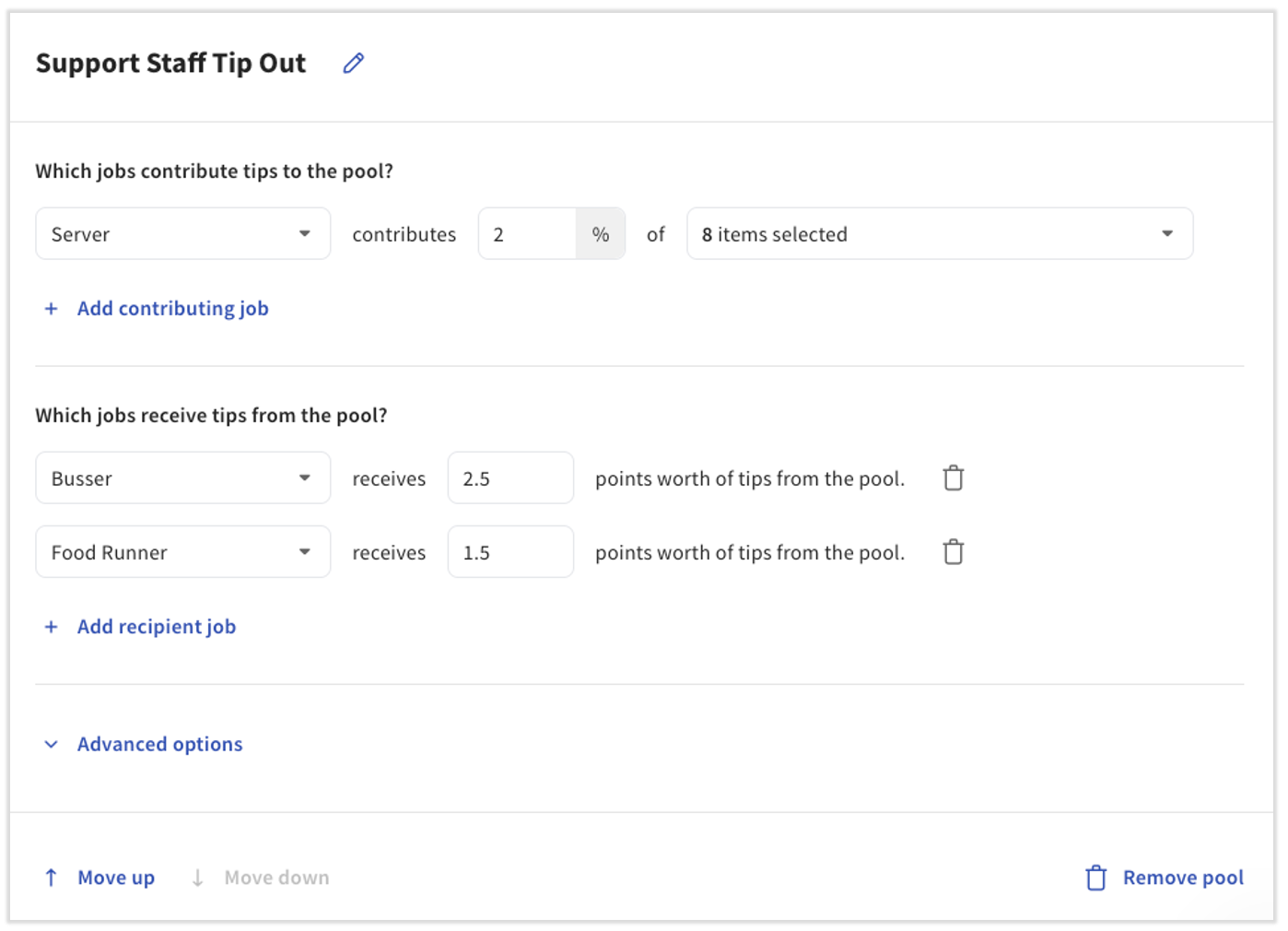
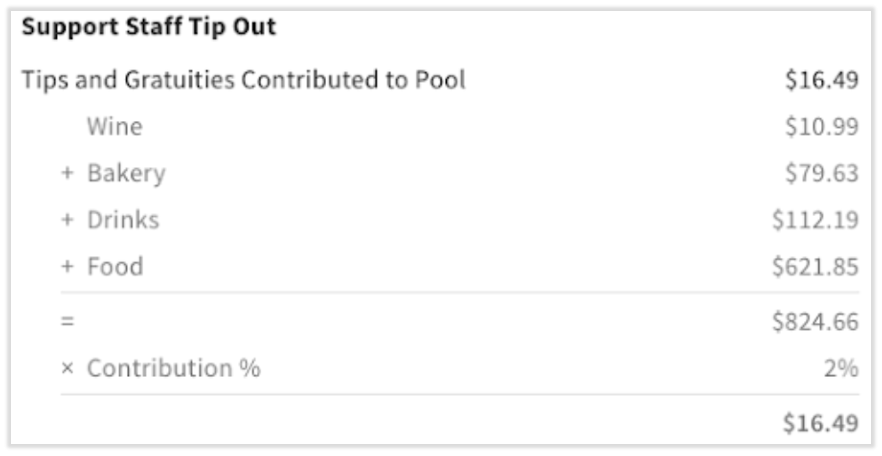
An employee clocked into the Server job on a given day, so they are a contributor in the above tip pool called Support Staff Tip Out.
- According to this pool, Servers must contribute 2% of eight different sales categories to the pool.
- Our employee has logged sales across four of the eight specified sales categories:
- $10.99 in wine sales
- $79.62 in bakery sales
- $112.19 in drink sales
- $621.85 in food sales
- The total sales logged under the specified sales categories is $824.66.
- Toast will multiply the included sales ($824.66) by the contribution percentage (2% or 0.02) to find the amount contributed to the Support Staff Tip Out pool is $16.49.
Incorrect Distributions/Missing Tips
There are several reasons your tip pool may not be distributing tips as you'd expect it to, and more than one could be present. Review these settings and pages to troubleshoot incorrect distributions:
| Concern | Action |
|---|---|
| An employee may not have clocked out for their shift | Visit the Time Entry Management report in Toast Web and update with the correct information. This will immediately update your tip management report. |
| Employees aren't assigned to the correct job | Check the Employees page in Toast Web and update with the correct information. This will immediately update your tip management report. If you've begun payroll already, follow all the steps in Toast Payroll: Adjust an Approved Timesheet. |
| Employees didn't clock into the correct job | Check the Time Entry Management report in Toast Web and update with the correct information. This will immediately update your tip management report. If you've begun payroll already, follow all the steps in Toast Payroll: Adjust an Approved Timesheet. |
| Employees rang in sales under the wrong number | Search the Orders report for discrepancies. |
| There isn't a rule built for a job being used | Create a new pool with that job as the contributor. Consider jobs like leads, keys, or captains; these can be commonly missed. |
| There is a duplicate job in Toast Web | One or both may be assigned to the tip pool and employees may be assigned to the incorrect/duplicate job. Cross-reference the job an employee is assigned to with the jobs present in your tip pool. |
| The tip pools are out of order and money is being left over | Review the Order of Operations section of Get Started With Toast Tips Manager. |
| The online ordering server isn't distributing its tips | Verify you've followed all steps in Toast Tips Manager and Online Ordering. |
| There is a tip source (i.e. cash gratuity) that doesn't have a distribution rule | Create a new pool distributing that tip source. |
| The tip pools are set up by percentages rather than points | A job that isn't clocked in that day/service period is part of a percentages tip pool. Switch this pool over to points (more common) or update jobs to be hybrid (busser/food runner) so there is always someone clocked into that role for distribution. |
| Generic or communal drawers are being distributed tips/gratuity | Create a specific job called Drawer or don't assign the drawer a job and it will be distributed as a salaried employee. |
| An employee is receiving a higher amount of tips than expected | Review the jobs this employee (or group of employees) is assigned to. Then view your tip policy to check if those jobs are accurately represented (contributor jobs vs. recipient jobs). |
| Someone is receiving tips when they should not have | Check the job(s) this person clocked into within your timeframe. Do any of those jobs appear as a recipient in a tip rule? If so, you can simply change the job an individual clocked into via the Time Entry Management report. Otherwise, if you use a percentages model, check your policy for a rule containing a recipient job that was not present for a day/service period/order. |
| An employee who worked a shift appears under the Online Ordering and Salaried job. | The employee's time entry for that date may have been deleted. When an employee closes checks without a matching time entry, Tips Manager places them in the Online Ordering and Salaried job (or Salaried, if you created an online order pool). In Toast Web, navigate to Reports > Labor > Time entry audits, set the date range to include the shift and all days up to today, and set the All actions drop-down menu to Delete. If the time entry was deleted in error, navigate to Reports > Labor > Time entry management, select + Add Entry, and re-enter the shift with the correct job. This will immediately update your tip management report. If you've begun payroll already, follow all the steps in Toast Payroll: Adjust an Approved Timesheet. |
Points vs. Percentages
Why would some employees get more tips than others even though they have the same recipient percentages within a pool?
This is most likely due to a recipient job not being present for that service period/day. Say that a food runner job is part of the recipient list of your pool, but on Mondays, no food runners are scheduled. The percentage of tips that would have gone to the food runners clocked in on Monday will instead return to the contributing jobs that initially collected the order and tip. This may happen multiple times during a service period/day.
Not Enough Tip Contribution
What happens if my employee does not make enough tips to cover their tip out responsibility?
First of all, here's an example of how this may happen. Let's say your tip sharing policy is set up like this:
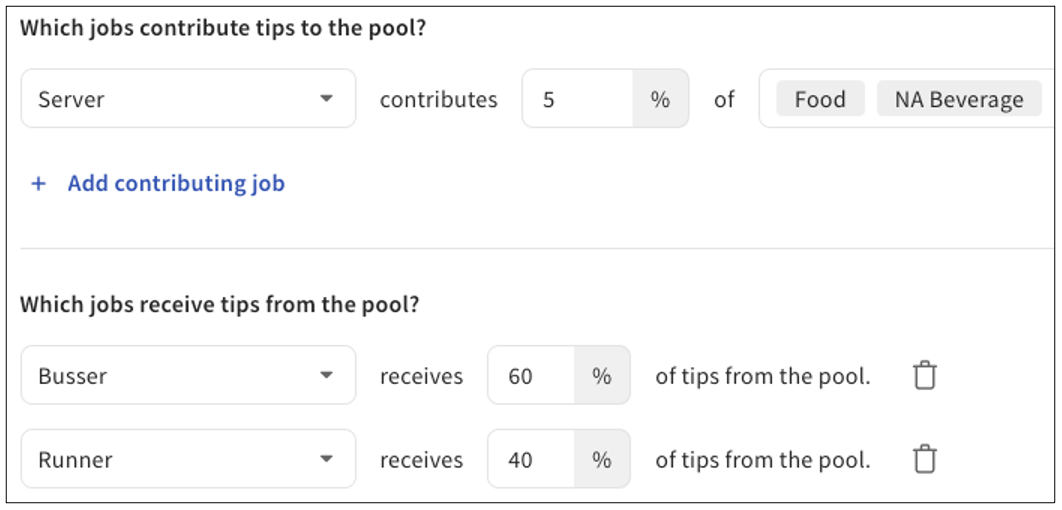
In this scenario, let's say one of your servers had $100 in Food and NA Beverage sales for their workday/service period, but they only received $2 in tips for that workday/service period. However, the policy above states that they need to be tipping out 5% of their Food and NA Beverage sales.
So they owe $5, but they only made $2. Toast does not gather the remaining $3 from the restaurant or from the server's wages. Instead, the recipient jobs will receive less than they are owed. So $2 in tips divided up by the policy rules above means that the busser recipient job would receive $1.20, or 60% of $2. The runner recipient job would receive $0.80, or 40% of $2. Check out the Tip Management Report - Tips Receipt section of Toast Tips Manager and Reporting to learn how to reconcile tip amounts with your employees.
Employer-Kept Service Charges vs. Mandatory Gratuity
Toast defines employer-kept service charges as net sales for the business whereas mandatory gratuity is a type of wage that is owned by employees. Since Tips Manager only distributes wages that should be paid to employees, you will not be able to include employer-kept service charges in this system. Learn more in Get Started With Service Charges and Mandatory Gratuity.
On the other hand, you might mistakenly set up an employer-kept service charge as mandatory gratuity. When this happens, a service charge can appear in your tip pooling when it shouldn't. To remove this "gratuity" from your tip pool and correctly set this up as an employer-kept service charge for the future:
- First, if you've already sent the day's worth of tip pooling to Toast Payroll (if applicable), you'll need to begin by unsending this day. Navigate to Reports > Labor > Tip management, select the checkbox for the affected day(s), and select Unsend this day.
- If you do not use Toast Payroll, skip this step.
- Reconfigure the employer-kept service charge to be gratuity. Navigate to Finance > Related > Settings > Service charges & fees. Locate the service charge and toggle the Assign to check owner? option to No. Save and publish.
- Now the service charge cannot be part of the policy since it is not set as mandatory gratuity. It will no longer appear in your tip pooling policy. If you do not use Toast Payroll, you're all set.
- If you do use Toast Payroll, return to the tip management report in step 1. Double-check that the changes you just made have synced to this report by selecting each affected day and reviewing the calculations for applicable employees. Once everything is confirmed, select the checkbox(es) and select Send to payroll.
Tips Manager FAQ
Pooling Intervals: Full Workday, Service Period, Order
Why might a check not be included in the correct pool?
If you chose the Service Period (shift) pooling interval, check assignment is based on the check's fulfilled time. Fulfilled time is typically the time an order was opened; if the order has prep time, fulfilled time is the opened time plus the prep time, or the delivered time. Toast checks which service period a check's fulfilled time falls into, and the tips on that check are tied to that service period. For example, if a check is opened near the end of one service period and closed after the next service period has started, the tips are still attributed to the service period when the check was fulfilled (typically when it was opened) — not the service period during which it was closed. However, if a check is transferred to a different individual, the time of transfer will determine which service period the tip will be a part of.
Why aren't all of my sales included in my tip pool when I use the Order interval?
Toast Tips Manager only includes sales from orders that have a non-cash tip, such as a credit card tip, when your tip pooling interval is set to Order. If an order has no tip, or only a cash tip, Tips Manager skips that order's sales because there is no non-cash tip on the order to distribute. This is expected behavior, and it can make a percentage-of-sales contribution look lower than you expect.
To check which orders were skipped, open Toast Web and navigate to Reports > Sales > Orders, filter by the date and employee, and confirm whether those orders had only a cash tip or no tip. To compare how each interval works before changing your policy, see Plan Your Tip Pooling Policy.
I just updated the hours on the Hours/Services page in Toast Web, so why isn't Tips Manager reflecting those new shifts/service periods yet?
Any updates made to the Hours/Services page may take up to four hours to sync to Tips Manager. Come back after this time has elapsed and you may now use the new shift hours to create or update your tip pools. Once the sync has been made, any tip pools not yet approved will retroactively update to reflect the new shift hours configuration.
If I use the Service Period tip pooling interval, what happens when I take an order between service periods (shifts)?
If your policy is based upon shifts you set up on the Hours/Services page, a check that falls outside of all shift boundaries will be attributed to the nearest shift. For example, maybe you're closed between a 2:00 pm lunch shift and a 4:00 pm dinner shift every day, but for whatever reason, a check is opened at 2:30 pm. This check would be attributed to the lunch shift pool since it's the closest one. If a check were opened at 3:15 pm, it would belong to the dinner shift pool.
Can the Toast Tips Manager module assign different policies for different days or locations?
This can work if different job codes are created for different days or locations. As an example, you might create a Sunday - Thursday Weekday Server job code and a Friday - Saturday Weekend Server job code. Set up separate pools for the different jobs that reflect the intended tip policy and verify that your employees know when to clock in with each job code. Plan Your Tip Pooling Policy offers more details on various Tips Manager configurations.
Alternatively, since Toast Tips Manager is a "live" system, you can set up a tip policy to reflect a certain day's tip policy, then approve only those days. Next, you can adjust the tip policy to reflect the other days in your week and then approve those days. However, this is more time-consuming, must be done manually, and does not allow for accurate Tips Receipt instant reporting, so the first option is better in almost all cases.
How do I make sure employees are not part of the tip pooling while they're in training?
If I change an employee's time entry, will the Tip Management report get updated as well?
It depends if the tip interval has been approved. When tip intervals are pending and have not yet been approved, the final tip earnings calculated based on the published tip policy can change due to either a change in tip policy or edits made to an employee's time entry that belongs in that interval. If the tip interval has been approved or sent to payroll, the tip interval is locked and changing the time entry will not be reflected in the Tip Management report.
How will Tips Manager react if an employee is clocked in for a double?
An employee who's working a "double" or "all-day" that spans between more than one shift (as they are set up in Toast) does not need to clock out in order to be associated with each shift.
Can I change what shift an employee is automatically assigned to through Tips Manager?
Currently, Toast Tips Manager does not allow adjustments to the shift times on individual dates. When your tip pooling interval is set to Service Period, Tips Manager uses your Hours/Services to distinguish between parts of the day and an employee's time entry defines when they were participating in the pool.
Why did employees get an uneven split when their shifts cover two service periods?
Employees can get an uneven split when their shifts cover different parts of two service periods, because the Service Period tip pooling interval assigns hours and tips separately.
-
- Hours: If a tip pool distributes tips Proportionally by hours worked, Toast splits each employee's shift at the service period cutoffs set on the Hours/Services page. The employee joins the pool for each service period they worked, with only the hours they worked in that service period.
- Tips: Toast assigns a check's tips using the check's fulfilled time (typically when the check was opened). The tips go to the nearest service period that the check owner worked.
For example, let's say your service periods are 4:00 a.m. – 11:00 a.m. and 11:00 a.m. – 4:00 p.m. Bartender A works 10:00 a.m. – 4:00 p.m., and Bartender B works 11:00 a.m. – 2:00 p.m. Any bartender tips in the 4:00 a.m. – 11:00 a.m. pool go only to Bartender A, because Bartender B did not work then. In the 11:00 a.m. – 4:00 p.m. pool, Bartender A has five hours and Bartender B has three hours, so Bartender A receives a larger share.
To review how hours and tips were assigned, open Toast Web and navigate to Reports > Labor > Tip management. Select the date and select each service period from the Service periods drop-down. Now select an employee to open the Employee Receipt and review the calculation.
How does Tips Manager work if an employee transfers a check to another employee, like when a guest moves from the bar to a table?
If the check is transferred to a new employee with a different job, that employee becomes the new check owner and any tips or gratuity on that check will be associated with the new employee's job. The same system re-assignment would also occur when using the Service Period tip pooling interval. If a check is originally opened by a lunch shift server and is later transferred to a dinner shift bartender, the check would then belong in the dinner shift pool, even though the check's open time may suggest that it should belong in the lunch shift pool.
Can I manually override the Tips Manager policies for a certain day or employee, such as a special event?
Overriding the tip pool while the policy is in effect is not currently an option. Rules apply to all days of the week for all employees clocked into jobs included in the rules.
You may decide to make jobs and tip pool cards specific to special events. Visit the Generic Employees and Jobs for Large Parties and Shared Tables section of Plan Your Tip Pooling Policy to find out more.
If my pool is set to tip out recipients Proportionally by hours worked and an employee takes an unpaid break, will Tips Manager remove them from the tip pool for that break?
No. Toast adjusts hours worked based on unpaid breaks, so employees would not be excluded from specific orders if they were on a break when the order was opened.
How do I remove a single tip pooling policy?
In Toast Web, navigate to Team > Settings > Tip pooling policy. Find the desired policy card and select Remove pool at the bottom of the card.
Reporting
Why is my Tip Management report's post-pooling total a few cents off from the pre-pooled amount?
There are times when a pool's calculations result in a split that can't be evenly broken down to the cent. To ensure we aren't reducing employee tips, we round up to the nearest cent. If this happens during a few pools, it can add a few cents, up to one per employee per shift.
How do my employees see their tip information?
If you use Toast Payroll, your employees can use the MyToast app to view their tip calculations and final totals. The values can only be viewed in the app once tips have been approved and sent to payroll via the buttons at the top of the tip management report.
If you do not use Toast Payroll, you can download and print the Tips Management report to show to your employees. In Toast Web, navigate to Reports > Labor > Tip management, select a day from the chart, and use the download button in the upper-right corner. You may wish to select the gear icon to check your filters first.
Note: An employee's shift review will show their pre-pooled tips earned amount, but does not show their take home/post-pool amount.
Why might tips not distribute according to percentages of sales?
In many cases, a sales category may be unaccounted for in the tip policy or some items being sold may not be assigned to a sales category. Verify your tip pooling policy setup and use the steps in the View Items With No Sales Categories Attached section of Configure Sales Categories to look for items without sales categories attached.
In other cases, a tip policy may be using percentages for recipient jobs and one of those recipient jobs is not present for a particular service period or day. This will cause the tips intended for that job to be redistributed to the contributor, so they will not tip out the full percentage in that service period/day.
Why don't I see any/all of my tips on the Tips Management report?
The most common issue pertains to employee shifts or checks that were not closed on that day. In Toast Web, navigate to Reports > Labor > Shifts and set the Custom date selector to only one day. If there are any entries in the Open Shifts section that also contain tips, these tips did not make it to Tips Manager. Close these shifts by running their shift review so their tips will show up in the Tips Management report.
If you locate any past shifts that were still open, they may have open checks within them. On your Toast device, use the Payment Terminal mode to close out any open/paid check during the same time period.
Another thing to check will be the gear icon on the Top Level or By Day view. This contains filters that will affect the information you see on your report.
What happens to tips that were not accounted for?
If a tip pooling policy fails to account for a tip in some way or another, the tip will stay with the owner of the ticket where the tip came from. Toast Tips Manager cannot interact with or apply a policy towards a tip that it doesn't have rules for, so it will need to be distributed manually.
Error Messages for Toast Payroll customers
If tips fail to send to Toast Payroll for one or more dates, you'll see an error message indicating the issue. Find the message you see below and follow the steps for resolution.
My user profile isn't connected to my Toast Payroll profile when I try to complete Toast Tips Manager setup.
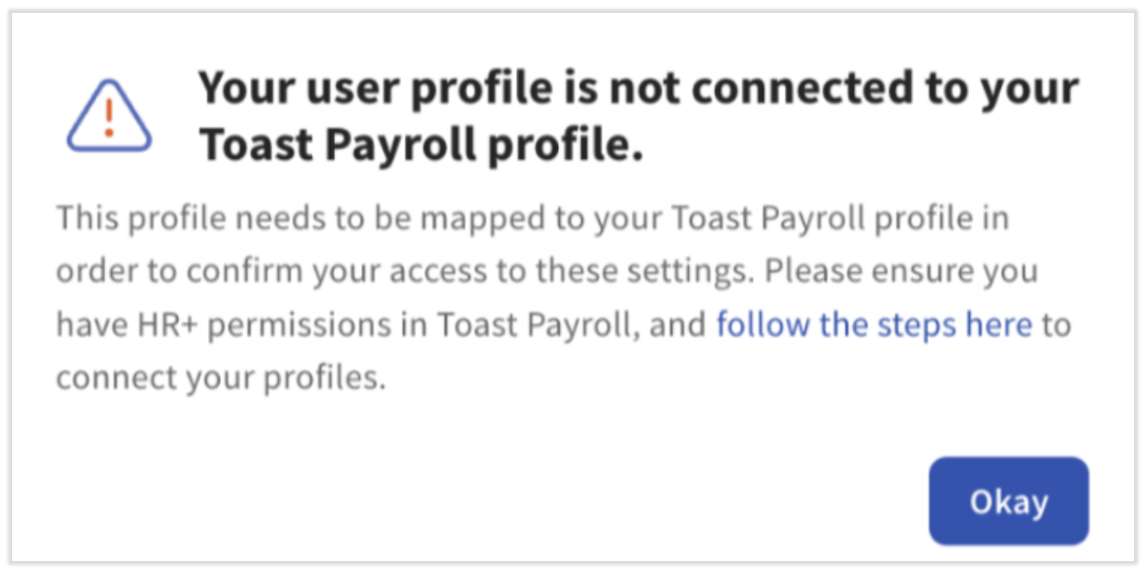
- You need to be mapped and have a job assignment at each location for Tips Manager setup.
- Log into Toast Payroll and select My Profile from the left-hand navigation bar.
- If you do not see My Profile on the left side of the screen, select Payroll from the navigation rail on the left to make the Toast Payroll navigation rail appear.
- Scroll down and select POS Mapping. If that tab has a red alert icon next to it, this profile's mapping needs attention.
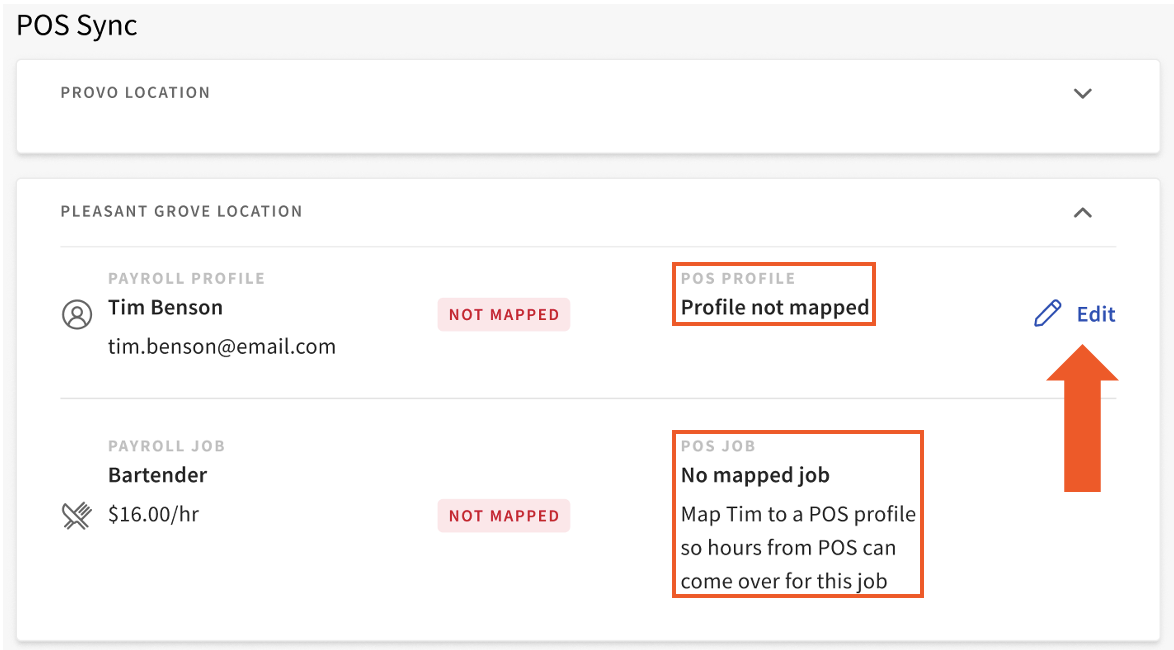
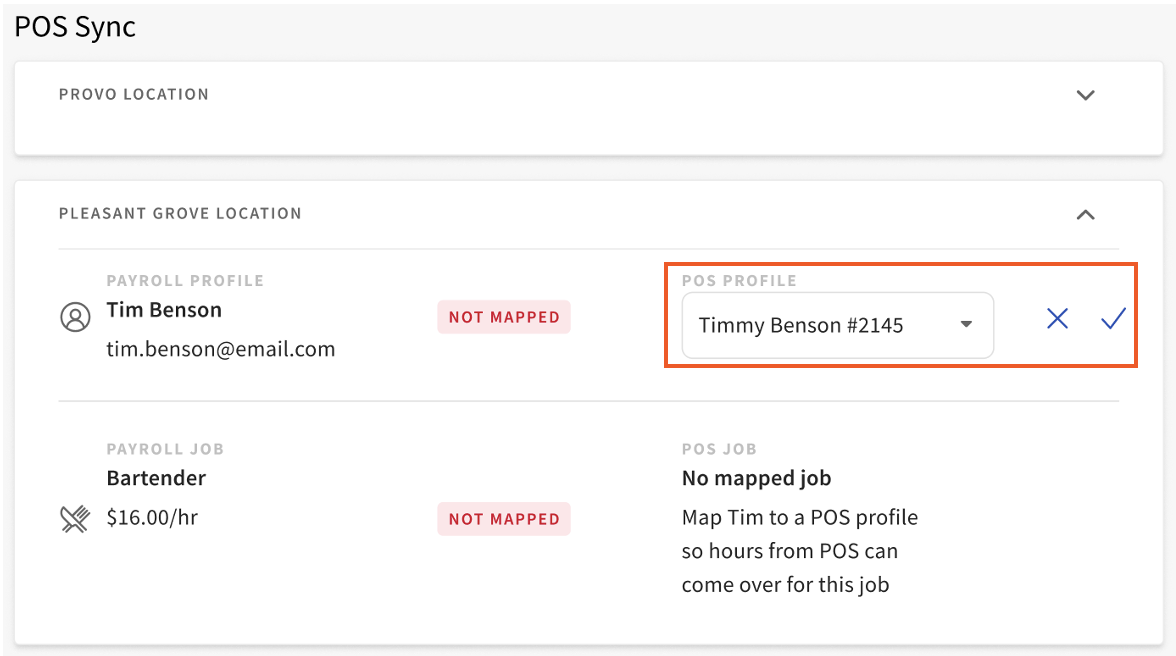
- In the example below, you'll notice that Tim Benson's payroll profile and payroll job are unmapped. Select the Edit button to open the mapping tool for this employee.
- Open the drop-down menu to see Toast Web profiles. Once you have the correct profile, select the checkmark to confirm this work. It will take effect instantly.
- Do not select Ignore Mapping in this scenario.
- Do not select Ignore Mapping in this scenario.
- After mapping your profile to that location in Toast, you may proceed with Tips Manager onboarding.
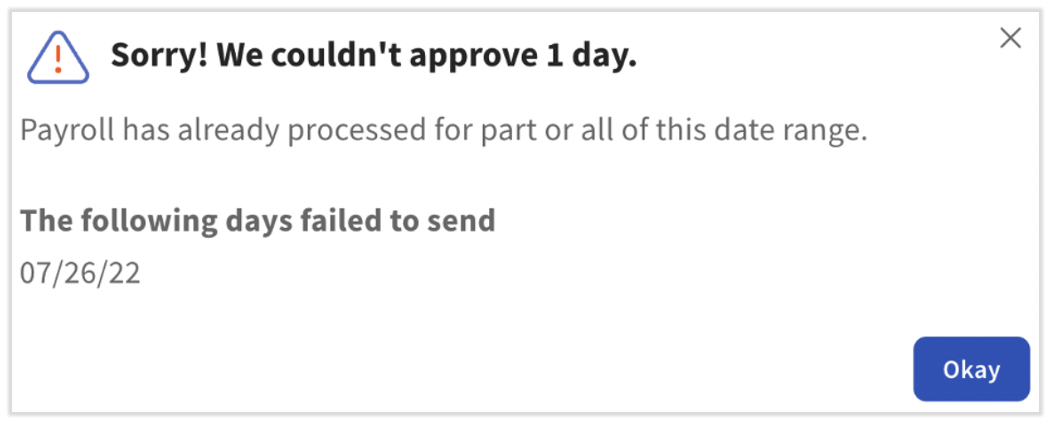
Payroll has already processed for part or all of this date range.
The payroll calendar associated with the location has already been processed or there is an open payroll period prior to the current dates. If you already processed payroll for this time period, you may wish to manually include these tips/gratuities into a future payroll. Use the values in the Tips and gratuity after pooling column of the Tip Management report by day and follow the steps in Adding a One-Time Earning section of Toast Payroll: Add or Edit Earnings & Deductions.
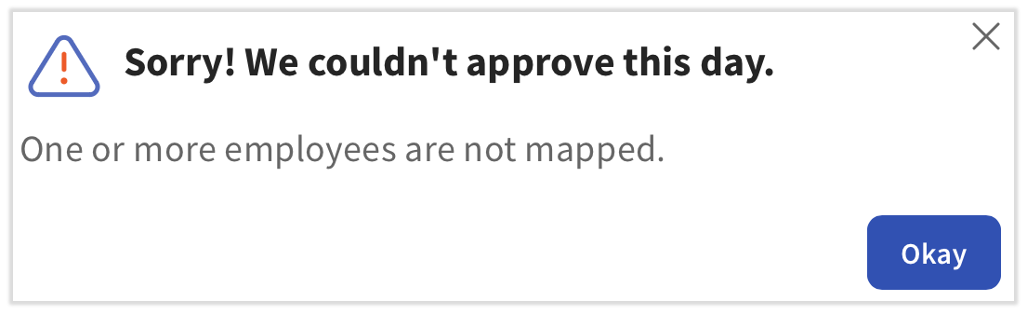
One or more employees are not mapped
This error informs you that an employee included on a tip pool is not mapped, so their tip amounts from the pool cannot sync to Toast Payroll.
First, verify all employees in Toast Payroll have a mapped profile. Navigate to Settings > Toast > Employees and use Toast Payroll: Manage Employee Mapping to map all employees in the Payroll Employee tab. Afterwards, switch over to the Unmapped POS Employee tab and ensure you don't have a duplicate profile for any of your employees. Duplicate profiles can sometimes be the source of an employee who is "mapped," but tips are still not syncing. This indicates the wrong profile is mapped.
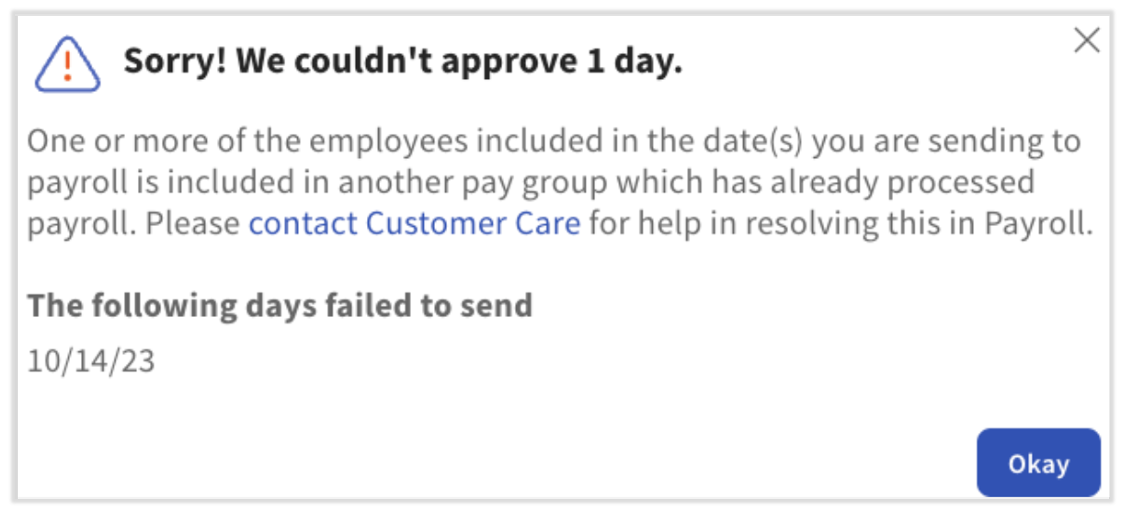
One or more of the employees included in the date(s) you are sending to payroll is included in another pay group which has already processed payroll.
Employees can be a part of multiple pay groups, usually because they work in multiple locations. When this is the case, make future plans to send tips over for all pay groups before processing payroll for any group. This error means one of the employees who received tips at this location on the date you're trying to send is also in another pay group in Toast Payroll and that pay group has already processed payroll.
When you encounter this error, you may wish to manually include these tips/gratuities into a future payroll. Use the values in the Tips and gratuity after pooling column of the Tip Management report by day and follow the steps in Adding a One-Time Earning section of Toast Payroll: Add or Edit Earnings & Deductions.
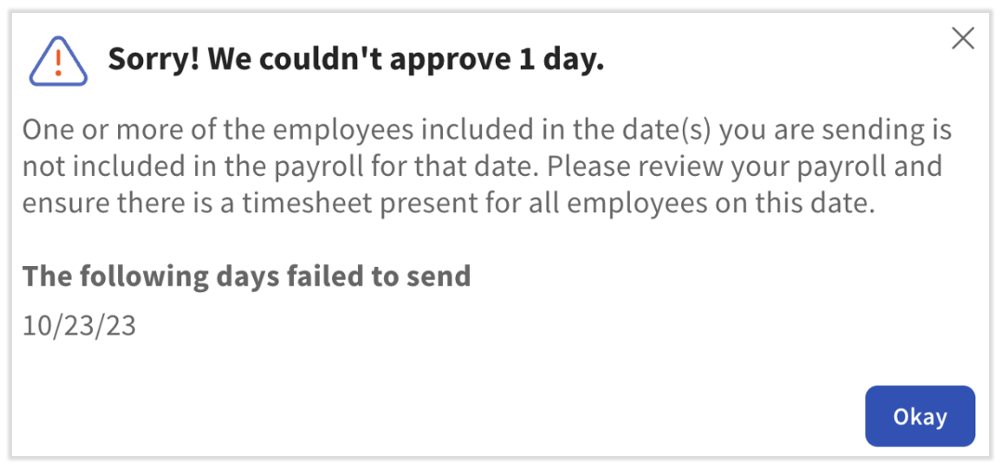
One or more employees included in the date(s) you are sending is not included in the payroll for that date.
One of the employees does not have a timesheet associated with an active payroll on that date. Each employee who receives tips after pooling requires a timesheet present in that payroll period at that location to ensure Toast can sync the tips to the correct timesheet and payroll.
- Ensure the employee has the appropriate time entries. In Toast Web, navigate to Reports > Labor > Time entries. Verify the employee's clock in and clock out times.
- If everything is correct in the report, open Toast Payroll and navigate to the employee's profile. Scroll down to see the POS Mapping tab on the left. If it has a red dot alongside it, select POS Mapping to open a page where you can connect an employee's Toast Web and Toast Payroll profiles. See the Individual Employee Mapping section of Toast Payroll: Manage Employee Mapping for more details.
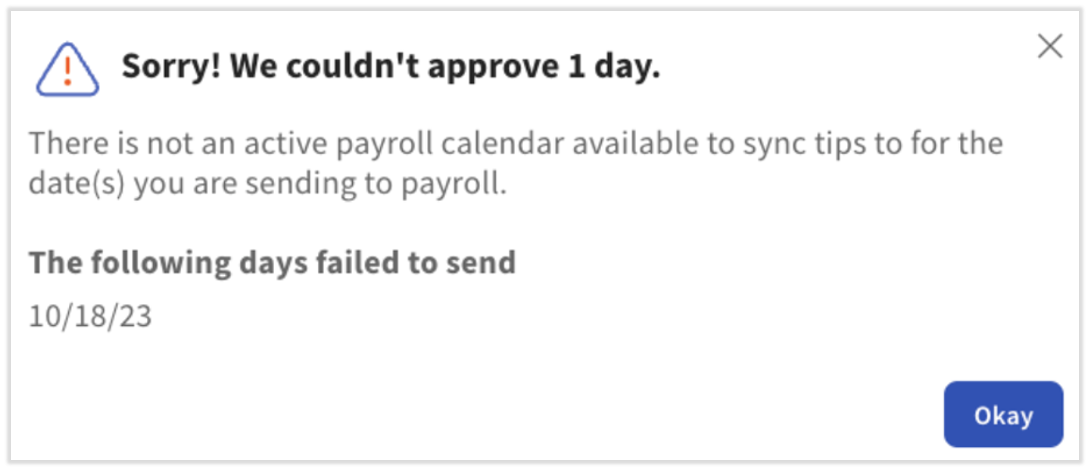
There is not an active payroll calendar available to sync tips for the date(s) you are sending to payroll
Contact us via the blue chat button in the lower-right corner of any Toast Web or Toast Payroll page to receive assistance with this error.
Is Tips Manager available in Australia, Canada, Ireland, or the UK?
No. Toast Tips Manager is exclusively available to customers within the United States and not available for customers in Australia, Canada, Ireland and the UK at this time.
Disable Toast Tips Manager
If you are not satisfied with Toast Tips Manager, reach out to our Customer Care team to cancel or remove the tip pooling service. Start a live chat here with our Customer Support team. Chat is available in Toast Web and Payroll Web (select the blue support button in bottom right of every page) and the Support tab in the Toast Now app.
This content is for informational purposes and is not intended as legal, tax, HR, or any other professional advice. Please contact an attorney or other professional for advice.