Tips Manager and Online Ordering
Last updated: Oct 8, 2026, 12:04 PM
Create a generic online ordering employee, assign it to online orders, and build a tip pool so online ordering tips distribute to your clocked-in staff.
- Before You Begin
- Online Ordering Tips Overview
- Step 1: Create a Generic Online Ordering Job
- Step 2: Create a Generic Online Ordering Employee
- Step 3: Assign the Employee to Online Orders
- Step 4: Set Up Your Online Ordering Tip Pool
- Service Charges for Online Ordering and Delivery
- Third-Party Delivery Services
- Frequently Asked Questions
- Related Articles
Before You Begin
Applies to: Toast Web, Toast Tips Manager
Permissions needed:
- Access to Employees and Employee management in Toast Web
- Access to Payroll management and Tip pooling policy in Toast Web
What you'll accomplish: You will create a generic online ordering employee, assign that employee to all online orders, and build a tip pool rule so the tips collected on online orders are distributed to your real, clocked-in employees instead of staying with the online ordering employee.
Online Ordering Tips Overview
With Toast Online Ordering, guests have the option to leave a tip when they check out. By setting up a generic online ordering server (a non-human employee), the tips and gratuities collected through online ordering sales can be pooled with Toast Tips Manager and distributed back to clocked-in employees.
When online ordering is part of a tip pool, the goal is to get the online ordering employee down to zero dollars in tips after pooling, so that all online ordering tips are distributed to real employees. Tips that are not covered by a tip pooling policy stay with the online ordering employee, and leftover tips can block you from sending the day to Toast Payroll.
If you previously configured online ordering in Toast, it is still important to review these steps for best practices.
The federal government outlines tip pooling regulations in the Fair Labor Standards Act (FLSA). State and local governments may have their own regulations too. Before you set up tip pools or shares for your restaurant in Toast Web, consult an HR professional and consider federal, state, and local laws when defining your restaurant's tip policy and distribution rules.
Step 1: Create a Generic Online Ordering Job
To successfully pool or share tips from online orders, complete Steps 1 through 3, then set up either the default or custom online ordering pool in Step 4.
To create a generic online ordering job, follow these steps:
- In Toast Web, navigate to Team > Settings > Jobs.
- Select + Add Job, then Create New Job.
- Enter the following information into the fields on the page:
- Where does this job apply?: Select applicable locations
- Job Title: Online Ordering
- Job Code: Leave blank
- Allow cash drawer lockdown: Toggle on
- Available for delivery driving: Leave toggle off
- Pay Basis: Hourly
- Default Pay: Leave blank
- Reporting: Exclude from reports
- Tipped employee: Toggle on
- Select Continue. On the next page, select the following permissions, in addition to any others you would like to include:
- 1.2 Quick Order Mode
- 1.6 Apply Cash Payments
- 1.12 Shift Review Sales Data
- 3.12 Shift Review
- Select Create Job to save this new job.
Expected outcome: The Online Ordering job now appears in your list of jobs and is ready to assign to a generic employee.
Step 2: Create a Generic Online Ordering Employee
Now that you have created your generic online ordering job, create a generic employee for it. If you already have a generic online ordering employee, make sure it has the same online ordering job you created in Step 1 before you continue.
To create a generic online ordering employee, follow these steps:
- In Toast Web, navigate to Team > Employees.
- Select + Add New Employee.
- Fill out the following fields:
- First name: Online
- Last name: Ordering
- POS access code: Assign one that isn't being used by another employee
- Jobs and pay: Select the Online Ordering job title you created in Step 1. You can leave Pay blank.
- Select + Add new job. You do not need to save and publish when you create an employee.
Expected outcome: You now have a generic employee assigned to the generic online ordering job. The next step is to add this employee to your online ordering settings.
Step 3: Assign the Employee to Online Orders
Once you create both a job and an employee specific to online ordering, assign the employee to all online orders so this person automatically receives the online orders no matter who logs in to the device.
To assign the employee to online orders, follow these steps:
- In Toast Web, navigate to Takeout & delivery > Availability > Online Ordering.
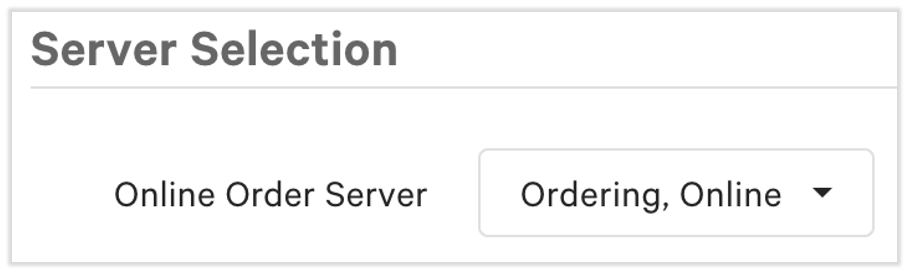
- Scroll down to Server Selection and select the Online Ordering employee you created in Step 2.
- Select Save. Your changes will be automatically published.
Expected outcome: All online orders are now assigned to your generic online ordering employee. The final step is to create the rule that distributes these tips.
Step 4: Set Up Your Online Ordering Tip Pool
Once you have set up your generic online ordering employee, job, and assignment, the last step is to create an online ordering pool. To begin, navigate to Team > Settings > Tip pooling policy.
You have two options:
- Choose a default pool if you would like all tip and gratuity sources to be distributed as one.
- Choose a custom pool if you use in-house delivery drivers, self-contracted delivery drivers, or third-party online ordering or delivery (other than Grubhub, Uber Eats, and DoorDash, which are automatically excluded). Also choose a custom pool if you want to split up online ordering tips and gratuities by dining type, such as takeout and delivery.
Default Method
A default pool uses your online ordering system to capture all tips collected through the generic employee. To set up the default pool, follow these steps:
- At the top of the Tip pooling policy page, select + Create online order pool.
- Review the pop-up that appears. It explains that this method separates the default job of Online Ordering and Salaried into two separate jobs: Salaried and Online Ordering.
- If you have not set up any policies on this page yet, select Confirm.
- If you already set up other tip pools first, this message lets you know Toast is pulling any instances of online ordering contributions away from your other rules. This is part of how the default method works. For more on building your overall policy, see Get Started With Toast Tips Manager.
- The contributor's job is locked to Online Ordering so that all tips and gratuities collected from online orders are distributed to whichever recipient you choose.
- Continue to set up the rest of the card, then select Save. For help with the remaining options, such as recipients and percentages, see Plan Your Tip Pooling Policy.
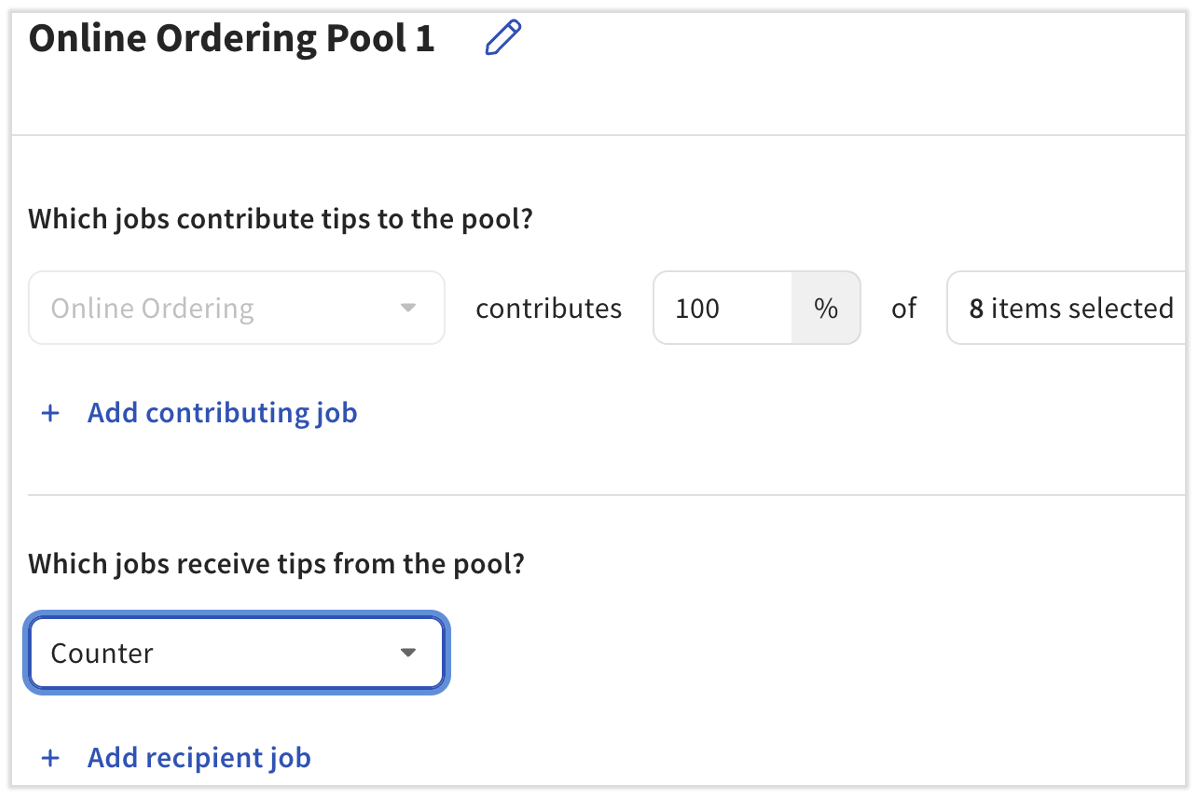
If you would like multiple default online ordering pools, select + Add online ordering pool under the first defaulted pool. If you decide to start over or use a custom pool instead, select Remove pool from the bottom of the card.
Expected outcome: Your default online ordering pool is saved, and online ordering tips will distribute to your chosen recipients.
Custom Method
If you want to avoid a default contributor, or you have special considerations such as splitting tips by dining type, create a custom online ordering pool. To set up a custom pool, follow these steps:
- Bypass the default pool. Do not select + Create online ordering pool.
- In the Custom pools section, select + Add pool. We suggest naming it Custom Online Ordering Tip Pool.
- Select the Online Ordering and Salaried job as the contributor. For help with the rest of the card's options, see the policy-building guidance in Get Started With Toast Tips Manager.
- Use the Move up and Move down buttons to position this card. We recommend placing it at the top of your policy so that all online ordering tips are considered in subsequent rules. For more on card order, see Plan Your Tip Pooling Policy.
- Select Save.
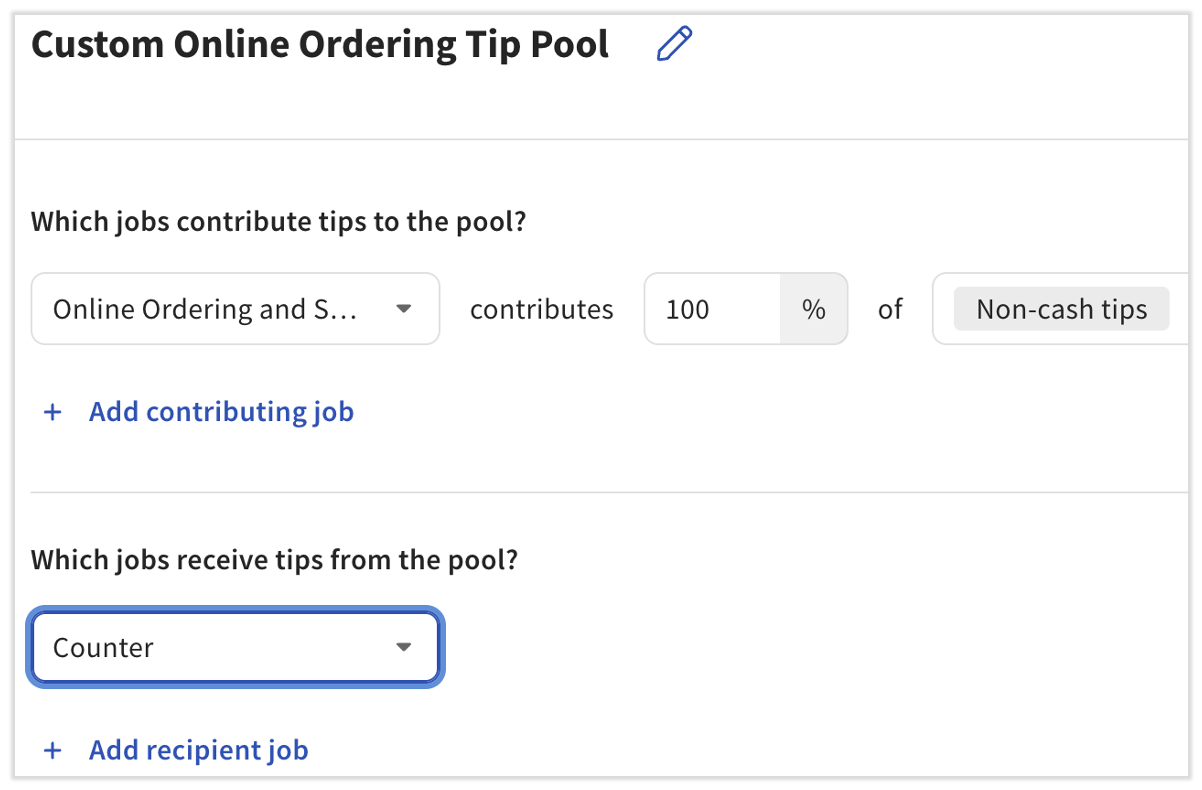
Expected outcome: Your custom online ordering pool is saved and positioned in your policy, and online ordering tips will distribute according to the rule you built.
Note: Whether you use a default or custom pool, the goal is for the online ordering employee to retain zero dollars in tips after pooling. If tips are left over, see the Frequently Asked Questions section below.
Service Charges for Online Ordering and Delivery
Service charges cannot be applied to online orders exclusively. Any service charge you create can be applied to applicable online orders and POS-entered orders. Takeout service charges are also applied to curbside pickup orders.
To create service charges for online ordering and delivery, follow these steps:
- Log in to Toast Web and navigate to Finance > Related > Settings > Service charges & fees.
- Select + Add to create a new service charge.
- Configure these options on your screen:
- Name: The name of the service charge. Online ordering guests do not see the names of the service charges you create, but the individual charges are separated out in Toast reporting.
- Charge Type: Select Fixed Percent or Fixed Amount. Open Amount cannot be used if the service charge is for takeout or delivery.
- Charge Percent/Amount: How much will be charged. Its configuration depends on the Charge Type.
- Apply After Amount Threshold: After any order reaches this dollar amount, this service charge is automatically added to the check. Setting this to $0.01 automatically applies this service charge to any order.
- Assign to check owner (Gratuity?): This setting controls whether the charge is a gratuity paid to employees or a fee kept by the restaurant.
- If you select Yes, this service charge is configured as gratuity and is paid out to the check owner (mandatory gratuity). When a service charge is assigned to the check owner this way, the digital receipt tip prompt always shows 3%, 5%, and 7% as the tip options. Select Yes here to allow this charge to be included in Toast Tips Manager.
- If you select No, this service charge is included in net sales for the business (an employer-kept service charge). This lowers the suggested tip on physical and digital receipts by the percentage of the service charge.
- Taxed?: Selecting Yes includes the service charge in the taxable amount of the check. Selecting No keeps tax from being applied. Consult your tax advisor for guidance on your applicable tax obligations. Compliance with applicable tax laws is your responsibility.
- Calculated on pre-discount or post-discount total?: If you selected Yes for Taxed?, this further customizes when the service charge is taxed. If you selected No for Taxed?, you can ignore this setting.
- Delivery?: Selecting Yes automatically assigns this service charge to any checks with a Delivery dining option. This service charge shows up on receipts as "Delivery Fee," regardless of the name you give it.
- If multiple service charges have the Delivery? option set to Yes, they are combined into a single "Delivery Fee" on receipts and reports.
- We do not recommend configuring a single service charge with both Delivery? and Takeout? set to Yes. Doing this causes the service charge on takeout checks to be categorized as "Delivery Fee." Instead, create separate service charges for delivery and takeout orders.
- Takeout?: Selecting Yes automatically assigns this service charge to any checks with a Takeout dining option, including curbside pickup orders. Guests see this on a digital receipt in a combined line called Taxes & Fees.
- Dine-in?: Select No.
- Select Save, then publish your work.
Expected outcome: Your service charge is saved and published. You do not need to create a service area for online ordering service charges, because the dining option you selected already auto-applies the charge.
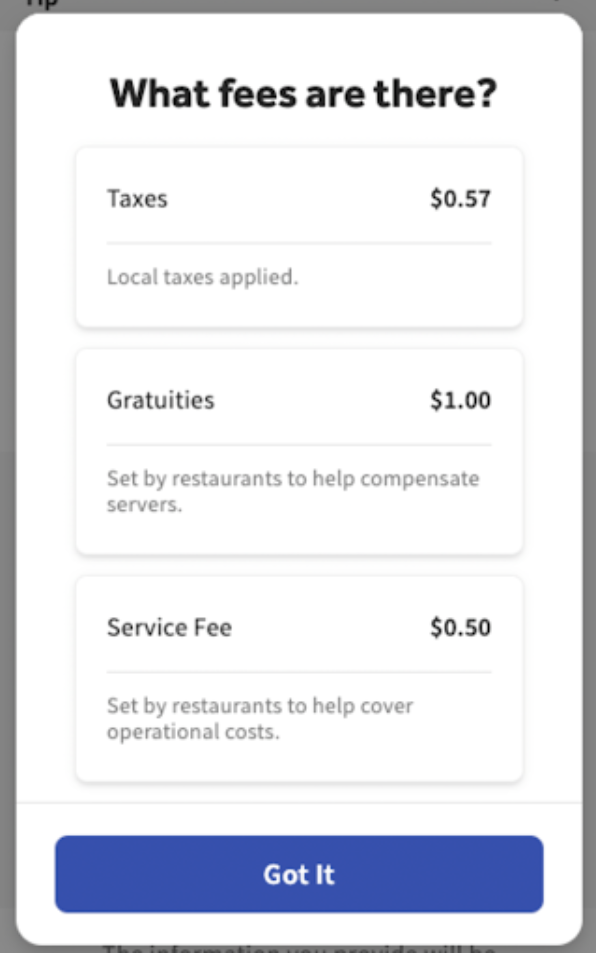
A takeout service charge appears to guests at checkout within the Taxes & Fees line item.
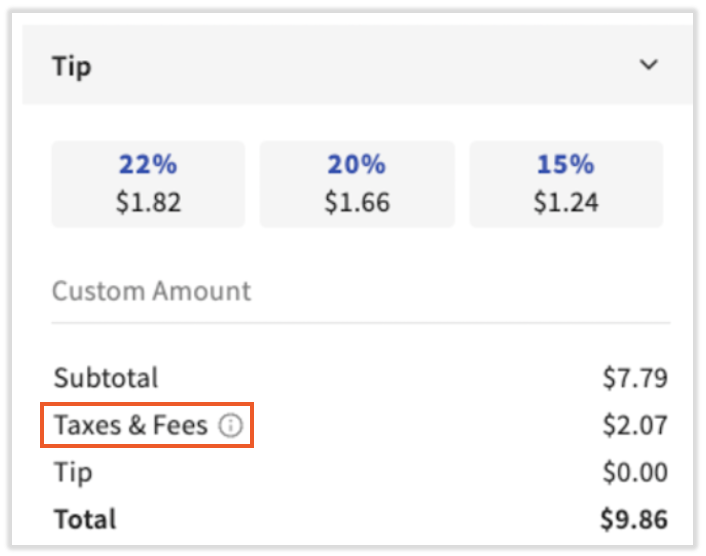
If the guest selects the ? button next to Taxes & Fees, they see a breakdown. If an online ordering service charge was assigned to the owner of a check, it appears in the Gratuities tile. If it is assigned to the restaurant, it appears in the Service Fee tile.
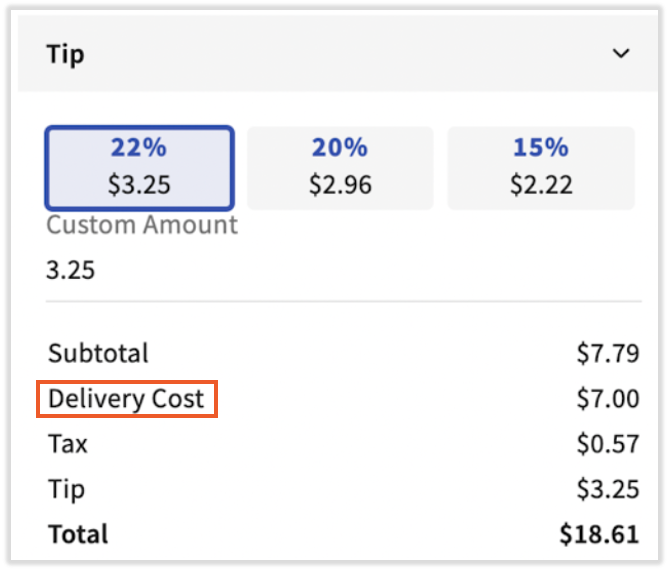
A delivery service charge appears to guests at checkout as Delivery Cost, even if you named the service charge differently.
Third-Party Delivery Services
Uber Eats, Grubhub, and DoorDash delivery services cannot be built into Toast Tips Manager, because third-party delivery service tips are paid to the drivers of those companies and not to Toast restaurants. However, this applies only to delivery orders placed through these services. Tips on takeout orders are paid out to your restaurant and are part of your online ordering policy. Tips on orders placed through other third-party online ordering services, such as Chowly and ChowNow, can also be part of your online ordering policy.
With this in mind, build your online ordering rules as you would any other Tips Manager rules. If an online ordering policy is not set up, takeout tips from Uber Eats, Grubhub, and DoorDash, along with all tips from other third-party online ordering services, are not distributed to your staff.
To see where tips on delivery orders are routed, you can review your tip reporting. For details, see Toast Tips Manager Reporting.
Frequently Asked Questions
Why does my online ordering employee still have tips after pooling?
Your online ordering employee can still have tips after pooling when a tip source on those orders is not covered by a rule in your tip pooling policy. Tips that no rule accounts for stay with the owner of the ticket, which for online orders is your generic online ordering employee. A common example is a "Non-Cash Gratuity" amount, or a service charge that is not selected to contribute to the pool. Open your pool on the Tip pooling policy page and confirm that every tip and gratuity source on your online orders is set to contribute, and that at least one recipient job is set to receive. For more troubleshooting, see Get Help With Toast Tips Manager.
Also asked as:
- The default online ordering still has tips after pooling, how do I change this?
- Online ordering is holding onto tips after the pool
- How do I get online ordering down to zero after pooling?
Why are leftover online ordering tips blocking me from sending payroll?
Leftover online ordering tips block payroll when the online ordering employee still has undistributed tips for a day, because Toast Tips Manager cannot send a day that still has tips sitting with the online ordering employee. First, update your tip pooling policy so the leftover tip source contributes to a pool and a recipient job receives it. If a recipient job was simply not clocked in that day, you can temporarily add another receiving job to the online ordering pool for that day. If you cannot resolve the leftover amount yourself, contact Toast Customer Care. For related steps, see Tips Manager With Toast Payroll.
Also asked as:
- The default online ordering still has tips after pooling and payroll won't go through
- I can't send my tips to payroll because of online ordering
- Online ordering is blocking my payroll
My online ordering tips should go to a job that isn't clocked in. What happens?
When the recipient job in your online ordering pool is not clocked in for a day, there is no one to receive the online ordering tips, so the tips stay with the online ordering employee for that day. Confirm that the recipient job you chose exists in your employee list and that at least one person with that job is clocked in during the period the online orders are open. If no one with the recipient job worked that day, you can temporarily add another receiving job to the online ordering pool so the day's tips can be distributed. For help planning recipients, see Plan Your Tip Pooling Policy.
Also asked as:
- Online tips go to runner but we don't have a runner in the employee section
- My online ordering pool isn't distributing because no recipient was clocked in
- Online ordering tips aren't pooling to the right job
How do I change a gratuity that is showing up as "Delivery Fee" on receipts?
A gratuity shows up as Delivery Fee on receipts when a service charge has the Delivery? option set to Yes, because Toast renames any delivery service charge to "Delivery Fee" for guests regardless of the name you give it. If you want the charge to show as a gratuity instead, review the service charge on the Finance > Related > Settings > Service charges & fees. page and confirm the Delivery? and Assign to check owner (Gratuity?) settings match how you want the charge to behave. For details on these settings, see the Service Charges for Online Ordering and Delivery section above.
Also asked as:
- How do I change the gratuity name to say gratuity instead of delivery fee?
- Why is my gratuity printing as Delivery Fee?
- My service charge shows as Delivery Fee on the receipt
What does "Assign to check owner (Gratuity?)" mean for a takeout or online order?
The Assign to check owner (Gratuity?) setting determines whether a service charge on a takeout or online order is treated as a gratuity paid to employees or a fee kept by the restaurant. If you select Yes, the charge is a mandatory gratuity paid to the check owner and can be included in Toast Tips Manager. If you select No, the charge is an employer-kept service charge that stays with the restaurant and is counted in net sales. Choose No if you want the fee, such as a packaging fee, to go to the restaurant rather than to your employees.
Also asked as:
- Under service charges, what does assign to check owner (gratuity) mean?
- If I put No on assign to check owner, does the restaurant keep the fee?
- Is my takeout packaging fee a gratuity or a restaurant fee?
Related Articles
- Get Started With Toast Tips Manager
- Plan Your Tip Pooling Policy
- Get Help With Toast Tips Manager
- Tips Manager With Toast Payroll
- Toast Tips Manager Reporting
This content is for informational purposes and is not intended as legal, tax, HR, or any other professional advice. Please contact an attorney or other professional for advice.