Plan Your Tip Pooling Policy
Last updated: Oct 8, 2026, 3:05 PM
| Toast cannot advise on creating a tip pooling policy. Consider registering for the Toast Tips Manager live classroom session or refer to the U.S. Department of Labor and your state wage-and-hour agency. Additionally, all Toast Payroll customers have access to the HR Toolkit through Mineral. |
- Before You Begin
- Step 1: Order Your Tip Pool Rules
- Step 2: Choose Your Tip Pooling Interval
- Step 3: Decide What Sources Feed Your Pool
- Step 4: Decide on Mandatory Gratuity and Delivery Fees
- Step 5: Choose Points or Percentages
- Step 6: Test Your Policy With Tip Policy Preview
- Restaurant Type Considerations
- Job-Specific Considerations
- Special Setup: Communal Drawer
- Special Setup: Region or Time-Dependent Jobs
- Special Setup: Generic Employees and Jobs for Large Parties, Banquets, or Shared Tables
- Frequently Asked Questions
- Related Articles
Before You Begin
Applies to: Toast Web, Toast Tips Manager (purchased subscription). Optional: Toast Payroll.
Permissions needed:
- 6.6 Restaurant Operations Setup
What you'll accomplish: Plan a tip pooling policy (also called a tip policy or tip pool) you can build, preview, and save in Tips Manager.
Note: The features described in this article are currently not available to customers in Canada, Ireland, and the UK.
Important: The federal government outlines tip pooling regulations in the Fair Labor Standards Act (FLSA). State and local governments may have their own regulations. Before setting up tip pools or shares for your restaurant within Toast Web, consult an HR professional and consider federal, state, and local laws.
This article walks you through planning a tip policy. For click-by-click setup instructions, see Get Started With Toast Tips Manager.
For a live training experience with a Toast Training Expert, sign up for Toast Classroom — Tips Manager.
Step 1: Order Your Tip Pool Rules
The order of the tip pool rules on your Tip pooling policy page affects your policy calculations. Tips Manager reads your full policy from top to bottom and calculates as it goes.
If your tip policy uses more than one tip pooling rule (you've selected + Add pool at least once), these pools are separate from one another and do not look at each other for calculations.
Use these guidelines to order your rules:
- If a job both contributes and receives tips, place the rule that contributes its tips out before the rule that pools those remaining tips. Otherwise, the job may give away its tips before its support staff is tipped out.
- Rules closest to the top typically contain smaller contribution percentages. Larger contribution percentages typically appear toward the bottom.
- Use the Preview button at the top of the page to test your policy against real data. You do not have to save the policy to preview it.
Example: A Bar Drawer contributor tips out 2% of food sales to the Food Runner recipient job, then the remainder of the Bar Drawer tips goes to a pool which Bartender and Bar Back recipient jobs receive from.
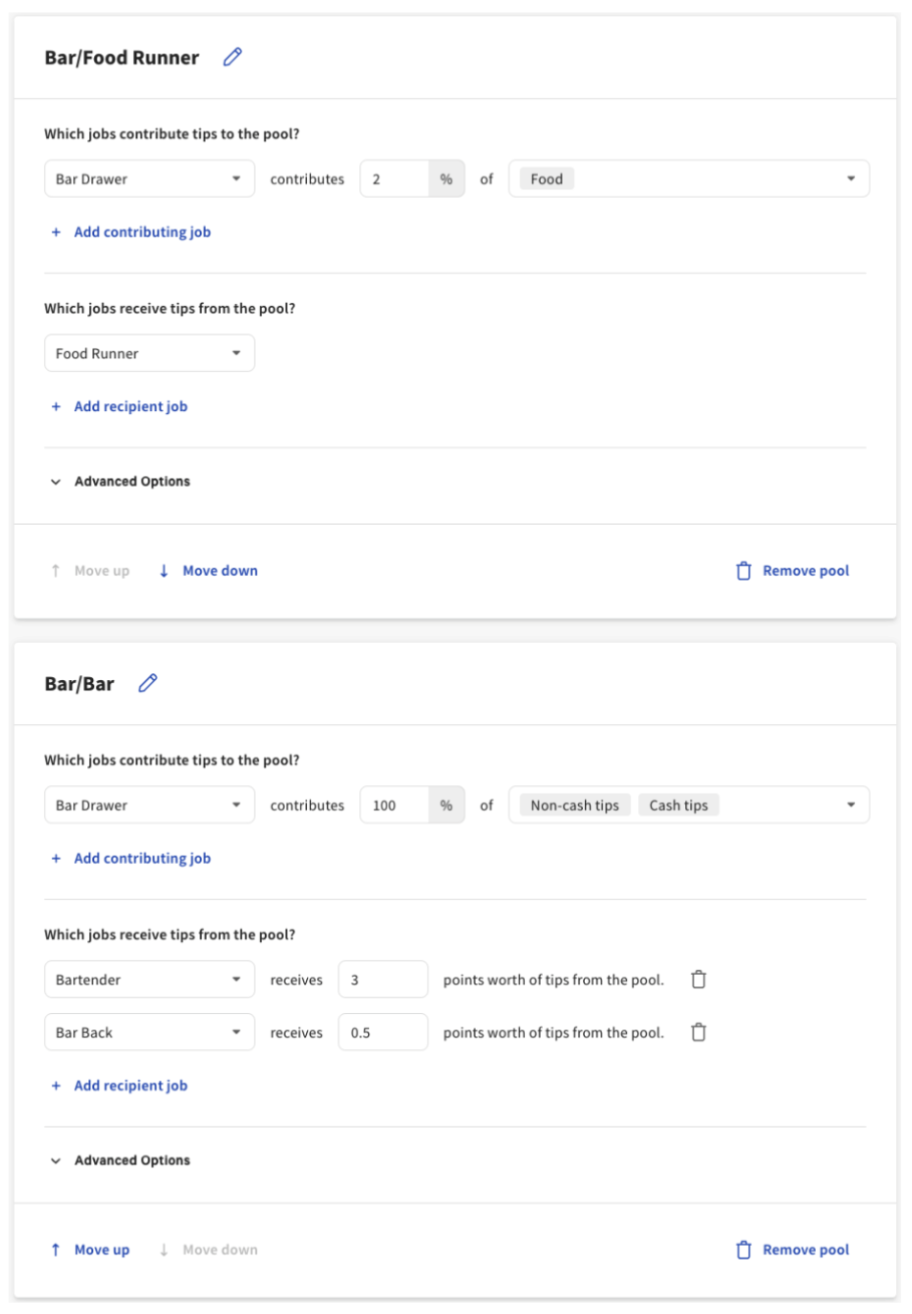
These rules are in the correct order because Toast pulls 2% of food sales from the Bar Drawer contributor's tips for Food Runner recipients before splitting the remainder between the Bartender and Bar Back recipient jobs. This ensures the Food Runner is tipped out before the pool is "empty."
If these two rules were switched and the 100% pool was above the 2% pool, Tips Manager would contribute 100% of the Bar Drawer tips to Bartender and Bar Back recipient jobs first, then look for 2% to contribute to the Food Runner — but there would be no tips left to distribute.
Step 2: Choose Your Tip Pooling Interval
Tips Manager allows you to select one interval per location — you cannot use different intervals for different rules. Use the table below to decide which interval fits your tip policy.
| My Restaurant's Tip Pool Policy: | Full Workday Tip Pooling Interval (default) | Service Period Tip Pooling Interval | Order Tip Pooling Interval |
|---|---|---|---|
| Distributes tips based on when the tip is received | This interval does not consider the time a tip is received. | Toast looks for the fulfilled time of a check — not when it was closed or when the tip was applied. A check open from 10 to 11 uses 10:00 as its fulfilled time. This time falls into a specific service period. | Tips are distributed to employees who are clocked in at the point in time when the check is opened. |
| Considers the clock-in time of an employee | Employees must be clocked in within the day (system default considers the date as 24 hours beginning at 4:00 a.m.) to be part of the policy. | Toast assigns an employee's checks to a service period based on the fulfilled time of the check and which service period that falls into. | Employees must be already clocked in at the time the check is opened to be part of the policy for that check. |
| Can accommodate cash tips | Yes | Yes | No. Cash-in-hand and cash drawers are reconciled at the end of the service period or day. |
| Pools by week or pay period | Tips Manager pools across daily intervals (Full workday, Service Period, and Order) for reporting purposes and cannot accommodate intervals that exceed 24 hours. | Same as Full workday — cannot accommodate intervals that exceed 24 hours. | Same as Full workday — cannot accommodate intervals that exceed 24 hours. |
Note: If you choose Service Period, your Hours and services in Toast Web must be configured accordingly. See Get Started With Toast Tips Manager.
Step 3: Decide What Sources Feed Your Pool
Tips Manager distributes tips based on the job employees clock into. When setting up your policy, you select one or more jobs to contribute a percentage of tips, gratuities, or sales categories.
Important: Do not select both tips/gratuities and sales categories within the same tip pool rule. This is redundant and produces unexpected results.
Use the table to map how your employees ring in sales to a possible Tips Manager configuration:
| My Employees: | Possible Tips Manager Configurations: |
|---|---|
| Ring in sales using a shared drawer (like a team of cashiers or a single bar POS) | Consider creating a communal drawer and assigning it to its own job. |
| Ring in sales under their own name and individual POS login code | Make sure all employees are assigned to the correct job in Toast Web and Toast Payroll, if applicable. |
| Get tipped out differently if they work in different areas of the restaurant (such as a patio) | Consider creating jobs based on each area so you can build tip rules for those employees as contributors or recipients. |
| Get tipped out differently if they work at different times of day (such as a PM Bar job tipping out an AM Bar job) | Consider the Service Period tip pooling interval, or create jobs based on time (such as AM Bar, PM Bar). |
| Get tipped out but do not clock in | Tips Manager relies on time entry data and cannot automatically tip employees out unless they clock in. |
| Work a split role, such as taking a private party and their own tables | Event or banquet setups require careful configuration. |
Cash Tips, Non-Cash Tips, and Sales Categories
Use this table to plan how cash tips, non-cash tips, and sales categories factor into your policy:
| My Restaurant's Tip Pooling Policy: | Possible Tips Manager Configurations: |
|---|---|
| Calculates tip pools based on a percentage of sales made within the day | To distribute based on sales categories, each menu item and open item needs a sales category applied. Sales category additions or changes are not retroactive. If you use the Order interval, Toast can only include sales from orders with non-cash tips. There is no way to calculate tips as a percent of sales for periods longer than one day. |
| Calculates tip pools based on a percentage of sales and has rules about cash and non-cash distribution | Sales category tip-out percentages are applied to the contributor's sales during that day, service period, or specific tipped order, and then taken from the contributor's non-cash tip total. If the percentage exceeds the non-cash tip total, only the non-cash tips will be distributed. Best practice: use separate rules for "cash/non-cash" tip pools and "percentage of sales category" tip pools. |
| Does not require employees to declare cash tips within the POS | Tips Manager uses the tip earner's Declared cash input during shift review to determine cash tips available in the pool. If an employee does not enter this amount, Toast cannot account for it. If you would rather pay declared cash tips outside the pool, see Pay Out Tips and Gratuities in Cash While Using Toast Tips Manager. |
| Has separate rules based on whether the tip is cash or non-cash | Tips Manager allows you to create separate rules based on cash tips, non-cash tips, cash gratuities, and non-cash gratuities. When selecting the contributor's tip source, use the v caret to expand gratuity options and select each source checkbox as it applies. |
| Involves commission | Tips Manager cannot be used with commission. The system requires tips or gratuities to distribute and will not pull from net sales, even if sales categories are used as the source of contributions. |
| Distributes tips by tenure | There is no way to distribute tips based on individual employees or date of hire. Tip rules are based on jobs — build specific jobs for specific contributors and recipients, and make sure employees clock into those jobs. |
| Varies based on how many employees are clocked in | Tips Manager does not allow conditional tip pooling rules (by day of week, number of employees, sales amount, etc.). Use point-based distribution to adjust tips dynamically based on your specified ratio. |
Step 4: Decide on Mandatory Gratuity and Delivery Fees
Mandatory gratuity and delivery fees only flow through Tips Manager when configured as gratuity in Toast Web.
| My Restaurant: | Possible Tips Manager Configuration: |
|---|---|
| Adds mandatory gratuity to at least some checks | In Toast, mandatory gratuity is a service charge. For a service charge to be distributed through Tips Manager, it must be configured as gratuity. See Get Started With Service Charges and Mandatory Gratuity. |
| Has a delivery fee for third-party delivery drivers | If you use third-party delivery services, review your user agreement to confirm how fees and tips are distributed. If you want a delivery fee to be distributed through Tips Manager, it must be configured as a gratuity. See Get Started With Service Charges and Mandatory Gratuity. |
Step 5: Choose Points or Percentages
When more than one recipient job is in a pool, Tips Manager splits the contribution among them using either points or percentages.
- Points are proportional shares of the contribution, split according to which jobs had employees clocked in.
- Percentages assign a fixed percentage of the contribution to each recipient's job. If a rule sends to a job that had no employees clocked in, that percentage returns to the contributor — except for communal drawers, where this causes errors.
For detailed examples and a side-by-side comparison, see Points and Percentages With Toast Tips Manager.
Step 6: Test Your Policy With Tip Policy Preview
Use Preview to see how an unsaved policy would distribute tips against a recent day of business. This allows you to validate the policy against your own real data before saving. To use this feature, at least one tip pool must already be created.
- In Toast Web, navigate to Team > Settings > Tip pooling policy.
- In the upper-right corner, select Preview.
- Select a day in the past to apply the current tip pool configuration. If you've selected Service Period as your tip pooling interval, use the tabs to switch between service periods (shifts) for each day.
- The system applies your current tip pooling policy settings to the tip data from your selected date. This shows you how tips and gratuity would have been distributed to the employees who worked that day.
- Select an employee to bring up their tips receipt, which shows the calculations behind the results.
- Select Back to policy to revert to the previous page and make adjustments as needed.
- Once the preview gives you the desired outcome, select Back to policy and select Save to put this policy into effect.
Expected outcome: Your policy distributes tips as intended for the previewed date, and you save the policy to apply it going forward.
Restaurant Type Considerations
Over-the-Counter Service
Over-the-counter service typically has a relatively simple tip pool. If all of your tipped staff clock into the same job (such as Cashier), use a single tip rule with Cashier as both the Contributor and Recipient job. Set the source to 100% of either all tips or all sales (never both), then use the Proportionally by hours worked setting. If you use Toast Payroll, see the Pay Cash Tips section of Tips Manager With Toast Payroll.
Note: Toast Tips Manager cannot pool tips across a time frame longer than a day.
Restaurants With Bars
Full service (sit-down) restaurants with a bar commonly have lunch and dinner service. These two service periods might have their own tip rules for bartenders.
AM (lunch) bar service might offer higher wages for bartenders since they may work alone for this shift. If a bartender works by themselves — without barbacks or other support staff to tip out — they may not have a tip rule where they're the Contributor during lunch service. Instead, they might just be a tip-out Recipient on a pool of AM (lunch) servers.
PM (dinner) bar service might include multiple bartenders on a single shift and possibly include barbacks or other support staff. In this case, bartenders might have more than one tip rule, and the order of the rules is vital (see Step 1):
- The first rule might send a portion of the Contributor bartender's tips or sales to their Recipient support staff.
- A second rule might include bartenders as a Recipient of tip outs from servers or other Contributors based on a percentage of the contributor's bar sales.
- A third rule might pool all bartenders as both the Contributor and Recipient with 100% of either tips or sales (never both). Since this is the third rule, this pool would include both the remainder of all PM bar tips after tipping out in rule one and the tip outs received from rule two.
Night Clubs
Bottle service at bars and clubs may use a setup where tips are distributed only within the same jobs that receive them, so a tip rule might use the same Contributor and Recipient jobs. Your policy might also include tip outs for support staff (dancers, security, server assistants, etc.) or might share tips between multiple jobs that receive tips directly. When tip outs and pooled tips are combined, always be aware of rule order.
Banquets, Large Parties, and Events
Tips vs. gratuity matters here. Some states have additional laws on gratuity, so make sure to become familiar with those before applying a tip policy with gratuity included. Banquets, large parties, and events often come with service charges — these can be directed to employees (mandatory gratuity) or kept by the restaurant (employer-kept service charge).
You might use generic employees and jobs to separate the sales, tips, and service charges of these events from the rest of your business, since they can be atypical of a restaurant's normal operations.
Job-Specific Considerations
Servers and Cocktailers
Restaurants that use server and cocktailer jobs typically see the highest variance in how they set up tip policies. A few common patterns:
- In restaurants with cashiers, tips might be split Equally or Proportionally among all eligible jobs.
- In full service (sit-down) restaurants, servers usually open and close checks themselves and receive tips directly, with only a support job or two to tip out.
- If there are multiple sections (dining room, lounge, patio, etc.) where tips should remain with customized jobs associated with each section, there may be multiple tip rules containing the customized jobs as both Contributors and Recipients.
If you're having trouble deciding what your tip policy should be, use Tip Policy Preview to test calculations with your restaurant's own historical tip data.
Barbacks and Food Runners
Barback and food runner jobs typically appear in a tip rule only as a Recipient, since they do not usually receive tips directly from guests. They might receive a tip out based on bartender or server total tips rather than total sales.
Sommeliers
A sommelier Recipient job might receive a portion of all wine sales categories from any Contributor job that sells wine. If they're salaried, a sommelier job might not directly appear in a tip pool (outside of the online ordering and salaried job).
Salaried Employees
As you design a tip pool, review applicable federal and state laws regarding tips and tip pools. For example, the Fair Labor Standards Act (FLSA) states that "an employer cannot keep employees' tips under any circumstances; managers and supervisors also may not keep tips received by employees, including through tip pools."
Tips Manager uses a default Salaried job which can contribute tips to a pool. In Tips Manager, a person is considered salaried if they do not clock in or out to generate a time entry in Toast Web (and thus a timesheet in Toast Payroll). This does not mean they did or did not receive tips, or that they are exempt or non-exempt from overtime.
If you use Toast Payroll, you can enable timesheets for individuals who have a salaried position but also work an hourly job. Open Toast Payroll and navigate to this person's profile. Select the topmost > caret icon in the Jobs and Pay tile. Select Edit on the next page. (Learn how the new Toast Payroll navigation works by visiting Navigate Toast Payroll Within Toast Web.)
At the top, select your Reason (Administrative Update works well here). Scroll to the setting Is Timesheet Tied To Payroll and select Yes - All Hours Worked. Now select Submit near the bottom. This setting updates within the hour to generate a timesheet with tips for staff who hold a salaried position but also work an hourly role.
Special Setup: Communal Drawer
Communal drawers are common in restaurants where multiple employees ring in sales into a single cash drawer (bartenders, banquets, fast-casual cashiers). To set up this drawer for online ordering, see Toast Tips Manager and Online Ordering.
- In Toast Web, navigate to Team > Employees and select + Add New Employee to create a generic employee.
- For Toast Payroll users, this is an exception to the rule that all employees should be entered into Toast Payroll instead of Toast Web. Generic employees won't be paid and don't require a timesheet or mapping.
- Name this generic employee according to its role — something like Cash Drawer or Bar Drawer.
- Assign this generic employee a POS access code and share it with the employees who will ring in sales into that drawer.
- Leave Jobs and pay blank for now, and select Add.
- Find this employee and select the pencil icon > Edit custom permissions to open their permissions.
- Set up this generic employee with at least 1.2 Quick Order Mode, 1.6 Apply Cash Payments, 1.12 Shift Review Sales Data, and 3.12 Shift Review. For each of these permissions, select Custom for this employee at this location for the first drop-down menu. For the second drop-down menu, select Always enabled. Select Save.
- Choose whether you'd like to assign a job to this generic employee:
- Create a job that is unique to this generic employee and assign it to them. This job should not be the same as any of your other jobs, nor should it be assigned to actual employees. Your employees will also have to clock in this generic employee when it begins collecting sales, because Tips Manager requires time entry data (unless it's from online ordering or salaried employees) to calculate tip and gratuity collection and distribution.
- Navigate to Team > Settings > Jobs and select + Add Job > Create New Job.
- Add a unique Job title, select Hourly for the Pay Basis, and enable the Tipped employee toggle: This employee must enter cash tips at closing.
- Select Save and return to Team > Employees.
- Select the pencil icon for your generic employee and select the checkbox for the job you just created. Select Save.
- Leave the generic employee's job blank. Their sales will be captured under the default Salaried or Online Ordering and Salaried contributing job. If you choose this option, any other sales collected by "salaried" entities (additional generic employees, managers, or anyone who doesn't clock in but takes orders) will be distributed by this role. A Bar Drawer generic employee without a job will lump in with the other sales.
- Create a job that is unique to this generic employee and assign it to them. This job should not be the same as any of your other jobs, nor should it be assigned to actual employees. Your employees will also have to clock in this generic employee when it begins collecting sales, because Tips Manager requires time entry data (unless it's from online ordering or salaried employees) to calculate tip and gratuity collection and distribution.
The following example uses option A: a generic employee named Event Drawer that clocks into the unique job Event. That job contributes 100% of its tips (the suggested configuration for generic employees) to employees who have clocked into the jobs Event Server, Event Support, and Event Bar.
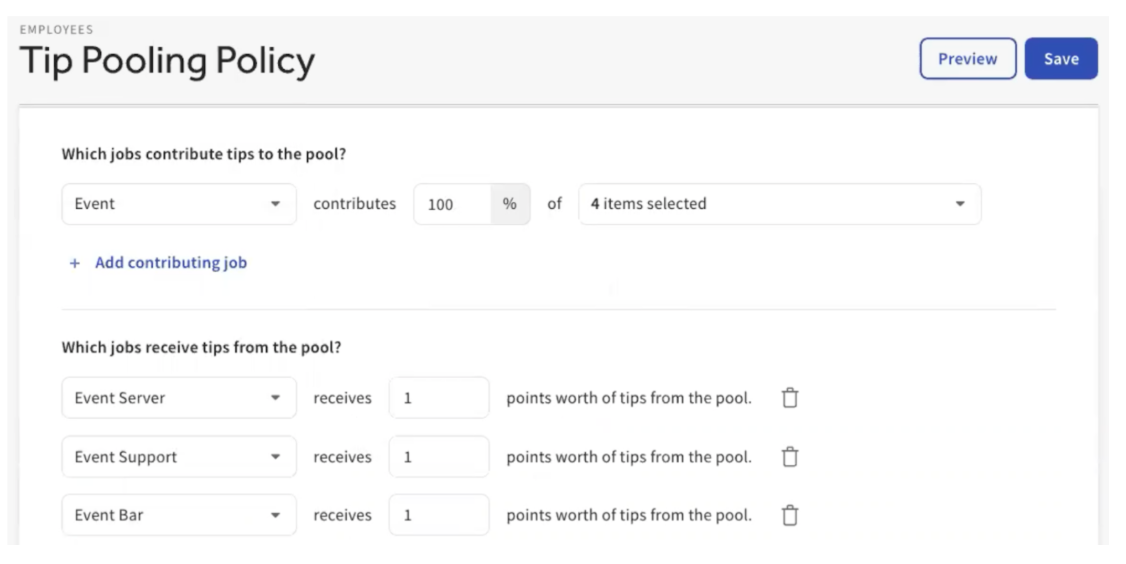
Note: For communal drawers, Toast recommends distributing tips via points (not percentages). If one or more recipients of the pool don't work that day, percentages return the unused contribution to the contributor, but the contributor is non-human, so all money collected by non-human personas requires distribution.
Expected outcome: Your communal drawer is set up with a generic employee, a unique job, and a tip rule that distributes 100% of the drawer's tips to the human jobs that should receive them.
Special Setup: Region or Time-Dependent Jobs
If you have employees who work in specific regions of the restaurant or at specific times of day, and you want those pools to stay separate from other pools, consider making jobs that reflect those needs. A few examples:
- AM Bartender, Prep Bartender, and PM Bartender allow these different roles to distribute tips between different times of day. For example, a prep bartender might receive a portion of the distributed tips for helping set up the AM and PM Bartenders for their shifts.
- Patios are a great example of keeping pools within a specific group of regionalized employees. If you're scheduling Patio Servers, Patio Bartenders, and Patio Bussers for your patio, you can build pools that don't cross over with indoor jobs.
Special Setup: Generic Employees and Jobs for Large Parties, Banquets, or Shared Tables
There are times when members of your staff share a table or area within the restaurant in addition to their own tables. A couple examples are bartenders who share their bar rail or servers who share a large party or banquet room. To integrate this type of setup into Tips Manager, use generic employees and jobs. This is similar to a communal drawer setup but requires additional configuration.
Note: When Order is selected for the Tip Pooling Interval, this setup does not work. This setup is for employees working large parties or shared tables in addition to their individual tables — not when employees are working only a single party or table (such as a server working a single banquet event one night).
Toast Web Setup
This example uses the "servers sharing a large party or banquet room" scenario.
- Begin by creating a generic job named something like Banquet 1. The generic job should have all the same permissions as the employees (in this example, servers) who will use it, and should also be flagged as a tipped job. This job does not need a wage rate, so leave its Default Pay field blank.
- If you haven't already, create a second job named something like Banquet Server 1. This is the job that servers who are involved in the banquet will clock into. This job should similarly have all the same permissions and be flagged as a tipped job. Assign an appropriate wage rate.
- Do the same for any other jobs involved, such as Banquet Busser or Banquet Food Runner. This separates them from other jobs that are not working the banquet.
- Create a generic employee named something like Banquet Generic (not shown below). This generic employee should have a unique POS access code and should be assigned to the generic job created in step 2.
- For Toast Payroll users, this is an exception to the rule that all employees should be entered into Toast Payroll instead of Toast Web, because generic employees will not be paid.
- Assign each server who may work a banquet to the new job you created in step 3. Do the same for any other banquet jobs.
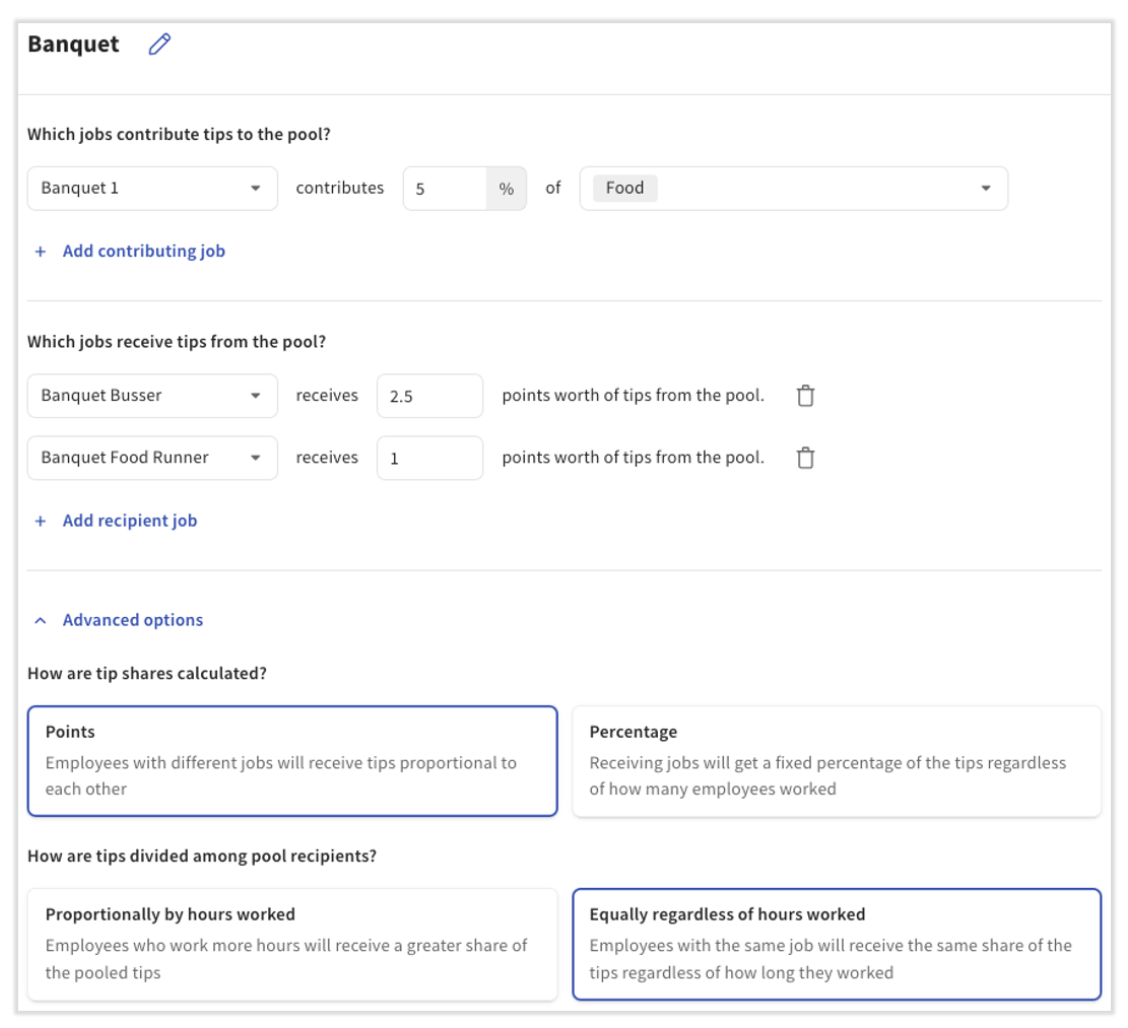
- Navigate to Team > Settings > Tip pooling policy. Using guidance from this article and Get Started With Toast Tips Manager, build the first rule(s) to share money from step 2's generic job to the jobs supporting this banquet, such as Banquet Food Runners and Banquet Bussers.
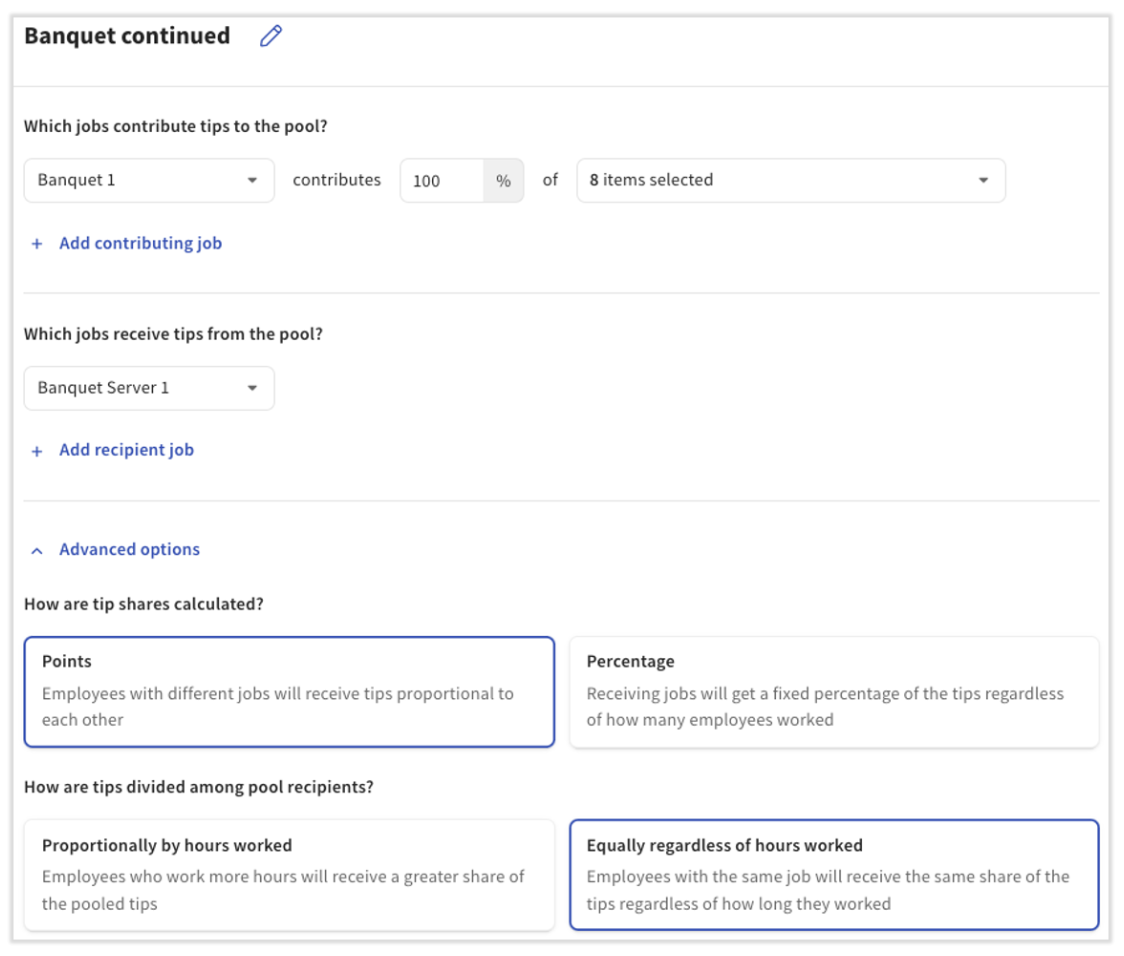
- In a new rule, add step 2's generic job as a contributor and add step 3's real banquet job (such as Banquet Server 1) as a recipient. This rule should be built with 100% contribution from the generic job in order to move the remaining money to real employees and away from the generic employee.
- In each rule, under Advanced Settings, you might toggle the How are tips divided among pool recipients? setting to Equally regardless of hours worked.
- Select Save once complete.
Process for Employees During Events and Shared Tables
- Any employee working in the shared area clocks into their large-party or shared-table job (in this example, Banquet Server 1, Banquet Busser, and Banquet Food Runner).
- The first to arrive also clocks in the generic employee (Banquet Generic) to the generic job (Banquet 1).
- These employees ring in their own (non-shared) orders under their own POS access code, and ring in the large-party or shared orders under the generic employee's POS access code. This isolates the shared orders while allowing each employee to keep orders and tips that only belong to them.
- At the end of the service period, employees run their own shift reviews and one for the generic employee (Banquet Generic).
- Once the tip pool is approved, employees will see a tip amount associated with their shared orders in Toast Payroll.
Expected outcome: Your banquet or shared-table tip flow distributes shared orders to a generic employee, then redistributes those tips through Tips Manager to the real banquet jobs, while each employee's individual orders remain tied to their personal POS code.
Frequently Asked Questions
Where Do I Find or Edit My Tip Policy?
To find or edit your tip policy, open Toast Web and navigate to Team > Settings > Tip pooling policy. From here, you can add, remove, or edit rules, change your tip pooling interval, and use Preview to test changes before saving.
Can I Add or Remove Someone From the Tip Pool?
Tip pool rules are based on jobs, not individual employees. To add or remove a person from the tip pool, change the job they clock into in Toast Web, or update the rule's Contributor or Recipient jobs to include or exclude their job.
If you need to remove an employee from the pool for one specific day, the most reliable method is to edit their time entry for that day so they are not clocked into a contributing or receiving job. See Edit Employee Time Clock Entries.
Is a New Tip Policy Retroactive to the Start of a Pay Period?
When you save a new tip pooling policy, the Tip Management Report updates in real time except for dates already approved. If you want to change a tip pool during a pay period, approve the dates ahead of the change before updating and saving the new policy.
Can I Override the Tip Policy for One Day?
There is no toggle to override the tip pooling policy for a single day. To handle a one-day exception, you can:
-
- Edit time entries for that day so employees are clocked into different jobs that align with a different rule, or
- Pay tips out manually outside Tips Manager. See Pay Out Tips and Gratuities in Cash While Using Toast Tips Manager.
Where Are the Advanced Options in Tip Pooling?
Advanced options live inside each rule on the Tip pooling policy page. After you add or open a pool, select Advanced options to choose:
-
- How are tip shares calculated? Points or Percentages.
- How are tips divided among pool recipients? Proportionally by hours worked, or Equally regardless of hours worked.
For details, see Points and Percentages With Toast Tips Manager.
My Tip Policy Isn't Distributing as Expected — Where Do I Start?
Start by reviewing Step 1: Order Your Tip Pool Rules — rule order is the most common cause of unexpected distributions. Then use Tip Policy Preview to see exactly how your current policy would have distributed tips for a recent date.
If the issue isn't with rule order or preview, see Get Help With Toast Tips Manager for troubleshooting scenarios.
Related Articles
- Get Started With Toast Tips Manager
- Points and Percentages With Toast Tips Manager
- Tips Manager With Toast Payroll
- Toast Tips Manager Reporting
- Get Help With Toast Tips Manager
This content is for informational purposes and is not intended as legal, tax, HR, or any other professional advice. Please contact an attorney or other professional for specific advice.