Toast Payroll: Verify Payroll Was Submitted
Last updated: Oct 19, 2026, 3:54 PM
Question
Was my payroll submitted and posted successfully?
Answer
All HR+ users with access to this specific pay group will receive an email notification that includes the date and time the payroll was submitted and an estimated Toast Payroll withdrawal amount. Follow the steps below to locate more details of the submitted payroll.
While running payroll, you'll know you've successfully submitted it when you reach the step that says Payroll posted successfully! This appears after pressing the Submit payroll button. If you've previously navigated away from this page, follow these steps:
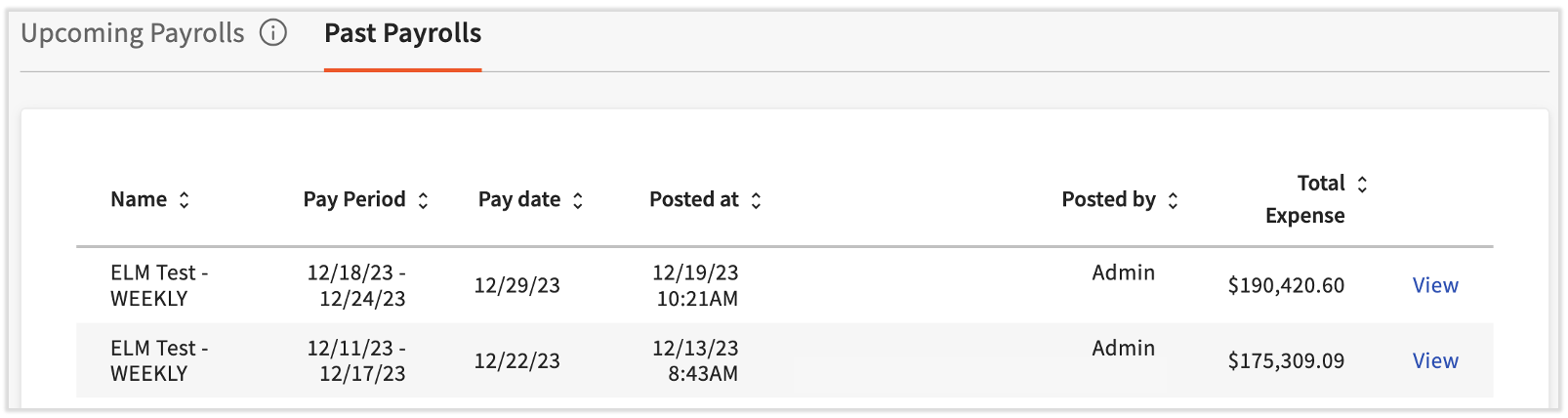
- Log into payroll.toasttab.com and navigate to Payroll > Past Payrolls.
- When the Toast Web and Toast Payroll navigation menus are both visible, select Payroll from the Toast Payroll navigation sub-menu. If you don't see the Toast Payroll sub-menu, selecting Payroll from the Toast Web navigation menu will expand it.
- Look for a payroll with the Missed tag in the Submitted at column. These payrolls were never fully submitted, but you can select Submit to reopen them (this will not automatically submit the payroll, you'll have a chance to edit and review it before submitting it). See Toast Payroll: Missing Payroll for the full details.
- If a payroll run has a date and time in the Submitted at column, it has been successfully submitted. Select View to review the payroll withdrawal receipt, highlights and exceptions, payroll reports, and other details.
- If you still don't see a payroll with a check date in the past, contact Toast Payroll Customer Care. In the lower-right corner of any Toast Payroll page, select the blue chat button.
This content is for informational purposes and is not intended as legal, tax, HR, or any other professional advice. Please contact an attorney or other professional for advice.