Toast Payroll: State Third-Party Administrator Linking
Last updated: Apr 14, 2026, 4:43 PM
This content is for informational purposes and is not intended as legal, tax, HR, or any other professional advice. Please contact an attorney or other professional for advice.
| Third-Party Administrator (TPA) linking must be confirmed & validated at least one week before the end of the first quarter which you process payroll. If Toast is not designated at least one week before the end of the quarter as the linked third-party administrator, your quarterly tax filings will be rejected. Quarterly and annual tax filings will continue to be rejected multiple quarters in a row until Toast is designated as the linked third-party administrator. |
The Tax Center is a hub in Toast Payroll which contains tasks to be completed to help enable a successful quarterly tax filing. By frequently checking the Tax Center and completing these tasks, you can plan ahead for upcoming payroll tax filings and ensure Toast Payroll has the items necessary for your payroll tax filings. Navigate to Taxes in the left-hand navigation of Toast Payroll. Visit Toast Payroll: Manage Payroll Taxes for more information.
| If your state or locality is not listed above (Alaska, Arizona, Arkansas, California, Connecticut, Florida, Michigan, Nebraska, New Hampshire, New Jersey, New York, Oregon, South Dakota, Tennessee, and Utah are not listed above) no action is required on your part. Third-party administrator linking is either not necessary or it will be handled by Toast internally. |
Alabama
Why do I need to link Toast to my Alabama withholding account?
Linking Toast as your third-party administrator will ensure we can complete the quarterly filings and amendments (if applicable) in a timely manner.
Prior to sending Toast the requested information below, the Alabama withholding website has a couple extra steps for a business to enable third-party log ons.
- Log into your My Alabama Taxes account.
- Navigate to Manage My Profile.
- Select Other Actions…
- Select Manage Third Party Access.
- If Allowed is set to No, select Yes. If you've established a third-party password, it will be displayed here.
- Default access: Third Party
- Default account: File & Pay
- Ensure that Third-Party Log-ons Allowed/Change Third-Party Password is set to Yes.
- If this setting is set to No, follow the below steps to allow access:
- Select the No hyperlink to be directed to the Change Third-Party Access page
- Select the blue triangle beside Would you like to enable others to access your accounts? and select Yes.
- Create a third-party password. Note: Toast does not need the third party password to gain access to your account. We will gain access using the notice with the Sign On ID and Access Code from the document below.
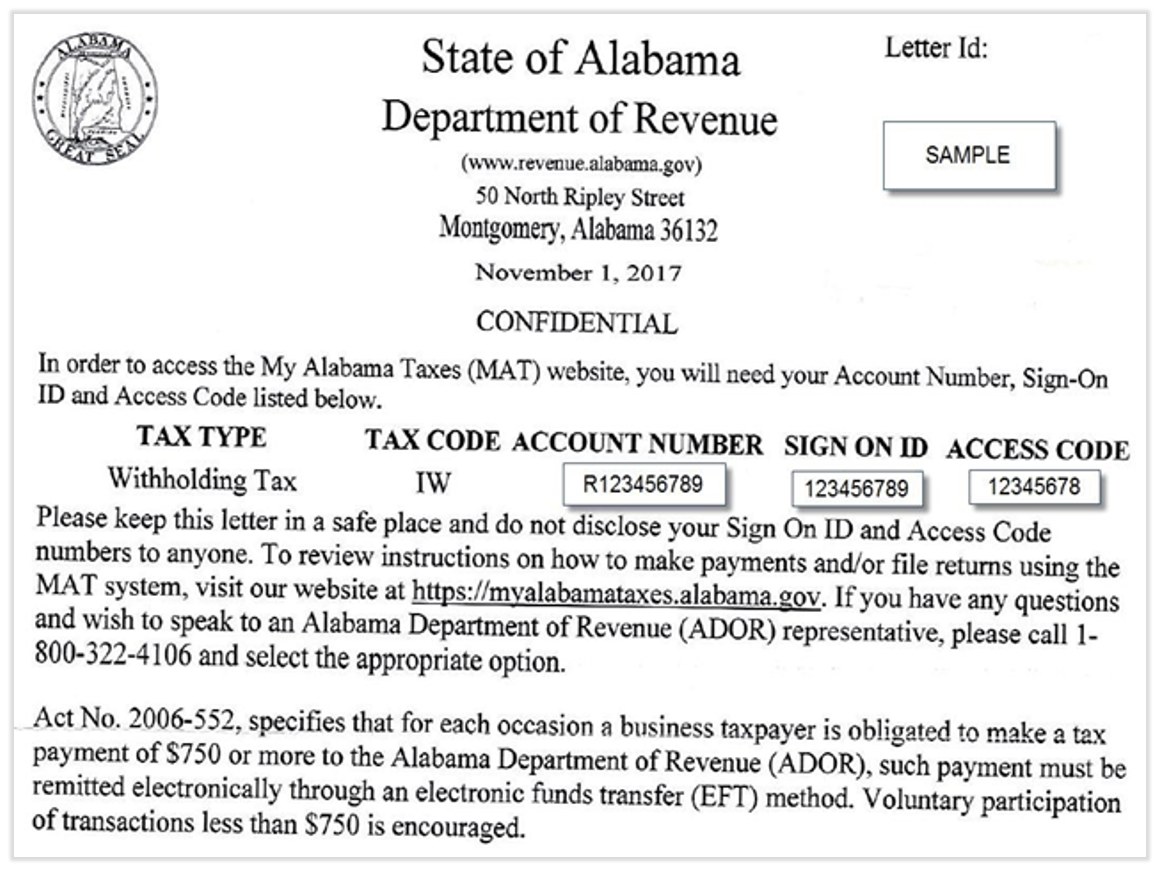
The state requires that we obtain and provide your company's assigned Account Number, Sign On ID, and Access Code. Once you've enabled third-party access and a password as described above, contact us via the blue chat dot in the lower-right corner of any Toast Payroll page. Include a copy of this correspondence from the tax agency. Below is a sample letter which employers receive that shows this information:
Colorado
Why do I need to link Toast to my Colorado account?
Linking Toast as your third-party administrator will ensure we can complete the quarterly filings and amendments (if applicable) on time.
Colorado State Unemployment Tax (SUTA) Account
Note: Your TPA cannot complete the association process for you. Only employers can assign a TPA to an employer account. See these steps with images on the CO Department of Labor and Employment website.
Step 1: Access the TPA screen
- Log into or create a MyUI Employer+ account
- Once logged in, select the Account Maintenance tab from the left menu
- Select the Third-Party Administration (TPA) authorization link
Step 2: Enter the TPA ID number
- Under the Adding Third-Party Administration section, select New
- Enter the TPA ID number: 500003478
- Select Next
Step 3: Enter the TPA relationship information
- TPA Services Begin Date: Enter the start date of the quarter you began with Toast
- Select from January 1, April 1, July 1, or October 1
- End dates are not required
Step 4: Assign TPA roles to your account
- Navigate to the Unassigned Roles section of the page
- Select the boxes in the Add column next to each role for the TPA. Listed below are the roles required for Toast to file and pay your CO SUTA taxes:
- View Account Maintenance
- View Rate Notice and Voluntary Contributions
- Edit Tax Payments Update and Submit
- Submit Employment and Wage Detail
Step 5: Save/Review/Modify Roles
- Select Save to assign the TPA with the selected roles
- Select Modify to edit the information previously selected (if applicable)
Step 6: Search existing TPA relationships
- From the employer homepage, select Account Maintenance from the left menu
- Select the Third-Party Administration (TPA) authorization link
- Select the Search button on the Third-Party Administration (TPA) authorization screen to see a list of TPAs assigned to your account
- You may also search existing TPA relationships by TPA name, ID, or assigned roles
Colorado Paid Family and Medical Leave (PFML) Account
If the TPA link is not established, Toast will not be able to submit wage reports or make payments on your behalf.
- Your company must register and log into your CO My FAMLI + Employer account.
- Navigate to Manage Accounts from the Manage My Account tile on the right.
- Select the account for which you'd like to add a third-party administrator.
- Scroll down to Third Party Administrator and select Add.
- Search for 161630473 and select the Toast Payroll (StratEx) account.
- Select the Start Date. The End Date should be left blank.
- Select Save, then select Yes, add TPA.
Colorado Withholding Account
- Log into or create your CO Revenue Online account.
- Select Manage My Profile.
- Select More.
- In the Access Management section, select Grant Third-Party Access.
- Enter our TPA username: stratex.
- Select the Access level: File & Pay.
- Select the Periods this login has access to: All Periods.
- Select Accounts to give access to: check the Withholding box.
- Select Submit.
DC (District of Columbia)
Why do I need to link Toast to my District of Columbia tax accounts?
Linking Toast as your third-party administrator will ensure we can complete the quarterly filings and amendments (if applicable) promptly.
DC Withholding Account
- Toast initiates the TPA linking process by submitting a request to access your account online. If your company does not see the TPA request online, chat with us by selecting the blue support button in the lower-right corner of any Toast Payroll page.
- Select this link to view the DC Withholding TPA Approval steps provided by the tax agency.
DC Unemployment Account and Paid Family Medical Leave (PFML)
Part 1: Power of Attorney (POA) Form
- The tax agency requires a signed POA form to authorize the TPA access online. Contact us via the blue chat dot in the lower-right corner of any Toast Payroll page to request a pre-filled POA to complete.
- Once received, complete all sections listed above the Declaration of Representative line, including the initialing and signature portion.
- You will use this form in step 6 of part 2 below.
Part 2: Registration and TPA Linking
If you have not already done so, register for an account with the District of Columbia on the Department of Employment Service (DOES) Employer Registration Portal. Note: Toast must be the only active TPA agent on your Employer Self-Service Portal (ESPP) account. Please complete the first four steps before attempting to link with Toast.
- Log into your ESSP account.
- From the left-hand menu, select Account Maintenance.
- Under the Employer Account heading, select Agent Assignment.
- Select Add Agent.
- Enter Toast's (StratEx, a Toast company) agent account number: DC2J8N. Now select Search.
- Press Select POA to upload the signed POA.
- Under the Assign Roles heading, select the boxes for each of the following roles:
- Account Maintenance (view and update)
- Payment Submission
- Wage Reporting (original and amended)
- Enter the beginning date that Toast will have access to each role.
- Select Save to finish.
- Select the "previous" arrow in the upper-right corner of the page to verify that Toast has been assigned as an authorized agent.
Delaware
Why do I need to link Toast to my Delaware Division of Revenue account?
Linking Toast as your third-party administrator will ensure we are able to file quarterly and annual state income taxes in DE.
The following outlines the steps required for an Administrator to delegate Toast access to a tax account or Taxpayer Entity in the portal. Prior to getting started, you must first have Administrator access to a Taxpayer Entity to delegate Authorized User access. Please review the Linking Entity/Administrator Guide for steps on completing this process or contact your Administrator to assist you in delegating an Authorized User.
- Log in to the Portal and navigate to the Profile header. Select Manage Authorized Users.
- Review the instructions on the page and then select the Add New Authorized User button located in the middle on the right side, above the search bar.
- Enter Toast's User ID: Stratex2. Enter the Registration Confirmation Number: TU00001250792. Then select Next.
- Confirm the User Information appears for the User you are giving access to. Select the checkbox(es) on the left-hand side to choose which Taxpayers you would like to give access to. It is optional to set a start and end date.
- There is an option to manually give access or to use a template for standard-level access. The Division of Revenue recommends authorizing access via a template as this is the simplest method.
- Choose a template #2 Payroll Access to grant the appropriate access. The template should reflect the information below:
- #2 Payroll Access - authorizes business functions that include filling tax returns and making payments for withholding accounts, viewing withholding correspondence, and submitting select service requests.
- You may also manually assign functions by Taxpayer Entity or by Tax Account(s). To do so, select Taxpayer Functions and/or Tax Account Authorizations. Select the appropriate functions you would like to give access to and select OK to return to the User Detail page.
- Verify the functions to be assigned and select OK. If the wrong template was chosen, select Cancel to choose the correct one.
- To proceed, select the Save button. Review the authorized user, tax accounts, and functions. Select Confirm to complete the delegation.
- You will receive a success message and will return to the Manage Authorized Users page with the newly-delegated user appearing in the list.
Why do I need to link Toast to my Delaware Paid Family Medical Leave account?
Linking Toast as your third-party administrator will ensure we are able to file Paid Family and Medical Leave income taxes in DE.
The following outlines the steps required for an administrator to delegate Toast as the Third-Party Administrator.
- Log in to your Delaware Labor First account. You'll need a LaborFirst account to access the portal. If you haven't created an account yet, click here to sign up.
- Select Account Services - Add/Manage TPA Access from the menu.
- Select New on the Third Party Agents page.
- Enter the following info:
- Third Party Administrator: Search for Strategy Execution Partners LLC
- TPA ID: 6000722
- Start Date: Enter the first day of the quarter which you began processing payroll with Toast
- Example: 01/01/20XX, 04/01/20XX, 07/01/20XX, or 10/01/20XX.
- End Date: Leave blank
- Authorization Type: Administrator
- Third Party Administrator: Search for Strategy Execution Partners LLC
- Select Save.
- Once complete, Toast will receive and approve the TPA request.
Georgia
Why do I need to link Toast to my Georgia Unemployment Insurance tax?
Linking Toast as your third-party administrator will ensure we can complete the quarterly filings and amendments (if applicable) timely.
The tax agency requires we provide them with your assigned 4-digit PIN and current tax rate to gain online TPA access. Send this information to us via the blue chat dot in the lower-right corner of any Toast Payroll page. Note: If you already have another account administrator from a previous provider, please fill out Georgia's Change of Administrator Request form and email the completed form to EmployerPortal@gdol.ga.gov.
Hawaii
Why do I need to link Toast to my Hawaii Unemployment Insurance account?
Linking Toast as your third-party administrator will ensure we can complete the quarterly filings and amendments (if applicable) on time.
For Toast to deposit and file taxes with the Hawaii Department of Labor and Industrial Relations for employers who use Toast Payroll to pay employees in Hawaii, Toast must be granted third-party administrator (TPA) access to your Hawaii Unemployment account. Toast will request access online once you provide your account number and then you will need to complete the steps below:
- Log into your Hawaii Department of Labor and Industrial Relations account.
- On the right-hand side, select User Management.
- Approve the request for access to STRATEGY EXECUTION PARTNERS LLC.
- Checkmark I acknowledge that I understand and will abide by these terms.
- Select Continue.
- Enter the following information:
- Last Name: Tax
- First Name: Toast
- Title/Position: Tax Agent
- Phone Number: (312) 252-7341
- Email Address: ops@stratex.com
- Select the following roles:
- Account Inquiry
- Enter Quarterly Wage Data
- Submit Quarterly Wage Data
- Payment
- Notifications
Hawaii Withholding Tax
Providing Toast online access helps resolve tax notices and other issues you may encounter. Toast may request access to your withholding tax account from the state agency directly and it typically won't require any action on your end. Toast will reach out directly if we're unable to view your online withholding account and need your assistance to resolve the issue.
Idaho
Why do I need to link Toast to my Idaho Withholding and Unemployment accounts?
Linking Toast as your third-party administrator will ensure we can complete the quarterly filings and amendments (if applicable) on time.
Idaho Withholding Account
- Toast initiates the TPA process by submitting a request to access your account online.
- Your company will receive a letter that notifies you of our request.
- Please email the letter that includes a TAP access code which is required to complete the online link.
Note: The tax agency puts an expiration date on the code they send to you.
Idaho Unemployment Account
The tax agency requires we provide them with your assigned PIN to gain online TPA access to your employer account. Send this information to us via the blue chat dot in the lower-right corner of any Toast Payroll page. If you do not know your assigned PIN, contact Idaho Unemployment at (208) 947-1055 or (800) 448-2977.
Illinois
Why do I need to link Toast to my Illinois Unemployment account?
Linking Toast as your third-party administrator will ensure we are able to complete the quarterly filings and amendments (if applicable) in a timely manner.
Complete a copy of the IL Power of Attorney (POA) form required by the Illinois Department of Employment Security.
- Employer's Legal Name: Copy your entity name as it appears in MyTax.
- UI Account #: This is your 7-digit UI account ID.
- Complete all of the remaining employer fields at the top of the form.
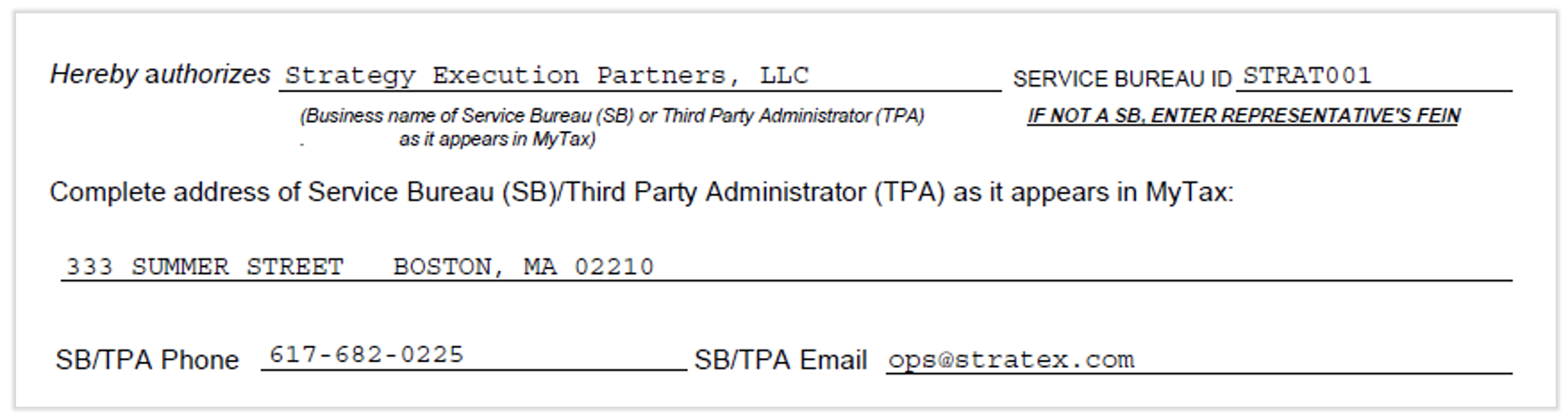
- Add the following information regarding the third-party administrator fields:
- In the fields below:
- Employer Contribution Report (UI-3/40): Do not check this field if you process only claims info.
- Check at least one line here if more than view-only access is required.
- Finally, complete the four fields at the bottom of the form: employer's signature, printed name, title, and date signed. This submission will be rejected if it's illegible.
- Once you have that form filled out and signed, you have two options:

Option A
- Log in to https://mytax.illinois.gov/_/.
- Select Online Upload.
- Select Full Access to view and manage
- UI Employer Contribution Report
- Rate Notice
Option B
- Return the signed POA form to Toast Payroll by selecting the blue chat dot in the lower-right corner of any Toast Payroll page
- Toast will request TPA access by uploading the signed POA form to the agency website.
Indiana
Why do I need to link Toast to my Indiana account?
Linking Toast as your third-party administrator will ensure we are able to complete the quarterly filings and amendments (if applicable) in a timely manner.
Indiana Withholding Account
- Toast will initiate the electronic POA (ePOA) process online.
- Employers must log into their Indiana INTIME account or create one if they don't have one yet.
- Follow the steps outlined by the IN Department of Revenue.
Indiana Unemployment Account
- Log in to https://uplink.in.gov/ESS/ESSLogon.htm.
- Select Maintain account.
- Select User information.
- Select External Account Authorizations (Agents).
- Select Agent Search and enter in this Agent ID: 103717. Select Search.
- Select Next alongside Strategy Execution Partners.
- For the Authorization level, select Administrator.
- Check the box and select Next.
Iowa
Why do I need to link Toast to my Iowa Unemployment Insurance Taxes?
Linking Toast as your third-party administrator will ensure we are able to complete the quarterly filings and amendments (if applicable) in a timely manner.
- Navigate to the myIowaUI Iowa Workforce Development page.
- Select Sign In under the Existing Users heading.
- If you do not have an account, please select the Create ID button under the New Users heading.
- Log in with your username and password.
- Once you have access, select Assign Agent under My Quick Links on the left-hand side of the screen.
- If you have a current agent on the account that's no longer your payroll provider, you will need to place an End Date for them and remove the Roles assigned to them.
- If you have more than one agent, they cannot have any of the same roles.
- At the bottom of the screen, enter Toast's Agent ID: R2362719
- Select Next.
- For the Start Date, enter the first day of the quarter you started with Toast (i.e. 01/01, 04/01, 07/01, 10/01).
- Leave the End Date blank.
- Checkmark the Power of Attorney box.
- Select all roles except for Benefit/Claim Information.
- Select Complete.
- Lastly, inform Toast that you have assigned us as your agent. Include the EFT Credit ID in an chat with us; select the blue chat dot in the lower-right corner of any Toast Payroll page.
- EFT Credit ID = The Unemployment Insurance EFT ACH Credit Bank Account number (each employer will be assigned a unique 17 digit account number).
- To register for EFT payments, complete the Application for ACH Credit Transfer form.
- Send the completed form to the email or business address listed on the bottom.
- The tax agency will send a confirmation that will contain the EFT ID.
Kansas
Why do I need to link Toast to my Kansas account?
Linking Toast as your third-party administrator will ensure we are able to complete the quarterly filings and amendments (if applicable) in a timely manner.
Kansas Unemployment Account
Contact us via the blue chat button in the lower-right corner of any Toast Payroll page to request a pre-filled Employer Representative Authorization form OR complete Form K-CNS 032 on your own. If you complete this form on your own, enter the following information:
- Employer Serial Number: Your KS Unemployment Employer Account Number (SUTA ID)
- Employer: Your business's legal name registered with the state
- Representative retained to represent you:
- Name: Strategy Execution
- Phone: 617-682-0225
- Email: ops@stratex.com
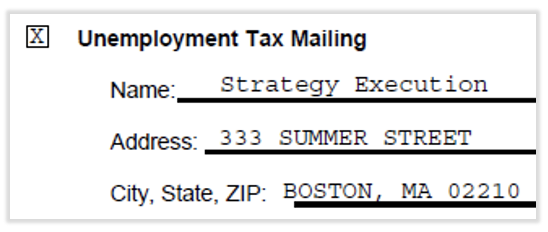
- Indicate which Kansas unemployment insurance reports you have delegated the authority to receive. Provide the mailing address for the delegated reports (see the image below).
- Once complete, the signed form needs to be emailed or faxed to the state for processing.
Kansas Withholding Account
The tax agency requires we provide them your assigned Access Code to gain online TPA access to your employer account. Send this information to us via the blue chat dot in the lower-right corner of any Toast Payroll page. Access codes are assigned by Kansas. They are numeric or alphanumeric and can be 6 to 16 digits in length.
If you do not know your assigned access code, contact the Kansas Department of Revenue by phone at (785) 296-6993 or email at KDOR_BusinessTaxEServices@ks.gov.
Kentucky
Why do I need to link Toast to my Kentucky Withholding tax account?
Linking Toast as your third-party administrator will ensure we are able to complete the quarterly filings and amendments (if applicable) in a timely manner.
- Log in or create an account via the Kentucky Online Gateway (KOG) website.
- Follow this PDF of instructions provided by the Kentucky tax agency.
- Our user email address is ops@stratex.com.
- Select Grant the role of WRAPs Filer and Payer.
Louisiana
Why do I need to link Toast to my Louisiana account?
Linking Toast as your third-party administrator will ensure we are able to deposit and file unemployment taxes, complete the quarterly returns, and amendments (if applicable) in a timely manner.
- Log in or create an account on the LA WATS website.
- On the homepage, select Manage Power of attorney from the Wages section on the left.
- Select the ADD POA button on the top of the page.
- Enter Toast's account information:
- Agency Federal ID: 161630473
- Authorization Type: TAX
- Broker Number: TSXOSONG
- Agent Mailing Address: 515 N State St. Chicago, IL 60654
- Once the website confirms the POA has been added, select Link Agent Account from the top.
- Agent Access Code: TSXOSONG
- Agent Federal ID: 161630473
- Fill in the corresponding information from above and select Submit.
Maine
Why do I need to link Toast to my Maine Withholding Account?
Linking Toast as you third-party administrator will ensure we are able to complete the quarterly filings and amendments (if applicable) in a timely manner.
- Log into the Maine Tax Portal at revenue.maine.gov.
- Select Manage My Profile.
- Select the More tab.
- Locate the Access Management panel and select Pending Third Party Requests.
- Check off the Grant Access box.
- Select Submit.
Note: If you do not see a pending request online, email Toast to initiate the TPA process by selecting the blue chat button in the lower-right corner of any Toast Payroll page. We can initiate requests only if the following are true:
- We have your assigned 8-digit account number, and
- Your company has created an online account on the Maine Tax Portal.
Maryland
Why do I need to link Toast to my Maryland Unemployment Account?
Linking Toast as your third-party administrator will ensure we are able to complete the quarterly filings and amendments (if applicable) in a timely fashion.
The tax agency requires a signed POA form to authorize the TPA access online. After your first payroll with Toast Payroll, request a pre-filled POA from Toast Payroll by selecting the blue chat dot in the lower-right corner of any Toast Payroll page. Then upload the completed/signed POA via your online account:
- Log into your Maryland Beacon Portal.
- Select Account Maintenance from the menu options.
- Select the Agent Assignment icon.
- Next, select the Add Agent tab.
- In the Search Agent field, enter the Agent ID MD9L9G and select the Search button.
- The Agent Employer Relation Details field will populate with the Agent's information.
- Legal company name: Strategy Execution Partners LLC.
- Select POA to upload the signed Power of Attorney form generated by Toast.
- Select the following roles:
- Wage Submission (Original and Amended)
- Payment Submission
- Account Maintenance Updates
- For the roles with an Access Begin Date, enter the date listed on the POA.
- Leave the Access End Date blank.
- Select Save to complete the TPA assignment. The Assigned Agent list should display Strategy Execution Partners LLC as your agent.
- Once the assignment is approved by agency staff, the POA status will change to Active and the Agent (Toast Payroll) will be able to act on the employer's behalf.
- Now, navigate to the Taxes & Compliance section.
- Select Tax Setup.
- Scroll to the Maryland Tax Setup headline.
- Select Manage Taxes.
- Select Edit next to Third Party Authorization.
- Select Yes, I have authorized Strategy Execution Partners LLC.
- Select Save.
Massachusetts (make sure to follow all instructions in this section)
Why do I need to link Toast to my Massachusetts account?
Linking Toast as your third-party administrator will ensure we are able to deposit and file unemployment taxes, complete the quarterly returns, and file amendments (if applicable) in a timely manner.
Massachusetts Unemployment Account
Log into or create an Unemployment Services for Employers account with the Massachusetts Department of Unemployment Assistance (DUA). This website requires users to set up 2-factor authentication. Note: The DUA has created a video tutorial on YouTube for how to link a TPA account.
- Once logged in, you will be on the Summary page. From the top menu, select Additional Services.
- Under the Access management panel, select Manage third-party administrator access.
- Select Add third-party administrator in the upper-right corner.
- Select Next.
- In the Agent ID field, enter Strategy Execution Partners, LLC's (dba Toast Payroll) agent ID: 100727.
- Select Next.
- Select the checkbox next to Employer and set the Role to File wage reports & Pay.
- Note: This Role may also be listed as Revenue Functions. Select either one you see.
- Select No for the question "Do you want to grant this third-party administrator access to perform benefit charges protest or wage and separation mailing?"
- Select Next.
- Select Submit.
PFML Account Registration
For Toast Payroll to file and pay this tax on your behalf, you must have a paid family and medical leave (PFML) account registered with the same federal employer identification number (FEIN) that is on your Toast Payroll account. If you are not registered with either of those numbers, Toast will not be able to file on your behalf.
To register your MA PFML account with your FEIN, please use the step-by-step instructions below or follow along with this video tutorial.
- Log in to MassTaxConnect.
- Select the More... tab and then the Add an Account, New Location, or New License link under the Access section to begin registration for a PFML account.
- Select the box next to Paid Medical and family Leave and select Next.
- Enter the date your account should start in the Enter the date of your first payroll field. If you use a DBA name and/or have a separate address for mailing, enter that information under the Account Mailing Address section. Answer if you estimate that more than 50% of your Massachusetts workforce for the remainder of the calendar year will be made up of individuals for whom you report the payment for services on IRS form 1099-MISC. Depending on your reply to these questions, additional questions may be populated. If you do not already have a Withholding account registration in process or processed, you will be asked to verify that you do not need a Withholding account by checking the provided box.
- Select Next when finished.
- If there is any information you would like to attach to the account request, you can do so. It is not required to submit this request. Select Submit when you are ready to process this request.
Massachusetts Withholding and Paid Family Leave
Linking Toast as your third-party administrator will ensure we are able to complete deposits, quarterly filings, and amendments (if applicable) in a timely manner, for both withholding and paid family and medical leave (PFML) taxes.
Authorize Toast Payroll as TPA with MassTaxConnect:
- Register with the DOR's MassTaxConnect system for an employer account if you have not done so already.
- Contact Toast Payroll's Customer Care to let us know.
- Toast will request access to the account.
- MassTaxConnect will request confirmation of our request from your end. Approve the request from MassTaxConnect to complete setup.
- Select the More tab.
- Select View Access Request from Third-Parties link in the Third-Party Access panel.
- Select the Approve/Deny link for the request you would like.
Michigan
Why do I need to link Toast to my Michigan account?
Linking Toast as your third-party administrator will ensure we are able to deposit and file unemployment taxes in Michigan and complete quarterly returns and amendments (if applicable) in a timely manner.
Michigan Unemployment Account
- Create or log into your MI Login for Business account with the Michigan Unemployment Agency. The agency has created a video tutorial covering how to link a TPA account.
- Select the Account Maintenance section in the left navigation menu.
- Select Maintain Third Party Administrator (TPA) Authorization.
- On this page, select New.
- Enter this TPA ID: 50000023 and select Next.
- For the TPA Services Begin Date, enter the start date of the quarter you began with Toast.
- Enter either January 1, April 1, July 1, or October 1.
- End dates are not required.
- Now select the boxes in the Add column next to each role for the TPA. Listed below are the roles required for Toast to file and pay your MI SUTA taxes:
- Edit Account Maintenance
- Edit Tax Payments Update and Submit
- Submit Employment and Wage Detail
- Edit Rate Notice and Voluntary Contribution
- Select Save. The website will then display a message saying "Roles saved successfully. TPA Linking complete."
Minnesota
Why do I need to link Toast to my Minnesota account?
Linking Toast as your third-party administrator will ensure we are able to complete the quarterly filings and amendments (if applicable) in a timely manner.
Minnesota Unemployment Account
- Log in to the Minnesota Unemployment Insurance page here.
- Under Employer Home, select Account Maintenance.
- Under Account Maintenance Home, select Agent Authorization.
- Select New.
- Locate the Agent ID and enter "AG005221" and select Next. Please note, Toast Payroll will appear with the name "Strategy Execution Partners LLC".
- Next, enter the Effective Begin Date (today).
- Leave Effective End Date blank.
- Select Complete. We've heard that the upcoming part can be tricky. Make sure to assign all three roles.
- In the Available Roles section, select the following three roles for Toast to preform:
- Account Maintenance, Update and Submit
- Tax Payment, Update and Submit
- Wage Detail, Update and Submit
- Select Save.
- In the Assigned Roles section, locate Account Maintenance, Update and Submit. Under Modify, select Assign Employer Reporting Units for this role.
- In the Select Employer Reporting Units section, select Check the box if the assigned role will be for all Employer reporting units.
- Select Add, then select Save.
- Select Previous. Now repeat steps 11 through 13 for both Tax Payment Update and Submit and Wage Detail update and Submit.
- When finished, select Update to complete the process.
Minnesota Withholding Account
To access your account online, each employer must approve our request for TPA access. Please follow these steps to complete this task:
- Log into the MN e-Services website or register as a new user.
- From the homepage, select Manage my profile.
- Select Set up access with another business.
- Select Approve pending 3rd Party Access request to your account(s).
- Using the Access Allowed drop-down menu, choose Yes.
- Select these Access Types and press Next:
- File
- Pay
Mississippi
Why do I need to link Toast to my Mississippi account?
Linking Toast as your third-party administrator will ensure we are able to complete the quarterly filings and amendments (if applicable) in a timely manner.
Mississippi Withholding Account
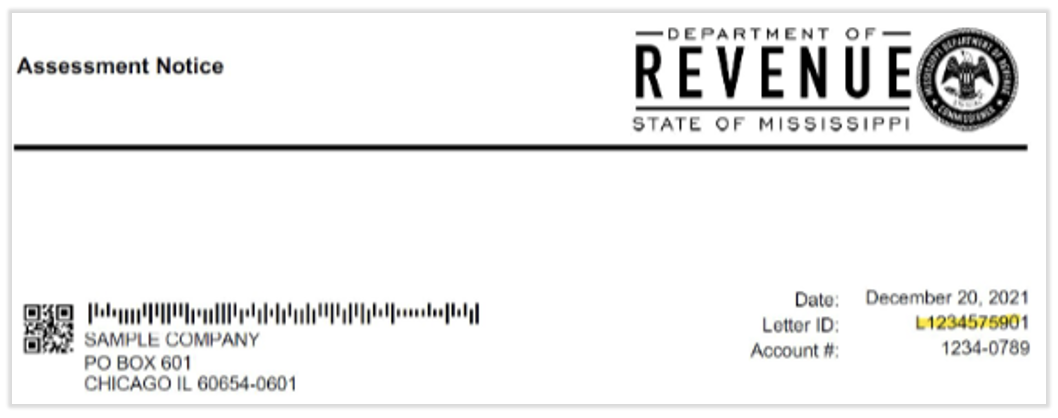
The tax agency requires that we provide them with a Letter ID to gain online TPA access to your account. Send us a document showing the Letter ID via the blue chat dot in the lower-right corner of any Toast Payroll page. For example:
Mississippi Unemployment Account
The tax agency requires a signed POA form to authorize the TPA access online. After your first payroll with Toast Payroll, contact us via the blue chat dot in the lower-right corner of any Toast Payroll page to request a pre-filled POA.
Missouri
Why do I need to link Toast to my Missouri account?
Linking Toast as your third-party administrator will ensure we are able to complete the quarterly filings and amendments (if applicable) in a timely manner.
Missouri Withholding Account
- Log into or create your MyTax Missouri account.
- Select Profile Information in the header and choose Manage Authorized Preparers.
- On the right side of the page above the list, select Add New Authorized Preparer.
- Enter Strategy Execution Partners, LLC's (dba Toast Tax Team) information:
- User ID: ToastTaxMO
- Registration Confirmation Number: 9901006612899
- Select Next.
- In the View column, select the appropriate business(es).
- Confirm the appropriate Taxpayer Name and ID/FEIN.
- In the Start Date field, enter the first day of the quarter (and year) you started with Toast Payroll. For example, 01/23, 04/23, 07/23, or 10/23.
- Select the Tax Type Authorizations button for Assignments.
- Select Employer Withholding Tax. Enter the same Effective Start Date you entered in step 8.
- Under Assigned Function, select Tax Type Functions.
- Select the following functions:
- File Returns
- Make Payments
- Upload Tax Documents in Bulk
- Select OK, then select OK again, and finally select Save.
- Review information and select Confirm.
Missouri Unemployment Account
The tax agency requires a signed POA form to authorize the TPA access online. After your first payroll with Toast Payroll, contact us via the blue chat dot in the lower-right corner of any Toast Payroll page to request a pre-filled POA.
Montana
Why do I need to link Toast to my Montana account?
Linking Toast as your third-party administrator will ensure we are able to complete the quarterly filings and amendments (if applicable) in a timely manner.
Montana Withholding Account
Toast will submit a request through the tax agency website to link to your account. The state will send an email with instructions regarding granting third-party account access. A confirmation number will be supplied to complete the TPA link.
- Access the MT Tap website.
- Under Businesses, select Grant Third Party Account Access.
- On the Select Your Account Type page, select Business. Then select Next.
- On the Verification Information screen, enter your Account ID and the Confirmation Number provided by Toast Payroll. Select Next.
- At the Confirmation page, confirm that you authorize Toast Payroll to have File and Pay access to your account. Select Submit to complete this process.
Montana Unemployment Account
The tax agency requires a signed POA form to authorize the TPA access online. After your first payroll with Toast Payroll, contact us via the blue chat dot in the lower-right corner of any Toast Payroll page to request a pre-filled POA.
Nevada
Why do I need to link Toast to my Nevada accounts?
Linking Toast as your third-party administrator will ensure we are able to complete the quarterly filings and amendments (if applicable) in a timely manner.
Nevada Unemployment Account
- Log into your ESS account.
- Navigate to the More tab.
- From the Access Management panel, select the Grant Third-Party Access option.
- Select Next and enter Toast Payroll's business email: ops@stratex.com
- Select the access boxes for Tax and Appeals.
- On the Access Level drop-down menu, select File Returns and Make Payments.
- Select Next.
- Review for accuracy and select Submit.
Nevada Modified General Business Account
Option 1: Provide Your Access Code
Nevada assigns an Access Code to every employer account.
- If you have this code, send it to Toast Payroll by selecting the blue chat button in the lower-right corner of any Toast Payroll page.
- If you don't have this code, you can request a new one by contacting the Nevada Department of Taxation at (775) 684-6322 or outreach@tax.state.nv.us. Access Codes are typically sent via physical mail to the address on-file.
Option 2: Approve Our TPA Request in Your Portal
Alternatively, Toast can initiate a TPA Access Request through the My Nevada Tax portal. Once we submit the request:
- Log into your My Nevada Tax account.
- Navigate to the Action Center or the I Want To section.
- Look for a pending request from Toast (Strategy Execution Partners, LLC) and select Approve.
New Mexico
Why do I need to link Toast to my New Mexico accounts?
Linking Toast as your third-party administrator will ensure we are able to complete the quarterly filings and amendments (if applicable) in a timely manner.
New Mexico Withholding Account
To link Toast as your third-party administrator for withholding, the state requires that we have your official authorization through Form ACD-31102 (Tax Information Authorization for NM Withholding). Please fill out section 1 of this form and send this information to us via the blue chat dot in the lower-right corner of any Toast Payroll page. Toast will request TPA access by uploading the signed POA form to the agency website.
New Mexico Unemployment Account
- Open the New Mexico Department of Workforce Solutions website.
- Scroll to the Log in to the Unemployment Insurance Tax & Claims System section and select Employer Login.
- Log in with your username and password.
- Navigate to Account Maintenance.
- On the left side of the screen, select Third Party Administrator (TPA) Authorization.
- Select New.
- Enter the following information:
- TPA ID: 500001001
- Select Next.
- TPA Services begin date: The start date when you onboarded with Toast Payroll
- TPA Services end date: Leave this blank
- Please assign the following roles to Toast Payroll:
- Account Maintenance Update and Submit
- Payment Update and Submission
- Employment and Wage Detail Submission and Update
- Select Save to finish the process.
North Carolina
Why do I need to link Toast to my North Carolina Unemployment Account?
Linking Toast as your third-party administrator will ensure we are able to complete the quarterly filings and amendments (if applicable) in a timely manner.
Note: Tax agencies cannot complete the association process for you. Only employers can assign a TPA to an employer account.
- Log into your NC Division of Employment Security NCSUITS account.
- Begin by selecting Account Maintenance under Your Accounts on the left side of the screen.
- On the Employer Maintenance screen, within the Employer Account tile, select the Agent Assignment icon.
- Select the Add Agent button.
- Enter the following Agent ID for Toast: 000014246. Select Search.
- You should see the Agent Name of Stratex Partners.
- When the Assigned Roles tile appears, select the checkboxes next to the following roles:
- Wage Reports
- Payments
- Account Maintenance
- Tax Rate Information
- Do not assign Toast Payroll to the Unemployment Insurance Claims role.
- Enter in an Access Begin Date of the first day of the quarter and year you started with Toast Payroll. For instance, if you began in May of 2023, you would enter the first date of Q2 2023, which is 04/01/2023.
- Leave the Access End Date field blank.
- Select Save at the bottom of the page and confirm the Active roles on the following page.
North Dakota
Why do I need to link Toast to my North Dakota Withholding Account?
Linking Toast as your third-party administrator will ensure we are able to complete the quarterly filings and amendments (if applicable) in a timely manner.
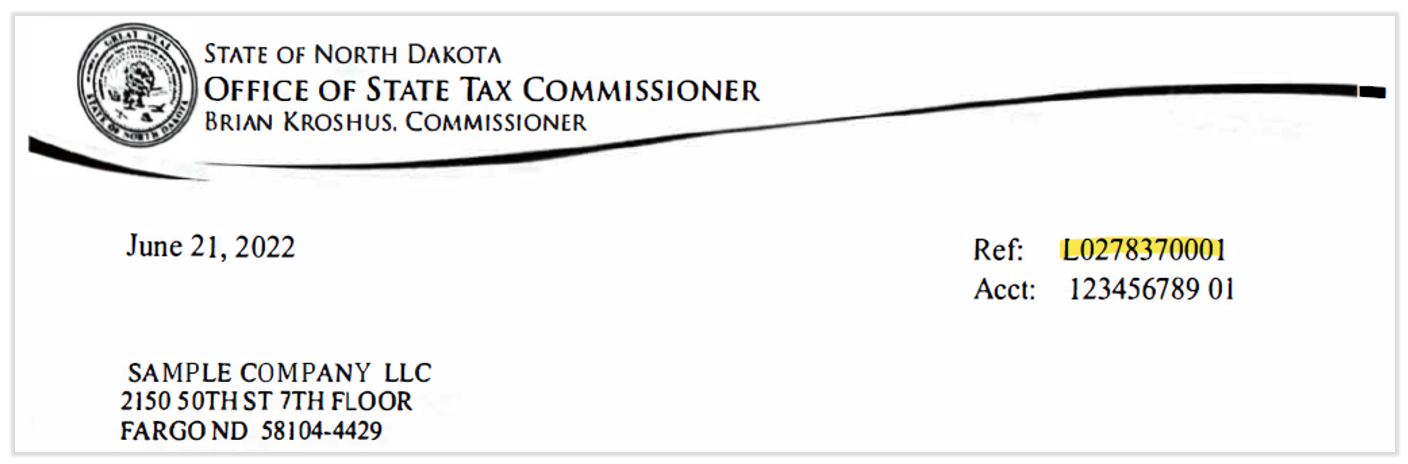
The tax agency requires that we provide them with a Letter ID to gain online TPA access to your account. Contact us via the blue chat button in the lower-right corner of any Toast Payroll page with correspondence from the tax agency showing a Letter ID. Below is a sample letter for reference:
Ohio
Why do I need to link Toast to my Ohio accounts?
Linking Toast as your third-party administrator will ensure we are able to complete the quarterly filings and amendments (if applicable) in a timely manner.
Ohio Unemployment Account
If you have not already done so, please register for Online Access in the Ohio Unemployment SOURCE.
- Log in to your online Ohio Department of Job and Family Services SOURCE account.
- On the employer Portal home screen, begin by selecting Account Maintenance under "Your Account(s)" on the left side of the screen.
- On the Employer Maintenance screen, within the Employer Account panel, select the Agent Assignment icon.
- On the Assigned Agent screen, select the Add Agent button.
- On the Agent Assignment screen, enter the Agent ID number for Toast 6000002352 and select Search.
- The following name and business should appear: Ryan Snell, Strategy Execution Partners, LLC (StratEx, a Toast company).
- In the Assign Roles panel, select the checkboxes for the following:
- Wage Submission (Original and Amended)
- Payment Submission
- Account Maintenance Updates
- Enter in an Access Begin Date of the first day of the quarter started with Toast (i.e. 01/01, 04/01, 07/01, 10/01)
- Leave the Access End Date empty
- Select the Save button.
Ohio Withholding Account
- Toast Payroll will send Ohio customers an email invite. When you receive this email, follow these steps to add us as a third-party administrator for your Ohio withholding account.
- Navigate to the Ohio Business Gateway Portal.
- Either log in or create an account.
- Navigate to the Service Areas tab.
- Ensure that the following Service Areas and Transaction Types are listed. If any are missing, select the + icon where it is listed in Available to move it to Authorized.
- Authorized Service Areas:
- Employer Withholding
- Municipal Taxation Withholding Tax
- Online Notice Response Service
- Authorized Transaction Types:
- Employer Withholding
- Main OH School District List
- OH IT 501
- OH IT 941
- OH IT 942 (Q4 / Annual and Quarterly Reconciliation)
- OH School District Withholding Bill and Assessment Payment
- OH SD 101
- OH SD 141
- OH Withholding Bill and Assessment Payment
- W-2 / 1099 Upload
- Employer Withholding
- Municipal Taxation Withholding Tax
- Withholding Returns & Payments
- Online Notice Response Service
- Ohio Department of Taxation Document Upload
- Authorized Service Areas:
- Next, navigate to the Account Access Request tab by selecting the lock icon in the upper right corner.
- Select the Account Access Requests tab.
- Approve Toast Tax as a Filing Administrator under Requests for Account Access.
- Lastly, navigate to the User Authorization tab and switch Toast Tax to the blue checkmark for Read, Edit, Create, Delete, and Submit for all transactions listed.
- Select Save once completed.
- If you need assistance with navigating the Ohio Business Gateway website, please contact the tax agency directly via email at oit.obg.help@das.ohio.gov or via phone at 866-644-6468.
Oklahoma
Why do I need to link Toast to my Oklahoma account?
Linking Toast as your third-party administrator will ensure we are able to complete the quarterly filings and amendments (if applicable) in a timely manner.
Oklahoma Unemployment Account
- Log into the Oklahoma Unemployment website.
- On the left side of your screen, select Portal Administration.
- Select Manage TPA Relationships.
- Enter Strategy Execution Partners LLC (Toast Payroll's dba name) in the Legal Name field and select Search.
- Our name should appear on the page.
- Select Grant Access.
- On the next page, navigate to the Access Permission (Roles) field and choose TPA TAX ALL.
- Select Grant Access one more time and you're finished.
- See this PDF for a visual aid of these steps.
Oklahoma Withholding Account
- Log into or create an Oklahoma TAP employer account.
- Select Manage My Profile.
- From the More tab, select Add Third Party Access.
- Enter a passphrase and select Next.
- Provide the passphrase to Toast, your service provider. Note: Steps 6-9 below can only be completed once Toast has received the passphrase and submitted the TPA request within your TAP employer account.
- Once you've heard back from us, log into your Oklahoma TAP employer account and select Manage My Profile again.
- From the More tab, select Manage Third Party Access.
- You should see a request from Strategy Execution Partners LLC, the dba name of Toast Payroll.
- Follow the prompts to assign the service provider's access (File & Pay) to your account.
Pennsylvania
Why do I need to link Toast to my Pennsylvania Unemployment account?
Linking Toast as your third-party administrator will ensure we are able to complete the quarterly filings and amendments (if applicable) in a timely manner.
- Log in to https://www.uctax.pa.gov/.
- On the UCMS homepage, select Employer Profile from the left navigation bar.
- Select Manage Representatives.
- Select Add New Representative.
- Add StratEx's 10-digit account number: 5283874581 and today's date. StratEx is the DBA name of Toast Payroll.
- Select the functions the TPA will perform:
- Filing Quarterly Reports and Adjustments
- Contribution Rate Information
- Delinquencies Account Discrepancies
- Select Submit and you will receive a confirmation message that a representative has been added.
- If the TPA will perform multiple functions, select OK and the system will return to the Manage Representatives page where additional functions can be added.
Rhode Island
Why do I need to link Toast to my Rhode Island withholding tax account?
Linking Toast as your third-party administrator will ensure we are able to complete the quarterly filings and amendments (if applicable) in a timely manner.
The tax agency requires we provide them with your assigned PIN to gain online TPA access. Send us your PIN by selecting the blue chat dot in the lower-right corner of any Toast Payroll page. If you cannot locate your assigned PIN, please contact the RI tax agency directly to obtain it.
South Carolina
Why do I need to link Toast to my South Carolina account?
Linking Toast as your third-party administrator will ensure we are able to complete the quarterly filings and amendments (if applicable) in a timely manner.
South Carolina Withholding Account
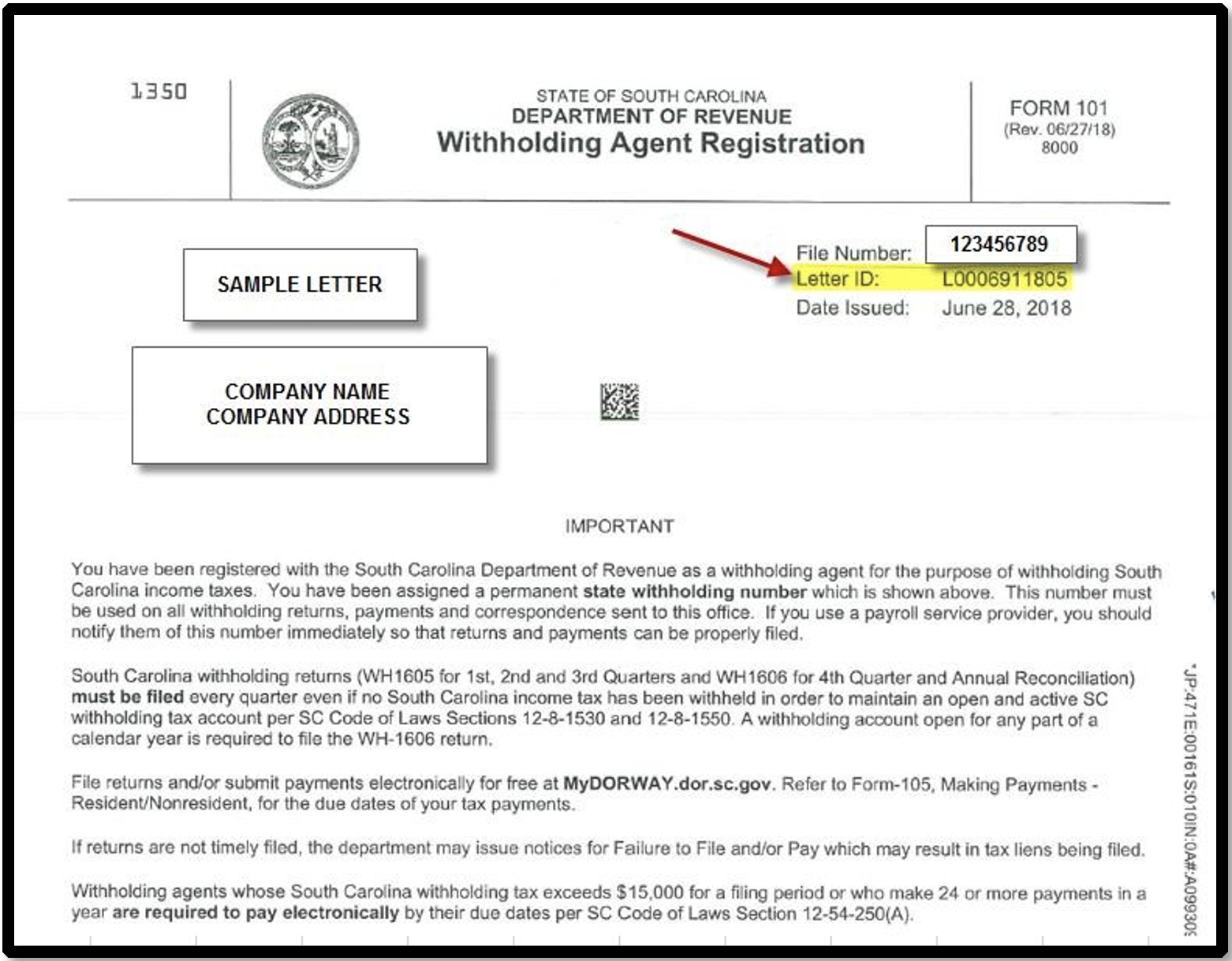
The tax agency requires we obtain and provide a Letter ID associated with your account. This Letter ID can be found on any official correspondence from the state. If you do not have access to SC correspondence, please contact the agency directly to obtain this information. Below is a sample letter for reference:
South Carolina Unemployment Account
- Begin by downloading and completing the UCE-1010 Written Authorization form. Add the following details:
- Navigate to the SUITS website.
- Select the Employer portal and then select Employers under Login to my Account.
- Select the Agent Assignment icon under the Account Maintenance topic.
- Select Add Agent.
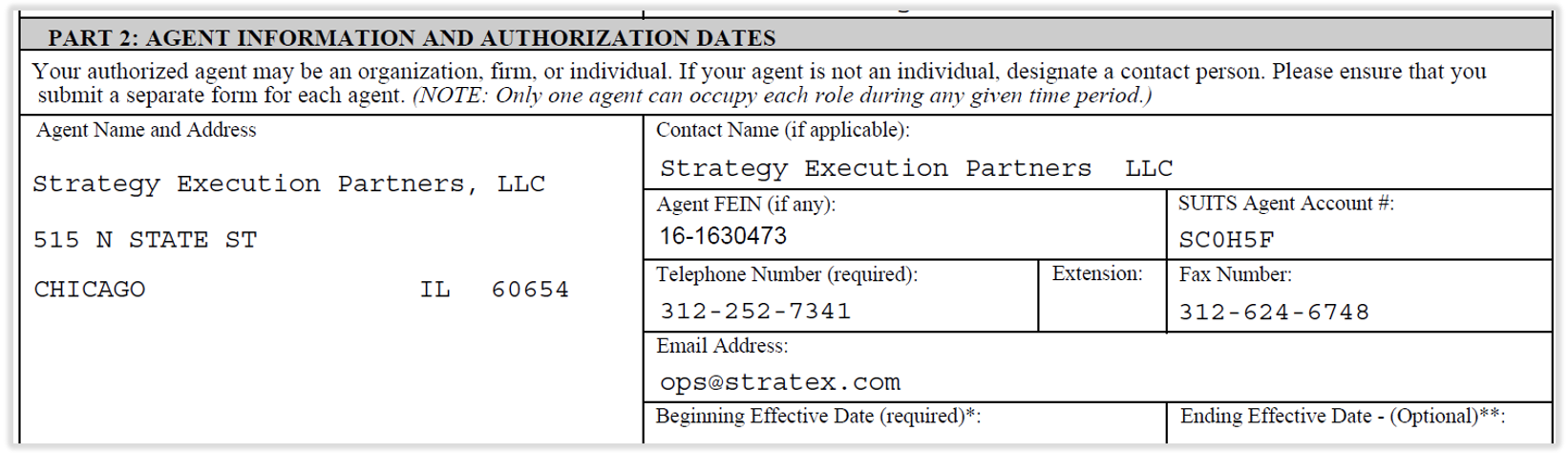
- Search for Toast's Agent Account number: SC0H5F.
- Next to Authorization Document, select Choose File.
- Browse and select the signed UCE-1010 Written Authorization form and upload the POA.
- Select the following roles:
- Payment Submission
- Wage Submission (Original and Amended)
- Account Maintenance
- Select the date you want Toast to start processing payroll in South Carolina in the Access Begin Date field.
- Leave the Access End Date field blank.
Texas
Why do I need to link Toast to my Texas Workforce Commission account?
Linking Toast as your third-party administrator will ensure we are able to complete the quarterly filings and amendments (if applicable) in a timely manner.
Toast will submit a request through the agency website to link to your account. The Texas Workforce Commission (TWC) will send an email to the account administrator directly with the next steps. If your account does not have an account administrator, Toast will not be able to request third party administrator access. Please log in to the agency website and complete the account setup so Toast may proceed with linking to the account. If you did receive the email, you may accept Toast's request by following the steps below:
- The TWC website will generate an email to the account administrator to notify them that there has been a request to access their account.
- The account administrator will log on to the Texas Workforce Commission website.
- Select the User Admin tab
- Select the Applicant List link
- Review the applicant's profile and select Approve.
- Select the following permissions when approving access:
- Make Payment
- View Payment
- Manage Wage Report
Texas Unemployment Account
- Corporate officer or owner of the employer account should log in with their User ID
- Select Account Info
- Select Third Party Authorizations
- Select Complete C-42 Authorization
- Complete the DocuSign process
TWC does not accept Written Authorization to Represent Employing Unit (Form C-42) in paper form unless the only corporate officer is not located in the United States, or a hardship waiver is on file. If necessary, contact the TWC.
Vermont
Why do I need to link Toast to my Vermont Withholding Account?
Linking Toast as your third-party administrator will ensure we are able to complete the quarterly filings and amendments (if applicable) in a timely manner.
- Log into the MyVTax website.
- Navigate to the Manage My Profile page.
- Select the I Want To tab and choose Grant Accountant or Third Party Access.
- Input the following information:
- Username: Stratex
- Name: Toast Tax
- Select Yes for the question: Do you wish to allow your accountant or other third party to access your account with logins other than the one listed above?
- Define access to your accounts: Withholding Tax.
- Select Next.
- Identify the range of tax years you want the service provider to have access to.
- In the Access Level field, select the View, File & Pay option.
- Select the confirmation check box.
- Select Submit.
Virginia
Why do I need to link Toast to my Virginia account?
Linking Toast as your third-party administrator will ensure we are able to complete the quarterly filings and amendments (if applicable) in a timely manner.
Virginia Withholding Account
- Navigate to the Virginia Tax Online Services for Businesses website.
- In the iFile Login section:
- Select the TAX radio button.
- Enter your company's Virginia Tax Account Number.
- Enter your User ID and Password.
- Select Log In.
- Select Account.
- Choose Manage My Account.
- Under Enter the Unique ID given to you by your Tax Preparer, enter Stratex12.
- Set level of permission to Master.
Virginia Unemployment Account
- Navigate to the Virginia Tax Online Services for Businesses website.
- In the iFile Login section:
- Select the VEC radio button.
- Enter the company's 10-digit VEC Account Number.
- Enter your User ID and Password.
- Select Log In.
- Under Important Account Information, select To assign a Tax Preparer
- Under Enter the Unique ID given to you by your Tax Preparer, enter Stratex12.
- In the Your Linked iFile Account section, make sure these checkboxes are selected:
- Account Summary
- Quarterly Report and Payment
- If these are not already chosen, select Assign.
Washington
Why do I need to link Toast to my Washington tax account?
Linking Toast as your third-party administrator will ensure we are able to complete the quarterly filings and amendments (if applicable) in a timely manner.
Washington L&I (Workers' Comp)
The tax agency requires we provide your assigned UBI, L&I, and PAC numbers to authorize the TPA access online. Send us this information by selecting the blue chat dot in the lower-right corner of any Toast Payroll page. You can typically find this data on the annual rate notice.
Washington Paid Family & Medical Leave (PFML)
The tax agency requires a signed POA form to authorize the TPA access online. Follow the steps in the How to Register - Paid Family Medical Leave (PFML) and Long-Term Care (LTC) section of Toast Payroll: Tax Management in Washington to begin your WA PFML TPA linking.
West Virginia
Why do I need to link Toast to my West Virginia Department of Revenue tax account?
Linking Toast as your third-party administrator will ensure we are able to complete the quarterly filings and amendments (if applicable) in a timely manner.
To gain online access to your account for filing purposes, each employer must approve our TPA access request online. Please follow these steps to complete this task:
- Log into the West Virginia MyTaxes website. Otherwise, create a new account if you haven't already done so.
- Select Manage Third Party Access.
- Select the Grant Third Party Access link.
- In the 3rd Party Logon field, enter stratex.
- In the 3rd Party Email field, enter ops@stratex.com.
- Select Next.
- Verify the correct 3rd party (Toast Tax team) has been identified.
- Select the link indicating This is the correct 3rd party.
- Select your withholding account.
- Select Access Level as File & Pay.
- Press Submit.
- Enter your password and select OK.
Why do I need to link Toast to my Wisconsin Unemployment Insurance tax account?
Linking Toast as your third-party administrator will ensure we are able to complete the quarterly filings and amendments (if applicable) in a timely manner.
Each employer must send us their 8-digit Internet Access Key (the key is case-sensitive). This can be found in item 1A on your Quarterly Contribution Report or on your Coverage or Transfer Initial Determination.
If you do not have one of these reports, the individual who can access this UI account can generate an access key by following these steps:
- Go to the WI Unemployment website.
- Select #4: Employer UI Account Information (view or update).
- Log into your account or create one.
- Select Account Access.
- Select Generate Access Key.
- Select Continue.
- Select the functions you want to be available to the user.
- Select Generate Key.
Once generated, send us this information by selecting the blue chat dot in the lower-right corner of any Toast Payroll page. If you have questions about this procedure, contact the tax authority via email at taxnet@dwd.wisconsin.gov or via phone at (608) 261-6700.
Wyoming
Why do I need to link Toast to my Wyoming Unemployment account?
Linking Toast as your third-party administrator will ensure we are able to complete the quarterly filings and amendments (if applicable) in a timely manner.
- Log into the Wyoming agency website here.
- Select the Account Maintenance drop-down menu, hover over Employer Account Maintenance, and select Add or Remove Third party/CDS/ Vendor Association.
- Select Third Party as the Type of Association.
- Select Next.
- Set the Address Type as Information Only.
- You have the option to Search by Legal Name. Locate "STRATEGY EXECUTION PARTNERS LLC." Should you need it, our FEIN is 16-1630473.
- Set the Association Start Date as the first day of the quarter in which you began using Toast Payroll.
- Select Submit to complete the TPA linking.
Louisville, KY
- Log into your eMINTS account.
- Select Give Access to a Third Party.
- Use the following information to link Toast/Strategy Execution Partners LLC:
- Code: 4080
- Email: ops@stratex.com
Philadelphia, PA
The city of Philadelphia requires TPA access in order for Toast Payroll to file on your behalf. Toast Payroll will request access to your City of Philadelphia withholding tax account. This request must be approved either online or by mail to complete the linking process:
Online
- Log into your account at tax-services.phila.gov
- Choose the Action Center tab.
- Locate the Review Access request from "Toast Tax Team" and select Review. If not listed, contact us via the blue chat button in the lower-right corner of any Toast Payroll page so we can resubmit the request.
- Approve the request.
By Mail
Our request will prompt a letter to be sent to your business address. Provide this letter to us via the blue chat dot in the lower-right corner of any Toast Payroll page so we can use the Letter ID to link to your account. If you approve the Toast Tax Team through the online portal, you do not need to provide this letter.