Get Started With the Opera Cloud Integration
Last updated: Dec 15, 2025, 4:27 PM
Check out this article to learn how to enable the Opera Cloud integration with Toast to streamline IT and centralize data to access information from anywhere.
| This integration requires a Hotel PMS Integration subscription, which can be purchased on Toast Shop. |
Opera Cloud Property Management simplifies IT and centralizes data, making information accessible anywhere. With an open architecture, built-in integration services, and open APIs to accelerate innovation, the hotel cloud solution meets hoteliers’ needs and redefines the guest experience.
Key Features:
- Search for hotel guest records on Toast POS
- Post checks closed via Room Charge payments to the guest folio in Opera Cloud
To learn more about what you can do with Opera Cloud in your hotel, review the product overview here.
- Opera Cloud Features
- Enable the Opera Cloud Integration with Toast
- Opera Cloud Troubleshooting and Support
- Additional Resources
Enable the Opera Cloud Integration With Toast
- To enable Opera Cloud with Toast, log into Toast Web and navigate to Integrations > Integrations management > Browse & purchase integrations.
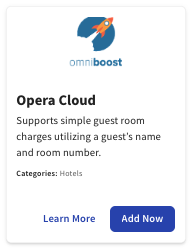
- Enter Opera Cloud in the Search field and select Add Now.
- Note: This Integration requires a Hotel PMS Integration subscription. Please work with your Toast Sales contact to subscribe to the Hotel PMS Integration product.
- Note: This Integration requires a Hotel PMS Integration subscription. Please work with your Toast Sales contact to subscribe to the Hotel PMS Integration product.
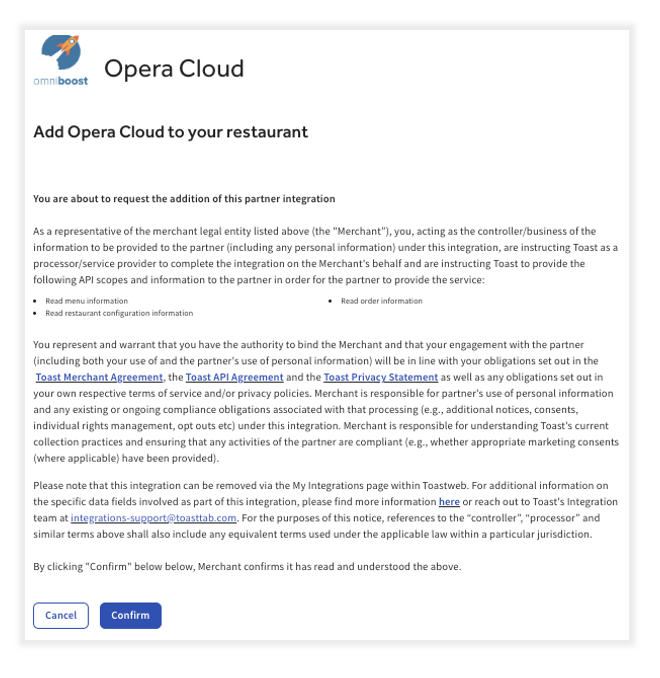
- Review the data scope visibility terms and conditions and select Confirm to accept. For more information, see the Data Scope Visibility article. If you have multiple locations, select from the drop-down menu.
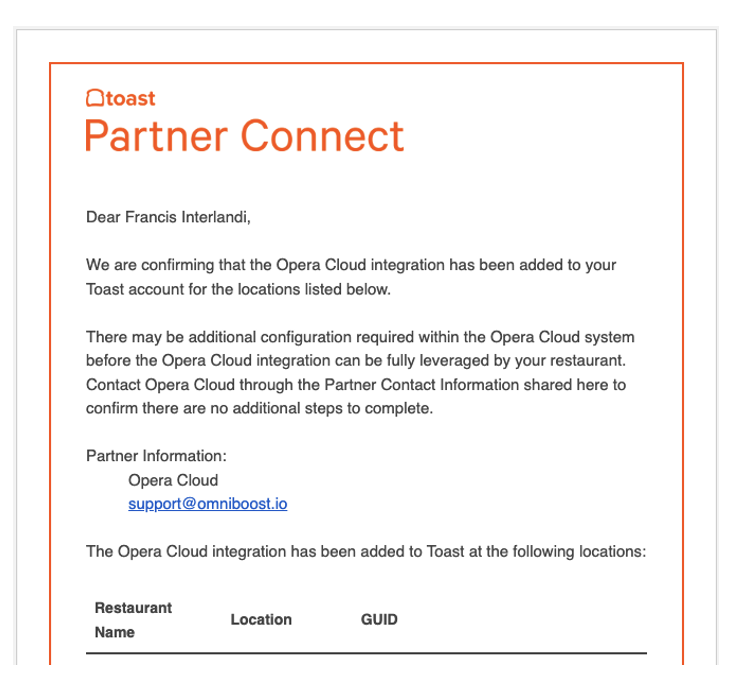
- Once confirmed, you'll receive an email confirmation from Opera Cloud confirming the integration activation within 3-4 business days.
- Contact Omniboost support via email to finalize the integration integrations@omniboost.io and connect Toast with Opera Cloud. In your email, include:
- Restaurant name (as listed in Toast Web)
- The date you intend to go live with the integration
- The following information from your Opera Cloud environment
- What is the region the environment is running?
- What is the Tenant / Chain Code?
- What is the Hotel ID?
- What is the Opera Login Page URL?
- (Optional) Activate the Omniboost POS Connector app in the Oracle Cloud Marketplace
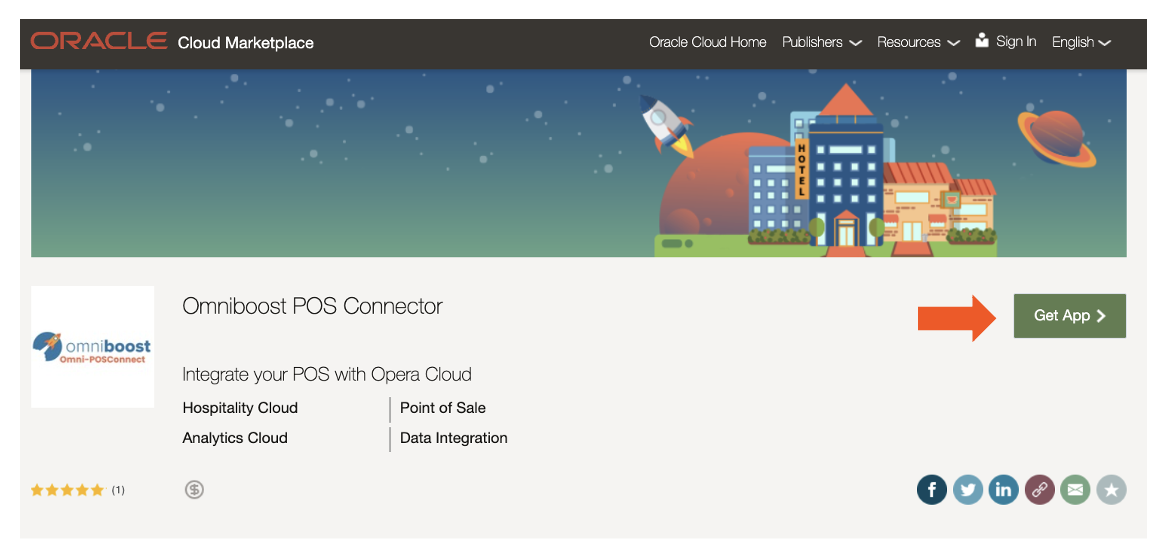
- Select the Get App button on the right-hand side of the Oracle Cloud Marketplace page and follow the onboarding instructions.
- Select the Get App button on the right-hand side of the Oracle Cloud Marketplace page and follow the onboarding instructions.
- Once the integration has been activated, Omniboost will contact Toast's integrations support team to configure your Room Charge payment options. Once the Room Charge payments are configured, mapping can begin in Omniboost's POS Connector.
Opera Cloud Troubleshooting and Support
For any questions or technical issues relating to the Opera Cloud integration, contact Omniboost directly via email at pos-support@omniboost.io.