Use Toast in Offline Mode
Last updated: May 8, 2026, 11:14 AM
Learn how to use Toast in Offline Mode.
| Important: If your devices are showing the Offline Mode banner right now, first check whether the cause is a Toast outage or a local network issue. Visit the Toast status page — if a Toast service disruption is in progress, do not unplug, restart, or reset any equipment. If the banner mentions "no internet connection" or "no network connection", see Outages and Disruptions: Troubleshoot Internet or Network Connection Issues. Once your devices are back online, see Recover and Get Back Online After an Outage or Disruption. |
- About Offline Mode
- What You Can Do in Offline Mode
- What to Avoid Doing in Offline Mode
- Service Adjustments for Your Staff
- Shift Reviews and Pending Tips in Offline Mode
- Manage Pending Tips in Offline Mode
- Kitchen Display System (KDS) in Offline Mode
- Payroll During Offline Mode
- Known Limitations in Offline Mode
- Frequently Asked Questions
- Related Articles
About Offline Mode
Offline Mode is the state your Toast devices enter automatically when they lose connection to the internet, your local network, or the Toast cloud. After about 40 seconds without a connection, you'll see a yellow Offline Mode banner across the top of each affected device explaining what's happening and what you can still do. Customers also call this an "outage" or say "Toast is offline" (Step 5 phrase bank, n=15+ and n=12+ slim, pool=147) — the banner is what tells you your device has switched to Offline Mode.
While in Offline Mode, your team can keep taking orders and accepting card payments on the POS. Tickets continue to print or send to your KDS, and your staff can keep service running until connectivity is restored. The trade-off is that some features pause until your devices reconnect — see Known Limitations in Offline Mode for the full list.
To prepare your business before an outage occurs (background card processing, permissions, network setup, optional Offline dining option), see Prepare to Operate in Offline Mode During Service Disruptions or Outages.
What You Can Do in Offline Mode
While the Offline Mode banner is showing, your Toast devices can still:
- Take new orders on the Toast POS and Toast Go® handheld devices.
- Accept credit and debit card payments and capture tips, as long as background card processing is enabled. Background card processing is on by default. To check or change this setting, see Prepare to Operate in Offline Mode During Service Disruptions or Outages.
- Print receipts and open cash drawers, as long as Ethernet cables remain connected.
- Send tickets to a hardwired Kitchen Display System (KDS), provided your network meets the requirements in Kitchen Display System (KDS) in Offline Mode.
Note: You are responsible for any declined, expired, or disputed offline payment transactions. Verify the cardholder's name and card expiration date, and ask the guest to insert their card and enter their PIN whenever possible.
What to Avoid Doing in Offline Mode
Each of the actions below can cause lost orders, lost payment data, or extended downtime. Avoid them while the Offline Mode banner is showing:
- Do not unplug Ethernet cables.
- Do not turn off Toast devices.
- Do not turn off or restart your router.
- Do not log out of the Toast app or uninstall the Toast app. You may still use Switch User. Without an internet connection, no one can log back into the app, and uninstalling the Toast app while in Offline Mode causes order and payment data on that device to be lost and unrecoverable.
- Do not select Capture on the Close Out Day screen. Once your device regains connectivity, credit card authorizations are captured automatically. Pressing Capture manually can cause in-progress authorizations to be missed and create deposit discrepancies.
Also consider these temporary adjustments during an outage:
- If applicable: temporarily disable online ordering. Your restaurant cannot receive orders from Toast Online Ordering channels while offline. To turn online ordering back on once your connection is restored, see your online ordering settings in Toast Web.
- If applicable: switch DoorDash or Uber Eats to a backup protocol so you can keep receiving third-party orders. See Continue to Receive DoorDash Orders in Offline Mode and Continue to Receive Uber Eats Orders in Offline Mode.
- If applicable: temporarily disable Mobile Order & Pay®. If your auto-fire device is offline or the entire restaurant is offline, disable Mobile Order & Pay® so guests cannot place orders or payments you cannot see. For more on Mobile Order & Pay® behavior during an outage, see Outages and Disruptions: Toast Mobile Order & Pay®.
Service Adjustments for Your Staff
Anyone using a Toast device should make these service-process adjustments while operating in Offline Mode.
| Process | How to operate during Offline Mode |
|---|---|
| Placing orders on the POS | Stick to one device per employee so order and payment information stays together. Different employees can use different devices, but each employee should keep using the same device for the duration of the outage. |
| Clocking in and out | Stick to one device per employee. If shift reviews are required for your team, employees won't be able to clock out until pending payments process — this is expected during Offline Mode. |
| Card payments | Continue taking credit and debit card payments and entering tips. Verify the cardholder's name and expiration date, and ask the guest to insert their card and enter their PIN. Save merchant copies of all credit and debit receipts to assist with reconciliation and chargebacks once connectivity returns. Pre-authorization will not work in Offline Mode unless the card was pre-authorized before the outage began. |
| Auto-capture | If auto-capture is enabled and the disruption is network- or ISP-related, Toast cannot capture payments until the device reconnects and stored transactions transmit. If the disruption is Toast-related, captures still process, but settlement timelines may be delayed depending on payment partner dependencies. To learn more, see Close Out Day, Z Report, and Auto-Capture Overview. |
| Receipt printers and cash drawers | Printing receipts and opening cash drawers should be unaffected by connection disruptions, as long as your Ethernet cables remain connected. |
| Reporting | Reports won't contain data from offline devices and their orders, payments, or other data points until your system is back online and synced with your back end. |
If applicable to your restaurant, the following Toast products and integrations are unavailable or limited during Offline Mode. See Known Limitations in Offline Mode for the full list.
Shift Reviews and Pending Tips in Offline Mode
While your Toast POS device is in Offline Mode, employees cannot complete shift review. During Offline Mode, your team is unable to:
- Close checks
- Declare cash tips
- Reconcile cash and tips
- Clock out
If a shift needs to close while you're still in Offline Mode, managers should:
- Collect all cash-in-hand payments from employees.
- Keep merchant copies of receipts signed by guests as records for payments taken offline.
- Keep a written record of what's tipped out while offline. Tipping out becomes seamless once your device reconnects.
- Note employee clock-out times.
If employees need to count a drawer as part of their shift review, they can manually close cash drawers from Toast POS Device Menu > Cash Management > Cash Drawers.
Note: Depending on your auto clock-out settings, clocked-in employees may be automatically clocked out at the end of the business day. To learn more, see Enable or Disable the Auto Clock-Out Feature.
For the full post-outage shift-review workflow (creating time entries for the outage period, completing shift review for previous shifts), see Recover and Get Back Online After an Outage or Disruption.
Manage Pending Tips in Offline Mode
When a service disruption affects bank or card processing, pending tips (from transactions that haven't fully processed yet) appear in the Shift Review Breakdown and in the Reconcile cash & tips section of the shift review workflow.
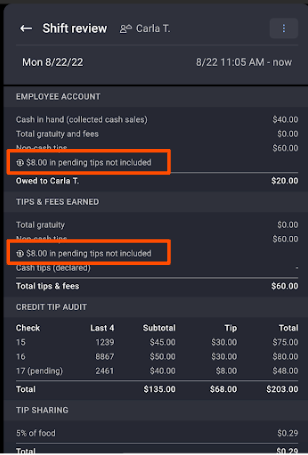
Once processed, pending tips go directly to the house deposit. It's up to your restaurant to decide how to handle paying out pending tips at the end of a shift. Two common approaches:
| Pay out pending tips… | Pros | Cons / Risks |
|---|---|---|
| Same day | Staff leave with the full amount of tips earned for the shift. | Some pending payments may not clear or process. The house covers the tip amount if it's been paid out already. Managers may have to work with customers to reconcile missing payments and tips. |
| Next day, when payments process, or through the next payroll | Restaurants can confirm the correct amount before paying staff. Restaurants can manage pending tips and payments in batch. | Delays staff getting their tips. Requires managers to follow up on tips owed. Managers may need to inform staff if transactions didn't process and tips are delayed. |
Kitchen Display System (KDS) in Offline Mode
With Offline Mode, your Kitchen Display System (KDS) can keep receiving tickets for any new in-store order during an internet or Toast service disruption. This replaces the need for backup printers and reduces disruption to your kitchen. Tickets in Offline Mode look no different from normal KDS tickets.
For your restaurant to use the Offline Mode KDS experience, both of these must be true. This applies to Toast-managed networks and self-managed networks.
- Universal Plug-and-Play multicast traffic must be enabled on your network router. This is pre-configured for Toast routers. For self-managed networks, the steps vary by router model.
- At least one hardwired non-Elo V1 Toast device must be on your restaurant network to act as the local hub.
Note: Offline Mode does not work for Toast Online Ordering or other orders placed from outside the restaurant. If your auto-fire device is offline — either because of a specific issue with that device or because all your devices are offline — your KDS will not receive tickets for online orders or Toast Mobile Order & Pay® orders until your auto-fire device comes back online.
For self-managed networks: Multiple subnets greatly reduce the chance that Offline Mode KDS will work. The local hub only communicates with devices on its subnet. If your restaurant uses multiple subnets, place all Toast devices on the same subnet.
For non-Toast hardware: Offline Mode is optimized for Toast's proprietary hardware. While it's possible to meet the requirements above on a self-managed network with non-Toast hardware, Toast cannot guarantee functionality and cannot provide troubleshooting support.
Payroll During Offline Mode
Toast strongly advises against processing payroll while your devices are in Offline Mode. Wait until your system is back online so time entries, tip data, and related payroll information have fully synced from the Toast POS to the cloud and into Toast Payroll. After any Offline Mode event, double-check time entries and tip amounts for accuracy before posting payroll.
Note: If your system went offline after a pay period ended and all time entries and tips for that pay period were already synced, you may choose to process payroll for that period.
Known Limitations in Offline Mode
The following Toast products and features are unavailable or limited while in Offline Mode:
| Product or feature | Behavior in Offline Mode |
|---|---|
| Toast Gift Cards | Cannot be sold or redeemed |
| Toast Loyalty | Points cannot be earned or redeemed |
| Toast Online Ordering | Unavailable |
| Toast Mobile Order & Pay® | Unavailable for new orders. Guests can pay for checks opened before the outage; new orders must be entered by staff on a Toast device. See Outages and Disruptions: Toast Mobile Order & Pay®. |
| Quick Edit (menu item edits on the POS) | Unavailable. Menu changes — including 86ing items and price overrides via Quick Edit — cannot be made while in Offline Mode. |
| Shift Review | Unavailable until devices reconnect — see Shift Reviews and Pending Tips in Offline Mode |
| Reporting | Reports do not include data from offline devices until they reconnect and sync |
| Toast Online Ordering KDS routing | Unavailable — KDS does not receive tickets for online or Mobile Order & Pay® orders until your auto-fire device comes back online |
| Pre-authorization | Unavailable unless the card was pre-authorized before the outage began |
| Payroll processing | Strongly discouraged — see Payroll During Offline Mode |
Frequently Asked Questions
Can employees take payments and ring in orders offline?
Yes. Employees can take orders on the Toast POS and accept credit and debit card payments and tips while in Offline Mode, as long as background card processing is enabled (it's on by default). Save merchant copies of all credit and debit receipts so you can reconcile payments and handle any chargebacks once your devices reconnect. You are responsible for any declined or expired offline payment transactions.
Also asked as:
-
- How to take payments offline
- Can employees take payments and ring in orders offline?
Can employees clock in and out while in Offline Mode?
Yes, employees can clock in and out while in Offline Mode. Each employee should clock in and out on the same Toast device for the duration of the outage so their time entries stay together. If shift reviews are required for your team, employees won't be able to fully clock out until pending payments process — this is expected. Depending on your auto clock-out settings, clocked-in employees may be automatically clocked out at the end of the business day.
Also asked as:
-
- Can employees clock in if you are in offline mode?
How do I close out the day while Toast is offline?
Do not select Capture on the Close Out Day screen while your device is offline or while payments from an outage are still processing. Once your device reconnects, credit card authorizations are captured automatically. Manually selecting Capture can cause in-progress authorizations to be missed and create deposit discrepancies. For the full post-outage close-out and reconciliation workflow, see Recover and Get Back Online After an Outage or Disruption.
Also asked as:
-
- What are procedures when closing out the drawer and you're offline?
- How to close out day when Toast is still offline
How do I open the cash drawer in Offline Mode?
You can open cash drawers manually from the Toast POS device. Navigate to Toast POS Device Menu > Cash Management > Cash Drawers and select the drawer you want to open. Printing receipts and opening cash drawers should otherwise be unaffected by Offline Mode, as long as your Ethernet cables remain connected.
Also asked as:
-
- How to open the cash drawer in offline mode
How do I access an employee's shift review if the POS system is offline?
Shift Review is unavailable while the device is in Offline Mode. Employees cannot close checks, declare cash tips, reconcile cash and tips, or clock out through the normal shift-review flow until the device reconnects. While offline, managers can collect cash-in-hand payments, save merchant copies of signed receipts, and keep a written record of tipouts. Once devices reconnect, complete shift reviews using the workflow in Recover and Get Back Online After an Outage or Disruption.
Also asked as:
-
- How do I access an employees shift review if the POS system is offline?
Does Toast Mobile Order & Pay® work in Offline Mode?
Partially. While your restaurant is in Offline Mode, guests can use Toast Mobile Order & Pay® to view a menu and to pay for checks that were opened before the outage. Guests cannot place new orders through Mobile Order & Pay® until your restaurant is back online — they must place new orders with a staff member who enters them on a Toast device. For more detail, see Outages and Disruptions: Toast Mobile Order & Pay®.
Why is Toast offline when our internet is working?
If your other devices have internet but your Toast devices show the Offline Mode banner, the cause is one of three things: a Toast service disruption (check the Toast status page); a connection issue between your ISP modem and the Toast router; or a single-device or single-cable problem on your local network. Use the banner wording to decide which path to follow — see Outages and Disruptions: Troubleshoot Internet or Network Connection Issues for the full diagnostic.
Also asked as:
-
- We have internet but Toast is offline
- System keeps saying offline but it's not
Related Articles
- Prepare to Operate in Offline Mode During Service Disruptions or Outages
- Recover and Get Back Online After an Outage or Disruption
- Outages and Disruptions: Troubleshoot Internet or Network Connection Issues
- Outages and Disruptions: Toast Mobile Order & Pay®
- Continue to Receive DoorDash Orders in Offline Mode