86 an Item on the POS or Toast Web
Last updated: Oct 6, 2026, 2:56 PM
- Before You Begin
- 86 an Item on the POS
- 86 an Item in Toast Web
- 86 an Item in the Toast Now App
- Prevent Catering Guests from Ordering an Item
- Frequently Asked Questions
- Related Articles
When you run out of an item, you can 86 it to mark it as out of stock so guests can't order it on the POS, online, or through third-party channels. This article covers how to 86 and un-86 items on the POS and in Toast Web.
Before You Begin
Applies to: Toast POS, Toast Web, Toast Now
Permissions needed:
- A manager-level passcode to 86 an item directly on a Toast device
- Menu editing access in Toast Web to 86 an item from Bulk management
- 4.5 Edit Full Menu or 5.2 Inventory & Quantity to 86 items in Toast Now
What you'll accomplish: Mark a menu item or modifier as out of stock (86) so it can't be ordered, and mark it back in stock when it's available again.
86 an Item on the POS
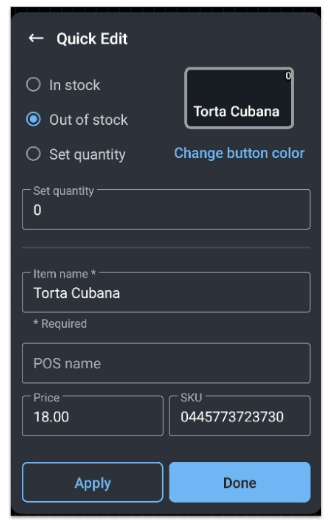
If a menu item or modifier goes out of stock in the middle of a rush, you don't have to find a computer and log into Toast Web. Instead, use Quick Edit mode to 86 the item directly on a Toast device. Once you 86 an item this way, it can't be selected on the POS or on your Toast Online Ordering site.
To 86 an item on the POS:
- Using a manager passcode, log into any Toast device. On the order screen, press and hold any menu button or modifier button to open Quick Edit mode.
- On the item you want to mark out of stock, select the Inventory drop-down, and then select Out of stock.
- Select Done.
- In the pop-up window, select Save and continue.
Expected outcome: The item you've 86'd is grayed out, can't be selected, and shows a zero in the corner. In the example below, Torta Cubana and Torta Adobada are marked as out of stock.
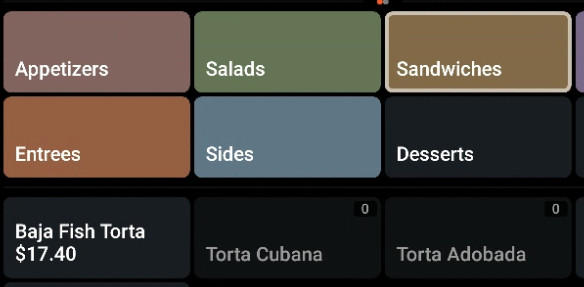
Note: An item stays out of stock, or 86'd, until you mark it back in stock. To un-86 an item, follow the same steps and select In stock from the Inventory drop-down.
86 an Item in Toast Web
If you'd rather 86 an item from Toast Web instead of directly from the POS, you can do so from Bulk management.
Note: Multi-location management (MLM) users follow this same process. Using advanced properties to 86 an item only changes the quantity of the item at the location you're viewing.
To 86 an item in Toast Web:
- In Toast Web, navigate to Menus > Bulk management > Advanced properties.
- Open the Show/Hide drop-down and make sure Inventory is selected.
- Use the caret (arrow) icons to expand your menu, groups, and subgroups until you find the item or modifier you need to mark out of stock.
- In the Inventory column for that item or modifier, enter 0 to 86 the item.
- Select Save, and then publish your changes to push them to your POS.
Expected outcome: The item is marked out of stock and can't be ordered. To add the item back into inventory, delete the 0 in the Inventory column, then save and publish.
Note: If you've enabled future order scheduling for online orders (ordering in advance) and serve limited quantity items, Toast can't reserve those items for future orders. If a guest adds a limited quantity item to their cart but another guest orders the last of that item for an ASAP order, Toast can't prevent the sale to ensure all future orders are fulfilled.
86 an Item in the Toast Now App
If you're away from the restaurant, you can 86 an item from the Toast Now app.
- Open the Toast Now app and tap the Stock card on the home screen.
- Search for the item you want to mark as out of stock.
- Turn off the item's in-stock toggle. You can also update the item's quantity.
Expected outcome: The item is marked out of stock and can't be ordered. Items you've 86'd are listed on the Stock page, where you can switch them back in stock. For more about the app, see Get Started With the Toast Now App.
Prevent Catering Guests from Ordering an Item
Catering doesn't support 86ing. Because catering orders are placed for future dates, sometimes weeks or months ahead, marking an item out of stock today would prevent guests from ordering it in the future, even when the item is available again.
To prevent catering guests from ordering a particular item, use Item Limits instead:
- Navigate to Catering & Events > Online Ordering > Catering Capacity > Item Limits.
- Set the limit for the item to 0.
Expected outcome: The item acts like a "future 86" and guests can't add it to their catering orders. For more detail, see Mark an Item as Out of Stock on Catering Online Ordering.
Frequently Asked Questions
I 86'd an item but guests can still order it online or on third-party apps. Why?
If you 86'd an item but guests can still order it elsewhere, the item most likely exists in more than one place on your menu. Each instance must be marked out of stock individually. Duplicate menu items are typically the product of a deep copy, and they may share the same name but have different menu ID numbers in Toast Web. To find and consolidate duplicates so a single 86 applies everywhere, see 86 Duplicate Items.
Also asked as:
-
- Why is my 86'd item still showing online?
- I 86'd an item but it's still available on third party
- 86 isn't working for all my menus
How do I 86 an item just for online or third-party ordering?
To stop guests from ordering an item online, 86 it on the POS or in Toast Web, and the change applies to your Toast Online Ordering site. If the item is still orderable online or on a third-party app after you 86 it, check for duplicate menu items, since each instance must be marked out of stock individually. Changes can take a few minutes to sync across channels.
Also asked as:
-
- How do I 86 an item online?
- How do I 86 an item on third party?
How do I un-86 an item or mark it back in stock?
To un-86 an item or mark it back in stock, follow the same workflow you used to 86 it. On the POS, open Quick Edit mode and select In stock from the Inventory drop-down. In Toast Web, delete the 0 in the Inventory column under Menus > Bulk management > Advanced properties, then save and publish.
Also asked as:
-
- How do I take an item off the 86 list?
- How do I restock an item?
- How do I un-86 something on my POS?
Can I restock all my 86'd items at once instead of opening each one?
There isn't a single bulk "restock all" action, but Toast Web lets you restock items quickly from one screen. Navigate to Menus > Bulk management > Advanced properties, make sure Inventory is selected in the Show/Hide drop-down, and delete the 0 in the Inventory column for each item you want back in stock. Then save and publish your changes.
Also asked as:
-
- How do I make all my items back in stock without opening each one?
- Is there a way to restock everything at once?
Where do I find my list of 86'd items?
Your out-of-stock items appear grayed out with a zero on the POS order screen, and in Toast Web you can see them in the Inventory column under Menus > Bulk management > Advanced properties. For a report of items that are out of stock, see Menu Reports Overview.
Also asked as:
-
- Where is my 86 list?
- How do I see what's been 86'd?
How do I 86 an ingredient or modifier?
To 86 an ingredient or modifier, follow the same steps you use for a menu item. On the POS, press and hold the modifier button to open Quick Edit mode, then set the Inventory drop-down to Out of stock. In Toast Web, find the modifier under Menus > Bulk management > Advanced properties and enter 0 in its Inventory column.
Also asked as:
-
- How do I 86 a modifier?
- Can I 86 an ingredient?
I 86'd an item but staff can still order it on the POS. What should I do?
If you 86'd an item but staff can still order it on the POS, the change may not have synced to every device yet, or the item may exist as a duplicate elsewhere on your menu. Confirm the item shows as grayed out with a zero on the device, check for duplicate menu items, and allow a few minutes for changes to sync. If the item is still orderable, contact Toast Customer Care.
Also asked as:
-
- My 86'd item is still orderable
- Servers can still ring up an item I 86'd
Related Articles