Adjust Starting Cash Drawer Balance
Last updated: Jun 26, 2026, 3:27 PM
| This article covers legacy Cash Drawer functionality. An updated version of Cash Drawer functionality is currently in limited release with select customers. If the Cash Drawer experience on your Toast POS differs from what is described here, please refer to the Use Cash Drawers for details on the new functionality. |
- Configure Cash Drawer and Cash Balance Overview
- Adjust Cash Drawer Starting Balances
- Adjust Balances in Toast Web (Legacy Version)
- Adjust Balances in Toast Web (New Version)
- Adjust Balances Through the Cash Drawer Report
- Adjust Balances on Toast POS
- Adjust Balances on Toast POS (New Version)
Configure Cash Drawer and Cash Balance Overview
To ensure your business day starts smoothly, you can configure how your cash drawers behave and set their default starting balances directly in Toast Web. Assigning a drawer to a specific employee streamlines accountability, though it does require the employee to close their drawer as part of their shift review process. To learn more about how to use cash drawers, see Use Cash Drawers.
To manage these settings:
- In Toast Web, navigate to Finance > Related > Settings > Cash overview.
- Select View cash drawers to open the configuration page.
- From here, you can define your Reset Balance Type:
- Automatic: The drawer resets to your chosen starting balance every time it is closed. It will also automatically close the business day at 4:00 AM.
- Manual: You will be prompted to enter a unique starting balance every time a new drawer is opened. These drawers do not automatically close overnight.
- Set your Starting Balance amount. This value will serve as the default for all new drawers created under these settings.
- Save and Publish your changes to push them to your POS terminals.
Adjust Cash Drawer Starting Balances
If you use cash drawers, then creating a starting balance for your cash drawers is a vital part of starting your business day. You can change these values on the Toast POS or it can be done in Toast Web.
Note: If you initially set up your cash drawer via the Printer Wizard on a Toast POS, use this article to update the starting cash drawer balances that were originally chosen.
Back to top
Adjust Balances in Toast Web (Legacy Version)
- In Toast Web, navigate to Finance > Related > Settings > Cash overview > View cash drawers > and select View all printers.
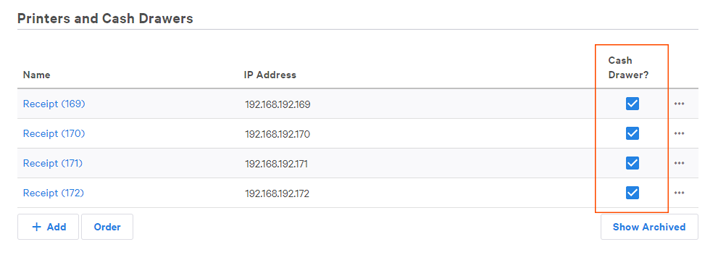
- From here, you'll see your printers, which should be directly linked to some of your cash drawers. This can be verified by looking to see if the Cash Drawer? section has a checkmark.
- Select the printer/drawer you'd like to adjust, or you can add a new drawer if needed by selecting the +Add button.
- Scroll down to the Primary Cash Drawer section to adjust the starting cash drawer balance. Here, you can set the drawer amount to be whatever you'd like.
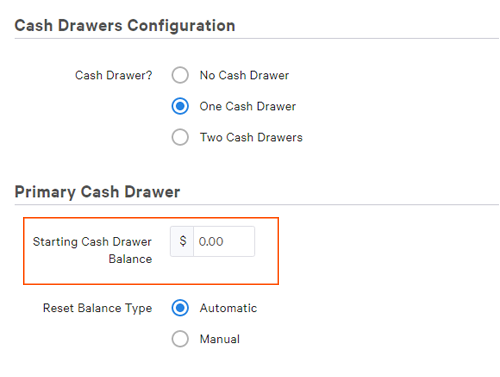
Below the starting cash drawer balance is a toggle for Reset Balance Type. It can be turned from Automatic to Manual.
Note: If a cash drawer is closed and it is set to Automatic, it will automatically open a new drawer.
Adjust Balances in Toast Web (New Version)
| An updated version of Cash Drawer functionality is currently in limited release with select customers. If you know you are a part of the limited release, or if the Cash Drawer experience on your Toast POS differs from what is described above, this section will provide you with instructions on how to adjust your starting balance from Toast POS. For other new cash drawer functions, please refer to the Use Cash Drawers for details on the new functionality. |
To adjust your starting balance for cash drawers:
- In Toast Web, navigate to Finance > Related > Settings > Cash overview > View cash drawers.
- Here, you can set the default starting balance for your cash drawers.
- Choose your reset type:
- Automatic: The drawer will automatically reset with the set starting balance when it is closed, and it will close automatically at 4 AM
- Manual: You will be prompted to enter a starting balance each time you open a new drawer, and it will not automatically close overnight.
- Save and Publish your changes.
Adjust Balances Through the Cash Drawer Report
While viewing your Cash Drawer report, you can also adjust your drawer's balance. This is useful if you need to fix some discovered cash discrepancies when looking over numbers.
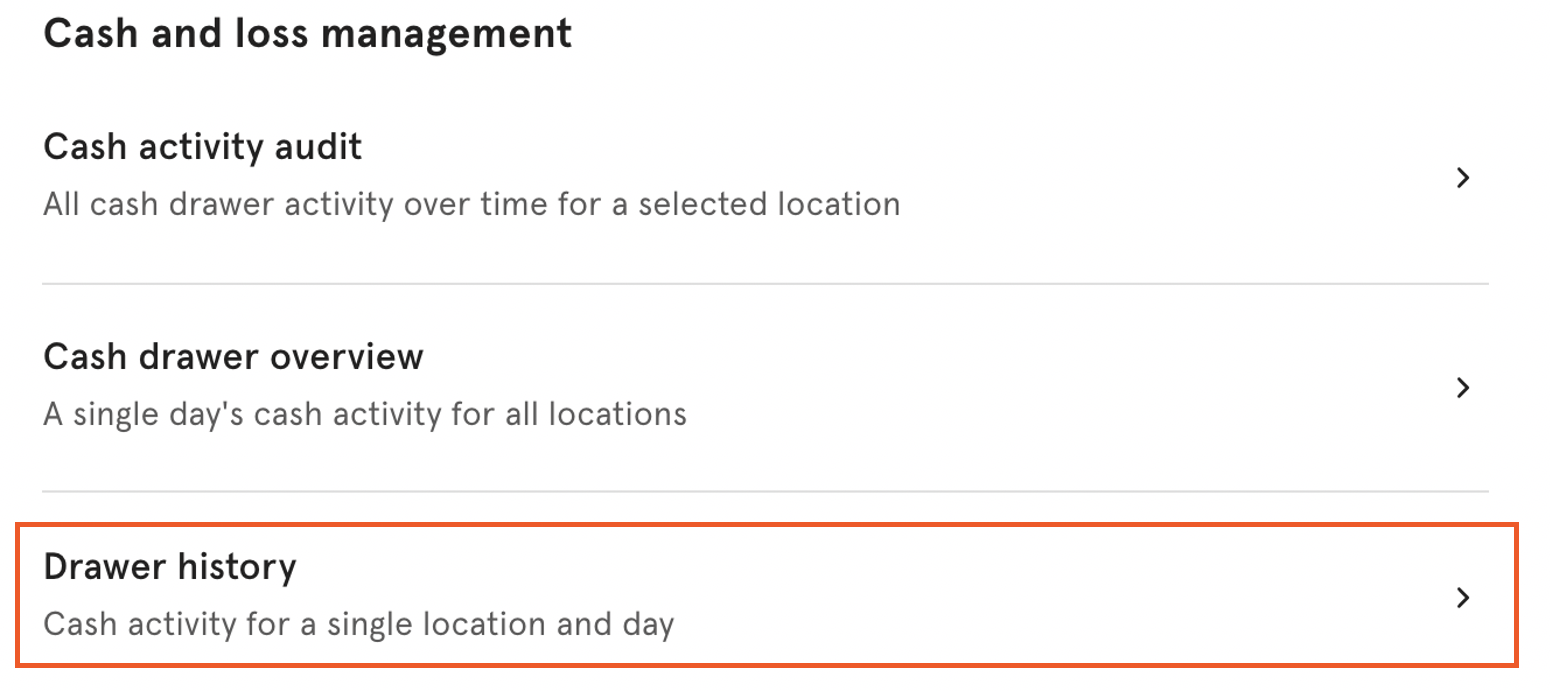
To do this, start in the Toast Web and navigate to the Reports section using the navigation on the left side of your screen, and select Drawer history under the Cash and loss management header.
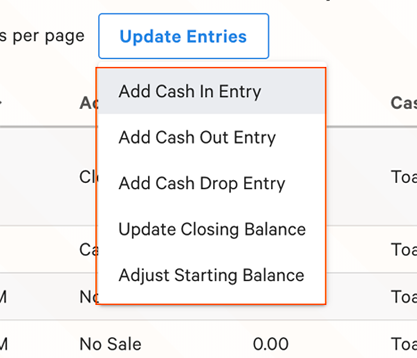
While reviewing the report scroll to the bottom of the page and select View for the cash drawer in question. Then select Update Entries. From there, you'll be able to select multiple options, among them is Adjust Starting Balance.
Adjust Balances on the Toast POS (Legacy Version)
There's also a way to adjust the cash drawer balance from your Toast POS. This is a great option for changes that need to be made on the fly during business hours.
To do this, start by navigating to the main menu on your POS and select Cash Drawers.
After, you'll see the drawers set up in your restaurant. Select whichever drawer you'd like to adjust.
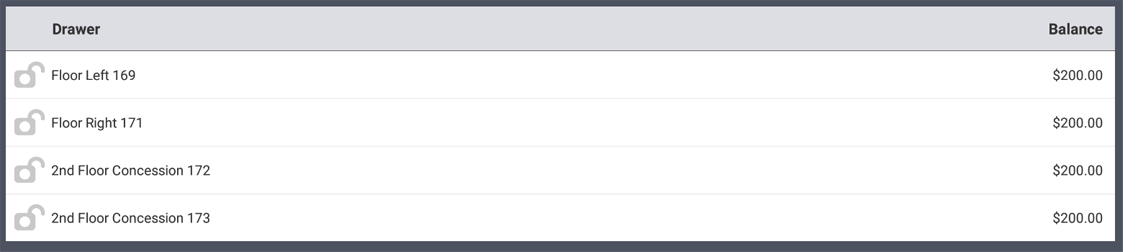
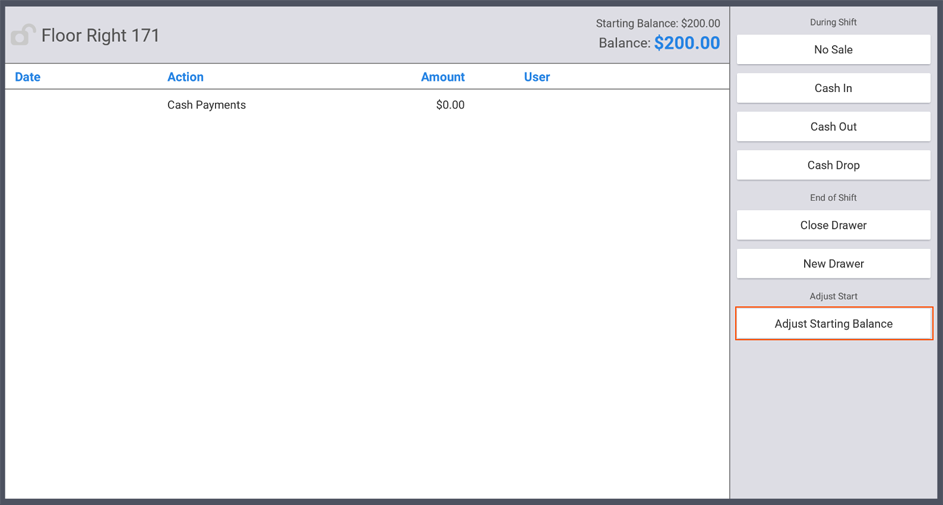
Once in the drawer, you'd like to adjust, you'll see options on the right-hand side of the screen. On the bottom will be the option to Adjust Starting Balance. Select this option.
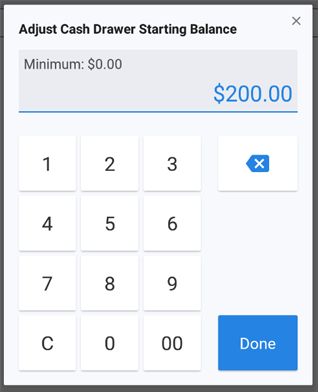
This will pull up a number pad where you can set the new starting balance to the cash drawer. Enter the value and then select Done.
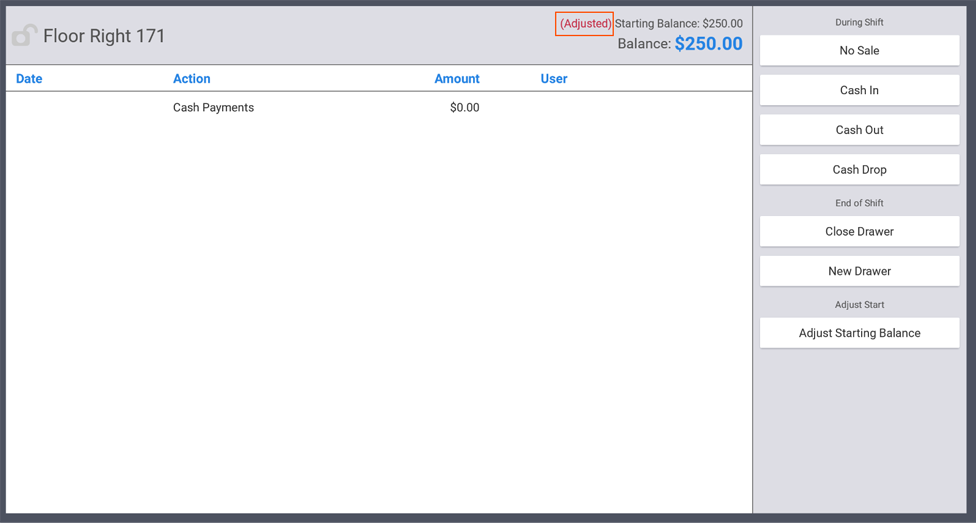
After selecting Done, you'll see the new balance in the drawer with the word Adjusted in parentheses next to the new starting balance.
Adjust Balances on the Toast POS (New Version)
| An updated version of Cash Drawer functionality is currently in limited release with select customers. If you know you are a part of the limited release, or if the Cash Drawer experience on your Toast POS differs from what is described above, this section will provide you with instructions on how to adjust your starting balance from Toast POS. For other new cash drawer functions, please refer to the Use Cash Drawers (New Experience) for details on the new functionality. |
To adjust your starting balance for cash drawers on the POS in the new version of cash drawers:
- Navigate to the main menu of your POS.
- Scroll down to Cash Management.
- Select Cash Drawers.
- Select the active cash drawer you would like to change the starting balance of.
- Select the Edit Starting Balance button in the bottom left side of your screen.
- Adjust the balance. Select Done.