Use Cash Drawers
Last updated: Aug 25, 2026, 12:57 PM
Learn how to manage cash drawers during a shift.
- New Cash Drawer Experience Overview
- Use a Cash Drawer During Your Shift
- Close a Cash Drawer
- Create a Deposit
- Update Cash Drawer Entries
- Additional Resources
New Cash Drawer Experience Overview
The Cash Management section on your device contains all of the cash drawer-related actions you'll need to manage the cash balance on a daily basis. To get there, on the main menu on your POS, navigate to Cash Management and select Cash Drawers.
Note: If you do not see the Cash Management screen, see the Permissions Reference Guide and review the permissions associated with your current job role.
On the Cash Drawers page, you will see a left-side activity panel that displays summaries for all drawers for the day. There are two main states for your cash drawers: Open and Closed.
An Open drawer indicates that this cash drawer is being used for all cash transactions at this time. Within your Open drawer status, you also have both Active and Paused drawers.
- An Active drawer indicates that this is the drawer currently in use. This drawer is accepting all cash transactions, including orders paid for in cash.
- A Paused drawer indicates that this cash drawer is not in use, but is not yet closed. Cash sales cannot be taken on a paused drawer. However, you can still add or remove cash by using the 'Add Cash' and 'Remove Cash' options, which will adjust the closing balance. The cash in this drawer has not yet been counted, and the actual closing balance has not been entered into the Toast platform.
- Note: This state is triggered by selecting Count this drawer later when closing a drawer. The drawer will be paused, and a new Active drawer will be created for any cash transactions. This state allows you to count the drawer at a later time.
A Closed drawer indicates that this cash drawer is not taking cash entries of any kind, and has been properly closed. All cash has been counted, and the actual closing balance has been entered into the Toast POS system. Closed drawers display the actual cash counted and a visible overage/shortage amount (if applicable) directly on your POS.
| A new Active drawer will automatically be created when a drawer is closed. A confirmation dialog appears when you select Close Drawer, reminding you that a new drawer will be created automatically. |
For each drawer state, you will see the following information in the left side activity panel:
- Expected individual drawer balance
- Expected total balance
- Total starting balance
- Actual total close out cash
- Cash overage/shortage
On the right side of the screen, you’ll see the following options:
- Cash Drawer Report Button- At the top of your screen, you’ll see a button to view your Cash Drawer Report in Toast Web. This will take you directly to your Cash Drawer History report. For more information, see Cash Drawer Reports Overview.
- Open, Paused and Closed Drawers Toggle- Directly beneath the Cash Drawer Report button, you will see a toggle to switch between your open, paused, and closed drawers.
- Within the Open Drawers tab, you will see all Active drawers as well as their current balance.
- With the Paused Drawers tab, you will see all Paused drawers as well as their current balance.
- Within the Closed Drawers tab, you will see all closed drawers, and a button to Create Deposit.
To adjust your starting balance for cash drawers:
- In Toast Web, navigate to Finance > Related > Settings > Cash overview > View cash drawers.
- Here, you can set the default starting balance for your cash drawers.
- Choose your reset type:
- Automatic: The drawer will automatically reset with the set starting balance when it is closed, and it will close automatically at 4 AM
- Manual: You will be prompted to enter a starting balance each time you open a new drawer, and it will not automatically close overnight.
- Save and Publish your changes.
Use a Cash Drawer
During your shift, you'll be able to perform various actions by first navigating to Cash Management > Cash Drawers, and then selecting an Active drawer.
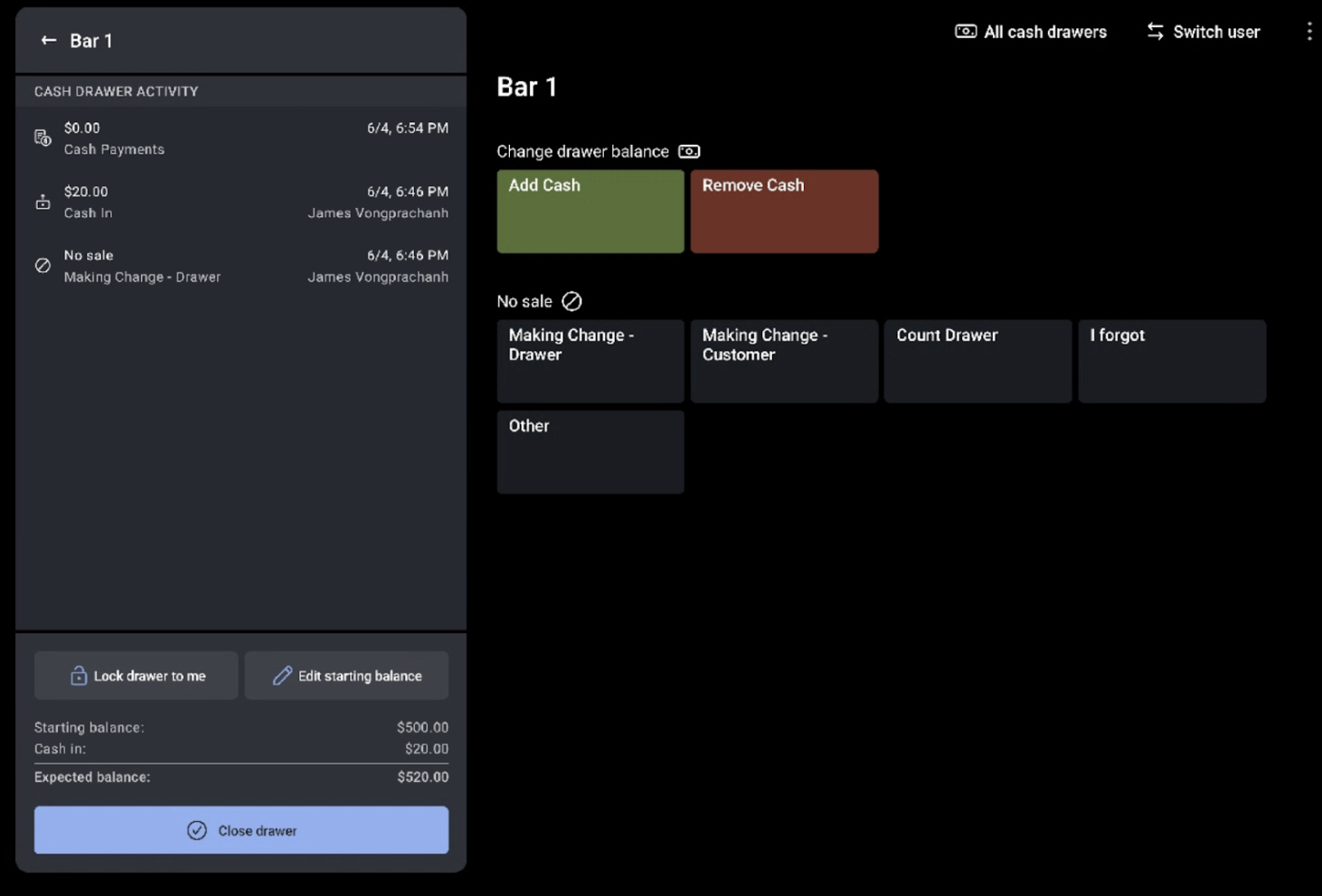
On this page, you’ll be able to complete the following actions:
- Edit the starting balance for the drawer.
- Lock the drawer to yourself. For more information, see Lock Down Cash Drawers.
- Add Cash: This function is used to add cash to an Active drawer that is not associated with a transaction to the restaurant. Employees can enter a custom reason for the entry as a comment. If you are collecting cash from a server, you can select Collected from Server when entering your cash amount.
- Remove Cash: The cash out function is used to remove cash from an Active drawer that is not associated with a transaction. Employees will need to select whether it is for a Cash out, Payout, Tip Out, or Cash Drop, and can add a custom comment for the entry.
- No Sale: No sale is used to open the cash drawer without adding or removing cash. Typically this is used to make changes or count your drawer.
- If No Sale Reasons are set up, you may have to select why you are opening the cash drawer each time you select the No Sale button.
To set up No Sale Reasons:
- In Toast Web, navigate to Finance > Related > Settings > No sale reasons.
- Select the + Add button to input the No Sale Reason name and description. Some common examples are Making Change or Counting the Drawer.
- Save and Publish your changes.
Note: Every time a user uses the No Sale button, it is logged in the Sales Exception report for tracking and auditing.
All cash activity for the drawer will be listed in the left side activity panel as seen below.
To create a new drawer:
- Navigate to your Main POS Menu > Cash Management > Cash Drawers.
- Select Open at the top of the screen to see your open drawers.
- Select the drawer you would like to make a new version of and select Close drawer
- Select the count this drawer later button on the right side of the closing screen
- A warning prompt will appear. After you confirm, the current drawer will be moved to a 'Paused' state, and a new drawer will be created with a fresh starting balance.
Close a Cash Drawer
At the end of a shift, you'll need to close your active or open drawer by counting all the cash in your drawer and entering it into your device. To do this, you can select the Close drawer button on any Active or Paused cash drawer. On the right side of your screen, you will select Count bills. If you choose to select Count this drawer later, this will pause the drawer, not close it.
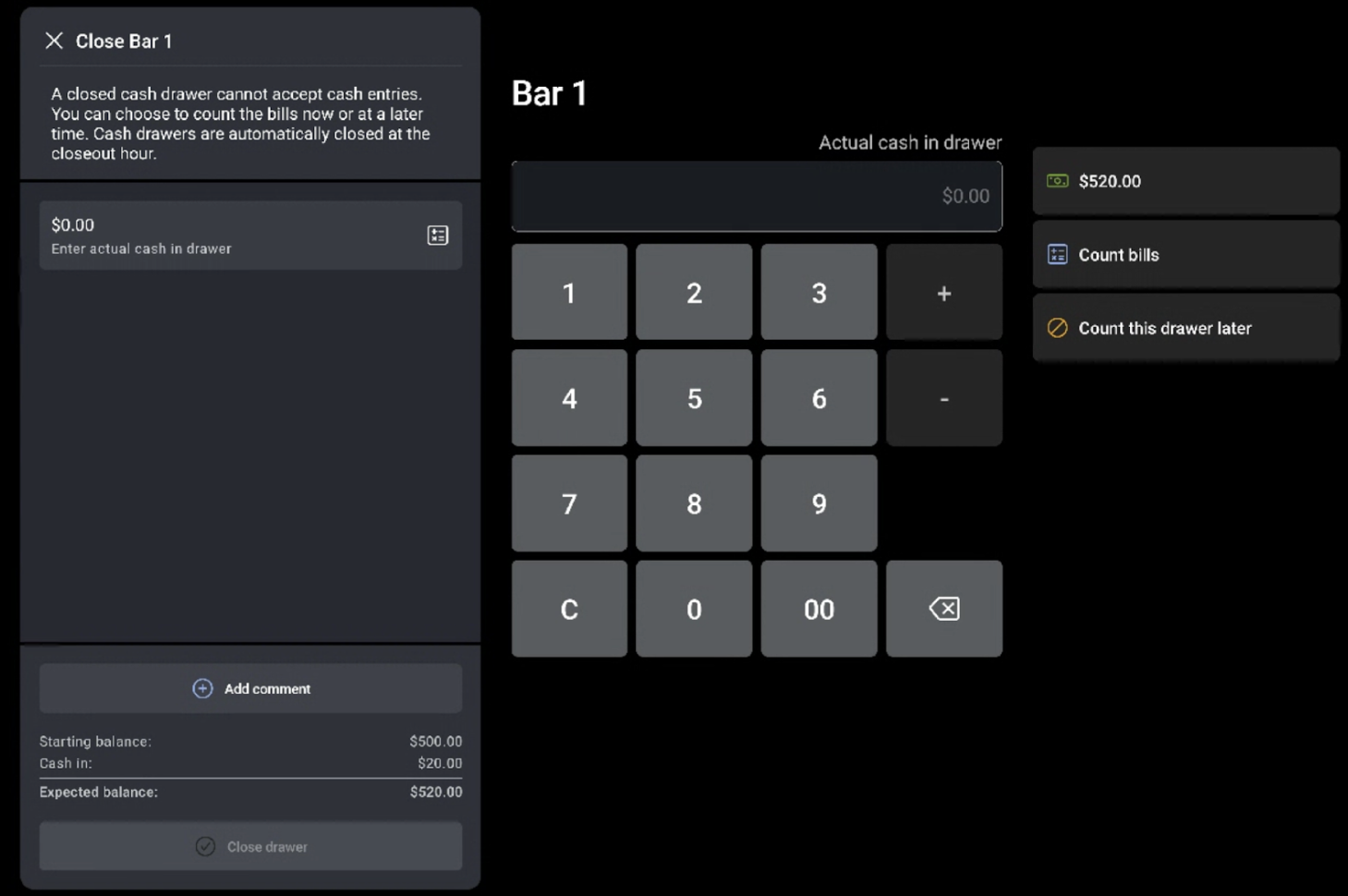
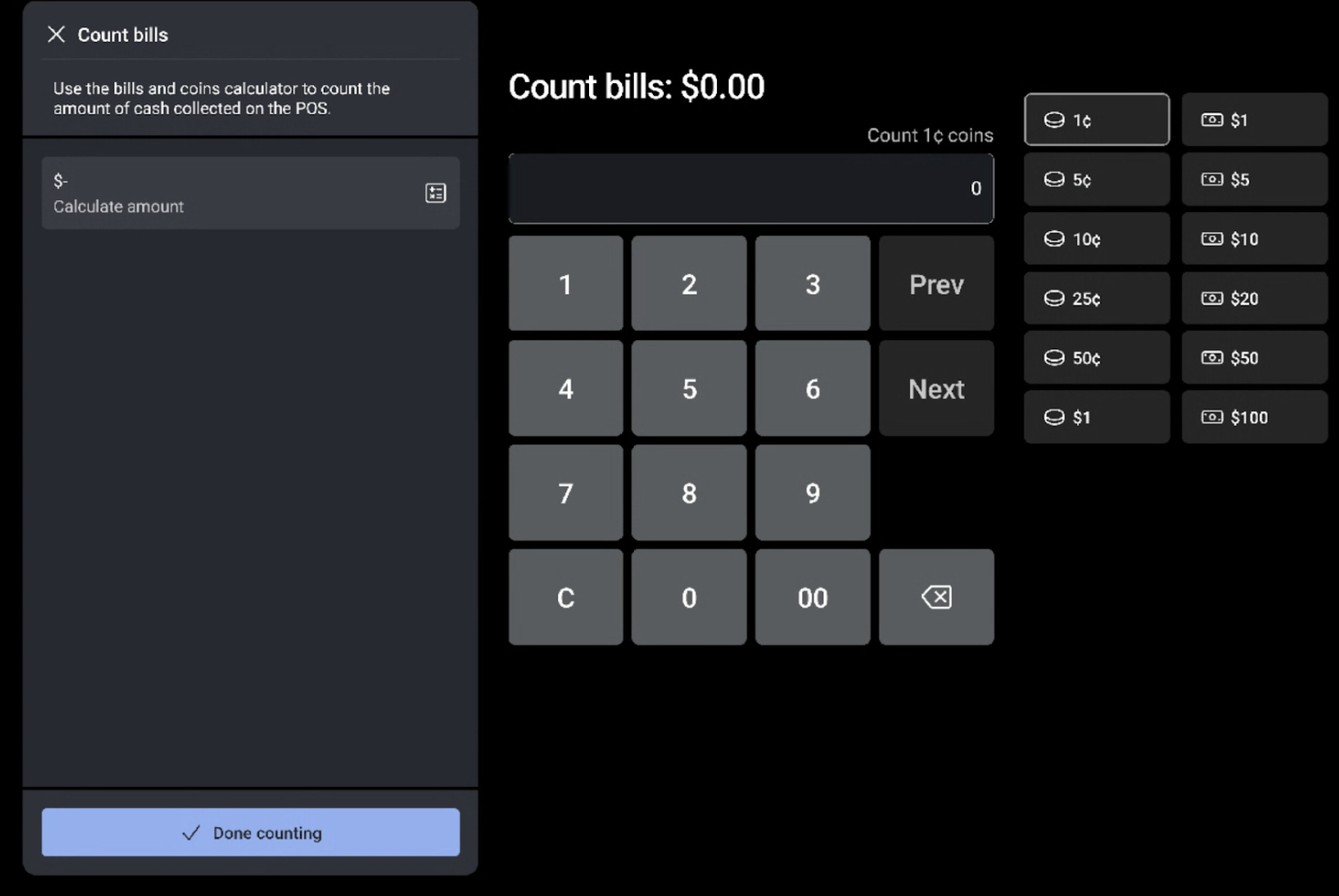
On the next screen, you will be able to count the bills and change in your drawer by currency type. Toast POS will calculate your total based on the total number of each bill or coin type. You can also use Quick Cash options to enter a preset amount instead of counting each bill and coin individually. Quick Cash options are labeled "Includes starting balance" to help you confirm whether the preset amount already accounts for your starting balance.
Note: There is an auto-close feature for cash drawers in Toast POS to ensure the cash drawer does not cross days. This feature automatically closes the cash drawer at the end of the business day, or your business day cutoff. The business day cutoff time is the hour of the day when the restaurant's current business day ends and a new business day begins. This time also triggers other end-of-day processes such as auto clock out if enabled, and reporting by date.
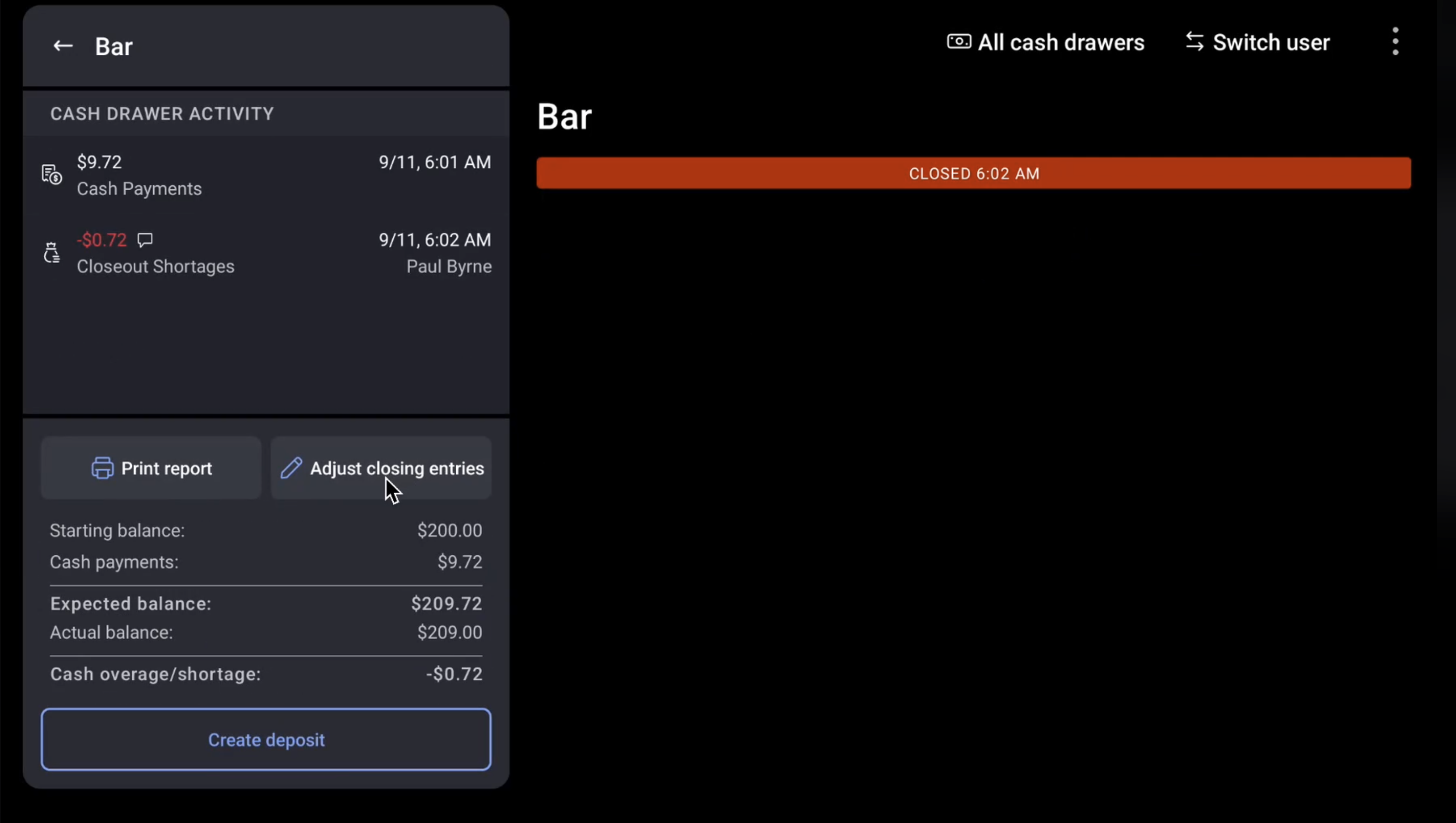
To reopen a closed drawer, select Adjust Closing Entries on the closed drawer. This action will change the drawer's status to 'Paused'. In the paused state, you can add or adjust cash entries, such as adding or removing cash. However, you cannot process new cash sales. Once you're finished, close the drawer again, and a new one will be created automatically.
To reopen a closed drawer:
- Navigate to your Main POS Menu > Cash Management > Cash Drawers.
- Select Closed at the top of your screen to view your closed drawers.
- Select the drawer you would like to adjust.
- Select the Adjust Closing Entries button in the left side of the activity panel. (Will reopen drawer into a paused state)
- Update cash entries by selecting Add Cash or Remove cash
- Select any of the cash entries on the left panel to undo if you require
- Select Close Drawer, and follow the prompts to close your drawer again with the corrected cash amount.
Create a Cash Deposit
Deposits are a recording tool used to track how much money is being deposited into the bank. To learn more, see Get Started with Cash Deposits.
To create a cash deposit in the new cash drawer experience, navigate to Closed drawers > Create deposit > Add deposit.
On the next screen, you will have the option to either count specific bills, or enter a deposit amount. When you’ve finished counting and entering your total, select the blue Create deposit button, and select a printer to print your closed drawer report.
Update Cash Drawer Entries
If you've entered an incorrect closing cash amount, it can skew overall cash balancing numbers for the day. Mistakes happen, but it’s important to know how to correct them to allow for proper cash drawer balancing.
To update this closing balance on Toast POS:
- Navigate to your Main POS Menu > Cash Management > Cash Drawers.
- Select Closed at the top of your screen to view your closed drawers.
- Select the drawer you would like to adjust.
- Select the Adjust Closing Entries button in the left side activity panel.
- Select Close Drawer, and follow the prompts to close your drawer again with the corrected cash amount.
To update this closing balance in Toast Web:
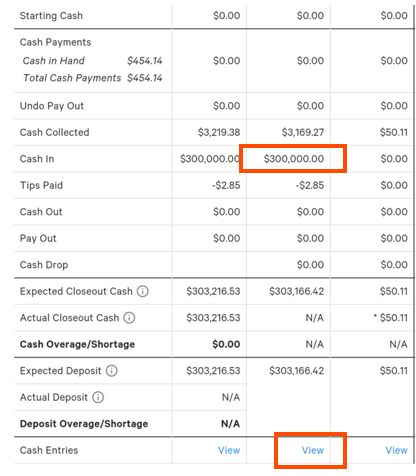
- Find the cash drawer in the Cash Drawer report. In the example below, you can see the drawer's closing cash has a typo and closed with $300,000.
- Below the drawer in question, select View.
- More details appear below the report with options for this drawer. Select Update Entries.
- Add Cash In Entry: Can be used for adding a cash amount that was physically placed in the cash drawer, but not properly tracked in the cash drawer.
- Add Cash Out Entry: Can be used for removing a cash amount that was incorrectly tracked to the cash drawer, but the cash was not physically placed into the cash drawer.
- In the pop-up window, enter the correct amount for the closeout cash balance. Select Submit. Your balance has been updated!
You can also use the process above to add a manual cash deposit if you forgot to do it at the end of the day. After you select View, you can select Add Deposit and create an entry.