Close Out Day, Z Report, and Auto-Capture Overview
Last updated: Oct 5, 2026, 11:04 AM
- TLDR about close out day, the Z Report, and auto-capture
- Close out day on the POS
- Auto-resolve issues in close out day
- Close out day not loading
- Z Report on the POS
- Z Report line items
- Why your Z Report does not match the Sales Summary
- Z Report regional differences (US / Canada vs. UK / Ireland)
- Service Report on the POS
- Customize and preview POS reports
- End-of-day cash deposits
- Capture payments and change your batch time
- Offline payment handling
- Auto-capture of unclosed checks
- Known limitations and common questions
- Related articles
Toast automatically closes out your business day, captures credit card payments, and clocks out remaining employees overnight. Use this article to learn how each end-of-day process works.
TLDR about close out day, the Z Report, and auto-capture
Toast handles end-of-day automatically each night. You generally do not need to run anything manually.
- Close out day is an optional manager screen on the Toast POS that summarizes open checks, unpaid checks, paid checks awaiting tips, orders awaiting pickup, and clocked-in employees. Use it as an audit tool.
- Auto-close at 4:00 a.m.: Toast auto-closes the business day at 4:00 a.m. by default (ET for all US customers, local time for UK, Ireland, Australia, and Canada customers). This closes any unclosed paid checks, clocks out any employees still clocked in, and auto-captures all uncaptured credit card payments from the previous business day.
- Unpaid checks: Toast does not close unpaid checks automatically. Unpaid checks must be resolved manually.
- Z Report (manager end of day report) is a sales summary printed from an in-store receipt printer. Printing it does not turn the day over, and it can be printed at any time.
- Auto-capture is on by default. It can be disabled or have its time adjusted, currently by request to Customer Care.
Note: Business cut-off times are not adjustable for international locations (Australia, Canada, Ireland, and the UK). For regional cut-off times, see Deposit Schedules for Restaurants in Ireland, Canada, and the UK.
Close out day on the POS
The Close Out Day screen is an optional audit tool on the Toast POS. It is not required to be run manually each night—Toast automates the end-of-day process at 4:00 a.m.. Some restaurants use Close Out Day for additional accuracy, employee accountability, or unique operational needs.
By default at 4:00 a.m. each day, Toast will:
- Close out any unclosed checks that were in Paid status at the time of close.
- Clock out any employees who are still clocked in at 4:00 a.m.. This auto-clock-out can be disabled by request to Customer Care.
- Auto-capture all uncaptured credit card payments from the previous business day.
Note: 4:00 a.m. ET for all US customers, 4:00 a.m. local time for UK, Ireland, Australia, and Canada customers.
Toast will not close unpaid checks if auto-close or auto-void is not enabled. Unpaid checks must be resolved manually.
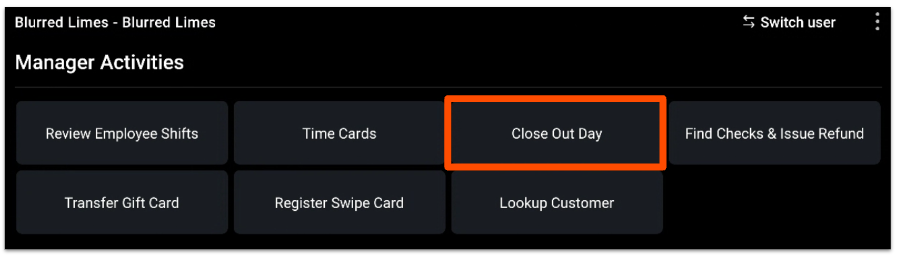
To open Close Out Day, on the Toast POS main menu select Manager Activities, then select Close Out Day.
In the example below, four open checks must be resolved before the day can be closed out. Unless auto-close or auto-void is enabled, unpaid checks require manual intervention. Unpaid checks also block the waitstaff who own them from ending their shift.
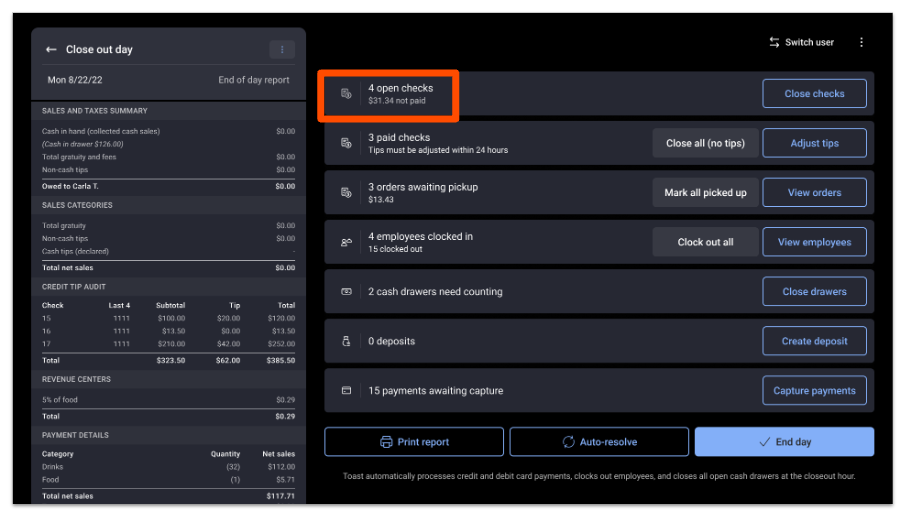
Select Close checks to manage any unpaid checks. The End day button is unavailable until all open checks are resolved. Open checks cannot be auto-resolved.
The Close Out Day screen also summarizes paid checks, orders awaiting pickup, and employees who are clocked in:
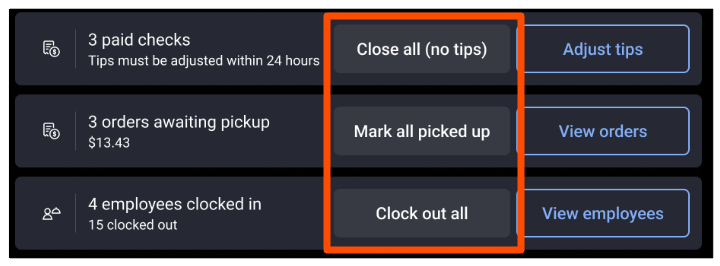
- For paid checks, you can select Close all (no tips) or Adjust tips.
- For orders awaiting pickup, you can select Mark all picked up or View orders.
- For clocked-in employees, you can select Clock out all or View employees.
- If any of those three categories have outstanding items, you can also select Auto-resolve at the bottom of the screen to resolve all of them at once. See the next section for details.
Auto-resolve issues in close out day
Use Auto-resolve when you need to close out quickly or want to resolve a large number of issues with the same action.
Selecting Auto-resolve will:
- Close all fully paid orders and checks. If a check has no tip, the system closes the check without applying a tip. Use Adjust tips to add tips manually before closing each check.
- Clock out all currently clocked-in employees. This ends every clocked-in shift immediately.
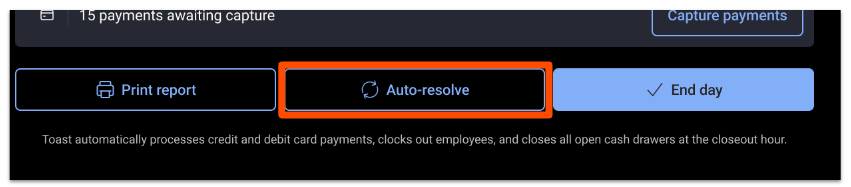
Important: Auto-resolve cannot be used for unpaid checks. Auto-resolve only resolves paid checks (by closing them), orders awaiting pickup, and clocked-in employees. To auto-resolve only one category, use the button next to that specific item. Unpaid checks can be auto closed or auto voided. For details, see Enable Auto-Close or Auto-Void for Unpaid Checks
Close out day not loading
If the Close Out Day screen will not load or stays loading indefinitely, try the following steps in order:
- Return to the device menu and open Close Out Day again.
- Select the reload icon in the top-right of the page.
- Log out and log back into the Toast POS, then open Close Out Day.
- Open Close Out Day from a different device.
- Confirm the device has an active internet connection. See Verify Your Internet Connection.
If employees cannot close the day because they cannot access the cash drawer:
- In Toast Web, confirm the 1.7 Cash Drawer Access permission under POS Access is enabled for the employee.
- Publish any recent changes to permissions.
- Reboot the device so updated permissions take effect.
Unpublished or outdated permissions are the most common cause of cash drawer access issues at close-out and can be resolved by following the steps above.
For a comprehensive end-of-shift checklist, see Shift Review Checklist for Employees and Managers.
Z Report on the POS
The Z Report (manager end of day report) is a sales summary that can be printed from an in-store receipt printer using the Close Out Day function. It can be printed at any time during the day without affecting the business day.

Printing the Z Report does not turn the day over. The data updates in real time as sales occur. The report prints from whichever receipt printer the device is configured with.
You can configure what appears on the Z Report from Toast Web. Navigate to Team > Settings > Manager end of day report. Select the items to include, then Save and Publish.
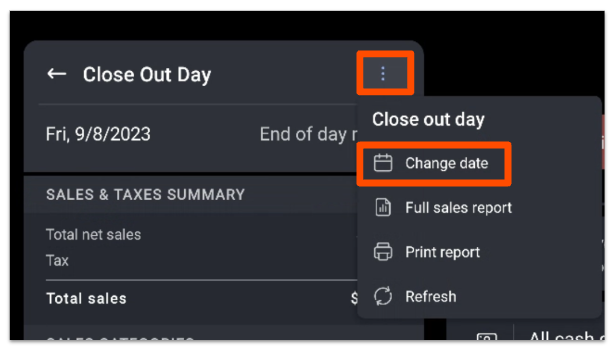
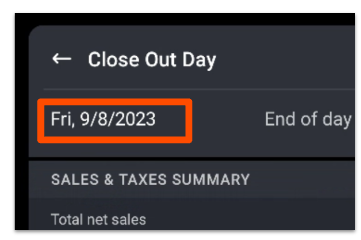
The Z Report shows the previous seven days by default. To change the date, open the Overflow menu in the top-right of the report, select the desired day, and select Okay. The selected date appears in the top-left corner of the report.
Note: Server tip outs only show on the Z Report when Non-Cash Tips and Gratuities in your Shift Review Setup are both set to Pay out from the Cash Drawer. See Customize Shift Review Settings.
Z Report line items
The Z Report (manager end of day report) can include any of the following sections. Use the configuration paths above to choose which appear.
- Sales categories - total net sales per sales category.
- Revenue centers - total net sales and quantity per revenue center.
- Sales & taxes summary - total net sales, total tax, and total sales.
- Payment details - total amount of payments made.
- Server tip outs - total tips and fees tipped, including cash before tipouts, cash and non-cash gratuity, and non-cash tips.
- Total voids - total amount, count, and percentage of voids (orders and items).
- Total removals - Removed items are items that have been added to the check and removed before they were sent, held, or scheduled for another date.
- Total discounts - total amount of discounts applied.
- Credit card breakdown - breakdown of credit card transactions.
- Other payments breakdown - breakdown of transactions made using other payment options.
- Labor - total net sales, cost-to-sales ratio, labor costs, and total hours worked.
- Employee over/short - total overage or shortage amount.
- Employee signature - employee signature(s).
- Pay out breakdown - pay-out reason and total amount of payouts made.
- Deposit summary - total expected deposit, actual deposit, and overage or shortage amount.
- Deliver - Toast Delivery Services gross sales, net sales, and fees to drivers.
Why your Z Report does not match the Sales Summary
The Z Report (manager end of day report) and the Sales Summary report are not directly comparable in every case. They use different scopes and different inclusion rules.
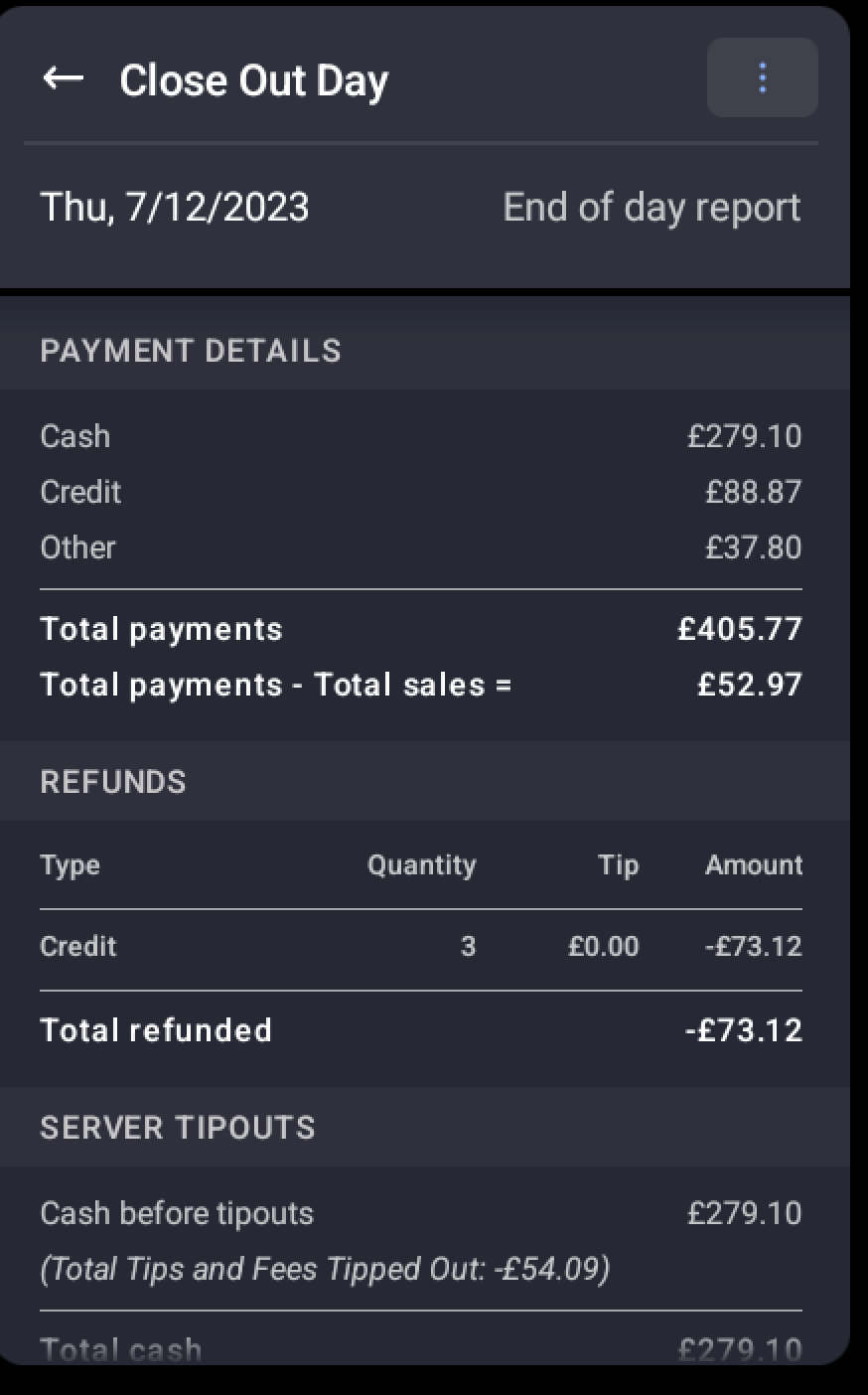
It's normal for Total Payments − Sales to show a negative number—the figure is informational, not an error. Payments and sales don't always cover the same things or the same timing; the gap is most often driven by tips and gratuity/service charges, plus refunds, unpaid or overpaid orders, and timing buckets like Paid in total and Deposit sales collected in the Sales Summary.
For a full comparison of how Toast totals reconcile with your bank deposits, see Compare Deposits and Credit Card Sales. For deposit timing, see Deposit Schedules Overview.
Z Report regional differences (US / Canada vs. UK / Ireland)
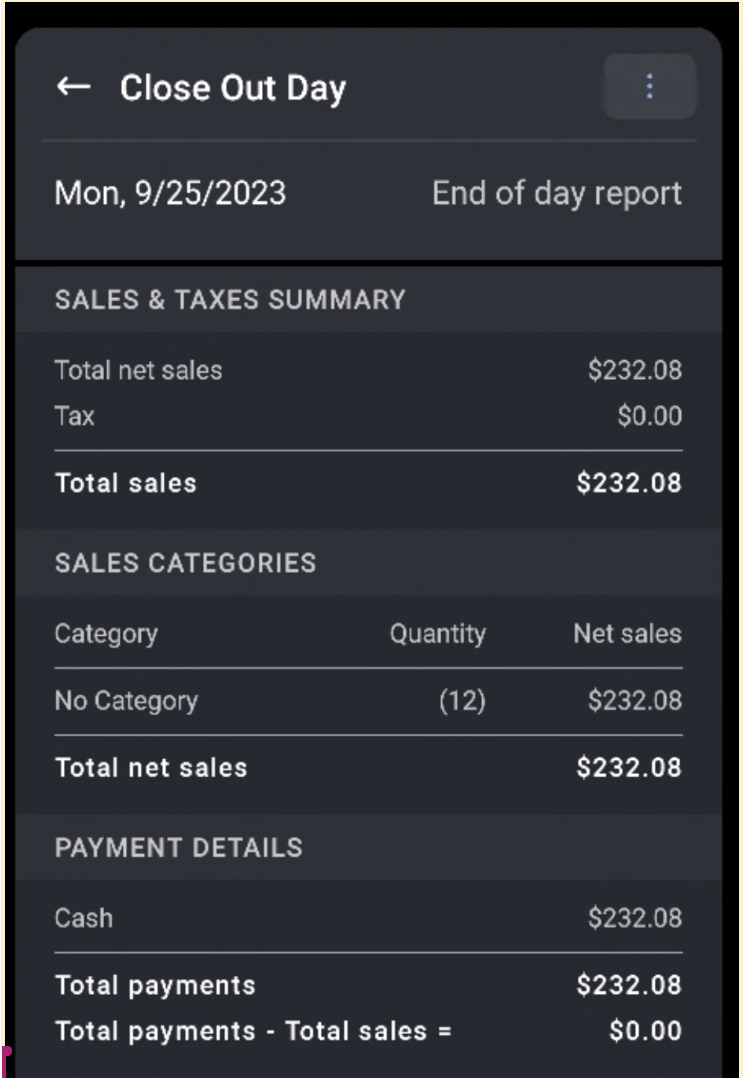
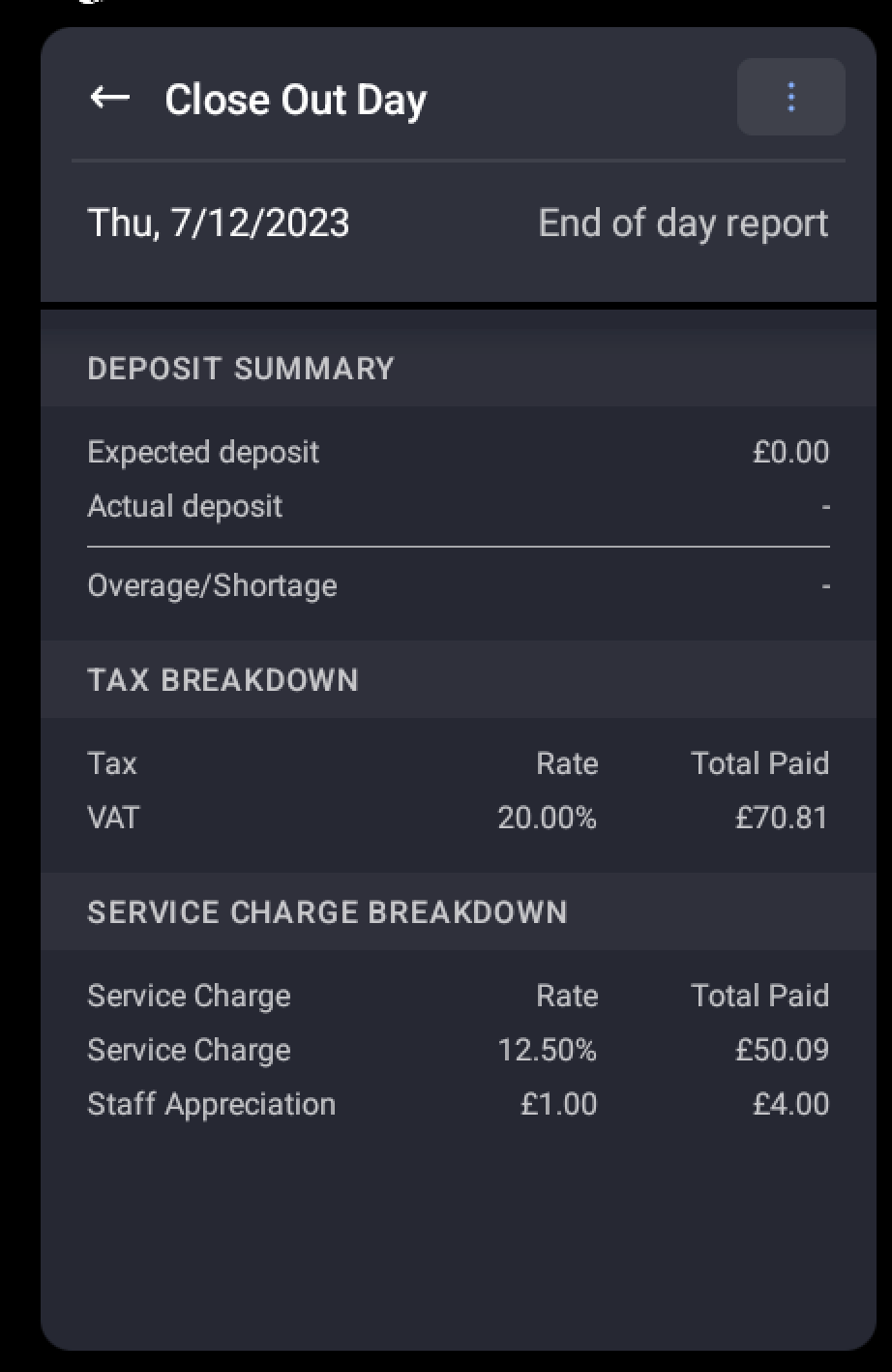
The Z Report (manager end of day report) is calculated differently by region. Customers in Ireland and the UK should expect all figures in the Z Report to be tax-inclusive, whereas the Z Report in the US and Canada is based on net sales, excluding taxes.
US / Canada:
- Gross sales = excludes taxes.
- Net sales = total sales less taxes, discounts, and refunds.
UK and Ireland:
- Gross sales = net sales + tax, excluding discounts.
- Net sales = gross sales less taxes, discounts, and refunds.
Service Report on the POS
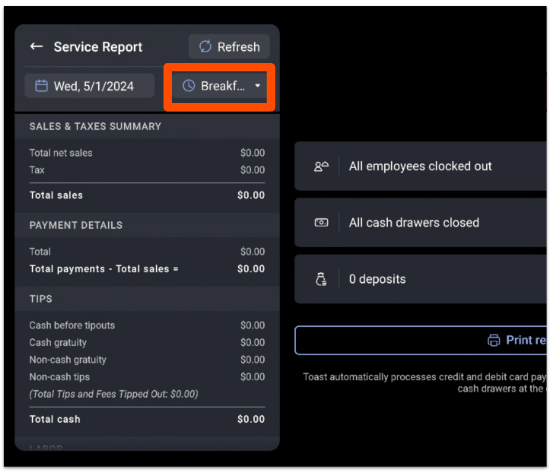
The Service Report shows the same data as the Z Report, broken down by daypart (service period). To adjust your restaurant's service periods, see Set Up Restaurant Hours and Services.
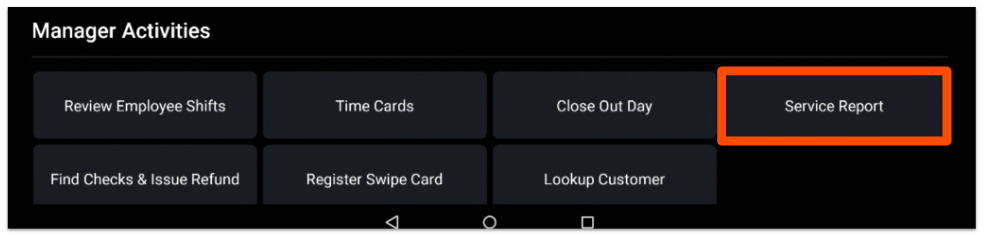
To open Service Report on the Toast POS, select Service Report under Manager Activities from the main menu.
The service period drop-down filters sales data to a specific daypart (breakfast, lunch, and so on). Select Print Report at the bottom of the screen to print. The Service Report refreshes automatically; you can also select Refresh to view the latest data.
Customize and preview POS reports
In Toast Web, you can configure what appears on your POS reports.
- In Toast Web, navigate to Team > Settings.
- Select your desired report:
- Shift review report
- Manager end of day report (Z Report)
- Use the Show? checkboxes to select which sections to include. Drag the six-dot icon on each row to reorder sections. A preview appears on the right side of the page.
- Select Publish all changes at the bottom of the page to apply, or select Done to exit without saving.
You should see your selected sections reflected the next time the report is generated on the Toast POS.
End-of-day cash deposits
A cash deposit is the cash you remove from the restaurant to deposit at a bank or other financial institution. A cash deposit should be the last cash management action of the day—after all checks are closed, all shift reviews are complete, and all cash drawers are closed.
Use the Cash Deposits screen on the Toast POS to enter the actual cash deposit amount into the Toast platform. To learn more, see Get Started With Cash Deposits.
Capture payments and change your batch time
Most Toast customers are scheduled to auto-capture payments overnight after the restaurant is closed, so manual capture is not required. Auto-capture is the default behavior for all accounts unless it has been disabled by request.
Toast recommends capturing payments at least once daily to ensure authorized credit card payments fully process. Auto-capture is the recommended way to do this—it eliminates human error that can delay funding to your account.
When does Toast auto-capture my payments?
Auto-capture runs at 4:00 a.m. (ET for all US customers, local time for UK, Ireland, Australia, and Canada customers) by default. The exact time may differ for international locations—see Deposit Schedules Overview.
How do I change or disable my auto-capture time?
Auto-capture / batch time cannot be changed through self-service in Toast Web today. Contact Customer Care to request a different auto-capture time or to disable auto-capture entirely.
Where is my batch? What does "pending" mean?
If your auto-capture has run but your bank deposit has not arrived, the funds may still be in flight. To find a specific batch or pending deposit, see Locate Pending Deposits. If a batch is past its expected deposit window, see Get Help With Missing or Delayed Credit Card Deposits.
Can I run a manual batch instead?
If you need to capture payments manually—for example, if auto-capture is disabled—see Manually Capture Payments/Batch Credit Cards
Offline payment handling
If your Toast POS goes offline, do not manually trigger the payment capture process after connectivity is restored. Toast automatically captures credit card authorizations once the system is back online.
Important: Manually initiating payment capture after an outage can lead to deposit discrepancies, especially for authorizations that are still synchronizing.
If you are uncertain whether your batch processed correctly after an outage, contact Customer Care before initiating any manual capture.
Auto-capture of unclosed checks
At 4:00 a.m. (ET for all US customers, local time for UK, Ireland, Australia, and Canada customers), Toast auto-captures any leftover unclosed-but-paid checks from the previous business day. Unclosed-but-paid checks are first set to closed and then auto-captured. Because Toast resolves these checks without applying a tip, you may want to manually update tips for those payments before 4:00 a.m..
Known limitations and common questions
This section addresses the most frequent questions that come up around end-of-day on the Toast POS. The wording is intentionally close to how customers ask, so chat search picks them up.
Is "Close Out Day" the same as cash drawer closeout?
No. Close Out Day is the manager screen on the Toast POS that closes out the business day, paid checks, orders, and clocked-in employees. Cash drawer closeout is the per-drawer cash reconciliation done at end of shift. They are separate features. For cash drawers, see Use Cash Drawers and Cash Drawer Reports Overview.
How do I print a Z Report (or "Zreport" / "z-report") from a previous day?
Open the Z Report (manager end of day report) from Manager Activities > Close Out Day on the Toast POS, then use the Overflow menu in the top-right to change the date. For dates further in the past or for help reprinting historical reports, see Can I view the Z Report for previous days?
Does Toast batch credit cards automatically? When does it batch?
Yes—Toast auto-captures (auto-batches) credit card payments overnight at 4:00 a.m. (ET for all US customers, local time for UK, Ireland, Australia, and Canada customers) by default. See Capture payments and change your batch time above.
Can I have a separate POS at the bar that closes on its own schedule?
This is a multi-location or multi-revenue-center setup question. The Z Report (manager end of day report) scope is per restaurant, not per device, so a single POS cannot independently close out from the rest of the restaurant. If you are operating distinct revenue centers or distinct restaurant locations, contact Customer Care to discuss the right configuration for your setup.
Why are my open shifts still showing after Close Out Day?
Manager shifts and employee shifts close based on shift review and clock-out actions, not Close Out Day alone. If shifts are still open after the business day rolled over, check that all employees clocked out (Close Out Day's auto clock-out applies only to clocked-in employees at 4:00 a.m.) and that managers completed their shift review. See Shift Review Overview.
Why doesn't my Z Report match my Sales Summary report?
See Why your Z Report does not match the Sales Summary above.
Related articles
- How do I view the Z Report for previous days?
- Locate Pending Deposits
- Get Help With Missing or Delayed Credit Card Deposits
- Manually Capture Payments / Batch Credit Cards
- Compare Deposits and Credit Card Sales
- Deposit Schedules Overview
- Toast Credit Card Processing and Billing FAQ
- Get Started With Cash Deposits
- Customize Shift Review Settings
- Shift Review Checklist for Employees and Managers
- Set Up Restaurant Hours and Services
- Troubleshoot Internet Connection Issues on Toast Devices
Deposit Schedules for Restaurants in Australia, Ireland, Canada, and the UK