Shift Review Checklist for Employees and Managers
Last updated: Sep 17, 2026, 5:30 PM
- Before You Begin
- Employee Shift Review Checklist
- Manager Shift Review Checklist
- Frequently Asked Questions
- Related Articles
Also asked as: "closeout checklist," "end-of-shift checklist," "how to close out a shift," "shift closeout steps."
Before You Begin
Applies to: Toast POS, Toast Web
Permissions needed:
- 1.1 Table Service Mode, 1.2 Quick Order Mode, or 1.4 Payment Terminal Mode — at least one is required for an employee to access shift review
- 2.1 Delivery Mode — required for delivery drivers
- 3.12 Shift Review — required for managers to access Review Employee Shifts and reopen shifts on the POS
What you'll accomplish: Walk through every step an employee or manager completes to close a shift, from closing checks through clocking out. Use these checklists as a training tool for new staff and a quick reference for closeout, tipout, and end-of-night reconciliation.
Employee Shift Review Checklist
Use this checklist when an employee is ready to close out for the day. Each step lines up with a step on the Toast POS shift review screen. A green check mark appears next to each completed step.
To access shift review: from the main menu of the Toast app, navigate to My Account > Shift Review.
Step 1: Close All Open Checks
- From the Shift Review screen, select Close Checks. The Payment Terminal opens with all unpaid or open checks.
- Close or pay each open check.
- If a check cannot be closed, transfer it to another server: select the overflow menu (☷) > Change Server.
- Confirm that a green check mark appears on the Close Checks step. If a red exclamation mark still shows, an open check remains — return to step 2.
Expected outcome: Every check assigned to the employee or terminal shows as closed, paid, or transferred. The Close Checks step is checked off, and the Next (or Close Shift) button becomes available.
Step 2: Declare Cash Tips
This step appears only for employees in jobs marked as tipped and only when Declare cash tips is enabled in Toast Web. If the step is not shown, skip to Step 3.
- Select Declare Cash Tips.
- On the numerical keypad, enter the total cash tips received during the shift.
- Select Declare to save the amount, or No Tips to declare $0.
- If a minimum tip percentage is configured, the keypad displays the required minimum — enter at least that amount to continue.
- To correct a previously declared amount, select Update Cash Tips. To accept more payments before closing, select Reopen Shift.
Expected outcome: The declared cash tip total appears in the shift review report, the Declare Cash Tips step is checked off, and the Close Shift button advances to the next step.
Note: To adjust declared cash tips after the shift is closed, see Manage Cash Tips in Shift Review.
Step 3: Reconcile Cash and Tips (Pay or Collect)
In this step, Toast calculates what the employee owes the restaurant or what the restaurant owes the employee based on cash sales and non-cash (credit card) tips. Depending on restaurant settings, the button shown will be one of: Pay $, Collect $, or Pay and Collect $.
- Select the button shown. Toast displays the amount to turn in or collect.
- If prompted to choose a cash drawer, select the drawer where the cash will be deposited or collected from. Select Don't Use Cash Drawer when cash is going to or coming from a safe or the employee's own cash bank.
- Hand over or collect the physical cash. The Paid label appears next to the amount on the shift review report.
- Select Next to continue.
Expected outcome: The Reconcile step is checked off and the shift review report shows the cash turned in or tips collected as Paid.
Note: If the restaurant has Pay out through payroll enabled, only the Pay $ button appears at this step. Non-cash tips are paid out through the next payroll run instead of being collected at the end of the shift.
Note: The 1.13 No Sale permission is required to collect credit card tips without a manager passcode.
Step 4: Close Your Cash Drawer (If Required)
This step appears only for employees locked to a cash drawer and only when Close Cash Drawers is enabled in Toast Web.
- Select Close Cash Drawers to open the drawer summary.
- Under the End of Shift section, select Close Drawer. The Close Out Balance dialog opens.
- Count all cash in the drawer and enter the total in the Cash Actual field. Select Count Bills to use the built-in calculator.
- Toast displays Cash Over, Cash Short, or No Difference.
- If a comment is required (up to 45 characters), enter a brief explanation for any overage or shortage.
- Select Close Drawer to complete the step.
Expected outcome: The Close Cash Drawers step is checked off with a green check mark, and the drawer total is locked in to the day's drawer history.
Important: If the difference between Cash Actual and Cash Expected exceeds the threshold configured in Toast Web, a manager must approve the closeout before the drawer can be closed.
Step 5: Clock Out and Print Your Shift Review
- Select Clock Out. The shift review report finalizes.
- To begin a new shift on a different job code (for example, finishing a server shift and starting a barback shift), select Clock Out & New Shift instead.
- To print a paper copy of the shift review report, select Print Shift Review.
- Select Complete Shift Review to finish.
Expected outcome: The employee is clocked out, the cash earned during the shift is marked as collected, and the shift review report is printed if requested.
Manager Shift Review Checklist
Managers can view every employee's shift status in real time, finish a shift for an employee who clocked out without completing it, and reopen a closed shift to make corrections.
Note: The 3.12 Shift Review permission is required to access Review Employee Shifts. Shifts created in Toast Web do not appear in Review Employee Shifts on the POS — those shifts must be managed from Toast Web instead.
Step 1: Open Review Employee Shifts on the POS
- From the main menu of the Toast app, navigate to Manager Activities > Review Employee Shifts.
- The screen displays Active Shifts and Closed Shifts, with a count next to each category name.
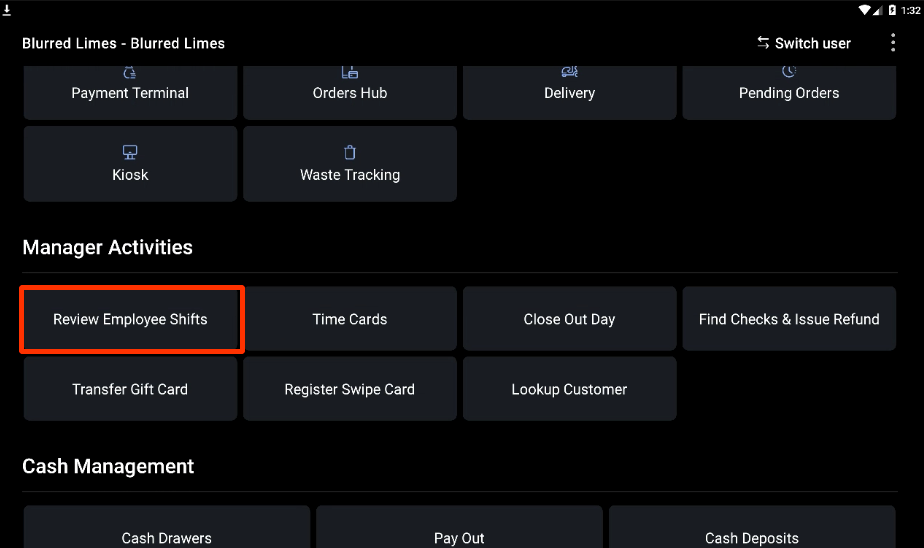
Expected outcome: A list of every shift opened on the POS appears, grouped by status.
Step 2: Identify Each Employee's Shift Status
Each row shows a status icon that updates as the employee progresses through their shift review:
- Active Shift — Employee is clocked in and has added at least one order.
- Cash Collected — Cash sales have been collected from the employee.
- Paid Out — Non-cash tips have been paid out and the employee has clocked out.
- Closed Shift — All checks are closed, cash tips are declared (if applicable), and the employee has closed the shift.
- Clocked Out — The employee has clocked out.
Use the tools at the top of the screen to navigate the list:
- Search — find a specific employee.
- Filter — focus on one shift type (for example, only open shifts).
- View Time Cards — open the time card management screen.
- Switch User — log in as a different user.
Expected outcome: Every active and closed shift on the POS is accounted for, and any incomplete shifts are visible for follow-up.

Step 3: Complete a Shift for an Employee Who Left
If an employee clocked out without finishing their shift review:
- From Review Employee Shifts, select the employee's row.
- Follow the Employee Shift Review Checklist steps above on that employee's behalf — close their open checks, declare their cash tips, reconcile cash, and close the drawer if required.
- Select Complete Shift Review when finished.
Expected outcome: The employee's shift moves to Closed Shift status, and any cash sales, tips, and drawer entries are attributed correctly to that employee's shift.
Step 4: Reopen a Shift in the Current Business Week
Reopen a closed shift when the employee needs to extend their shift, when reconciliation was skipped, when tips were paid out of the wrong drawer, or when a tip was added to a check after the shift closed.
- From Review Employee Shifts, select the closed shift.
- Select Edit on the shift review screen.
- In the confirmation prompt, select Yes, Make Edits.
- If the employee is still clocked in, select Re-Open Shift above the Reconcile Cash and Tips section, then select Re-Open Shift again in the confirmation.
- If the employee has already clocked out, temporarily remove their Out time in time card management first, then return to step 4. Re-enter the Out time after making changes.
- Make the necessary changes, then complete the shift review steps again to re-close the shift.
Expected outcome: The shift returns to an editable state, and the previous Tip Out and Cash Collected entries are cleared so they can be re-recorded.
Important: Reopening a shift deletes the previous Tip Out and Cash Collected entries. The employee will need to turn in cash and collect tips again after making any changes.
Step 5: Correct a Shift From a Prior Business Week
The reopen flow above works only for shifts within the current business week. For older shifts, the POS cannot reopen the shift directly. Two options exist:
- Use Update Entries in Toast Web — navigate to Reports > Cash and Loss Management > Drawer History, select View under the affected drawer, then select Update Entries to add or remove cash collected and tip out entries. See Get Help With Cash Drawer and Shift Review for the full procedure.
- Contact Customer Care — Customer Care can temporarily adjust the business start-of-week to make the shift reviewable on the POS for shifts within the past seven days.
Expected outcome: The cash collected and tips paid out for the prior-week shift are corrected in the Drawer History report, or Customer Care confirms the start-of-week adjustment.
Frequently Asked Questions
How Do I Print a Shift Review From Yesterday or a Previous Day?
Also asked as:
-
- "I need to pull a shift review from a server from yesterday"
- "How do I reprint an old shift review?"
- "How can I print the shift reviews from last night?"
Yes — managers can print a shift review for any closed shift in the current business week from Manager Activities > Review Employee Shifts on the POS. Select the closed shift, then select Print Shift Review. For shifts older than the current business week, see Print a Shift Review.
Why Do I See "Failed to Load Shift Review" When an Employee Tries to Close Out?
Also asked as:
-
- "server is trying to close out and receiving an error - failed to load shift review try re synching"
- "why does it say 'failed to sync data' when my servers try to run their shift review reports"
The "Failed to Load Shift Review" error usually means the POS lost sync with Toast's servers. Select the resync icon on the POS to reload data. If the error persists after a resync, see Get Help With Cash Drawer and Shift Review in Related Articles for the full troubleshooting flow.
Can an Employee Complete Their Shift Review From the MyToast App or a Phone?
Also asked as:
-
- "How can I close shift from my cellular device?"
No, shifts must be closed out and shift reviews completed on the POS.
Why Can't an Employee Clock Out — the System Only Allows Them to Clock In?
Also asked as:
-
- "one of our team members is currently unable to close their shift or clock out. The system only allows them to clock in."
The most common cause is that the employee did not complete their shift review — Toast requires the shift review to be closed before clocking out when Require Collect and/or Tip Out is enabled. Verify that the employee has closed all open checks, declared cash tips (if prompted), and completed the Reconcile step. If the shift review screen will not load at all, see the "Failed to Load Shift Review" FAQ above.
Can Employees Skip the Reconcile Cash and Tips Step?
Also asked as:
-
- "when it says reconcile cash tips, do the girls or employees, can they just hit skip or do we have to hit pay?"
The Reconcile Cash and Tips step is shown only when the restaurant is configured to require it. When shown, the step cannot be skipped — the employee must select Pay $, Collect $, or Pay and Collect $ to continue. If the restaurant does not require cash reconciliation at shift end, the step is hidden entirely. To change whether this step appears, see Customize Shift Review Settings.
Do Salaried Employees Need to Declare Cash Tips?
The Declare Cash Tips step is designed for tipped employees who receive cash tips during their shifts and need to report them for payroll and tax compliance. Salaried employees, by their compensation structure, would not typically fall into this category and are not prompted to declare cash tips.
Before You Contact Customer Care
Most shift review issues can be resolved using the steps in this article and Get Help With Cash Drawer and Shift Review. Contact Customer Care only when:
- You need to reconcile a specific dollar amount on a specific historical date and the steps in this article and the cash drawer troubleshooting article do not surface the cause.
- The shift you need to correct is older than the current business week and Update Entries in Toast Web does not surface the affected drawer for that date.
- You need Customer Care to temporarily adjust your business start-of-week so a prior-week shift becomes reviewable on the POS.
To speed up the call, have ready: restaurant location name, affected date, affected employee name, specific dollar amount of any discrepancy, and a list of each troubleshooting step you have already tried.
Related Articles
- Shift Review Overview
- Customize Shift Review Settings
- Manage Cash Tips in Shift Review
- Get Help With Cash Drawer and Shift Review
- Print a Shift Review