Get Started With Kitchen Configuration
Last updated: Oct 20, 2026, 8:44 AM
Kitchen configuration controls how orders move from the POS into the kitchen — which prep stations, expediters, printers, and Kitchen Display Systems (KDS) receive each ticket, how those tickets are formatted, and how courses are paced. This article explains what each piece does and points to the setup steps for each one.
- About Kitchen Configuration
- Where Kitchen Configuration Lives in Toast Web
- Kitchen Display System (KDS) and the Expediter
- Prep Stations
- Kitchen Tickets and Printed Tickets
- Modifier Routing
- Ticket Screen Settings (KDS Appearance)
- Courses and Meal Pacing
- Order Ready Text Messaging
- Kitchen Names
- Frequently Asked Questions
- Related Articles
About Kitchen Configuration
Kitchen configuration is a group of settings in Toast Web that decide where each item on an order is prepared, how the ticket looks when it reaches the kitchen, and when the kitchen sees it. The pieces work together: prep stations sort items by where they’re made, expediters consolidate a full order in one place, kitchen tickets and KDS settings control what appears on the ticket, and courses pace when items fire.
Every restaurant configures these features differently. Some use printers only, some use KDS devices only, and many use both. This overview explains each piece so you can decide what to enable and where to make changes. Step-by-step setup lives in the linked articles for each feature.
Where Kitchen Configuration Lives in Toast Web
Most kitchen configuration is found in Toast Web under the Kitchen menu on the left navigation. The three main pages are:
- Toast Web > Kitchen > Printers, tickets, & KDS devices > Kitchen and ticket setup — set up KDS devices, prep station and expediter printers, ticket format, dining behavior colors, order ready texts, and kitchen names.
- Toast Web > Kitchen > Kitchen stations > Prep stations — create prep stations and assign them to printers and expediters.
- Toast Web > Kitchen > Pacing > Courses — create courses and enable meal pacing.
Some related settings live outside the Kitchen menu — for example, modifier display settings are under Toast Web > Front of house > Order screen setup > UI options.
Kitchen Display System (KDS) and the Expediter
A Kitchen Display System (KDS) is a screen in the kitchen that shows incoming tickets in place of (or alongside) printed tickets. When an order is sent, tickets appear on the KDS from left to right — oldest on the left, newest on the right. Select a ticket to fulfill the whole order or to fulfill a specific item.
Each KDS device is set up as either an expediter or a prep station in Device Setup on the device itself, and you can change this at any time.
- An expediter KDS shows the entire order in one place. Expediters are typically used by the person calling out tickets or assembling plates.
- A prep station KDS only shows items routed to that station — for example, only grill items on the grill KDS.
You can also use a printer as the expediter instead of (or in addition to) a KDS device. If you use a printer as the expediter, select the appropriate printer in Toast Web > Kitchen > Printers, tickets, & KDS devices > Kitchen and ticket setup and set the Printing Mode to Always print expediter tickets.
For step-by-step setup, see Set Up an Expediter. If you need orders to display on two expediter screens — for example, one for the kitchen and one for an assembly area — see Set Up KDS Two-Level Fulfillment.
High-Level KDS Buttons and Views
The top right of every KDS screen has four buttons:
- All Day View — Select Show All Day View to see a totaled list of menu items waiting to be prepared, instead of looking through every ticket. Select Hide All Day View to return to ticket view. See Get Started With KDS All Day View Display.
- Show Recently Fulfilled — Displays tickets you recently fulfilled (in green) on the left of the screen, so you can see what’s already done or unfulfill a ticket. Select Hide Recently Fulfilled to remove them.
- Recall — Re-opens the last ticket you fulfilled. Recalled tickets show RECALLED in red at the top. Select the button multiple times to recall multiple tickets.
- Device Settings — The three-dot icon. Lets you change configuration on that specific device, including how tickets display, which tickets display, and whether the device is an expediter or prep station.
Production Item Count is a separate view that summarizes orders at the ingredient level — for example, if there are five Double Cheeseburger orders, it shows 10 Burger Patties. This is useful in high-volume periods. To use it, configure the settings in Toast Web first, then enable the items you want to track on the KDS. See Add Production Item Count to Your KDS.
Offline Mode lets a KDS keep receiving in-store orders during a Toast or internet outage, using the local network. Online orders are not received during an outage.
Prep Stations
Prep stations tell Toast which kitchen station each item is prepared at. A restaurant with separate stations for salad, grill, and fry would set up one prep station for each so that orders route to the correct cook.
Each prep station can be set as Prep station only, Prep station and expediter, or expediter-only:
- Prep station only — items go to that station’s printer or KDS, but not to any expediter.
- Prep station and expediter — items go to that station and are also sent to the expediter ticket.
Note: At least one prep station needs to have Send to Expediter turned on. If no prep station sends to the expediter, every prep station’s items will be sent to the expediter by default.
For full setup steps, including how to assign items to prep stations, see Configure and Assign Prep Stations. If you want items sent to multiple stations to be fulfilled independently — so bumping one doesn’t bump the other — see Configure Independent Prep Station Fulfillment.
Kitchen Tickets and Printed Tickets
The Printed Tickets and Ticket Screens section in Toast Web > Kitchen > Printers, tickets, & KDS devices > Kitchen and ticket setup controls how tickets are routed, formatted, and printed. Key settings include:
- Individual Tickets for Every Item in an Order — controls whether printers and KDS show one ticket per order or one ticket per item. You can set printers and KDS to behave the same or differently. See Configure Item-Level Kitchen Tickets.
- Item Sorting Priority — sorts items on a ticket By seat number, By sort order, or by input order. Seat numbers must be enabled in UI options; sort orders are assigned in Advanced Properties.
- Print Guest Details — adds guest name, address, and phone number to delivery and takeout tickets. Does not appear on dine-in tickets.
- Print Default Modifiers Black — prints default modifiers in black instead of red when printing vertically.
- Print Ticket Changes — sends order modifications (special instructions, voids) to kitchen printers.
- Print Item Sizes Inline — prints item sizes on the same line as the item, instead of below.
- Group by Plate — groups identical items on one printed ticket, with modifiers separated by dashed lines.
- Split Tickets by Course — if your restaurant uses coursing, sends each course on its own printed ticket. If turned off, all courses print on one ticket.
- Header/Footer Spacing — controls spacing on the kitchen ticket.
- Ticket Footer — adds Count of Tickets, Scheduled Order Due Time, and Payment Status to the footer. You can choose whether the footer prints on prep station tickets, expediter tickets, or both.
| Group by Plate Enabled | Group by Plate Not Enabled |
 |  |
For more on item-level versus order-level tickets, see Add Details to Kitchen Tickets.
Modifier Routing
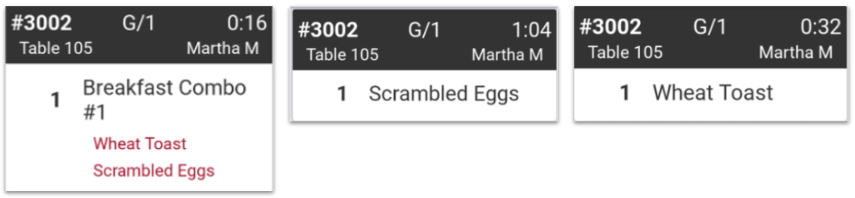
Modifier routing sends modifiers (like “Scrambled Eggs” from a Breakfast Combo) directly to specific prep stations, with or without the parent item. The two options are:
- Print or show modifier(s) only — the modifier appears at the prep station without the parent item name.
- Print or show item with modifier(s) — the modifier appears with the parent item name.
Modifier routing is set up at the modifier level — additional configuration is needed to choose which modifiers route where. See Route Kitchen Tickets by Modifier.
There are also two related settings under Toast Web > Front of house > Order screen setup > UI options:
- Modifier Display Mode — controls how modifiers display on the order screen.
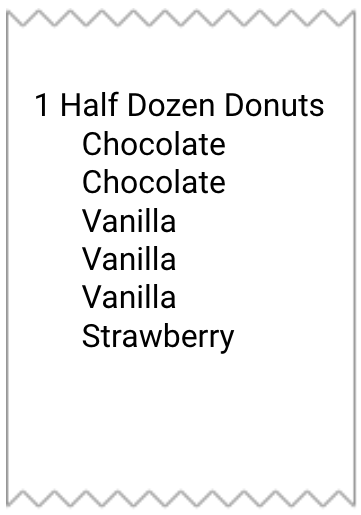
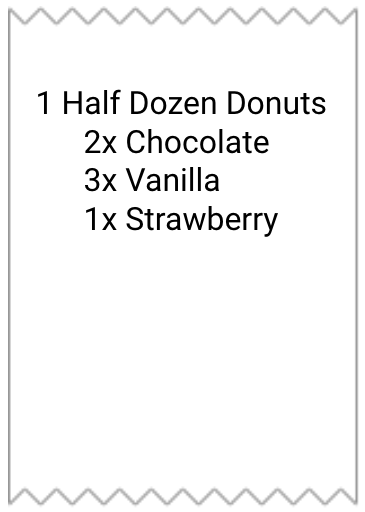
- Consolidated Modifiers — combines repeated modifiers on a ticket (for example, “3x Vanilla” instead of three separate “Vanilla” lines).
| Consolidated Modifiers Enabled | Consolidated Modifiers Not Enabled |
 |  |
Ticket Screen Settings (KDS Appearance)
Ticket screen settings change how tickets look on the KDS device. These help kitchen staff track order time, new tickets, and ticket changes. Key settings include:
- Recently Fulfilled Timeframe — how many minutes a fulfilled ticket stays visible on the KDS for review.
- Warning Colors — sets time thresholds so the ticket color changes the longer it sits unfulfilled.
- Ticket Colors by Dining Behavior — sets a color border on tickets by dining behavior (for example, blue for dine-in, purple for takeout).
- Print On Demand — lets kitchen staff print a delivery or takeout ticket directly from the KDS device.
- Flash Changes — KDS tickets flash when edited from another device.
- Fulfill Items — lets you fulfill items individually instead of all at once.
- Fulfillment Method — fulfills the same item independently across multiple prep stations. Contact Toast Customer Care to enable this. See Configure Independent Prep Station Fulfillment.
- All Day Display — an optional view of every item waiting to be fulfilled, grouped by item or sub-grouped by modifier. See Get Started With KDS All Day View Display.
- KDS Ticket Headers — controls whether the check number or table number appears in large, bold font at the top of KDS tickets.
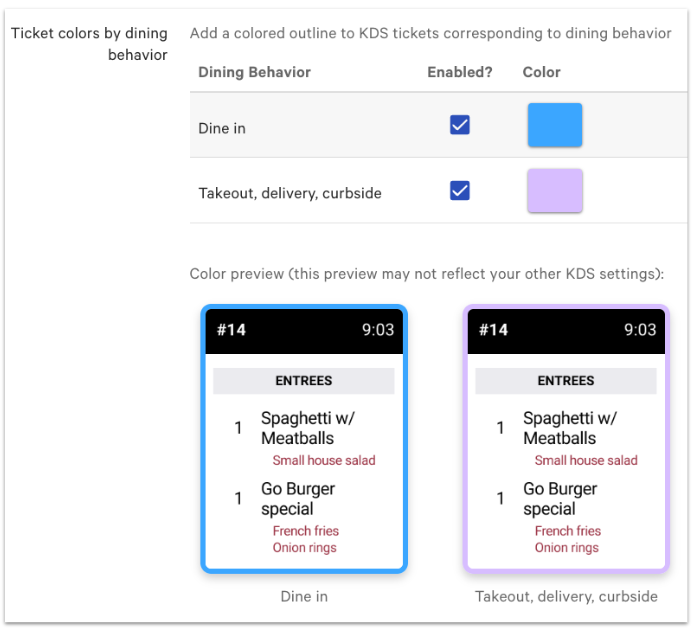
Note: Two downloadable color guides are available to help staff track warning colors and dining behavior colors — one in English and one in Spanish.
For more on customizing ticket appearance, see Customize the Appearance of KDS Tickets.
Courses and Meal Pacing
Courses let your restaurant pace a meal — for example, sending appetizers first, holding entrees, then firing entrees when the table is ready. From Toast Web > Kitchen > Pacing > Courses, you can create custom courses and enable Meal Pacing.
Courses appear under the Preparation section of menus, groups, and items in the Menu Manager, where you assign items to a course.
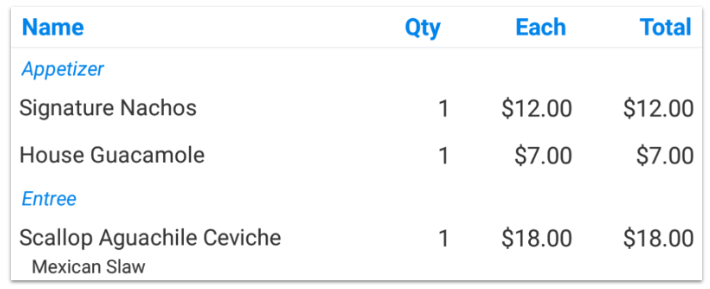
Course firing can be manual (server-fired), automated (timed), or expediter-fired (the expediter triggers the next course). See Manage Course Firing Options and Configure Automated and Expediter Course Firing. For server-side firing on the POS, see Use Server Item Firing at Your Restaurant.
Note: Whether courses print on a single ticket or on separate tickets is controlled by Split Tickets by Course in the Printed Tickets settings. Meal Pacing controls when each course is fired; Split Tickets by Course controls how those fired courses print.
Order Ready Text Messaging
The Order Ready Text Messaging section in Toast Web > Kitchen > Printers, tickets, & KDS devices > Kitchen and ticket setup controls when and how guests or staff receive a text when an order is fulfilled. The text triggers from the station that fulfills the order — usually the prep station, or the expediter if Two-Level Fulfillment is on.
To set this up, see Send Text Message when Order is Fulfilled. To send order-ready texts from the Orders Hub instead, see Manage Order Ready Texts From the Orders Hub.
Kitchen Names
The Kitchen Names section in Toast Web > Kitchen > Printers, tickets, & KDS devices > Kitchen and ticket setup lets you change how certain directions, names, and dining options — like Fire, Hold, or Dine In — appear on kitchen tickets and the KDS. Changes here affect only the kitchen tickets and KDS, not the POS or guest-facing receipts.
Frequently Asked Questions
How do I get all courses to print on one kitchen ticket?
To get all courses to print on one kitchen ticket, navigate to Toast Web > Kitchen > Printers, tickets, & KDS devices > Kitchen and ticket setup and set Split Tickets by Course to off. With Meal Pacing on and Split Tickets by Course off, the full order prints on a single ticket and the kitchen sees fired and held items together.
Also asked as:
-
- “Can I have all courses on one ticket?”
- “How do I stop courses from splitting into separate tickets?”
- “How do I combine course tickets?”
Why are drink items showing up on my kitchen KDS?
Drink items show up on a kitchen KDS when the drinks prep station is assigned to that device, or when drinks are mapped to a station the kitchen KDS displays. To fix this, on the kitchen KDS device, open Device Setup > Kitchen Setup > Prep Stations and deselect the drinks prep station. Save your changes and return to the KDS screen.
Also asked as:
-
- “How do I stop drinks from going to the kitchen KDS?”
- “How do I keep bar items off the kitchen screen?”
What’s the difference between an expediter and a prep station?
An expediter shows the entire order in one place and is typically used to call out tickets or assemble plates. A prep station only shows items routed to that station — for example, only grill items on the grill KDS. A single device is set as one or the other in Device Setup on the KDS, and you can change it at any time.
Also asked as:
-
- “Expediter vs prep station?”
- “What does an expediter do on a KDS?”
How do I show a table’s items together on the KDS instead of separate tickets?
To show a table’s items together on the KDS, navigate to Toast Web > Kitchen > Printers, tickets, & KDS devices > Kitchen and ticket setup and set Individual Tickets for Every Item in an Order to off for KDS. This sends the whole table’s order on one ticket instead of one ticket per item.
Also asked as:
-
- “How do I bundle one table’s order together?”
- “Why is each item on its own ticket?”
Why are my online orders not showing up on the KDS?
Online orders may not show on the KDS if the online ordering dining option is not selected on the KDS device, if the items are routed to a prep station the KDS doesn’t display, or if a routing rule is sending them somewhere else. Check the KDS device under Device Setup > Ticket Display Options and confirm the online ordering dining option is selected. Then confirm the items’ prep stations are assigned to that KDS in Device Setup > Kitchen Setup > Prep Stations.
Also asked as:
-
- “Why aren’t online orders coming through to the KDS?”
- “Online orders missing from KDS”
Can I use a different expediter printer at each location?
Yes — each location has its own kitchen configuration in Toast Web, so you can select a different expediter printer per location. Configure the expediter printer in Toast Web > Kitchen > Printers, tickets, & KDS devices > Kitchen and ticket setup for each location separately.
Also asked as:
-
- “Can I assign one expediter printer per location?”
Related Articles
- Set Up an Expediter
- Configure and Assign Prep Stations
- Manage Course Firing Options
- Route Kitchen Tickets by Modifier