Get Help With Cash Drawers
Last updated: Jun 22, 2026, 8:12 AM
- Before you begin
- Quick fix
- Cash drawer won't open
- Check the cable between the drawer and the printer
- Configure the printer's cash drawer settings in Toast Web
- Confirm Device Setup on the POS
- Cash drawer permissions
- Check the network connection
- Wrong cash drawer opens
- Double cash drawer setup
- After a power outage
- Before you contact Customer Care
- Related articles
Before you begin
Applies to: Toast POS, Toast Web
Permissions needed:
- 1.6 Apply Cash Payments — required to apply cash payments on the POS
- 1.7 Cash Drawer Access — required to open the cash drawer on the POS
- 6.10 Printer and Cash Drawer Setup (or 6.2 Kitchen/Dining Room Setup) — required to configure printer and cash drawer settings in Toast Web
- 8.2 User Permissions — required to grant 1.7 Cash Drawer Access (and other permissions) to any employee, including yourself
What you'll accomplish: Get the cash drawer opening on cash payments and No Sale, or identify when the issue requires Customer Care for hardware repair or backend permission work.
Quick fix
Find your symptom in the table and follow the linked fix.
| Symptom | Most common cause | Quick fix | Self-service? |
| Cash drawer does not open, and the physical key also won't open it | Mechanical jam or broken release inside the drawer | Contact Customer Care for hardware repair — no software fix | No |
| Cash drawer opens partway with the key but then jams | Mechanical jam | Contact Customer Care for hardware repair | No |
| Cash drawer does not open on cash payments, but the key opens it | Cable, printer setup, device settings, or permissions issue | Work through Cash drawer won't open | Yes |
| "You don't have access to this cash drawer" error on the POS | Employee is missing 1.7 Cash Drawer Access permission | See Cash drawer permissions | Yes |
| Nobody at the restaurant can grant 1.7 Cash Drawer Access | Nobody has 8.2 User Permissions enabled | Contact Customer Care to enable 8.2 User Permissions for a manager | No |
| "Unable to establish a connection to the cash drawer" error on the POS | Printer is offline, cable unseated, or printer is on Wi-Fi instead of hard-wired | Work through Cash drawer won't open, starting with the cable check | Yes |
| "No cash drawer available to select" when picking a drawer in Toast Web | The printer's cash drawer is unchecked, or the printer hasn't been set up yet | See Configure the printer's cash drawer settings in Toast Web | Yes |
| Wrong cash drawer opens on a cash payment | Wrong printer selected in Device Setup, splitter cable swapped on a dual setup, or shared IP from a power outage | See Wrong cash drawer opens or After a power outage | Yes |
| Cash drawer was working, then stopped after a power outage | Multiple printers received the same IP after restart | See After a power outage | Yes |
| Cash drawer connected to a kitchen / backup printer doesn't open | Some printer models (for example, U220) don't support cash drawer signaling | Move the cash drawer cable to a supported receipt printer or contact Customer Care to confirm compatibility | Mixed |
Cash drawer won't open
When a cash drawer does not open, the cause is almost always one of: a mechanical issue inside the drawer, a cable problem between the drawer and its receipt printer, the printer's cash drawer setting in Toast Web, the Device Setup on the POS, or user permissions. Work through the checks below in order.
Step 1 — Confirm the key opens the drawer.
All cash drawers come with keys taped to the bottom of the drawer.
- If the cash drawer does not open with the key, the mechanical mechanism is jammed or broken. This is a hardware issue — contact Toast Customer Care for repair.
- If the cash drawer does open with the key, it is not a mechanical issue. Continue to Step 2.
Step 2 — Check the key hole position.
- A horizontal key hole means the drawer is locked.
- A vertical key hole means the drawer is physically unlocked. The drawer will look fine on the POS but will not open on a cash payment if the key is in the locked position.
Step 3 — Check that all open drawers are closed.
If another cash drawer on the same printer is still physically open, a new drawer will not open until the open cash drawer is pushed shut.
Step 4 — For Toast cash drawers, check the manual release switch.
If this is a Toast cash drawer (not APG), the bottom of the drawer has a manual release switch. Use a screwdriver or butter knife to move the release switch toward the middle of the drawer and the drawer should open.
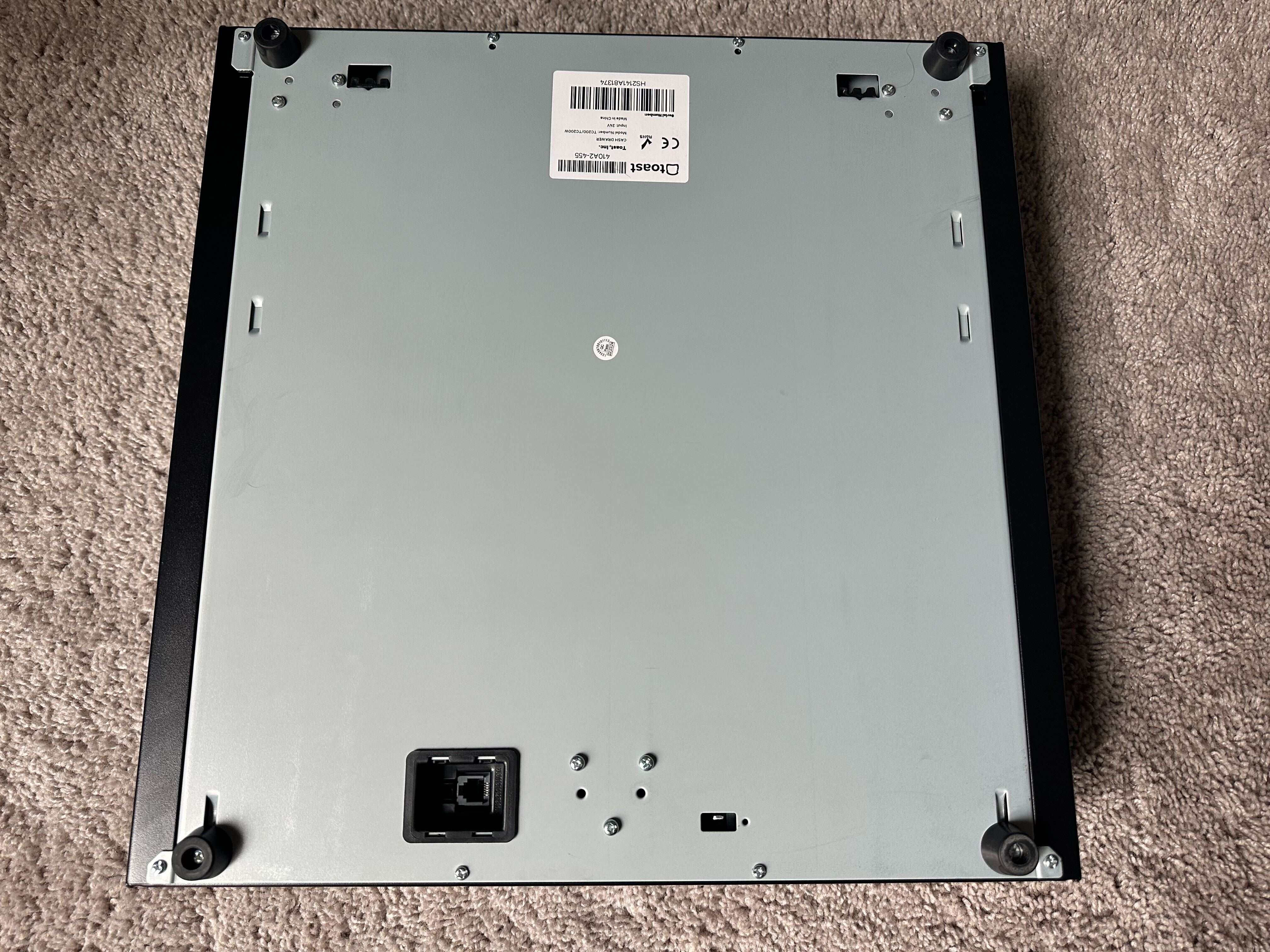
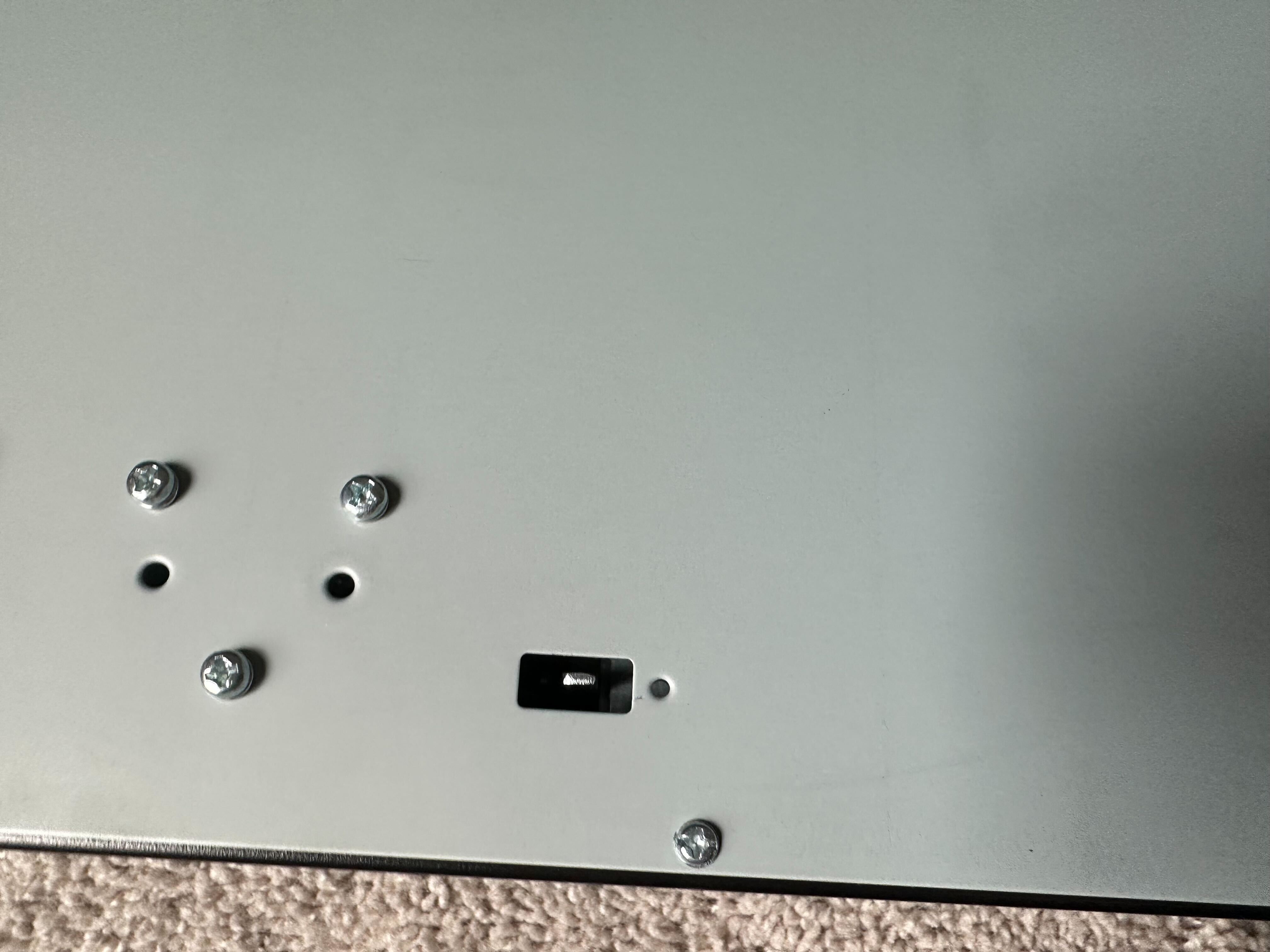
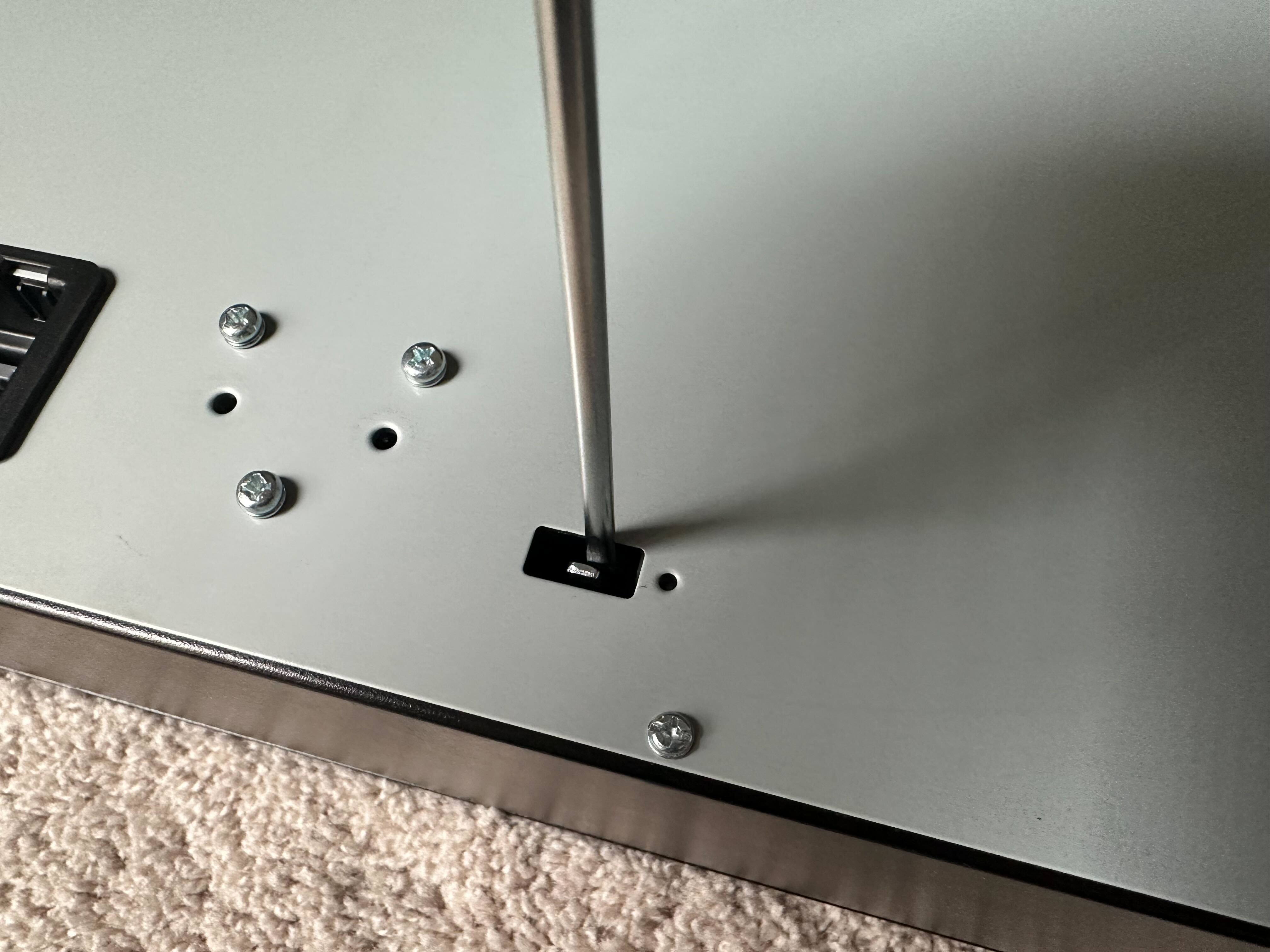
Expected outcome of Steps 1–4: Either the drawer opens with the key and the manual release (mechanical issue resolved, or hardware ticket opened), or the drawer opens with the key but does not open on a cash payment. In the latter case, the problem is in the cable, printer setup, device settings, or permissions — continue to the next section.
Check the cable between the drawer and the printer
The cash drawer is connected to a Toast approved printer, excluding Toast Item Label Printer, using one of these cables:
- Toast cash drawer — Toast Cash Drawer Cable Black - TC200 (HSZ301), an RJ12 cable.
- APG 19x15 and APG 13x13 cash drawers — Cash Drawer Cable CD101-A Cable (APG301), an RJ45-to-RJ12 cable.
- APG splitter — Cash Drawer Splitter Cable CD101-B Cable (APG322), an RJ12-to-RJ12 Y-splitter cable used when two drawers share one printer.
To check the cable:
- Reseat both ends of the cable — unplug and replug it at the drawer and at the printer.
- Confirm the printer is turned on. Check that the printer is plugged into a working power outlet. If the printer won't power on, move it to a different outlet. If it still won't power on, the printer or its power cord has failed — contact Toast Customer Care.
- Confirm the cable is going to the printer that is used to print receipts.
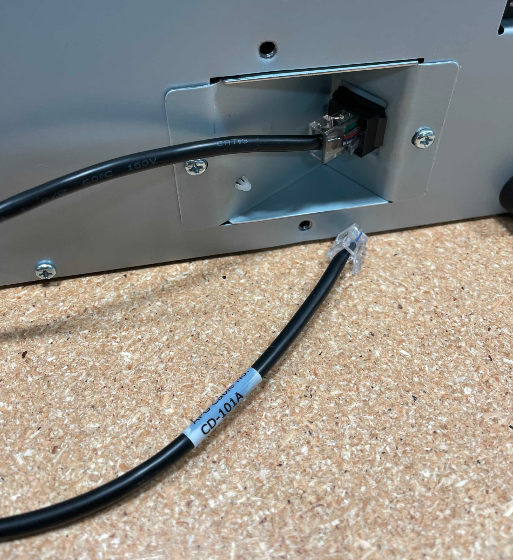
CD101-A cable in the cash drawer port.
Expected outcome: The cable is fully seated at both ends, the printer powers on, and the cash drawer is connected to a supported receipt printer. If the drawer still won't open, continue to the next section.
Configure the printer's cash drawer settings in Toast Web
The printer is the brain of the cash drawer. If the printer's cash drawer setting is not configured in Toast Web, the printer won't send the open signal to the drawer.
- In Toast Web, navigate to Payments > Checks & receipt setup > Printers and cash drawers.
- Select the printer that is attached to the POS.
- Scroll down to Cash Drawers Configuration.
- Ensure that No Cash Drawer, One Cash Drawer, or Two Cash Drawers is selected, depending on how many cash drawers are connected to this printer.
- If a specific Cash Drawer Name is needed, it can be entered here.
- If a Cash Drawer Delay is needed, which is usually needed for handhelds that are used away from the Cash Drawer, it can be entered here.
- Save and publish your changes.
If the printer is on and still presenting issues, power cycle (turn off and turn on) the printer and the terminal, then confirm the changes took effect.
For more information about cash drawer setup, see Set Up Cash Drawers.
Expected outcome: The printer in Toast Web shows a cash drawer selected and the changes are published. If the drawer still won't open, continue to Device Setup on the POS.
Confirm Device Setup on the POS
Every terminal that takes cash payments needs Device Setup to point at the right printer and have the cash drawer enabled.
- On the POS, select the Toast icon in the top-left corner of the screen to open the main menu.
- Select Device Setup from the Device section.
- Confirm the correct printer is selected for this POS.
- Set Allow Cash Payments to Yes.
- Set Open Cash Drawer to Yes (or Automatically open drawer when a cash payment is made, depending on the POS version).
- Run a test order using cash as the payment option.
If the drawer opens for No Sale but not on cash payments: Open Cash Drawer is most likely set to No in Device Setup. Set it to Yes and re-test.
Expected outcome: The cash drawer opens when a test cash payment is run. If the drawer still won't open, continue to permissions.
Cash drawer permissions
Two POS permissions control whether an employee can open the cash drawer, and one Toast Web permission controls whether anyone can grant those permissions in the first place.
- 1.6 Apply Cash Payments — allows the employee to apply a cash payment on the POS.
- 1.7 Cash Drawer Access — allows the employee to open the cash drawer (cash payments and No Sale).
To check or apply these for an employee:
- Log in to Toast Web.
- Navigate to Employees > Employee management > Employees.
- Select the pencil icon next to the employee who cannot open the drawer.
- Locate 1.6 Apply Cash Payments and ensure it has a green check mark next to it.
- Locate 1.7 Cash Drawer Access and ensure it has a green check mark next to it.
- If both permissions are already checked, toggle them off and back on to refresh them.
- Save and Publish.
Note: "You don't have access to this cash drawer" error: This is the runtime message users see when 1.7 Cash Drawer Access is missing or has not been republished. Re-check the permission and republish.
Important: Nobody at the restaurant has 1.7 Cash Drawer Access — and nobody can grant it. This is a known dependency: 1.7 Cash Drawer Access can only be granted by an employee whose profile has 8.2 User Permissions enabled. If no one at the restaurant has 8.2 User Permissions, no one can grant or modify Cash Drawer Access — including granting it to themselves. The fix requires Toast Customer Care to enable 8.2 User Permissions on at least one employee's profile. See Before you contact Customer Care for what to have ready.
Expected outcome: Permissions are confirmed for the affected employee and saved/published, or a Customer Care case is opened to enable 8.2 User Permissions for a manager.
Check the network connection
Some cash drawer issues appear when a hard-wired terminal or printer is also connected to Wi-Fi. The device tries to use both connections and gets confused.
Android network settings on a POS terminal should have only one network connection turned on at a time — RJ45 (Ethernet), USB-C, or Wi-Fi. Hand-held devices are the only devices that should normally use Wi-Fi.
If a hard-wired device is also on Wi-Fi, turn off the Wi-Fi. For step-by-step instructions, see Disable Wi-Fi on Hard-Wired Devices.
Wrong cash drawer opens
If a cash payment opens the wrong drawer — for example, a payment taken on the second POS opens the main register's drawer — the cause is almost always one of:
- Wrong receipt printer selected in Device Setup on the POS taking the payment. On the affected POS, open Toast icon > Device Setup and confirm the receipt printer attached to that terminal is selected, not the main register's printer.
- Splitter cable swapped on a dual-drawer printer. On an APG dual setup, the primary drawer must be on the CD101-A cable side and the secondary on the CD101-B side. Reversed cables will always open both drawers, or open the wrong one. On a Toast cash drawer dual setup, the splitter labels read 1 (primary) and 2 (secondary) — confirm the drawers are plugged into the correctly-labeled ends.
- Shared IP after a power outage. Two printers received the same IP address on restart. See After a power outage.
If this is a dual cash drawer setup, be sure to lock the first drawer to an employee. To learn about how to do this go to Lock Down Cash Drawers.
Double cash drawer setup
Some restaurants run two cash drawers off one receipt printer. When a dual setup is not opening or is opening the wrong drawer, work through the checks below in addition to the standard Cash drawer won't open flow.
Cabling for two drawers:
- APG dual setup — a CD101-A cable for the primary drawer and a CD101-B splitter cable for the secondary drawer. The two cables are not interchangeable.
- Toast dual setup — uses the same RJ12 cable that ships with a single Toast drawer, plus a Toast splitter cable. The Toast splitter cable's printer-end label is grey with blue dots; the drawer-side ends are labeled 1 (primary) and 2 (secondary).
The splitter cable kit ships in a separate box from the cash drawers.
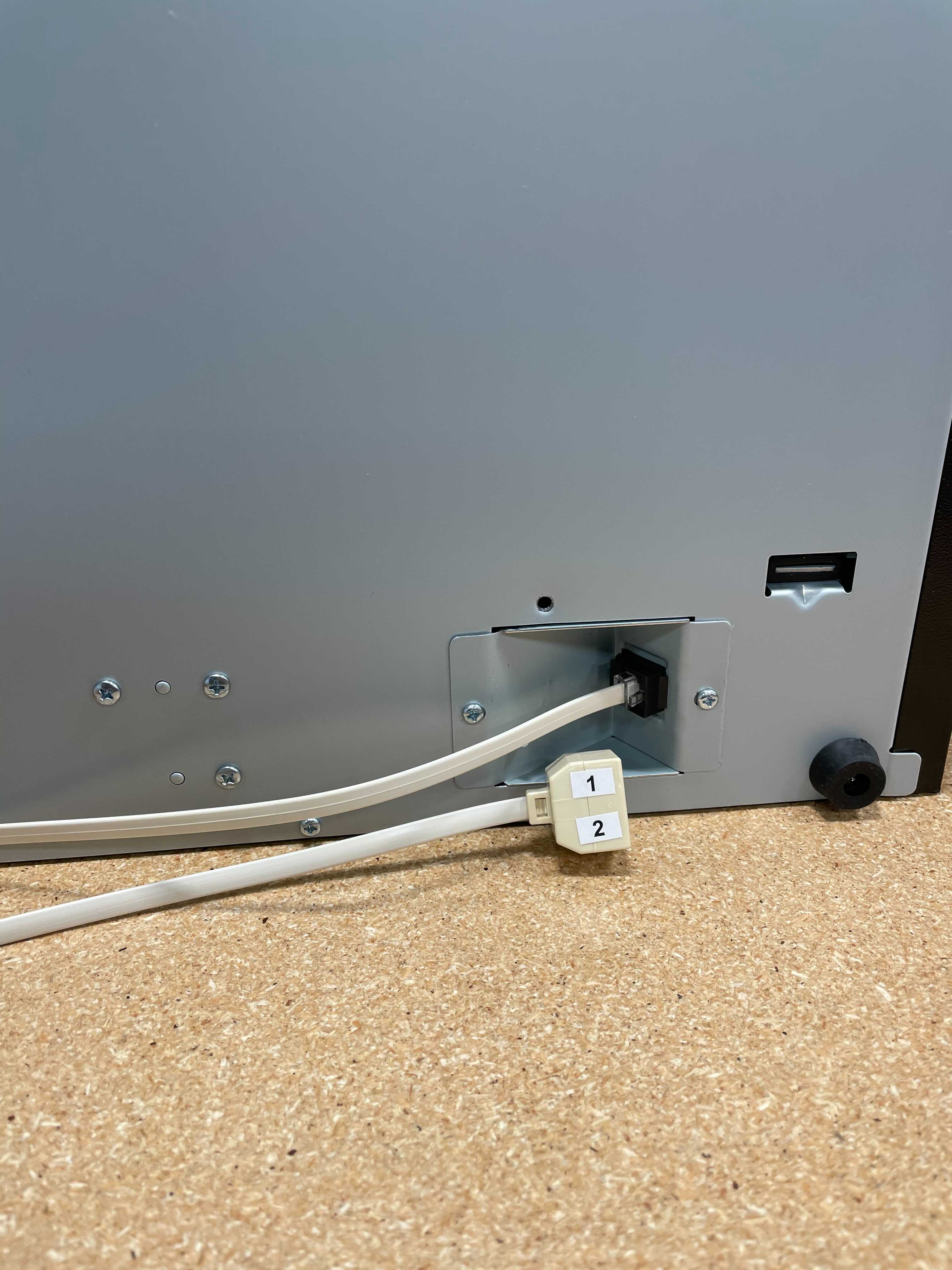
Cash drawer splitter for dual cash drawers.
- Reseat the cables. Unplug and replug both drawer-side ends, the splitter-side ends, and the printer-side end.
- Confirm the printer is on and powered. Same checks as in the single-drawer flow — see Check the cable between the drawer and the printer.
- Configure the printer for two drawers in Toast Web:
- In Toast Web, navigate to Payments > Checks & receipt setup > Printers and cash drawers.
- Select the printer that is attached to the POS.
- Scroll down to Cash Drawers Configuration.
- Ensure Two Cash Drawers is selected.
- Save and Publish any changes.
Expected outcome: Both cash drawers open at the correct times — primary on the assigned POS, secondary on the assigned POS or employee. If both drawers still misbehave after the cabling and configuration checks, contact Toast Customer Care.
After a power outage
After a power outage, the cash drawer may not open from the assigned terminal, or the wrong drawer may open. This is usually caused by multiple printers attempting to inherit an IP address at the same time and receiving the same IP.
- Unplug the printer(s) your cash drawers are connected to for 30 seconds. Plug them back in.
- Confirm you have an email and password that can log you into the Toast POS app before the next step. On the POS, log out by selecting the overflow menu (three dots) in the upper-right corner and then Logout.
- Log back in and attempt a No Sale to confirm the drawer opens.
- If the cash drawer is still experiencing problems, contact Customer Care.
Before you contact Customer Care
Some cash drawer issues require backend access or hardware repair that cannot be self-served. Contact Customer Care when:
- The cash drawer does not open with the physical key, indicating a mechanical jam or broken release.
- The cash drawer opens partway with the key and then jams — also a mechanical issue.
- You have worked through the full hardware and settings checklist (cable, printer setup in Toast Web, Device Setup on the POS, permissions) and the drawer still won't open on a cash payment.
- Nobody at the restaurant has 8.2 User Permissions, so no one can grant 1.7 Cash Drawer Access to anyone — Customer Care needs to enable 8.2 on a manager's profile.
- A cash drawer is plugged into a kitchen or backup printer and you need confirmation of which printer models support cash drawer signaling.
To speed up the call, have the following ready:
- Restaurant location name (or the specific terminal, if multi-location).
- Cash drawer serial number — found on the bottom of the drawer.
- Printer model and serial number that the drawer is connected to.
- Each troubleshooting step you've already tried (key check, cable reseated, printer power-cycled, Device Setup confirmed, permissions confirmed).
- Whether the drawer opens with the physical key.
- Whether the drawer opens on a No Sale but not on a cash payment, or vice versa.
Related articles
- Set Up Cash Drawers — first-time setup, Toast vs APG cable types, naming a drawer, Cash in Hand vs Cash in Drawer, removing a cash drawer.
- Use Cash Drawers — daily operation: Active / Paused / Closed drawer states, Add Cash, Remove Cash, No Sale, close a drawer, create a deposit.
- Adjust Starting Cash Drawer Balance — set or change the starting balance; choose Manual vs Automatic reset balance type.
- Manage Multiple Cash Drawers for Employees — assign one user to multiple drawers, 3.19 Cash Drawer Lockdown (Override).
- Lock Down Cash Drawers — lock a drawer to a single employee for the shift.
- Get Help With Cash Drawer and Shift Review — sibling troubleshooting article: drawer balance short or over, cash-in-hand mismatches, shift review left open.
- Disable Wi-Fi on Hard-Wired Devices — required for cash drawer issues caused by dual network connections.
- How can I contact support in the Toast app — how to reach Toast Customer Care.