Clock In and Out for Shifts and Breaks
Last updated: Sep 30, 2026, 2:12 PM
Clock in, take breaks, and clock out on the Toast POS, and fix the most common timeclock errors.
- Before You Begin
- Quick Fix
- Clock In and Out on the POS
- Start and End a Break on the POS
- Break Waivers
- Troubleshoot Clock-In and Timeclock Errors
- Frequently Asked Questions
- Related Articles
Before You Begin
Applies to: Toast POS, Toast Web (for employee profile setup), Toast Payroll (if your restaurant uses Toast Payroll)
Permissions needed:
- 4.9 Employee Info (to verify or edit an employee profile)
- 4.10 Employee Jobs & Wages (to verify an employee's job assignment)
- 7.1 Terminal Setup (to initialize a POS device)
What you'll accomplish: Clock in for a shift, start and end a break, clock out for the day, and resolve the most common timeclock errors without contacting Customer Care.
Important: Prerequisite — employee profile must exist. An employee cannot clock in or out until they have an employee profile in Toast Web with a POS access code (also called a clock-in code, PIN, or clock-in number). If the profile shows an Invited badge, the employee must accept the email invite before clocking in. If no profile exists, Toast Payroll customers should view Toast Payroll: New Hire Employees (Employer Guide) and customers without Toast Payroll should visit Add and Manage Employees in Toast Web.
Quick Fix
| Symptom | Most Common Cause | Quick Fix |
| Cannot clock in — Device Not Initialized | POS device has not completed setup on this terminal | A user with the 7.1 Terminal Setup permission enters their POS access code to initialize the device; then other users can select Switch User |
| Cannot clock in — Permission Denied | User selected Go instead of Timeclock when logging in | Re-enter the POS access code and select Timeclock before Go; if the error persists, log out and log in with email and password |
| Cannot clock in — Invalid Passcode | POS access code is mistyped, was changed in Toast Web, or the device has not synced recent profile changes | Verify the POS access code in Toast Web at Team > Employees, then resync the POS device |
| Cannot clock out — error mentions 24 hours | Restaurant is in Test Mode, so auto clock-out did not run | In Toast Web, edit or delete the open time entry at Reports > Labor > Time entry management |
| Wrong employee's name appears at clock-in | Two employees share the same POS access code (codes must be unique within a location) | In Toast Web, assign a unique POS access code to one of the employees, then resync the POS device |
| Cannot clock in, clock out, or pull a shift review | New hire was not yet added or is in Invited state | Verify or create the profile in Toast Web; if Invited, have the employee accept the email invite |
For deeper diagnosis of clock-in failures (expired profile, terminal-specific issues, location-specific access, missing Toast Payroll mapping, persistent problems), see Resolve Time Clock and POS Access Issues.
Clock In and Out on the POS
Clocking in starts your shift. Clocking out ends it. Managers and employees use the same Timeclock button — this procedure is also known as punching in or punching out.
- On the POS device, enter your POS access code (also called your passcode or PIN) and select Timeclock in the bottom right corner.
- Select the job for which you are clocking in.
- Select Clock In to begin your shift.
- Select Done to confirm.
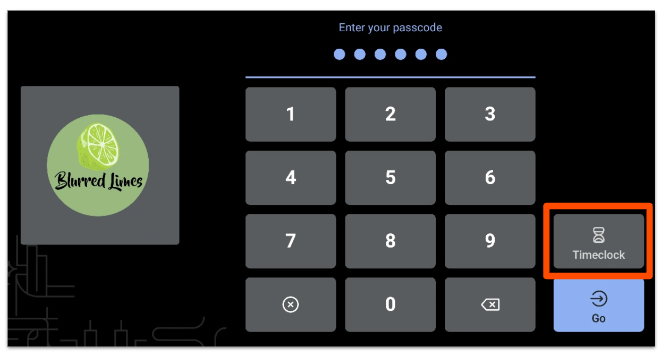
Expected outcome: Your shift begins, and the Time entry management report in Toast Web shows your clock-in time.
To clock out at the end of your shift, follow the same flow and select Clock Out instead of Clock In in step 3. If the POS prompts you to close checks, reconcile cash, or complete shift review before clocking out, complete those steps first.
Start and End a Break on the POS
Starting a break pauses your shift. Ending a break resumes it. The Timeclock screen tracks the active break length in minutes.
- On the POS device, enter your passcode and select Timeclock.
- Select Start Break. If your restaurant has multiple break types, select the break type you are taking.
- Select Done to return to the passcode screen.
- At the end of the break, enter your passcode, select Timeclock, and select End Break. The number in parentheses next to End Break is the number of minutes the break has been active.
Expected outcome: The break clock-in and clock-out times appear in Shift Details on the Time entry management report.
Note: If your POS Timeclock screen does not show a Start Break option, break tracking has not been configured in Toast Web. See Build Employee Breaks in Toast.
Break Waivers
Break waivers are an optional configuration available to restaurants with an advanced interval break rule where break tracking is enabled. See Build Employee Breaks in Toast to learn how to set up break waivers.
If break waivers are enabled and configured, when an employee clocks in on a POS device, they see the waiver message and choose whether to take or waive the break.
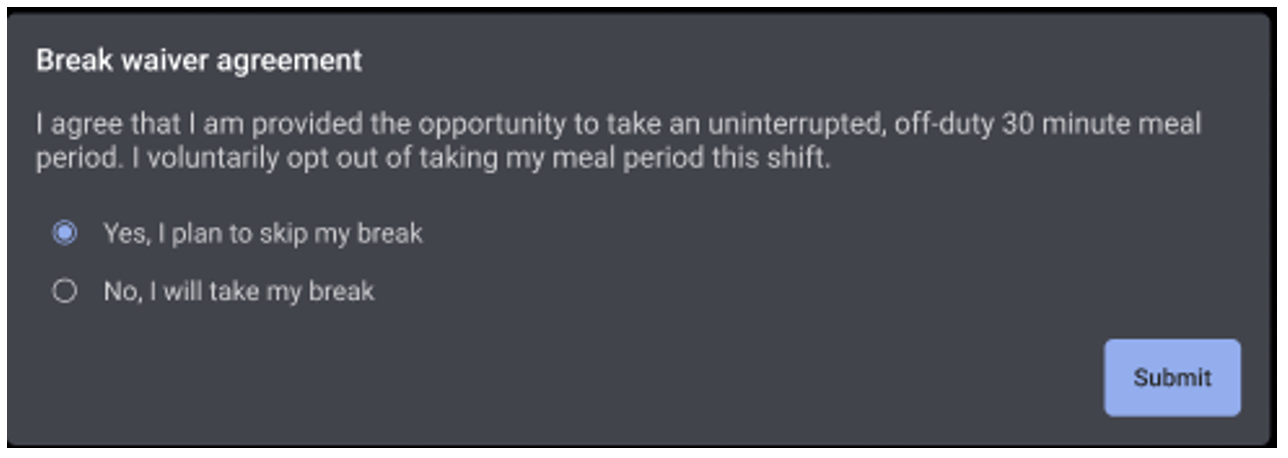
Note: An employee cannot change their waiver answer after they have responded during clock-in. If they did not waive the break and did not take it during the eligible window, the break is tracked as missed on the Time entry management report.
Troubleshoot Clock-In and Timeclock Errors
The most common clock-in errors and their fixes are documented below. For deeper diagnosis (expired profile, missing Toast Payroll profile, terminal-specific or location-specific issues), see Resolve Time Clock and POS Access Issues.
If You See "Device Not Initialized"
This error means the POS device requires further setup before any employee can clock in.
- A user with the 7.1 Terminal Setup permission enters their POS access code to initialize the device.
- After the device is initialized, the employee selects Switch User.
- Another user enters their POS access code to clock in.
Expected outcome: The Timeclock screen accepts subsequent employee passcodes after the device is initialized.
If You See "Permission Denied"
This error usually appears when a user selects Go instead of Timeclock when clocking in.
- Re-enter your POS access code and confirm you select Timeclock (not Go) before continuing.
- If the error continues, log out of the POS and log back in with an email and password.
- To log out, select the three dots in the upper-right corner of the POS and select Logout. Then enter the email and password and select Log in.
Note: The email and password used to log in determines which POS features are available, so use a high-level user's email and password.
Expected outcome: The Timeclock screen accepts the POS access code after re-entry or after logging in with email and password.
If You See "Invalid Passcode"
This error means the POS does not recognize the entered code. It can happen if the code was mistyped, was changed in Toast Web, or the device has not synced recent changes to the employee profile.
- Verify the employee's POS access code in Toast Web. Navigate to Team > Employees, select the employee's hyperlinked last name, and check the Account info section on the Profile tab.
- On the POS device, resync data.
Select the menu icon in the upper-right corner and choose Resync All Data.Critical disclaimer: Before resyncing, confirm the device has no pending card payments, red checks, or other unsynced data. Resyncing while data is still pending or unsynced can cause permanent data loss. If you're not sure it's safe to proceed, contact Toast Customer Care before resyncing.
- If the code still does not work, enter a new POS access code in the employee's profile in Toast Web, save the change, and resync the POS device again.
Note: POS access codes must be three to eight digits. If the employee was set up through Toast Payroll, the code may have been generated from the employee number.
Expected outcome: The employee can clock in with the verified or updated POS access code.
If Invalid Passcode persists after resync and a code change, see Resolve Time Clock and POS Access Issues for additional diagnostic steps.
If You See "Time Entries Cannot Be Over 24 Hours"
This error commonly happens when the restaurant is in Test Mode, because employees are not auto-clocked out after leaving Test Mode. The shift exceeds 24 hours and blocks the clock-out attempt.
- In Toast Web, navigate to Reports > Labor > Time entry management.
- Locate the time entry for the affected employee.
- Edit the Time out field inline to a value less than 24 hours after the Time in value. Changes save automatically.
- To remove the shift entirely (often appropriate for a Test Mode entry), select the shift to open Shift Details and select Delete.
Expected outcome: The time entry no longer exceeds 24 hours, and the employee can clock in for new shifts.
For full editing options, see Edit Employee Time Clock Entries.
Start and End a Break on the POS
If the POS does not show a break option, the break type may not be activated. An admin must activate a break type in Toast Web (Team > Settings > Break types) before employees can start or end breaks on the POS.
See Build Employee Breaks in Toast.
Frequently Asked Questions
Where do I find my POS access code?
To find an employee's POS access code, navigate in Toast Web to Team > Employees, select the employee's hyperlinked last name, and check the Account info section on the Profile tab. The same code is used to clock in on the POS and may also be called a clock-in code, PIN, or clock-in number.
Also asked as:
- What is my clock-in code?
- Where do I find an employee's PIN?
- How do I change my clock-in number?
What if an employee forgot to clock in or clock out?
If an employee forgot to clock in or clock out, a manager can edit the time entry to add or correct the time. On the POS, use Manager Activities > Review Employee Shifts. In Toast Web, navigate to Reports > Labor > Time entry management and edit the entry inline or in Shift Details. For full instructions, see Edit Employee Time Clock Entries.
Also asked as:
- How do I add a missed clock-in?
- An employee forgot to clock out — how do I fix it?
- Can I add time for an employee?
Why does another employee's name appear when I clock in?
When another employee's name appears at clock-in, two employees most likely share the same POS access code. Each code must be unique within a location. In Toast Web, navigate to Team > Employees, check both employees' POS access codes, assign a unique code to one of them, save, and resync the POS device. For additional causes (duplicate profiles, mapping issues), see Resolve Time Clock and POS Access Issues.
Also asked as:
- Wrong name appears when I clock in?
- Why is my coworker's name on my clock-in screen?
- Two employees have the same passcode?
Why is my employee asked for manager approval to clock in?
When an employee is asked for manager approval to clock in, schedule enforcement is most likely turned on in Toast Web. Schedule enforcement requires a manager to override clock-in attempts that fall outside the scheduled shift window. To review or adjust this setting, navigate in Toast Web to Team > Settings > Schedule enforcement.
Also asked as:
- Clock-in is asking for a manager passcode?
- How do I disable manager approval to clock in?
- Why can't my employee clock in without me?
Can I change the time when auto clock-out happens?
To change the time when auto clock-out runs (also called the Business Day Cut-Off), or to enable or disable the feature, see Enable or Disable the Auto Clock-Out Feature. The auto clock-out setting applies to all employees at a location and cannot be limited to a single employee.
Also asked as:
- How do I disable auto clock-out?
- Can I change auto clock-out from 4 a.m.?
- Stop employees from being clocked out automatically?
Why does my employee's POS screen not show a Start Break option?
When the POS Timeclock screen does not show a Start Break option, break tracking has not been configured in Toast Web. To enable breaks and choose between basic and advanced interval rules, see Build Employee Breaks in Toast.
Also asked as:
- Break button missing on POS?
- POS only shows clock in and clock out?
- How do I enable breaks?
Related Articles
- Resolve Time Clock and POS Access Issues
- Edit Employee Time Clock Entries
- Build Employee Breaks in Toast
- Enable or Disable the Auto Clock-Out Feature
- Time Entry Management Overview