Build Employee Breaks in Toast
Last updated: Oct 9, 2026, 10:45 AM
Configuring break types in Toast Web helps you accurately track employee breaks.
| We introduced new break features in Toast Web in Q1 2026. Your existing breaks and break settings were not affected, but you can use the new features to add more functionality to your break types or even configure new break types from scratch. |
- Review, Edit, or Activate an Existing Break Type
- Create a New Break Type
- Track Missed Breaks in Toast Web
- Acknowledge Breaks on a POS Device
- Break Reporting
- Additional Resources
Review, Edit, or Activate an Existing Break Type in Toast Web
When you first join Toast, there are two pre-built breaks already in the system: Unpaid Break (30 minute duration) and Paid Break (10 minute duration).
- You can review the settings of these two breaks by opening Toast Web, navigating to Team > Settings > Break types, and selecting the name of either break. It is recommended to edit/verify the settings of these breaks before activating them and allowing your staff to use them.
- Edit a break type by selecting its name from the Breaks page.
- To activate one or both of these default breaks, select Yes for the Active setting. Then Save and publish.
Create a New Break Type in Toast Web
- In Toast Web, navigate to Team > Settings > Break types.
- Select + Add to create a new break.
- Add the following information for the new break:
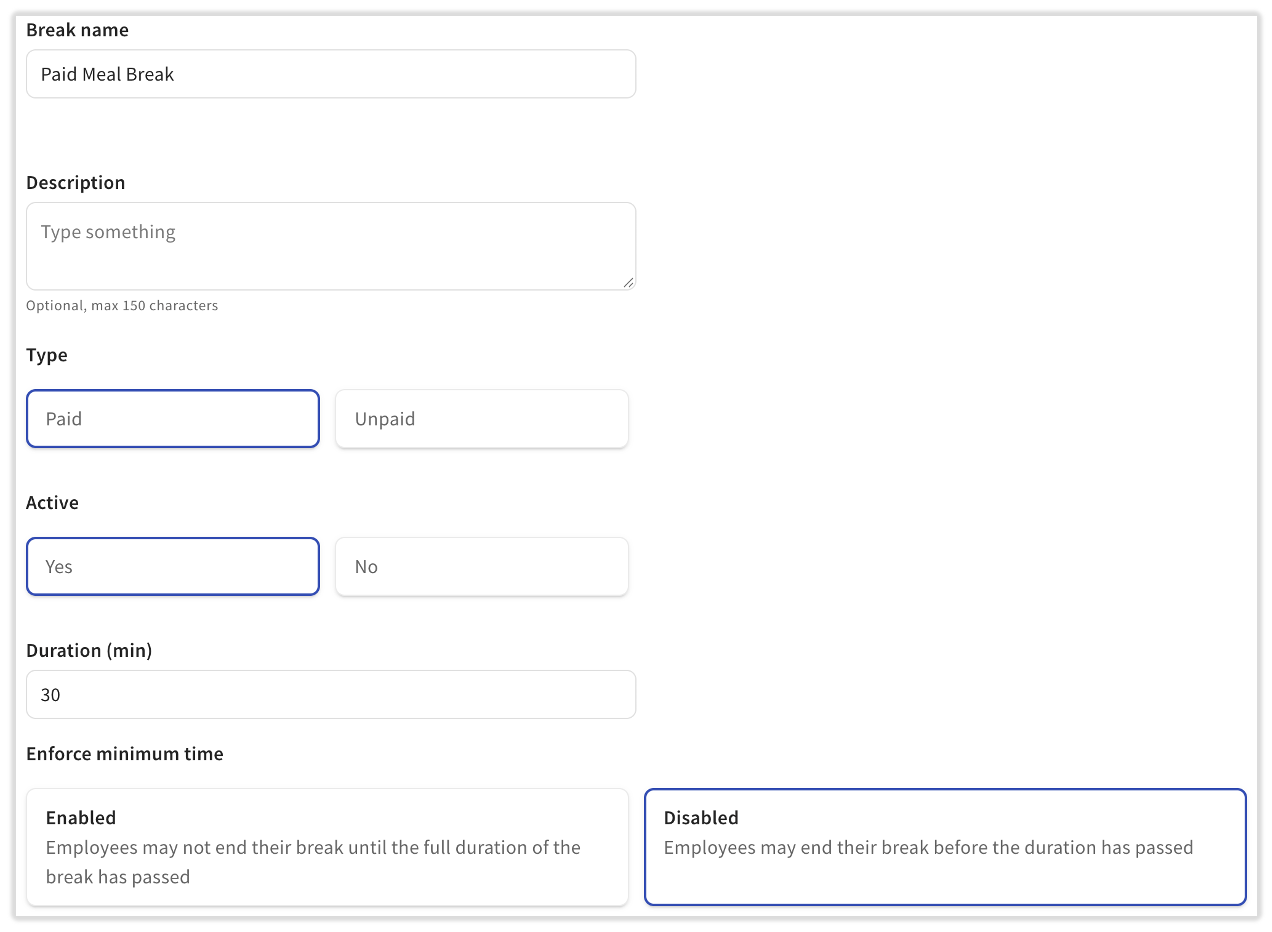
- Enter a Break name. The Description field is optional.
- Select the break Type:
- Paid breaks will continue to pay wages while the employee is on a break.
- Unpaid breaks will pause wage accumulation until the break is over.
- Select whether this break is Active or not (i.e. whether an employee can select it when they begin their break).
- Enter the Duration (min) of the break.
- In the case of a paid break, if an employee exceeds the length of the specified duration, the system will not clock them out of their break and the additional time will continue to be paid. Duration is not the same as mandatory length. For example, if your employee's paid break is 10 minutes, but the employee doesn't end their break until 20 minutes have passed, they will be paid for a 20 minute break.
- Enforce minimum time: When enabled, employees cannot end their break until the duration you set is complete.
- If an employee ends their break before the duration is complete, it could be considered as missed.
- If an employee ends their break before the duration is complete, it could be considered as missed.
- The remaining settings are optional. See more about each of these in the sections below:
- Track missed breaks: If this setting is toggled on, the following settings will also appear:
- Select a break interval rule: Basic or Advanced
- Break frequency (hh:mm): Basic rules only
- Include a break threshold: Basic rules only
- Enable waivers: Advanced rules only
- Employee break acknowledgement
- Track missed breaks: If this setting is toggled on, the following settings will also appear:
- Save and publish your changes.
Track Missed Breaks in Toast Web
You can choose to track whether or not an employee has taken a specific break. For example, if your state requires that an employee take an unpaid meal break between the beginning of their shift and a certain amount of hours worked (and possibly must be taken within specified hours of the shift), you can now configure and track that in Toast Web.
- In Toast Web, navigate to Team > Settings > Break types and select the break's name to open up its settings.
- At the bottom, toggle on Track Missed Breaks (if it is not already enabled).
- When enabled, employees who miss their break will appear on the Time entry management report (Reports > Labor > Time entry management). You'll see all the details for missed, taken, and waived breaks here.
- Begin by selecting a break interval rule:
- Basic rule: Used to track breaks that happen after a specific and repeating amount of hours. For example, an employee has to take a break every five hours, regardless of how many hours they have worked or will work.
- Advanced rules: Helps track breaks when they are more conditional, such as being based on how long the employee has worked or how many previous breaks they have taken.
- For example, if an employee is scheduled to work six hours and you would like them to take a break before the end of their fifth hour worked. Another example, the employee receives two breaks, but only if they work ten or more hours.
Basic Rules
Use basic rules to apply one interval rule to all breaks during a shift.
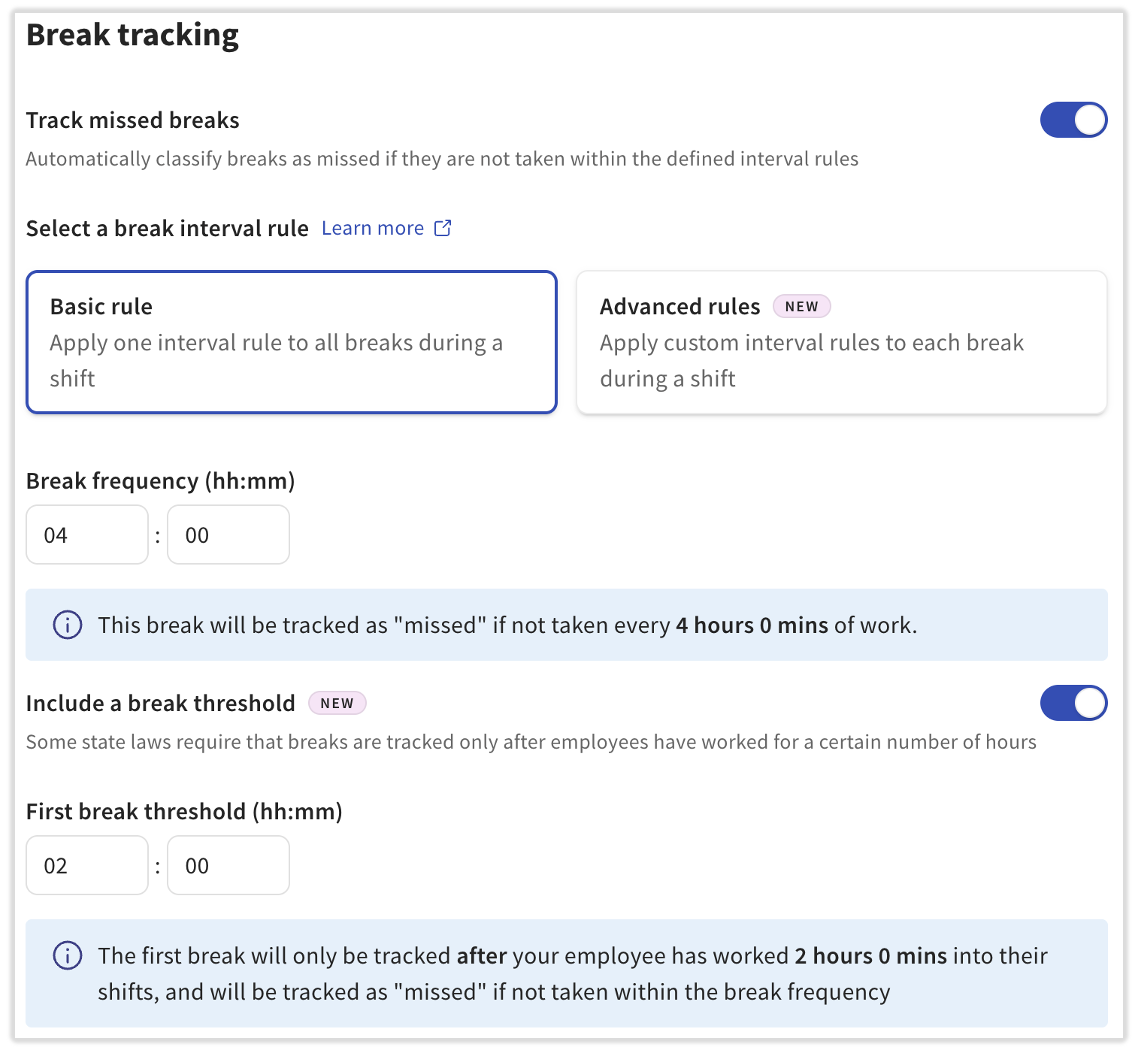
- Break frequency (hh:mm): This is the amount of time that passes between breaks. The blue banner will update as this field is changed; use it to check your work.
- A break must start one minute before the end of this interval to be counted as "taken". For example, if this field is set to 5:00 hours, the employee will need to begin their break within 4 hours and 59 minutes of clocking in for it to be counted as "taken".
- If the employee does not take their break within this time limit, this break will appear as missed on the Time entry management report (Reports > Labor > Time entry management).
- Include a break threshold: If your employee should only be eligible for a break (specifically their first one) after working a certain amount of hours, you should add a threshold here. If the employee works fewer hours than the threshold, the break won’t be tracked as "missed" on the Time entry management report.
Basic break rule example:
If you would like your employees to take a 10 minute paid rest break every four hours, but you'd also like them to only be eligible for this break after working two hours, the break tracking configuration might be set up as it appears in the screenshot below. If these settings are configured, employees would have to begin their break every 3 hours and 59 minutes of work in order for it to be tracked as "taken" rather than "missed."
For illustration purposes
Advanced Rules
Use advanced rules to apply custom interval rules to each eligible break during a shift.
- For advanced break rules, there is an option to Enable waivers for your employees. Toggling Enable waivers on allows employees to voluntarily waive a break they're eligible for within a specified time frame. Waiver rules may be subject to local, state, or federal employment laws. You may wish to consult an HR professional or other professional before enabling waiver functionality.
- If you plan to enable waivers for an advanced break configuration, it is best to do it before you start to build out the break intervals. Building advanced breaks rules with waivers enabled will require you to add an additional value specific to the waiver.
- Note: The break acknowledgement feature cannot be used if waivers are enabled.
- Once you've made a choice to enable waivers or not, you can begin entering values for Tracked from and Tracked until (and Waivable until, if applicable).
- Advanced rules allow you to build multiple breaks, but each break must be configured individually. Once you've added values for a row, select + Add intervals for the next break to add a new row/break.
- Learn more about each interval field below:
- Tracked from: This field defines the minimum amount of time an employee must work before the system starts tracking whether a break is missed. Employees may still take breaks before this time.
- For example, a Tracked from value of 0:00 starts missed break tracking at clock in.
- As another example, a Tracked from value of 2:00 delays missed break tracking until 2 hours of work have been completed.
- Tracked until: This field reflects how many hours the employee will have worked before the break will be tracked as "missed." A break must start one minute before the end of this interval to be counted as "taken."
- Therefore, if this value is 5:00, the employee will have to begin their break at or prior to four hours and 59 minutes after clocking in.
- Note: When adding a second row/break, the Tracked from field will not be editable. This value automatically carries over from the prior break's Tracked until field since an employee cannot be responsible for two breaks at the same time.
- Waivable until: This field defines the time period after Tracked until during which a break may be waived instead of marked as "missed." Tracked until determines when a break would normally be marked as "missed" if it has not been taken. If Waivable until is set and the employee is eligible to waive the break, the system evaluates the time worked between Tracked until and Waivable until to determine whether the break should be recorded as "waived" rather than "missed." After the Waivable until time is reached, the break can no longer be waived and will be marked as "missed" if it has not been taken.
- As an example, let's say that Tracked from is set to 2:00, Tracked until is set to 4:00, and Waivable until is set to 6:00. Missed break tracking begins after the employee has worked two hours. If the employee does not take a break by six total hours worked, the break is recorded as "waived" if waiver conditions are met. If waiver conditions are not met, the break is recorded as "missed."
- Tracked from: This field defines the minimum amount of time an employee must work before the system starts tracking whether a break is missed. Employees may still take breaks before this time.
Advanced break rule example:
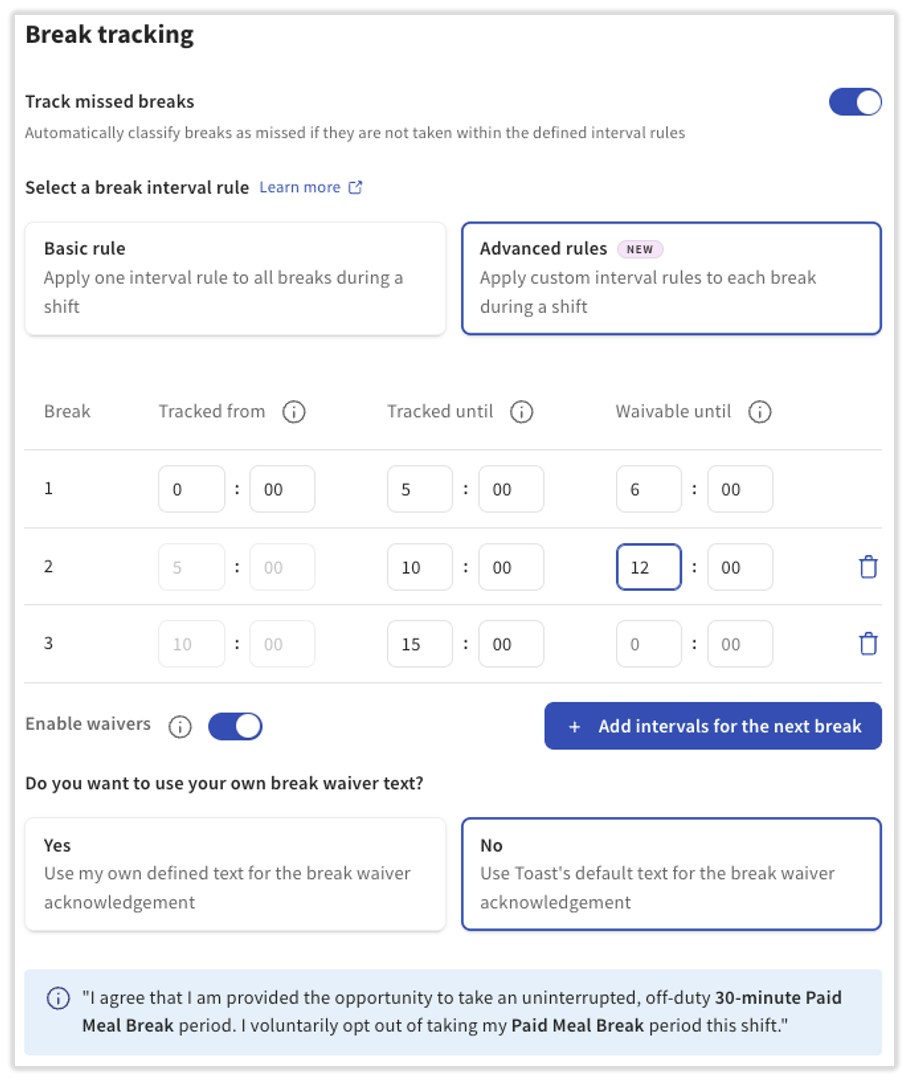
If you would like your employees to take an unpaid meal break every five hours, but allow them to voluntarily waive their break if their shift is less than a specific amount of time, the break tracking configuration might be set up as it appears in the screenshot below:
For illustration purposes
California meal break example:
California law requires an unpaid 30-minute meal break for employees who work more than 5 hours, and that break must begin before the end of the employee’s 5th hour of work. If the employee’s total shift is 6 hours or less, the meal break may be waived by mutual agreement between the employee and employer. Using the fields described above, a 30-minute unpaid meal break type configured for this rule might look like:
- Tracked from: 0:00 — missed break tracking begins at clock in.
- Tracked until: 5:00 — the employee must begin their break at or before 4 hours and 59 minutes worked, or the break is tracked as missed.
- Waivable until: 6:00 — if the employee’s total shift is 6 hours or less, the break can be recorded as waived instead of missed when waiver conditions are met.
Note: This example reflects the standard first meal break rule only. California break requirements can vary by scenario (for example, a second meal break applies to shifts over 10 hours), so review your specific configuration with an HR or legal professional. See the disclaimer at the end of this article for more information.
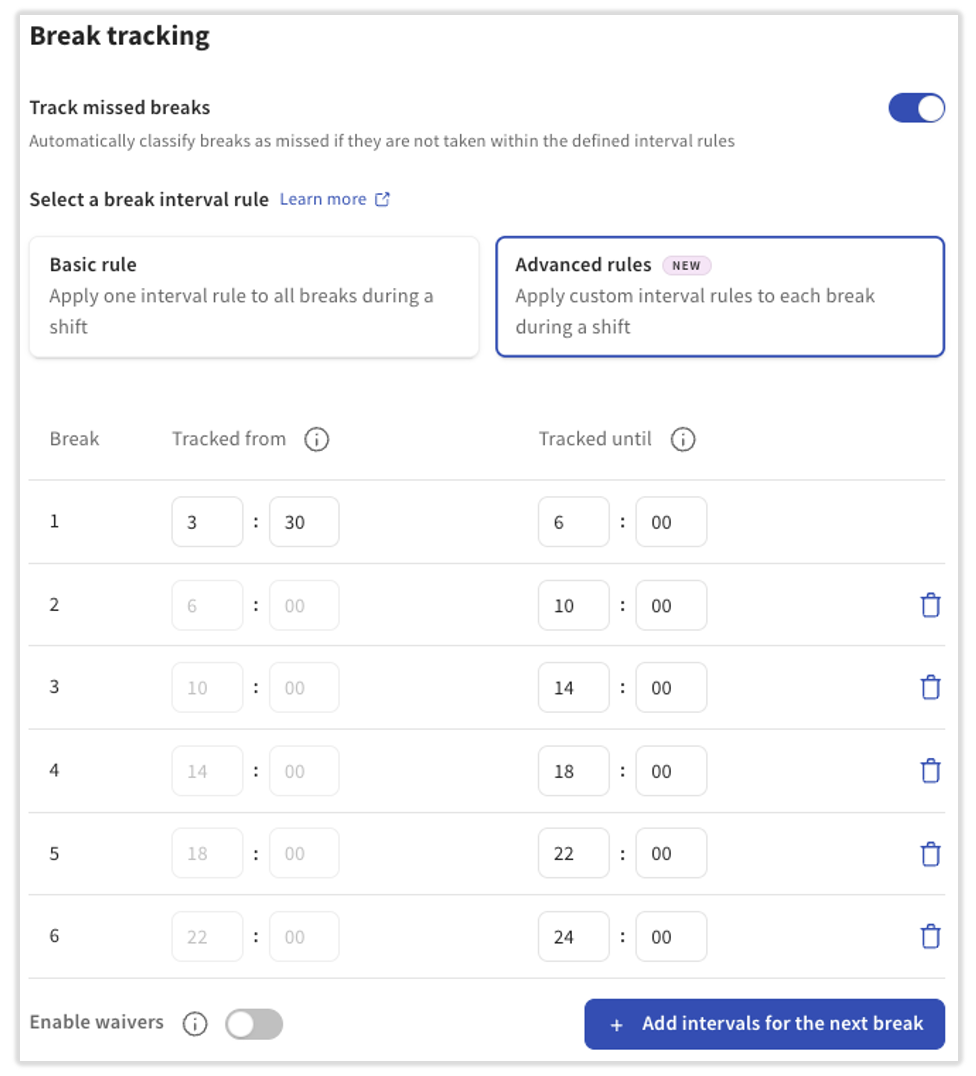
Additionally, if you would like to offer your employees a 10 minute rest paid rest break every six hours, but they have to work three hours and 30 minutes before they are eligible for this break, this might be what your configuration looks like:
For illustration purposes
Break Waivers
Many states have break mandates, but only some states allow for break waivers. When a break is set up with waivers enabled, employees can waive their break under certain conditions. Consult with an HR professional to decide what break configuration is best for your business based on state and local requirements.
When the Enable waivers setting is turned on for an advanced rule, you can choose to use Toast's default waiver language by selecting No or you can provide your own custom waiver text by selecting Yes.
Employees can elect to waive a break at the beginning of their shift, but still take the break when they are eligible (based on your configuration). Waiving reserves them the right to not take their break. Additionally:
- If the employee does not waive the break at the beginning of the shift, but does not take the break, that break will be tracked as "missed" in Toast Web.
- An employee cannot change the answer to their waiver after they have answered during clock in.
- Learn how employees will encounter break waivers in Clock In and Out for Shifts and Breaks.
Acknowledge Breaks on a POS Device
There are two conditions to Break acknowledgment:
- Break acknowledgement can only be used when Tracked missed breaks is enabled.
- Break acknowledgement cannot be used if Enable waivers (advanced rules) is toggled on.
The Employee break acknowledgement setting has two parts to it and both settings are enabled at once:
- Break Acknowledgement: A question asking if an employer asked an employee to take their break. This only appears for employees when an employee takes their break according to the rules you've set above.
- Missed Break Acknowledgement: A question asking why an employee missed their break. This only appears for employees when they miss a required break according to the rules you've set above.
- These questions both appear when an employee clocks out, not when they take or return from a potential break. If an employee was allowed two or more breaks during their shift, they will see individual questions for each break, taken or missed.
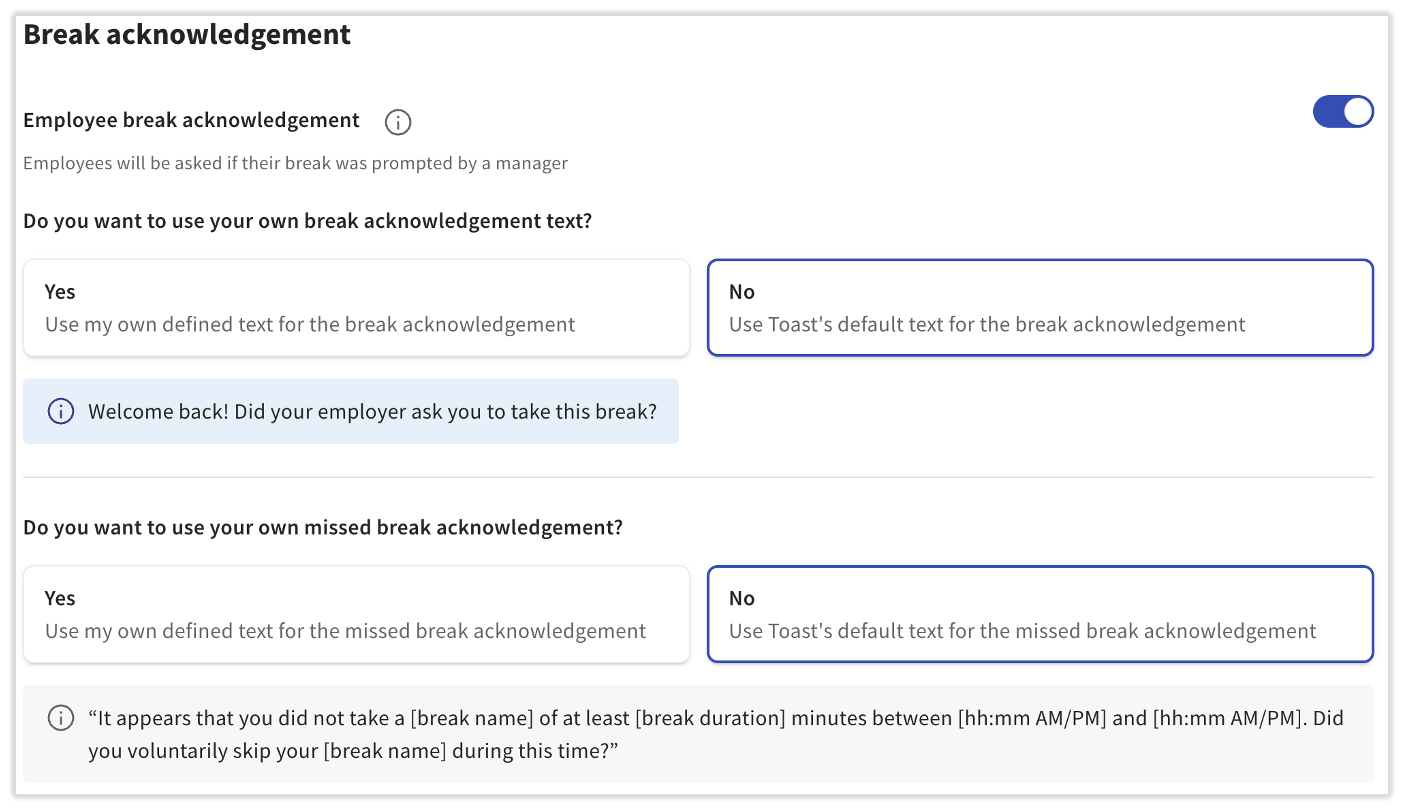
When break acknowledgement is enabled, you can choose to use Toast's default message or your own, custom message for both types of break acknowledgement. Select Yes for either option to enter in your own text. The default language for the acknowledgment questions is:
- Observed break: Welcome back! Did your employer ask you to take this break?
- Missed break: It appears that you did not take a [break name] of at least [break duration] minutes between [hh:mm AM/PM] and [hh:mm AM/PM]. Did you voluntarily skip your [break name] during this time?
When this is enabled, employees will see a message when they clock out from their shift. The message they see depends on if they observed the break as required or missed the break. If an employee is on a break and clocks out (via the Timeclock screen or a shift review), they will still see this message, even if they have permission 3.15 End Breaks Early. A response cannot be edited.
Break Reporting
Break reporting can be located by navigating to Reports > Labor > Time entry management. The Time entry management report is the only report where waived break details are available, so we recommend using it as your primary break report.
Within this report, you can find break waiver details by selecting the Columns button and checking the box for the data you want:
- The Break duration column will display if the break was missed or waived.
- The Break waiver column shows an employee's waiver response and the time they made their choice.
- The Break response column displays the break acknowledgement response.
Some additional notes on waived and missed breaks:
- Similar to how missed breaks are displayed in the Break duration column, waived breaks are also reflected there.
- If a break is identified as waived, the Break duration column will display Waived instead of Missed.
- When a break is waived, the Break waiver column records both the employee's response and the time the waiver was submitted.
- Note: If you don't see this data on the report, select the Columns button and make sure Break duration and/or Break waiver is checked.
- If an employee is automatically clocked out by the Toast system (typically at 4:00 a.m.) and missed break tracking is enabled, Toast will record missed breaks according to the clock in and out times. It is not possible to record break acknowledgements for missed breaks that are associated with an auto-clock out.
Additional Resources
- Get Help With Breaks in Toast Web
- Clock In and Out for Shifts and Breaks
- Edit Employee Time Clock Entries
- Manage Break Adherence on Mobile
This content is for informational purposes and is not intended as legal, tax, HR, or any other professional advice. Please contact an attorney or other professional for advice.