Copy Settings Across Locations
Last updated: Sep 16, 2026, 4:15 PM
Learn how you can copy Toast Web settings from one location to one or more locations.
- Settings Copy Tool Overview
- Copy Settings Across Locations
- Copy Menu From One Location to Another
- Review Copied Settings
Settings Copy Tool Overview
The Settings copy tool in Toast Web allows you to copy the back-end settings from your current location to other locations within your management group, instead of having to log in to each location individually and change the settings manually. This can be especially helpful if you need to make a settings change and quickly apply it to multiple locations, or if small changes have been made over time and you want to ensure that all locations have the same settings across the board.
This feature is only available for customers using the Restaurant Management Pro suite, Restaurant Management Enterprise suite (learn more: Toast Suites Overview), or Toast Multilocation Management (MLM). If your restaurant uses Restaurant Management Pro, we recommend managing front of house settings for multiple locations using the updated UI options page instead of the Settings copy tool. Learn more about managing settings for multiple locations with the Restaurant Management Pro suite in this Support Center article: Manage UI Options for Multiple Locations.
In order to access the Settings copy tool, you’ll need to add the 4.19 Settings Copy Tool permission to your Toast Web user account, which can be done by any user who has 8.2 User Permissions access. For step-by-step instructions, see Assign User Access Permissions.
Copy Settings Across Locations
To copy Toast Web settings to another location using the Settings copy tool, follow these steps:
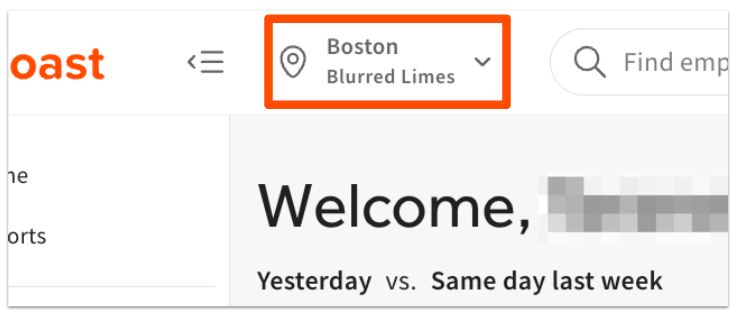
- Before you begin, confirm which location you are viewing in Toast Web. The location shown at the top of the page will always be the source location (the location you are copying from), so change locations if necessary.
- Navigate to Toast accounts > Business and location management > Settings copy tool.
- Select Copy settings.
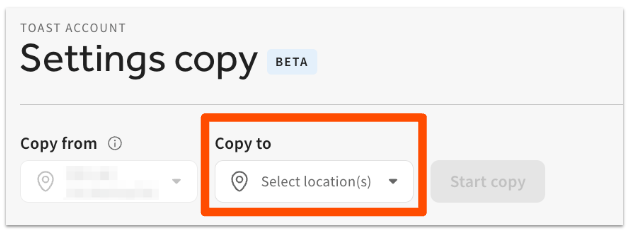
- On the next page, open the Copy to drop-down and select one or more locations or restaurant groups that you’d like to copy your settings to.
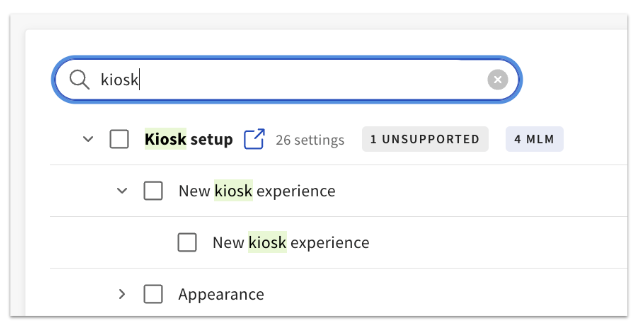
- Use the checkboxes to select entire sections or any individual settings that you’d like to copy.
- You can use the search bar to find specific settings or sections that you’re looking for.
- Select the arrow icons to expand a section and see all of the individual settings within it.
- If you need to confirm the current value of any setting, the blue links next to each section will take you to the corresponding settings page so you can see what is selected at the current location.
- If any settings cannot be copied over, you’ll see the Unsupported label. You will not be able to select the checkbox for these settings.
- For settings with an MLM label, settings will only be copied successfully if the "copy to" and "copy from" locations share a target (e.g. you can copy Dining options available on kiosk if both locations are a target for the dining options that are selected for that setting). Otherwise they will be ignored.
- Once you’ve finished choosing settings to copy, select Start copy.
- Review the number of settings and the destination locations on the confirmation pop-up window and select Save settings to continue.
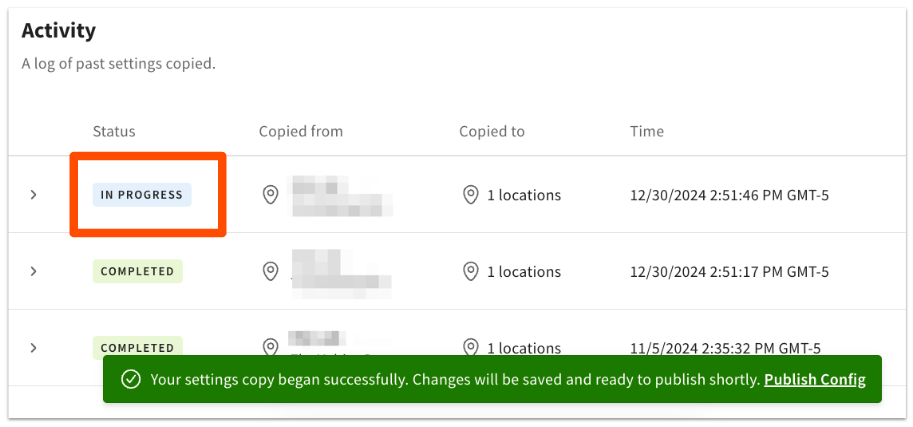
- You’ll be brought back to the Settings copy page where your settings copy will show as In progress, and then automatically change to Completed when the changes are saved at the destination location(s). This process could take several minutes if you are copying multiple settings to a large number of locations.
- At this point, the settings have only been saved at the destination location(s). You will need to proceed to the Publish Config page (select Unpublished changes at the top of the page or navigate to Toast account > Publishing > Publish Config) and publish changes at the destination location(s) for the copied settings to go into effect.
Copy Menu From One Location to Another
Contact Customer Support to request copying a menu from one location to another.
In some cases, the destination location may be on a different system (“shard”). When this happens, the menu can still be copied, but you’ll need to manually reconfigure certain settings, such as printers, prep stations, routing, sales categories, and employees. If Support determines that a full rebuild would be required to automatically copy a menu from one location to another, we recommend you manually recreate the menu at the destination location. Tools like Chrome’s split view can help speed up this process.
Review Copied Settings
On the Copy settings page, you’ll see a log of all previously saved setting copies, including the Status, Copied from location, Copied to location(s), a date/timestamp, the number of Settings copied, and the User who saved the changes.
To see which settings were published at a location, you can use the Publishing Center - History page. If you copied 25 settings from Location A to Location B, but only 10 of the settings were different across those two locations, the Publishing Center - History page will display the 10 settings that were updated in the publishing process. To learn more about viewing publish history, see this Support Center article: Publish Changes in Toast Web.