Create Default Modifiers
Last updated: Sep 17, 2026, 6:39 PM
- Default Modifiers Overview
- Create a Default Modifier Option
- View Default Modifiers on Kitchen Tickets
- Default Modifier Behavior on the Online Ordering Page
Default Modifiers Overview
Default modifier options are often used to apply a "standard" modifier selection or set of ingredients to a menu item. For example, if all sandwiches at your restaurant come with a side of chips by default, you can assign this modifier option as the "standard" while still allowing guests to choose an alternative. If they choose to deviate from the standard option, the kitchen ticket will outline the change so it's clear the order is not the usual pairing.
On the UI options page (Front of house > Order screen setup > UI options), you can select how you would like your default modifiers to appear as seen in the image below.
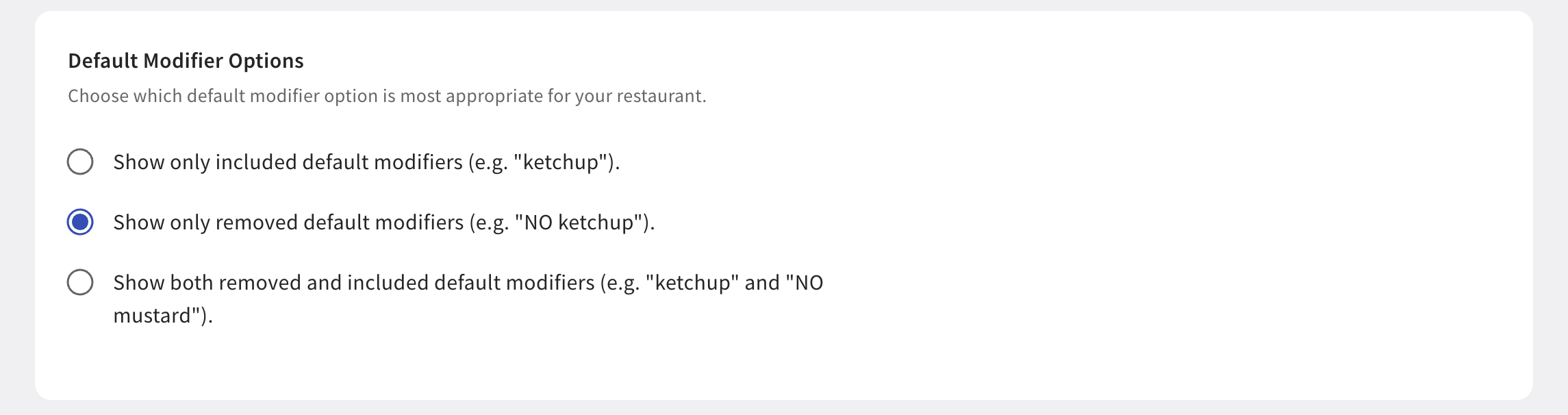
Default modifiers only appear if they are removed. They will not appear on your printed tickets, prep stations, or expos unless a default modifier has been removed from an item. For example: if your burger comes with ketchup and mustard and the guest asks for no ketchup, "No Ketchup" appears on all applicable surfaces, but mustard is not listed because it was not a removed default modifier.
Note: If you're using a third-party application to help manage your inventory system, default modifiers may not work as expected, and/or settings may need to be configured for it to work. Please contact your third-party application provider for more information.
To learn more about creating and managing modifiers, please refer to this article: Create and Manage Modifier Groups and Modifier Options.
Back to top
Create a Default Modifier Option
To create a default modifier option in Toast Web, follow these steps:
- In Toast Web, navigate to the Menus > Bulk management > Advanced properties.
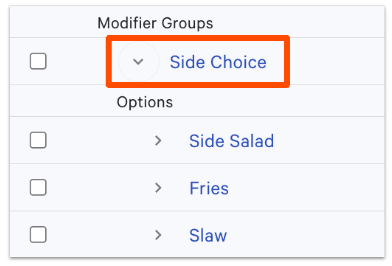
- Then, select the modifier group whose options you wish to default.
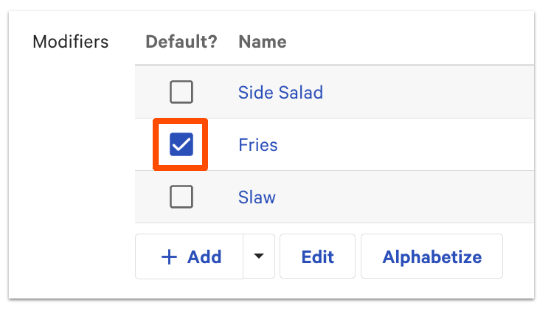
- Scroll down to the Modifiers section. Next to each modifier option, a checkbox appears in the Default column. Select the checkbox next to the option you wish to set as the "standard" choice.
Note: If the modifier is set to allow more than one selection, you can select multiple options as "default."
- Save and publish to finalize your changes.
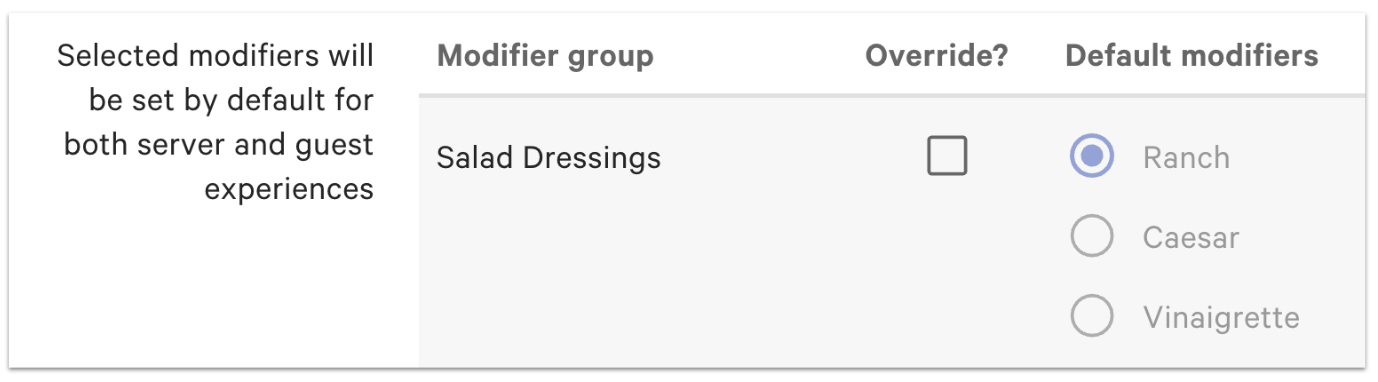
The default modifier group settings can be overridden at the menu group level or the item level if needed. For example, let's say you have a Salad Dressing modifier group. You can set Ranch as the default modifier for that modifier group, which will apply as the default anywhere that you add that Salad Dressing modifier group. If you have a Caesar Salad menu item and you want the default salad dressing for that item to be different, you can override the default modifier on the Caesar Salad item details page:
View Default Modifiers on Kitchen Tickets
This is how default modifiers will be displayed on kitchen tickets:
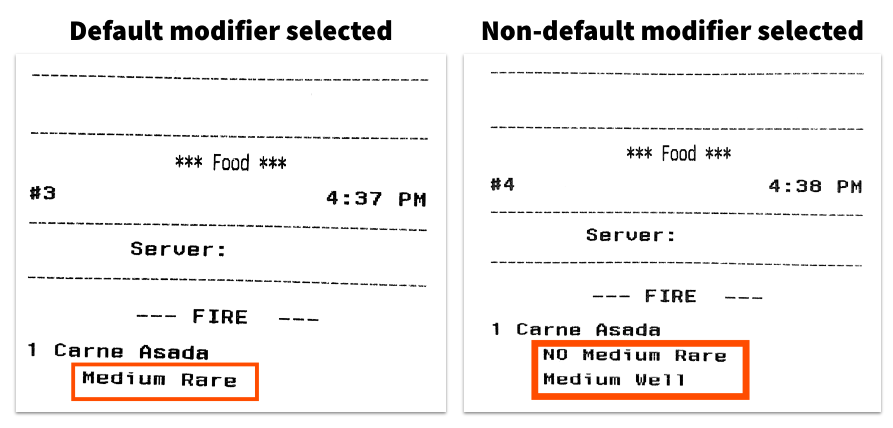
Default Modifier Behavior on the Online Ordering Page
When guests select an item on your Toast Online Ordering page, the default modifier will automatically be selected in the list of modifier options.
At any time, the customer can choose a different modifier by deselecting the default modifier and selecting another option.
Back to top