Create and Manage Modifier Groups and Modifier Options
Last updated: Sep 30, 2026, 2:22 PM
Looking for a Different Topic?
The word "modifier" covers several distinct workflows in Toast. This article covers the Menu manager path for creating, editing, re-using, and deleting modifier groups and modifier options.
- Need to add a modifier on top of another modifier (a sub-modifier or nested modifier)? See "Build Nested Modifiers (Add Modifiers to a Modifier)."
- Want to use an existing menu item as a modifier? See "Create Modifiers From Items."
- Trying to change the order modifier groups appear on the POS? See "Manage Modifier Group Display Order" and "Configure Modifier Display Options."
- Need to set up size-based or sequence pricing (pizza halves, deli sizes)? See "Configure Special Modifier Pricing: Size and Sequence Pricing."
- Before You Begin
- About Modifier Groups and Modifier Options
- Example Modifier Setups
- Create a Modifier Group and Modifier Options
- Edit Modifier Group Settings
- Edit Modifier Option Settings
- Use Multiple Modifier Selection (Duplicate Modifiers)
- Re-use an Existing Modifier Group on Other Items
- Configure Modifier Behavior: Required, Optional, and POS Prompt
- Default Modifiers, Modifier Group Sorting, and Display Order
- Delete a Modifier Group or Modifier Option
- Frequently Asked Questions
- Troubleshoot Modifier Groups
- Related Articles
Before You Begin
Applies to: Toast Web (Menu manager / legacy menu feature)
Permissions needed:
- Menus permission (required to view and edit menus, groups, items, and modifier groups)
What you'll accomplish: Create a modifier group, add modifier options to it, set its behavior and pricing, attach it to a menu group or item, and (when needed) edit, re-use, or delete it.
Prefer to learn live? Sign up for Toast Classroom: Menu Basics.
About Modifier Groups and Modifier Options
Modifier groups and modifier options let guests customize menu items with add-ons such as toppings, sides, sauces, or preparation styles. They also handle pricing for those add-ons — free, upcharged, or discounted.
There are two parts to a customization:
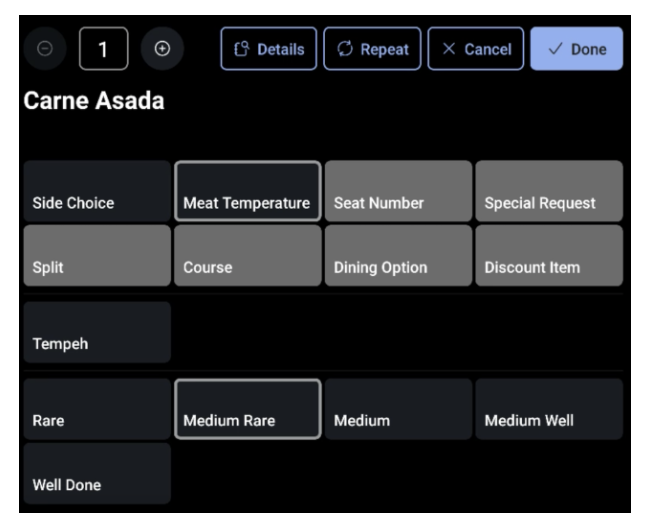
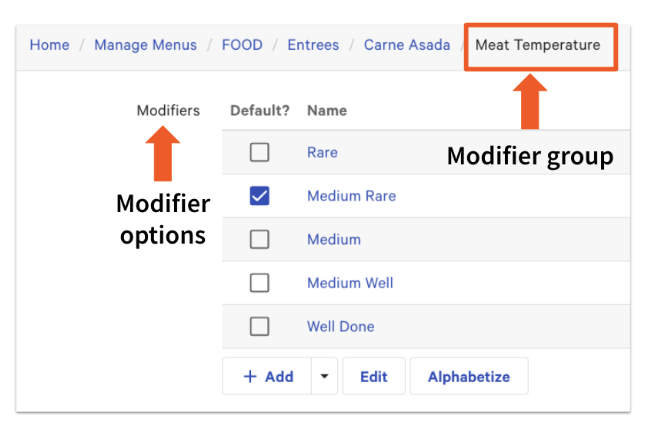
- A modifier group is a named collection of modifier options. The group exists only to organize options — it does not print on receipts or tickets. Example: "Meat Temperature" is a modifier group.
- A modifier option is the individual choice a guest or server actually selects. Modifier options print on receipts and tickets. Example: "Rare" and "Medium Rare" are modifier options inside the "Meat Temperature" modifier group.
Where Modifier Groups Attach in Your Menu
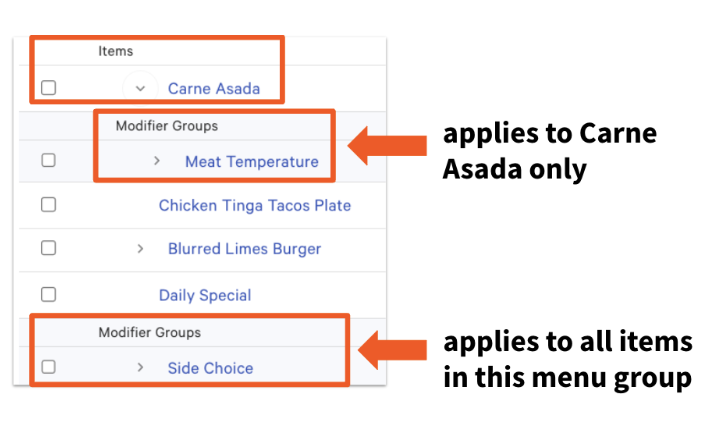
A modifier group can be attached at three levels of your menu hierarchy:
- Group level — the modifier group applies to every item in the menu group
- Subgroup level — the modifier group applies to every item in the subgroup
- Item level — the modifier group applies only to that single item
A modifier group attached at the group or subgroup level is sometimes called a parent modifier for all items below it. Example: a "Side Choice" group (fries, side salad) attached at the menu-group level means every item in that menu group can have a side choice.
A modifier group at the item level applies only to one item. Example: a "Meat Temperature" group with options "Rare," "Medium Rare," and "Well Done" attached only to the "Carne Asada" item.
Note: You can preview how your menus will look on the POS using the View POS layout feature in the Menu manager. To learn more, see "Can I preview how my menus will look on my POS?"
Modifier Pricing at a Glance
Modifier options can be free, upcharged, or discounted. You set a pricing strategy on each modifier group (see Edit Modifier Group Settings below for the full list of strategies). For size-based or sequence-based pricing (pizza halves, deli sizes), see "Configure Special Modifier Pricing: Size and Sequence Pricing."
Example Modifier Setups
Modifier groups and modifier options can be set up for many scenarios. Some common examples:
- Drink customization — let guests pick one option from several (for example, the brand of tequila in a margarita). Create a "Tequila" modifier group with options for each brand (Don Julio, Patrón, Casamigos). Each modifier option can be priced differently if needed.
- Salad dressings or add-ons — these can be marked optional if a guest doesn't have to make a selection.
- Meat temperature — modifier options like "Rare," "Medium Rare," and "Well Done" inside a "Meat Temperature" modifier group.
- Pizza toppings — create separate modifier groups for each half of the pizza and set a maximum number of toppings per half. For combined pizza pricing, see "Configure Special Modifier Pricing: Size and Sequence Pricing."
Create a Modifier Group and Modifier Options
Modifier groups are created in Toast Web. A modifier group attached at the menu-group or subgroup level is added from the group or subgroup details page; a modifier group attached at the item level is added from the item details page.
Creating modifier groups works the same way as creating menus, menu groups, and items — you can add, delete, rename, and re-order them in the same way.
- Navigate to Menus > Menu management > Menu manager.
- On the Menu manager, select the menu, group, subgroup, or item that the modifier group should apply to. A settings panel opens on the right side of the screen.
- Scroll to the Modifier groups section and select + Add new. The modifier group details page opens.
- Enter a name for the modifier group. In the Modifiers section, type a Name for each modifier option, then select + Add to add it to the group. Example: in a "Dressing" modifier group, add modifier options for "Ranch," "Vinaigrette," and "No Dressing."
- In the Modifier group settings section, set the modifier behavior:
- Optional or Required (see Configure Modifier Behavior below)
- Include a POS prompt — if enabled, the modifier group automatically shows on the POS when a server adds the item to a check
- Allow guests to select more than one modifier — if enabled, you can set a maximum and whether the same modifier option can be selected more than once (see Use Multiple Modifier Selection below)
- Select Save and Publish all changes.
Expected outcome: The new modifier group appears in the Modifier groups section of the menu, group, subgroup, or item you started from, and the modifier options appear on the POS when that item is added to a check.
Advanced Settings: Default Modifiers and Override
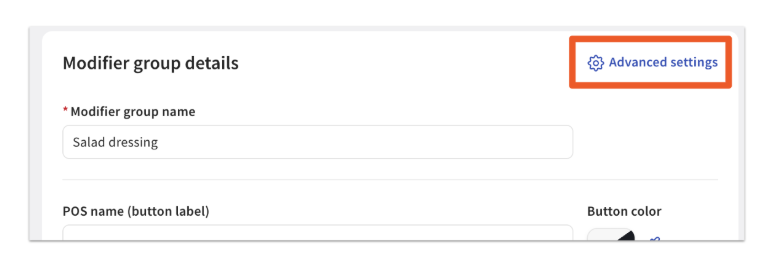
To access additional settings such as default modifiers and Display Ordering Priority, select Advanced settings at the top of the modifier group details page.
- Override? (optional) — lets you override the default modifier option if this modifier group is already in use elsewhere on your menu. Often used at the item level so that one item can have a different default than the others sharing the same modifier group.
- Default modifiers (optional) — if Override? is selected, you can choose a default modifier option from the group. The default is automatically applied when the item is added to a check. Example: a House Salad item can default to Ranch dressing; a server can still change the selection at the table.
For the full default-modifier workflow (where defaults print on the ticket, how online-ordering treats them), see "Create Default Modifiers."
Note: If a modifier group uses pre-modifiers (NO, EXTRA, ON SIDE prefixes for kitchen tickets), you'll need to choose whether the group uses the global default pre-modifier set or a custom one. To learn more, see "Create and Assign Pre-Modifiers."
Edit Modifier Group Settings
The modifier group details page lets you change settings that apply to the entire modifier group, including:
- Name, POS name, and Button color
- Modifier pricing strategy (see below)
- The modifier options inside the group
- Required or Optional behavior (see Configure Modifier Behavior)
- Include a POS prompt
- Whether guests can select more than one modifier
- Channel visibility (POS, online ordering, etc.)
The modifier pricing strategy determines how modifier options inside the group are priced. In the Pricing section, the How are modifiers in this group priced? setting offers three options:
- No charge — best for modifier groups made up entirely of complimentary items, like a mandatory salad dressing
- All modifiers share the same price — every modifier option in the group is priced the same. A pricing-strategy panel opens with the shared price configuration.
- Each modifier has a unique price — set each modifier option's price individually by selecting the option from the list and entering the price on the modifier option details page
For size-based, sequence, or combined size + sequence pricing strategies, see "Configure Special Modifier Pricing: Size and Sequence Pricing."
Additional settings (default modifiers, Display Ordering Priority) live behind Advanced settings at the top of the modifier group details page.
As always, save and publish any changes you make so they take effect on your POS.
Remove a Modifier Group Inherited From a Menu Group
If a modifier group is attached at the group or subgroup level, it applies to every item below. To unlink that inheritance for a single item — so the modifier group still applies to the rest of the items but not this one — use the Menu manager unlink workflow. See "Create and Manage Modifier Groups and Modifier Options"
Edit Modifier Option Settings
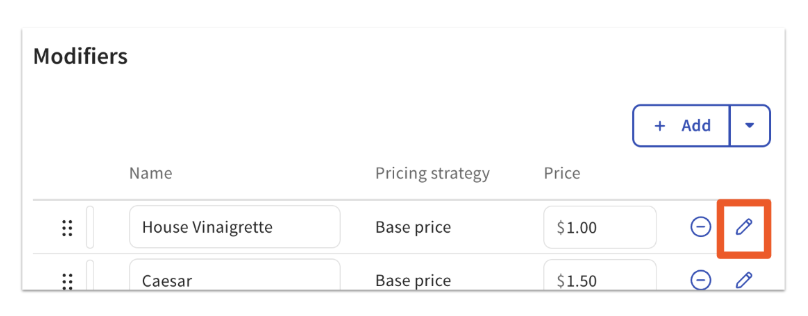
To edit an individual modifier option (name, calories, POS button color, price), select the pencil icon next to that modifier option on the modifier group details page. The modifier option details page opens, where you can change those settings.
Use Multiple Modifier Selection (Duplicate Modifiers)
Multiple modifier selection (sometimes called duplicate modifiers) lets one modifier option be selected more than once on the same item. Common in bakeries, coffee shops, bagel shops, wing shops, or build-your-own restaurants to:
- Select multiple flavors with a dozen bagels or donuts (example: 6 plain, 6 everything)
- Select multiple sides within a combo meal (example: 2 sides of mac and cheese, 1 side of coleslaw)
- Select multiple sauces within an order of wings (example: 2 ranch, 2 barbecue)
- Select multiple toppings on a salad, bowl, or taco (example: 2 feta cheese, 2 carnitas)
For the full setup workflow (including online-ordering quantity behavior and the 24-modifier maximum), see "Set Up and Use Multiple Modifier Selection."
Re-use an Existing Modifier Group on Other Items
A single modifier group can be attached to more than one item or menu group. Example: "Bone-in Wings" and "Chicken Tenders" can share the same "Sauce" modifier group, or the "Sandwiches" group and "Lunch Specials" group can share the same "Side" modifier group.
To attach an existing modifier group to a different item or group:
- Navigate to the menu group, subgroup, or item you want to attach a modifier group to.
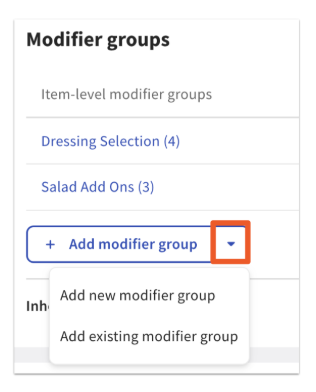
- Scroll to the Modifier groups section and select the down arrow next to the + Add modifier group button.
- Select Add existing modifier group.
- In the pop-up, use the search bar to type the Name or POS Name of the modifier group.
- Select the modifier group (or groups) from the search results and select Add modifier groups.
- Select Save and Publish all changes.
Expected outcome: The existing modifier group is attached to the new item or menu group and appears in its Modifier groups section. Any change you make to the modifier group from any attachment point updates it everywhere it's attached.
Copy vs. Re-use vs. Deep Copy
Re-using a modifier group attaches the same group to multiple items — every change updates everywhere. If instead you want a separate copy so you can change pricing or behavior on one of them without affecting the other, see "Reuse or Copy Menu Groups, Items, and Modifiers" for shallow copy vs. deep copy.
Use an Existing Menu Item as a Modifier
If you want to use a menu item itself as a modifier (so inventory and 86-ing flow through), see "Create Modifiers From Items." This is sometimes called linking a menu item as a modifier.
Add a Modifier on Top of Another Modifier (Nested)
If you want a follow-up modifier group to appear after a modifier option is selected (for example, choose Bacon, then choose how it's cooked), see "Build Nested Modifiers (Add Modifiers to a Modifier)." This is sometimes called a sub-modifier or modifying a modifier.
Configure Modifier Behavior: Required, Optional, and POS Prompt
Modifier behavior controls whether a server or guest must select a modifier from the group before the item can be sent to the kitchen.
You can change behavior either from the modifier group settings panel or from the properties section of the modifier group details page.
There are two settings that control modifier behavior:
- Required — staff or guests must select at least one modifier option. The item cannot be sent to the kitchen without a selection.
- Optional — no selection is required.
- When Optional is selected, the Include a POS prompt option appears (previously called Optional - Force Show). When enabled, the modifier group automatically shows on the POS when the item is added to a check, but a selection is not required — staff or guests can skip it.
For the full behavior reference (Required vs. Optional vs. Force-Show, plus channel-visibility tables for POS, online ordering, and Mobile Order & Pay), see "Configure Modifier Behavior."
Default Modifiers, Modifier Group Sorting, and Display Order
You can customize how modifier groups and modifier options appear and behave when the item is added to a check:
- Default modifiers can be set for items that should come with a specific modifier option pre-selected. Common for House Salads (defaults to Ranch), Italian subs (defaults to provolone), and other "comes with" patterns. Enable defaults globally under Front of house > Order screen setup > UI options > Show Default Modifiers?. To learn more, see "Create Default Modifiers."
- Show Default Modifiers on the printed ticket can also be toggled at Front of house > Order screen setup > UI options > Show Default Modifiers?.
- Modifier Group Sorting determines the order modifier groups appear on the POS — useful when modifier order matters for prep stations. To learn how the order is determined (the 6-tier rule based on Required vs. Optional and group-level vs. item-level), see "Manage Modifier Group Display Order." To customize the POS display mode (Vertical, Horizontal, Legacy, Consolidate), see "Configure Modifier Display Options."
Delete a Modifier Group or Modifier Option
Remove a modifier group when you no longer need it for an item or menu group. Example: you stopped adding "Additional Toppings" to your "House Salad" — you need to remove the modifier group from the item.
- Navigate to Menus > Menu management > Menu manager and select the House Salad item. The House Salad settings panel opens on the right side of the screen.
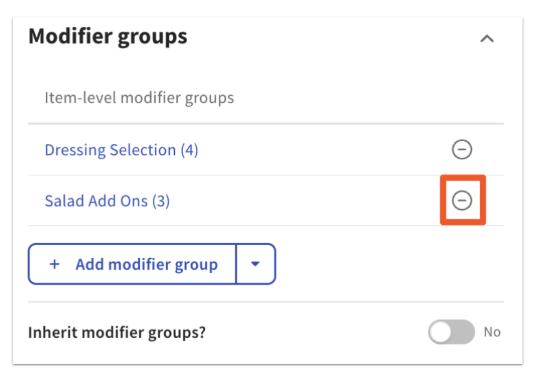
- Scroll to the Modifier groups section and find the "Salad Add Ons" modifier group.
- Select the (-) icon on the right side of the modifier group.
- Select Save and Publish all changes to push the change to all of your devices.
Expected outcome: The modifier group no longer appears in the Modifier groups section of the House Salad item, and the modifier options no longer show on the POS when the House Salad is added to a check.
To delete a single modifier option from a modifier group, open the modifier group and select the (-) icon under the modifier options table.
You can restore deleted menu entities later. To learn how:
- "Use the Items Database to View and Manage Menus" — view, archive, restore, and version menu entities (including modifier groups)
- "Create and Manage Menus, Menu Groups, and Subgroups" — full hierarchy reference
Frequently Asked Questions
How Do I Change the Order Modifier Groups Appear on the POS?
How do I change the order modifier groups appear on the POS? The order modifier groups appear is set by a 6-tier rule (Required vs. Optional and group-level vs. item-level), and you can override it on each modifier group's Advanced settings page using Display Ordering Priority. For the full rule and the override workflow, see "Manage Modifier Group Display Order" and "Configure Modifier Display Options."
How Do I Remove an Inherited Modifier Group From Just One Item?
How do I remove an inherited modifier group from just one item? If a modifier group is attached at the menu-group or subgroup level, it inherits down to every item. To unlink the inheritance for a single item without removing it from the others, use the Menu manager unlink workflow described in "Create and Manage Modifier Groups and Modifier Options"
Can I Modify a Modifier (Sub-Modifier / Nested)?
Can a modifier modify another modifier? Yes — that's called a nested modifier. Example: a guest picks Bacon, then picks how the Bacon is cooked. To set up nested modifiers (and to avoid the infinite-loop pitfall), see "Build Nested Modifiers (Add Modifiers to a Modifier)."
How Do I Link a Menu Item as a Modifier?
How do I link a menu item as a modifier? Use the Create Modifier from Existing Item workflow so that one menu item also becomes a modifier option on another item — useful for inventory tracking and 86-ing. See "Create Modifiers From Items" for the full steps and the menu-specific pricing caveat.
How Do I Apply a Modifier Group to Many Items at Once?
How do I apply a modifier group to many items at once? Attach the modifier group at the menu-group or subgroup level and it inherits down to every item below — see Where Modifier Groups Attach in Your Menu. For per-location or template-based rollout, see "Reuse or Copy Menu Groups, Items, and Modifiers."
How Do I Make a Modifier "No Charge" or Free?
How do I make a modifier no charge or free? Set the modifier group's pricing strategy to No charge on the modifier group details page. Every modifier option in the group will then be free. To make some modifier options free and others priced, use Each modifier has a unique price and set the price to $0.00 on the modifier options you want free. See Edit Modifier Group Settings.
Why Doesn't My Modifier Group Show Up on the POS?
Why doesn't my modifier group show up on the POS? The most common causes are an empty modifier group (no modifier options inside it), the modifier behavior set to Optional without Include a POS prompt enabled (so it appears only when staff opens it), or unpublished changes. See Troubleshoot Modifier Groups below.
What Does "Override?" Mean on a Modifier Group?
What does Override? mean on a modifier group? Override? is a checkbox on the modifier group's Advanced settings page. When selected, it lets you set an item-specific default modifier option that overrides the modifier group's normal behavior just for that item. Often used at the item level so one menu item can have a different default than the others sharing the same modifier group. See Advanced Settings: Default Modifiers and Override.
Troubleshoot Modifier Groups
Empty Modifier Group Causing Order Errors
Empty modifier groups can cause issues for staff taking orders on the POS, or for guests placing orders online or on third-party platforms like DoorDash, Grubhub, or Uber Eats. An empty modifier group is one that exists but has no selectable modifier options inside it — for example, a modifier group named Add Condiment(s) that contains no options such as Ketchup or Mustard.
Empty modifier groups can:
- Cause synchronization errors with third-party integrations
- Affect the visibility of entire menus on integration platforms
- Create issues in both the POS system and online ordering
Fix: Either add modifier options to the group, or delete the modifier group entirely.
Modifiers Not Showing on the POS
If a modifier group is supposed to be visible on the POS but isn't showing when you select the item:
- Confirm that the modifier behavior is set to Required or to Optional with Include a POS prompt enabled. With plain Optional (no POS prompt), staff must open the modifier group manually for it to display.
- Confirm that you've selected Publish all changes after editing the modifier group. Unpublished edits don't reach the POS.
- See Edit Modifier Group Settings above for where each setting lives.
Modifier Group Visible on POS but Not Findable in Toast Web
If a modifier group is appearing on the POS or on a check but you can't find it in Toast Web to edit, the modifier group is likely attached at a level you haven't searched. Check:
- The item's own Modifier groups section
- The parent menu subgroup's Modifier groups section
- The parent menu group's Modifier groups section
- Whether the modifier group came in through "Create Modifiers From Items" (an item being used as a modifier elsewhere)
For a full list of where the modifier group is in use, open the modifier group from the Modifier groups view in Menu manager and check its usage. The Items Database can also be used to find every place a modifier group is attached — see "Use the Items Database to View and Manage Menus."
Before You Contact Customer Care
If a sync or sudden-display issue persists after you've confirmed the modifier group is published and attached correctly (for example: a modifier group "suddenly started appearing on every check" or "Sorry, we are unable to load Modifier groups" error), this likely needs Customer Care to look at your account.
Have ready:
- The exact modifier group name
- The menu, group, subgroup, or item it's attached to (or where it's appearing that you don't expect)
- A screenshot of the behavior on the POS or online order
- Whether the issue is on POS, Online Ordering, or a third-party platform (DoorDash, Grubhub, Uber Eats)
- When the issue started
Related Articles
- Configure Modifier Behavior
- Configure Modifier Display Options
- Create Default Modifiers
- Manage Modifier Group Display Order