Create Shared Prep Stations for Your Multi-Location Group in Toast Web
Last updated: Sep 15, 2026, 10:36 AM
Learn how shared prep stations are created for multi-location groups in Toast Web.
Create Shared Prep Stations for Multi-Location Groups
Please follow these steps to create shared prep stations for your multi-location groups.
- In Toast Web, navigate to Kitchen > Kitchen stations > Prep stations.
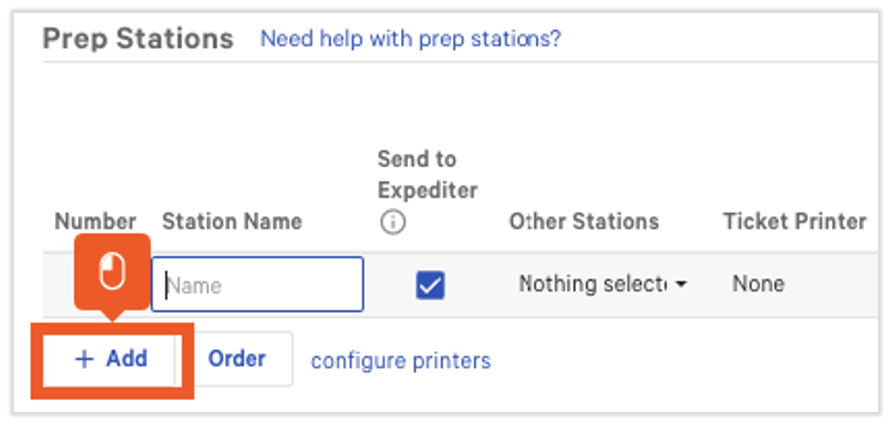
- Select +Add to add a new prep station.
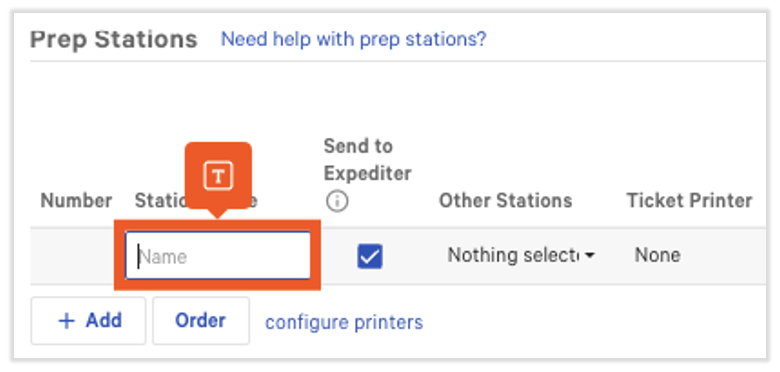
- Type the name of the Prep Station you need. As a best practice, include "(Shared)" in the prep station name
- Select Save to save the prep station.
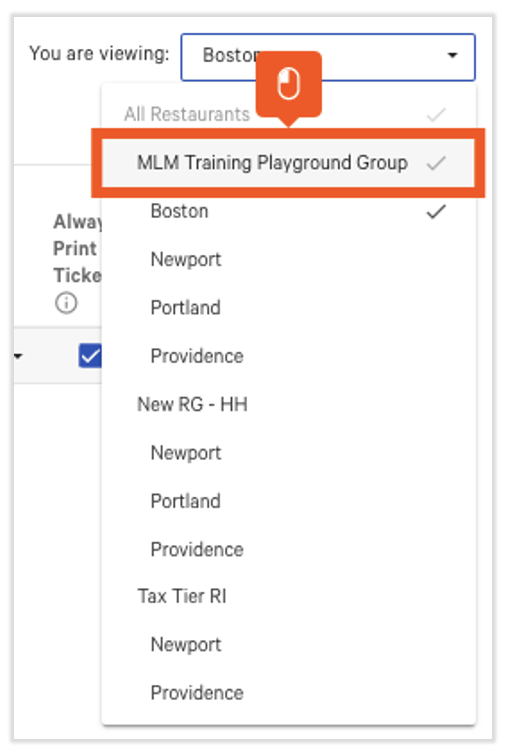
- Select the You Are Viewing drop-down to see all locations in the group, and select the top restaurant group before selecting Update. In this example, we selected the MLM Training Playground Group.
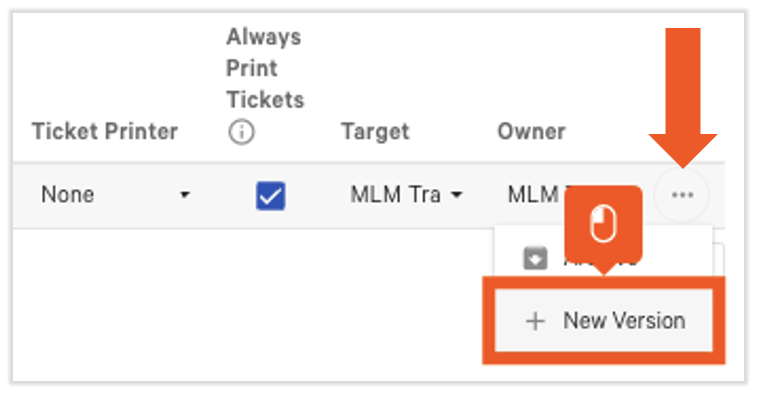
- Select the three dots on the right of the Prep Station and choose New Version.
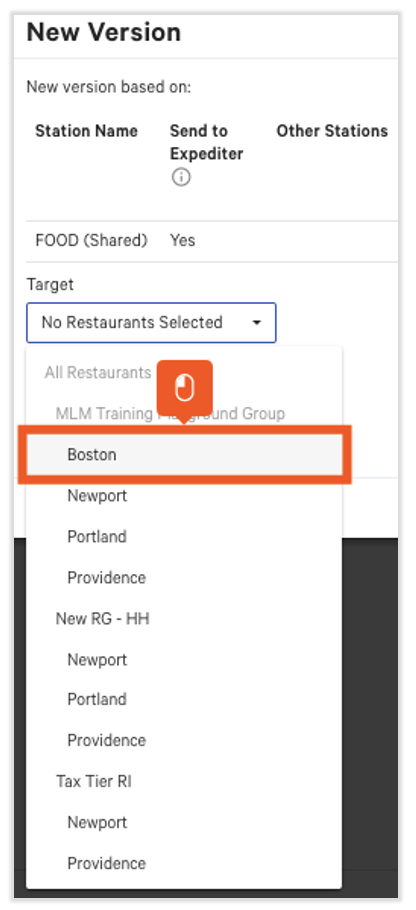
- Select the drop-down menu list under Target. Then select the location you're looking to add a version of - in this example, Boston. Then select Submit.
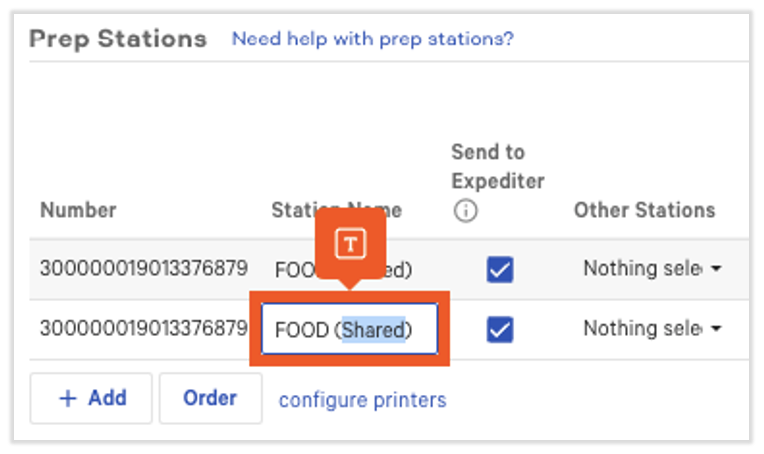
- As a best practice, we suggest renaming the version to reflect the target. You can select the station name to update it.
- Note: Save your changes before moving forward.
- Note: Save your changes before moving forward.
- Repeat steps 7 through 11 to create versions for ALL locations in the group.
- Once the versions are created, you can configure the local prep stations as needed
- Selecting/deselecting Sent to Expediter
- Selecting other stations
- Selecting the ticket printer
- Selecting/deselecting Always Print Kitchen Tickets.
- If changes need to be published out to locations immediately, navigate to the publish configuration to push changes out to all locations at once.