Toast Payroll: Get Help With Custom Imports
Last updated: Oct 19, 2026, 12:39 PM
Find answers to frequently asked questions about custom imports for Toast Payroll.
- Custom Import Exceptions
- Custom Import FAQ
- I imported a file successfully, but why didn't earnings pull to the spreadsheet (and I had no exceptions)?
- If I import a second file, will it override the first import?
- Can I include the check date as a column in my custom import?
- Can I include the rate of pay as a column in my custom import?
- Can I include terminated employees on a custom payroll import?
- On a custom payroll import, what is the difference between "job" and "job-exportID"?
- Troubleshooting FAQ
- I am unable to send tips from Toast Web to Toast Payroll.
- I am getting an error message when trying to import multiple dates for Employee Tips.
- I am attempting to upload multiple tip rows, and it won't import both tip types.
- I am getting exceptions during the import process.
- I added, edited, or moved the column headers (in row 1) on the spreadsheet, and now I get an import error.
- When I upload a custom import file and select Preview, I get something like this:
- When I enter data into my template, the 0 at the beginning of the employee number is being deleted, causing import errors.
- Are there other options besides using custom imports?
- Common Questions/Scenarios
Payroll: Custom Import Exceptions
When the system is unable to add information from the import file onto the Preview Payroll step, it will be noted as an exception. These should always be reviewed before moving forward with payroll to ensure all earnings that are needed successfully make it to the spreadsheet.
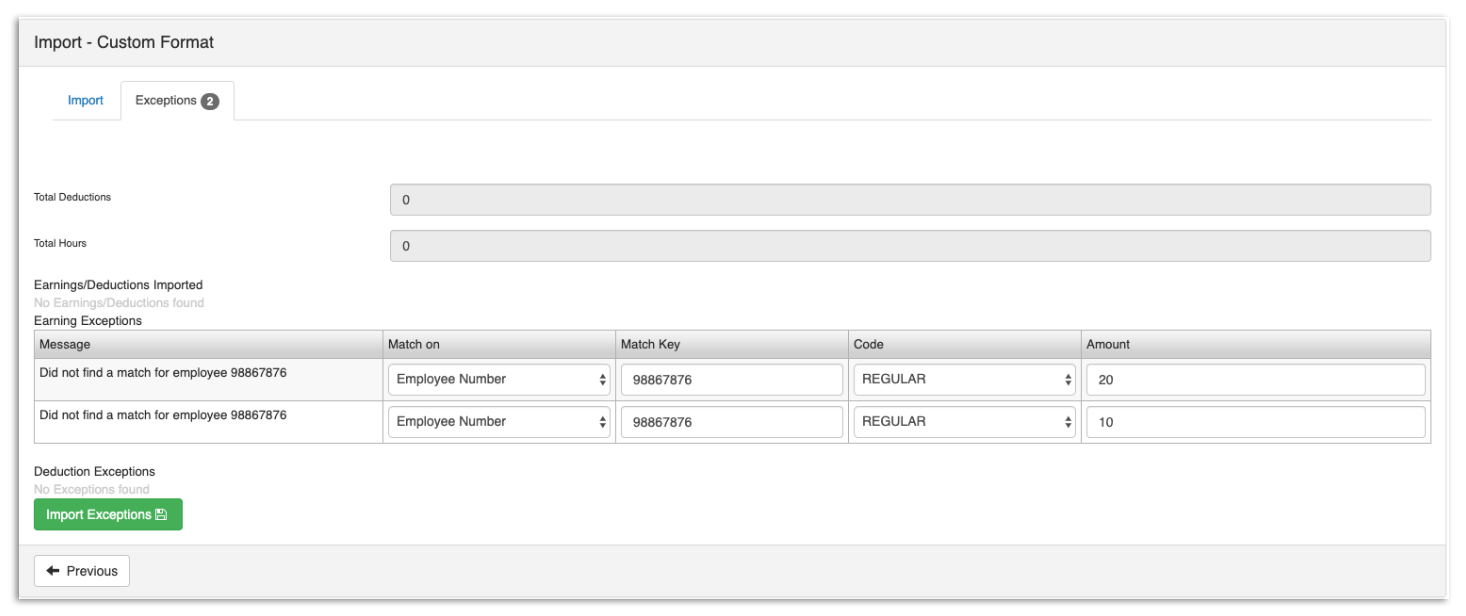
The columns to pay the most attention to are Match on and Match Key.
- Match on notes the type of information you're looking for.
- Match Key notes what was in the import file, but the system was unable to find it in the database.
In the screenshot above, there was an employee with an employee number of 98867876 on the file, but the system could not match that number on the spreadsheet. The Match Key can be updated to the correct information directly on this page. By selecting Import Exceptions, it will attempt to push all exceptions through again with updated Match Key information.
Payroll: Custom Import FAQ
I imported a file successfully, but why didn't earnings pull to the spreadsheet (and I had no exceptions)?
If no exceptions were recognized, but hours/amounts were not added to the spreadsheet, this most likely means there was an issue with the file itself. There should be no dollar signs $ or other symbols in the columns being imported. When selecting the header of each column, each column should have the General format.
If I import a second file, will it override the first import?
No. Import files will add the earnings to the spreadsheet regardless of what is already on the spreadsheet. If an import needs to be redone, payroll will need to be reset first.
Note: If payroll resets, the import audit trail will still show the original import, but the earnings will no longer be on the spreadsheet.
Can I include the check date as a column in my custom import?
At this time, Toast Payroll doesn't offer direct support for importing hours for multiple pay periods. To ensure accurate payroll processing, please make sure all hours on your import file are for the specific pay period you are currently running.
If you need to include historical hours in the file for your record-keeping, you can add them in an additional column on the far right of your import file. Our system will only process the hours within the standard columns for the current payroll.
Can I Include the rate of pay as a column in my custom import?
Can I include terminated employees on a custom payroll import?
Payroll imports match employees from the import file to employees on the Employee Earnings step. If a terminated employee should be paid via an import, they might need to be manually added to the Employee Earnings step before the import can be processed successfully (+Add > Add employee). This will ensure the terminated employee receives all needed pay. Once added, select Advanced actions > Add Custom Import to continue.
On a custom payroll import, what is the difference between "job" and "job-exportID"?
When setting up a custom import file, you have the option to map a column to either "Job" or "Job-ExportID." In the majority of cases, you will map to a Job.
-
-
- Job: This is the job level itself. Select Job if the column represents the name of job levels the earnings should be matched to.
- Job - exportID: This represents the exportID of the job level. For Toast Web customers, this field represents the GUID of the job code in Toast Web. This column is often only used for non-Toast Web clients when using the exportID of levels specifically to map based on reports from their Toast account.
-
Troubleshooting FAQ
I am unable to send tips from Toast Web to Payroll.
If you are encountering difficulties in transmitting your tips from the Point of Sale (POS) system to payroll via the Tips Management tool, and are unable to contact payroll for assistance in resolving the communication error between the two systems, you have the option to utilize Tips Management to generate a CSV spreadsheet for data import.
Begin by opening the Tips Manager (in Toast Web, navigate to Reports > Labor > Tip management) and selecting the relevant pay period. You can download this information by using the arrow located in the top right corner. After downloading the file, you may copy and paste the data into your preferred CSV format. It is essential to include the Employee ID and Total Tips after Pooling columns, as these two fields contain the necessary information for uploading into Toast Payroll. Including First Name and Last Name columns is optional but not mandatory. Use this spreadsheet as your import.
Note: Be advised that if you are using a placeholder account, such as AM Bartender, PM Bartender, AM Server, PM Server, etc., you should omit their line items when transferring data to your CSV spreadsheet.
I am getting an error message when trying to import multiple dates for employee tips.
When attempting to import employee tips across multiple dates, it has been observed that the template import functionality has limitations on the number of rows it can process at once. Excessively long spreadsheets can result in unreadability by the system.
To optimize the import process, it is recommended to segment the date range into smaller, manageable increments. Instead of uploading two weeks, consider dividing the data into one-week intervals. If the system still cannot process this duration effectively, further decompose the data into a daily format, depending on the total number of employees included in the CSV spreadsheet.
I am attempting to upload multiple tip rows and it won't import both tip types.
When attempting to upload a custom import that manages multiple tip columns, the system may encounter issues during the import process, leading to only one column of tips being successfully imported while excluding additional columns. This issue can be mitigated by segmenting the tip data into separate spreadsheets, such as using distinct spreadsheets for Tips Paid, Tips Owed, Event Tips, etc.
I am getting exceptions during the import process.
It is likely that there was an error during data entry into the spreadsheet. Check the spreadsheet and verify that all employee numbers are valid for each individual receiving earnings and/or deductions and that there are numerical entries in all earning and deduction columns.
I added, edited, or moved the column headers (in row 1) on the spreadsheet and now I get an import error.
When headers are altered, Toast Payroll has trouble finding the information it needs to successfully complete an import. You may either return the headers to the way they were when the template was first uploaded or redo the template portion of this process.
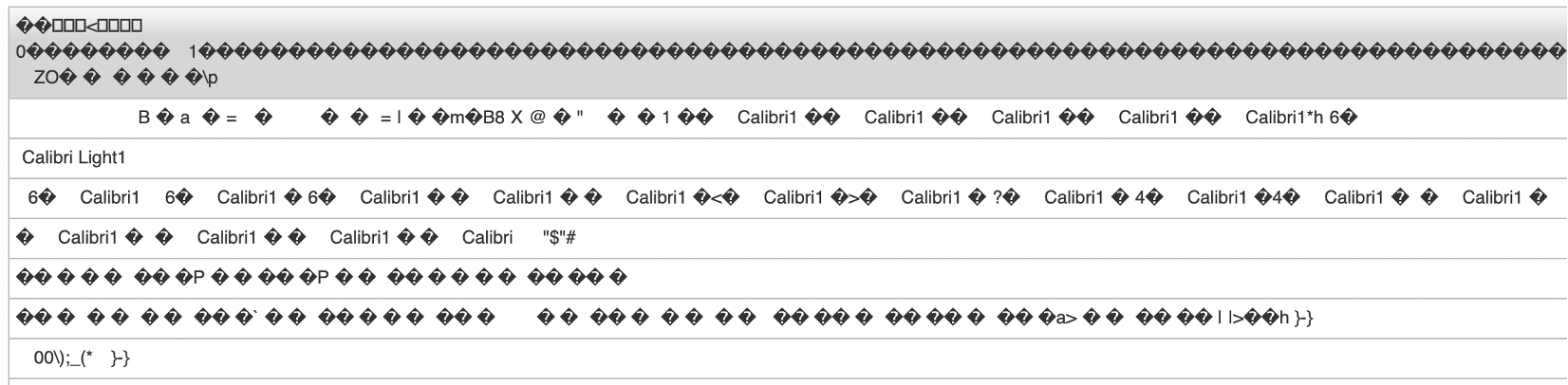
When I upload a custom import file and select Preview, I get something like this:
-
-
- With Excel, select File > Save As and select the CSV format before saving
- Using Google Sheets, select File > Download > Comma Separated Values
-
When I enter data into my template, the 0 at the beginning of the employee number is being deleted, causing import errors.
In their default mode, spreadsheet programs may remove "leading zeros" from employee numbers. Follow these instructions to keep the leading zeros on the spreadsheet:
-
- Microsoft Excel: Select the
icon in the top-left corner of your spreadsheet (above row 1 and to the left of column A) to highlight the entire spreadsheet. Then right-click the icon and select Format Cells. Select Text from the list and choose OK.
- Google Sheets: Select the
icon in the top-left corner of your spreadsheet (above row 1 and to the left of column A) to highlight the entire spreadsheet. Then select Format > Number > Plain Text.
- Microsoft Excel: Select the
Are there other options besides using custom imports?
Importing tips into Toast Payroll is one way to bring the tip amount from POS into employee wages in Toast Payroll. Toast Tips Manager can eliminate this step in payroll by seamlessly integrating your tip pooling into Toast POS and Payroll.
Common Questions/Scenarios
Match Key is Blank
The file had a blank row where the system expected information. Review the import file to determine if this was intentional or what the correct Match Key should be.
File Is Not Matching an Employee Number, but the Number Does Exist in Our System
When importing information, it will only be able to match employees who are already on the Employee Earnings step. You'll need to manually add the employee before beginning with the custom import.
The Information in the Match Key Section Doesn’t Make Sense Based on the “Match On”
For example, Match on is Earning Code, but Match Key seems to be listing last names. The system does not read headers on the import file but looks to specific rows for specific information based on how the file was set up.
If the Match Key does not seem to match, this means that there is information in improper columns on your import file. You can either correct this individually on the exceptions step or re-set payroll and correct the actual import file.
This content is for informational purposes and is not intended as legal, tax, HR, or any other professional advice. Please contact an attorney or other professional for advice.