Customize the Appearance of KDS Tickets
Last updated: Sep 30, 2026, 5:20 PM
- Customize item and modifier colors on KDS tickets
- Change border color for dining options on KDS tickets
- Adjust the size of KDS tickets and text
- Emphasize the table or check number on KDS tickets
- Consolidate modifiers on KDS tickets
- Hide items on a KDS by prep station
- Set a KDS as an expediter
- Related Articles
Customize item and modifier colors on KDS tickets
To help kitchen staff read orders, you can set a background color for an item or modifier. The item appears highlighted in that color on the KDS, which helps call out sizes, ingredient types, special requests, allergies, and more.
- In Toast Web, go to Menus > Bulk management > Advanced properties.
- Use the arrow (>) icons to the right of the empty checkboxes to expand your menu down to the item or modifier you want to color. If you are editing a modifier, keep expanding until you see the white row for that individual modifier. Select the name of the item or modifier to open its setup page.
- In the Basic section, select the KDS Color setting and choose a color from the color selector.
- Save and publish your changes.
The item or modifier now appears highlighted in your chosen color on the KDS.
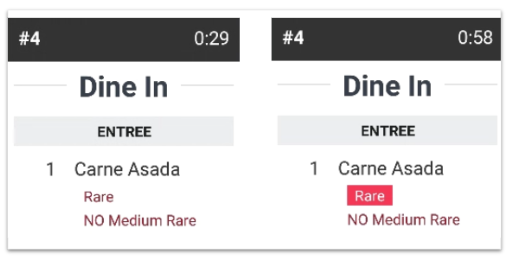
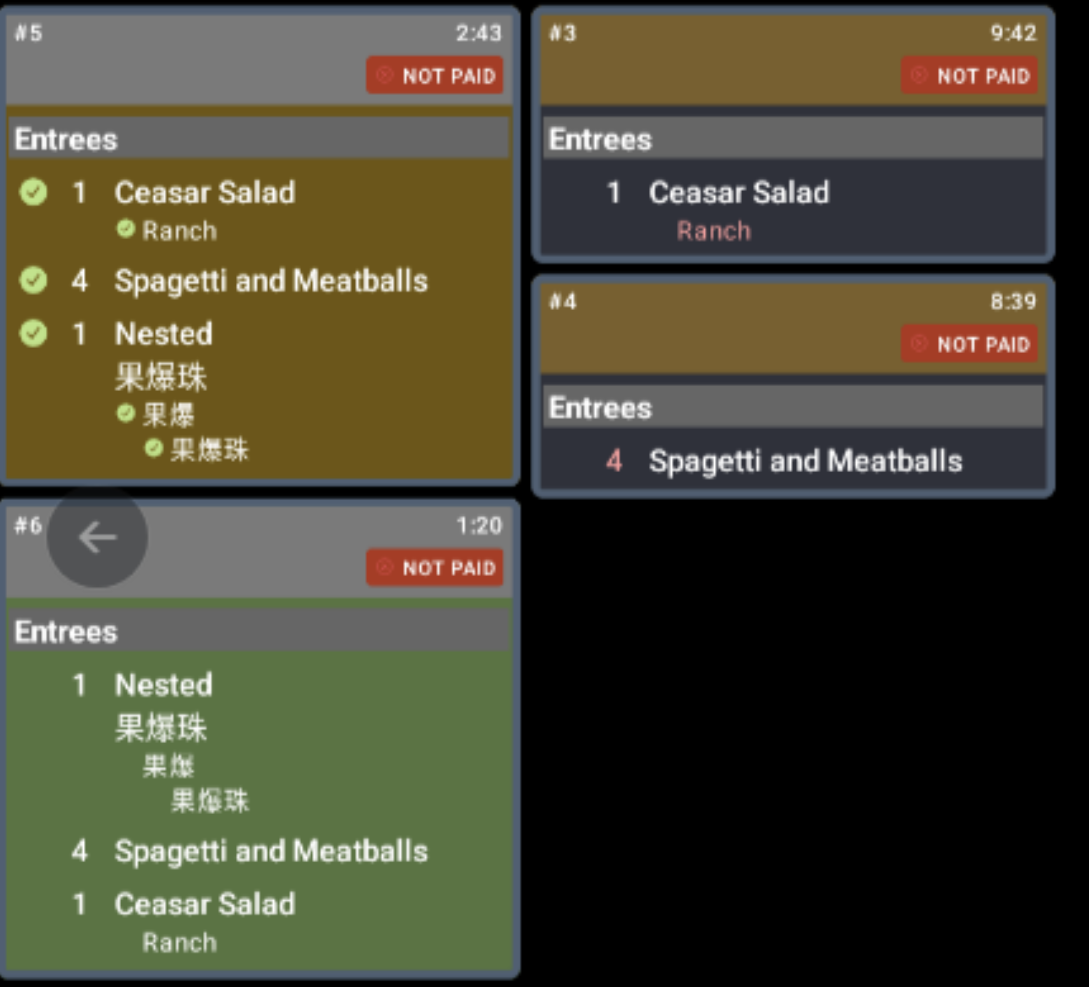
Note: Modifiers and tickets without a configured background color display with red text. When a background color is configured for a modifier, or when the ticket has a background color (for example, green for fulfilled), the modifier text displays in black for readability.
Change border color for dining options on KDS tickets
You can add a colored ticket border to help staff tell on-premise and off-premise orders apart at a glance.
- In Toast Web, go to Kitchen > Printers, tickets, & KDS devices > Kitchen and ticket setup.
- Scroll down to the Ticket Screens section and find Ticket colors by dining behavior.
- Choose a border for either type of dining behavior: Dine in for on-premise tickets and Take out, delivery, curbside for off-premise tickets. To learn how dining behaviors are set, see Dining Options.
- When you enable a dining behavior, also select a color. The preview updates instantly to show the enabled colors.
- Save and publish. Check the new look on your KDS, and print one-pager color guides for your staff in English or Spanish so everyone understands what each color means.
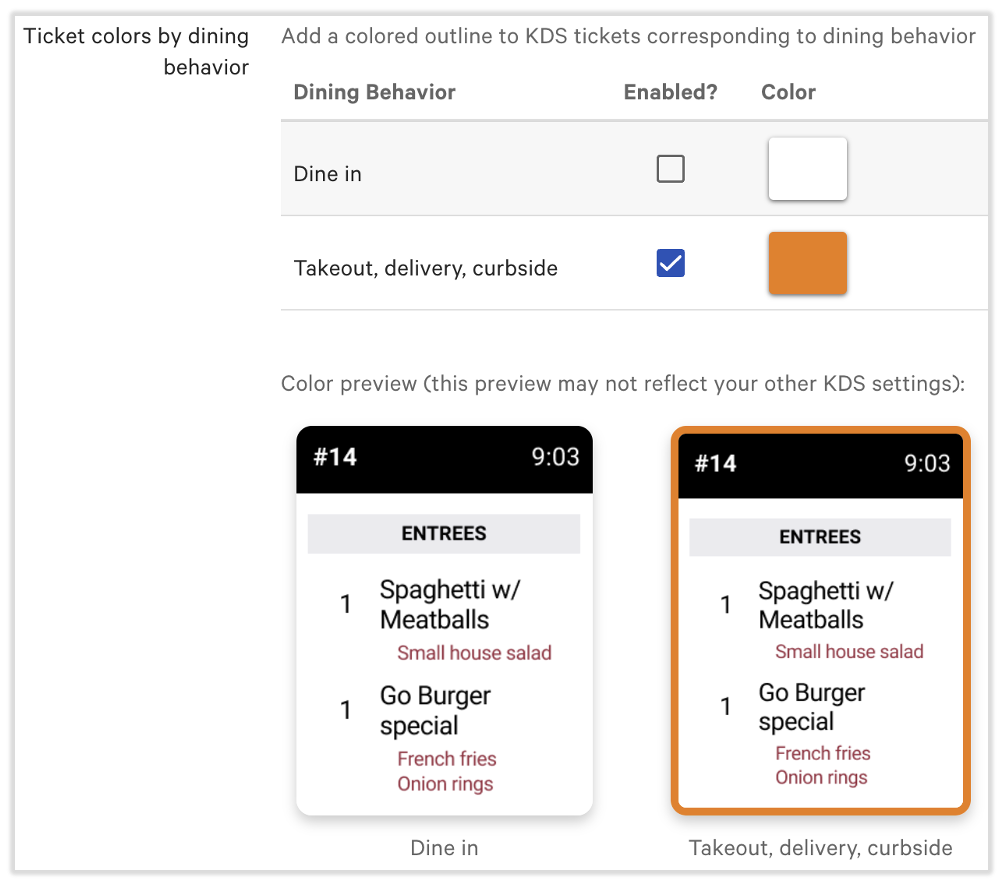
Note: Ticket border colors are based on dining behavior (on-premise versus off-premise), not on individual dining options. A custom dining option follows the color of the dining behavior it is assigned to.
Adjust the size of KDS tickets and text
How you change size depends on which KDS view your device uses.
On the Grid View, you can set the text size:
- While in KDS Mode, select the three dots in the top right.
- Select KDS Appearance.
- Under Text Size, select Small, Medium, Large, or Extra Large.
On the Legacy View, you can set the text size:
- While in KDS Mode, select the three dots in the top right.
- Select Text size.
- Select Small, Medium, Large, or Enormous.
Medium is the default. Small can be an appropriate size for screens that show a lot of orders. Large and Enormous suit 22-inch screens, expos, or screens that sit farther from the user.
See New KDS Experience Overview for more information.
Emphasize the table or check number on KDS tickets
You can make either the table number or the check number more prominent in the ticket heading.
- In Toast Web, go to Kitchen > Printers, tickets, & KDS devices > Kitchen.
- Scroll down to the Kitchen Screens section and find the KDS Ticket Headers setting. Select Check number or Table number to choose which appears in large, bold font in the top-left corner of the ticket header. A live preview appears below the setting.
- Save and publish your changes.
Quick-service restaurants often prefer to highlight the check number, while full-service restaurants often prefer the table number so staff don't confuse a check number for a table number.
Note: This setting applies only to KDS tickets and does not affect printed kitchen tickets.
Consolidate modifiers on KDS tickets
You can group identical modifiers listed under the same item so they display together on the ticket. To set this up, see the Consolidate Modifiers section of Configure Modifier Display Options.
Hide items on a KDS by prep station
You can control which prep stations appear on a KDS so a device only shows the items it needs. The steps differ depending on whether the KDS is a standard device or an expediter.
On a Non-Expediter KDS
- On your device, select the three dots in the upper-right corner of your KDS screen and select Device Setup.
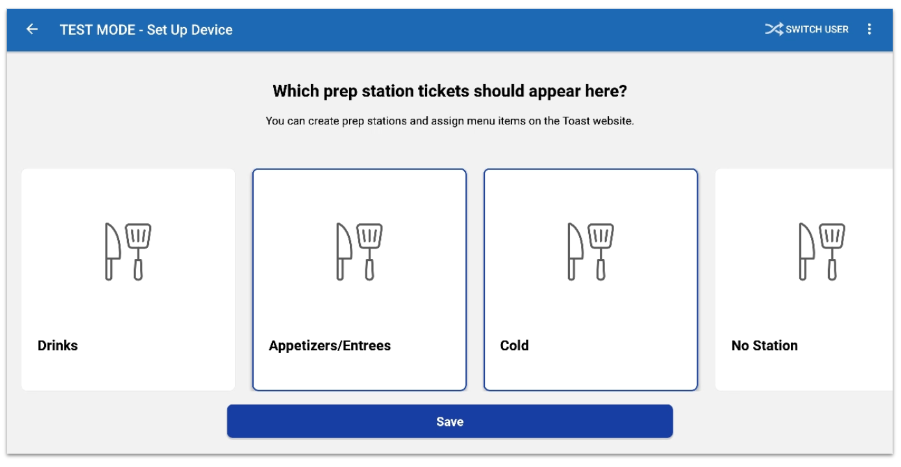
- Select the Prep Stations setting under the Kitchen Setup section.
- Select the prep stations you want to appear on this KDS device, and leave the ones you want hidden deselected. You may need to scroll sideways to see all available prep stations.
- Select Save.
- Select the back arrow to return to your KDS screen.
On an Expediter KDS
- In Toast Web, go to Kitchen > Kitchen stations > Prep stations.
- In the Send to Expediter column, add a checkmark to the prep stations you want sent to the expediter screen, and leave the ones you want hidden unchecked. If no prep stations are checked, all prep stations send to the expediter screen.
- Save and publish your changes. Your expediter screen updates automatically to reflect published changes.
Set a KDS as an expediter
When a KDS device is set as an expediter, you may want to coordinate other expediter settings as well. To learn more, see Get Started With Kitchen Configuration.
- On your device, select the three dots in the upper-right corner of your KDS screen and select Device Setup.
- Select the Kitchen Expediter setting under the Kitchen Setup section.
- Select Expediter.
- Select Save.
Your KDS device is now set up as a kitchen expediter.
Related Articles
- New KDS Overview
- Get Started With Kitchen Configuration
- Configure Modifier Display Options
- Add Details to Kitchen Tickets
- Kitchen Display System FAQ
- Why do I have multiple tickets for the same order on my KDS?
- Configure Custom Dining Options