Get Started With the DeliverZero Integration
Last updated: Apr 28, 2026, 4:22 PM
Learn how to set up the DeliverZero integration with Toast.
| This integration requires access to Toast Partner Integrations. To learn more, see Set Up Toast Partner Integrations. |
- DeliverZero Integration Overview
- Enable DeliverZero Integration With Toast
- Toast Web Menu and Settings
- DeliverZero Integration: Troubleshooting and Support
DeliverZero Integration Overview
DeliverZero provides a reusable takeout container and packaging integration for Toast customers utilizing Toast online ordering and/or another online ordering & delivery service (not just on-premises/in-person ordering) and those who wish to offer their guests a sustainable packaging solution for those orders.
Leveraging read-only data from Toast’s menus and orders, DeliverZero allows customers to provide guests with a sustainable container option during online ordering checkout, saving customers money in packaging expenses, while attracting eco-conscious customers.
Enable DeliverZero Integration With Toast
- To enable the DeliverZero integration with Toast, log into Toast Web and navigate to Integrations > Integrations management > Browse & purchase integrations.
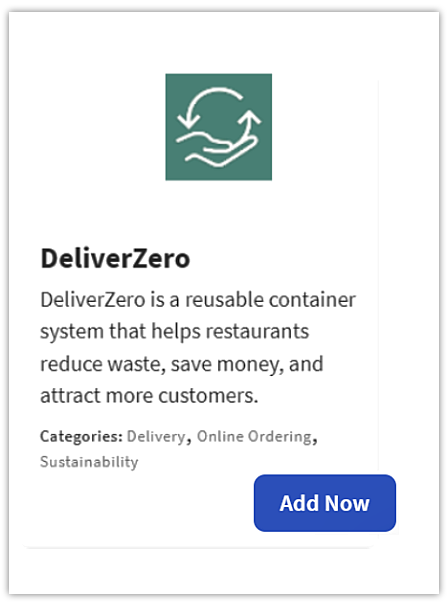
- Enter DeliverZero in the Search field and select Add Now.
- Review the data scope visibility terms and conditions, and select Confirm to accept. For more information, see the Data Scope Visibility article. If you have multiple locations, select from the drop-down menu.
- Note: Your restaurant must have access to Toast Partner Integrations to add this integration. To learn more about Toast Partner Integrations, see this Support Center article: Set Up Toast Partner Integrations.
- Once completed, a representative from DeliverZero will contact you within one business day to assist you with the onboarding process. The onboarding process may take between three to four weeks, depending on your customization needs.
Configure DeliverZero in Toast Web
- Once you select Add Now on the DeliverZero tile in Toast Web, you will select which restaurant(s) you would like to connect to your DeliverZero account, and select Apply
- After you select Apply, you will be forwarded to a confirmation screen.
- After adding the integration tile in Toast Web, DeliverZero’s Support/Onboarding team will reach out directly to the customer within 24 hours.
- Toast also recommends that you to reach out to the vendor/partner after adding a tile to confirm the receipt of your integration request.
Toast Web Menu and Settings
You will need to add a DeliverZero menu item to your online ordering menus, along with modifying a few other settings in your Toast configuration. The DeliverZero team will work directly with you for all of these setup items during the onboarding process.
DeliverZero Integration: Troubleshooting and Support
For any questions or support issues relating to the DeliverZero integration, you can send an email to:
- General Support: restaurants@deliverzero.com
- Contact Number: (929) 333-3854 from 9:00 to 7:00 p.m. EST, seven days a week.